
Meet Analytify MCP, your GA4 analyst in AI chat
Ask your GA4 and Search Console data in plain English. Right inside the AI you already use.
Connect Google Analytics 4 and Search Console to Claude, ChatGPT, Codex, Cursor or Grok. Ask anything in plain English and get answers from your own data in about 5 minutes, with no Google Cloud project to set up.
Works in
Claude
ChatGPT
No plugin to install
Billed yearly
Overview
What Is Analytify GA4 MCP?
Analytify MCP (Analytify GA4 MCP) is a hosted MCP server that lets Claude, ChatGPT and other AI assistants read your Google Analytics 4 and Search Console data and answer questions about it in plain English. MCP, short for Model Context Protocol, is an open standard that lets AI assistants read real systems.
Google also publishes the Google Analytics MCP Server, a free, open-source and experimental server that you install yourself with a Google Cloud project. Analytify MCP is hosted, so you only paste a URL and sign in with Google.
- An open standard, so there is no custom integration to build
- Your data is read from GA4 only when you ask. Recent answers are kept briefly on Analytify’s server so repeat questions are faster.
- Answers you can trust. Every answer comes with its metric and date range
- Fully custom reports. Mix any metric, dimension, or custom GA4 definition, over any date range, sorted exactly how you want (Pro and Agency)
Works in the AI Apps You Already Use
Tested with Claude (web, desktop and Claude Code), ChatGPT, Codex, Cursor, and Grok. Any client that supports remote MCP servers uses the same URL and the same Google sign-in. Grok needs a paid plan to use custom tools.





Desktop assistants · Browser chat apps · IDE agents · Terminal clients
About 5 min From paste-the-URL to first answer
GA4 native Queries your own GA4 property
Analytify MCP vs the Google Analytics MCP Server
The Google Analytics MCP Server is Google’s own free, open-source GA4 server. You install and run it yourself. Analytify MCP is hosted for you, so setup takes one URL and a Google sign-in.
| Feature | Analytify MCP | Google Analytics MCP Server (by Google) |
|---|---|---|
| Where it runs | Hosted at core.analytify.io | On your own computer, or a server you set up and host |
| Setup | Paste one URL and sign in with Google | Install Python, create a Google Cloud project, turn on the GA4 APIs and set up credentials |
| Browser chat apps (claude.ai, chatgpt.com) | Yes | Only if you host it on your own server |
| Data sources | GA4 and Search Console | GA4 |
| Bot traffic checks | Flags bot rows on its own | Not included |
| Updates | Handled by Analytify | You update it yourself |
| Price | From $4 a month, billed yearly | Free and open source |
Use cases
What You Can Do With Analytify MCP
Analytify MCP lets you catch bad traffic, build monthly reports, audit content, check campaigns, get quick answers, check a live sale and see your AI search traffic, just by asking in plain English. Don’t just see your GA4 data: understand it and spot what’s wrong.
Use case 1
Catch Bad Traffic
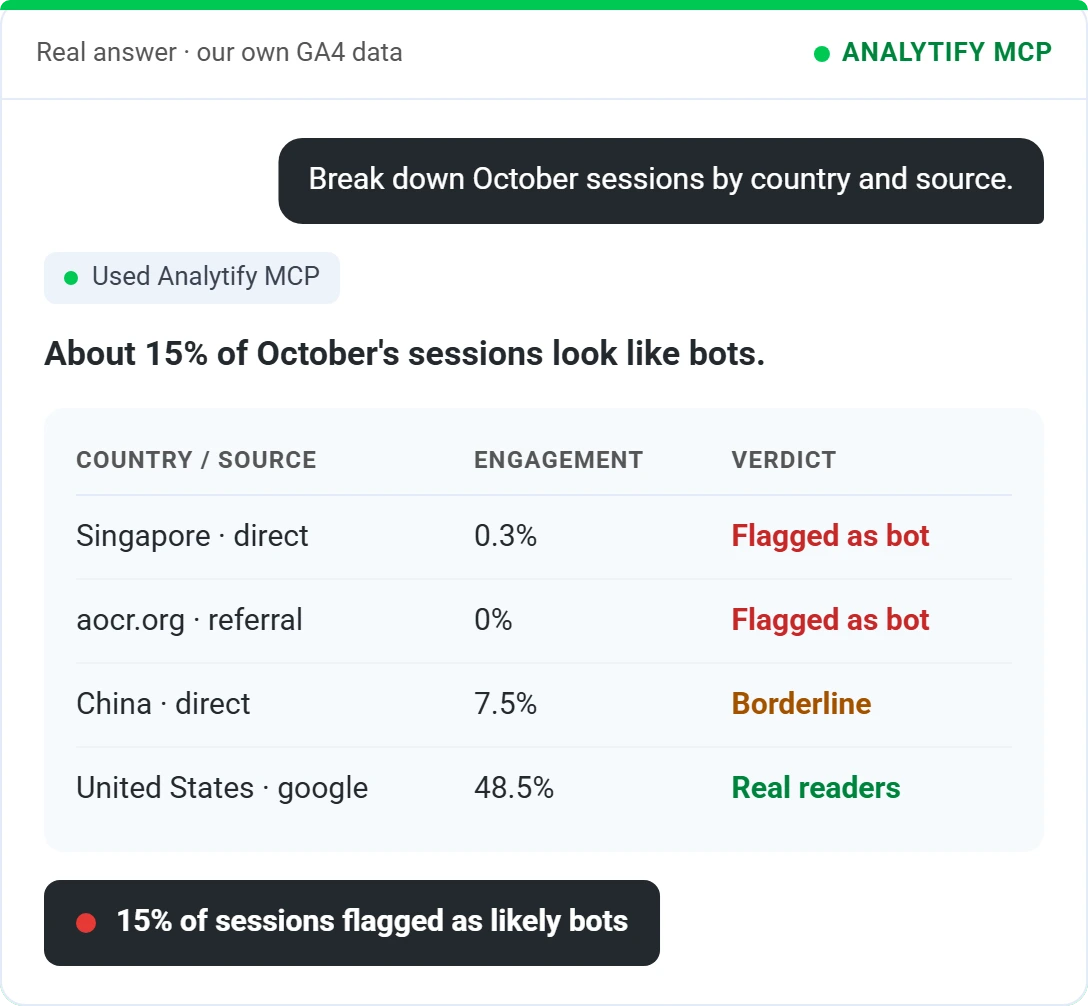
Bots, spam referrals and fake spikes quietly inflate your numbers. Most GA4 users never notice them.
Ask this
Break down last month’s sessions by country and traffic source, with engagement rate and session time.
We only asked for a breakdown. Analytify MCP checked for bots anyway.
Paste it into Claude, ChatGPT, Cursor or any MCP app
What you get
- Bot rows flagged on their own, each with a reason
- Real readers kept, even from sources that look like spam
- A clean-traffic option that removes bots from any report
Best for
Agencies
Site owners running ads
Content teams
Use case 2
Monthly Reports in Minutes
Pulling numbers from GA4 into a client or team report takes 30 to 60 minutes per site.
Ask this
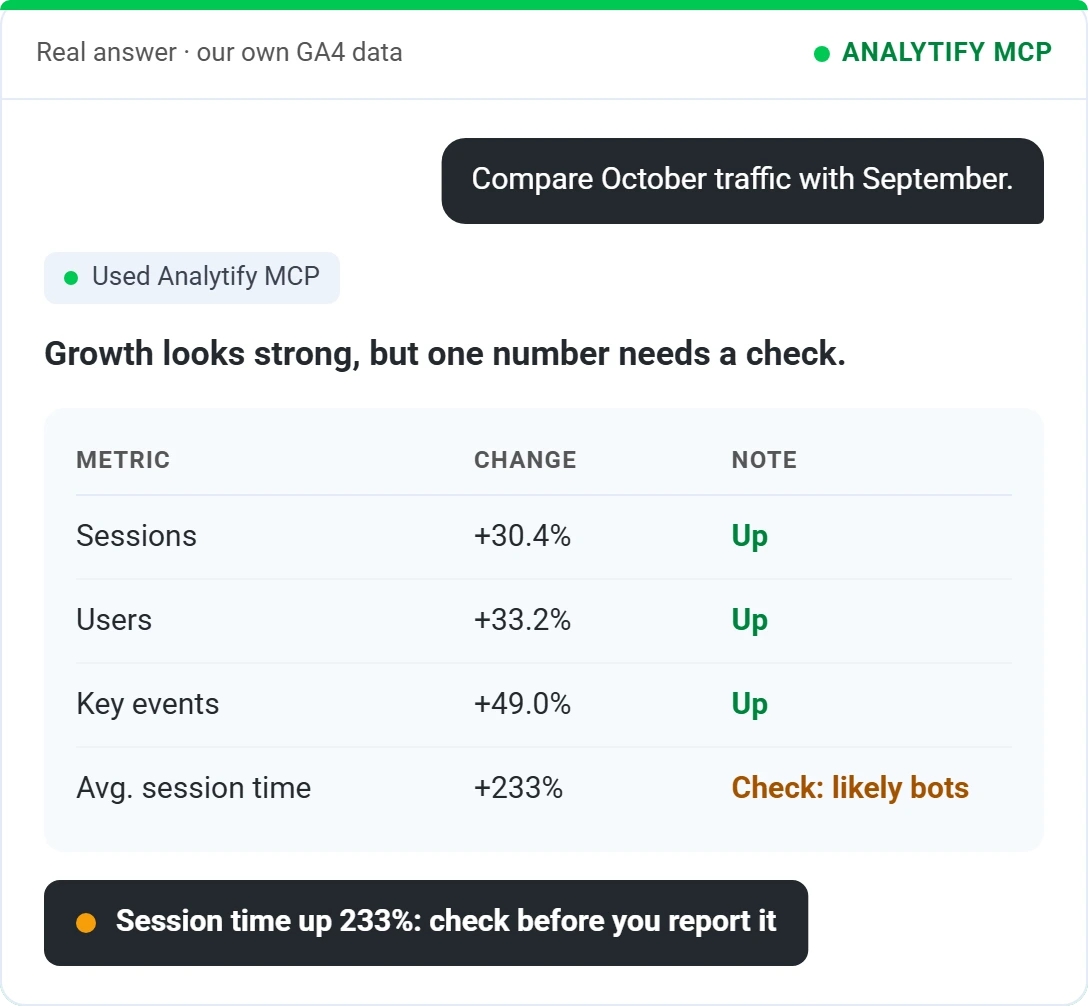
Compare my site’s traffic for last month with the month before. Give me the main numbers and what changed.
Paste it into Claude, ChatGPT, Cursor or any MCP app
What you get
- The main numbers with every change worked out
- Odd numbers flagged before you share them
- A follow-up in the same chat: "turn this into a client email"
Best for
Agencies and freelancers
Site owners and founders
Marketing teams
Use case 3
Content Audits
Finding which posts to refresh usually means exports, spreadsheets and guesswork.
Ask this
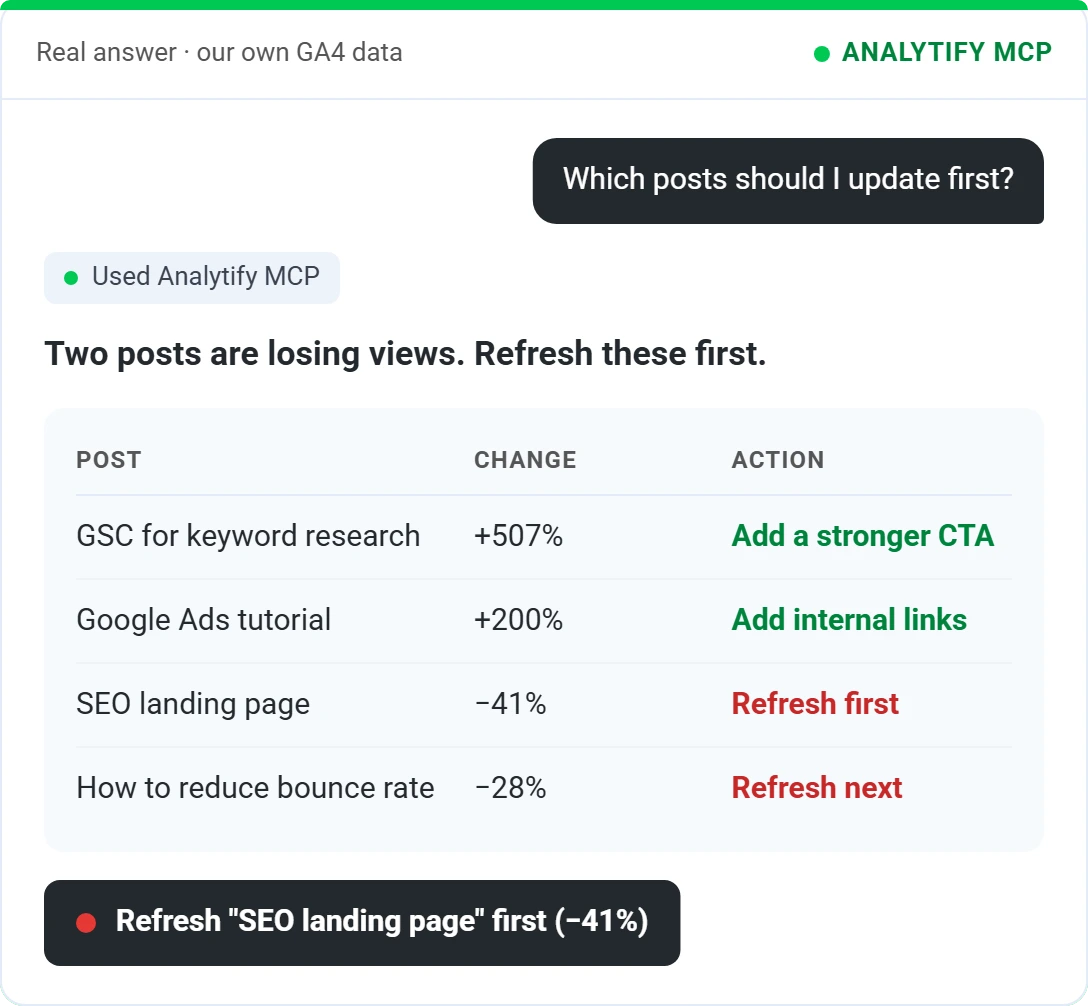
Which blog posts gained and lost the most views last month vs the month before? Leave out bot traffic. What should I update first?
Paste it into Claude, ChatGPT, Cursor or any MCP app
What you get
- Posts ranked by gain and loss, with bot traffic removed
- A short "refresh first" list
- Suspicious spikes called out before you celebrate them
Best for
Bloggers and content teams
SEO freelancers
Store owners
Use case 4
Campaign Check-Ins
Checking whether ads, email and social bring people who act usually takes three tools and a spreadsheet.
Ask this
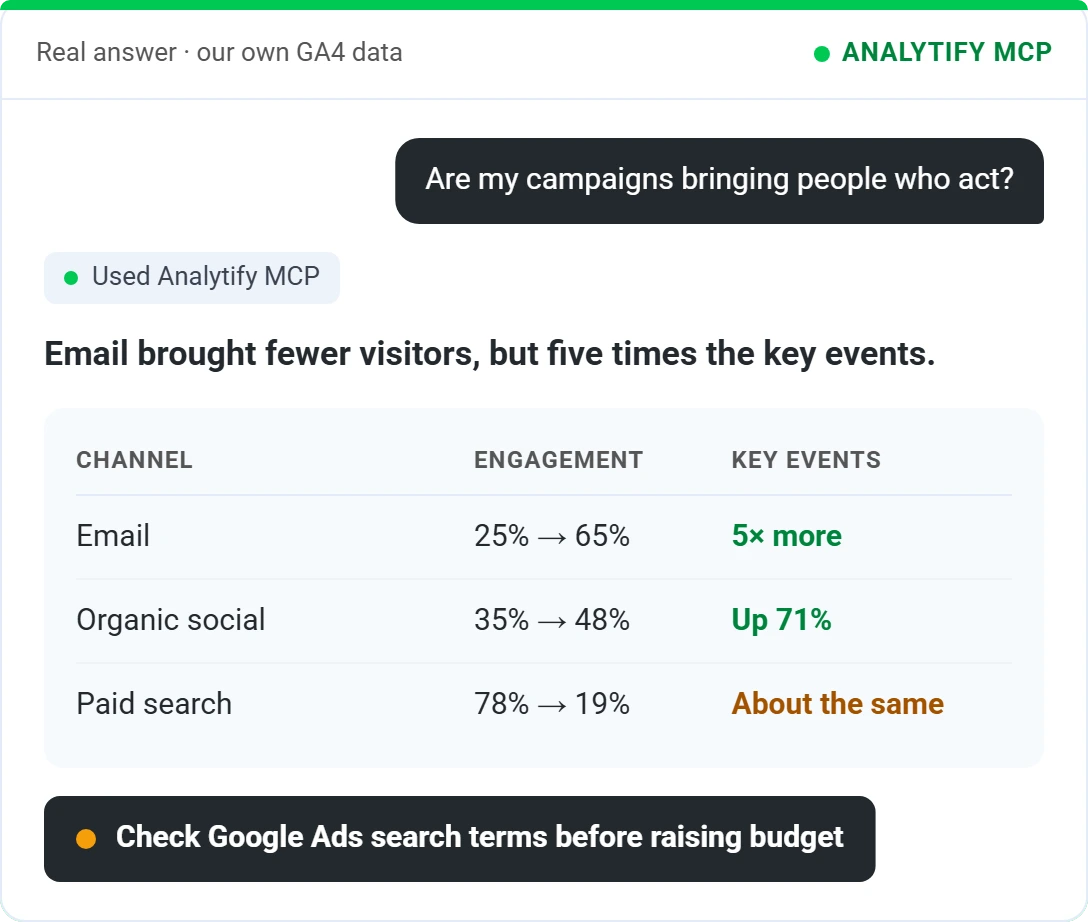
How did my marketing channels do last month vs the month before? I care about Google Ads, email and social. Are they bringing people who actually do something?
Paste it into Claude, ChatGPT, Cursor or any MCP app
What you get
- Channels compared on quality, not just clicks
- Key events per channel, with bot rows removed
- What to check before spending more
Best for
Marketing managers and founders running ads
Agencies
Email and social marketers
Use case 5
Quick Answers for People Who Don’t Live in GA4
Founders, writers and clients want to know how things went, without learning GA4.
Ask this
I’m not an analytics person. How did my site do in the last 7 days? Just tell me if things are going well.
Paste it into Claude, ChatGPT, Cursor or any MCP app
What you get
- A straight answer in plain words
- The comparison period picked for you
- Anything misleading called out
Best for
Founders and small business owners
Writers and editors
Agency clients

Use case 6
Check Your Sale While It’s Live
During a sale, you need to know what is going wrong right now. Daily GA4 reports update hours later, after the sale is over.
Ask this
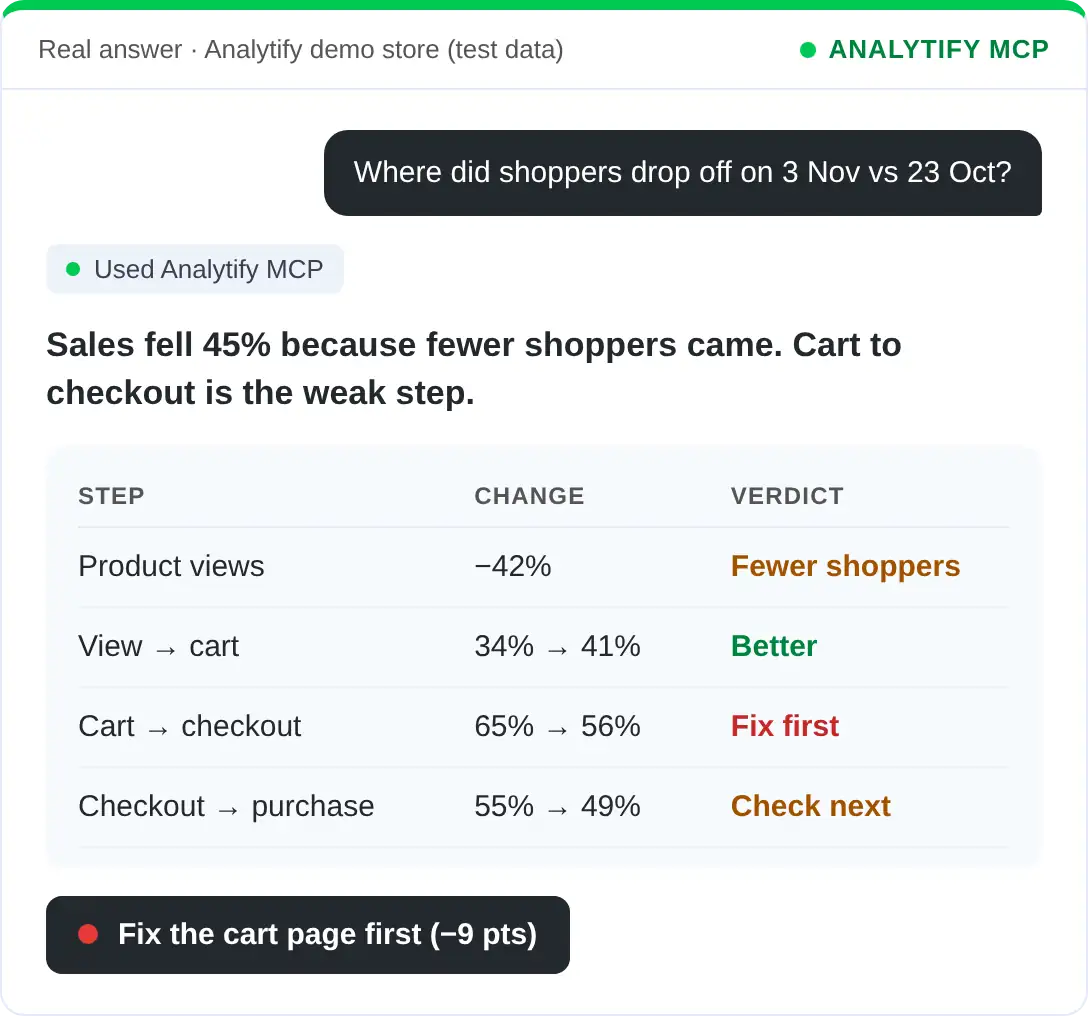
Compare my store’s sales today with my last sale day. Where did shoppers drop off?
Live check: ask "How many people are on my site right now, and which pages are they on?"
Paste it into Claude, ChatGPT, Cursor or any MCP app
What you get
- Live visitor count and the pages they are on
- Broken pages flagged while visitors are still on them
- A sale-day comparison that shows where shoppers dropped off
Best for
Store owners
Agencies running client sales
Marketers launching campaigns
Use case 7
See Your Traffic From AI Search
GA4 shows only part of your AI search traffic: its AI Assistant channel is new, leaves out some AI apps, and counts Google’s AI Overviews as normal Google visits.
Ask this
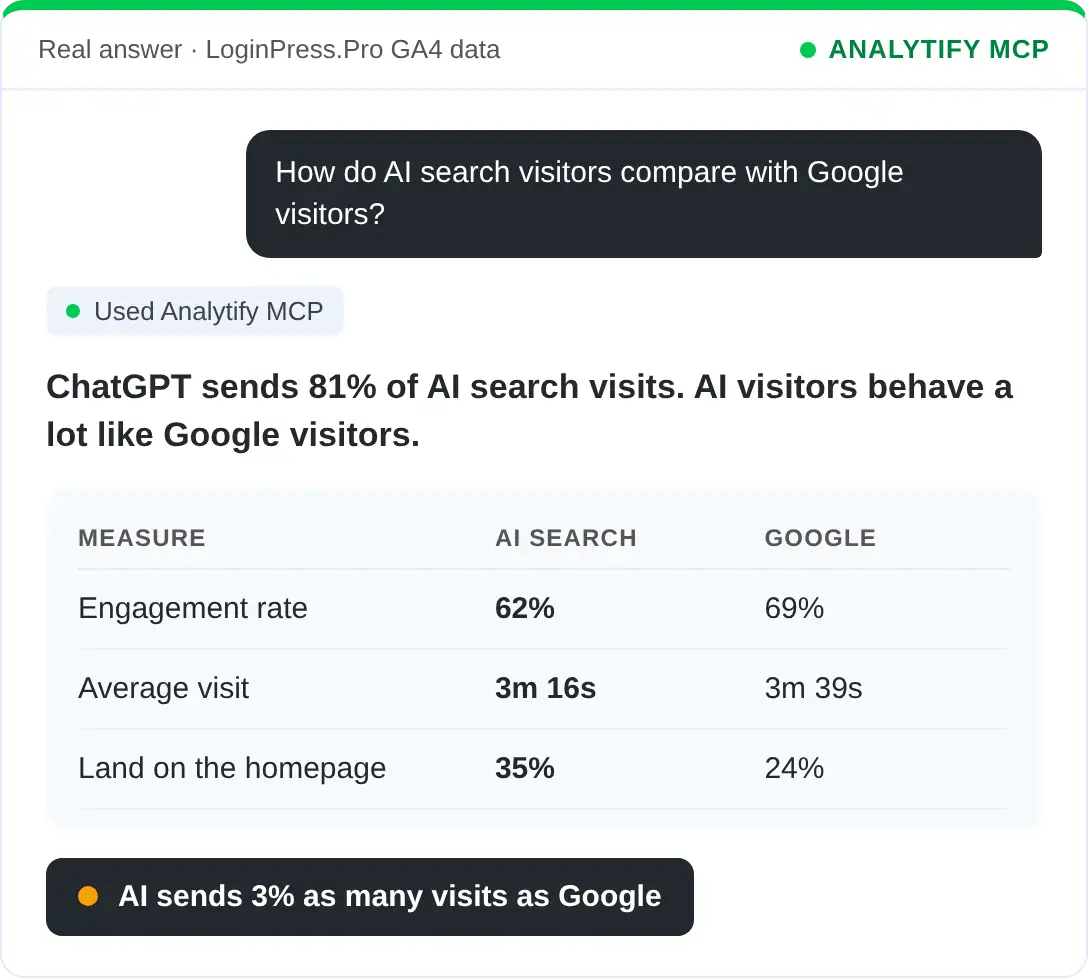
How many visits came from ChatGPT, Perplexity, Gemini and Claude in the last 12 months, and which pages did they land on? How do those visitors compare with Google visitors?
Paste it into Claude, ChatGPT, Cursor or any MCP app
What you get
- AI search visits split by assistant
- The pages AI search sends people to
- AI visitors compared with Google, and the monthly trend
Best for
Content and SEO teams
Site owners curious about AI search
Agencies reporting on AI visibility
What Analytify MCP’s AI-Powered Analytics Covers
Analytify MCP answers six kinds of GA4 questions, from client reports to custom analysis, in the AI assistant you already use. Each card shows a real question and the features that answer it.
Reports
“Draft a monthly client report for acme.com with the three biggest changes.”
Dashboard summaries
Period comparison
Content and SEO
“Which posts lost organic traffic this quarter, and which search queries dropped?”
Post and page analytics
Search Console queries
Revenue
“Which products sold best last month, and from which campaigns?”
Ecommerce funnel
WooCommerce, EDD, campaigns
Conversions and Behavior
“Which traffic source converts best on my pricing page?”
Key events, clicks, video
Demographics, site search
Site Health and Live
“How many people are on my site right now, and is anything broken?”
Real-time visitors
404 and JavaScript error events
Custom Analysis
“Show conversion rate by landing page and device for the last 90 days.”
Any metric and dimension
Custom dimensions
Analytify MCP vs Other Ways to Get GA4 Answers
Analytify MCP is the fastest way to get a GA4 answer you can trust: you ask in plain English and get checked numbers in your AI chat. The other ways work, but each one costs time, skills or money.
| Approach | How it works | Where it falls short |
|---|---|---|
| GA4 dashboard | Open GA4, find the right report and set the filters yourself | Needs GA4 skills, and bots and odd spikes stay hidden in the totals |
| Spreadsheet exports | Export reports and work out the changes by hand | Takes 30 to 60 minutes per site, every month |
| Report builder dashboards | Connect GA4 to a dashboard tool and design the charts | Shows charts, not answers, and someone has to build and fix them |
| Analyst or agency | Ask a person to pull and explain the numbers | Costs the most, and each answer can take days |
| Self-hosted GA4 MCP server | Install a free server with Python and a Google Cloud project | Needs technical setup and upkeep, and reads GA4 only |
| Analytify MCP | Paste one URL, sign in with Google and ask in Claude, ChatGPT or any MCP app | Needs an AI app that supports remote MCP servers |
Analytify Google Analytics MCP Pricing
Analytify MCP has three plans, from $4 a month billed yearly. Starter covers one website, Pro covers unlimited websites with every tool, and Agency adds up to 5 team seats. Every plan works on its own, with no Analytify plugin or WordPress site needed.
- Starter: about 50 questions a month for 1 website
- Pro: about 1,000 questions a month, unlimited websites and every tool, including the ecommerce funnel
- Agency: unlimited questions under a fair-use policy and up to 5 team seats
- Read-only access to your GA4 and Search Console data
- Works without WordPress or the Analytify plugin
- Upgrade or cancel anytime from your account
Analytify MCP Pro, Monthly
$19/month
Billed monthly. Switch to yearly to save 57%
Secure, encrypted checkout
- Read-only access to your data
- Google sign-in, your password is never shared
Analytify MCP Pro, Yearly
$99/year
$8.25 a month, save 57% vs monthly
Compare Starter, Pro and Agency →
Secure, encrypted checkout
- Read-only access to your data
- Google sign-in, your password is never shared

Safe by Default
Read-only
Analytify MCP is read-only and cannot edit, publish, or delete anything in your Google Analytics or Search Console account. Every guardrail is on before your first question.
You approve every tool
Your AI app decides when Analytify tools run. In its settings, you can allow each tool, have it ask you first, or block it.
Your data, your control
- Google sign-in with read-only access to the GA4 properties and Search Console sites you can already see
- Nothing can be edited, published or deleted
- Disconnect anytime
Connect Analytify GA4 MCP in About 5 Minutes
Paste one URL, sign in with Google, and activate your license key. Nothing to install.
Connect
Add the Analytify MCP server URL in your AI client’s connector settings.
1 min
Sign In and Activate
Sign in with Google, then enter the license key from your purchase email.
3 min
Ask
Ask your first question in plain English. Answers come back with the date range.
1 min
Open Your Client’s Settings
This works in any AI app that supports custom MCP connectors. Open your app’s settings. You can usually find them in your account menu in the sidebar.
Find the Connectors Panel
Look for Connectors, MCP servers or Integrations in settings. This is where every MCP server your client uses lives.
Add and Name the Connector
Choose to add a custom or remote MCP server, name it Analytify MCP, paste the server URL below, leave Advanced settings empty, and click Add.
https://core.analytify.io/mcp
Complete the OAuth Prompt
Click Connect, choose the Google account that owns your Analytics property, and approve the read access Analytify asks for. Then enter your Analytify MCP license key and click Activate License. The key is in your purchase email and your Analytify account.
Confirm the Tools Loaded
Your client confirms the connection and lists every Analytify tool, so you can allow, ask-each-time or block them individually. Start asking questions.
Add Analytify to Your Config File
Analytify is a remote MCP server, so all a client needs is the URL. Drop this into your client’s MCP config and restart it.
{
    "mcpServers": {
    "analytify": {
        "type": "http",
        "url": "https://core.analytify.io/mcp"
        }
    }
}
Authorize With Google
On first use the client opens a browser window to sign in with Google and approve read access to your Analytics property. Then enter your Analytify MCP license key and click Activate License.
Ask Your First Question
Try “what were my top pages last week?” The client calls Analytify, Analytify reads your GA4 property, and the answer comes back with its date range.
Add the Server From Your Terminal
One command registers the hosted endpoint with your client. Use the line for your client: Claude Code or Codex.
# Claude Code
claude mcp add --transport http analytify https://core.analytify.io/mcp

# Codex
codex mcp add analytify --url https://core.analytify.io/mcp
Complete the OAuth Prompt
Follow the Google sign-in that opens in your browser. If it does not open, run /mcp in Claude Code, or codex mcp login analytify in Codex. Then enter your Analytify MCP license key and click Activate License.
Confirm the Tools Loaded
Analytify’s tools should now list as connected. Ask away.
Want screenshots for every step? Follow the full guide for Claude, ChatGPT, Cursor, Claude Code or Codex.
What You Need Before You Start
- A Google Analytics 4 property, the only data source you need
- The Google account that has access to that property
- No Analytify plugin or WordPress site required
- Any MCP client that supports remote servers over HTTPS
- Nothing to install. The server is hosted at core.analytify.io
- An Analytify MCP license key, sent in your purchase email
What Each Plan Includes
Pro and Agency unlock the complete Analytify MCP tool set. Starter covers core reports for one website. No plan needs a setup call.
- Every tool on Pro and Agency, including the ecommerce funnel and custom reports
- About 50 questions a month on Starter, about 1,000 on Pro and unlimited on Agency
- Up to 5 team seats on Agency
- Cancel anytime from your account
Which AI Apps and Plans Work With Analytify MCP?
Analytify MCP works in any AI app that supports remote MCP servers. Some apps need a paid plan to add custom connectors.
| AI app | Plan needed | Setup guide |
|---|---|---|
| Claude (web and desktop) | Any plan, including Free (one custom connector) | Connect Google Analytics to Claude |
| ChatGPT | Free: the desktop app. Pro, Business, Enterprise or Edu: chatgpt.com or the desktop app | Connect GA4 to ChatGPT |
| Claude Code | Any Claude Code plan | Connect Google Analytics to Claude Code |
| Codex (app, CLI and IDE extension) | A ChatGPT plan that includes Codex | Connect Google Analytics to Codex |
| Cursor | A version with MCP support | Connect Google Analytics to Cursor |
| Grok | A paid Grok plan | Guided Setup steps above |
| Any other MCP app | Support for remote MCP servers over HTTPS | Guided Setup steps above |
Frequently Asked Questions (FAQs)
What Exactly Is an MCP Server?
An MCP server is a service that exposes your data as tools an AI client can call. Analytify hosts one at core.analytify.io/mcp. You add the URL to your client, sign in with Google, and your assistant can read your Google Analytics data.
What Data Can Analytify MCP Access?
Analytify MCP has read-only access to your Google Analytics 4 and Google Search Console data, through your Google sign-in. It cannot publish, edit or delete anything, and your AI app lets you allow, ask first or block each Analytify tool.
Why Doesn’t Analytify MCP Show My Revenue Data?
Revenue questions need ecommerce data in your GA4 property. If your store doesn’t send purchase events to GA4, there is no revenue for Analytify MCP to report. Any store platform works once it sends these events, including Shopify, BigCommerce, WooCommerce and Easy Digital Downloads.
Is Analytify MCP Free?
No. Analytify MCP has three paid plans: Starter from $4 a month, Pro from $8.25 a month and Agency from $20.75 a month, billed yearly. Analytify plugin customers get a free 15-day MCP trial with 10 questions. You can upgrade or cancel anytime from your Analytify account. Compare all plans.
Why Is Analytify MCP a Separate Subscription?
Analytify MCP is a hosted service: it runs on Analytify’s servers and pulls live Google Analytics and Search Console data for every question you ask. That’s why it works on any website, with or without WordPress or the Analytify plugin. MCP tools that run inside a WordPress plugin usually manage that plugin’s own settings and content on your site. Your Analytify plugin license still includes everything it always did, and plugin customers can try Analytify MCP free for 15 days.
What Is the Google Analytics MCP Server, and How Is Analytify MCP Different?
The Google Analytics MCP Server is Google’s free, open-source and experimental MCP server for GA4. You install it yourself with Python, a Google Cloud project, API setup and credentials, and it runs on your computer unless you host it on a server. It reads GA4 only. Analytify MCP is hosted for you: paste one URL, sign in with Google, and it reads GA4 and Search Console in browser chat apps like claude.ai and chatgpt.com.
Why Are Analytify Tools Not Showing in My AI Client?
Analytify tools appear only after the Google sign-in completes. Open your AI client’s connector settings, check that Analytify shows as connected, and turn it on for the current chat. If it still does not appear, remove the connector and add https://core.analytify.io/mcp again. Each Analytify MCP setup guide shows the fix for its AI assistant.
Can Analytify MCP Switch Between GA4 Properties?
Yes, on Pro and Agency. One Analytify MCP connection covers every GA4 property your Google account can access. Starter covers 1 GA4 property and 1 Search Console site. With one property, Analytify MCP picks it automatically. With several, name the property in your chat or set a default. Each question runs on one property at a time. If you’ve set a default, name the website in your question to use a different one.
How Many Questions Can I Ask Analytify MCP?
It depends on your plan. Starter includes about 50 questions a month, Pro about 1,000, and Agency is unlimited under a fair-use policy. Your questions reset every month and count across every AI client you connect.
Where Do I Find My Analytify MCP License Key?
Your Analytify MCP license key is in your purchase email and in your Analytify account. Enter it on the activation screen after the Google sign-in, then click Activate License.

