
How to Connect Google Analytics 4 to Codex With Analytify MCP
You can connect Google Analytics to Codex with Analytify MCP in about 5 minutes: add one server, sign in with Google, and activate your license key. Codex then answers questions about your GA4 and Search Console data in plain English. The Codex CLI, IDE extension and desktop app share ~/.codex/config.toml, so you only set it up once.
What You Need
- A Google Analytics 4 property, and the Google account that has access to it
- Node.js installed (to install Codex with npm) and a ChatGPT account to sign in to Codex
- An Analytify MCP license key, sent in your purchase email and shown in your Analytify account. No key yet? Get Analytify MCP
How to Connect Google Analytics to Codex
Connect Google Analytics 4 to Codex with Analytify MCP in 6 steps. You need Node.js, a ChatGPT account, a Google account with GA4 access, and an Analytify MCP license key.
Total Time: 5 minutes
Step 1: Install Codex

Run npm i -g @openai/codex in your terminal, then run codex to start it.
Step 2: Sign in with ChatGPT
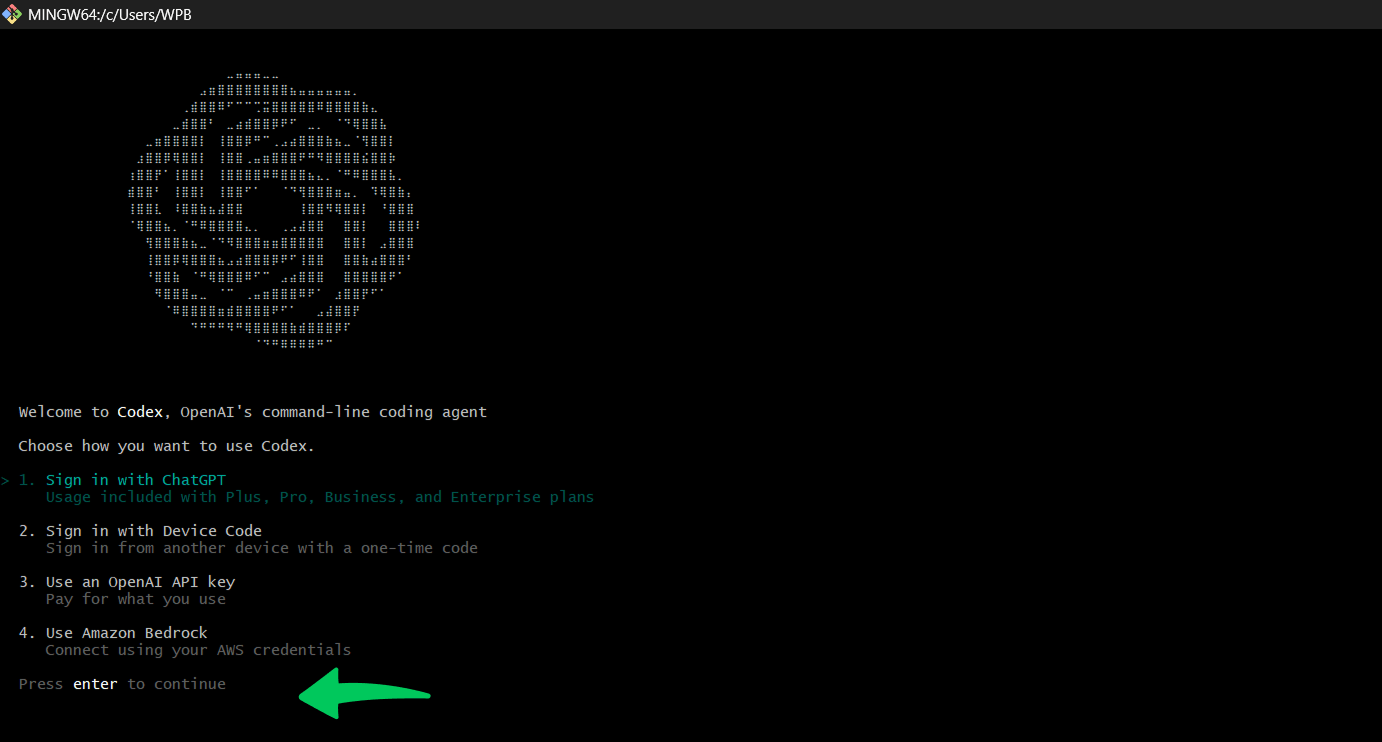
Choose Sign in with ChatGPT and press Enter. Finish the sign-in in your browser, then return to the terminal.
Step 3: Add the Analytify server
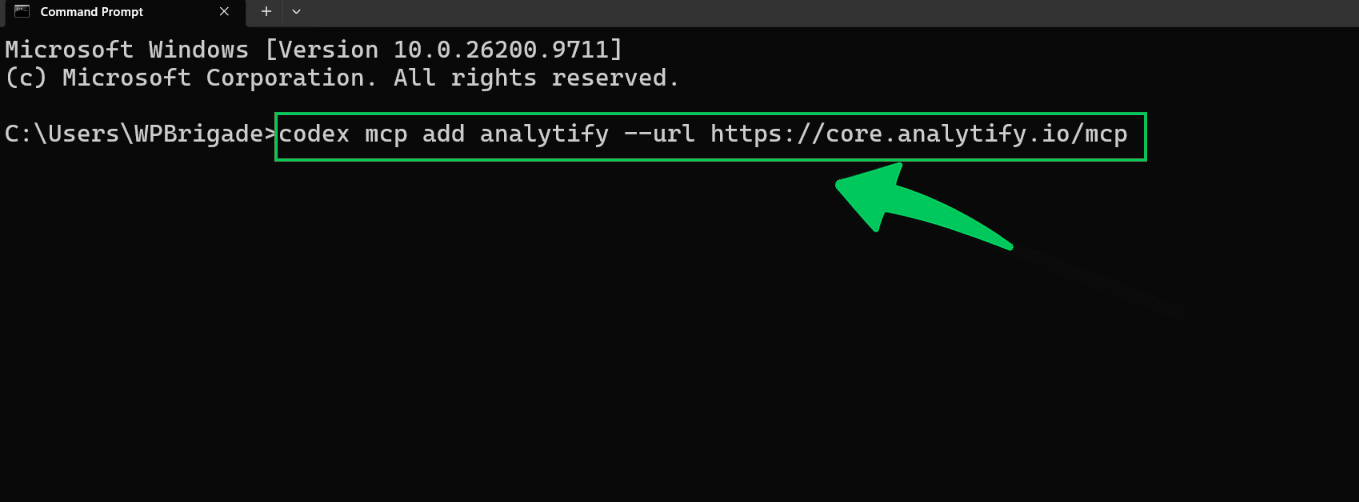
Run this command in your terminal: codex mcp add analytify --url https://core.analytify.io/mcp
Step 4: Sign in with Google
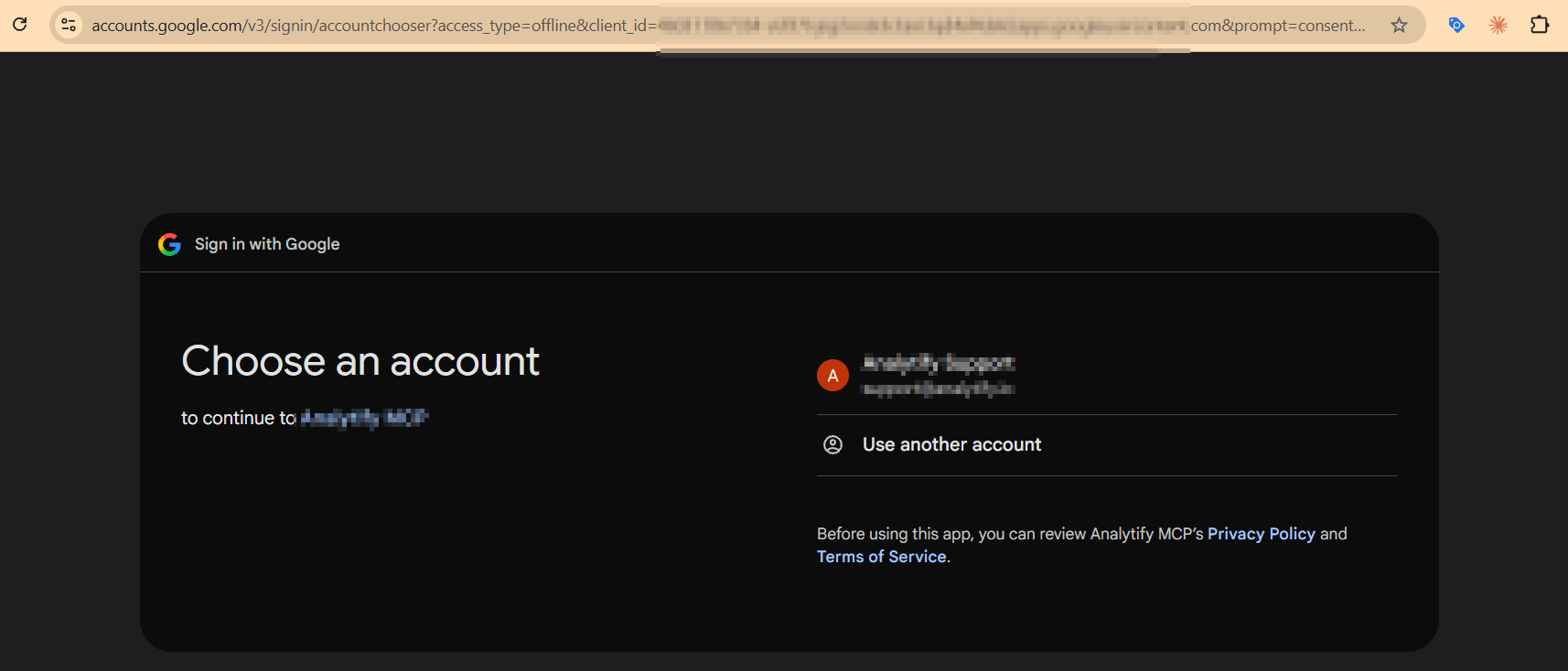
Codex opens your browser. Choose the Google account that has access to your GA4 property and allow the requested permissions. Keep the browser tab open for the next step. If the browser does not open, run codex mcp login analytify.
Step 5: Activate your license key
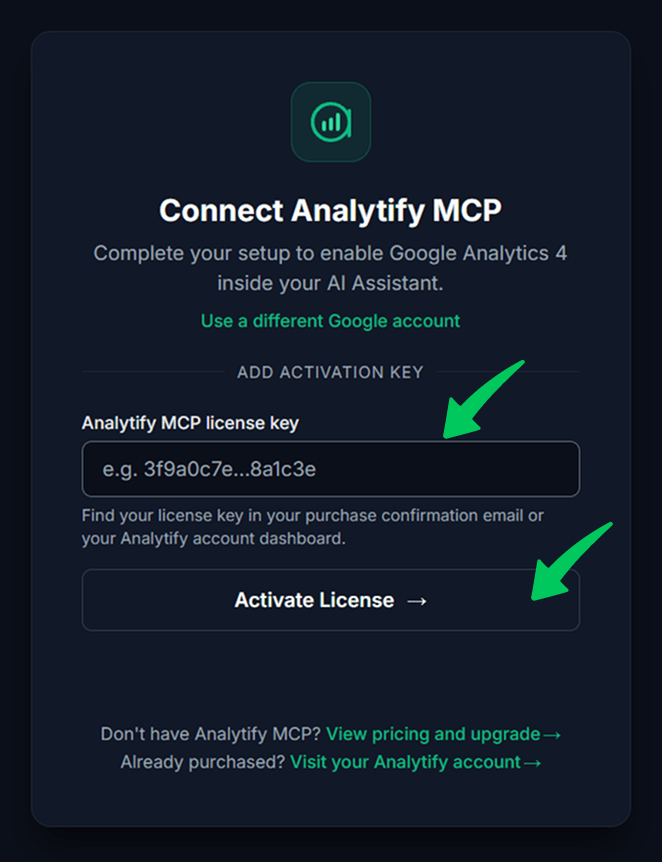
In the same browser tab, enter your Analytify MCP license key and click Activate License. The key is in your purchase email and in your Analytify account. Then return to the terminal, where Codex confirms the login succeeded.
Step 6: Check the connection
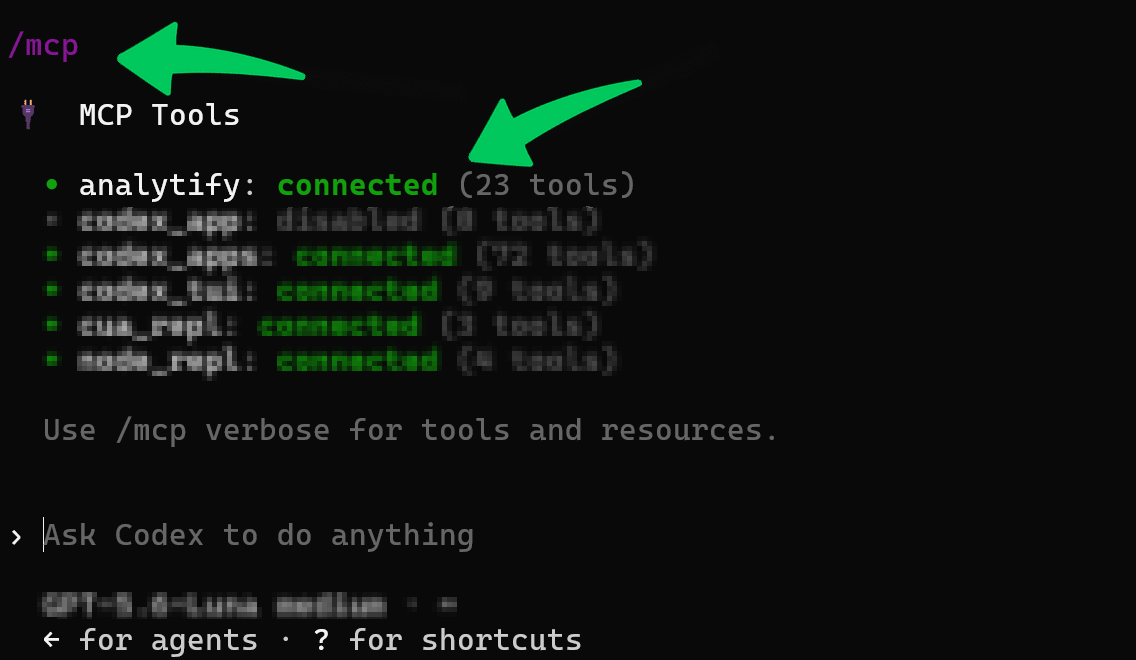
Run codex mcp list, or start Codex and type /mcp. Analytify should show as connected, with its tools listed.
Ask Your First Question
Ask a question about your own data in plain English, for example:
- What were my top 10 pages last week, and how do they compare to the week before?
- How many people are on my site right now?
Every answer names its metric and date range, so you can check exactly what it covers.
Disconnect Analytify MCP
To fully disconnect Analytify MCP, remove Analytify’s Google access first, then remove the server from Codex.
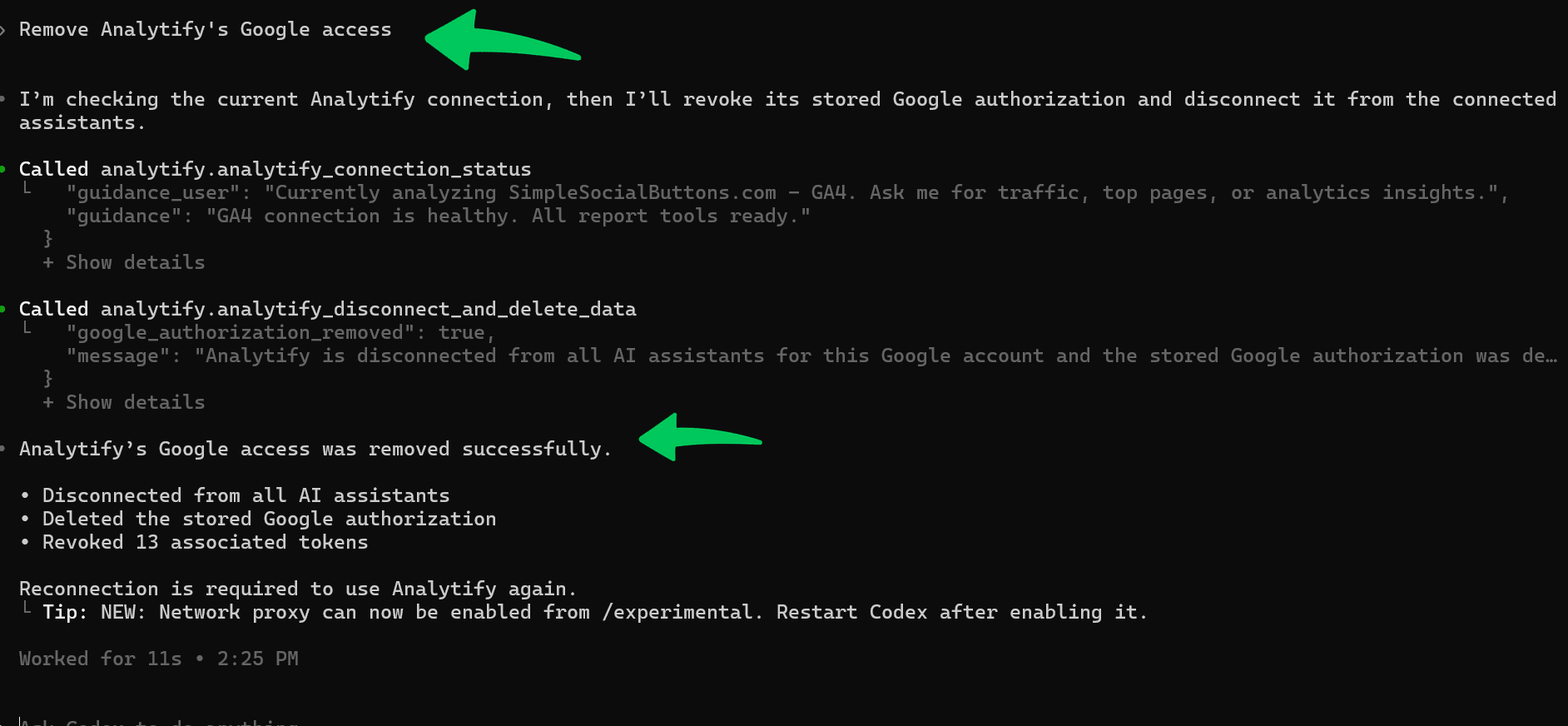
- Remove Analytify’s Google access. In Codex, ask:
Remove Analytify’s Google access. Codex uses the Remove Analytify’s Google access tool, disconnects Analytify from every AI assistant on your Google account, and deletes the Google authorization Analytify stores.
This cannot be undone. To use Analytify MCP again, reconnect and grant Google access again.
- Remove the server from Codex. Run
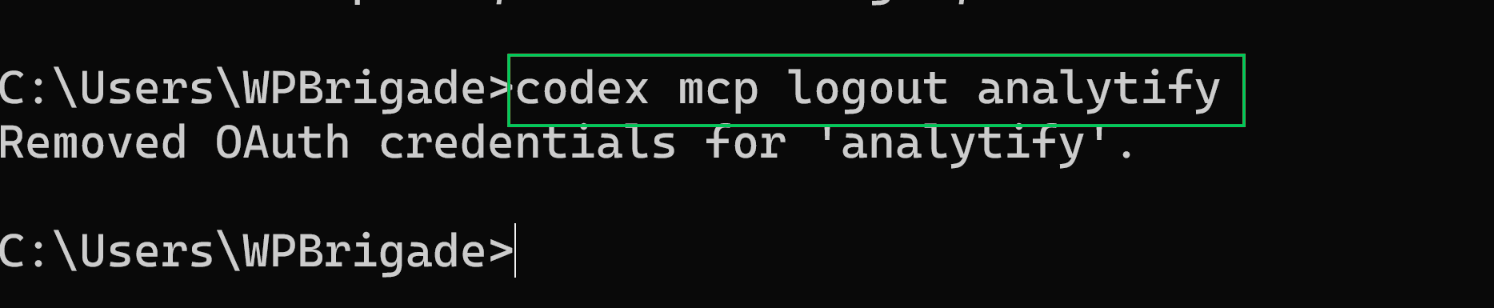
codex mcp remove analytifyin your terminal. This deletes the Analytify server and its settings from Codex. To sign out but keep the server added, runcodex mcp logout analytifyinstead.
FAQs
Why Are Analytify Tools Not Showing in Codex?
Run codex mcp list in your terminal. If Analytify is missing, run the add command again. If it is listed but not signed in, run codex mcp login analytify, complete the Google sign-in, then restart Codex and type /mcp.
Does Analytify MCP Work in the Codex App and IDE Extension?
Yes. The Codex CLI, IDE extension and desktop app all read ~/.codex/config.toml, so Analytify MCP added in one shows in the others. ChatGPT on the web uses its own setup, covered in the ChatGPT guide.
Can Codex Change My Google Analytics Data Through Analytify MCP?
No. Every Analytify MCP reporting tool is read-only, so Codex can read your GA4 and Search Console reports but cannot edit, publish, or delete anything. The one exception is the Remove Analytify’s Google access tool, which only removes Analytify’s own access when you ask it to.
How Do I Sign In to Analytify MCP Again in Codex?
Run codex mcp login analytify. Codex opens your browser for the Google sign-in. You need this after you remove Analytify’s Google access or want to switch to a different Google account.
More Analytify MCP Setup Guides
- Analytify MCP Setup Guides: every supported assistant in one place
- Connect Google Analytics 4 to Claude
- Connect GA4 to ChatGPT
- Connect Google Analytics 4 to Cursor
- Connect Google Analytics 4 to Claude Code
 Halloween Sale: Know which campaigns drive sales this season.
