
How to Track Easy Digital Downloads Stats
After successfully setting up the Easy Digital Downloads tracking inside your Google Analytics account, it’s time to access the Easy Digital Downloads stats inside your Google Analytics.
In this knowledge-based documentation, we’ll explain to you how to track your Easy Digital Downloads reports in your Google Analytics account and WordPress site.
Requirements:
- Install and activate the pro version of Analytify. Read How to Install And Activate Analytify Pro Plugin.
- Analytify connected with Google Analytics 4. Read How To Integrate Analytify With Google Analytics 4 (GA4) for a detailed guide.
- Install and activate the Easy Digital Downloads Tracking Add-on in the same way as you did for the Analytify PRO license. License activation is necessary to automatically receive updates on your plugins page, like other plugins/themes.
We assume you’ve successfully fulfilled all the requirements. Let’s start tracking Easy Digital Downloads Reports.
How to Track Your Easy Digital Downloads in Google Analytics 4
With the support of Analytify’s Enhanced Ecommerce Addon for Easy Digital Downloads, you can track your Ecommerce sales in Google Analytics 4 without any obstacles. You can track the relevant data in Realtime Report. You can track Ecommerce Purchases under the Monetization heading.
You can also explore the purchased journey funnel right in your GA4 account, under the Monetization section.
To see your Ecommerce sales data in Google Analytics 4, follow the steps below.
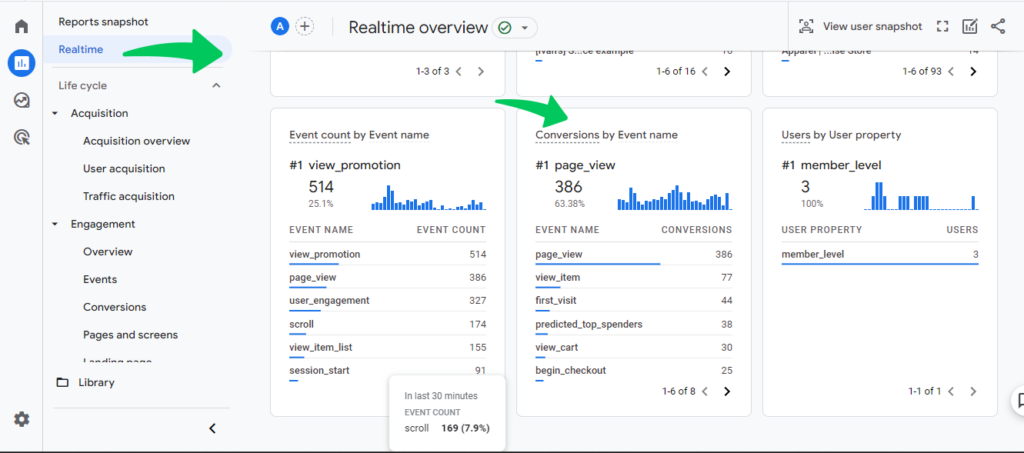
Step 1. Check the Realtime Report
This step will also verify if your Ecommerce setup is right. You can see events relevant to your Ecommerce sales here.
- Navigate to Reports >> Realtime in the menu on the left.
- Scroll down to Events.
- If Ecommerce events (view_item, add_to_cart) are happening on your site in real time, they will be shown here. It means your Ecommerce setup is right.
Step 2: Check Ecommerce Purchases Reports
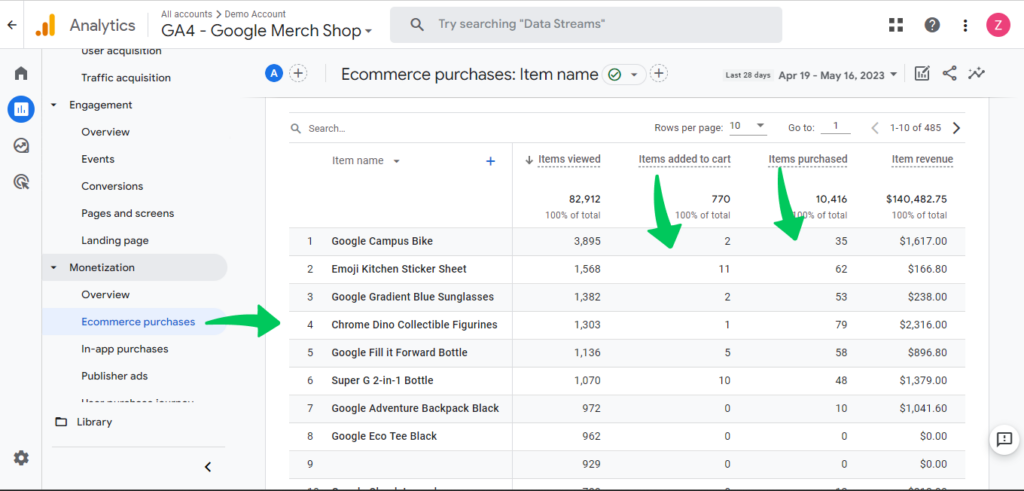
Once you’ve set up Ecommerce and approved it, you can look at Ecommerce reports.
To track Ecommerce purchases, navigate to Monetization>> Ecommerce purchases.
You can see Items viewed, Items purchased, Items revenue, and many more metrics.
Step 3: Analyze the User Purchase Journey
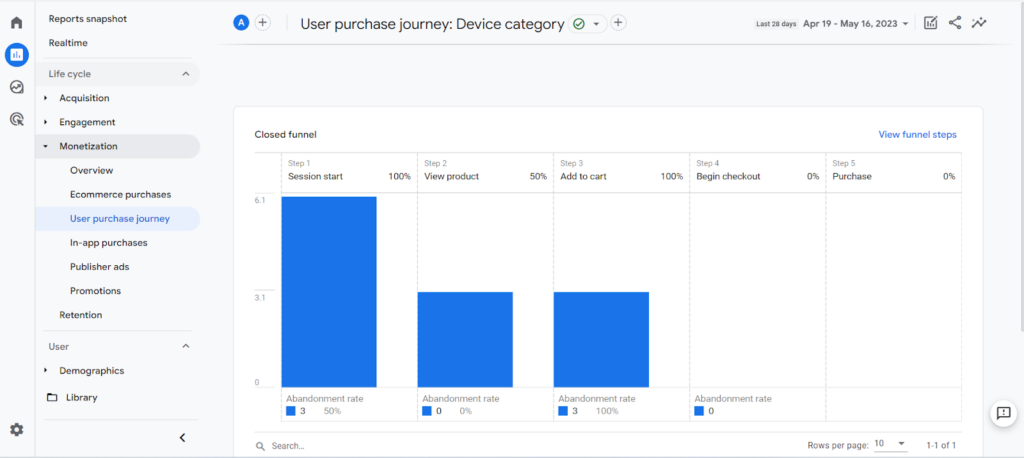
Navigate to Reports >> Monetization>>User purchase journey. You will see an automatically generated funnel of all the steps of the purchase journey from session start to purchase, as shown in the below screenshot.
Step 4: Make an Ecommerce Custom Report In GA4
You can also make your custom Ecommerce report in Google Analytics 4. To make a personalized report about Ecommerce sales:
- Navigate to Explore >> Funnel Exploration. Funnel exploration helps see customized shopping funnel reports.
- You can change your report by dragging and dropping dimensions like the Event name and measures like Event count.
How to Track Easy Digital Downloads Stats on Your WordPress Site
In your WordPress admin dashboard, go to Analytify >> Dashboards >>Monetization >> EDD.
On the EDD dashboard, you can see the main overview, which can be filtered by different dates.
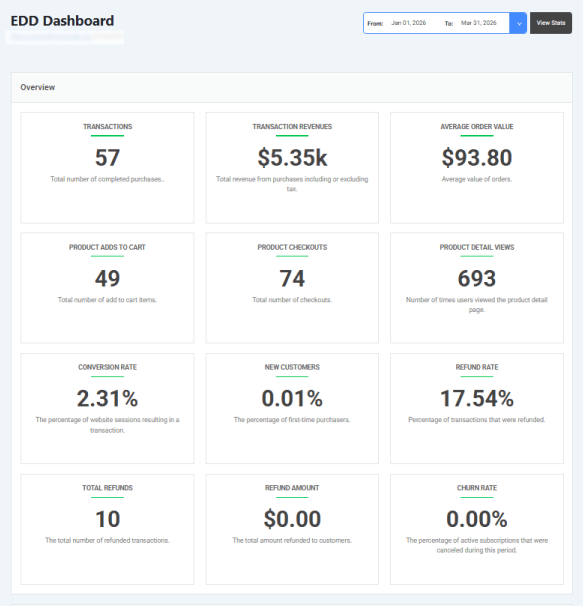
You can check relevant metrics easily through the overview EDD dashboard for easy digital download stats:
- Transactions: The total number of completed purchases made on the site.
- Transaction Revenues: The total income generated from all purchases.
- Average Order Value: The average amount of money spent per transaction.
- Product Adds to Cart: The total number of times an item was added to a shopping cart.
- Product Checkouts: The total number of times users initiated the checkout process.
- Product Detail Views: The number of times users viewed specific product pages.
- Conversion Rate: The percentage of total website sessions that resulted in a purchase.
- New Customers: The percentage of total transactions made by first-time buyers.
- Refund Rate: The percentage of total transactions that were eventually refunded.
- Total Refunds: The actual count of individual transactions that were refunded.
- Refund Amount: The total monetary value returned to customers during this period.
- Churn Rate: The percentage of active subscriptions that were canceled.
Check your EDD funnel Analysis through your WordPress dashboard easily as well:
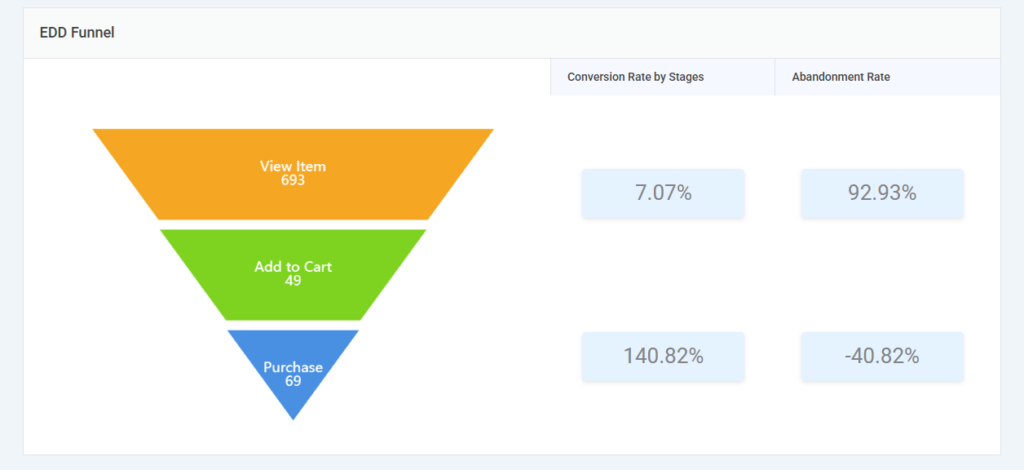
Furthermore, you can see other metrics, such as top countries by sales, ROI measurement, Product Performance, and Coupon Analysis.

Multi-Currency Synchronization for EDD Reporting
Analytify also offers dynamic currency synchronization for Easy Digital Downloads (EDD). This ensures that your monetization reports always reflect the localized currency settings configured within your WordPress environment, providing a consistent view of your financial data.
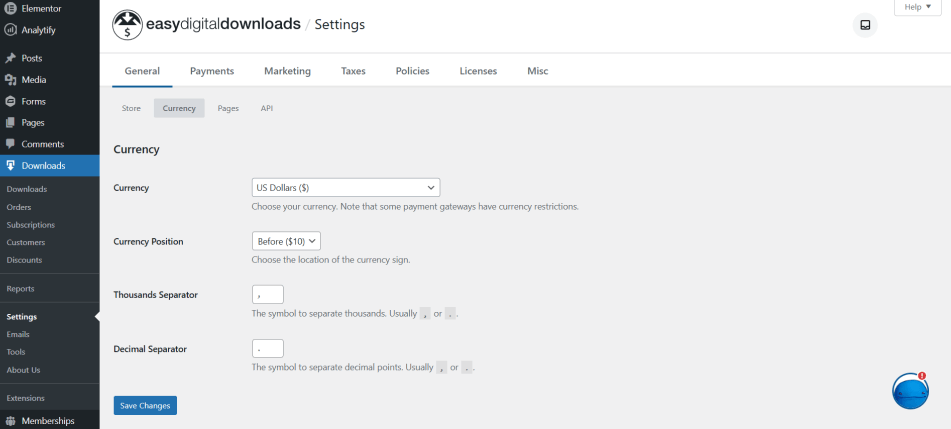
How Currency Sync Works
Analytify automatically detects the primary currency set in your EDD configuration. When you update your store’s currency, the changes are reflected across the Analytify EDD dashboard without requiring additional manual adjustments.

That’s all!
However, you may also like to read How To Enable Google Analytics Ecommerce Tracking.
If you have any problems with the Easy Digital Downloads Tracking add-on, look at the FAQs on the Analytify website or contact the Analytify support team.
 Halloween Sale: Know which campaigns drive sales this season.