
How to Connect Google Analytics 4 to Cursor With Analytify MCP
You can connect Google Analytics to Cursor by adding Analytify MCP to Cursor’s MCP configuration. Analytify is a remote MCP server, so Cursor only needs the URL. You sign in with Google the first time you use it.
What You Need
- A Google Analytics 4 property, and the Google account that has access to it
- An Analytify MCP license key, sent in your purchase email and shown in your Analytify account. No key yet? Get Analytify MCP
- Cursor with MCP support
How to Connect Google Analytics to Cursor
Connect Google Analytics 4 to Cursor with Analytify MCP. You need Cursor, a Google account with GA4 access, and an Analytify MCP license key.
Total Time: 5 minutes
Step 1: Open Customize in Cursor
Open Cursor and navigate to Customize.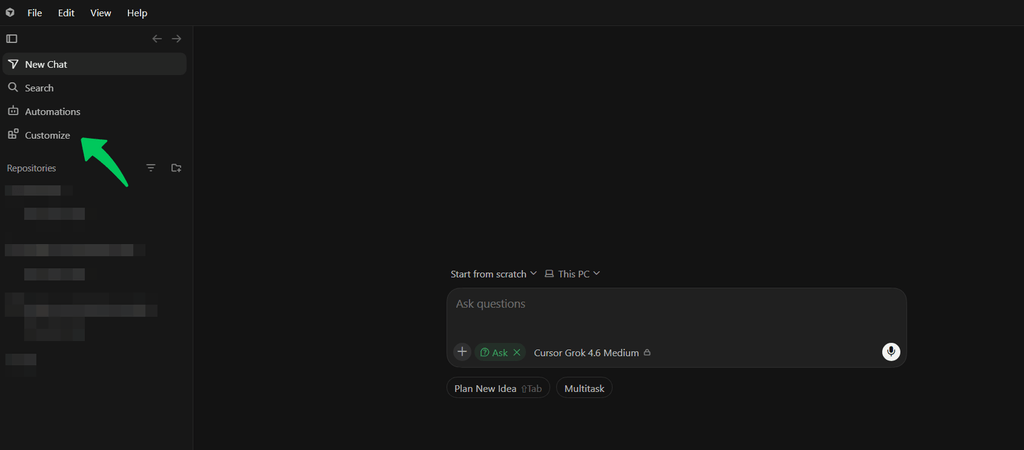
Step 2: Create a new MCP server
Go to MCP, then click New. Your mcp.json file opens in a side window.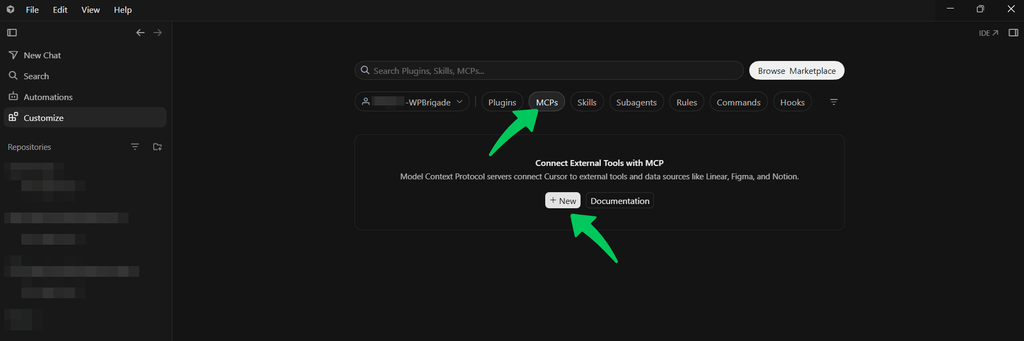
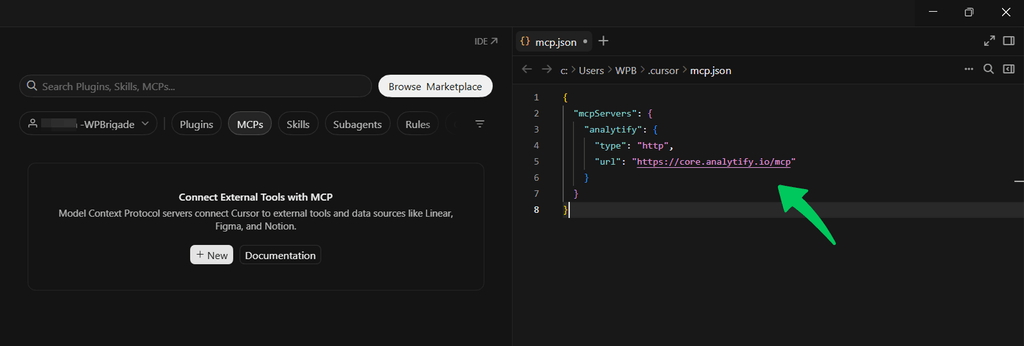
Step 3: Add the Analytify configuration
Add the Analytify server using the configuration below, then save.{
"mcpServers": {
"analytify": {
"type": "http",
"url": "https://core.analytify.io/mcp"
}
}
}
Step 4: Click Authenticate
Analytify MCP appears. Click Authenticate to proceed with selecting your Google account.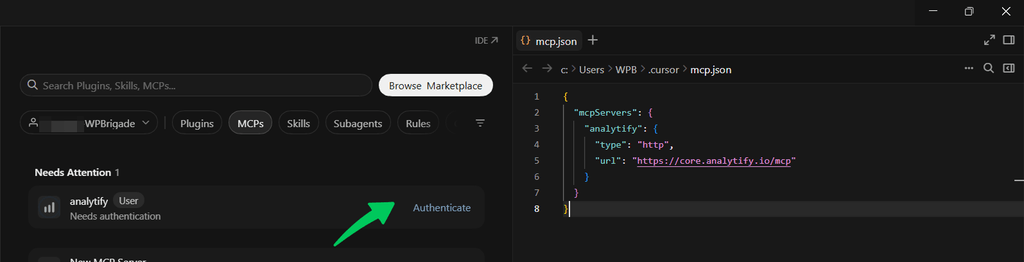
Step 5: Restart Cursor if needed
If the server does not appear, restart Cursor.
Step 6: Sign in with Google
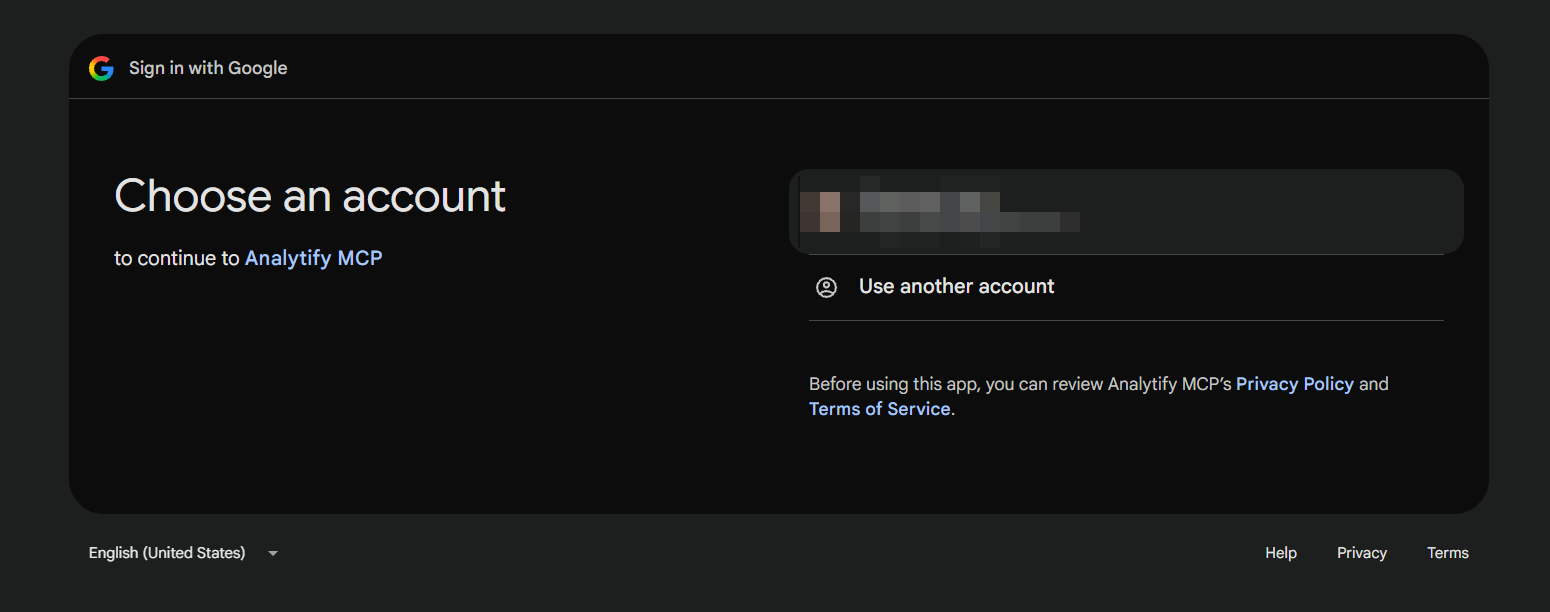
The first time you use Analytify, a browser window opens. Sign in with Google and approve access.
Step 7: Activate your license key
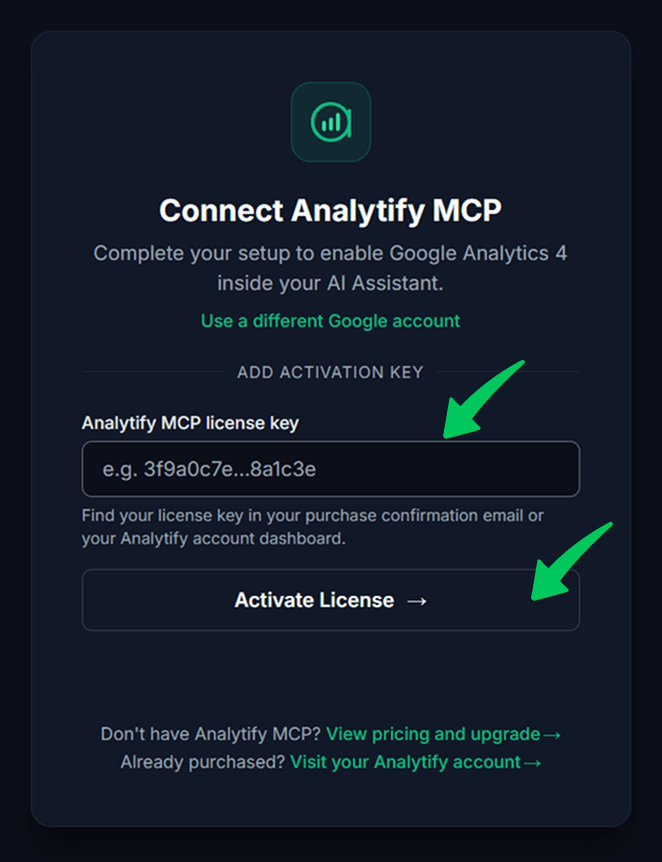
Enter your Analytify MCP license key and click Activate License. You can find the key in your purchase email and in your Analytify account.
Step 8: Confirm the connection
It now appears as connected in Cursor.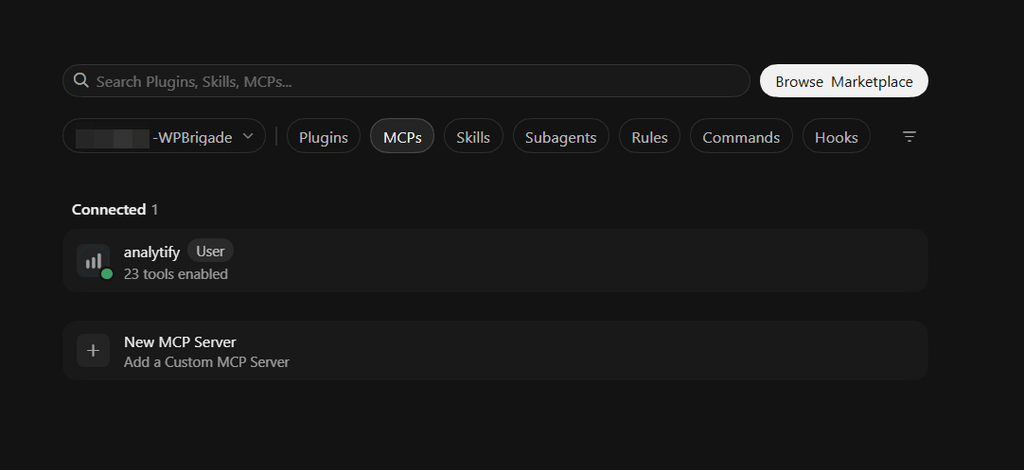
Step 9: Manage permissions
Click it if you need to change permissions.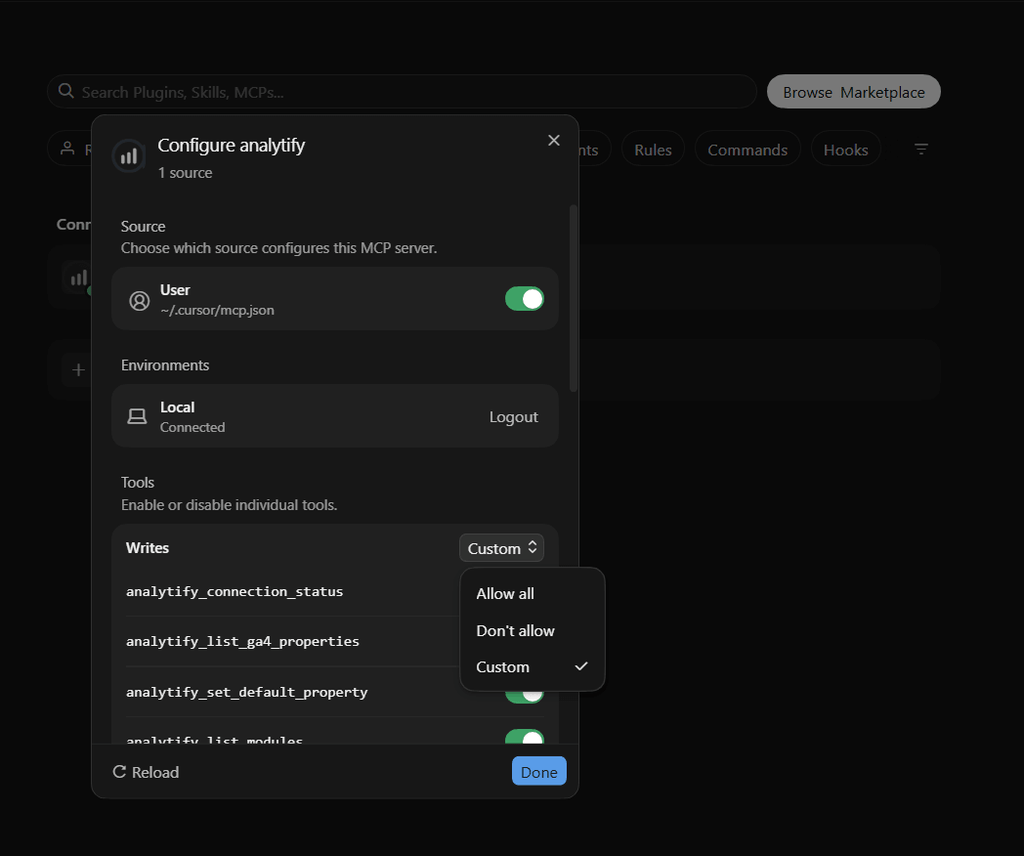
Ask Your First Question
Ask a question about your own data in plain English, for example:
- What were my top 10 pages last week, and how do they compare to the week before?
- How many people are on my site right now?
Every answer names its metric and date range, so you can check exactly what it covers.
Disconnect Analytify MCP
To fully disconnect Analytify MCP, remove Analytify’s Google access first, then remove the server from Cursor.
- Remove Analytify’s Google access. In a chat with Analytify turned on, ask:
Remove Analytify’s Google access. Cursor uses the Remove Analytify’s Google access tool and asks you to confirm. Once confirmed, it disconnects Analytify from every AI assistant on your Google account and deletes the Google authorization Analytify stores.
This cannot be undone. To use Analytify MCP again, reconnect and grant Google access again. - Open MCP JSON File. Open Cursor, go to Customize and then MCP, and open your
mcp.jsonfile. - Remove the server from Cursor. Delete the
analytifyentry and save the file. Confirm Analytify MCP no longer appears in the MCP list.
FAQs
Why Are Analytify Tools Not Showing in Cursor?
Analytify tools appear only after the Google sign-in completes. Check that Analytify shows as connected in Cursor’s settings, and turn it on for the current chat. If it still does not appear, remove the connector and add https://core.analytify.io/mcp again.
Can Analytify MCP Change Anything in My Google Analytics?
No. Every Analytify MCP reporting tool is read-only, so it cannot edit, publish, or delete anything in your Google Analytics account. The one exception is the Remove Analytify’s Google access tool, which removes Analytify’s own access when you ask it to.
Do I Need the Analytify WordPress Plugin?
No. Analytify MCP works with any Google Analytics 4 property, with or without WordPress. WooCommerce, EDD, Forms and Goals reports are the exception: they need the matching Analytify add-on tracking on your site.
Can I Use Analytify MCP With More Than One GA4 Property?
Yes. One Analytify MCP connection covers every GA4 property your Google account can access. With one property, Analytify MCP picks it automatically. With several, name the property in your chat or set a default.
More Analytify MCP Setup Guides
- Analytify MCP Setup Guides: every supported assistant in one place
- Connect Google Analytics to Claude
- Connect GA4 to ChatGPT
- Connect Google Analytics to Claude Code
 Halloween Sale: Know which campaigns drive sales this season.