
How to Connect GA4 to ChatGPT With Analytify MCP
You can connect GA4 to ChatGPT with Analytify MCP by adding it as a custom connector. Custom MCP connectors are supported on ChatGPT Free, Plus, Pro, Business, Enterprise, and Edu plans.
What You Need
- A Google Analytics 4 property, and the Google account that has access to it
- An Analytify MCP license key, sent in your purchase email and shown in your Analytify account. No key yet? Get Analytify MCP
- Any ChatGPT plan (Free, Plus, Pro, Business, Enterprise, or Edu), used on chatgpt.com. Analytify MCP is tested with ChatGPT.
- On Business, Enterprise, and Edu plans, an admin may need to allow custom connectors
How to Connect GA4 to ChatGPT
Connect Google Analytics 4 to ChatGPT with Analytify MCP. You need a ChatGPT account on chatgpt.com, a Google account with GA4 access, and an Analytify MCP license key.
Total Time: 5 minutes
Step 1: Open Plugins in ChatGPT
Open chatgpt.com, click Plugins in the left sidebar, then click Add at the top right.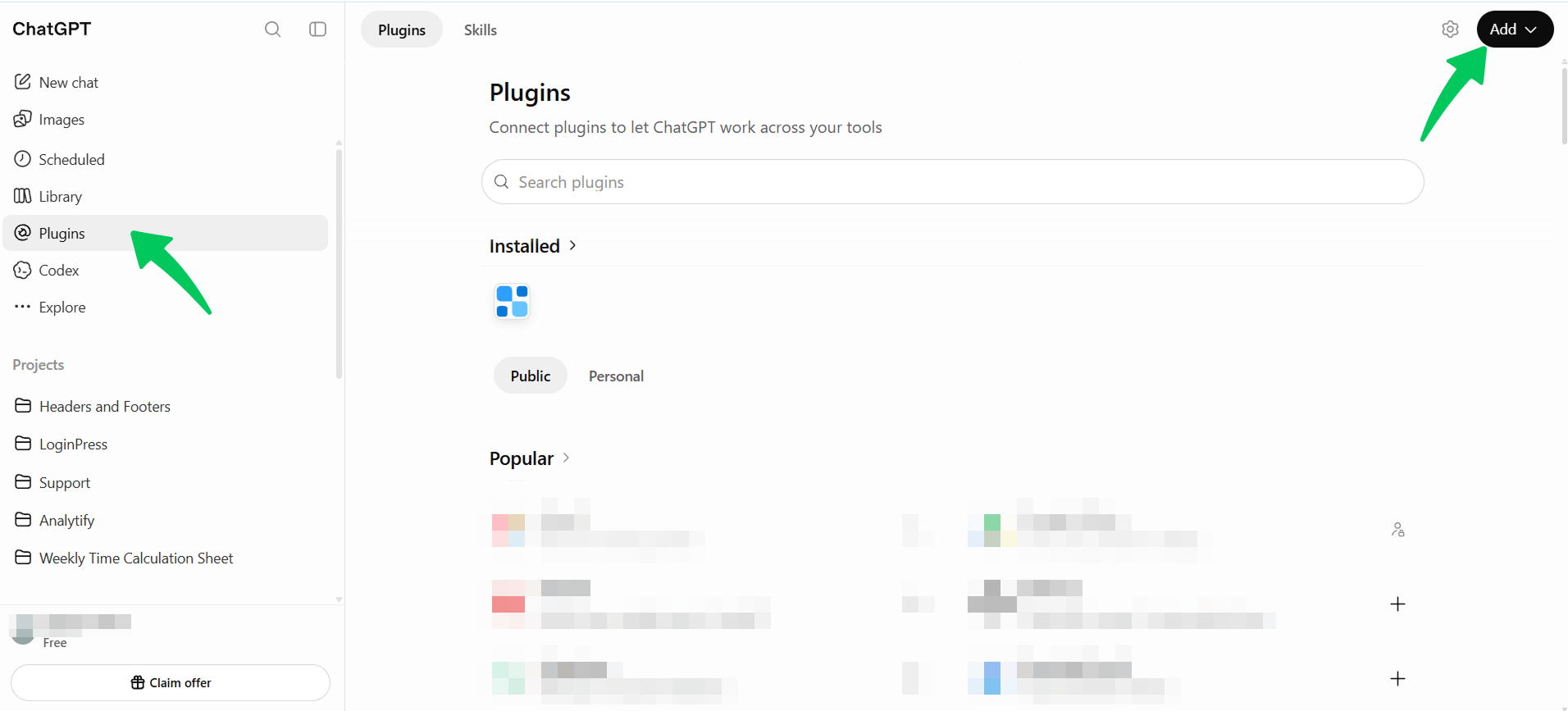
Step 2: Add a custom MCP server
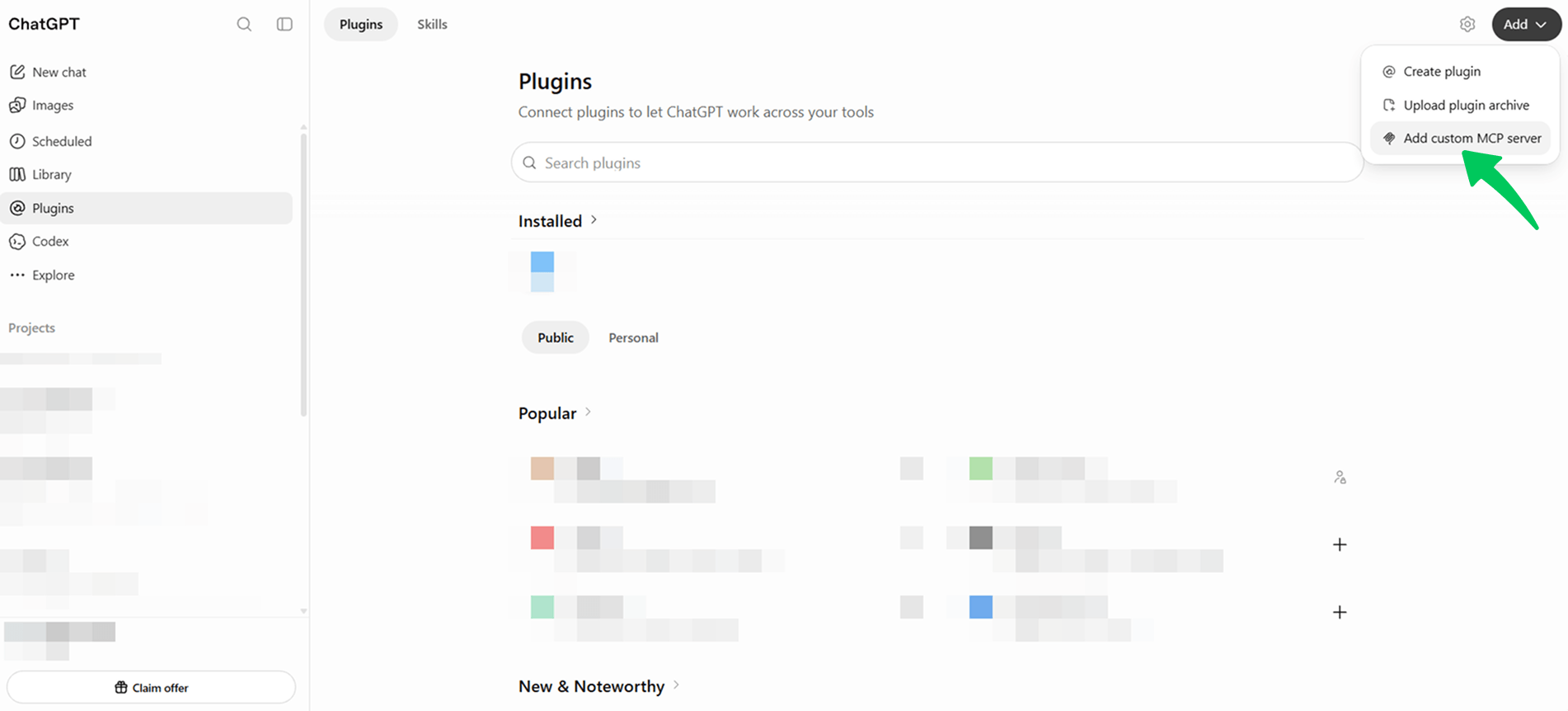
In the Add menu, select Add custom MCP server.
Step 3: Enter the name and server URL
Enter Analytify MCP as the name and paste https://core.analytify.io/mcp as the Server URL. Keep Authentication set to OAuth, tick I understand and want to continue, then click Create as a plugin.
Note: OAuth is the recommended option and is selected by default. It lets ChatGPT connect to your Google Analytics 4 data through a secure sign-in in your browser, so you never enter your Google password into ChatGPT.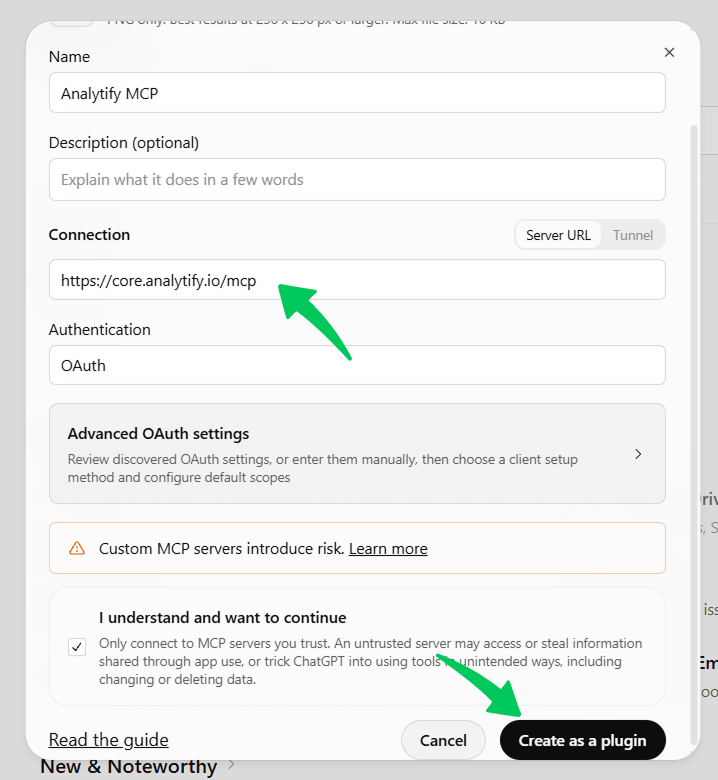
Step 4: Confirm the connection
Click Connect Analytify MCP on the confirmation screen.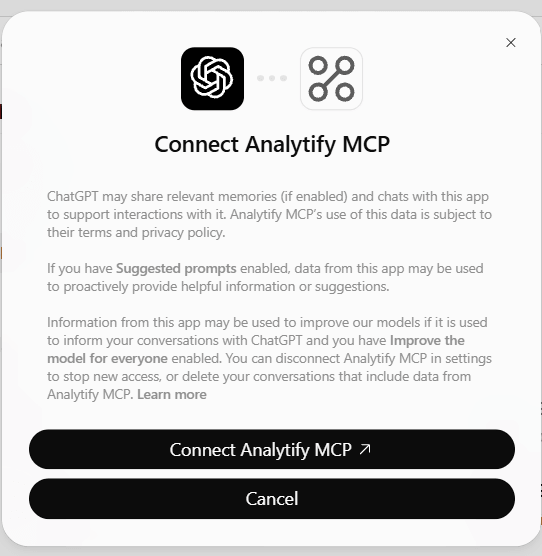
Step 5: Choose your Google account
Choose the Google account that has access to your GA4 property.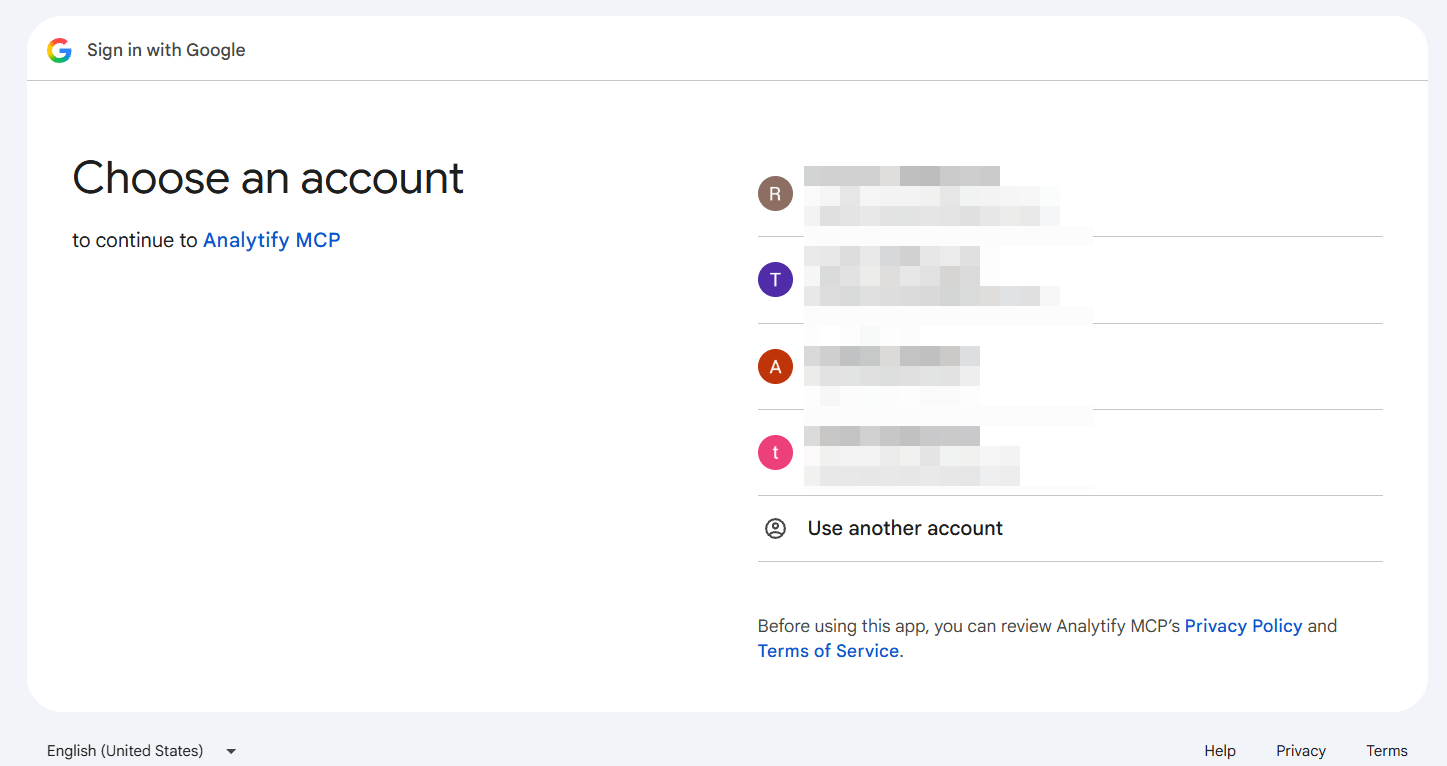
Step 6: Activate your license key
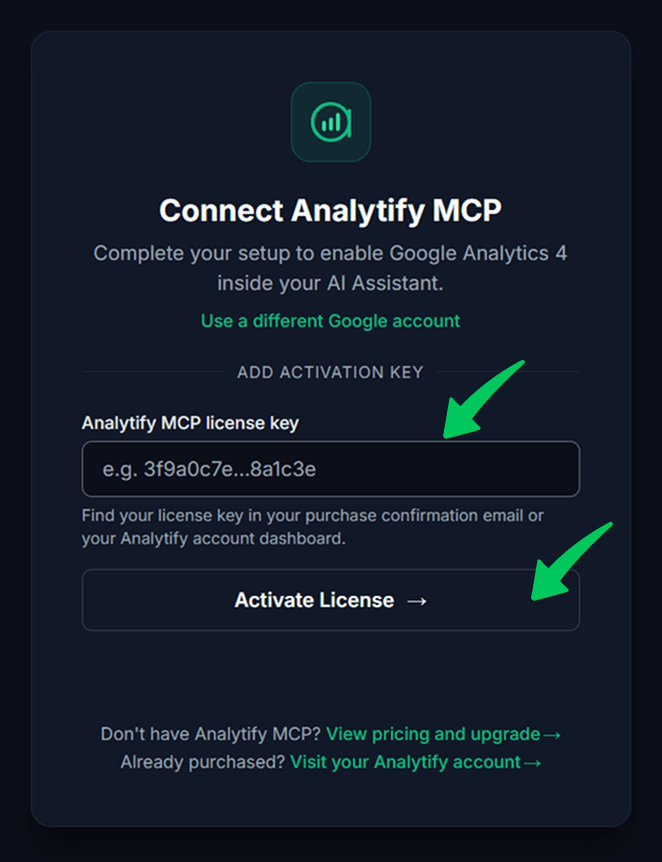
Enter your Analytify MCP license key and click Activate License. You can find the key in your purchase email and in your Analytify account.
Step 7: Start asking questions
Analytify MCP now shows in your installed Plugins. Start a new chat in ChatGPT and ask your question.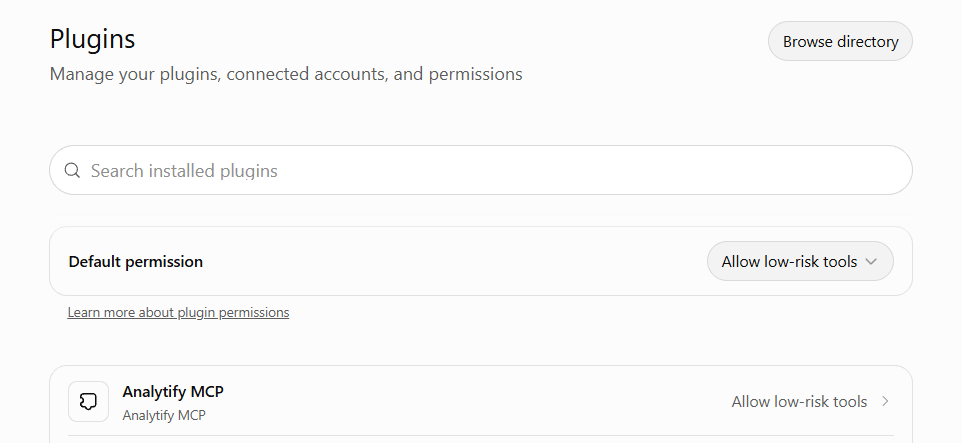
Ask Your First Question
Ask a question about your own data in plain English, for example:
- What were my top 10 pages last week, and how do they compare to the week before?
- How many people are on my site right now?
Every answer names its metric and date range, so you can check exactly what it covers.
Disconnect Analytify MCP
To fully disconnect Analytify MCP, remove Analytify’s Google access first, then remove the Analytify MCP plugin from ChatGPT.
- Remove Analytify’s Google access. In a chat with Analytify turned on, ask: “Remove Analytify’s Google access.” ChatGPT runs the Remove Analytify’s Google access tool and asks you to confirm. Once confirmed, Analytify is disconnected from every AI assistant on your Google account and the stored Google authorization is deleted. This cannot be undone: to use Analytify MCP again, connect and sign in with Google again.
- Remove the plugin from ChatGPT. Open chatgpt.com and click Plugins in the left sidebar. Open Analytify MCP, click Disconnect, then remove the Analytify MCP plugin.
FAQs
Why Are Analytify Tools Not Showing in ChatGPT?
Analytify tools appear only after the Google sign-in completes. Check that Analytify shows as connected in ChatGPT’s settings, and turn it on for the current chat. If it still does not appear, remove the connector and add https://core.analytify.io/mcp again.
Can Analytify MCP Change Anything in My Google Analytics?
No. Every Analytify MCP reporting tool is read-only, so it cannot edit, publish, or delete anything in your Google Analytics account. The one exception is the Remove Analytify’s Google access tool, which removes Analytify’s own access when you ask it to.
Do I Need the Analytify WordPress Plugin?
No. Analytify MCP works with any Google Analytics 4 property, with or without WordPress. WooCommerce, EDD, Forms, and Goals reports are the exception: they need the matching Analytify add-on tracking on your site.
Can I Use Analytify MCP With More Than One GA4 Property?
Yes. One Analytify MCP connection covers every GA4 property your Google account can access. With one property, Analytify MCP picks it automatically. With several, name the property in your chat or set a default.
More Analytify MCP Setup Guides
- Analytify MCP Setup Guides: every supported assistant in one place
- Connect Google Analytics to Claude
- Connect Google Analytics to Cursor
- Connect Google Analytics to Claude Code
 Halloween Sale: Know which campaigns drive sales this season.