Not Set Google Analytics? 9 Causes and How to Fix Each One

“Not set” in Google Analytics means GA4 couldn’t attribute a piece of data, a source, a page title, a country, to any dimension. It’s usually a missing tracking element, not a broken report. The most common cause is an incomplete tracking code, followed by UTM parameters left off marketing links.
Below are all 9 causes GA4 can produce a “not set” value for, each with its exact fix. Check the table first to find your case, then jump to the matching section for the full steps.
Not Set Google Analytics (TOC):
What is ‘Not Set Google Analytics’?
Let’s first understand what leads to the not set Google Analytics issues. The ‘not set’ label appears when Google Analytics cannot attribute incoming data to a specific dimension. For example, if you’re looking at your traffic sources and see ‘not set’ as a source, it means Google Analytics couldn’t determine where that portion of your traffic came from.
This lack of data can be due to various factors, including:
- Missing or incorrect tracking code: If your tracking code isn’t properly installed on all pages or is incorrectly configured, Google Analytics won’t be able to track data accurately.
- Redirection issues: Sometimes, when a user is redirected to your site, the referral data can be lost, leading to ‘not set’ entries.
- Filters and custom settings: Overly restrictive filters or custom settings in your Google Analytics account can also result in data being categorized as ‘not set’.
Why is ‘GA4 Not Set’ an Issue?
Understanding the not set in Google Analytics issue is important because it affects the accuracy and completeness of your data. If left unresolved, it could lead to misguided marketing strategies or investments. Addressing the not set in GA4 problem can improve the quality of your data and enhance your ability to track user behavior and campaign performance effectively.
Not Set in Google Analytics: 9 Causes and Fixes
| Cause | Where It Shows Up | Fix |
|---|---|---|
| Incomplete tracking code | Source/medium and most reports | Confirm the tag fires on every page via Admin → Data Streams → Tag status, or reinstall it with Analytify. |
| Missing UTM parameters | Campaign reports | Add utm_source, utm_medium, and utm_campaign to every marketing link before publishing it. |
| Redirection issues | Traffic source and referrer data | Use server-side 301 redirects instead of JavaScript redirects, which can drop referrer and UTM data. |
| Filters and custom configurations | Varies by report | Check Admin → Data Settings → Data Filters for exclusions that may be catching more traffic than intended. |
| Ad blockers and browser settings | Source/medium and device data | This is largely outside your control for individual visitors. Server-side tagging may help reduce the impact. |
| Incomplete GA4 migration | Custom events and conversions | Rebuild events and conversions directly in GA4. They do not automatically carry over from Universal Analytics. |
| Anonymized IPs and proxies | Country and city data | This is expected with privacy-conscious traffic. It is not fully fixable and does not necessarily indicate broken tracking. |
| Misconfigured custom dimensions | Ecommerce data and item names | Check Admin → Custom Definitions. The parameter name in your code must exactly match the registered custom dimension. |
| Undefined page titles | Page title dimension | Check Reports → Engagement → Pages and Screens for blank titles, then add missing <title> tags. |
What are the Reasons Behind not set Google Analytics?
When you encounter ‘not set’ values in Google Analytics, it’s a sign that something is amiss with the data collection or configuration. These ‘not set’ entries can distort your understanding of website performance and user behavior. Let’s explore the key reasons behind these not set Google Analytics values to address better and resolve them.
1. Improper Tracking Code Implementation
One of the primary reasons for not set in Google Analytics is an improperly implemented tracking code. If the Google Analytics tracking code is not correctly placed on every page of your website, or if there are errors in the code itself, it can lead to data gaps. This is particularly common in transitioning to GA4 not set scenarios, where the new GA4 setup might not be fully integrated across all pages.
How to Fix Improper Tracking Code
Go to GA4 Admin >> Data Streams >> your stream, and check the tag status. If it’s not listed as connected, or you’re not sure it’s on every page, reinstall it with Analytify instead of editing template code by hand.
2. Missing Campaign Parameters
Campaign tracking is crucial in Google Analytics to understand how different marketing efforts are performing. If UTM parameters are missing or incorrectly configured in your URLs, this can result in ‘not set’ values in campaign reports. Ensuring all marketing links are properly tagged with UTM parameters can help mitigate this issue.
How to Fix Missing Campaign Parameters
Add utm_source, utm_medium, and utm_campaign to every link you share, whether that’s an email, a social post, or a paid ad. Google’s Campaign URL Builder generates these consistently so nothing gets typed inconsistently across campaigns.
3. Redirection Issues
Sometimes, when users are redirected to your site, the referral data may not be passed along correctly. This is especially prevalent in scenarios involving third-party services or platforms that redirect to your site. These redirection issues can result in ‘Google Analytics not set’ entries for traffic sources.
How to Fix It
Check whether your redirects are server-side 301s or JavaScript-based. JavaScript redirects commonly drop referrer and UTM data mid-redirect; switching to server-side 301s preserves it.
4. Filters and Custom Configurations
Custom filters and configurations in Google Analytics are powerful tools, but if not used correctly, they can lead to data being reported as ‘not set’. This includes overly restrictive filters or incorrect settings that exclude certain data from being reported properly.
How to Fix
Go to Admin >> Data Settings >> Data Filters and review what’s active. An internal-traffic exclusion set too broadly is the most common culprit; narrow the filter or create a separate unfiltered view to compare.
5. Ad Blockers and Browser Settings
The increasing use of ad blockers and privacy-focused browser settings can also lead to not set in Google Analytics. These tools can prevent Google Analytics from capturing complete data about user visits, resulting in ‘not set’ values.
How to Fix It
You can’t fix a visitor’s ad blocker, but you can reduce how often it matters: server-side tagging (routing GA4 through your own server instead of directly from the browser) is the standard mitigation.
6. Issues with GA4 Migration
For those transitioning to GA4, the GA4 not set issue might arise due to differences in how GA4 tracks and reports data compared to Universal Analytics. Ensuring the GA4 setup is correctly configured is vital to avoid ‘not set’ values in your reports.
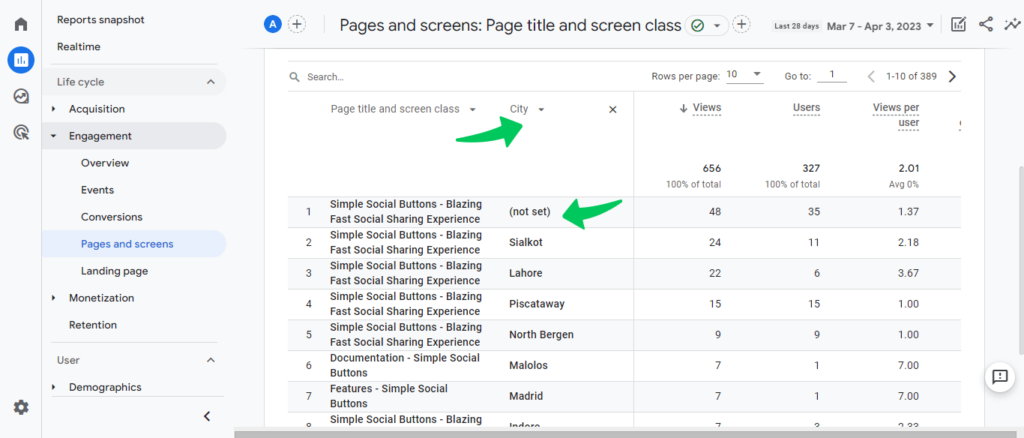
7. Countries(Geographical dimensions not set)
Anonymized IP addresses , privacy restrictions or even proxies are the most common causes of not set in your demographic data.
How to Fix It
This one usually isn’t fixable, and that’s fine: anonymized IPs, VPNs, and proxies are a privacy choice on the visitor’s end. A small, steady percentage of “not set” here is normal, not a tracking bug.
8. GA4 Custom Dimensions Issues
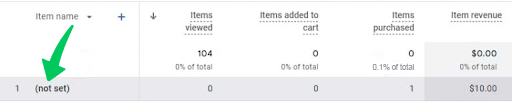
Encountering ‘not set’ in GA4 can often be attributed to issues with custom dimensions. For instance, when monitoring ecommerce reports, if you notice ‘not set’ appearing where you expect to see item names, it’s likely a sign that custom dimensions haven’t been set up correctly.
How to Fix GA4 GA4 Custom Dimensions Issues
Go to Admin >> Custom Definitions and confirm the dimension is registered with the exact parameter name your tracking code sends. A mismatch here (even a casing difference) is the most common cause.
9. Undefined Page Titles in GA4
A less obvious yet significant issue that can lead to ‘not set’ Google Analytics entries is the presence of undefined page titles, particularly in GA4 setups. This problem often arises when a website is not properly maintained. To identify pages lacking titles, navigate to Reports >> Engagement >> Pages and Screens in your GA4 interface. If you observe ‘not set’ under page titles, this is a clear indication that those pages are missing proper title tags.
How to Fix Undefined Page Titles to Fix Not Set Issue in GA4
Go to Reports >> Engagement >> Pages and Screens and sort for blank titles. Add a proper <title> tag to each page you find, Rank Math will flag missing titles for you if you check the SEO analysis on each post.
How To Fix Not Set in Google Analytics 4 for WordPress users?
Now that we’ve explored the common reasons behind ‘not set’ values in Google Analytics, let’s talk about the steps you can take to fix these issues specifically in Google Analytics 4 (GA4). By addressing the ‘not set in GA4’ challenge, you can enhance the accuracy and usefulness of your analytics data.
Each fix below is numbered to match its cause above.
Analytify: Your Ultimate Solution to Remove GA4 Not Set Values
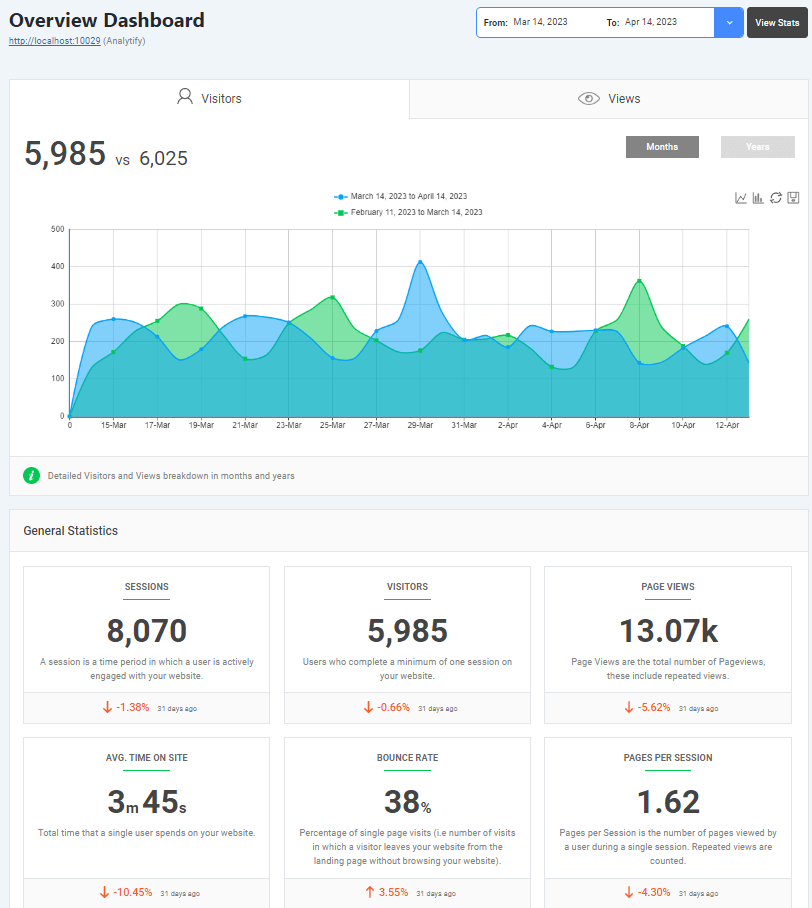
Analytify is a WordPress plugin that simplifies the Google Analytics integration with your WordPress website (Read A Complete Guide to Install Analytify Pro). The not set issue in Google Analytics refers to data that cannot be determined or hasn’t been set up correctly. This can be seen in various reports such as the keyword report, landing pages,etc.
If you are seeing not set in your Google Analytics data, it means there’s some missing information. Here are some ways Analytify or related processes can help address this:
- Easy Integration: By seamlessly integrating Google Analytics with WordPress, Analytify ensures that tracking code is placed correctly on every page of your website, reducing the chances of discrepancies in data collection.
You can use Analytify to smoothly integrate your website with Google Analytics. Read more How to Integrate Google Analytics 4 with Analytify.
- Ensure Correct Tracking: Sometimes, GA4 not set errors occur due to improper tracking code setup or conflicts with other plugins/themes. Analytify’s setup process helps to mitigate these issues.
- Custom Dimensions: Analytify lets you set custom dimensions for better data representation. For instance, if not set is appearing in your author reports, you can set up custom dimensions for authors to correctly capture this data. Learn How To Get Started With The Custom Dimensions Add-On.
You may also like to read How To Get Started With The Authors Tracking Add-On?
- Monitor Events and E-commerce Tracking: If not set appears in your event or e-commerce reports, it might be due to issues with event tracking codes or e-commerce setup. Analytify provides specific setups for these types of tracking, ensuring that data is captured correctly. Read our guide to Enable Google Analytics Ecommerce Tracking.
- Support and Documentation: Analytify not only presents the data but also supports users on what certain metrics or issues (like not set) mean, helping them to troubleshoot and understand their data better.
Analytify also educates users on what certain metrics or issues (like not set) mean, helping them to troubleshoot and understand their data better.
Frequently Asked Questions
What does not set mean in Google Analytics?
Not set is a placeholder name that Google Analytics uses when it doesn’t receive any information for the dimension you’ve selected. This can appear in various reports and indicates missing or unavailable data.
Why am I seeing not set in my keyword report?
When not set appears in your keyword report, it often indicates users who came to your site organically, but Google couldn’t determine the keyword they used. This can be due to users being logged into a Google account, causing their search to be encrypted.
Why are my eCommerce Reports Showing ‘Not Set’ in GA4?
If your e-commerce reports are showing ‘not set in GA4’, it often indicates a problem with custom dimensions. You need to check and ensure that all necessary custom dimensions, such as product names or categories, are properly configured in your GA4 settings.
Is it a problem if a large portion of my data shows not set?
A high percentage of not set data can indicate tracking issues, misconfigurations, or missing setup elements. While some level of not set is common, a sudden increase or large portion suggests that you should investigate further.
Why am I seeing not set in my landing page report?
This can occur when a user visits your site without a specific landing page or if session data isn’t captured correctly. It can also be a result of tracking issues or specific configurations in Google Analytics.
Does not set affect the accuracy of my data?
While not set entries don’t necessarily indicate inaccurate data, they do represent gaps in your data. Large volumes of not set entries can skew your understanding of user behavior and site performance.
Can “not set” data be recovered?
Once data is recorded as not set in Google Analytics, it can’t be retroactively changed. However, understanding the root cause of not set can help you make the necessary adjustments to reduce such instances in the future.
Conclusion
Most “not set” values trace back to one of three things: an incomplete tracking code, missing UTM parameters, or a filter catching more than it should. Start with the table above, find your case, and follow its fix.
For WordPress sites already running Analytify, tracking code and campaign data are handled for you from setup, so most of these causes never come up in the first place.
You may also like to read Traffic Acquisition Report GA4: A Complete Guide (2024).
Now, we turn to you. Have you encountered ‘not set’ issues in your GA4 experience, and how have you addressed them? Share your experiences and insights in the comments.