How to Fix Google Analytics Real Time Not Working? (8 Causes and Fixes)

The most common reason Google Analytics Real Time isn’t working is an incorrectly installed GA4 tracking code. Filters that exclude your own traffic come next, followed by browser ad blockers. Check Web Stream Details first, in GA4 under Admin, Data Streams. If your tag isn’t listed there, that’s your problem.
If the tag looks fine, the cause is usually one of seven others. They are account permissions, active filters, Enhanced Measurement turned off, unconfirmed conversion events, a browser issue, ad blockers, or no active visitors at that moment.
Below are all 8 causes with their exact fix, ranked from most to least common.
In this article:
Google Analytics Real Time Not Working: 8 Causes and Fixes
| Cause | How to Confirm It | Fix |
|---|---|---|
| Incorrect tracking code | Check Web Stream Details under Admin → Data Streams, or use the Tag Assistant extension | Reinstall the GA4 tag, or use Analytify to add it without touching code. |
| Unauthorized access | Check whether you have a Viewer or Analyst role on the GA4 property | Ask your GA4 administrator to grant access under Property Access Management. |
| Active filters | Go to Admin → Data Settings → Data Filters and check for exclusions | Turn off the problematic filter or adjust its configuration. |
| Enhanced Measurement is off | Check the Enhanced Measurement toggle under Admin → Data Streams → Your Stream | Turn Enhanced Measurement back on. |
| Conversion events not activated | Check your event settings for events that should be marked as conversions | Mark the relevant event as a conversion. |
| Browser problem | Try another browser or clear your cache and cookies | Switch browsers or clear your cache and cookies. |
| Ad blockers or browser extensions | Test your website in Incognito mode with extensions disabled | Disable the ad blocker or whitelist your domain. |
| No active users | Check whether you’re testing during a low-traffic period | Generate test traffic by visiting your website yourself. |
Understanding GA4 Real Time Reports
Google Analytics real time reports provide an immediate view of user activity on your website. When someone visits your site, their actions are displayed in real-time. This feature is useful for tracking the immediate effects of your marketing campaigns. It also shows user behavior and supports quick, data-driven decisions.
To watch real time reports in GA4, you need to navigate to GA4 Reports>>Realtime.
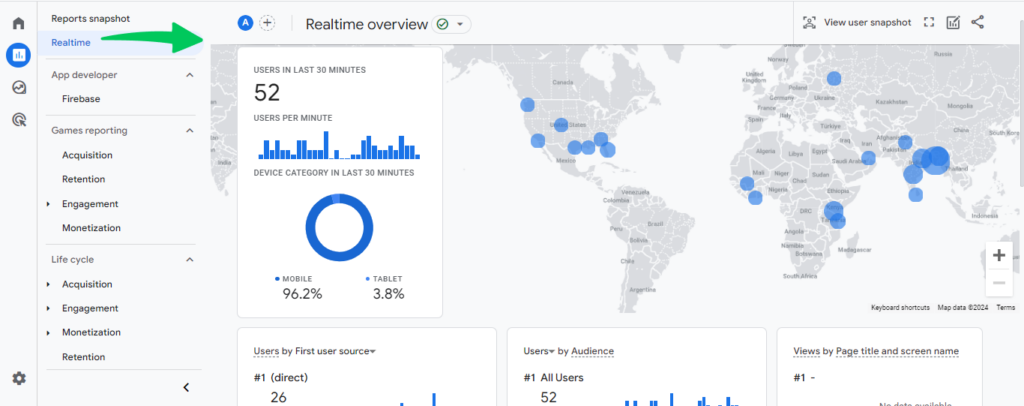
Real time reports in Google Analytics show several metrics. They include the number of active users on the site and the pages they’re viewing. They also show where visitors come from and which traffic sources send them.
Understanding the Google Analytics real time reporting is important. You might track a new blog post, monitor a campaign, or watch day-to-day user behavior. Real-time reporting gives you insight that helps shape your digital strategy.
Let’s learn the detailed steps and tips to ensure your Google Analytics runs smoothly.
8 Reasons Your GA4 Realtime Report May Not Work (How to Fix Them)
GA4 is the new property on Google Analytics and has replaced Universal Analytics since July 01, 2023.
For beginners, GA4 can be complicated to get started with. But nobody is immune to the pitfalls of inexperience. Let’s begin with the most basic explanation for why your GA4 Realtime Report might not work.
1. Incorrect Tracking Code
The first and most common reason the GA4 Realtime report may not work is an incorrect tracking code installation. If the tracking code is not installed correctly, the GA4 real-time report cannot capture data.
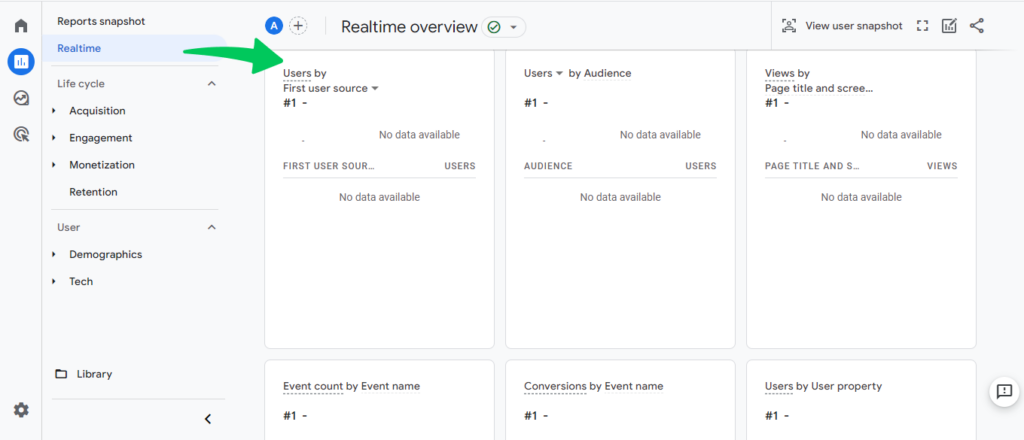
How do you check whether tracking codes were installed correctly or not?
There are Two Options for checking tracking codes:
- Option 1: Through Google Tag Assistant Chrome Extension
- Option 2: Through Web Stream Details.
Let’s see it in detail.
- Option 1: Through Google Tag Assistant Chrome Extension
If you already added Google tags, use the Google Tag Assistant Chrome extension. It checks whether the tracking code is installed correctly. This tool will help you identify any tracking code installation issues and guide you on how to fix them.
Note: Select the right GA4 property for the Realtime report or tracking code check.
- Option 2: Through Web Stream Details
You can also check whether tracking Codes are installed correctly or not through Web Stream details in GA4. Navigate to Admin>>GA4 Property>>Data Streams for this.
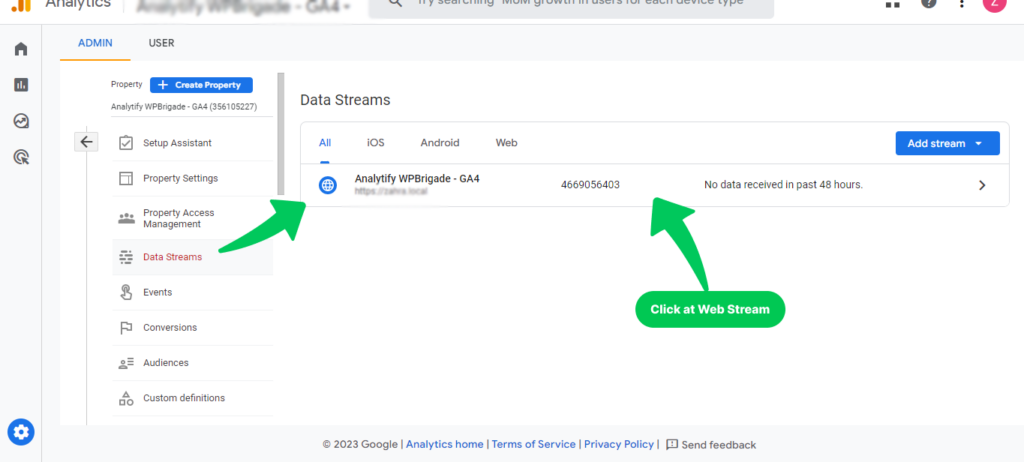
Click your web stream to open the next page. There you see Data Stream Details. It shows whether you installed tags incorrectly, as the picture below shows.
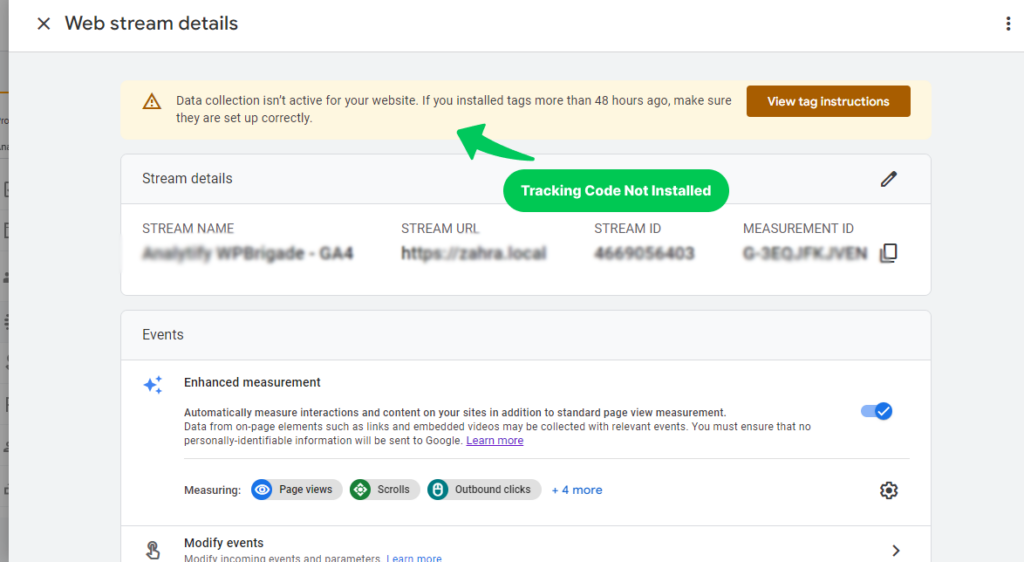
However, if you don’t know web development, adding tracking codes will be complicated for you. So, if you’ve added tracking codes yet, Analytify is your best option.
Analytify supports Google Analytics Integration, so you won’t need to add tracking codes manually. You can quickly analyze the Facebook traffic coming to your website.
Note: Analytify is the best WordPress plugin that provides you with powerful analytics and tracking capabilities for their website. It is a popular and easy-to-use plugin that tracks a website’s traffic, user behavior, and other important metrics. Analytify makes stats easy for you. Even if you don’t know how to see stats, you can easily track your data through Analytify.
How to Fix Incorrect Tracking Code Issue?
To fix it, you’ll need to re-add tracking codes through Google tags if it’s not added correctly. If you don’t know how to add tracking codes, install Analytify on your WordPress site. It adds the GA4 code for you. It’ll automatically help Google Analytics to track your website data. So, you won’t need to add codes to integrate your site with Google Analytics.
2. Unauthorized Access
If you’re not an administrator of a Google Analytics account, you may lack permission to see real-time data. Then the Realtime report shows you nothing.
How to Fix it?
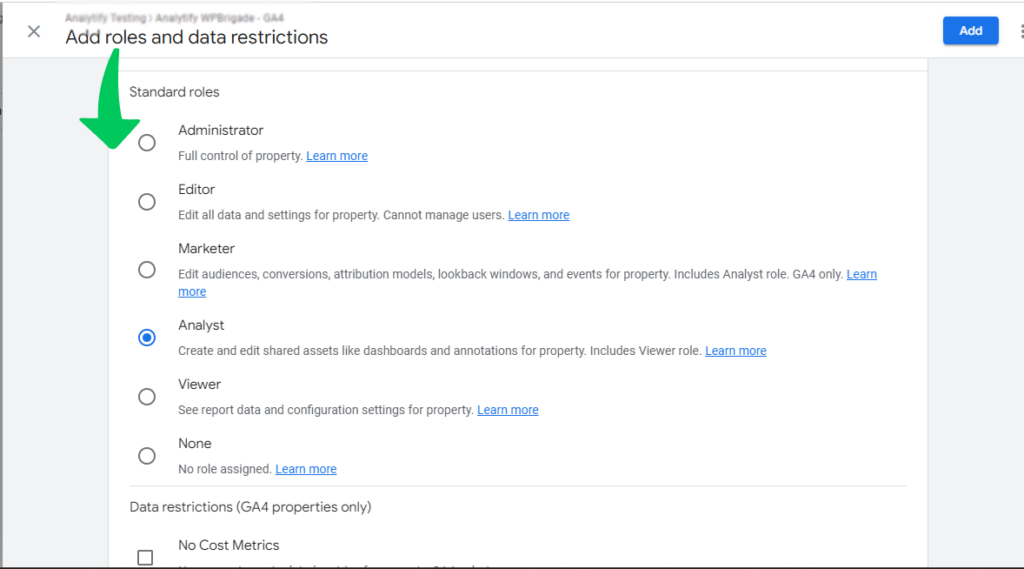
You need at least the Viewer or Analyst role in the Google Analytics account or the GA4 property to see real-time data. If you don’t have this level of access, ask the account owner or administrator for it.
The administrator will navigate to Property Access Management or Account Access Management and assign you an appropriate role.
3. An Issue with Applied Filters
If you have filters on your Google Analytics view, the Realtime report cannot show custom events. Some data can be kept from being tracked using filters, which can change the Realtime report.
How to Fix It?
Go to the “Filters” section of your Google Analytics view. Look at the active filters to see if they affect the Realtime report. If any filter affects the Realtime report, turn it off. You can also make a new view without it. You’ve to navigate to Admin >> Data settings >>Data filters. You can see if that is the case, then you can fix it yourself. You can see in the picture below internal traffic is excluded. So it won’t appear in the Realtime report.
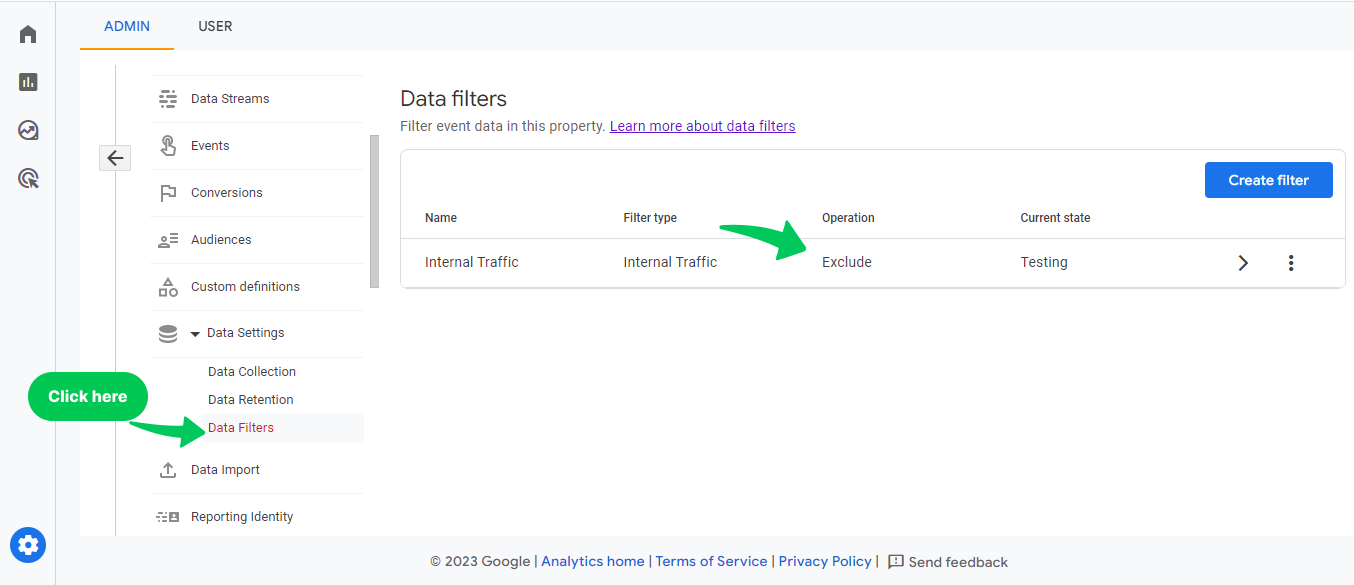
Sometimes, your website is configured to Google Analytics correctly, and there is no tracking code issue. Still, you can face No Data or Missing Data issues in Realtime reports.
You may have put tracking codes in correctly and chosen the right GA4 property. If your Google Analytics 4 Real Time report still needs to be fixed, keep checking the causes below.
Google Analytics cannot collect every kind of data. To see the limits, read this article: What Data is Google Analytics Unable to Track?
4. Enhanced Measurement Off
Enhanced measurement automatically measures interaction and content on your site. It covers page views, scrolls, Site Search, outbound clicks, file downloads, video engagement, and Form interactions. If you accidentally turn off Enhanced Measurement, GA4 stops tracking major events. That may affect the real-time report.
How to Fix It?
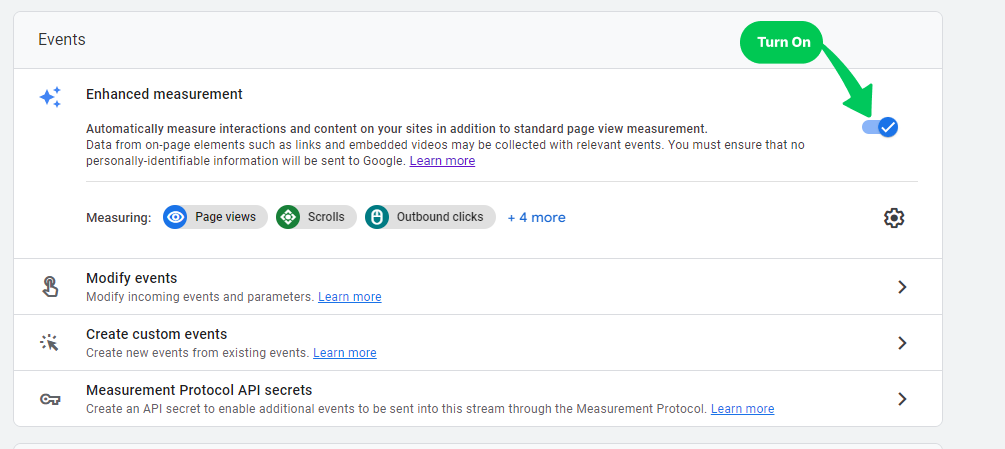
To check if Enhanced Measurement is on, choose the data stream. Click it under Admin >> Data Streams in the property column, as shown below.
Make your Enhanced Measurement feature is on. If it’s off, you won’t be able to track some events in the Realtime report.
You may also like to read: What is Google Analytics Measurement ID?
5. Conversion Events (not Activated)
Events that you have marked as conversions are known as Conversion events. If you haven’t set them up, you won’t be able to track them in a Realtime report. This is applicable only if you don’t see conversion event data.
How to Fix It?
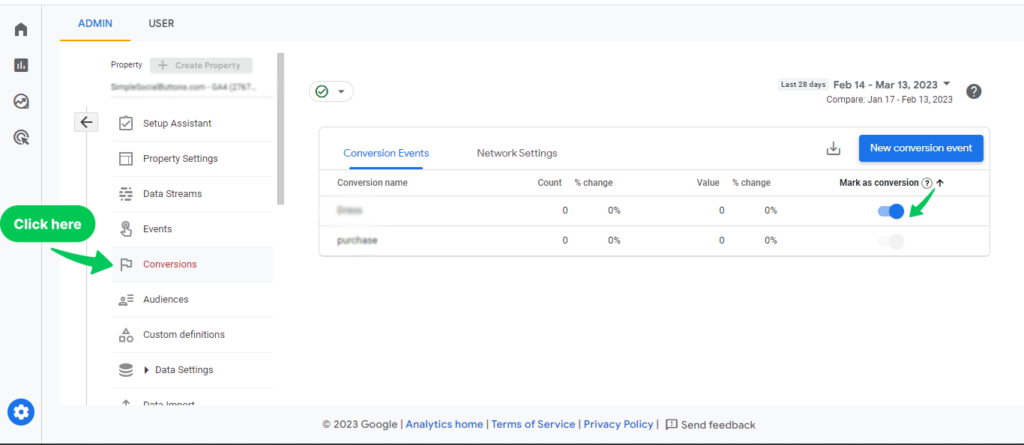
By heading to Admin >> Conversions, you can quickly see which conversions are turned on. Set them right so you can see the data in a Realtime report.
6. Browser Problem
If none of the above fixes work, the problem can be with your device or browser.
However, there’s a rare chance of Google Analytics going down, as previously happened in April 2022. In that case, the real-time report also won’t work.
How to Fix It?
Deleting the cache and cookies from your browser might fix the problem. Trying a new browser might also help.
7. Ad Blockers or Browser Extensions
Ad blockers and specific browser extensions are a less obvious yet common reason for Google Analytics Real Time not working. These tools are designed to improve privacy and browsing. They can still interfere with how Google Analytics collects and reports data.
How Ad Blockers and Browser Extensions Affect GA4
- Blocking Scripts: Many ad blockers and privacy-focused extensions block scripts perceived as tracking mechanisms. Since GA4 relies on such scripts to track user activity, these blockers can prevent GA4 from recording real-time data.
- Altering Page Code: Some extensions modify page code to block ads or trackers. That can disrupt the GA4 tracking code on your website. Your real-time reports then show inaccurate or missing data.
How do you fix ad blocker issues interfering with real-time reporting?
Deal with ad blockers and browser extensions. You improve the accuracy and reliability of your Google Analytics real time reporting. You also get the most out of real time reports in Google Analytics.
- Disable Ad Blockers and Extensions Temporarily: The simplest fix is to disable ad blockers and other extensions for a while. Then check if real-time reporting in GA4 starts working. It can help determine if these tools indeed cause the issue.
- Use Incognito Mode: Browse in incognito or private mode with extensions disabled. This helps you identify whether they cause the issue. If GA4 real-time data appears in this mode, then extensions in the normal mode are likely the culprits.
- Check for Extension Conflicts: Sometimes, the issue may be with specific extensions. Test by disabling extensions individually to identify any particular one causing the problem.
- Update Website Code: Ensure your website’s code is up-to-date and compatible with modern browser standards. Outdated code can sometimes conflict with browser extensions, leading to issues like GA4 real time not working.
- Contact Extension Developers: If an extension is the cause, contact its developers for a solution or advice.
8. No Active Users: A Common Cause for GA4 Real Time Report Issues
An overlooked reason for Google Analytics Real Time not working is a lack of active users on your site at that moment. It might seem straightforward, but it’s fundamental to consider before delving into more complex troubleshooting.
Understanding the ‘No Active Users’ Scenario in GA4:
- Real-Time Reports Depend on User Activity: The real-time report in GA4 shows the activity of users currently on your site. If there are no visitors at the moment, the report will naturally show no data.
- Testing Outside Peak Hours: You may check the real-time report during off-peak hours or low-traffic periods. Then ‘no active users’ is more likely.
How to Fix It?
- Test Traffic: The simplest way to verify if the real-time reporting works is to create some test traffic. You can do this by visiting your website or asking a few colleagues or friends to access it.
- Use Different Devices or Networks: To make sure your activity is tracked, visit your website from different devices or networks. This is especially important if your IP address is excluded in GA settings.
- Check the Time Zone Settings: Make sure the time zone in your GA4 account is set correctly. It ensures that you are looking at the real-time data at the appropriate time.
- Review Your Site’s Analytics History: Understanding your site’s typical traffic patterns can help. If you’re checking during a known low-traffic period, it might be normal to see no active users.
- Monitor for Longer Durations: Sometimes, it’s a matter of timing. Monitor the real-time report over a longer period to see if any users appear.
- Evaluate Marketing Campaigns and SEO: If ‘no active users’ is frequent, reevaluate your marketing strategy or SEO. The goal is to increase traffic.
These points help you understand and resolve issues with the GA4 Real time report showing no active users. This will help ensure your Google Analytics real-time reports are functioning correctly and providing valuable insights.
Still not getting any data? See our guide on resolving GA4 no-data issues.
Analytify: A Comprehensive Solution for Accurate Real Time Tracking
For WordPress, particularly for GA4 real-time data tracking, Analytify is a comprehensive solution. It addresses major issues like tag conflicts, data accuracy, and ease of access. Real-time data analysis becomes more efficient and user-friendly. This plugin simplifies the integration and management of Google Analytics within WordPress. It also improves real-time reporting for any WordPress site owner.
Join 50,000+ Beginners & Professionals who use Analytify to Simplify their Google Analytics!
Focusing on the Real-Time Features/Reporting of Analytify:
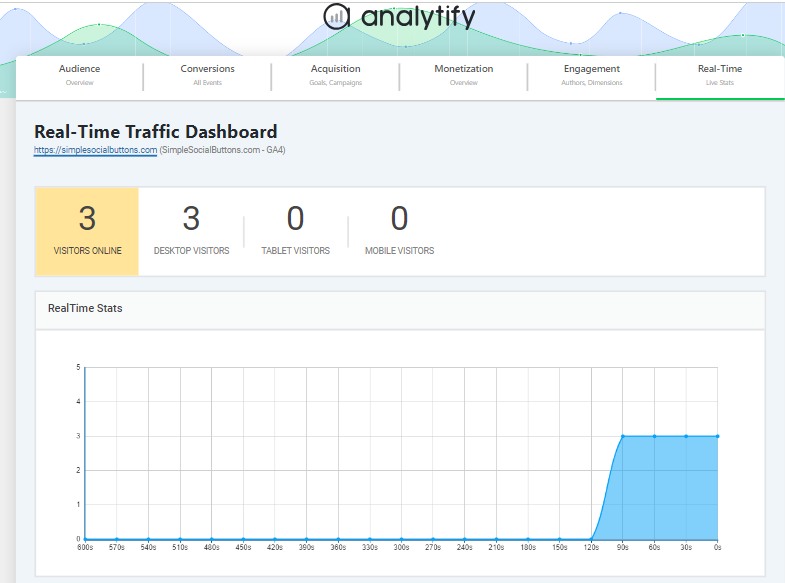
- Easy-to-Read Real-Time Dashboards: Analytify provides a user-friendly dashboard. It displays real-time data from Google Analytics in a clear and concise way. It includes the number of active users, their geographic locations, the pages they are viewing, and more.
- Streamlined Real-Time Data Access: With Analytify, accessing real-time data is as simple as logging into your WordPress dashboard. There’s no need to navigate through the complex interfaces of Google Analytics.
Google Analytics Real Time Not Working FAQs
1. What should I do if my Google Analytics Real Time is not working in WordPress?
If you’re experiencing issues with Google Analytics Real Time not working in WordPress, first check whether the GA4 tracking code is implemented correctly. You can also use Analytify to simplify this process and ensure accurate tracking.
2. How can I troubleshoot GA4 real time not working on my WordPress site?
To troubleshoot GA4 real-time not working, verify your GA4 configuration and check for any conflicts with other plugins. Analytify can assist in identifying and resolving these conflicts, ensuring your real-time data is accurately reported.
3. Why is my Google Analytics 4 Real Time not working, and how can Analytify help?
If your Google Analytics 4 Real Time is not working, it could be due to improper tag implementation or browser extension conflicts. Analytify helps by automating the tag management process and providing a user-friendly interface for monitoring real-time data.
4. How do I access Google Analytics real time reports in WordPress?
To access Google Analytics real time reports in WordPress, you can use Analytify. It integrates directly with your WordPress dashboard, providing easy access to real-time analytics data without navigating the complex GA interface.
5. Can Analytify solve Google Analytics real time reporting issues?
Yes, Analytify can solve many Google analytics real time reporting issues by ensuring proper tag management, providing easy-to-understand real-time data visualizations, and offering compatibility checks with other WordPress plugins.
6. Why is GA4 Real Time Report important?
A feature of Google Analytics 4 (GA4) lets you see in real-time how many visitors are currently on your website, which pages they are visiting, and where they are coming from. It is important for your marketing goals.
Conclusion
Most Real Time issues trace back to one of three things. They are a tracking code problem, a filter excluding your own view, or no visitors on the site right now. Work through the table above in order, and you’ll usually find it in the first three rows.
For WordPress sites already running Analytify, most of this is a non-issue. Analytify shows your GA4 data live inside your WordPress dashboard. A broken tag or filter shows up immediately. You don’t find it as a gap in next month’s report. If you want live reporting in WordPress, compare WordPress plugins for real-time GA4 reporting.
I hope this blog helps resolve your issue if your Google Analytics 4 Realtime report is not working.
You may also need to read How to Fix Not Set Google Analytics [The Easy Way].
Now, you tell us. What strategies have you found most effective in tackling your Google Analytics real-time reporting issues? Share your experiences, and let’s learn from each other!