How to Set Up Ecommerce Tracking with Google Tag Manager (Step-by-Step Explained)

Ecommerce tracking with Google Tag Manager takes seven steps. Here is how I would set it up. Install the container, copy your GA4 Measurement ID, and add a Google tag. Push an ecommerce data layer. Create GA4 event tags for view_item, add_to_cart, begin_checkout, and purchase. Then test and publish. Google Tag Manager handles the tags and triggers, so you change tracking without editing your site code each time. Your store or a plugin supplies the data layer pushes.
This guide is for store owners and marketers who want purchase and cart data in GA4. I explain what ecommerce tracking with Google Tag Manager is, how it works with GA4, the common issues and their fixes, and how Analytify makes the setup simpler.
Ecommerce Tracking With Google Tag Manager (TOC):
What is Ecommerce Tracking with Google Tag Manager?
Ecommerce tracking with Google Tag Manager records how shoppers use your store. It captures product views, cart additions, and completed purchases. You do not edit your site code to do it. Google Tag Manager fires the tracking tags for you.
In ecommerce tracking, Google Tag Manager manages all your tracking in one platform. It collects ecommerce data from your website. That data includes product views, checkout steps, and purchases. GTM then sends it to GA4. You get a clearer picture of store performance.
GTM ecommerce tracking runs on three parts. You build tags, triggers, and variables. Together they capture ecommerce events. Google Tag Manager then sends those events to GA4.
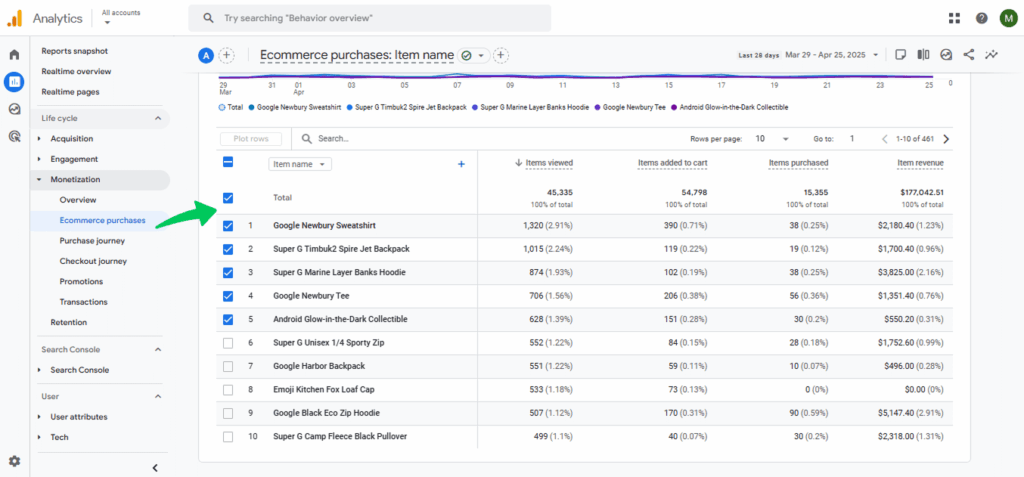
GTM and GA4 together track what shoppers actually do. You see product views, cart actions, and purchases. The data shows where sales leak. You then fix the weak steps in your funnel.
How Does GTM Ecommerce Tracking Work with GA4?
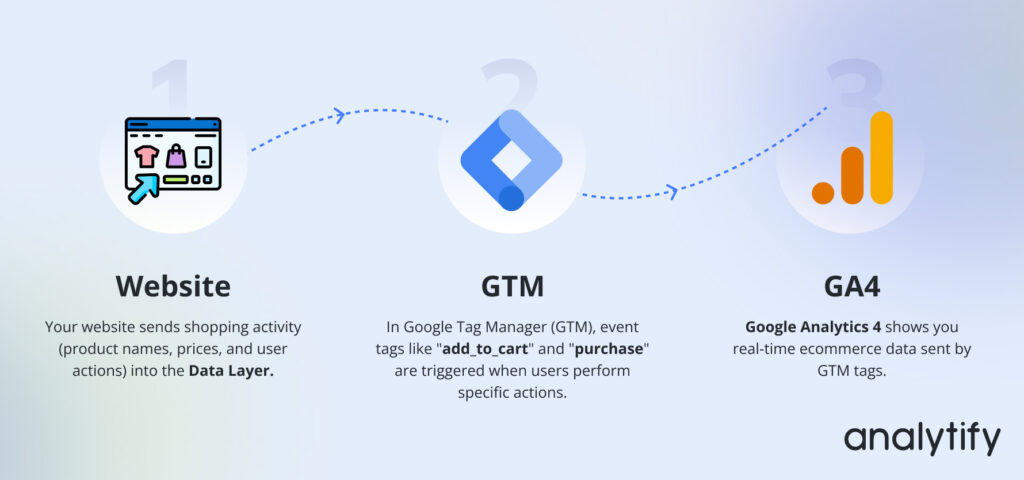
GTM sends ecommerce data to GA4 in three stages: the data layer holds the data, event tags capture it, and GA4 receives it. The sequence is:
- Your website sends shopping activity, such as product names, prices, and actions, into a special container called the data layer.
- In GTM, you create event tags (like add_to_cart or purchase) that are triggered when users take specific actions on your site.
- GTM tags automatically send data to your Google Analytics 4 account, helping you see what customers are doing in real-time.
After the data layer is in place, you update tracking in Google Tag Manager (GTM) without touching the site’s code again.
| Event | Fires when | Required parameters |
|---|---|---|
view_item | A shopper opens a product page | currency, value, items |
add_to_cart | A product is added to the cart | currency, value, items |
begin_checkout | The checkout process starts | currency, value, items |
purchase | An order is completed | transaction_id, currency, value, items |
Requirements for Setting Up Ecommerce Tracking in GTM
Ecommerce tracking in GTM requires three things: a store that pushes ecommerce data to the data layer, a GTM container installed on your site, and a GA4 property connected to that container.
- Ecommerce Website: You must have an ecommerce website that pushes essential data into the GTM data layer. That data includes product IDs, names, prices, and transaction details. The pushes happen when users add items to the cart, check out, or complete a purchase.
- Google Tag Manager Account Setup: You need an active Google Tag Manager account with the GTM container properly installed on your website. This acts as the main requirement for managing all your tracking tags.
- Google Analytics 4 (GA4) Property Linked: Make sure you have a GA4 property set up in your Google Analytics account and connected to your GTM container using a Google tag. This allows GTM to send ecommerce event data directly to GA4.
Analytify handles the entire ecommerce tracking setup for WordPress sites. It manages data layer integration automatically. It configures the GA4 events for you. It sends purchase data without manual tagging.
How to Set Up Ecommerce Tracking with Google Tag Manager (Step by Step)
Set up GA4 ecommerce tracking with Google Tag Manager in seven steps. You need a GA4 property, a GTM container, and access to your site code.
Set up Google Tag Manager
Create a GTM account and install the container snippet on every page of your site.
Copy your GA4 Measurement ID
Open GA4 Admin, then Data Streams, and copy the ID that begins with G-.
Add a GA4 configuration tag in GTM
Create a Google Tag in GTM and paste the Measurement ID into it.
Implement the ecommerce data layer
Push product and order data into the data layer before the GTM container loads.
Create GA4 event tags in GTM
Add event tags for view_item, add_to_cart, begin_checkout, and purchase.
Test your setup
Use GTM Preview and GA4 DebugView to confirm each event fires with the right parameters.
Publish your changes
Submit and publish the GTM container so the tags go live.
Here’s how you can start tracking your ecommerce data using Google Tag Manager and GA4:
Step 1: Set Up Google Tag Manager
Start by creating a free GTM account at Google Tag Manager. Once your account is ready, Google will provide you with two code snippets: a <script> tag and a <noscript> tag. These need to be added to your website:
- The <script> goes inside the <head> section.
- The <noscript> version should be right after the opening <body> tag. This allows GTM to manage all tracking tags from a central dashboard, no manual code edits needed later.
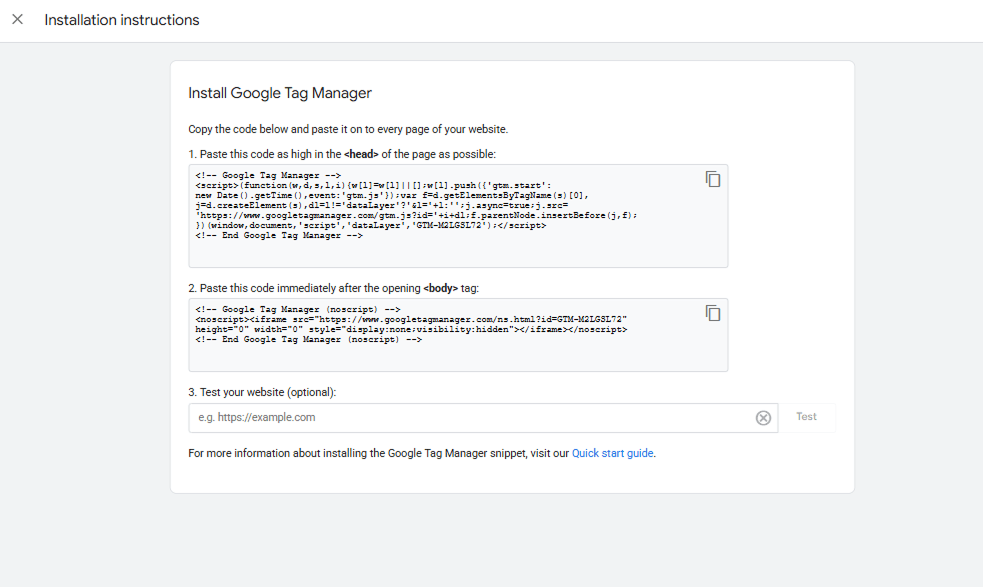
But if you are still confused about the placement of GTM code, look into the guide.
Step 2: Copy Measurement ID
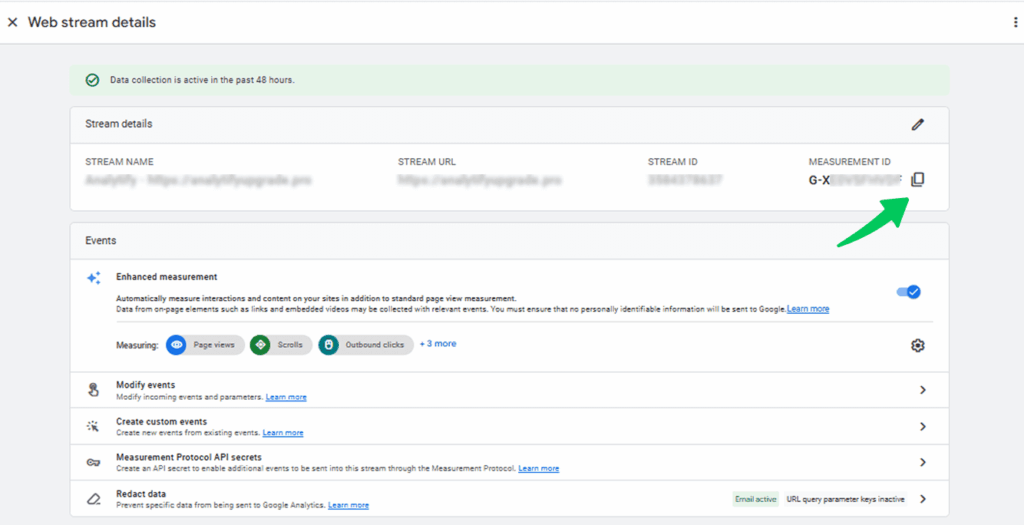
Open your GA4 property. Go to Admin, then Data Streams. Select your web stream. Copy the Measurement ID at the top. It starts with G-. The ID tells GA4 where the data comes from. Google Tag Manager sends tracking data against it.
Step 3: Add a GA4 Configuration Tag in GTM
In your GTM workspace:
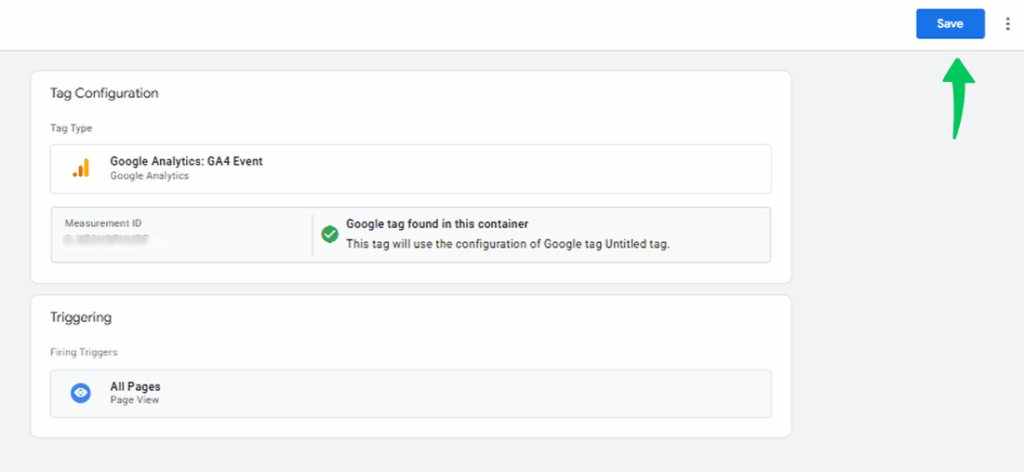
- Click Tags >> New and choose Google tag as the tag type. Google Tag Manager now uses the Google tag in place of the GA4 Configuration tag.
- Paste your GA4 Measurement ID into the provided field.
- Set the trigger to Initialization – All Initialization Events so the Google tag fires on every page. The tag keeps your site connected to GA4 and ready to send tracking data.
Step 4: Implement the Ecommerce Data Layer
The ecommerce data layer sits between your website and GTM and holds the ecommerce data you want to track. That includes product IDs, names, prices, and transaction details. It formats each event the way GA4 expects. GTM then captures the event and forwards it. Without a data layer, ecommerce tracking will not work.
Where to Add the Data Layer Code:
You (or your developer) need to insert data layer snippets on relevant pages of your website:
- Product Pages (for product views)
- Cart Pages (for add-to-cart events)
- Checkout Pages (for checkout events)
- Order Confirmation Pages (for purchases)
If you’re using Analytify, this process is handled automatically without coding. Otherwise, you must manually inject JavaScript snippets into your website pages. For example:
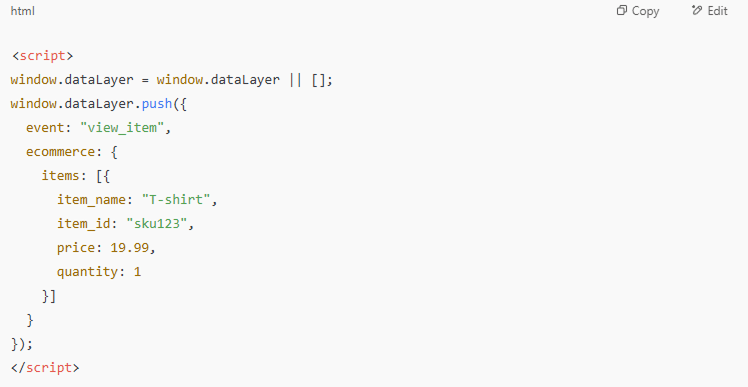
- Product View (view_item):
Add this snippet to your product pages:
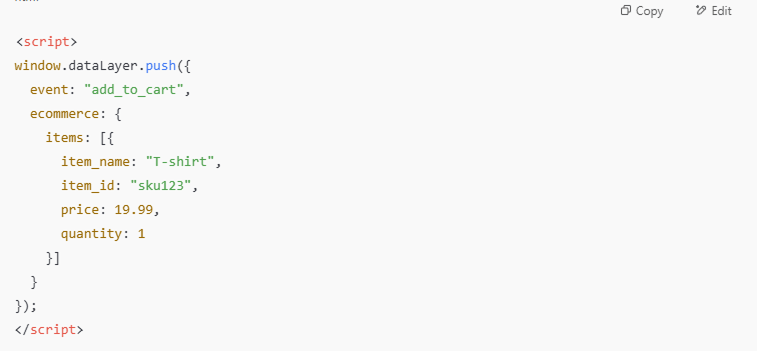
- Add to Cart (add_to_cart):
Trigger this when users add a product to their cart:
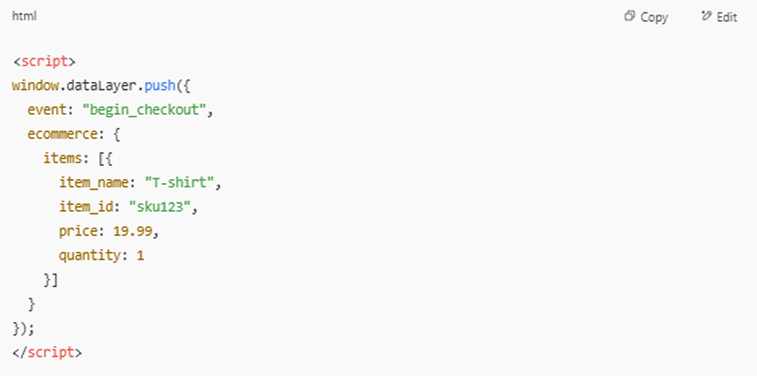
- Checkout Started (begin_checkout):
Push checkout start details into the data layer:
- Purchase (purchase):
On the order confirmation page:
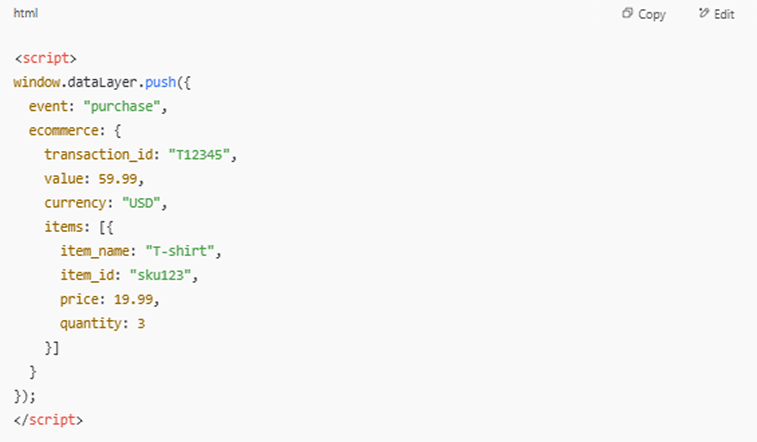
You may need a developer for this step. Some ecommerce platforms already output the GA4 data layer. If yours does not, add the code manually. Before each ecommerce push, clear the previous object with dataLayer.push({ ecommerce: null }). This stops values from one event from carrying into the next.
Step 5: Create GA4 Event Tags in GTM
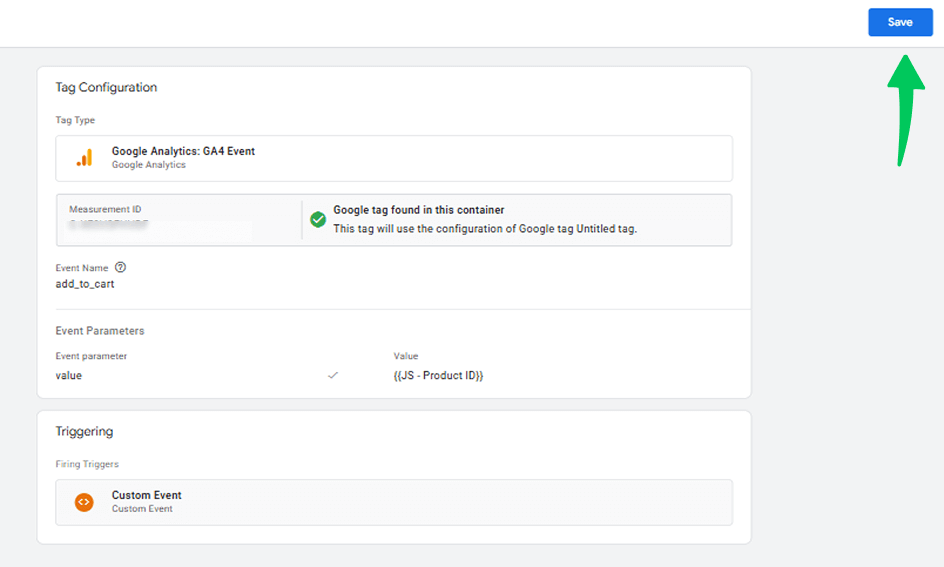
Now, create event tags in GTM to capture specific ecommerce interactions:
- Click Tags >> New >> GA4 Event.
- Set the Event Name to match GA4’s recommended ecommerce events like view_item, add_to_cart, purchase, etc.
- Under Event Parameters, map data layer variables (e.g., items, value, currency) so GA4 receives all necessary details.
- Assign the appropriate Trigger to each tag. For example:
- Use a Custom Event Trigger for add_to_cart
- Set the Event name in each trigger to match the data layer event, such as add_to_cart or purchase.
- Use a Custom Event Trigger for add_to_cart
Step 6: Test Your Setup
Use Preview Mode in GTM to test your tags in real time. This lets you confirm that:
- Your tags are firing at the right time.
- The correct data is being pulled from the data layer.
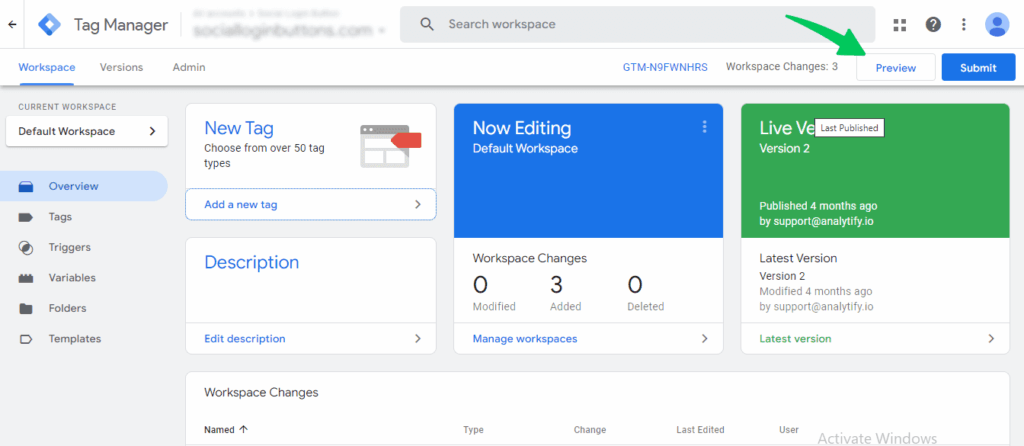
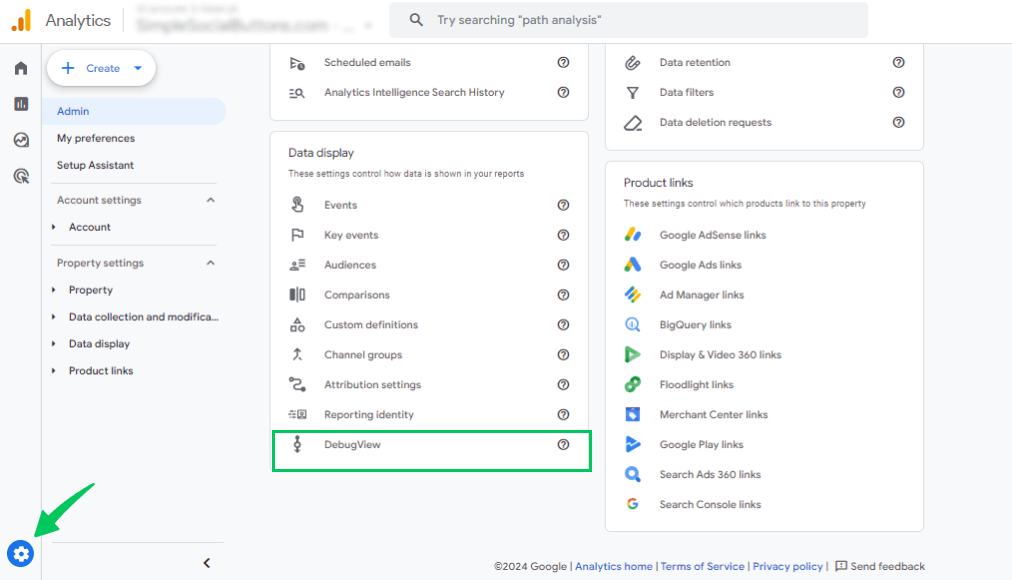
In GA4, open DebugView to confirm events arrive correctly. Check that each event carries its required parameters. In GA4, DebugView is under Admin > Data display > DebugView.
Step 7: Publish Your Changes
Once everything looks good and has been tested:
- Click the Submit button in GTM.
- Add a version name and description to keep track of what you’ve changed. Now your ecommerce tracking setup is live and sending data to GA4.
Google Tag Manager Ecommerce Tracking: Common Issues & Fixes
This section covers seven common GTM ecommerce tracking issues, and each has a fix. The table below lists them, and the sections after it give the details.
| Issue | Likely cause | Fix |
|---|---|---|
| Events not showing in GA4 | The data layer uses non-standard event names | Use GA4 recommended names such as purchase, add_to_cart, view_item |
| Missing data layer values | The data layer pushes after the tag fires | Push the data layer before the GTM container loads |
| Custom event names ignored | GA4 does not map custom names to eCommerce reports | Rename events to GA4 recommended names |
| Wrong tag type used | A Universal Analytics tag was selected | Use the GA4 Event tag type in GTM |
| DebugView shows no events | Preview mode is off or debug_mode is missing | Enable GTM Preview and confirm debug_mode is set |
| Duplicate purchase events | The purchase event fires again on page reload | Send a unique transaction_id and block repeat fires |
| Tags not firing | Trigger conditions do not match the event | Check the trigger fires on the correct data layer event |
1. Ecommerce Events Not Showing in GA4 Reports
Issue: Your tags are live in Google Tag Manager. No events appear in GA4 monetization or event reports. A tag can fire and still send nothing usable. The cause is usually event setup or the data layer.
Fix: check each of the following.
- Double-check that your data layer includes GA4’s recommended event names, such as ‘purchase’, ‘add_to_cart’, and ‘view_item’.
- Ensure the event parameters (such as value, currency, items, etc.) exactly follow GA4’s expected format.
- Ensure that your GA4 event tags in GTM retrieve values from data layer variables.
- Use GTM’s Preview Mode and GA4’s DebugView to confirm that the events are being triggered and sent with the right data.
2. Missing or Incorrect Ecommerce Data in the Data Layer
Issue: GA4 needs a well-structured data layer. The layer tracks product views, add-to-cart actions, and purchases. Each event must carry product ID, name, price, and quantity. Missing or badly formatted values break the report. GA4 then cannot record the action.
Fix: By using the tricks given below, you can resolve this issue:
- Your website must push ecommerce data using correctly formatted dataLayer.push() code. This should include all required values, such as item_id, value, currency, etc.
- Open Chrome DevTools, then go to Console and type’ dataLayer’ to check if the right data is being pushed.
- Test if the events and parameters are triggering as expected.
- If this feels too technical, work with a developer or use Analytify (for WordPress and WooCommerce) to automatically generate and push the correct ecommerce data into the data layer without manual coding.
3. Use GA4 Recommended Event Names for Accurate Ecommerce Tracking
Issue: Custom event names break ecommerce tracking. GA4 looks for its own recommended names. A name like addProductToCart does not feed the ecommerce reports. Use add_to_cart instead.
Fix: Use GA4’s recommended ecommerce event names. Those names are view_item, begin_checkout, and purchase. GA4 then tracks and reports them automatically.
4. Using Wrong Tag Types
Issue: Some users accidentally use outdated Universal Analytics tags instead of GA4 event tags.
Fix: Use the Google tag and GA4 Event tags in GTM, not Universal Analytics tags.
5. DebugView Not Showing Events in GA4
Issue: You’re testing your ecommerce setup, but no events appear in GA4’s DebugView, even though your tags seem to be firing in GTM. This can be frustrating, especially during setup or troubleshooting.
Fix:
- Open your website through GTM Preview Mode. Preview Mode adds a parameter to the site address that enables debug mode for GA4.
- Use Google Tag Assistant (tagassistant.google.com) to check that your GA4 tags fire and send events to GA4.
- GA4 DebugView won’t work properly if your browser blocks cookies or if you’re using Incognito mode without enabling third-party cookies.
- Double-check that the GA4 Measurement ID used in GTM matches the one in your GA4 property; if it’s incorrect, data won’t show up.
- Events may take a few seconds to appear in DebugView, especially during initial testing.
6. Duplicate Purchases Showing in GA4
Issue: GA4 shows several purchase events for one order. The purchase tag is firing more than once. Revenue data inflates and reports mislead.
Fix:
- Set up a condition in GTM to trigger the purchase event only when a unique transaction ID appears. This helps prevent the tag from firing again if the user refreshes the confirmation page.
- Instead of firing the purchase event on page load, use a more specific trigger, such as a custom “purchaseComplete” event or a unique URL pattern (e.g., /thank-you), and combine it with a check for the transaction ID.
- Consider using a one-time trigger setup with a custom variable or cookie to track whether the event has already fired for the user session.
7. Tags Not Firing Correctly in GTM
Issue: Your GA4 event tags fire at the wrong time. Or they fire on the wrong pages. Misconfigured GTM triggers are the usual cause. Key ecommerce events then never reach GA4. Purchase and add_to_cart are the ones most often lost.
Fix:
- Review your trigger conditions carefully. Ensure you’re using the correct trigger types (e.g., click, custom events, or page views) based on user interactions.
- Check page conditions. For example, the “purchase” event should fire only on the order confirmation page, not on page reload or earlier steps.
- Use GTM’s Preview Mode to test your tags and verify that they fire during the right interactions.
- Ensure your Google tag fires on all pages so event tags can work.
How Analytify Simplifies Ecommerce Tracking with GTM
Analytify reduces the setup work for GA4 ecommerce tracking on WordPress and WooCommerce stores. Manual GTM setup is time-consuming and technical when you manage multiple events, data layers, and triggers.
Analytify is a Google Analytics plugin for WordPress. It shows your website performance inside the WordPress dashboard. You see total visitors, page views, and bounce rate. You also see top pages and visitor locations. No trip to the Google Analytics interface is needed.
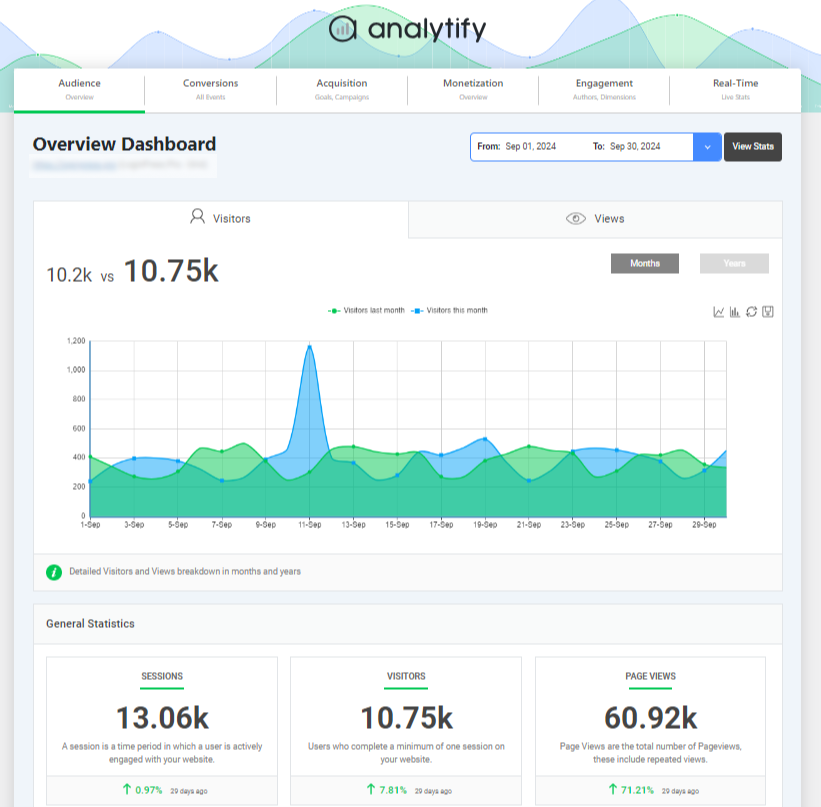
Analytify configures ecommerce tracking automatically. You do not edit tags by hand. You do not touch data layer code.
Analytify handles this for WordPress and WooCommerce stores. The WooCommerce Addon pulls product names, IDs, prices, and transactions. It structures that data to GA4 requirements. The data pushes into the data layer in real time. Compatibility is handled for you.
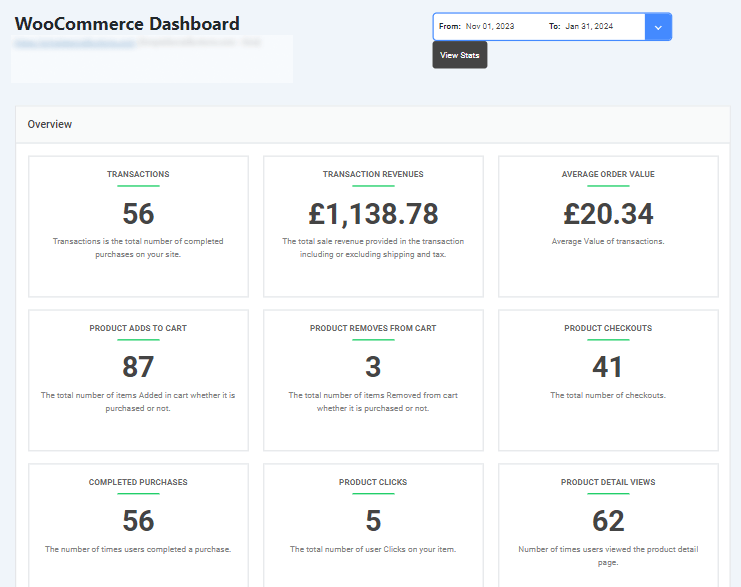
Instead of configuring each GA4 event manually in GTM, Analytify works behind the scenes to:
- Push well-formatted ecommerce data into the data layer
- Ensure all required parameters (e.g., item_id, value, currency) are included.
- Enables ecommerce events such as view_item, add_to_cart, begin_checkout, and purchase to be tracked with the right format and values.
- Reduce tracking errors caused by incorrect formatting or missing data
Analytify delivers accurate GA4 ecommerce reporting with minimal setup. Google Tag Manager configuration stays light. It suits store owners who want reliable numbers fast. You skip the complex technical steps.
| Method | Best for | Dashboard included | Price range |
|---|---|---|---|
| Google Tag Manager, manual setup | Developers who need custom events | No, reports open in GA4 | Free |
| GA4 native WooCommerce reporting | Basic order and revenue tracking | No, reports open in GA4 | Free |
| Analytify with the WooCommerce Addon | Store owners who want reports inside WordPress | Yes, inside the WordPress dashboard | Free, then $99 to $499 |
Frequently Asked Questions About GTM Ecommerce Tracking
1. What is ecommerce tracking with Google Tag Manager?
Ecommerce tracking with Google Tag Manager records product views, cart actions, and purchases. GTM tags and triggers send the event data to GA4. You track shopping behavior without hardcoding analytics.
2. How to set up ecommerce tracking in GTM?
First, push ecommerce data to the data layer. Then, use Google Tag Manager to create GA4 event tags (like view_item, add_to_cart, and purchase) and connect them to the corresponding triggers. Link everything to your GA4 Configuration tag.
3. How to collect ecommerce data?
Collect data using dataLayer.push() for each ecommerce interaction. This includes product ID, name, price, quantity, and transaction details. Ensure the data follows GA4’s recommended ecommerce schema.
4. Why use Google Tag Manager for ecommerce tracking?
Google Tag Manager manages every GA4 event in one place. You never edit website code to add a tag. Changes ship in minutes, not in a developer sprint. That flexibility matters as your product catalog grows.
5. How to create ecommerce events in GA4?
Use GA4 Event Tags in GTM to send events manually. Common examples are begin_checkout and purchase. Set event parameters as variables pulled from the data layer. Those parameters include items, value, and currency.
6. Why is my ecommerce data not showing in GA4?
Five causes explain nearly every case. First, the GTM container is not published. Preview mode alone sends nothing to GA4. Second, the data layer push fires after the tag. Third, event names do not match the GA4 ecommerce schema. Fourth, a consent banner blocks the tag before it sends. Fifth, GA4 ecommerce reports can lag 24 to 48 hours. Check GTM Preview and GA4 DebugView in that order.
7. Should I use server-side tagging for ecommerce tracking?
Server-side tagging helps once ad blockers cost you real data. It moves tag execution from the browser to your own server. Purchase events then survive browser tracking restrictions. The trade-off is hosting cost and setup time. Most small stores should master client-side GTM first. Revisit server-side tagging above 10,000 monthly transactions.
Final Thoughts: Ecommerce Tracking with Google Tag Manager
Ecommerce tracking with Google Tag Manager works when four pieces are in place: a Google tag, a correct data layer, GA4 event tags, and testing in Preview Mode and DebugView. With them in place, you can see how customers move through your store.
Missing events and duplicate purchases are common faults, and the fixes above cover both. WordPress and WooCommerce users have a shorter path. Analytify handles the data layer and configures the events. It sends accurate purchase data to GA4 for you.
For further guidance, you can read these articles:
- How to Enable Google Analytics Ecommerce Tracking?
- Enhanced Ecommerce Tracking with Analytify
- 15 Most Common Enhanced Ecommerce Mistakes
If you have any questions about this guide, feel free to ask us. We’d be happy to help!