

How to Use GA4 Monetization Reports For Tracking Revenue and E-commerce Success?

GA4 monetization reports show how much revenue your site or app earns from ecommerce, in-app purchases, subscriptions, and ads. Find them under Reports > Monetization.
I walk you through the Monetization Report Google Analytics 4, why they matter, and how to use them in GA4.
Table of Contents
What Are Monetization Reports Google Analytics 4?
Monetization reports in Google Analytics 4 summarize the revenue your site or app earns from ecommerce, in-app purchases, subscriptions, and ads.
Monetization reports GA4 are measures and data points showing how much money your online presence makes. In Monetization reports, you can see information about e-commerce, subscription, and ad revenue.
It tracks key performance indicators (KPIs) such as income, transactions, conversion rate, average order value (AOV), and more. This makes it easy to see how much money you’re making and keep track of each source of income.
Why Should You Track Monetization Reports GA4?
The most important thing about monetization reports is that they help you figure out how your online presence helps your bottom line. By keeping track of revenue and other key performance indicators (KPIs), you can find places where you can improve and change your digital plans accordingly.
You can use monetization reports to get answers to important queries like
- Which kinds of traffic bring in the most money?
- Which goods or services bring in the most money?
- How much do most of my customers spend on each order?
- How does your conversion rate stack up against standards in my industry?
By knowing the answers to these questions, you can improve your online presence and make better marketing strategies to make more money.
How to See Monetization Report in Google Analytics 4
Open Reports > Monetization in the Life cycle collection to see GA4 monetization reports. The sections below cover the main ones.
Check Ecommerce Overview Report
The Monetization overview report summarizes your revenue data. Its cards cover total revenue, purchase revenue, mobile app ad revenue, purchasers, average purchase revenue per active user, items purchased, promotions, and coupons.
To see Ecommerce Overview Report, navigate to Reports>>Monetization>>Overview.
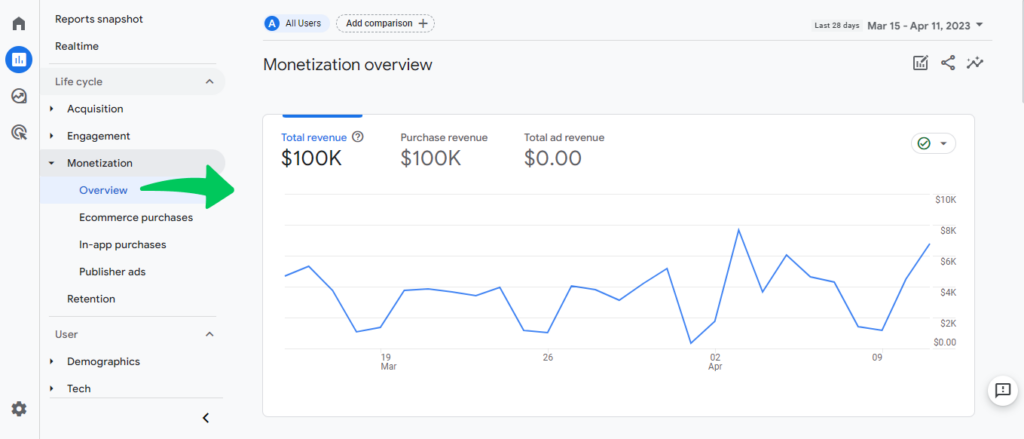
Note: You’ll need to set up many events to collect data for your monetization report, but you probably would have set it up already. Check Google’s full list of GA4 Recommended events. Monitor crucial ecommerce events like “begin_checkout” and “purchase”.
Make sure all events are set properly so Analytics can track them in your monetization report.
Know In-App Purchases
In-app payments are a part of your monetization report that lets you see how often your apps are being used to buy things. This part of the study is pretty in-depth.
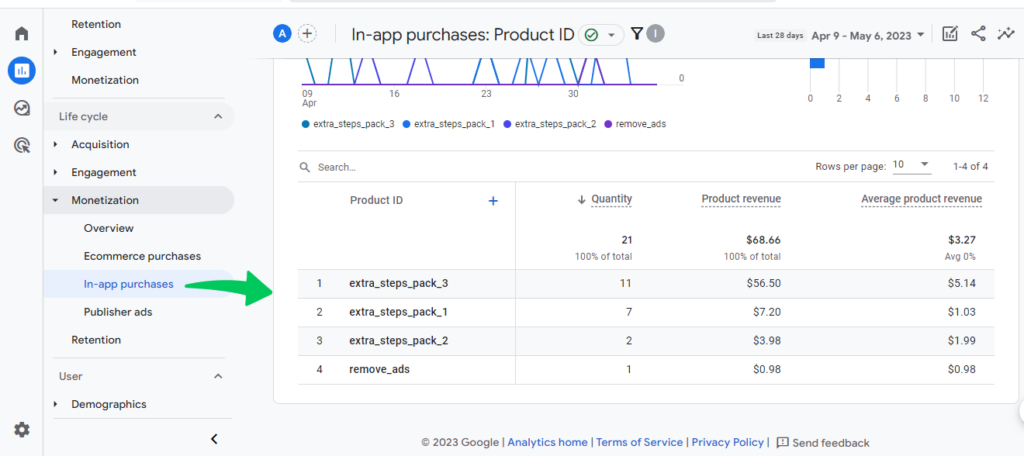
Explore Ecommerce Purchases
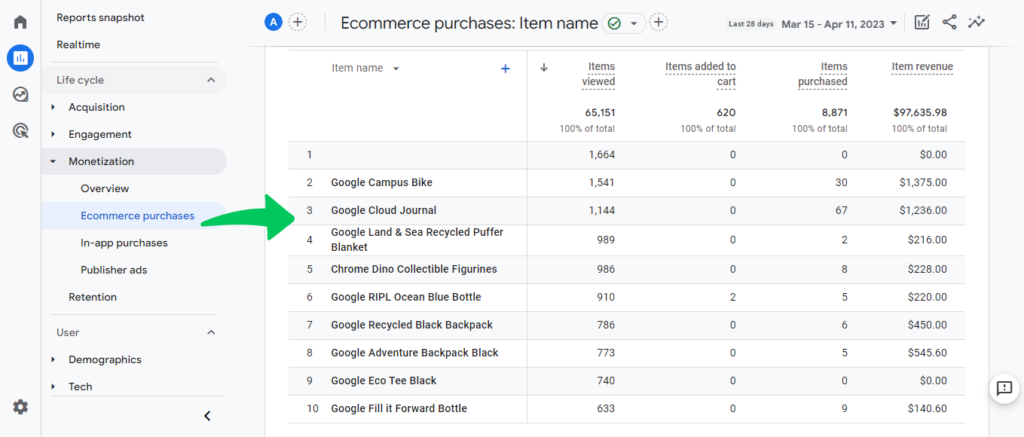
The Ecommerce purchases report shows items viewed, items added to cart, and items purchased by item name, ID, brand, and category. It needs the view_item, add_to_cart, and purchase events. Google Analytics does not collect these ecommerce events automatically.
Check Publisher Ads
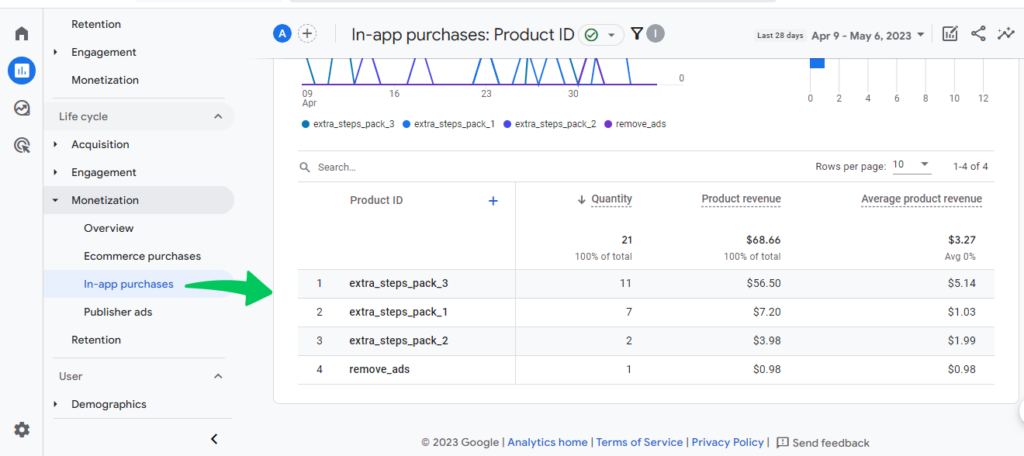
The Publisher ads report shows each ad you display on your website or app, with its engagement and revenue. To see it, link your property to an AdMob, Google Ad Manager, or Google AdSense account. Find it under Advertising >> Publishing >> Publisher Ads.
How to Fix a Broken Google Analytics Monetization Report GA4
A GA4 monetization report can show no data when ecommerce events are missing or incomplete, so check your data collection first.
Navigate to Monetization>> Ecommerce purchases report. You’ll see an error and no data available.
Fixing broken monetization reports in Google Analytics 4 takes a systematic approach that includes checking your Data Collection, monetization settings, and reporting settings.
You can fix broken monetization reports in Google Analytics 4 by following the below steps:
Review Your Data Collection
The first step in fixing broken marketing reports is to make sure that your data collection is working properly. Make sure that the GA4 tracking code is added properly. You can use Analytify to connect your WordPress to Google Analytics if you don’t know to code.
Check that your site sends the view_item, add_to_cart, and purchase events. Google Analytics does not collect ecommerce events automatically. An ecommerce event with a missing required parameter is treated as a custom event and does not appear in the Ecommerce purchases report.
Check The Report Settings and Applied Filters
If your settings for data collection are right, the problem may be with your reporting. Check to see if your reports are set up properly and if you have used any filters or segments that could be causing problems.
You can see if this is the case by going to the Reports of your GA4 property and choosing the broken report. Then, make sure that the right data is being shown and that no filters are being used that could change the accuracy of data.
Contact Analytics Help Center
If you’ve done all of the above steps and still can’t fix your broken monetization report in GA4, you may need to contact Analytics Help Center. Visit the GA4 Help Center and click on the Contact Us button to get in touch with Google Help.
How to Track Monetization Reports on Your WordPress Site?
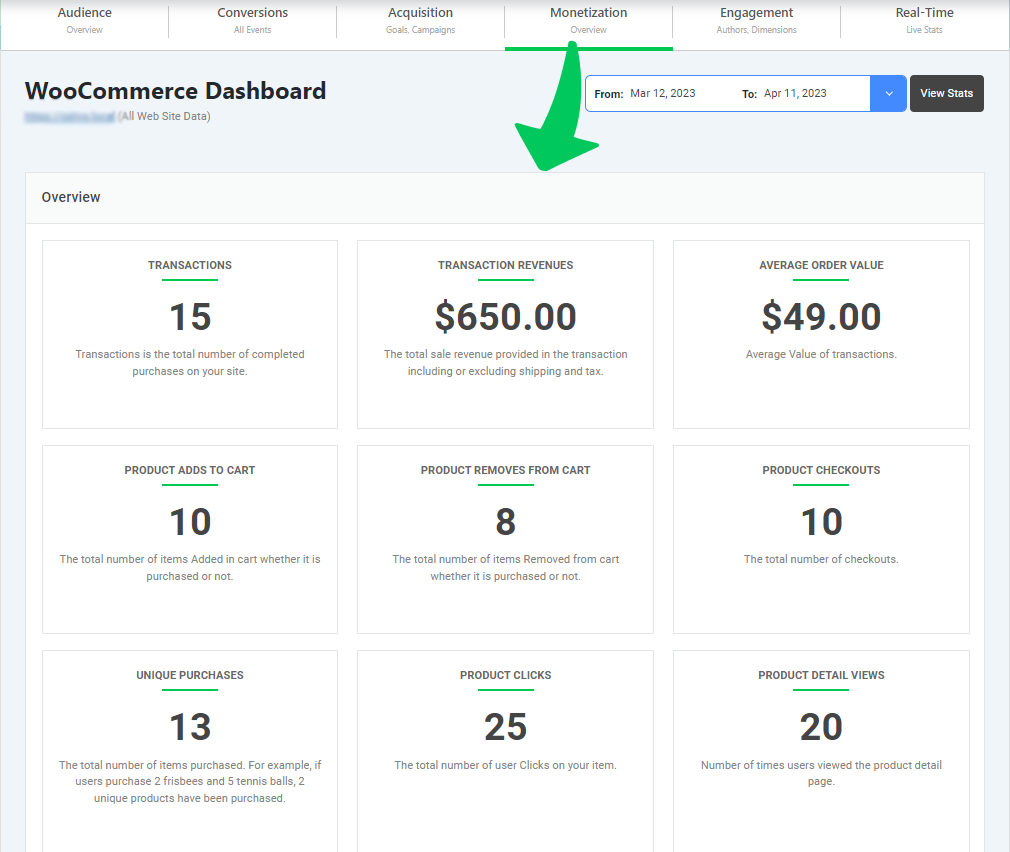
Analytify shows your GA4 monetization data inside your WordPress dashboard. With Analytify, you can see your website’s revenue, transactions, conversion rates, and other key performance indicators (KPIs) right in your WordPress dashboard.
To use Analytify to track monetization reports, you must first use the Analytify tool to link your Google Analytics account to your WordPress site. Once your account is linked, Analytify will instantly start tracking your website’s ecommerce data and show it in easy-to-read reports.
You can see Measuring ROI, Products Performance, Product lists Analysis, and a lot more.
With Analytify’s easy-to-use interface, you can quickly look at and analyze your monetization data. This lets you make decisions based on the data to improve your online profile and make more money.
Wrapping Up
Use GA4 monetization reports to see which traffic sources and products earn the most revenue, then adjust your marketing to match.
We hope this blog has helped you to understand Monetization Reports in Google Analytics 4.
Frequently Ask Questions
What are Monetization Reports GA4?
Monetization reports Google Analytics 4 are a set of metrics and data points that provide insights into the revenue produced by your online presence. These reports track key performance indicators (KPIs) for Monetization, such as income, transactions, conversion rate, average order value (AOV), and more.
Why are Monetization Reports GA4 Important?
The most important thing about monetization reports is that they help you figure out how your online presence helps your bottom line. By keeping track of revenue and other key performance indicators (KPIs), you can find places where you can improve and change your digital plans accordingly.
How do I Get to the Google Analytics Monetization Reports GA4?
You need an e-commerce-enabled website or app and ecommerce tracking turned on in your Google Analytics account to see monetization reports. Once you have done these things, you can find monetization reports in your Google Analytics 4 by navigating to Reports>>Monetization.
Can I Customize My Monetization Reports Google Analytics 4?
Yes, you can change the way your Monetization Reports Google Analytics 4 look by adding filters. This lets you look more closely at certain areas of your monetization success and learn more
That’s all. You can also check out our guide on How To Add Google Analytics to WordPress Website in 2023.
Not using Analytify yet? What are you waiting for?




Why I have no data in the monetization tab?
Your Woocommerce addon is still not working 🙁
Hi Haseeb,
Thank you for letting us know that our WooCommerce addon is not working for you. We apologize for the inconvenience caused.
We’d like to inform you that the issue you mentioned has been addressed and resolved in our latest release, v5.0.1, of the WooCommerce addon. We highly recommend updating to the latest version to ensure the smooth functioning of the addon.
If you need any further assistance, please feel free to contact us at our Support
Our dedicated support team will be more than happy to help you.