How To Track and Analyze Organic Keywords In Google Analytics 4

GA4 organic keywords are what people typed into Google before landing on your site. GA4 hides most of them behind (not set) or (not provided) labels. That’s search encryption and privacy rules, not a tracking failure on your end.
You can still recover this data three ways. Link GA4 to Google Search Console. Track on-site search terms with the search_term event. Or view both directly inside the Analytify WordPress dashboard.
This guide covers all three methods. Plus free keyword research tools to fill the gaps GA4 leaves behind.
Organic Keywords in Google Analytics (TOC):
Why Doesn’t GA4 Display Search Terms?
To understand why GA4 hides search terms, look at two changes. Data privacy rules. And the way search engines process queries.
Traditionally, a search click passed the keyword along to your analytics tool. That made it easy to see which keywords drove traffic. Strict data privacy practices have since changed this.
1. Data Privacy and Encrypted Searches
Google now encrypts searches. The keywords a visitor used are no longer passed to website owners. User privacy demand drove this change. When someone clicks a Google result, the referral data is stripped of the query terms. That’s why your analytics shows no keyword.
2. Changes in GA4 Reporting
GA4’s data model is another factor. GA4 tracks events, not sessions like Universal Analytics did. It focuses on engagement, not raw data points. Some Universal Analytics reports look different in GA4. The old GA4 Organic Keywords report is one of them.
3. Use of (not set) and (not provided) Labels
You’ll often see (not set) or (not provided) where you’d expect a keyword. GA4 shows this label when data wasn’t passed by the search engine. It traces back to encrypted searches and privacy changes.
Next, here’s how to gain insight into your organic traffic without direct keyword data. And how to get the most from the GA4 keywords report.
How to Find Organic Keywords in Google Analytics?
Direct keyword data isn’t as available in GA4 as it used to be. But you can still get real insight into your organic traffic. Here are two effective methods to find and track organic search keywords in GA4.
| Method | Setup Time | What You See | Best For |
|---|---|---|---|
| Link GA4 to Search Console | 5 minutes, one-time | Actual search queries, clicks, impressions, CTR, position | Anyone who wants real organic keyword data |
| Track search_term event | A few minutes, requires on-site search | What visitors search for inside your own site | Sites with an on-site search bar |
| View in Analytify dashboard | Instant, after linking GSC once | Search Console queries inside WordPress, no GA4 login needed | WordPress site owners who want it in one place |
Method 1: Linking GA4 and Search Console
Linking GA4 with Google Search Console is a powerful way to see your organic search keywords. Search Console shows how your site appears in Google Search, including the queries driving traffic. Linking the two tools combines their strengths inside GA4.
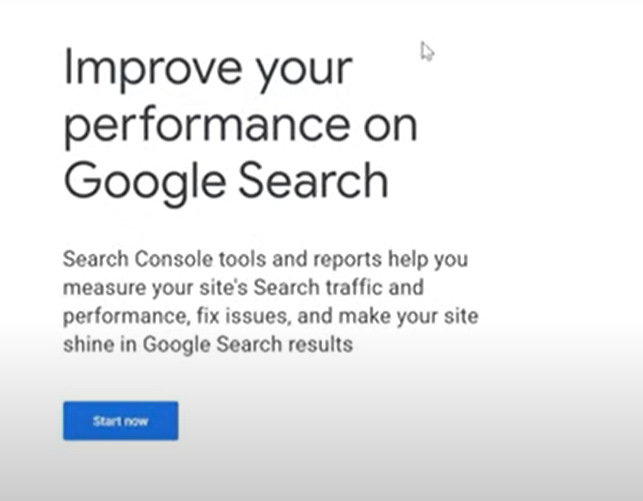
Here’s the same five steps in more detail:
Steps to Link GA4 and Google Search Console:
- Access GA4 Property: First, ensure you have administrative rights to both your GA4 property and the Google Search Console account you want to link.
- Navigate to Admin Section: In your GA4 property, go to the Admin section, which is typically found in the lower-left corner of your dashboard.
- Product Linking: In the Admin section, under the property column, look for “Product Linking” and select “Google Search Console.”
- Add Link: Click ‘Link’ and choose the appropriate Search Console property to link with GA4. Follow the prompts to complete the linking process.
- Verify and Save: After selecting the Search Console property, verify the settings and save the configuration.
Benefits of Linking:
Access to Search Queries: Once linked, you can open the Search Queries report in GA4. It shows the keywords people searched before landing on your site.
Combined Data Insights: This link lets you see how search queries correlate with user behavior in GA4. That’s a more complete view of how people interact with your site.
Link GA4 with Search Console and you’ll see keywords inside GA4. That sharpens your content and SEO strategy.
See the Search Queries Report in GA4
Now you can access the query reports. Go to GA4 Reports >> Search Console >> Queries.
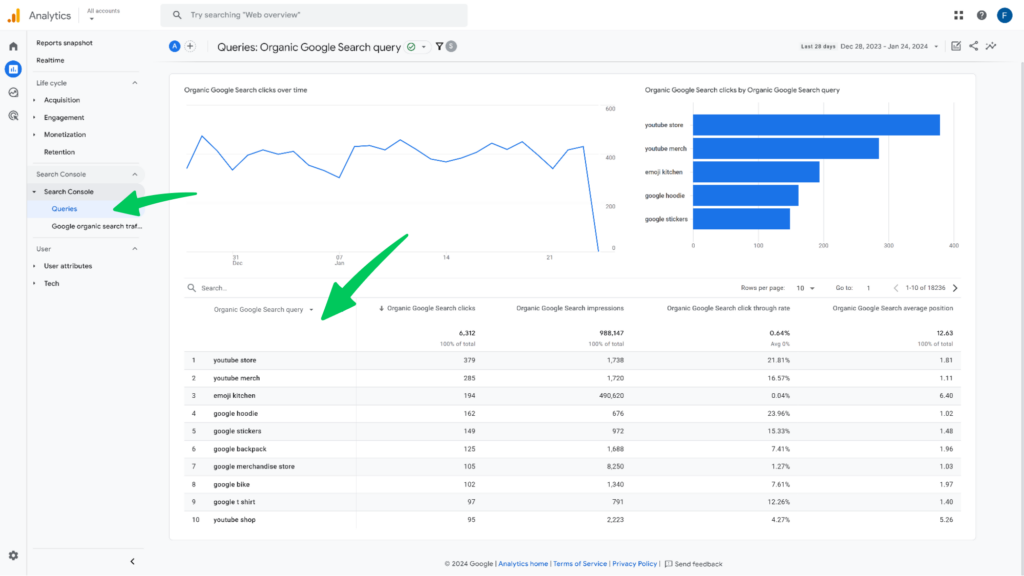
This report shows organic keywords driving traffic to your site. It also includes clicks, impressions, CTR, and average ranking position.
Method 2: View Search_Term Data In Google Analytics 4
If your site has a search feature, GA4 can track it automatically. It logs what people type in, to find pages, posts, or products.
GA4 logs this activity as an event named view_search_result.
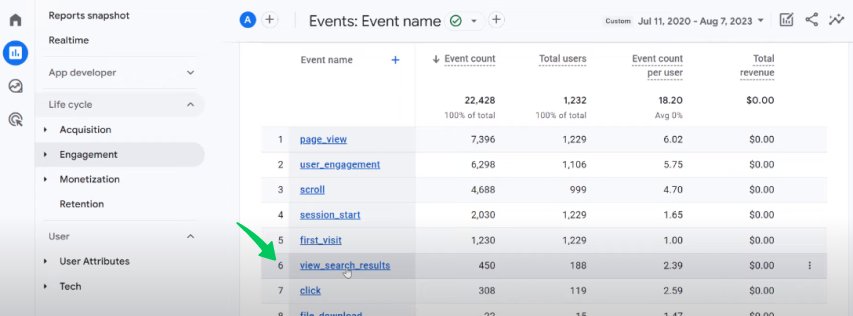
Along with that event, GA4 tracks a parameter called search_term.
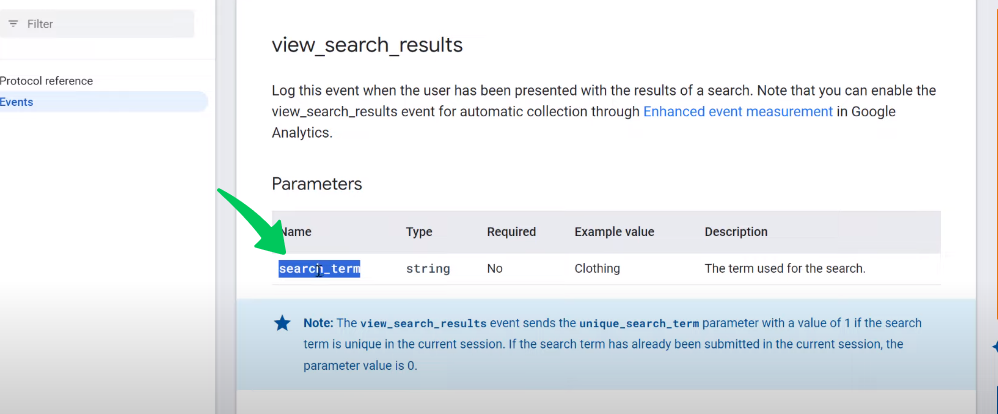
Steps to Access and View Search Term Data in GA4:
- Navigate to the Report Library: In your GA4 interface, go to the ‘Reports’ section and click ‘Library’ to access the report creation tools.
- Create a New Report: To build a customized report, click ‘New Report’.
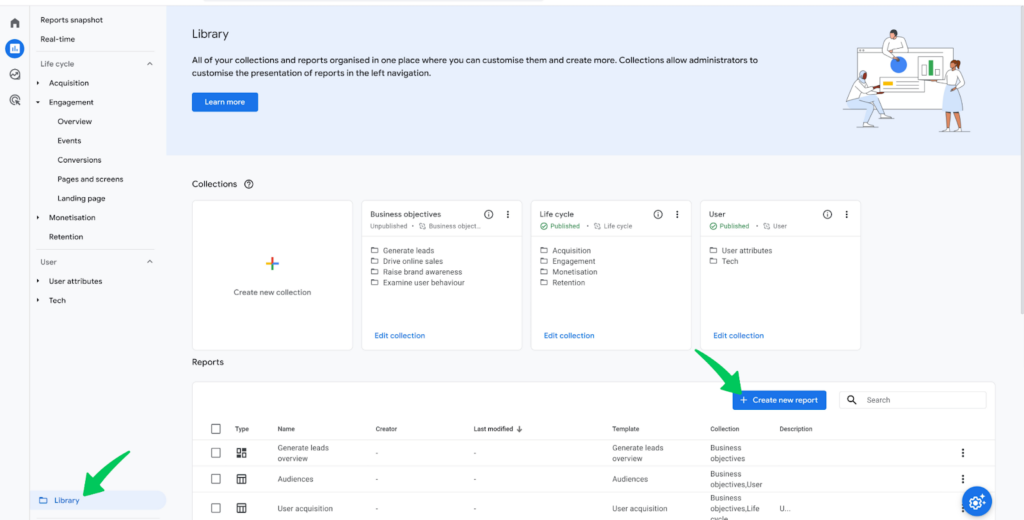
- Select Report Type: You’ll see options like ‘Overview Report’ and ‘Detailed Report’. Choose ‘Detailed Report’ for a more in-depth analysis.
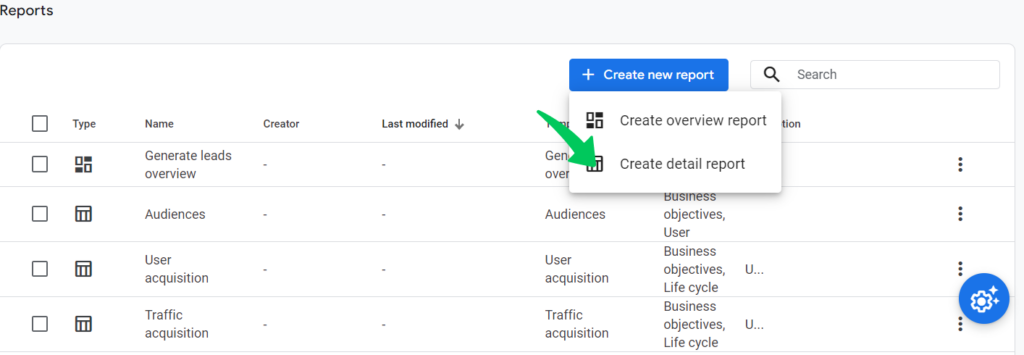
- Choose a Blank Template: Click on ‘Blank’ to start from scratch, allowing you to customize the report according to your needs.
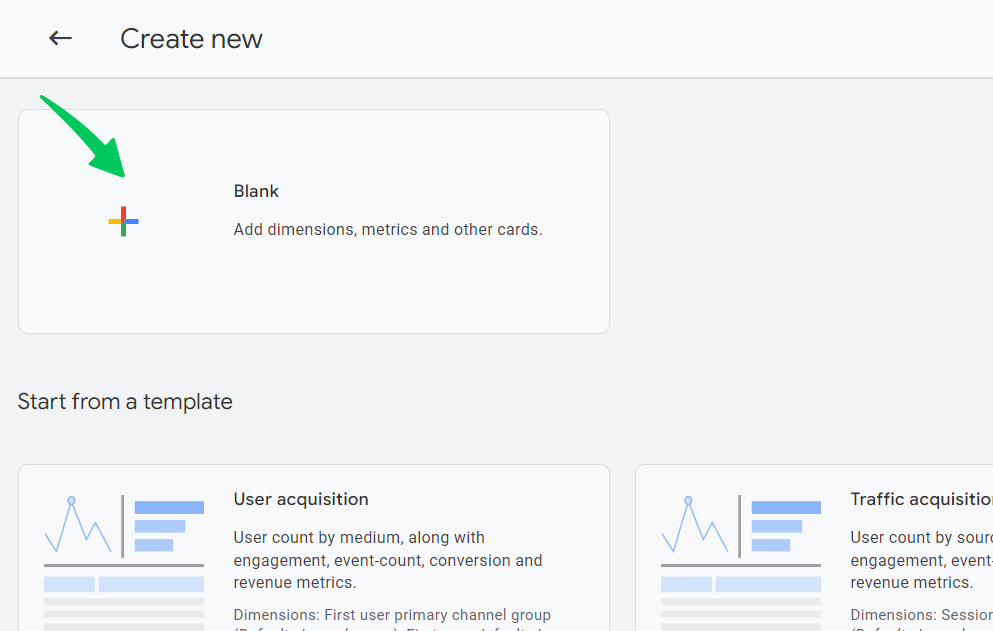
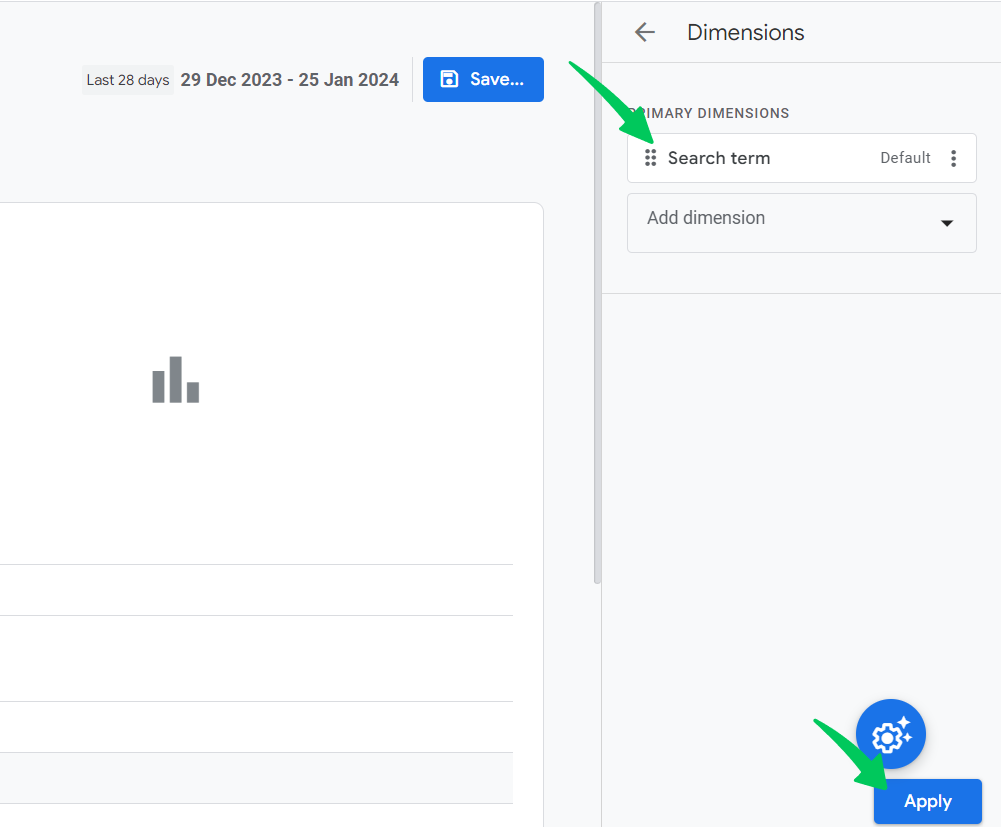
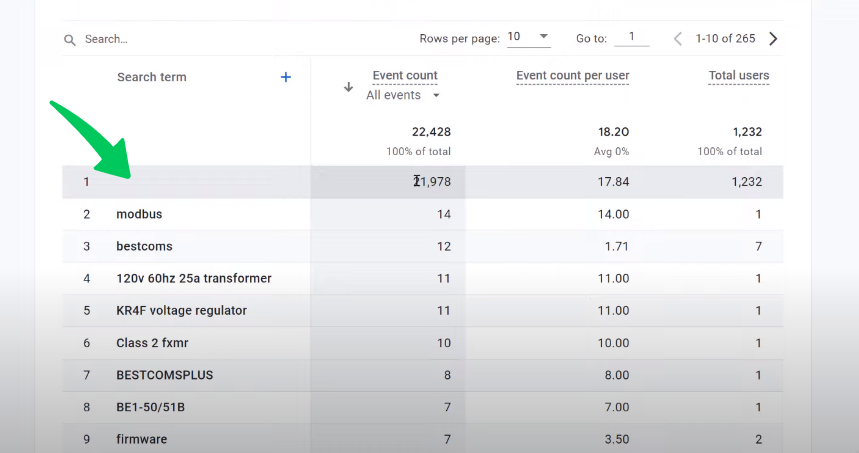
- Add the Dimension: Look for the ‘Dimensions’ section in the report builder. Here, you need to add ‘search_term’ as your primary dimension. This action will enable the report to display the specific terms users are typing in your site’s search bar.
- Apply the Dimension: After adding the ‘search_term’ dimension, click the ‘Apply’ button to save this setting.
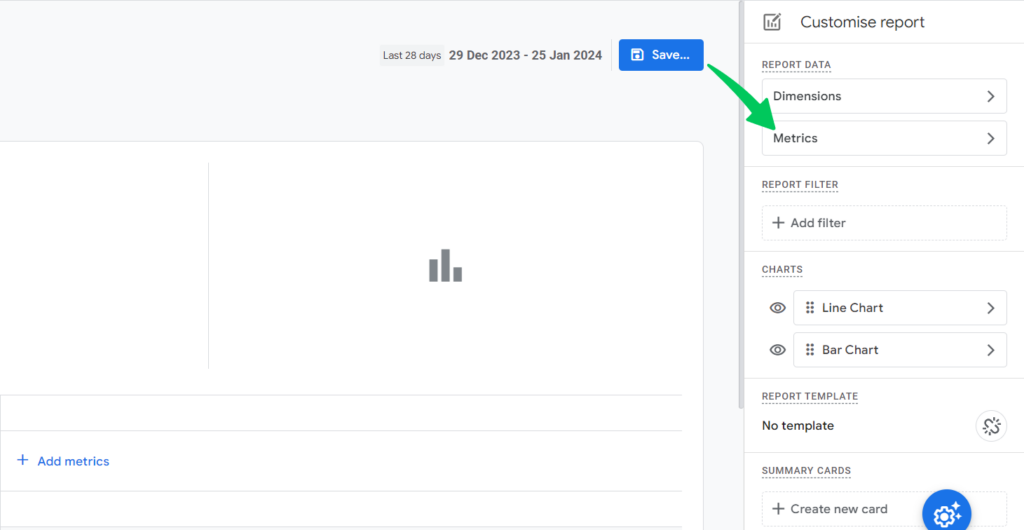
- Select Relevant Metrics: Next, go to the ‘Metrics’ section to choose the data points you want to analyze alongside the search terms.
Relevant metrics include ‘Event Count’, ‘Event Count per User’, ‘Total Users’, and ‘New Users’.
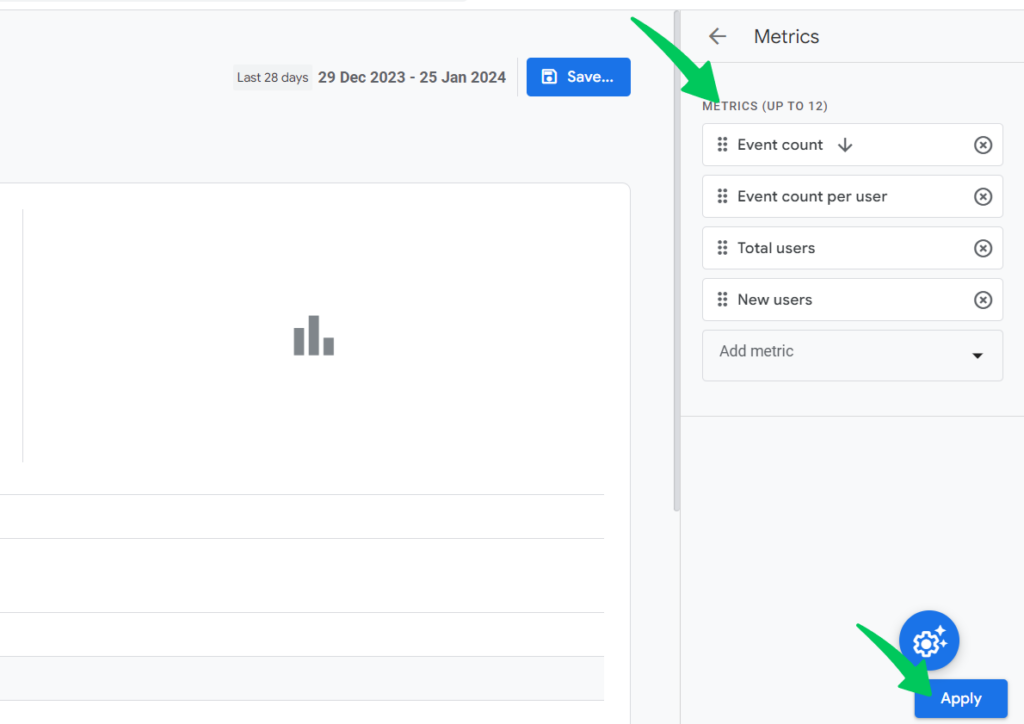
- Finalize the Report: Once you’ve added these metrics, click ‘Apply’ to update the report with your selections.
- View GA4 Organic Keywords: The customized report will now display the search terms used on your website. This data reveals the organic keywords drawing users to your site, providing valuable insights for your SEO and content strategy.
Track Search Terms and Keywords from the WordPress Dashboard
The Analytify plugin lets you monitor search term and keyword analytics right from your WordPress dashboard. No need to open Search Console separately.
The Best Google Analytics Plugin for WordPress
With Analytify, you can easily track your website’s performance right from your WordPress dashboard
How to Access Google Analytics Search Terms Report in Analytify (A Complete Guide)
Follow the steps below to view your search terms analytics in Analytify:
- Open your WordPress dashboard and go to Analytify >> Dashboard.
- Within the Analytify dashboard, locate the Engagement section.
- Hover over Engagement to find the Search Terms option. Click on Search Terms to see search terms analytics.
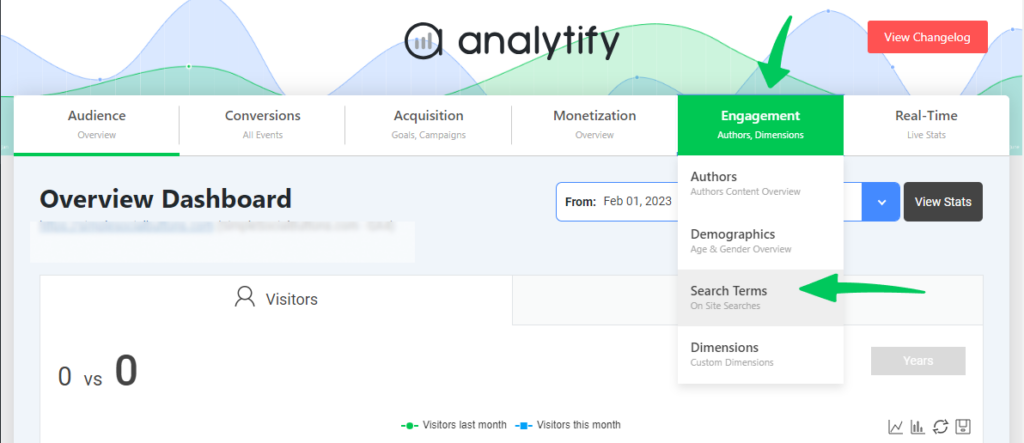
- Upon selecting the Search Terms option, you will be navigated to the Search Terms Dashboard.
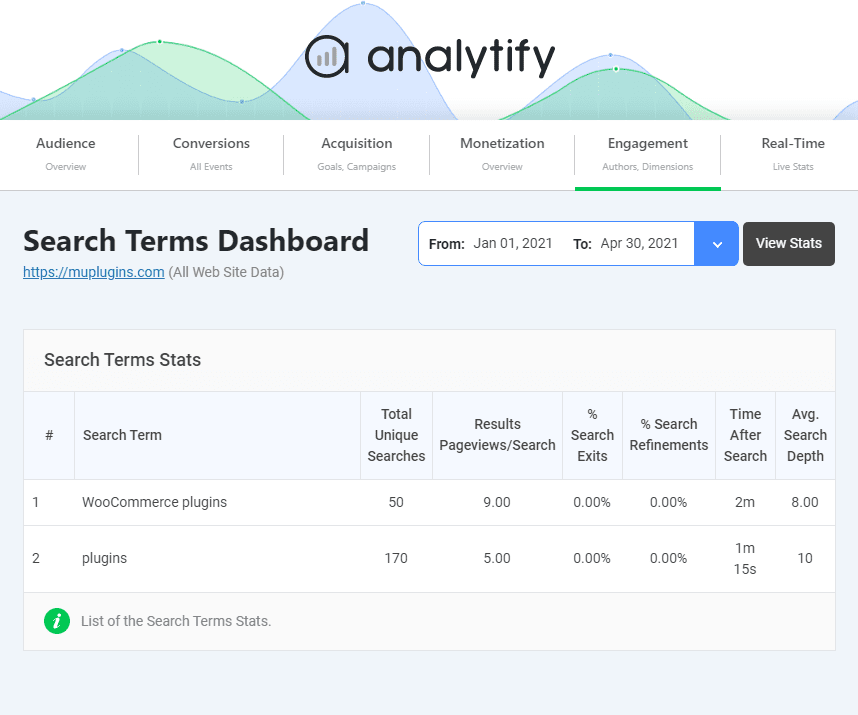
These steps show how Analytify surfaces search term analytics right on your site.
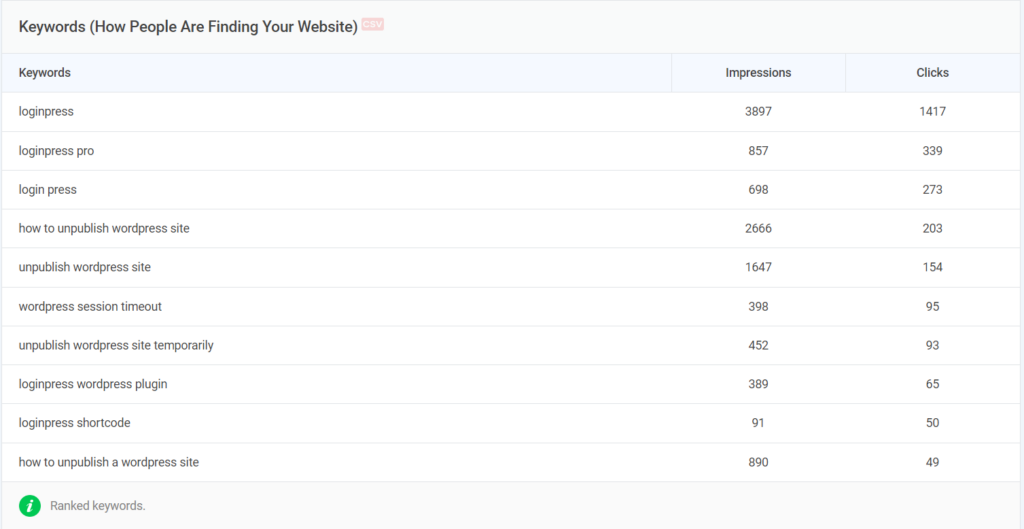
How to Check Keywords Reports in Analytify
You can check keyword reports right from WordPress. Go to Analytify >> Dashboards.
Why Do We Use Keyword Tools for Organic Keyword Research?
Keyword tools matter in SEO and digital marketing. GA4 shows how users interact with your site, but not comprehensive keyword data. That’s where keyword research tools come in. They fill the gap, giving you data to optimize content and improve rankings. Here’s why these tools matter for organic keyword research:
Broad Keyword Discovery
- Uncover a Wider Range of Keywords: Keyword tools help discover a broad spectrum of keywords, including long-tail keywords, that you might not find through analytics alone.
Competitive Analysis
- Spy on Competitors: These tools enable you to see which keywords your competitors rank for, giving you insights into their strategies and market trends.
Search Volume and Trends
- Understand Keyword Popularity: Keyword tools provide data on search volumes, showing how often a keyword is searched. This helps in prioritizing keywords that can drive more traffic.
- Track Seasonal Trends and Patterns: They help identify seasonal trends and change search patterns, which is crucial for timely and relevant content optimization.
User Intent and Relevance
- Gauge User Intent: These tools analyze keywords to give insights into user intent, whether they are looking for information, making a purchase, etc.
- Refine Content Relevance: They help align your content with what your audience is actively searching for, increasing its relevance and engagement potential.
SEO Optimization
- Improve On-page SEO: Keyword tools assist in optimizing your website’s on-page elements, such as meta tags, headings, and content, based on targeted keywords.
Performance Measurement
- Measure Keyword Effectiveness: You can track the performance of your chosen keywords and adjust your strategy as needed.
Cost-Effective Marketing
- Maximize ROI in Marketing: Targeting the right keywords can attract more qualified traffic, leading to better conversion rates and a higher return on investment.
How Can I View Organic Keywords Without Spending Any Money?
Organic keyword insight matters for SEO, but it doesn’t require expensive tools. Several free tools and methods give you valuable keyword data at no cost. Here are a few:
Method 1: Use Free Keyword Research Tools
Google Keyword Planner
A part of Google Ads, Google Keyword Planner is a free tool built for advertisers. It works just as well for SEO keyword research.
- How to Use: To access it, you need a Google Ads account. Once logged in, you can search for keywords based on terms relevant to your business and get data on search volume, competition, and even suggested bid amounts for AdWords.
- Benefits: It’s directly integrated with Google’s own data, providing accurate and comprehensive search volume and competition metrics.
Ubersuggest
Developed by Neil Patel, Ubersuggest is a user-friendly keyword research tool offering free and paid versions.
- How to Use: Enter a keyword or domain to get a wealth of information, including keyword ideas, search volume, and SEO difficulty.
- Benefits: The free version gives a good amount of data, making it suitable for beginners and small business owners looking to get a start in SEO.
Other Free Tools
- Keyword Tool.io: Uses Google Autocomplete data to generate many long-tail keyword suggestions.
- AnswerThePublic: Provides questions, prepositions, and comparisons using your seed keyword, which is great for content ideas.
- Moz Keyword Explorer Free Access: Offers limited free searches per month, delivering keyword suggestions, SERP analysis, and more.
These free tools are a great starting point. They help you find relevant keywords, gauge search volume, and see the competition. They’re not as deep as premium tools. But they still offer useful data for SEO and content strategy.
| Tool | Best For | Free Limit |
|---|---|---|
| Google Keyword Planner | Search volume and competition data straight from Google | Free with a Google Ads account |
| Ubersuggest | Beginners wanting keyword ideas plus SEO difficulty | Limited free searches per day |
| Keyword Tool.io | Long-tail keyword suggestions from Google Autocomplete | Free tier, no search volume shown |
| AnswerThePublic | Question-based content ideas | Limited free searches per day |
| Moz Keyword Explorer | SERP analysis alongside keyword suggestions | Limited free searches per month |
Method 2: Find Keywords in the Google Search Bar
Another free method: use the Google search bar. It leverages autocomplete and related searches to surface keyword ideas.
How to Use the Google Search Bar for Keyword Research:
- Start with a Basic Search Term: Enter a basic term related to your website or industry into the Google search bar. This term should be broad enough to generate a variety of related searches.
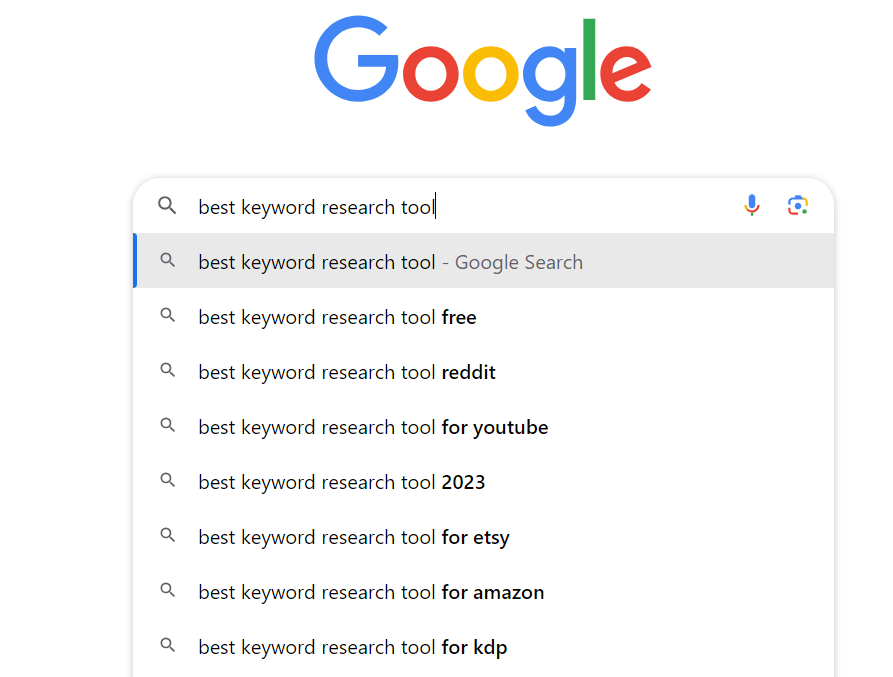
- Observe Autocomplete Suggestions: Google will offer autocomplete suggestions as you type. These are based on common searches and can provide insights into popular queries related to your keyword.
- Analyze Search Predictions: The search predictions are not just random but based on actual search data. These suggestions can reveal long-tail keywords and phrases that real users search for.
- Use Variations of Your Initial Query: Try different variations of your initial search term to see a wider range of autocomplete suggestions. Alter the order of the words or add additional terms.
- Check Related Searches: At the bottom of the search results page, Google displays a section titled “Searches related to [your search term]”. This section contains keywords closely related to your initial query and can offer additional insights.
- Explore Questions in Search Results: Often, the search results include questions under “People also ask”. These questions are based on common queries and can provide ideas for keywords and content topics.
Benefits of Using Google Search for Keyword Discovery:
- Real-Time Data: You’re leveraging Google’s massive database of real-time search data, which is constantly updated.
- User Intent Focus: Autocomplete and related searches often reflect the user’s intent, helping you understand what users are actually looking for.
- Content Ideas: The queries can also inspire content ideas that answer specific questions or address common searches in your niche.
- Cost-Effective: This method is entirely free and can be done quickly, making it accessible for anyone starting with SEO.
- Complement to Other Tools: Using Google search in conjunction with free keyword tools can give you a more rounded view of keyword opportunities.
The Google search bar taps a rich data source: the world’s most popular search engine. That keeps your keyword strategy aligned with real user behavior.
Method 3: Find the Keywords in the Top Competitors’ Posts or Pages
To uncover the keywords your competitors target, analyze their posts and pages directly. This reveals the terms they’re optimizing for, and their overall content strategy. Here’s how to run a thorough keyword discovery process:
Analyzing Headings
Headings structure content for readers and SEO alike. They often hold key topics and primary keywords. Check the H1, H2, and H3 tags on competitor pages. They point straight to the keywords being targeted.
Investigating Meta Tags
Meta tags, the title tag and meta description, are built to catch attention on search results. They often carry primary keywords and descriptors that improve click-through rates and matter for SEO.
Examining URLs
A keyword-rich URL hints at a page’s content, to both search engines and users. Check the structure and wording of competitor URLs. A concise, keyword-rich URL usually signals real optimization.
Scrutinizing Content
Most keyword integration happens in the body content. Look for repeated phrases, especially ones in bold or italics. Check key sections too: intros, conclusions, and anywhere the topic goes deep. Those repeated terms are likely the primary and secondary keywords being targeted.
Practical Steps for Keyword Discovery
- List Your Competitors: Start with a list of your main competitors, focusing on those who rank well for your desired keywords.
- Use Tools for Assistance: Employ SEO tools like MozBar or SEOquake to get insights directly as you browse through competitor websites.
- Analyze and Compile Keywords: As you review the headings, meta tags, URLs, and content, compile a list of keywords and phrases your competitors are targeting.
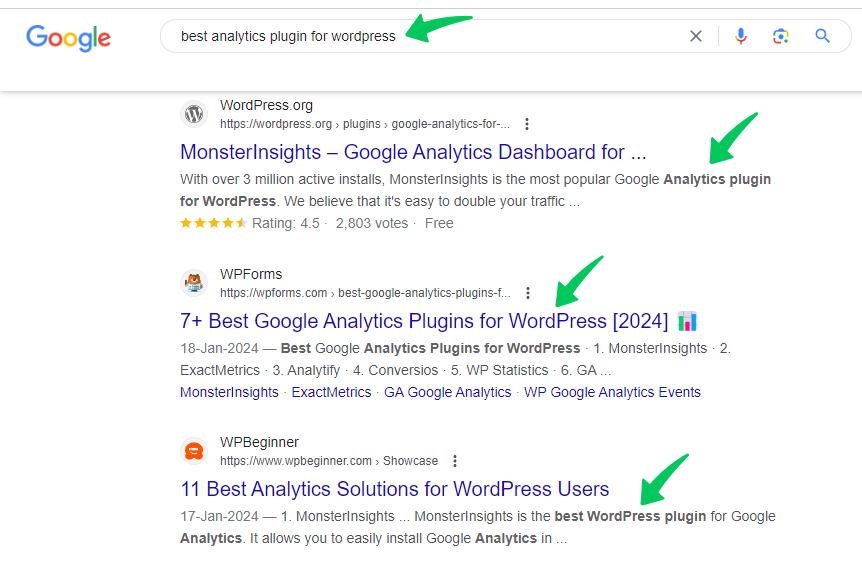
- Evaluate Keyword Relevance: Assess the relevance of these keywords to your content and audience. This will help you identify gaps in your strategy or opportunities for improvement.
- Apply Insights to Your Strategy: Integrate your findings into your content and SEO strategy, ensuring you naturally use keywords that align with your audience’s interests and search behavior.
Analyzing these elements on competitor sites reveals what drives their traffic. Use it to refine content, sharpen SEO, and compete more effectively.
Common Issues When Tracking GA4 Organic Keywords
Most missing-keyword problems come from a setup step, not a GA4 bug. Here are the most common causes and fixes.
| Symptom | Likely Cause | Fix |
|---|---|---|
| Search Console report is empty in GA4 after linking | The link was just created and data has not synced yet | Wait 24 to 48 hours; GSC data does not backfill into GA4 retroactively |
| Still seeing (not provided) after linking Search Console | You are looking at a GA4 acquisition report instead of the Search Console query report | Go to Reports >> Search Console >> Queries, not the standard channel report |
| search_term dimension shows no data | Your site search does not use the URL parameter GA4 expects, or site search tracking is off | Confirm your search results page uses a query parameter and that Enhanced Measurement site search is enabled |
| Product Linking option is missing in GA4 Admin | Your Google account lacks Editor or Administrator access on the GA4 property | Ask the property owner to grant Editor access, then retry the link |
| Analytify dashboard shows different numbers than Search Console | Analytify and GSC are set to different date ranges | Match the date range in both before comparing totals |
GA4 Organic Keywords FAQs
1. What are GA4 keywords, and how do they differ from previous Google Analytics versions?
GA4 keywords are the search terms people typed before landing on your site. Unlike Universal Analytics, GA4 tracks them differently. It prioritizes user privacy, so you get less direct keyword data.
2. How can I access the GA4 keywords report?
Link your GA4 property with Google Search Console. That gives you a detailed report on the search queries driving traffic to your site.
3. What are GA4 organic keywords, and why are they important?
GA4 organic keywords are the terms visitors used in unpaid search results. They show you what people search for, so you can optimize your SEO.
4. How does organic search keyword tracking benefit my website?
Tracking organic keywords shows you search behavior and your top-performing terms. Use that to optimize content, improve rankings, and attract more organic traffic.
5. What are the steps to see keywords in GA4?
Two ways: link GA4 with Google Search Console, or track your site’s internal search. For internal search, capture view_search_results events in GA4. Then check the search_term parameter.
6. Can you explain how to find keywords in GA4 using Google Search Console?
First, link GA4 and Search Console. Then in GA4, go to Acquisition, then the Search Console report. That’s where you’ll see the search terms driving traffic.
7. Why doesn’t GA4 display search terms directly in its reports?
GA4 doesn’t show search terms directly because of data privacy rules. Search engines now encrypt searches. GA4 follows those privacy standards, which limits direct keyword data.
Why is Analytify showing different keyword numbers than Search Console?
This almost always means the two tools have different date ranges. Analytify pulls the same underlying Search Console data. Match both date ranges and the numbers reconcile.
Conclusion
GA4 makes keyword tracking harder, but it also opens new ways to refine your SEO approach. Mix analytics with creative research methods. You’ll still uncover the insights that grow your search performance and engagement.
Link Search Console to GA4 first. It’s the fastest way to recover the organic keywords GA4 hides.