WooCommerce Orders Not Showing in GA4? How to Fix Ecommerce Tracking

Why does WooCommerce say you had 40 orders today when GA4 says 28? And on a bad day, why does GA4 show nothing at all?
WooCommerce orders not showing in GA4 can result from delayed reporting, incomplete purchase events, checkout redirects, consent settings, caching, or conflicting tracking tags. If WooCommerce purchases aren’t tracking in GA4 on your store, this guide walks through nine causes in the order I’d check them, starting with the quickest.
You’ll also see how Analytify tracks WooCommerce purchases without code, plus a 10-minute test that tells you which fix you need.
Quick answer: If you find WooCommerce purchases not tracking in GA4, the purchase event isn’t reaching Google. GA4 only records a sale when that event arrives. Most setups send that event from the WooCommerce thank-you page, so anything that stops that page from loading or sending data hides the sale. Run a logged-out test order, check GA4 DebugView, and use the results table below to find the fix.
Key takeaways:
- GA4 records a WooCommerce sale only when a purchase event arrives with a transaction_id, value, and currency.
- Standard GA4 reports can lag 24 to 48 hours, so check Realtime or DebugView first.
- Off-site payments, caching, custom thank-you pages, consent banners, ad blockers, duplicate tags, and the wrong GA4 property cause most missing orders.
- A gap under 5% between WooCommerce and GA4 is generally healthy. Above 10 to 15% is worth investigating.
- Analytify sends each purchase from both the browser and your server, so orders still reach GA4 when the thank-you page doesn’t load.
Table of Contents
Why Are WooCommerce Purchases Not Tracking in GA4?
WooCommerce purchases stop showing in GA4 when the purchase event never reaches Google Analytics, or arrives with missing data. Most WordPress setups send that event from the WooCommerce order-received page. That’s the “thank you” screen buyers see after paying. If that page doesn’t load, or something blocks the tag, GA4 never hears about the sale.
That’s also why you can see WooCommerce purchases not tracking in GA4 while the orders look fine in your store. WooCommerce still has the order, because it saves orders on your server. In a browser-only setup, GA4 only knows what the buyer’s browser tells it. That gap between the two systems explains many missing orders.
If you’re still setting up tracking from scratch, start with our guide to Google Analytics ecommerce tracking on WordPress, then come back here to troubleshoot.
What Is the Simplest Way to Track WooCommerce Purchases in GA4?
The simplest way to track WooCommerce purchases in GA4 is a plugin that sends the purchase events for you, such as the Analytify WooCommerce add-on. There’s no Google Tag Manager setup, no data layer, and no custom code. You activate the add-on, and Analytify handles the tracking.
We placed a test order on a WooCommerce store to see exactly what Analytify sends. The purchase event carried:
- the order number as transaction_id
- the order total and currency
- tax and shipping as separate values
- the coupon code
- every product with its price and quantity
That’s everything GA4 needs for its revenue and product reports.
Refreshing the thank-you page doesn’t resend the purchase, so reloading the page won’t inflate your revenue. The same numbers then show up inside WordPress under Analytify >> WooCommerce. For the full setup walkthrough, see how to track WooCommerce sales in Google Analytics.

Does Analytify Track Purchases If the Thank-You Page Never Loads?
Yes, Analytify still tracks a WooCommerce purchase when the thank-you page never loads, because it also sends every order from your server. Each purchase goes out twice, once from the buyer’s browser and once from your server, and both copies share the same transaction ID, so GA4 treats them as one order. Because the server copy doesn’t depend on the thank-you page, a buyer who pays on PayPal and closes the tab still shows up in your reports.
The server copy goes through the GA4 Measurement Protocol (Google explains it in its Measurement Protocol guide). A browser-only setup has no backup like this.
A plugin won’t fix everything, though. You’ll still need the fixes further down if a consent banner blocks analytics, your orders go to the wrong GA4 property, or another tag sends its own purchase event. What Analytify does remove is a lot of the setup trouble: missing parameters, duplicate tags, and fragile custom code.
How Do You Check If Your WooCommerce Purchase Tracking Works?
The fastest way to confirm WooCommerce purchases not tracking in GA4 is a test. You check WooCommerce purchase tracking by placing a logged-out test order and watching for the purchase event in GA4 DebugView. Google recommends DebugView for checking ecommerce events and their parameters, and the whole test takes about 10 minutes. For other ways to confirm GA4 is collecting data, see how to check if GA4 is working.
Run a logged-out test order and confirm the WooCommerce purchase event reaches GA4 DebugView.
Step 1: Open a private window
Open a private (incognito) window and make sure you’re logged out of WordPress.
Step 2: Connect Google Tag Assistant
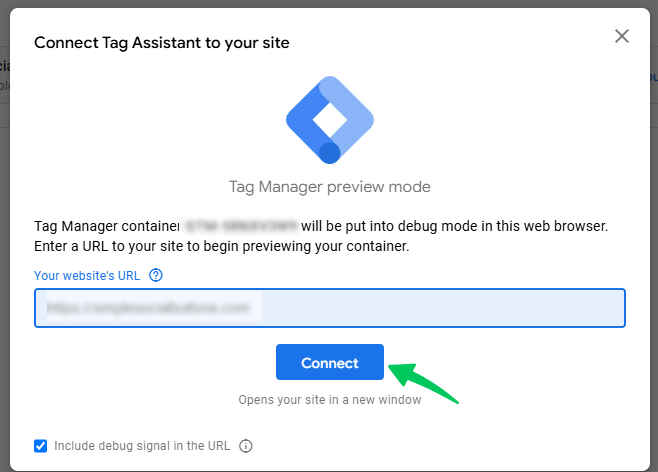
Open Google Tag Assistant and connect it to your store.
Step 3: Place a test order
Add a product to the cart and check out with a test payment method, such as cash on delivery.
Step 4: Let the thank-you page load
Let the order-received page load fully.
Step 5: Open GA4 DebugView
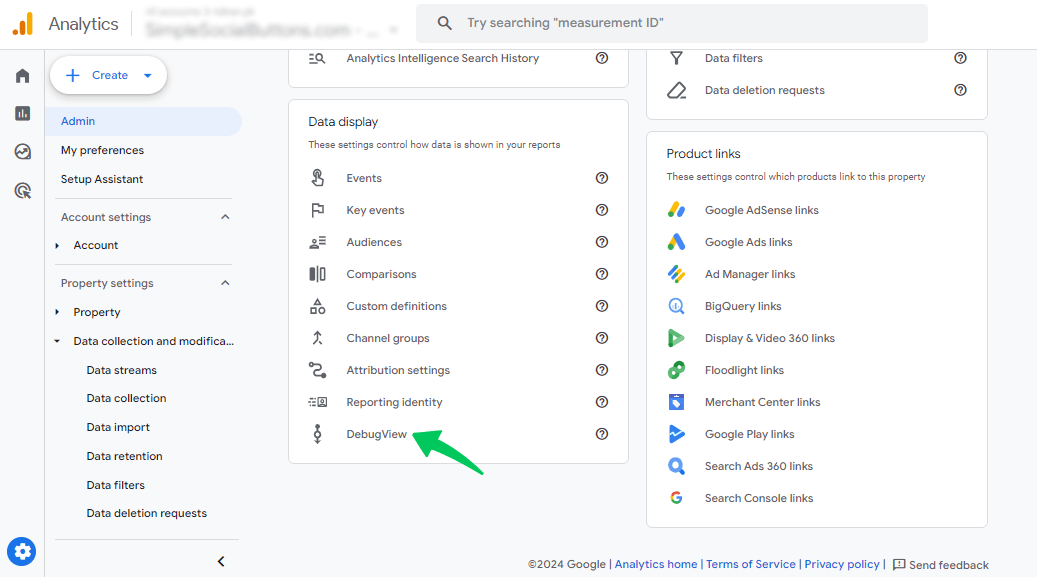
In GA4, go to Admin >> DebugView (our GA4 DebugView guide covers the setup).
Step 6: Check the purchase parameters
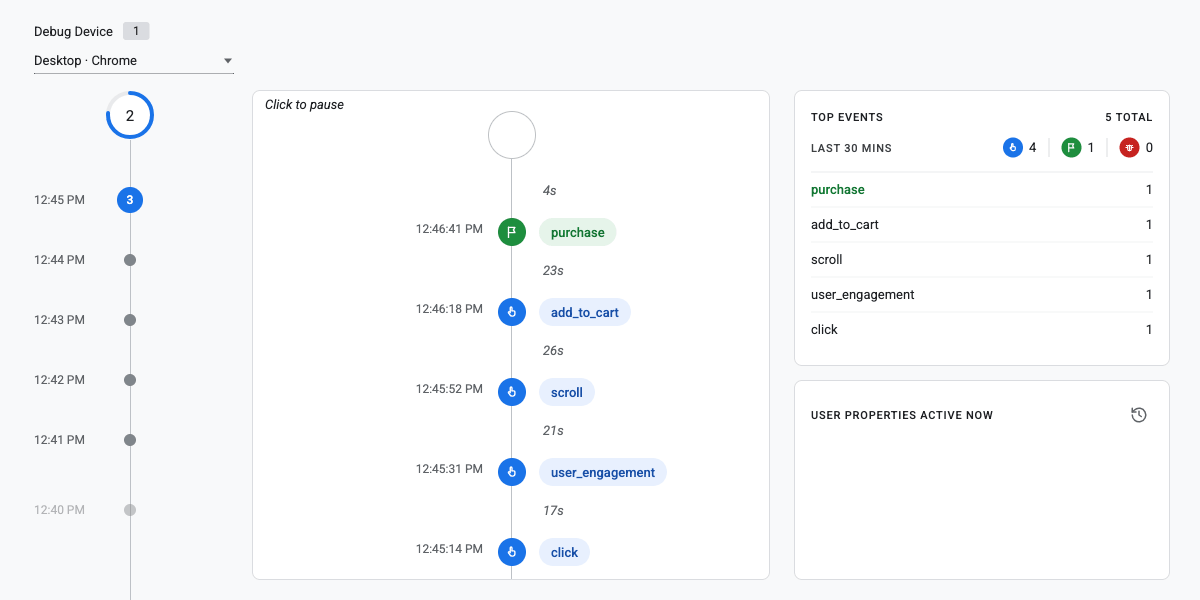
Click the purchase event and look at its parameters.
Step 7: Refresh the thank-you page
Refresh the thank-you page and make sure a second purchase doesn’t appear.
Step 8: Delete the test order
Cancel or delete the test order under WooCommerce >> Orders.
Here’s what a complete purchase event should contain:
| Parameter | What it holds | Why it matters |
|---|---|---|
| transaction_id | WooCommerce order number | Stops the same order from counting twice |
| value | Order total | Feeds revenue reports |
| currency | Store currency code | GA4 ignores the value without it |
| tax | Tax amount | Keeps tax out of product revenue |
| shipping | Shipping cost | Keeps shipping out of product revenue |
| items | Products, prices and quantities | Feeds product reports |
If you use Analytify, DebugView will usually show the browser copy only. The server copy may not appear there, but GA4 still merges both into a single order in your reports. For how purchase fits with the other ecommerce events, see our guide to GA4 recommended events. The full parameter list is in Google’s GA4 ecommerce guide.
What Does Your Test Result Mean?
Your test result tells you which fix to apply: find the row below that matches what you saw in DebugView.
| What you see | Likely cause | Start with |
|---|---|---|
| No purchase event at all | Admin exclusion, custom thank-you page, consent block or missing tag | Fix 2, 5, 6, 8 |
| Purchase in DebugView but missing from reports | Processing delay or wrong GA4 property | Fix 1, 9 |
| Purchase appears twice | Two tags sending the event | Fix 8 |
| Purchase without value, currency or transaction_id | Incomplete event from a manual or theme setup | Fix 8 |
| Test works, but real orders still go missing | Payment redirects, caching or ad blockers | Fix 3, 4, 7 |
Fix 1: Is GA4 Still Processing Your WooCommerce Purchases?
If WooCommerce purchases are not tracking in GA4 for recent orders only, GA4 is likely still processing them. That’s usually the case when the missing orders are less than 48 hours old. GA4’s standard reports can take 24 to 48 hours to catch up, according to Google’s data freshness guide, while the Realtime report and DebugView show events within seconds.
So before you change anything, look in the right place:
- Realtime covers roughly the last 30 minutes
- DebugView shows each event from a test device
- Monetization >> Ecommerce purchases shows processed data, often a day behind
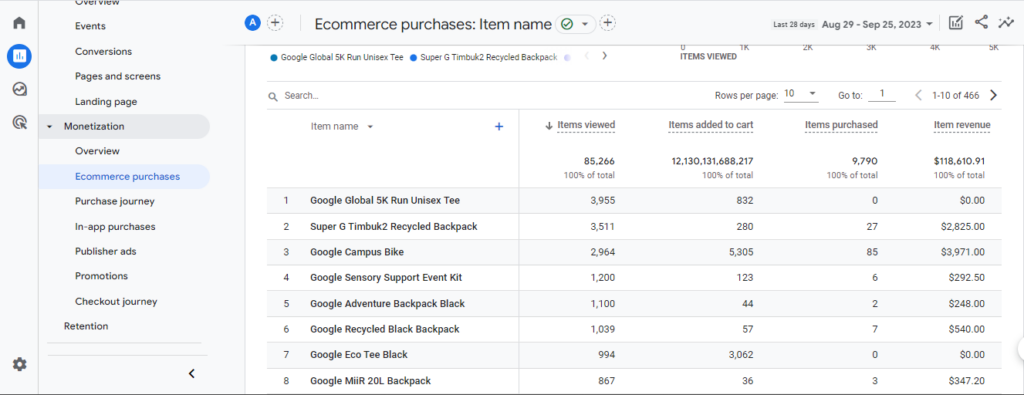
If you’re not sure which report to trust, our comparison of real-time vs event-based reporting in GA4 explains the difference. If orders from three or more days ago are still missing, move on to Fix 2. And if GA4 shows no data at all, not just missing purchases, our guide to fixing “no data available” in GA4 covers that.
Fix 2: Did You Test the Order While Logged In as an Admin?
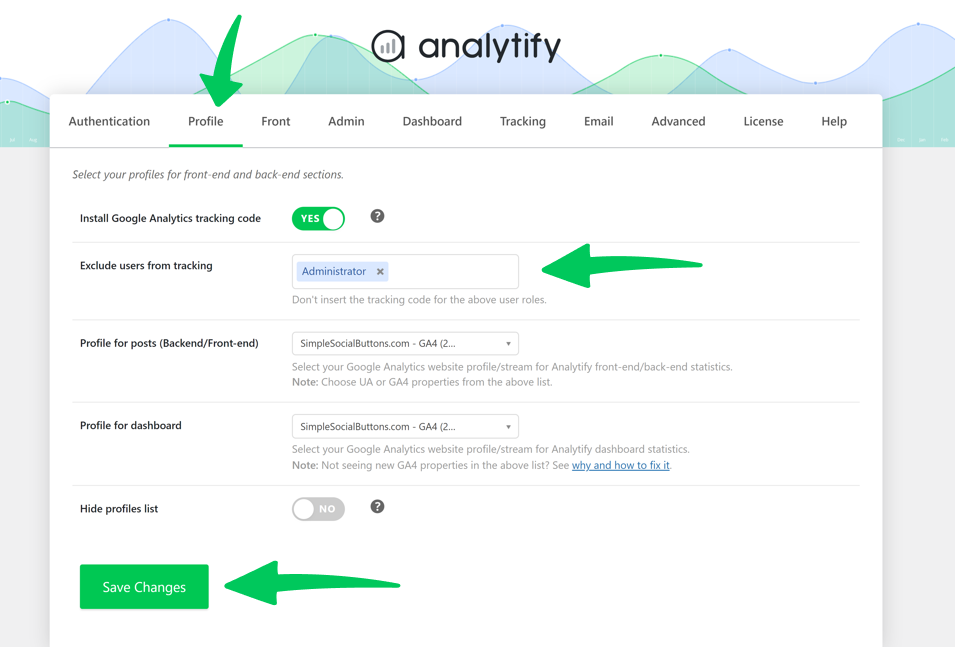
Testing while logged in as an admin is a common reason a test order never shows up in GA4, because most tracking setups ignore logged-in administrators. That keeps your own clicks out of your reports, but it also hides your test purchases.
In Analytify, the setting is under Analytify >> Settings >> Profile >> Exclude users from tracking. The administrator is excluded by default, which is what you want on a live store, but it means your test orders won’t count. Use a private window, stay logged out, and look for the purchase in GA4 Realtime.
If you also want to keep staff visits out at the GA4 level, here’s how to filter internal traffic in GA4. Keep in mind that this filter also hides your own test orders.
Fix 3: Do Buyers Actually Reach the WooCommerce Thank-You Page?
Many buyers never reach the WooCommerce thank-you page, especially when they pay on an off-site gateway. This is one of the most common reasons WooCommerce purchases are not tracking in GA4. PayPal, some card processors, and buy-now-pay-later services send buyers to their own site to pay, and plenty of people close the tab once the payment goes through. With browser-only tracking, those sales never reach GA4.
You’re probably dealing with this if:
- most missing orders use one payment method
- orders paid on your own checkout page track fine
- GA4 credits sales to the payment provider as a referral (you can spot this in your GA4 referral traffic report)
To reduce the losses:
- Turn on auto-return in your payment gateway account.
- Set the return URL to your WooCommerce order-received page.
- Add the payment provider’s domain to GA4’s unwanted referrals (Admin >> Data streams >> Configure tag settings >> List unwanted referrals).
- Use on-site payment fields if your gateway offers them.
Browser-only tracking simply can’t record a buyer who never comes back. Analytify gets around this by also sending the purchase from your server. I’d still turn on auto-return, because it brings buyers back to your store to see their order confirmation.
Fix 4: Is a Cache Serving an Old Thank-You Page?
A cache may be serving an old WooCommerce thank-you page if purchases go missing or show the wrong values after you change caching or hosting. When that happens, the purchase event fires with stale values or doesn’t fire at all. Every order-received page is unique to one order, so no cache layer should store it.
Work through each cache layer:
- Exclude /cart/, /checkout/ and /my-account/ from your page cache.
- Ask your host whether their server cache skips WooCommerce pages.
- Make sure your CDN isn’t caching checkout HTML.
- Exclude analytics scripts from any “delay JavaScript” or “combine JS” option.
Many caching plugins, such as WP Rocket, already skip WooCommerce cart and checkout pages. The problems tend to come from custom rules and host-level caches. On Analytify, the server copy still records the order, but it’s worth fixing the cache anyway so product views and other browser data stay accurate.
Fix 5: Does a Custom Thank-You Page Skip WooCommerce Purchase Tracking?
A custom thank-you page often skips WooCommerce purchase tracking because it may never run the WooCommerce hook that tracking tools rely on. Funnel builders such as FunnelKit, and some page builders, can send buyers to a thank-you page WooCommerce didn’t create. The order is saved, but the tracking code never loads, so every order vanishes from GA4 at once.
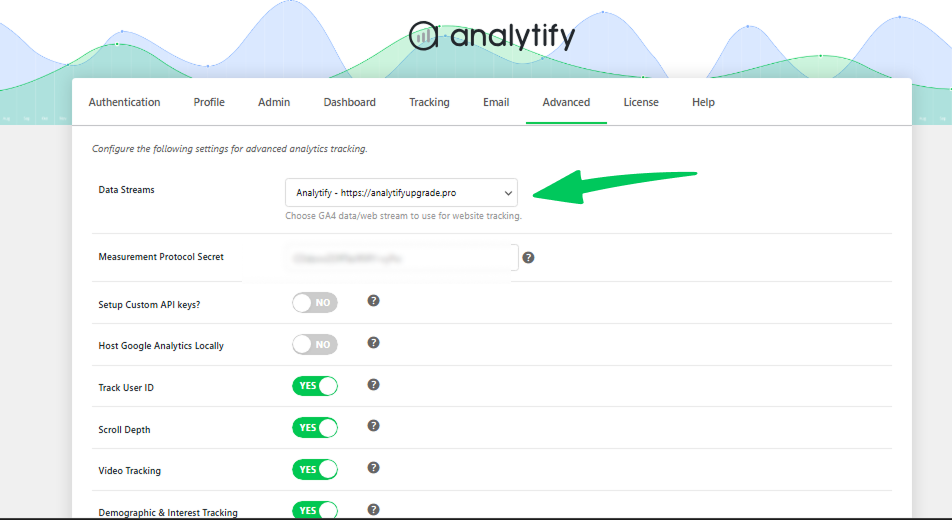
Analytify’s server copy doesn’t depend on that hook, so these orders still reach GA4. The server copy needs a Measurement Protocol API secret, and Analytify creates one for you, so you don’t need to set anything extra up. If you’d rather use your own secret, paste it under Analytify >> Settings >> Advanced.
The easiest check is to place a test order and look at the URL of the final page. If it doesn’t contain /order-received/, your purchase tracking probably isn’t running there.
The cleanest fix is to use the default WooCommerce thank-you page. If you need a custom design, confirm your funnel tool still triggers WooCommerce’s thank-you actions. Analytify’s server copy keeps recording orders while you sort it out.
Fix 6: Is a Consent Banner Blocking GA4 Purchase Tracking?
A consent banner blocks GA4 purchase tracking whenever a buyer declines analytics cookies. Stores with lots of visitors from the EU, UK, or Switzerland see WooCommerce purchases not tracking in GA4 most often, because GDPR and similar laws require opt-in consent.
Google Consent Mode v2 softens the loss. With it switched on, GA4 still gets cookieless signals from people who decline, and Google models part of the missing conversions (see Google’s consent mode documentation).
A few things to check:
- Your consent banner loads before the GA4 tag.
- Consent Mode v2 sends all four consent signals.
- Clicking “Accept” actually updates consent. You can confirm this in DebugView.
Analytify supports Consent Mode v2 and has a built-in CookieYes integration, including in the free version. Other consent plugins can connect through developer filters. If you want to measure some traffic without cookies, see how to set up cookieless tracking in Google Analytics. For the legal side, read how to make your WordPress site GDPR compliant and the Analytify guide to Google EEA consent signals.
Fix 7: Can Ad Blockers Stop WooCommerce Purchase Tracking?
Yes, ad blockers and privacy-focused browsers can stop WooCommerce purchase tracking by blocking requests to Google Analytics before they leave the device. You can’t switch that off on your side, because the blocking happens in the buyer’s browser.
A small, steady gap is normal. Treat WooCommerce as your record of revenue, and use GA4 for traffic sources, trends, and funnels. Server-side tracking is worth a look if the gap starts affecting your ad spend.
Analytify’s server copy of the purchase doesn’t run in the browser, so ad blockers can’t stop it. Browser events like product views can still be blocked, but your revenue numbers hold up.
Fix 8: Are Two Tracking Setups Conflicting on Your Store?
Two tracking setups are conflicting on your store if a theme, Google Tag Manager or a second plugin adds its own GA4 tag next to your main one. The result is duplicate purchases, incomplete events, or WooCommerce purchases not tracking in GA4 at all.
Things to look for:
- a GA4 snippet pasted into the theme header alongside a plugin
- Google Tag Manager sending its own purchase event
- two analytics plugins running at once
- an old Universal Analytics tag, which stopped processing data in July 2023
To find duplicates:
- Open your thank-you page in a private window.
- Run Google Tag Assistant.
- Count the GA4 measurement IDs and purchase events.
- Keep one source for the purchase event and remove the rest.
If you’re switching to Analytify, remove the old GA4 tags and purchase scripts first. One complete purchase source beats two partial ones. If you do keep Google Tag Manager for other tags, these Google Tag Manager best practices help avoid double-firing.
Fix 9: Are WooCommerce Orders Going to the Wrong GA4 Property?
WooCommerce orders go to the wrong GA4 property when the measurement ID on your site doesn’t match the property you report on. The orders track perfectly, just somewhere else. It’s a common cause of WooCommerce purchases not tracking in GA4 after a site migration, or when a staging site and the live site share settings.
Check these:
- The measurement ID on your site (it starts with G-) matches your GA4 data stream.
- Your reports use that same property.
- Nothing under Admin >> Data settings >> Data filters is filtering out your traffic.
- Your staging site isn’t sending data to the live property.
In Analytify, the tracking stream lives under Analytify >> Settings >> Advanced >> Data Streams, and the property used for reports is under Analytify >> Settings >> Profile. Both should point to the same store.
How Big a Gap Between WooCommerce and GA4 Is Normal?
A gap of under 5% between WooCommerce orders and GA4 purchases is generally treated as healthy, and a gap above 10 to 15% is worth investigating. Google doesn’t publish an official benchmark, so these are rules of thumb analytics consultants use, such as the thresholds in this GA4 revenue discrepancy framework. Inflow, an ecommerce agency, reports 10 to 12% gaps on some Shopify stores even after fixing setup errors.
The gap exists because WooCommerce counts every order saved on your server, while GA4 only counts the events it receives. Browser-based tracking rarely matches perfectly.
| What differs | WooCommerce | GA4 |
|---|---|---|
| Where orders are counted | Your server | The buyer’s browser, plus your server if a server-side copy is sent |
| Ad blockers | Not affected | Affected, unless purchases are also sent from the server |
| Declined cookies | Not affected | Affected, partly modelled with Consent Mode |
| Manual and phone orders | Counted | Not counted |
| Refunds | Updated | Only if a refund event is sent |
| Time zone | Store setting | Property setting |
A small gap doesn’t mean WooCommerce purchases aren’t tracking in GA4, so compare the two over a month rather than a single day. If the gap is large or suddenly grows, run the DebugView test again. To decide which numbers to watch week to week, see our list of ecommerce metrics to track in GA4. And if revenue shows up but looks wrong, read how to fix missing revenue in GA4.
What Can You See in the Analytify WooCommerce Dashboard?
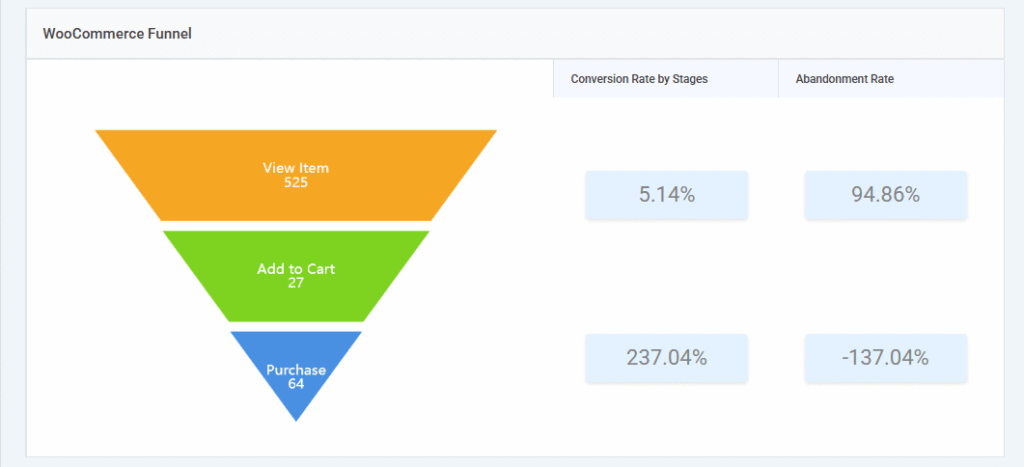
The Analytify WooCommerce dashboard shows your store’s GA4 data inside WordPress under Analytify >> WooCommerce, so you don’t have to open Google Analytics to answer everyday store questions. It complements WooCommerce conversion tracking by showing which sources and products drive those conversions.
| Store question | Analytify WooCommerce report |
|---|---|
| Where do buyers drop off before paying? | WooCommerce Funnel (view item, add to cart, purchase) |
| Which traffic sources bring sales? | Measuring ROI (source/medium, transactions, revenue) |
| Which products earn the most? | Products Performance (revenue, quantity, cart-to-detail and buy-to-detail rates) |
| Which product lists get clicked? | Product Lists Analysis (views, clicks, add to carts, purchases) |
| Which coupons drive orders? | Coupons Analysis (revenue and transactions per code) |
To dig deeper into the drop-off between cart and payment, read about the GA4 ecommerce checkout funnel in WordPress.
How Do You Set Up the Analytify WooCommerce Add-on?
You set up the Analytify WooCommerce add-on by installing Analytify Pro, connecting GA4, and activating the add-on. It takes a few minutes.
- Install the free Analytify plugin from WordPress.org.
- Install Analytify Pro and activate your license key.
- Connect your Google account and choose your GA4 property under Analytify >> Settings >> Profile.
- Go to Analytify >> Add-ons and activate Enhanced E-Commerce Tracking for WooCommerce.
- Run the logged-out DebugView test from earlier in this guide.

The Analytify docs have a step-by-step install guide for the WooCommerce add-on with screenshots of each screen.
If you’re tired of opening GA4 every morning to check whether yesterday’s orders arrived, this puts revenue, top products, and sales sources right in your WordPress dashboard.
Frequently Asked Questions
Why Are My WooCommerce Orders Not Showing in GA4?
WooCommerce orders don’t show in Google Analytics when the purchase event never reaches GA4. It’s the same problem as WooCommerce purchases not tracking in GA4, just seen from your reports. Off-site payment gateways, cached thank-you pages, consent banners, and admin test orders are common causes. Also keep in mind that GA4 can take up to 48 hours to show purchases in its standard reports.
Why Is GA4 Ecommerce Not Tracking Anything on My Store?
GA4 ecommerce not tracking anything usually means no purchase tag is firing. Check that your GA4 measurement ID is on the site, that your ecommerce plugin or add-on is active, and that you test while logged out. Then place a test order and watch DebugView for the purchase event.
How Do I Check If My WooCommerce Purchase Event Is Firing?
To check whether your WooCommerce purchase event is firing, place a logged-out test order and watch GA4 DebugView. Use a private window and connect Google Tag Assistant first. If tracking works, a purchase event with a transaction ID, value, and currency appears within seconds.
Why Does GA4 Show Fewer Sales Than WooCommerce?
GA4 shows fewer sales than WooCommerce because WooCommerce counts every order saved on your server, while a browser-only GA4 setup only counts purchases the browser manages to send. Ad blockers, declined cookies, and buyers who skip the thank-you page all lower that number. Manual and phone orders never reach GA4 at all.
Why Are My WooCommerce Purchases Showing Twice in GA4?
WooCommerce purchases show twice in GA4 when two tags send the same purchase event, often a plugin plus Google Tag Manager. A missing transaction ID can also cause duplicates when buyers refresh the thank-you page. Run Tag Assistant on the thank-you page and keep a single purchase source.
Does Analytify Track WooCommerce Purchases in GA4?
Yes, Analytify tracks WooCommerce purchases in GA4 through its WooCommerce add-on, with no code needed. It sends each purchase from both the browser and your server under the same transaction ID, so GA4 records the order once, even if the thank-you page never loads. The add-on comes with every Analytify Pro plan, and the reports appear under Analytify >> WooCommerce.
Does WooCommerce Block Checkout Affect GA4 Tracking?
Yes, WooCommerce block checkout can affect GA4 tracking, because some tracking code was written for the older shortcode checkout. Block checkout is now the default for new WooCommerce stores. After any checkout change, place a test order and confirm the purchase event still reaches DebugView. It’s also worth checking that add to cart events still fire.
WooCommerce GA4 Not Tracking Purchases? What to Do Next
If WooCommerce purchases are still not tracking in GA4, your next step is the 10-minute DebugView test, then the results table to pick a fix. After that, compare a month of WooCommerce orders with GA4 purchases to see how much of the gap you’ve closed.
If GA4 isn’t recording anything at all, not just purchases, start with our Google Analytics not working troubleshooting guide instead.