
Google Analytics Not Working: How to Troubleshoot and Fix GA4 Tracking Issues

When Google Analytics 4 is not working, the cause is usually a missing, misconfigured, or blocked tracking tag. Confirm the tag loads on every page. Check that the Measurement ID matches your data stream. Then look for hits in the Realtime report.
This can be a frustrating experience, especially when you rely on data to make important decisions. Google Analytics 4 (GA4) is an important tool for site owners. It shows how users interact with a site and how well it performs. But GA4 might not always work as expected, leaving you without access to important info. This article explains why your Google Analytics is not working. It also gives practical fixes to get your analytics back on track.
Google Analytics Not Working (TOC):
Get 60% OFF Analytify! Use Code BFCM60
Supercharge your analytics with Analytify this Black Friday! Enjoy a 60% discount and unlock effortless Google Analytics integration for your WordPress site. Track insights, boost performance, and make data-driven decisions. Hurry, this exclusive deal ends 2nd December!
How to check Google Analytics Not working?
Determining whether your Google Analytics is not working correctly involves a few key steps to diagnose potential issues. Here’s a concise guide to help you verify if your Google Analytics is working or not:
1. Check Real-Time Data
- Log into your Google Analytics account.
- Navigate to the Realtime reports to see live data.
- If there’s no data when your website should be receiving traffic, it’s a red flag.
- Navigate to Reports>>Realtime to check realtime reports.
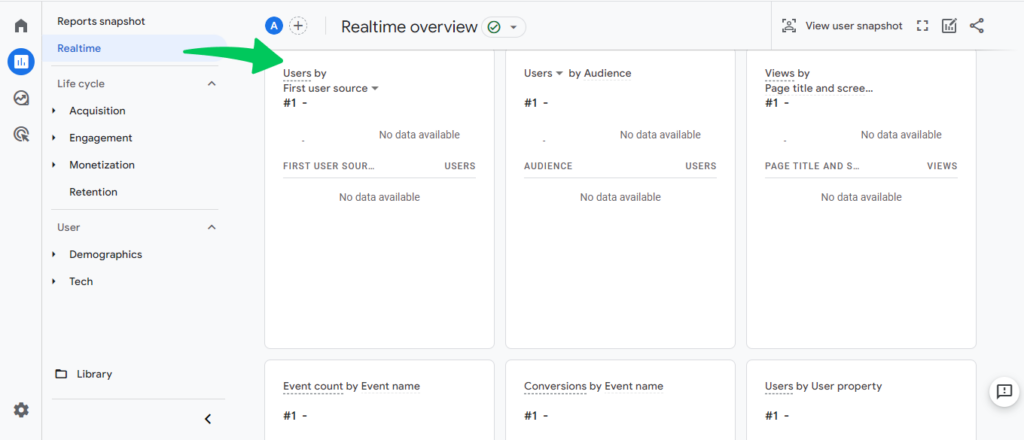
You can test GA4 real time report with new visits.
Visit your own website, and then check if this visit appears in the Real-Time report in Google Analytics.
Incognito mode is a good way to test this. It avoids issues with browser caches and cookies.
2. Look for Data in Other Reports
- Sometimes real-time data does not show because of a temporary issue. Other reports, like Acquisition, might still be updated.
- Check these reports for recent data.
3. Verify Tracking Code Installation
- Ensure the Google Analytics tracking code is correctly implemented on every page of your site.
- If the GA4 tracking code is not implemented properly, Google Analytics won’t be able to show you data. If the tracking code is not installed correctly, the Realtime report cannot capture any data.
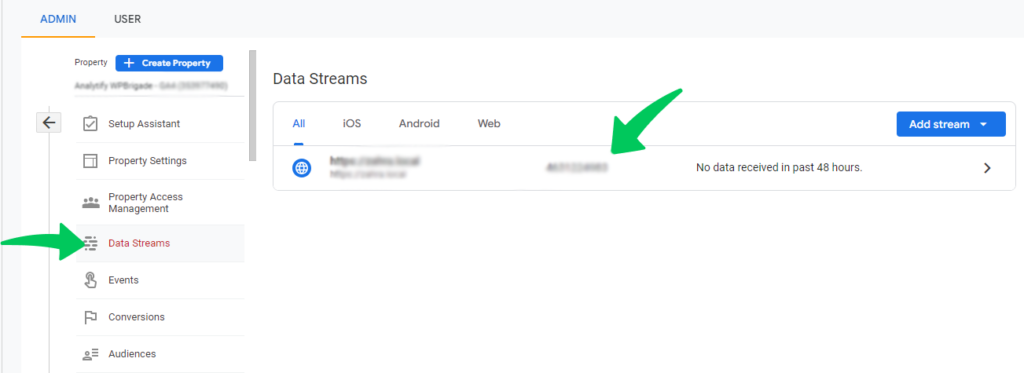
Step 1: Navigate to Data Streams
Check whether tracking Codes are installed correctly or not through Web stream details in GA4. Navigate to Admin>>GA4 Property>>Data Streams for this.
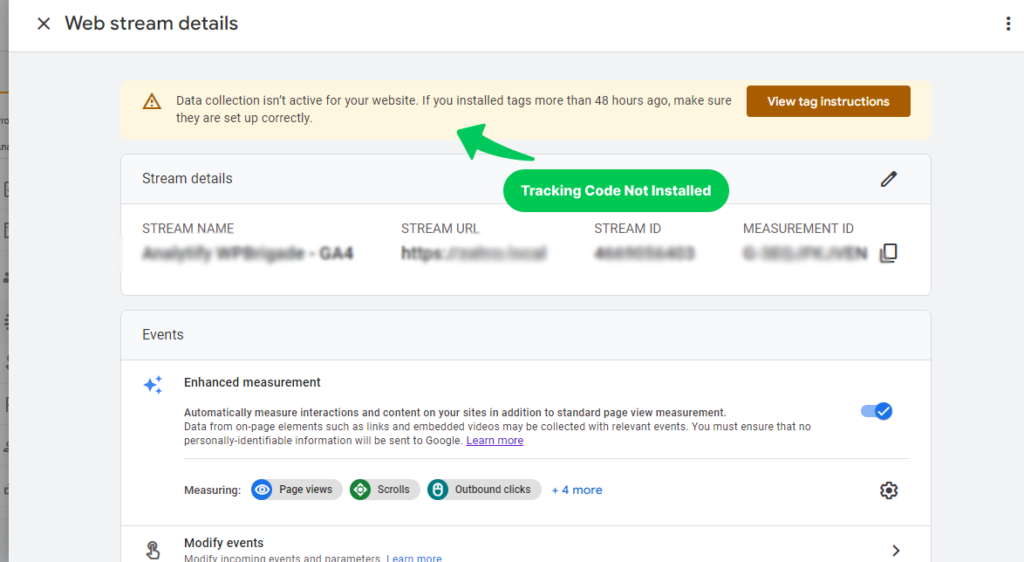
Step 2: Check Data Stream Details
Click your web stream to open the next page. There you see Data Stream Details. It shows whether you installed tags incorrectly, as the picture below shows.
Moreover, make sure the URL of your website is right. Misconfigurations in GA4 data streams can lead to significant reporting issues.
Note: Make sure the tracking code is on every page of your website. If you’re using a plugin or CMS interface, ensure it works with GA4 and is set up correctly.
Step 3: Fix Tracking Code Issues
If data collection is inactive, you must fix it. For this, you’ll need to re-add tracking codes through Google tags if it’s not added correctly. If you don’t know how to add tracking codes, install Analytify Pro on your WordPress site. It adds the GA4 code for you. It’ll automatically help Google Analytics to track your website data. So, you won’t need to add codes to integrate your site with Google Analytics.
When troubleshooting issues in your Google Analytics setup, it can be helpful to have a reliable point of comparison. The Google Analytics Demo Account serves as a benchmark, showcasing a properly functioning configuration with live data. Compare your setup with the demo account. This helps you spot discrepancies and misconfigurations faster. Troubleshooting gets more efficient.
Common Issues behind Google Analytics Not Working (FIXED)
In some instances, GA4 may not track data as expected, which can be problematic. You must inspect and correct your GA4 tracking to ensure accurate data collection and analysis.
Let’s follow the following tips to resolve GA4 tracking issues.
1. Fix the Tracking Code Errors
The first step is to ensure that the Google Analytics tracking code is correctly installed on your website. You can use tools like Google Tag Assistant to verify the installation. If you’re using a WordPress plugin like Analytify, ensure it’s properly configured and updated. Read How to Install And Activate Analytify Pro Plugin.
2. Check Out Ad Blockers and Browser Extensions
Ad blockers and some browser extensions can make GA4 stop working. To find out if this is the cause of your problem:
- Turn off any privacy or ad-blocking extensions in your browser.
- Try accessing your site using a different browser or in incognito mode to see if the issue persists
3. Examine Realtime Report
GA4 lets you see data in the Realtime report, so you can check if tracking is working right.
To check real-time data:
Select your GA4 property and go to Realtime on the left side of the screen.
Go to your website and perform some actions. Then, check the Realtime report to see if your behavior is being tracked.
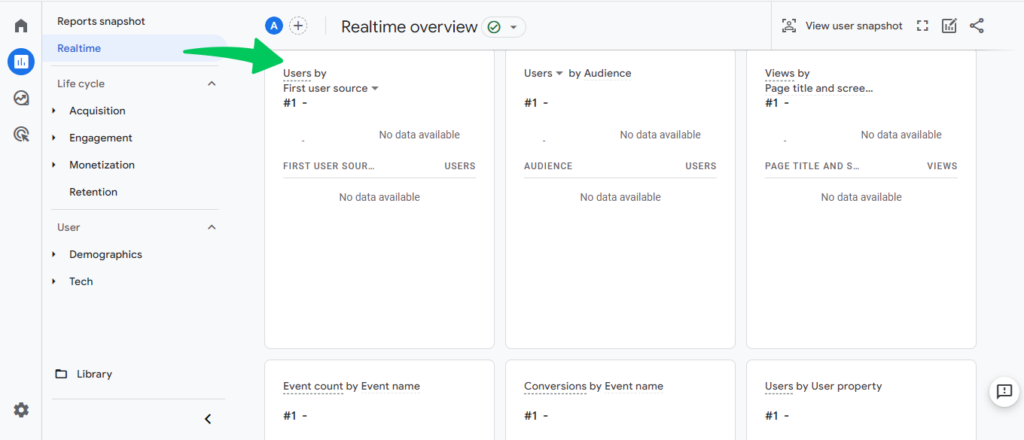
Note: If Realtime data doesn’t show up, the cause can be a tracking problem, a delay in data processing, or a property setup problem.
4. Check Enhanced Measurement
If GA4 is not tracking data correctly, check the Enhanced Measurement setting first. Enhanced Measurement plays a critical role in automatically capturing various interactions and content on your site. This includes tracking:
- Page views
- Scrolls
- Site searches
- Outbound clicks
- File downloads
- Video engagement
- Form interactions
How to Verify if Enhanced Measurement is On or Off:
- Access the Admin Area: Go to the Admin section in your Google Analytics account.
- Navigate to Data Streams: In the property column, look for Data Streams.
- Select Your Data Stream: Click on the relevant data stream to view its settings.
- Check Enhanced Measurement Status: Here, you can see if Enhanced Measurement is turned on or off.
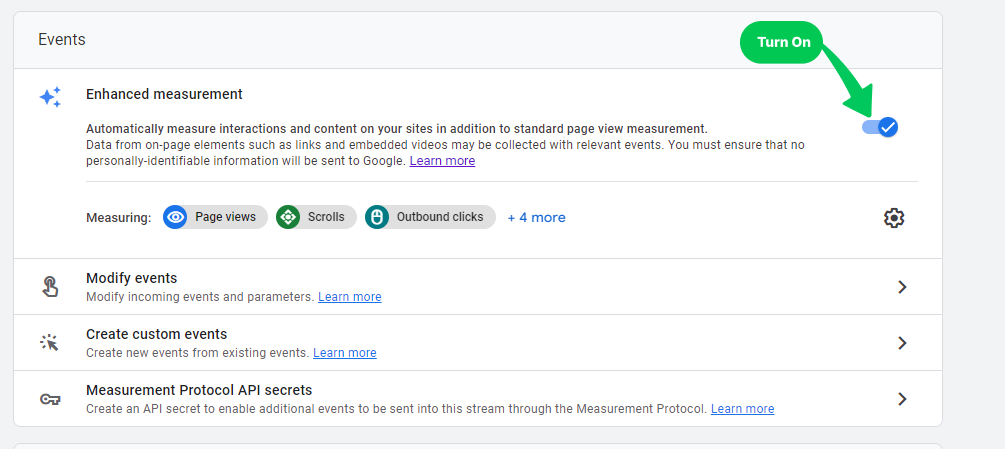
- Enhanced Measurement turned off is a common reason certain events don’t track. This shows most in Realtime reports.
- With Enhanced Measurement on, you get GA4’s full tracking capabilities. You also get a complete view of user interactions on your site.
5. Conversion Events, not Activated
Incorrectly configured events can stop Google Analytics from working. The result is a significant problem: no conversions in your reports, plus data gaps in Google Analytics. Let’s explore what these issues might be and how to rectify them.
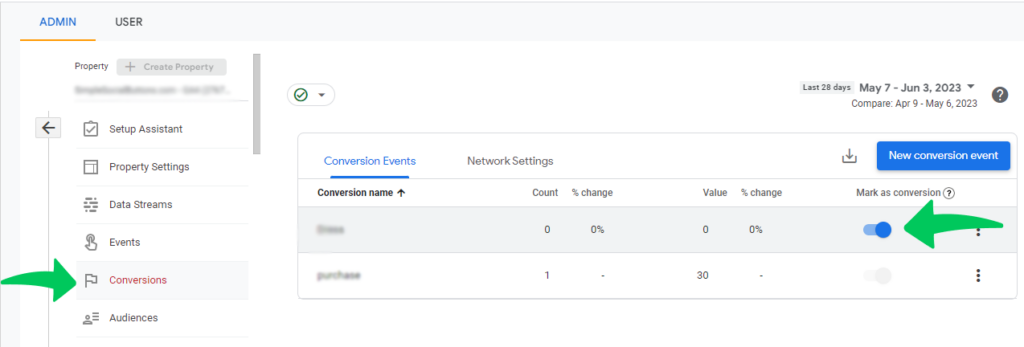
To track conversions effectively, it’s essential to identify and designate specific events as conversions. Overlooking this crucial step means these conversions will not appear in your Google Analytics reports. This process involves:
By heading to Admin>>Conversions, you can quickly see which conversions are turned on. Set them right so you can see Google Analytics working properly.
6. Verify User Permissions
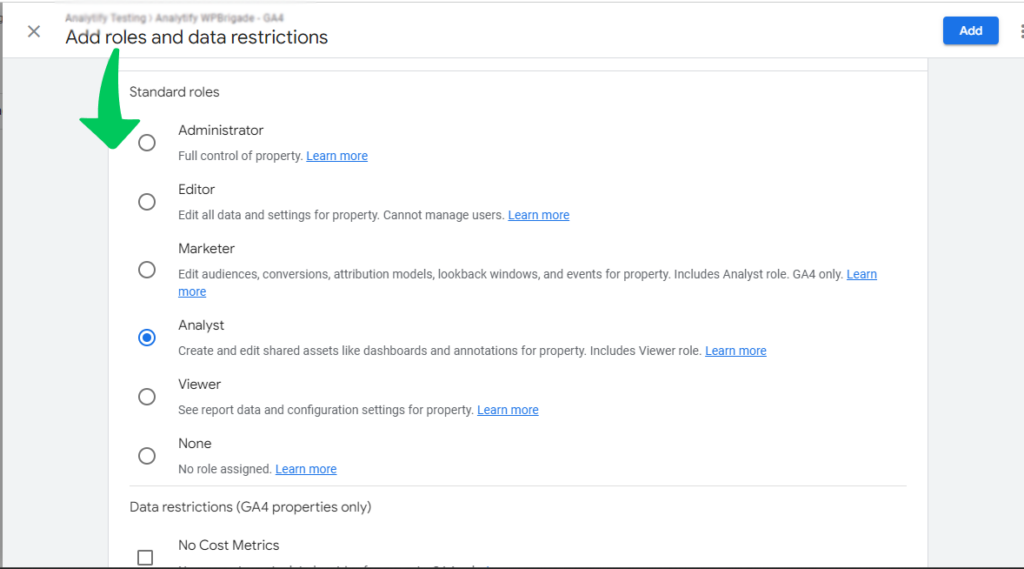
Make sure that your GA4 property has the right user rights. If you don’t have the right permissions, you might be unable to see or change data.
You need at least the Viewer or Analyst role on the Google Analytics account or the GA4 property to see realtime data. If you don’t have this access, ask the account owner or administrator for it.
The administrator will navigate to Property Access Management or Account Access Management and assign you an appropriate role.
The sections above cover the technical causes of GA4 not working. Data privacy and control also matter. Privacy concerns are growing. Many businesses and individuals now want more control over their data.
Google Analytics provides strong quantitative data about your traffic. Understanding user behavior on a deeper level often needs qualitative analysis tools. If you want alternatives to Google Analytics, we compiled a list of Hotjar alternatives (a direct Google Analytics competitor). They offer features like heatmaps, session recordings, and feedback surveys.
For a detailed comparison of Google Analytics and privacy-focused alternatives like Matomo, check out our article: Matomo vs. Google Analytics.
7. Verify eCommerce Tracking in Google Analytics 4
If GA4 isn’t tracking e-commerce activity, e-commerce tracking might not be activated.
By default, Google Analytics doesn’t automatically track eCommerce-related activities. Setting up eCommerce tracking is essential. It monitors key interactions like product additions to the cart, cart abandonment, and successful purchases.
How to Fix it?
• Good news for those who use WordPress! With Analytify, you can enable eCommerce tracking effortlessly with just a click.
• To learn how, visit the guide on How To Enable Google Analytics Ecommerce Tracking.
8. Conflict with Other Scripts on Your Website
One potential issue that might be affecting the performance of Google Analytics on your website is script conflicts. Google Analytics might clash with another script on your page. That script could even be a second instance of a Google Analytics tracking code.
When multiple scripts are active on your site, make sure they don’t use the same variables as Google Analytics. This common issue can lead to inaccurate data collection or complete tracking failures.
How to Fix it?
To avoid these conflicts:
- Review All Scripts: Take a thorough look at all the scripts running on your site. This includes any additional analytics tools, plugins, or custom code that might be present.
- Check Variable Names: Make sure the variable names in these scripts are unique. They should not overlap with those Google Analytics uses. Variable name conflicts can cause significant tracking issues.
- Consult Developer Documentation: Refer to the developer documents for gtag.js for guidance. These documents provide valuable insights into proper implementation and can help you identify and resolve potential conflicts.
- Utilize Analytify: As a comprehensive solution for integrating Google Analytics with WordPress, Analytify simplifies this process. It helps manage and streamline your Google Analytics setup, reducing the likelihood of script conflicts.
If your Google Analytics data isn’t updating as it should, your Google Tag Manager setup could be the cause.
In many cases, a misconfigured or non-functioning GTM container can lead to missing or delayed data. To rule this out, it’s recommended to check if Google Tag Manager is working using our detailed guide. This can help you pinpoint and resolve any GTM-related issues, ensuring your analytics data remains reliable.
9. Errors in Custom JavaScript Code for Google Analytics
If you change the Google Analytics code on your website, write the code correctly.
How to Fix it?
To avoid coding issues, you need to watch the following two common things:
- Writing Function Names Correctly: In the code, spelling and capital letters in function names matter a lot. If you don’t write them exactly right, the code might not work.
- Using True or False Properly: In coding, ‘true’ or ‘false’ are special words that help the computer make decisions. Don’t put them in quotes (like “true” or “false”). Quotes change their meaning and can cause problems in your Google Analytics.
If these things aren’t done correctly, Google Analytics might not track your website data properly. If you use Analytify on your WordPress site, it handles most of this for you. That makes these mistakes less likely.
If your GA4 custom events don’t show up in reports, use Google Tag Manager Preview Mode. It helps you test tag deployment. Learn how to Fix Google Tag Manager Preview Mode Issues. That helps make sure all your GA4 tags, including custom events, fire correctly and capture data accurately.
10. Choosing the Correct Account or Property
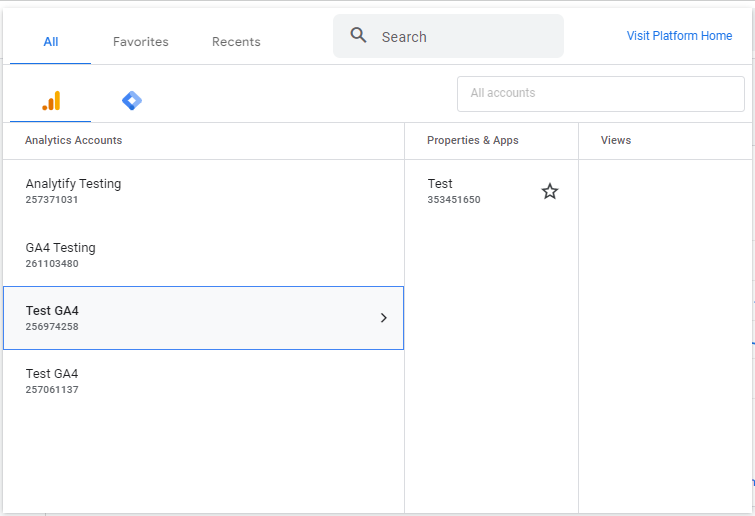
If your Google Analytics is not working, may be you are choosing the wrong property or tag. It’s a common mistake, especially if you manage multiple sites or access several Analytics accounts. Using the wrong tracking property or account for a website leads to errors in your data reports.
How to Fix it?
Here’s how to solve this:
Go to your Google Analytics and carefully select the correct account and property. This is where you’ll find the specific tracking tag you need.
When setting up Google Analytics, you’ll encounter different methods for implementing tracking code. Understand the differences between Gtag and Google Tag Manager. That helps you choose the right approach and keep your analytics working correctly. Choosing the wrong method can cause Google Analytics not to work.
Use Analytify to Make GA4 Troubleshooting Easier
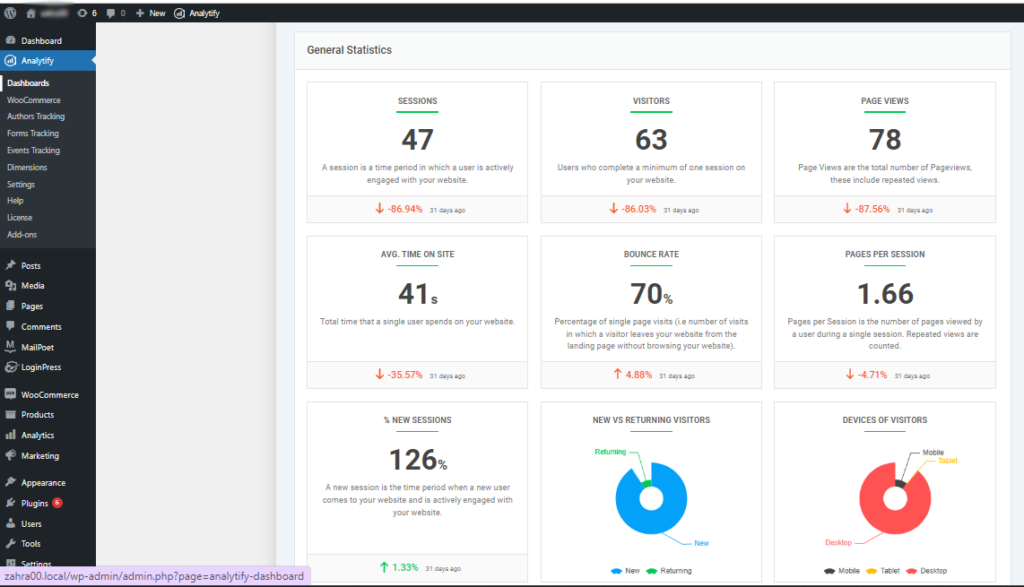
Analytify is a WordPress plugin that makes it easier to set up and manage Google Analytics on your website. Analytify fixes GA4 problems in the following ways. It also gives you an easy-to-use dashboard for watching your analytics data:
- Integration
Analytify makes sure your GA4 tracking code is in the right place. It appears on all pages of your WordPress site. It offers integration of your WordPress site with Google Analytics. So you won’t have to add codes yourself. Analytify will handle it for you. - E-commerce Tracking
The e-commerce tracking addon of Analytify lets you keep an eye on how your online store is doing. This lets you find and fix any GA4 problems with your e-commerce data. - Better Events Tracking
Analytify works with GA4’s improved measurement features. You get a fuller picture of how users interact with your site. Possible tracking problems are easier to spot.
Oftentimes, when troubleshooting GA4 issues, you may also come across duplicate events. This can happen for a number of reasons, and can skew your data. If you’re facing this issue, you can refer to our guide on how to fix GA4 duplicate events.
When you troubleshoot Google Analytics, it helps to know the tools available to access and analyze your data. Analytify provides a simplified interface for viewing your Google Analytics data directly within your WordPress dashboard. Not sure Analytify fits your site? Compare Google Analytics plugins for WordPress side by side. Understanding the differences between Analytify and Google Analytics 4 can help you choose the best approach for your needs.
Get 60% OFF Analytify! Use Code BFCM60
Supercharge your analytics with Analytify this Black Friday! Enjoy a 60% discount and unlock effortless Google Analytics integration for your WordPress site. Track insights, boost performance, and make data-driven decisions. Hurry, this exclusive deal ends 2nd December!
GA4 Not Working FAQs
1. Why is my Google Analytics 4 not showing data?
This can be due to several reasons, such as incorrect tracking code implementation, filters blocking data, browser issues, or ad blockers. Ensure your Google Analytics 4 setup is correct, and the tracking code is properly installed on all web pages.
2. How can I fix Google Analytics not working?
Start by verifying your tracking code, checking real-time reports, reviewing configuration settings, and disabling browser extensions that might block data. Also, ensure there are no JavaScript errors on your site that could interfere with Google Analytics.
3. What are the major reasons why Google Analytics is not showing data?
Common reasons include incorrect configuration settings, problems with the tracking code, overly restrictive filters, and incompatibility with certain browsers or devices.
4. Can browser extensions affect Google Analytics?
Yes, certain browser extensions, especially ad blockers, can prevent Google Analytics from tracking data. Try disabling these extensions and see if the data appears in your reports.
5. How can I resolve Google Analytics 4 not showing data?
Ensure that GA4 is properly set up, including the correct configuration of data streams. Verify that events are correctly tagged and that there are no conflicts with other site scripts.
6. Why is my Google Analytics not working?
This can be due to various reasons like incorrect tracking code setup, browser issues blocking the tracking, or configuration errors in your Google Analytics account.
Conclusion
Google Analytics not working is a significant hurdle. It blocks effective monitoring and evaluation of your website’s performance. Understand the common reasons, such as Google Analytics 4 not showing data. Follow systematic steps to diagnose and resolve them. Your analytics will then run efficiently.
We hope this article helped you to understand how to fix Google Analytics not working.
Have you also faced issues with your GA4 Real Time Reports? You can also check our helpful resource on How to Fix Google Analytics Real Time Not Working
Now, over to you. Did you find a solution to your Google Analytics issue, or do you have other troubleshooting tips to share?
Join the conversation below and let us know how you tackled your Google Analytics challenges!


 Halloween Sale: Know which campaigns drive sales this season.