How to Recover Google Analytics Account? 5 Proven Methods

To recover a Google Analytics account, regain the Google Account linked to it. Or ask an existing administrator to grant you access again.
Forgotten login details, an inaccessible email account, or a change in your team can lock you out. Losing access to Google Analytics feels like flying blind without your analytics dashboard.
This guide covers 5 recovery methods, common recovery problems, and ways to prevent losing access again.
We’ll explain each step you need to take, with some handy tips. You will be equipped to regain access to your data. Recovering an account for yourself or helping someone else, you’ve come to the right place.
So, let’s get started!
Recover Google Analytics Account (TOC):
Understanding Google Analytics Account Loss
Recovering Google Analytics account is essential. It holds the key to understanding your website’s performance. It offers insights into customer behavior, traffic sources, and much more. Without it, optimizing your online presence becomes a guessing game.
Before the “how to do” and “what to do,” let’s understand why Google Analytics accounts become inaccessible in the first place.
Understanding the root causes helps you recover your Google Analytics account and prevent future mishaps. So, why do these account losses happen?
Common Reasons for Account Loss:
- Forgotten Credentials: It’s one of the most common culprits. Managing multiple accounts and passwords makes it easy to forget the exact login details for your Google Analytics.
- Email Access Issues: Your Google Analytics account may be tied to an email you no longer access, like an old work email or a defunct provider. Then you face a recovery quest.
- Team Changes: Businesses evolve, and so do their teams. If the person who set up the account leaves without handing it over, you are locked out of your data.
The Impact of Losing Access:
Losing access to your Google Analytics account is more than a minor inconvenience. It can lead to:
- Uninformed Blind Decision Making: Without data on website traffic and user behavior, informed decisions about your online strategy become guesswork.
- Marketing Mishaps: Google Analytics data helps tailor marketing strategies. Without it, you might miss out on optimizing your campaigns for maximum ROI.
- Lost Historical Data: Google Analytics accumulates valuable historical data over time. Losing access means losing insights into long-term trends and patterns.
Understanding these reasons and impacts underscores the importance of swiftly recovering your Google Analytics account. It restores your access to critical data. It also restores your ability to make data-driven decisions for your website or business.
How to Recover Google Analytics Account (Detailed Steps)
To recover a Google Analytics account, work through the steps below. Confirm the site has Google Analytics, gather your account details, recover the linked Google Account, and contact support if that fails.
Step 1: Verify if your Site has Google Analytics
First, check if your site has Google Analytics.
Step 2: Ensure You Need Account Recovery
After confirming that your site has Google Analytics, make sure the account can be recovered. Also make sure you have enough information to request access to your Google Analytics account.
- Check All Possible Email Accounts: Sometimes, the account is linked to an email you might have overlooked. Double-check all your email accounts before declaring it MIA.
- Try Common Passwords: Your google analytics account may have the same common password you normally use for other sites. But do this cautiously and without triggering a lockout. You might just hit the jackpot.
Step 3: Gather Essential Information
Collecting certain pieces of information beforehand can be a game-changer. Here’s what you’ll need:
- Previous Login Details: Any old usernames or email addresses that might have been used.
- Website Details: The URL(s) of the site(s) connected to the Google Analytics account.
- Proof of Ownership: This can include billing information for Google services, domain registration details, or other documents that prove your connection to the website.
Step 4: Attempt to Recover Your Google Account
Google Account Recovery Page
- Navigate to the Google Account Recovery page.
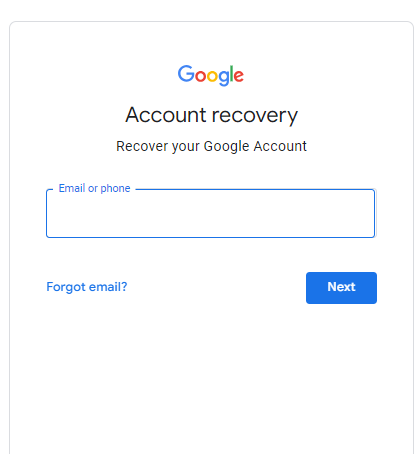
- Enter the email address or phone number associated with your Google Analytics account and click Next.
- If prompted, enter the last password you remember. If you don’t remember any, click on “Try another way” to see alternative verification options.
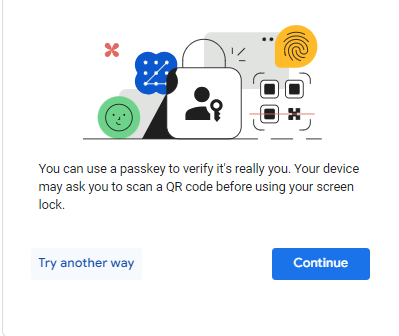
Verification Options
- Google may send a verification code to a recovery email or phone number. Enter this code to proceed.
- If no recovery methods are available or working, select Try another way again. You might be asked security questions about your account to verify your identity.
- If none of these options work, move on to Step 5.
Step 5: Contact Google Analytics Support
If you fail to succeed in step 4, you’ll need to contact Google Analytics support.
First, know that direct, personalized support is more readily available for Google Analytics 360 users. They have access to dedicated support services. However, Google also provides many resources and community forums. You can seek help there for standard Google Analytics accounts.
Navigating to the Help Center
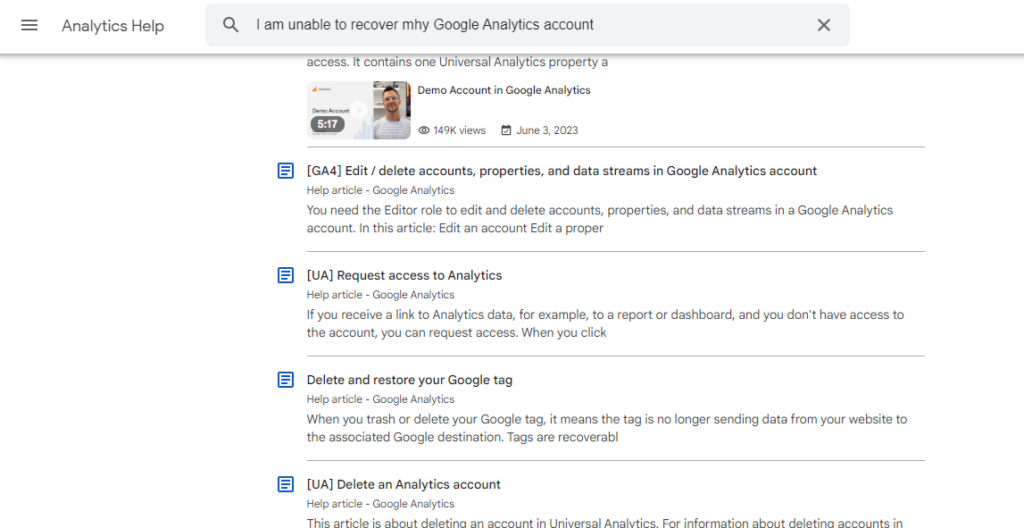
- Visit the Google Analytics Help Center: Go to Google Analytics Support. This portal provides access to articles, troubleshooting guides, and community forums that can assist in the recovery process.
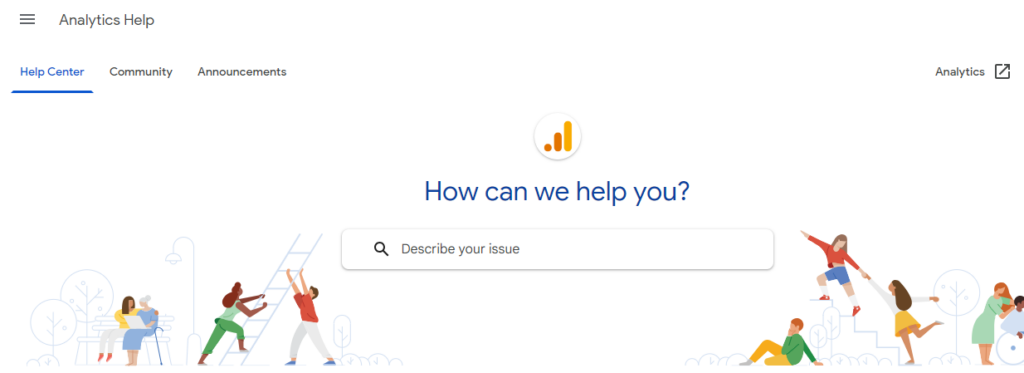
- Search for Account Recovery Information: Use the search function in the Help Center to find articles on account recovery. Keywords like “recover Google Analytics account” or “access lost Google Analytics account” can be helpful.
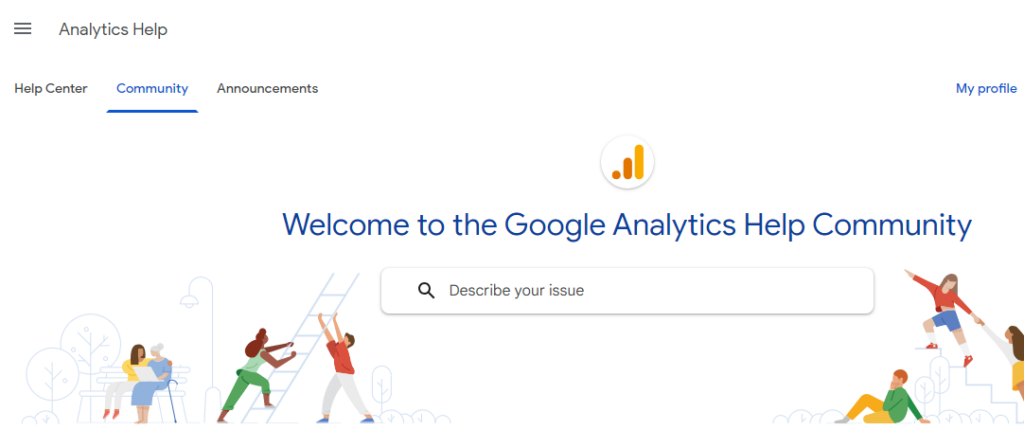
- Explore Community Forums: If direct contact options are not available, post your issue in the Google Analytics Help Community. It is a valuable resource. Experienced users or Google product experts can often offer advice or steps you might not have considered.
4. Contact Google Analytics Support
If you don’t find useful information, the last step is to contact Google Analytics support.
First, prepare for contact.
- Gather Your Information: Before reaching out through the help channel, make sure you have all relevant information. It includes your Google Analytics account ID, the email address you believe is linked to the account, and details about your website (like the URL). Add any proof of ownership or affiliation with the site.
- Detail Your Issue Clearly: Be clear and concise when you describe your issue, in a forum post or a support inquiry.
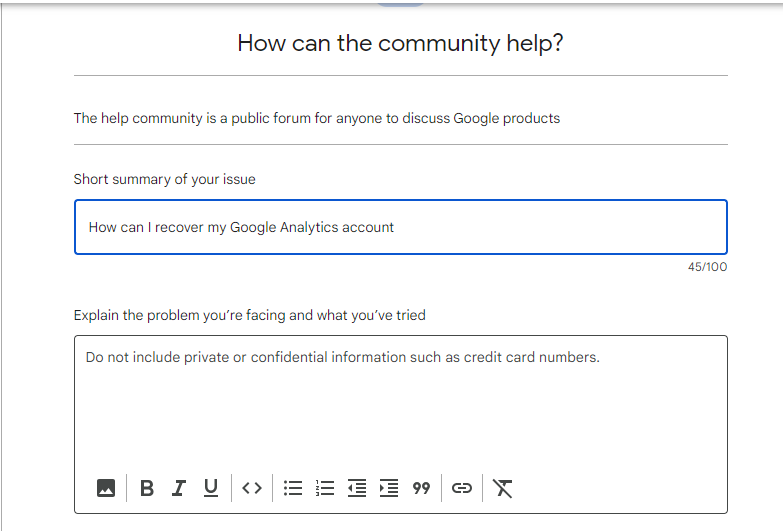
- Outline the steps you’ve already taken to recover your account. Specify the type of access you had (for example, Administrator, Editor, Marketer, Analyst, or Viewer).
For Google Analytics 360 users:
- Utilize Your Support Contract: Access the support options provided as part of your service agreement. This may include email support, live chat, or phone support.
- Be Specific and Provide Documentation: When contacting support, provide your account details and relevant documentation, like screenshots of error messages or emails showing loss of access. State clearly that you need to recover access to your Google Analytics account.
Following Up
- Keep Records: Document your communications with Google. Note the date, the method of contact, and a summary of the interaction. It will be helpful if you need to reference these communications later.
- Be Patient but Persistent: Response times can vary. If you haven’t received feedback within a few days, follow up. Persistence is essential, significantly if your access issue is impacting your business.
Contacting Google Analytics support or utilizing the community forums can be critical in regaining access to your account. Direct support may vary by account type. The community and available resources are valuable assets in your recovery process.
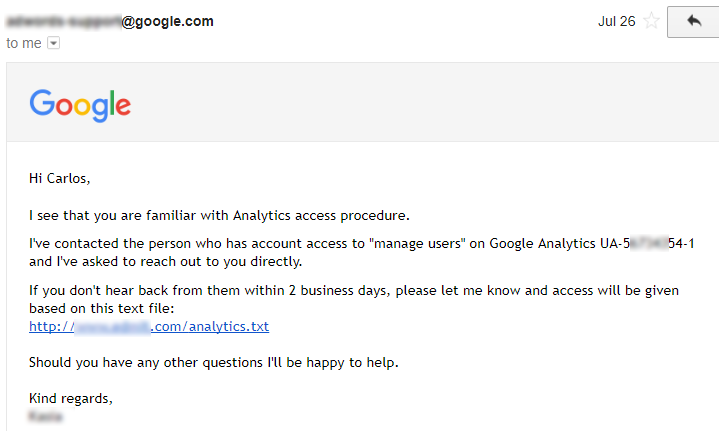
Below is an example of the email by Google Analytics Support you will receive:
By following these detailed steps, you’ll be better equipped to recover your Google Analytics account. Remember, the specific path to recovery may vary by circumstances. These guidelines will help you navigate the process more smoothly.
Troubleshooting Common Recovery Issues
Four problems come up most often: a lost recovery email or phone number, a missing Analytics account, an agency-managed account, and specific error messages. Each has a fix below.
Lost Access to the Recovery Email or Phone Number
One of the most frequent hurdles is losing access to the email or phone number Google uses for verification.
- Solution: If you have an alternative recovery email or phone number previously set up, use those. Otherwise, during recovery, look for an option that says “Try another way”. It shows whether Google offers alternative verification methods.
Google Analytics Account Not Listed Under Your Google Account
Sometimes, after recovering your Google account, you might find that the Google Analytics account is still missing.
- Solution: This usually means the Analytics account was under a different Google account. Try to recall if there were any other accounts you used. If you’re part of an organization, check whether the account was under a colleague’s account. They may be able to grant you access again.
Recovering an Account Managed by a Third-Party or Agency
If a third party, like an agency, managed your Google Analytics and you’ve lost contact or ended the relationship, getting access back can be complicated.
- Solution: If possible, contact the agency directly. If not, follow the standard recovery process and provide detailed information about your situation when contacting Google support. Proving ownership of the site associated with the Analytics account is crucial.
Specific Error Messages
Encountering error messages during recovery can be frustrating. Here’s how to handle some common ones:
- “Account Not Found”: Ensure you’re using the correct email associated with your Google Analytics account. This error often means Google can’t find an Analytics account linked to your email.
- “No Permission to Access This Account” means you’re logged into a Google account that doesn’t have access to the Analytics account. Try logging in with another Google account.
These solutions address the most common issues you might face while recovering your Google Analytics account. Remember, persistence and providing as much detail as possible during the recovery process are your best allies.
Best Practices to Prevent Future GA4 Account Loss
After recovering your Google Analytics account, it’s crucial to take steps to prevent similar issues from happening again. Implementing the best account management and security practices can save you a lot of headaches down the road. Here are essential strategies to keep your Google Analytics access secure and manageable:
Regularly Update Recovery Information
- Keep Your Contact Info Up-to-Date: Ensure that your Google account’s email addresses and phone numbers are current. Google uses this information for account recovery and security alerts.
- Add a Recovery Email and Phone Number: If you haven’t already, add both to your Google account. This provides alternative ways to regain access if you’re locked out.
Utilize Strong, Unique Passwords
- Create Strong Passwords: Use complex passwords that are difficult to guess. A combination of letters, numbers, and symbols increases security.
- Avoid Reusing Passwords: Each account should have a unique password. Reusing passwords across different services increases the risk of one service being compromised.
Enable Two-Factor Authentication (2FA)
- Activate 2FA: Two-factor authentication adds an extra layer of security. It requires a second form of verification beyond your password to log in. It can be a code sent to your phone, an authenticator app, or a security key.
- Educate Your Team: If you work with a team, make sure everyone with access to your Google Analytics account enables 2FA.
Manage Account Access with Google Groups
- Use Google Groups for Easy Management: Instead of sharing access individually, use a Google Group. It manages who has access to your Google Analytics account. This way, you can easily add or remove members from the group, simplifying access management.
- Audit Access Regularly: Regularly review who has access to your Google Analytics account. Remove access for users who no longer need it, such as former employees or contractors.
Conduct Regular Security Audits
- Review Account Activities: Regularly check your account for unusual activities or access from unrecognized devices.
- Update Permissions: Ensure that each user has the appropriate level of access according to their role. Limit administrative access to trusted individuals.
Document Account Details
- Keep Records: Maintain a secure record of account details, including account IDs, associated email addresses, and key configurations. This documentation can be invaluable for recovery efforts and managing access.
Following these best practices significantly reduces the risk of losing access to your Google Analytics account in the future. Taking proactive steps to secure your account protects your data. It also lets you keep making informed decisions from your analytics insights.
Next Steps if Recovery Fails
If recovery fails, look for exported reports and data in other analytics tools, then set up a new Google Analytics account. Here are the details:
Attempting to Access Historical Data
Losing access to your Google Analytics account cuts you off from your historical data, which can be a significant setback. While accessing the old data directly might not be possible, consider these options:
- Check for Reports or Exports: If you previously exported reports or shared them with team members, you may recover some historical data.
- Use Other Analytics Tools: If you have other analytics tools in place (such as Analytify and data from the hosting provider), use their data to fill in some gaps.
Setting Up a New Google Analytics Account
If recovery attempts have been exhausted without success, establishing a new Google Analytics account becomes necessary.
- Create a New Account: Go to the Google Analytics website. Follow the steps to set up a new account. This time, use a secure, easily accessible email.
- Add the Google Tag: Once your new account and web data stream are created, you’ll find a Google tag in the data stream details. Add the tag across your website to start collecting data anew.
- Note the Transition: Document the changeover date for future reference. This will be helpful for comparative analysis later.
Read a complete guide on How to set up a Google Analytics Account.
Setting up Analytify to Access Google Analytics Data
Analytify can be a handy tool to access your Google Analytics data directly within your WordPress dashboard.
Join 50,000+ beginners & professionals who use Analytify to simplify their Google Analytics!
Here, Analytify can be useful in two situations:
- Lost Google Analytics Account Access: You lost access to your Google Analytics account but have Analytify set up? You can still view your website’s historical data in the Analytify dashboard.
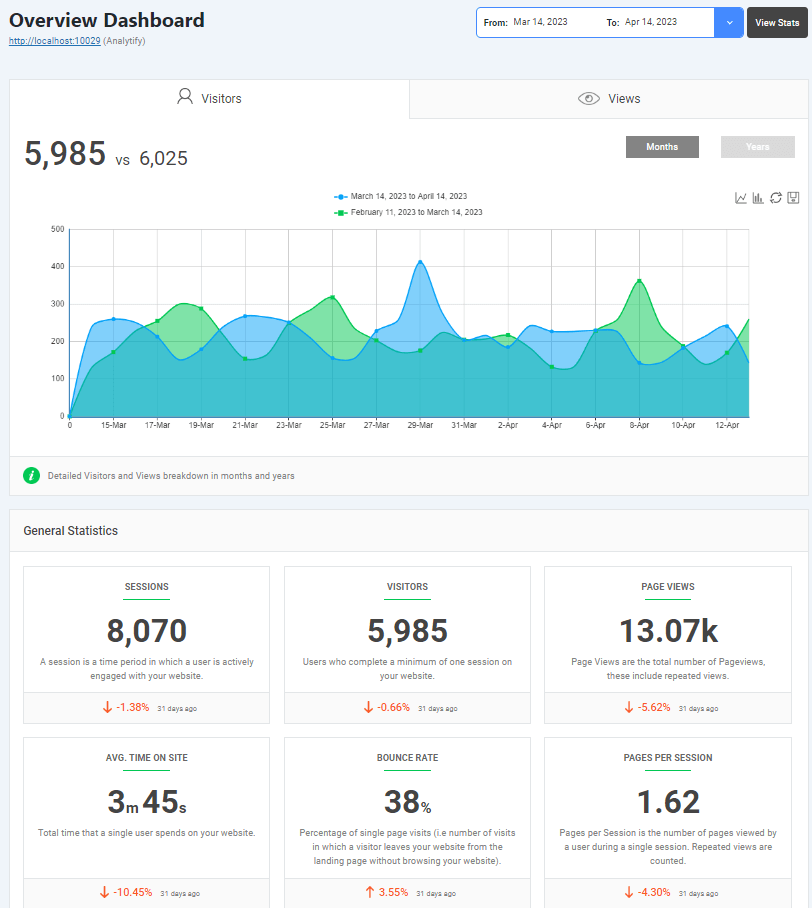
- Future Access: Even if you have current access to Google Analytics, Analytify gives you a convenient way to view your analytics data on your WordPress dashboard.
Here’s a quick guide to setting up Analytify:
How to Install And Activate Analytify Pro Plugin.
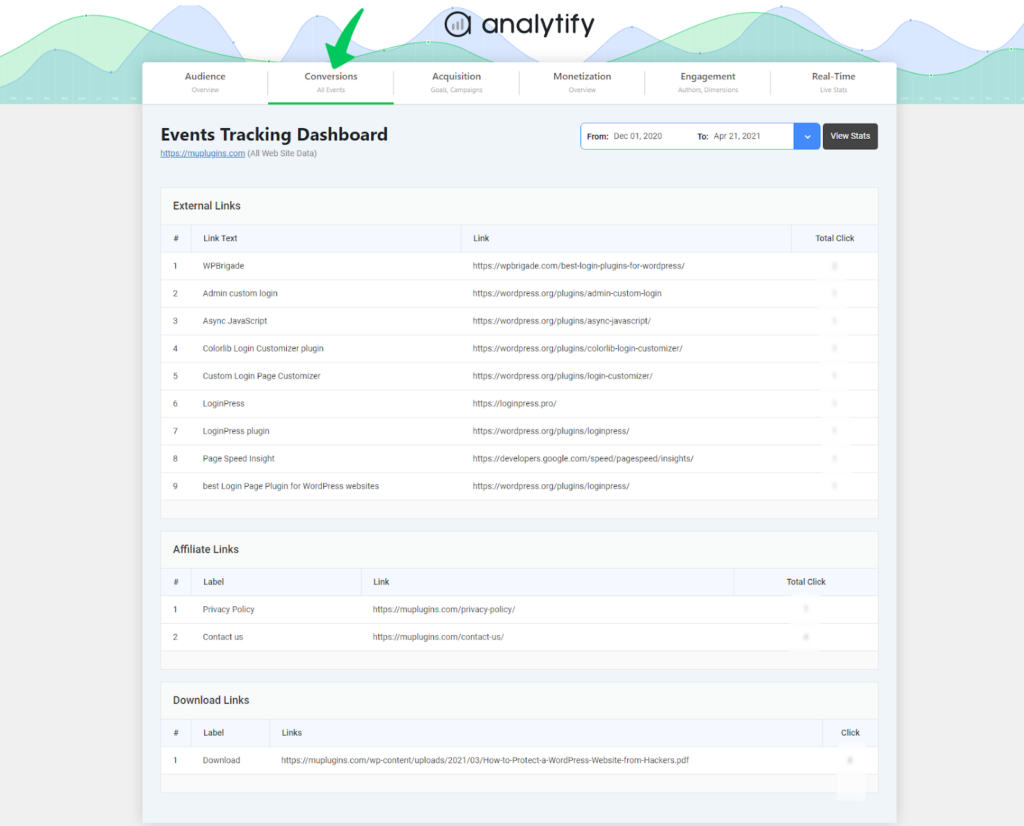
Analytify gives access to almost all the Google Analytics data, including event tracking. Compare every Google Analytics plugin for WordPress before you install one.
Google Analytics Recovery FAQs
Several questions often arise during the recovery process for your Google Analytics account, reflecting common concerns and clarifications needed. Below are answers to some frequently asked questions that can provide additional insights and aid in the recovery process.
How long does the recovery process take?
The time frame for recovering a Google Analytics account can vary significantly based on the situation’s complexity and the recovery channels’ responsiveness. While some users may regain access within a few days, others might find the process extending over several weeks, especially if additional verification or documentation is required. Patience and persistence are key.
Can I recover historical data if I start a new Google Analytics account?
Unfortunately, starting a new Google Analytics account means you won’t have direct access to the historical data from the lost account. However, if you have previously exported or shared reports with colleagues, you may be able to piece together some historical insights. Always consider using multiple data analytics tools in the future to prevent total data loss.
What are the implications of not recovering an old Google Analytics account?
Failing to recover an old Google Analytics account results in losing access to historical data, which can impact your ability to analyze long-term trends and make informed decisions based on past performance. Additionally, it may affect any integrations or reporting that relied on the specific account ID of the lost account. Starting fresh with a new account, while lacking historical data, offers a clean slate to implement strong security measures and data management practices.
Is there a way to contact Google directly for account recovery?
Direct contact options with Google for Analytics account recovery are limited, particularly for users of the standard (free) version of Google Analytics. Google Analytics 360 customers have access to dedicated support. For standard users, the recommended approach is to utilize the account recovery process provided by Google and seek assistance through the Google Analytics Help Community and other forums.
Can third-party tools help me recover my Google Analytics account?
Third-party tools cannot directly assist in recovering access to a Google Analytics account since the issue typically involves account credentials or verification processes controlled by Google. However, third-party tools can be valuable in supplementing your data analytics moving forward, providing additional insights and backups for your data.
Conclusion
This guide explored every avenue to help you recover your Google Analytics account. It covered the root causes of account loss, detailed recovery steps, troubleshooting, and best practices for future security.
Losing access to your Google Analytics account is a wake-up call. It shows the importance of diligent account management and security. Yet, with every challenge comes the opportunity to learn, grow, and emerge stronger. Follow the steps and strategies in this guide. You’ll recover an account and build a more secure, insightful digital future for your business or project.
We hope you fully understood how to recover Google Analytics account. You may also like to explore our guide on Google Analytics not working.
Now we would like to know how you recover your Google Analytics account? Or if you ever come across such an incidence of losing Google Analytics account. Share your thoughts in the comment box below.