How To Check If A Site Has Google Analytics (6+ Easy Methods in 2026)

The fastest way to check if a site has Google Analytics is to view its page source. You can also open the browser’s Network tab. Look for a GA4 measurement ID (starts with “G-“) or a gtag.js request. This guide covers 6 methods, from quick browser checks to dedicated detection tools. Pick the one that fits your situation.
Around 28.1 million websites use Google Analytics. Knowing how to spot it helps when you research a competitor, audit your own site, or check a client’s setup (keep ethics in mind).
How To Check if a Site Has Google Analytics (TOC):
What is Google Analytics?
Google Analytics is a free and powerful web analytics service offered by Google. GA lets website owners track everything from website traffic and user behavior to the effectiveness of marketing campaigns.
It’s like having a virtual spyglass giving you insights into how people interact with your website.
Why You Need to Check for Google Analytics?
Here are a few reasons:
- Competitor Analysis: Studying how your competitors use GA4 can provide valuable insights into their marketing strategies and user engagement.
- Campaign Tracking: Did your latest social media blitz bring in more visitors? Checking for GA can help you track the effectiveness of your campaigns.
- Understanding User Behavior: Knowing how users navigate your website (or a competitor’s) helps you improve user experience and optimize content.
Note: While the methods we’ll explore are effective, they’re not foolproof. Some websites might be clever and hide their GA tracking or use alternative analytics tools. But fear not; with a combination of techniques, we can significantly increase your chances of uncovering the truth!
6 Easy Methods to Check for Google Analytics on a Website
You now know why you may need to check Google Analytics on a website. Next, let’s learn how to check if GA4 is installed.
Here, we explore several methods for checking for Google Analytics. They range from your browser’s built-in tools to third-party resources.
| Method | Best For | Difficulty |
| Examining the Source Code | A quick manual check with no installs | Easy |
| The Network Tab | Confirming GA requests are actually firing | Easy |
| Website Analysis Tools | Checking a site without visiting it yourself | Easy |
| Ghostery | Seeing every tracker on a page, not just GA | Medium |
| GA Debugger | Developers who want detailed GA event data | Medium |
| Checking GA4 Through Cookies | Confirming GA when other signals are unclear | Medium |
Browser Developer Tools:
Your trusty web browser holds Developer Tools. These tools allow you to peek behind the curtain and examine a website’s underlying code and network activity.
We’ll use two key features within Developer Tools to check site for Google Analytics:
1. Examining the Source Code
Inspect the website’s source code to check if Google Analytics is installed. This code holds the instructions that tell your browser how to display the website. Here’s how to find clues for GA:
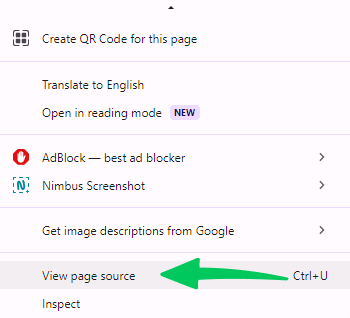
- Right-click Anywhere: Right-click on any empty space on the webpage.
- View Page Source: Select “View Page Source” or a similar option depending on your browser. This will open the website’s code in a new window.
Now let’s start checking!
- Search for Tracking Code: Use the search function in the code window (usually Ctrl+F or Cmd+F). Look for specific snippets.
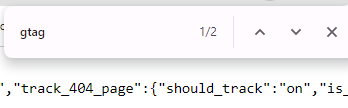
- GA4: Look for code starting with “gtag,” or referencing “firebase.analytics“. This will indicate the presence of GA4 tracking.

Remember: Not all tracking codes are obvious. Some websites embed it within scripts or use Google Tag Manager. That makes it harder to spot. When implementing Google Tag Manager, the placement of the GTM code snippet matters for its proper functioning. Incorrect placement, such as in the wrong section of your website’s code, can prevent tags from firing correctly.
2. The Network Tab: Watching the Data Flow
Whenever you visit a website, your browser downloads various files like images, scripts, and stylesheets. The Network Tab within Developer Tools lets you see a real-time record of these downloads. Here’s how to use it to check how to tell if Google Analytics is on a page:
- Open the Website: Navigate to the website you want to investigate.
- Unleash the Developer Tools: Depending on your browser, you can access Developer Tools by:
- Chrome: Right-click anywhere on the page and select “Inspect” or press F12.
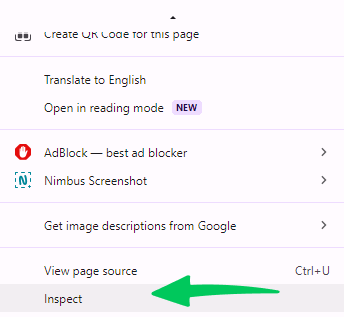
- Firefox: Right-click and choose “Inspect Element” or press F12.
- Safari: Go to the menu bar, select “Develop”, then “Show Web Inspector”.
- Activate the Network Tab: Once Developer Tools open, locate the “Network” tab.
- Refresh the Page: Click the refresh button in your browser (or press F5). This starts a new download of website resources.
- Watch the Network Traffic: Observe the list of files being downloaded. Look for entries containing “collect” in the name. These are potential indicators of GA tracking requests being sent to Google’s servers.
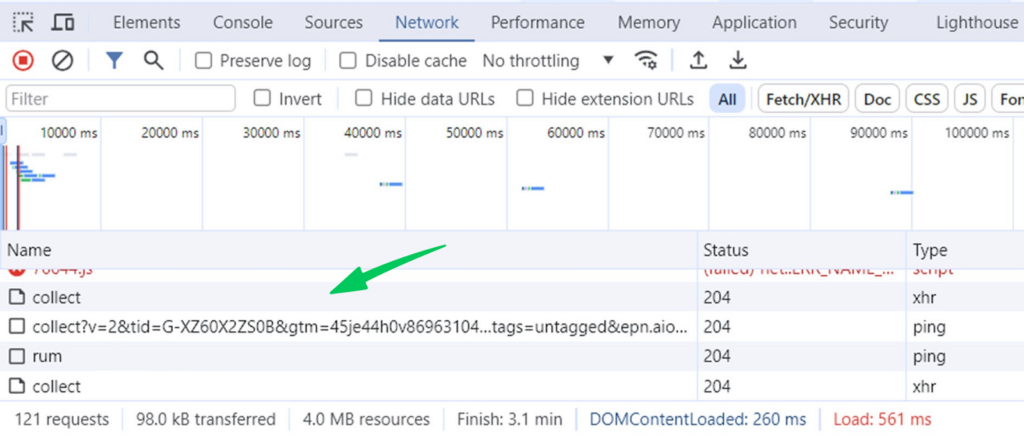
Checking the Request URL of this collect request can help identify which GA version is used.
| Google Analytics Version | Protocol Version | ID Type | Example |
| Universal Analytics (UA) | 1 | Tracking | UA-XXXXXXXX |
| Google Analytics 4 (GA4) | 2 | Measurement | G-XXXXXXXX |
Important Note: Seeing “collect” requests is a strong clue. It is not a guaranteed confirmation. Some websites mask or minify their tracking code, which makes it less obvious.
Next, we’ll explore how to use third-party tools and browser extensions to enhance your GA detection skills further!
Third-Party Tools and Extensions: Lending a Helping Hand
While browser developer tools are a powerful starting point, sometimes you need extra muscle. Here’s where third-party website analysis tools and browser extensions come in handy. They give you extra insight and simplify the check for GA.
3. Website Analysis Tools: A Broader Perspective
Several online tools comprehensively analyze a website’s technology stack, including potential analytics solutions. Here is a popular option:
- SimilarWeb: SimilarWeb offers website traffic analytics and competitive intelligence tools. It often reveals popular analytics tools like GA.
You can check if a site uses Google Analytics through SimilarWeb with these steps. Direct mentions of specific analytics tools like Google Analytics may appear in an indirect manner:
- Visit SimilarWeb: Go to the SimilarWeb website and log in to your account. If you don’t have an account, you might need to create one. Some features and data may be limited to account holders.
- Search for the Website: In the search bar at the top of the SimilarWeb page, enter the website URL you want to analyze. Press Enter. This will take you to the site’s analytics overview page.
- Navigate to the Technology Profile: Look for the Website Technologies section on the left side of the analysis page.
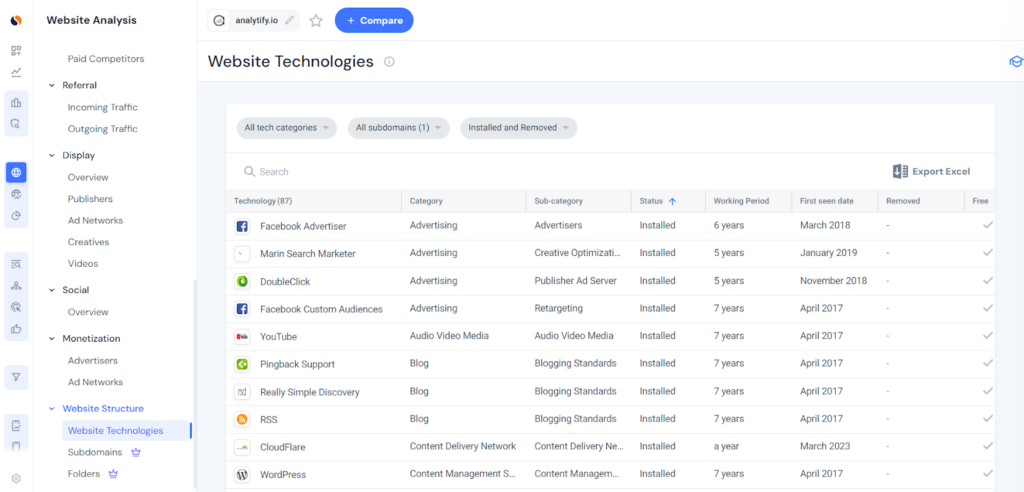
- Examine the Technology Data: Look for mentions of Google Analytics in the technology profile or similar section. It could be listed under Conversion & Analytics tools or a related category.
- Check for Analytics and Tracking Tools: If there’s a specific subsection for analytics and tracking tools, explore it. See if Google Analytics is mentioned. This subsection will list the technologies detected on the website, which might include Google Analytics, among other tools.
Please note that seeing specific technologies, including Google Analytics, may vary. It depends on the depth of SimilarWeb’s analysis for that site and your level of access or subscription. For the most direct and technical way to confirm Google Analytics use, try browser developer tools. You can also use extensions that detect specific web technologies by inspecting the website’s code.
Browser Extensions: For GA Detection
Have you ever wished you had a tiny detective gadget for your browser? Well, browser extensions can be just that! Several browser extensions specialize in identifying website tracking tools, including GA. Here are popular options:
- Ghostery: This extension provides a real-time view of trackers found on a website, including analytics platforms.
- Google Analytics Debugger Extension: GA Debugger is a useful tool for anyone who manages a website or provides SEO services. It also suits anyone curious about how websites use Google Analytics.
If your site isn’t connected to Google Analytics yet, the first step is setting up an account. Here’s how you can set up a GA4 account.
4. Ghostery: Tool for Spotting Google Analytics
Ghostery is primarily known for its ability to detect and block trackers on the websites you visit. Beyond its privacy-preserving capabilities, Ghostery can also help you determine whether a site uses Google Analytics. You may be a privacy-conscious user or a marketer who wants to check site for Google Analytics. Here’s how to use Ghostery for this purpose:
Step 1: Install Ghostery
If Ghostery isn’t already part of your browser’s extension lineup:
- Navigate to the Chrome Web Store (or the extension store for your browser) and search for “Ghostery.” If you use a different browser, you can also find it through a quick web search.
- Install Ghostery by clicking the “Add to Chrome” button or its equivalent for your browser. Follow the prompts to complete the installation.
Step 2: Visit Your Target Website
With Ghostery installed:
- Open the Website where you want to check if Google Analytics is installed. Wait for it to fully load so all trackers, including potential Google Analytics scripts, have a chance to initiate.
Step 3: Activate Ghostery
Ghostery sits quietly until you need it:
- Click on the Ghost Icon in your browser’s extension area. This brings up Ghostery’s main interface. At first it shows a snapshot of the trackers it has detected or blocked on the current page.
Step 4: Switch to Detailed View
to look deeper into the specifics:
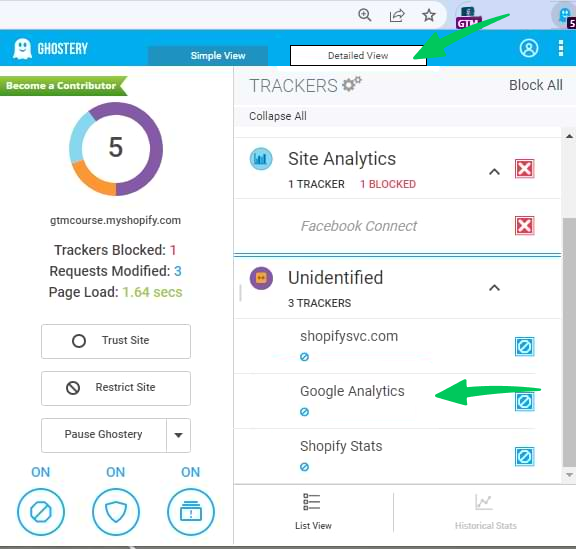
- Find and Switch to the Detailed View within the Ghostery interface.
- Look for Google Analytics: Ghostery categorizes the trackers it finds. Look under categories and see if Google Analytics is listed.
If Google Analytics is installed, you’ll find it in the list as shown in the below screenshot:
What You’ll See
In the detailed view, Ghostery will list all trackers it has detected on the page, including:
- The Name of the Tracker: If Google Analytics is installed on the site, it will be listed by name.
- The Tracker’s Category: Ghostery also shows what type of tracker it is. That helps you understand the tool’s purpose on the site.
- Blocking Status: Ghostery shows whether the tracker is currently blocked or allowed. That tells you how your browsing experience is shaped.
Why Use Ghostery to Check for Google Analytics?
Ghostery offers a unique perspective on detecting Google Analytics:
- Privacy-Focused: For privacy concerns, Ghostery allows you to check for trackers and manage which ones you want to block.
- Comprehensive Tracker Detection: Ghostery focuses on Google Analytics here. It can also detect a wide range of trackers. That shows you the broader tracking ecosystem of a site.
- User-Friendly Interface: Ghostery presents information in a way users of all levels can follow. It’s easy to spot and understand the role of Google Analytics on a site.
Keep these limitations in mind:
- Blocking Capabilities: Some websites might block extensions from accessing their full code, potentially hindering detection.
- False Positives: Occasionally, extensions might misinterpret website code, leading to inaccurate reports of GA presence.
5. GA Debugger: Your Analytics Detective
The GA Debugger Chrome extension helps you uncover Google Analytics on a website. It stands out for this task. This extension lets you see that the Google Analytics data is sent in real-time. Here’s a step-by-step guide to using GA Debugger for your detective work:
Step 1: Installing GA Debugger
First, we need to gear up by installing the GA Debugger:
- Head over to the Chrome Web Store and search for “GA Debugger,” or simply click GA Debugger.
- Click on “Add to Chrome” to install the GA Debugger. If this is your first time, you’ll be prompted to confirm the addition. Go ahead and confirm. It’s safe and incredibly useful.
Step 2: Activating GA Debugger
With the GA Debugger installed, it’s time to activate it and start the investigation:
- Open Chrome and navigate to the website you’re curious about. Is Google Analytics tracking the visitors here? You’re about to find out.
- Find the GA Debugger icon among your installed extensions and click it. The page refreshes automatically. The icon changes to show that the debugger is active.
Step 3: Opening Developer Tools
Now navigate to the Developer Tools console. GA Debugger shows the website’s Google Analytics tracking there:
- To open Developer Tools on Windows, simply press F12. On a Mac, the shortcut is Option + Cmd + J. These shortcuts take you to the Developer Tools section, on the Console tab. GA Debugger shows its messages there.
- On Google Chrome, you can right-click and navigate to Inspect. This will open the inspection window, and you can then navigate to the Console tab.
- Once you’re in the Console, clear it by clicking Ctrl+L to avoid confusion. Now, refresh the page to let GA Debugger do its job.
Step 4: Interpreting the Output
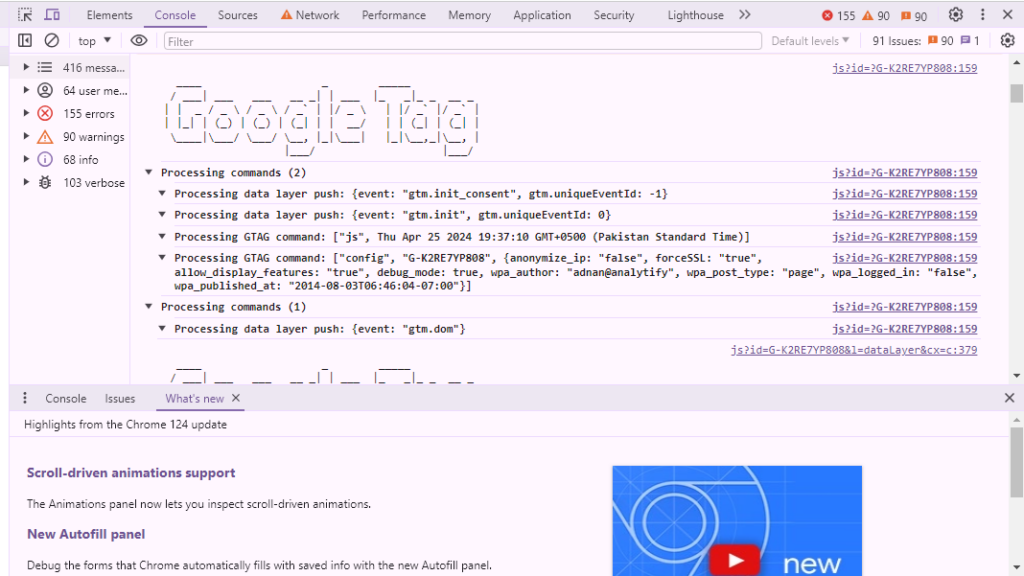
As the page reloads, watch the Console for messages from the GA Debugger. Here’s what you might see:
- You will see a flurry of messages beginning with “Sending hit to GA” or similar text. They show that the website uses Google Analytics to track page views, events, and other interactions.
- Look for details like the tracking ID (formatted as UA-XXXXX-Y for Universal Analytics or G-XXXXX for GA4). Note the type of hit (pageview, event, etc.) and other parameters. They show how the site tracks user interactions.
Checking for GA Cookies
Cookies are small pieces of data websites store on your browser. They can be used for various purposes, including tracking user behavior across a website. GA utilizes cookies to collect data about website visitors. By looking at a website’s cookies, you might discover clues about GA’s presence.
Understanding GA4 Cookies:
| Cookie Name | Default Expiration | Description |
| _ga | 2 years | This cookie distinguishes users. |
| _gid | 24 hours | This cookie distinguishes users within a 24-hour timeframe. |
| _gat | 1 minute | Used to control the request rate to Google Analytics. If deployed via Google Tag Manager, it’s named dc_gtm<property-id>. |
| AMP_TOKEN | 30 seconds to 1 year | Contains a token for retrieving a Client ID from AMP Client ID service. |
| gac<property-id> | 90 days | Holds campaign-related data. If Google Analytics and Google Ads accounts are linked, Google Ads tags access this. |
6. Checking GA4 through Website Cookies
The process for accessing website cookies varies slightly depending on your browser. Here’s a general guide:
- Open the developer mode by right-clicking on the page and selecting “Inspect”.
- Then navigate to the application tab.
- Identify Website Cookies: Look for a list of cookies associated with the website you investigated.
- Search for GA Cookies: Scan the list for cookie names containing “_ga” or “_gid”. These could be indicators of GA tracking.
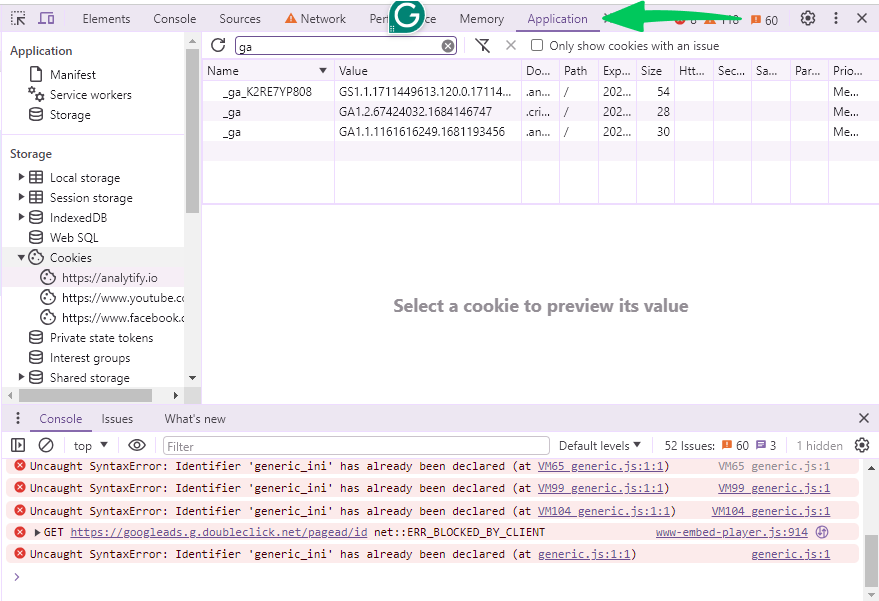
Important Considerations:
- Limited Scope: This method only reveals cookies currently stored on your browser. If you haven’t visited the website before, you won’t find any cookies.
- Evolving Landscape: Cookie names and functionalities can change, so relying solely on specific cookie names might not be foolproof.
- User Control: Users can choose to block or delete cookies, making this method less reliable.
Read our guide comparing GA4 and GSC. It shows how Google Search Console and Google Analytics can work together for stronger SEO insights.
Google Analytics on WordPress: What’s the Best Approach?
If you have a WordPress site, you may want a user-friendly way to add Google Analytics. Analytify is an excellent solution. This Google Analytics plugin for WordPress simplifies the integration process. It also lets you view and use your analytics data directly from your WordPress dashboard.
Join 50,000+ beginners & professionals who use Analytify to simplify their WordPress Analytics!
GA4 Checker FAQs
1. How can I check if a site has Google Analytics?
There are several ways to check for GA on a website:
Browser Developer Tools: Access your browser’s developer tools (usually by pressing F12) and examine the Network tab. Look for requests containing “collect” (Universal Analytics) or “/g/collect” (GA4).
Third-Party Tools: Websites like SimilarWeb can sometimes reveal the presence of GA in their analysis reports.
Browser Extensions: Extensions like Ghostery can quickly check for GA on a website and display it as an icon or notification.
Website Cookies: While less reliable, checking browser cookies for names like “_ga” or “_gid” might indicate GA tracking.
2. Are there any limitations to these methods?
Yes. Websites can mask their tracking code, use alternative analytics tools, or block extensions, making detection less precise.
3. Is it okay to check for GA on any website?
Absolutely! But remember to be ethical. Use these methods for legitimate purposes like competitor analysis or understanding user behavior. Always respect user privacy and avoid using these techniques for malicious reasons.
4. I don’t feel comfortable using browser developer tools or code. Are there any simpler ways to check for GA?
While browser developer tools offer a powerful approach, there are simpler methods:
Website Analysis Tools: Utilize free tools like BuiltWith or SimilarWeb. While not guaranteed, these tools might list GA as part of the website’s technology stack if it’s detected.
Browser Extensions: Install browser extensions like Ghostery or Wappalyzer. These extensions often display a simple icon or notification indicating the presence of GA when you visit a website.
Remember: These methods might not always be foolproof, but they offer a quick and easy way to get a preliminary sense of whether GA is being used.
5. I see “_ga” cookies on a website, but there’s no mention of GA in any tools. Does this mean they’re definitely using GA?
Finding cookies with names like “_ga” or “_gid” can be a clue, but it’s not a definitive confirmation. These cookies can be used by other analytics tools besides GA. Additionally, users can choose to block or delete cookies, making them a less reliable indicator in the long run.
6. Is there a dedicated “GA4 checker” tool available?
At this point, there isn’t a single, universally recognized “GA4 checker” tool. However, some website analysis platforms and browser extensions might be able to identify GA4 based on their detection methods.
Here are two approaches to consider:
Advanced Network Analysis Tools: (For technically savvy users) Advanced network analysis tools can potentially distinguish between Universal Analytics and GA4 by examining the specific data packets being sent. However, this requires significant technical expertise and isn’t recommended for beginners.
Focus on GA Tracking in General: While identifying the exact version (UA vs. GA4) can be useful, focusing on detecting GA’s presence in general (through methods like checking for requests to “google-analytics.com”) can be a more practical approach for most users.
7. Why isn’t Google Analytics data showing in my Analytify dashboard even though GA is installed?
This usually means Analytify itself isn’t connected to the right GA4 property yet, separate from GA being installed on your site. Go to Analytify’s settings and reconnect your Google account, confirm the correct GA4 property is selected, and check that your tracking code matches the one Analytify is reading from. New sites can also take a few hours to show data after the first connection.
Conclusion
Any of these 6 methods will tell you whether a site runs Google Analytics. Browser developer tools work without installing anything. Third-party tools and extensions are faster if you check sites often. Cookie inspection helps when the other signals are unclear. Use more than one method together if you need to confirm the result. If you manage a WordPress site, compare the best Google Analytics plugins for WordPress before you pick a tracking tool.
You may also like to know How to Recover Google Analytics Account