
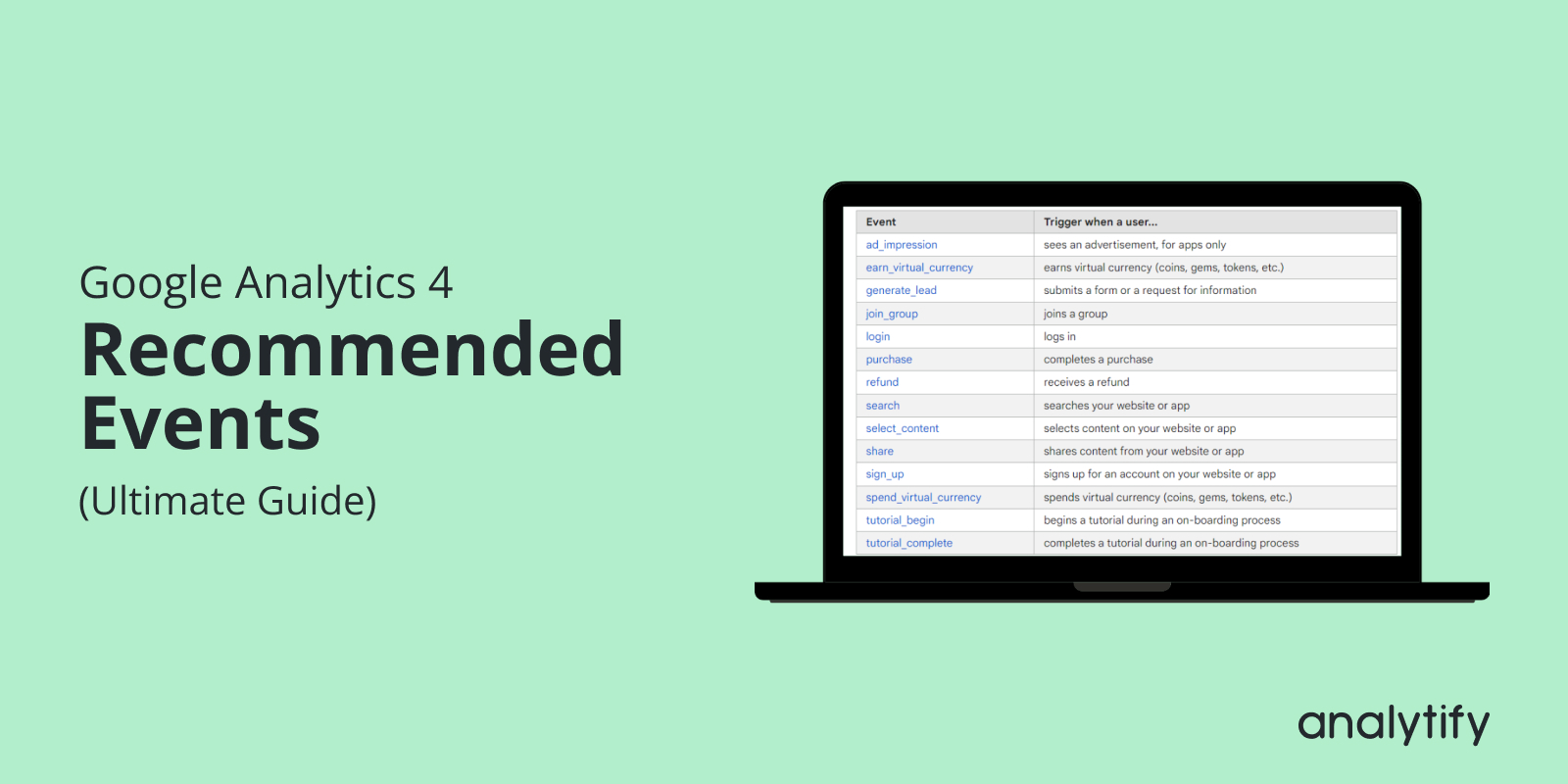
How to Implement GA4 Recommended Events to Gain Deeper Insights? (Ultimate Guide 2026)

GA4 recommended events are events with names and parameters that Google prescribes for common actions, such as purchase, sign_up, and login. Google Analytics does not send them automatically, so you add them to your website or app.
This guide is for site owners and marketers who track user actions in GA4. I show you why to use recommended events, the main events with their parameters, how to set them up in Google Tag Manager, and how to confirm that GA4 receives them.
GA4 Recommended Events (TOC):
What are GA4 Recommended Events?
GA4 recommended events are events whose names and parameters Google prescribes for common actions. Google Analytics does not send them automatically, so you add them yourself. Send them with their prescribed parameters to get the most detail in your reports and to benefit from future features and integrations.
Let’s have a broader look at GA4 events.
In Google Analytics 4, Events are actions users take on your website or app that you want to track.
Event tracking in Google Analytics allows you to measure these actions and understand how users interact with your content.
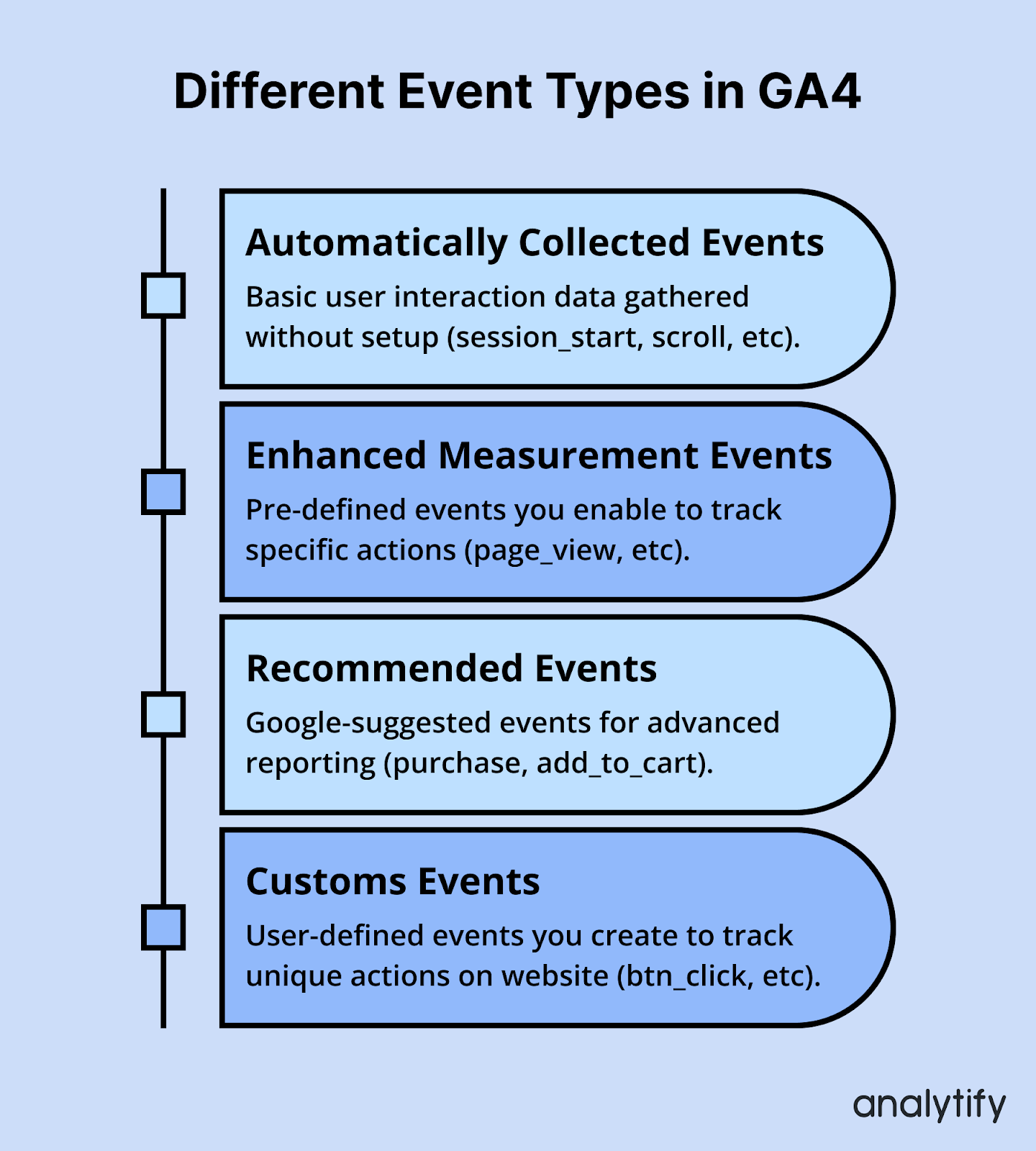
GA4 has four different types of events:
- Recommended events
- Automatically tracked events
- Enhanced measurement events
- Custom events
Why use recommended events in Google Analytics?
Recommended events give you consistent names and parameters and update predefined dimensions and metrics in your reports. The main reasons to use them are below :
- Recommended events are easy to set up because they follow Google’s predefined naming and parameters.
- Implementing recommended events saves time compared to creating and managing custom events. The setup process is smooth, and documentation is readily available.
- Recommended events use Google’s prescribed names and parameters, so your data follows a consistent structure.
- Sending recommended ecommerce events populates the Ecommerce purchases report, and lead generation events populate the Lead acquisition report.
- Google advises sending recommended events with their prescribed parameters so you can benefit from future features and integrations.
You do not need every recommended event. Choose the events that match your business.
List of GA4 Recommended Events (With Parameters)
Google recommends one set of events for all businesses and extra sets for online sales, lead generation, and games. The Events report suggests events to collect based on the data you already collect or your app category. Three recommendations appear at the top of the Events table by default, and Show All lists more.
Here are the primary business verticals for which Google provides recommended events:
| Category | Event Name | Trigger | Parameters |
| eCommerce | view_item_list | When a user is presented with a list of items that fall under a specific category | item_list_id, item_list_name, items |
| add_shipping_info | When a user submits shipping information during the checkout process | currency, value, coupon, shipping_tier, items | |
| refund | When an item is refunded to a user | currency, transaction_id, value, coupon, shipping, tax, items | |
| add_to_cart | When a user adds an item to their cart to buy | currency, value, items | |
| add_payment_info | When a user submits payment information during the checkout process | currency, value, coupon, payment_type, items | |
| purchase | When a user purchases at least one item | currency, transaction_id, value, coupon, shipping, tax, items | |
| remove_from_cart | When a user removes an item from their cart | currency, value, items | |
| view_cart | When a user views their cart | currency, value, items | |
| view_item | When a user views an item | currency, value, items | |
| begin_checkout | When a user begins the checkout process | currency, value, coupon, items | |
| select_item | When a user selects an item from a list (such as “related products”) | item_list_id, item_list_name, items | |
| Travel/eCommerce | add_to_wishlist | When a user adds an item to a wishlist | currency, value, items |
| view_promotion | When a user views a promotion from a list | creative_name, creative_slot, promotion_id, promotion_name, items | |
| generate_lead | When a lead is generated through a form or any other lead capture method | currency, value | |
| Games/Learning | level_end | When a user reaches the end of a level of a game | level_name, success |
| level_start | When a user begins a level within a game | level_name | |
| level_up | When a user moves up a level in a game | level, character | |
| tutorial_begin | When a user starts a tutorial process | N/A | |
| tutorial_complete | When a user finishes a tutorial process | N/A | |
| spend_virtual_currency | When a user spends virtual currency within an app | value, virtual_currency_name, item_name | |
| earn_virtual_currency | When a user earns virtual currency (coins, gems, tokens, etc.) | virtual_currency_name, value | |
| unlock_achievement | When a user unlocks an in-game achievement | achievement_id | |
| post_score | When a user posts a score achieved in a game | score, level, character | |
| Content (News, Blogs) | share | When a user shares content to an external platform (such as a social media website) | method, content_type, item_id |
| Search | When a user performs a search on your website or application | search_term | |
| select_content | When a user selects some type of content in a website or application | content_type, content_id | |
| Others | join_group | When a user joins any social community, it’s primarily used in apps. | group_id |
| sign_up | When a user signs up for an account | method | |
| ad_impression | When a user is shown an advertisement in your application | ad_platform, value, currency, ad_source, ad_format, ad_unit_name | |
| login | When a user logs into an app or website | method |
How to Set Up GA4 Recommended Events
To set up a recommended event in GA4, create a GA4 Event tag in Google Tag Manager, enter the event name and parameters, set a trigger, and publish. The steps are below:
Note: Ensure GA4 is set up for your property and that Google Tag Manager is set up on your site. If you haven’t already set up GTM, follow this guide to install it for your website: GTM installation guide.
Once you have GTM set up, proceed with these steps to implement GA4 recommended events:
In Google Tag Manager:
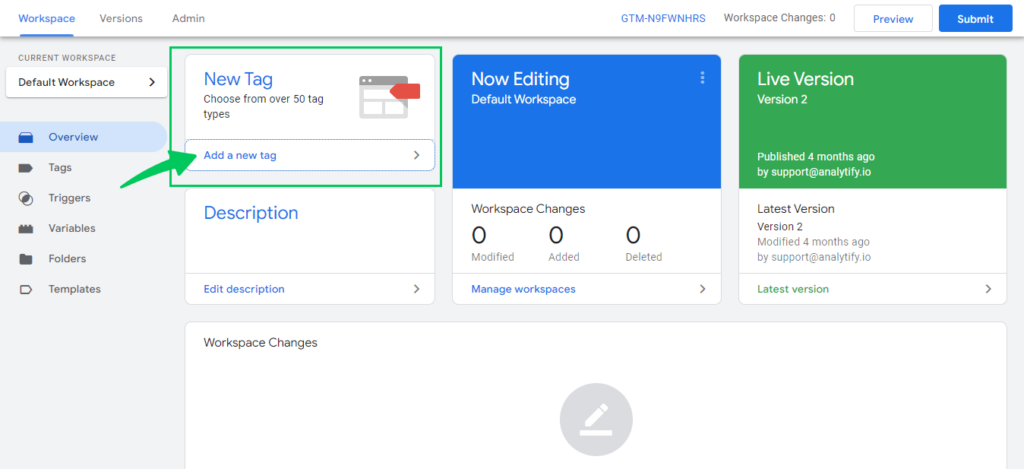
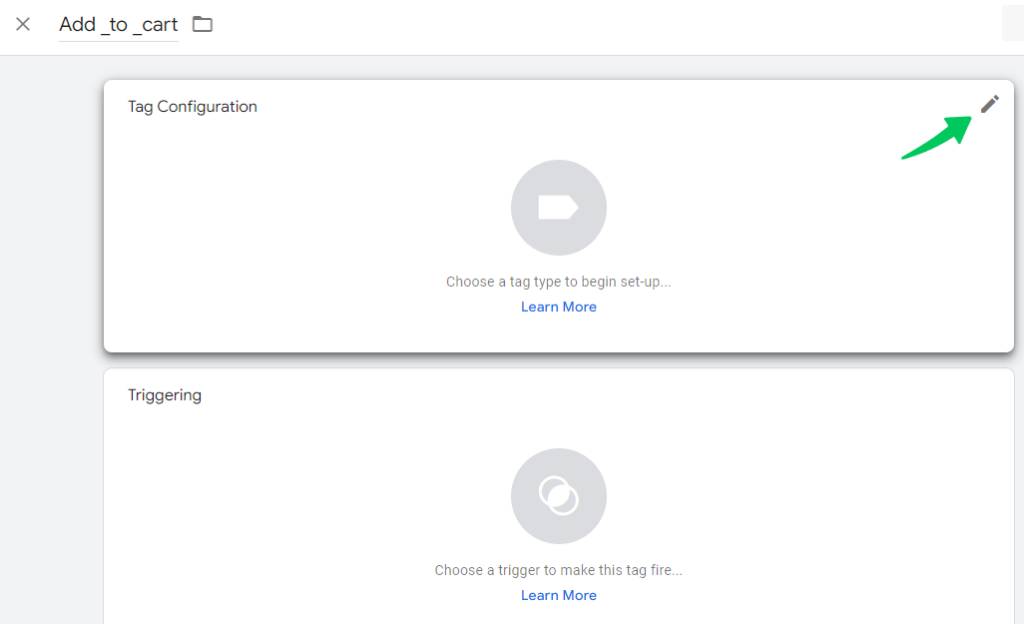
Step 1: Add a new tag
Click “Add a new tag” in the new tag module.
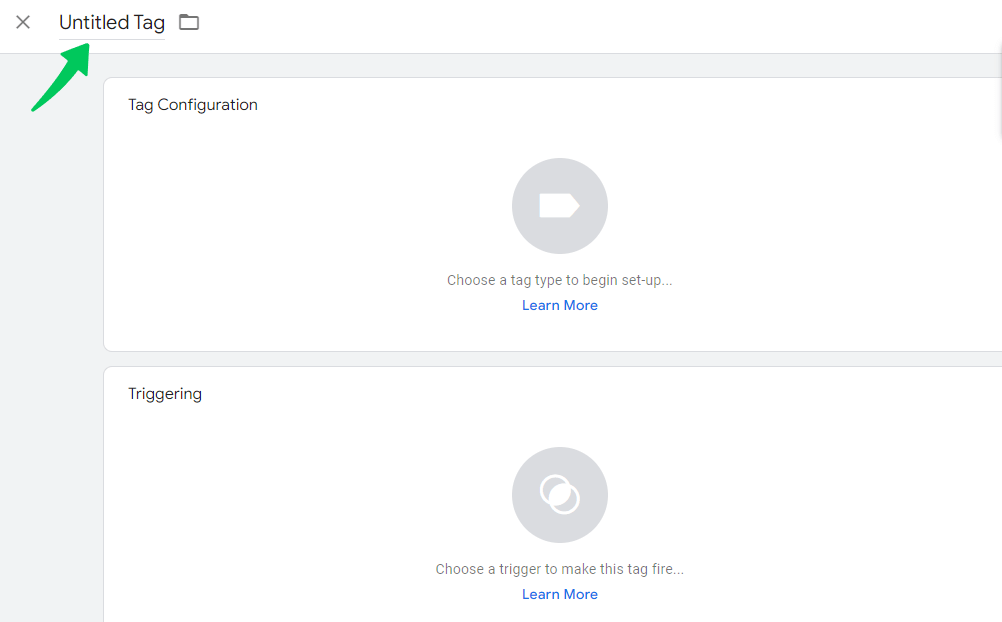
Step 2: Name the tag
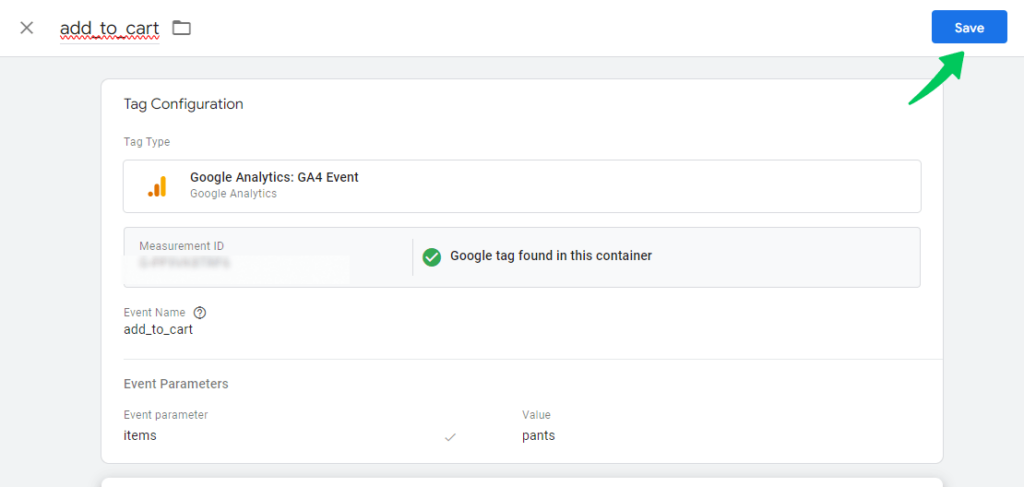
Name the tag clearly, such as “add_to_cart.”
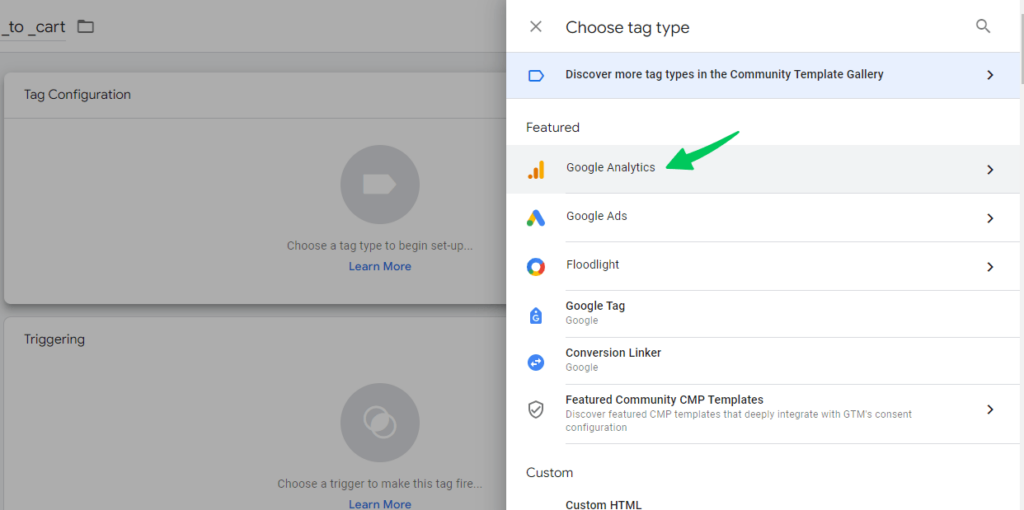
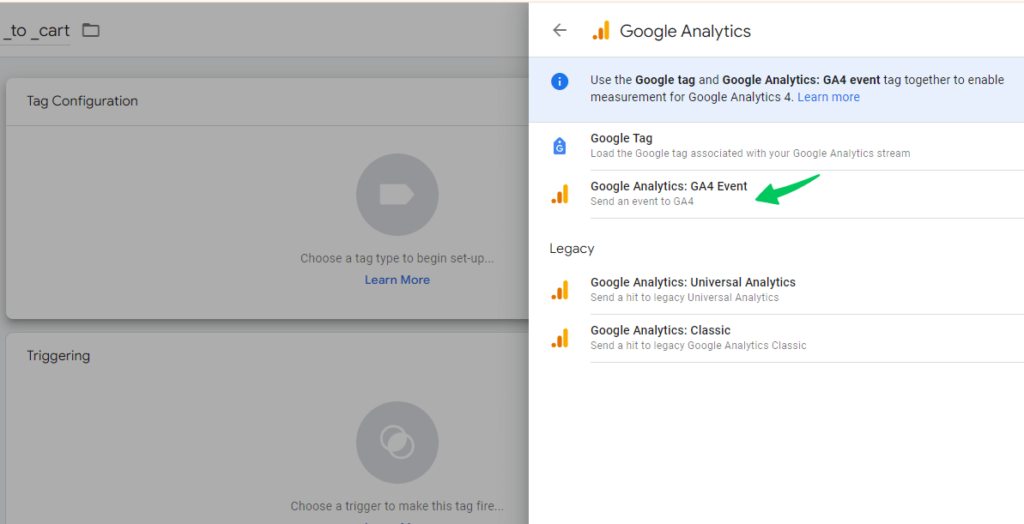
Step 3: Tag Configuration
- Select Google Analytics 4 >> Google Analytics: GA4 Event under “Tag Configuration.”
- Enter your property’s “ Measurement ID”.
If you do not know about it, then first find your measurement ID by using the following steps:
- In Admin, under Data Collection and Modification, click Data Streams.
- Select the Web tab.
- Click the web data stream.
- Find the measurement ID in the first row of the stream details.
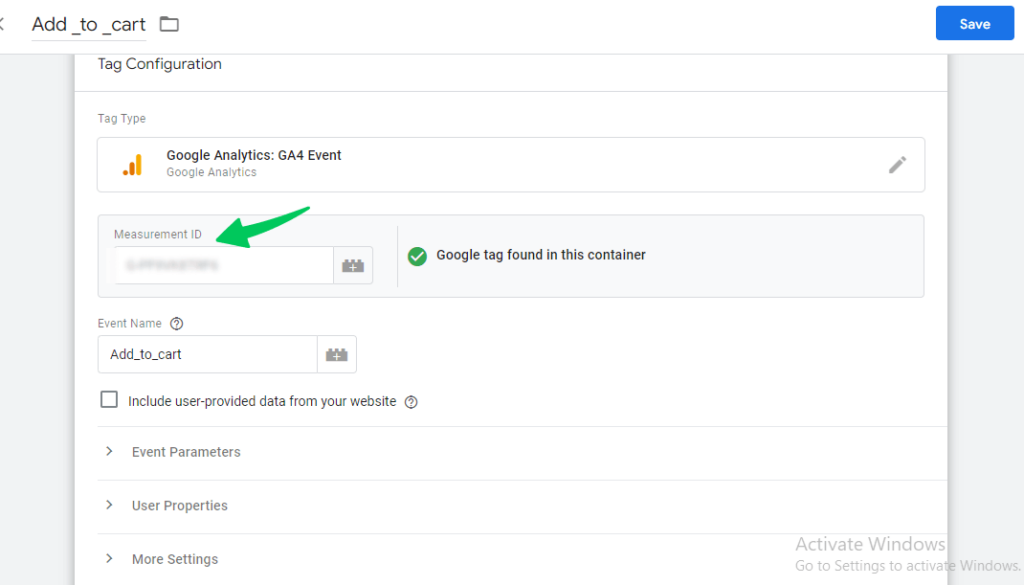
- Enter the predefined name of the event you want to track, such as “add_to_cart.”
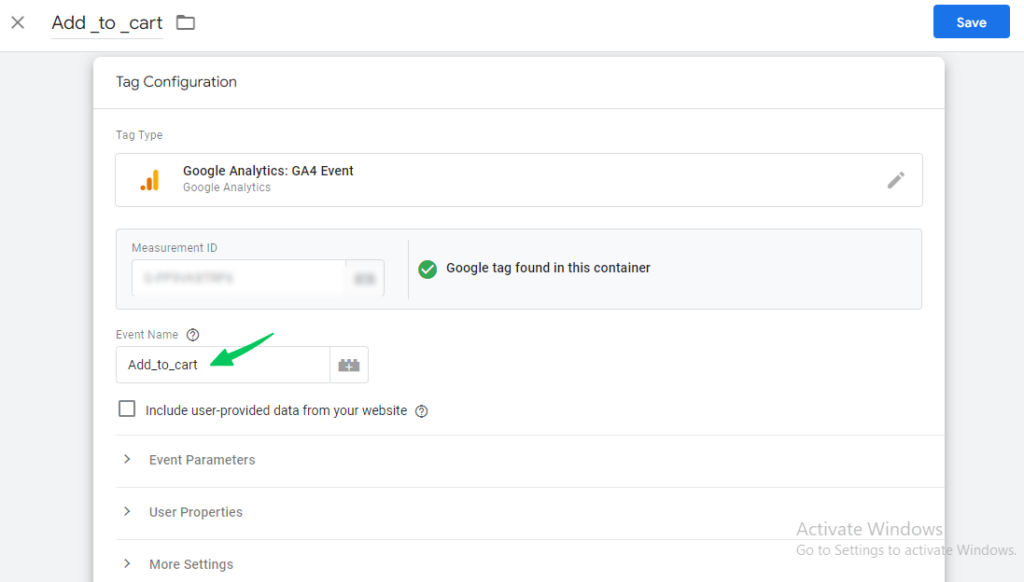
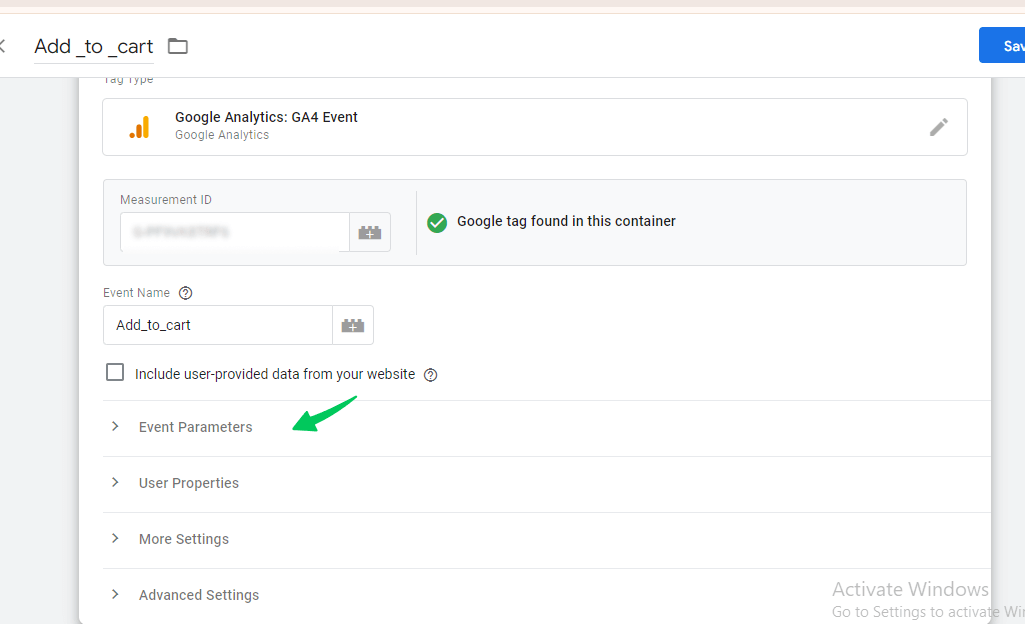
- You can set up any parameters by clicking the “Event Parameters” drop-down menu. Parameters provide additional information about the event.
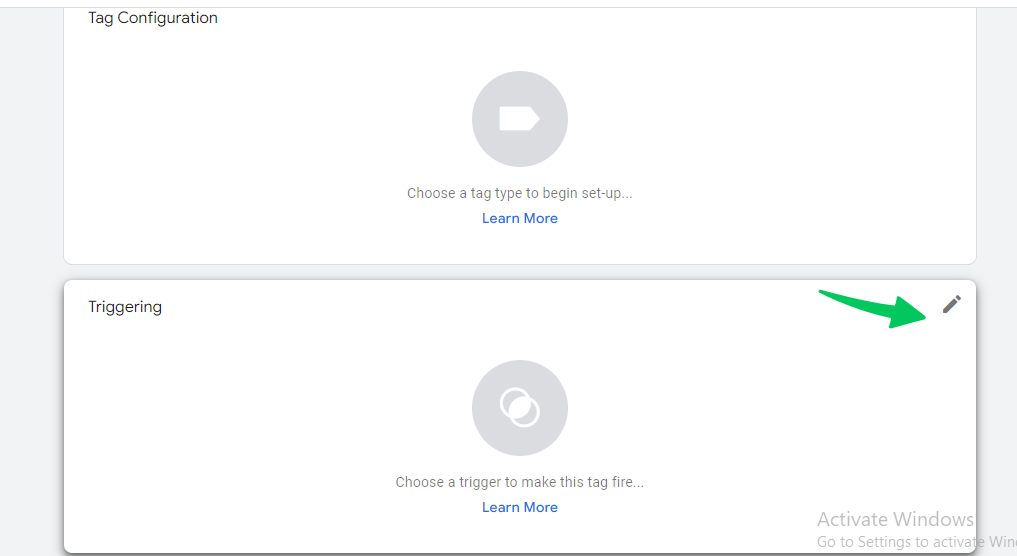
Step 4: Set Trigger
- Create a trigger to specify when the event fires. Click the pen icon.
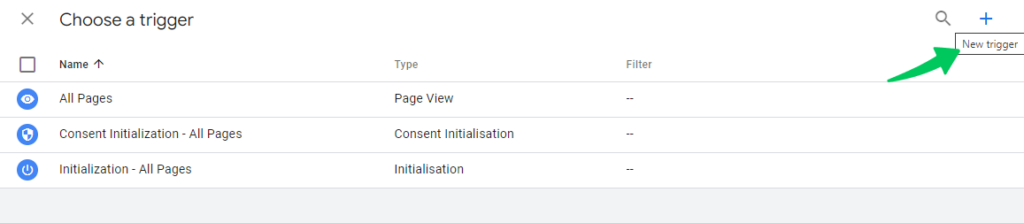
- You can choose the given triggers or create a new trigger by clicking on the + icon in the top right corner.
- You will see this interface after clicking the + icon. First, name the trigger.
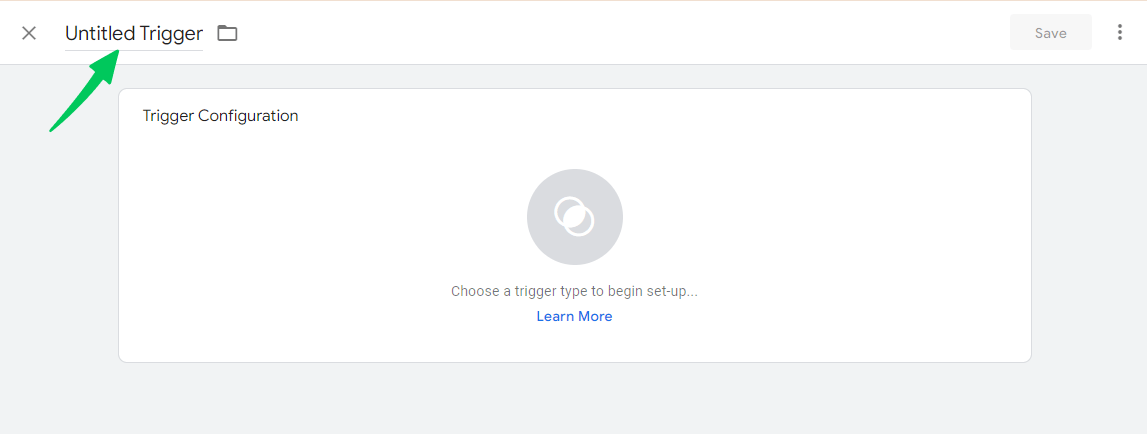
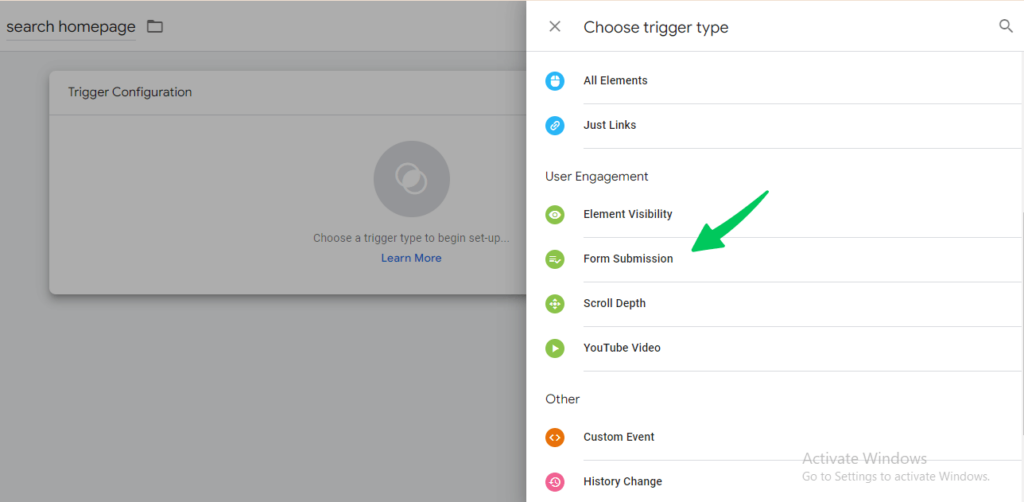
- Select the appropriate trigger type. For example, the trigger type is “Form Submission”.
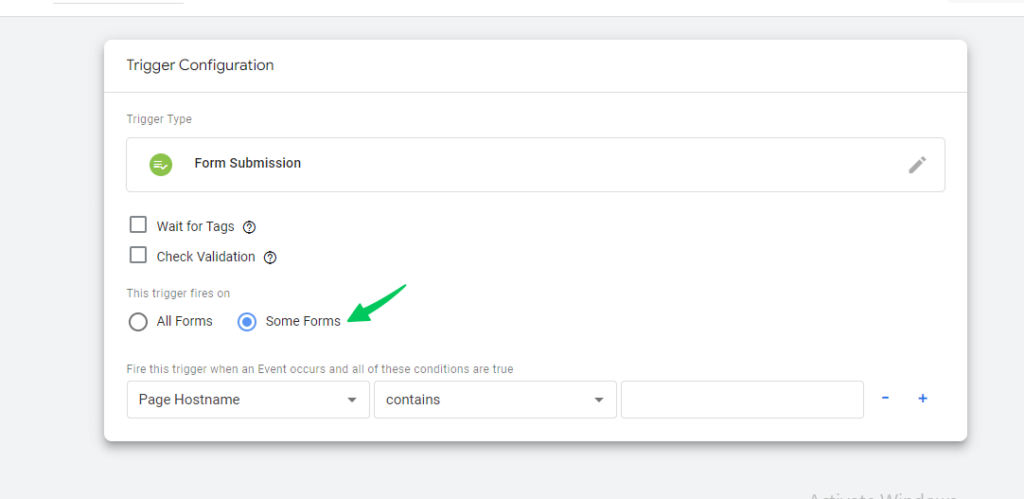
- Check the “Some Forms” option. Then, fire the trigger.
Step 5: Save the added information
- Save the trigger.
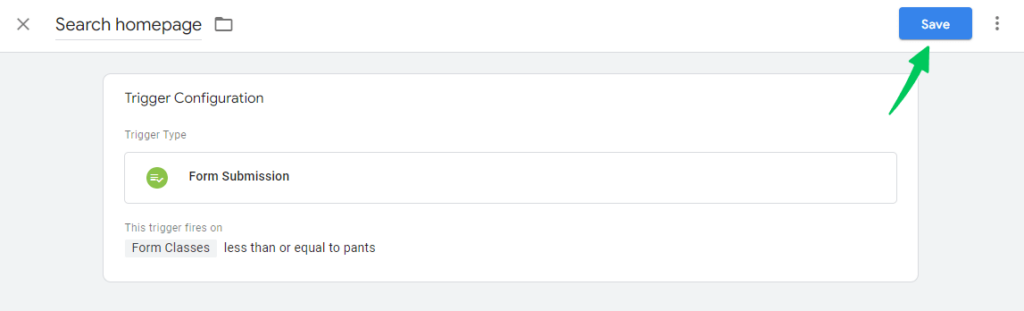
- Save the tag.
Step 6: Preview and publish your changes
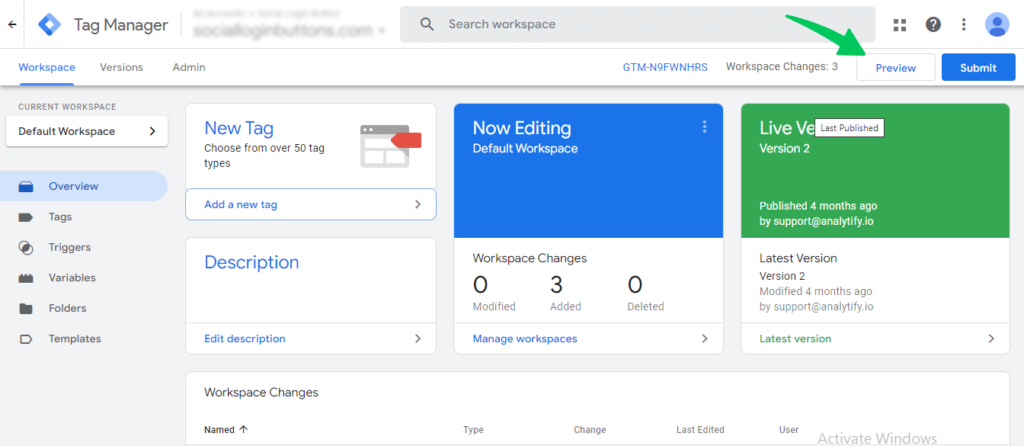
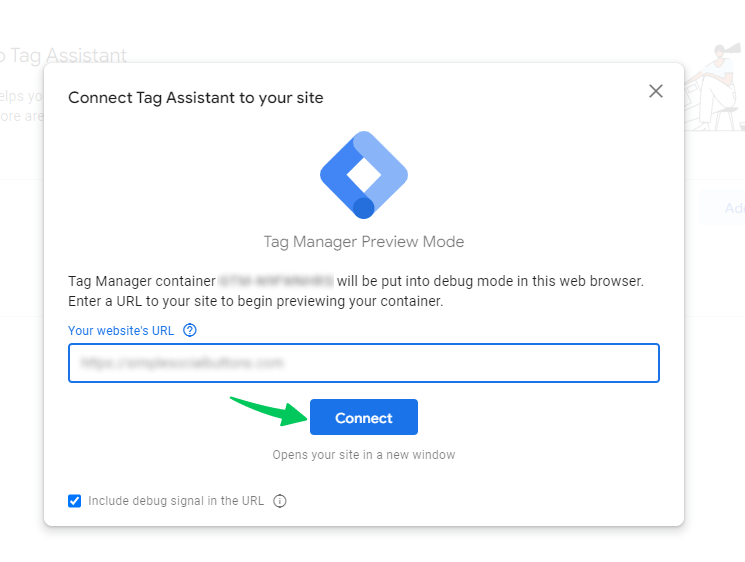
Preview and publish your changes by following the instructions in Google Tag Manager.
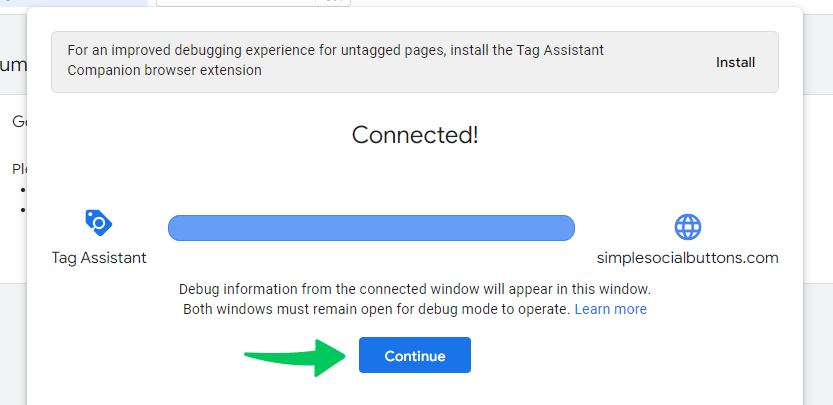
- Then, Click on the “continue” option.
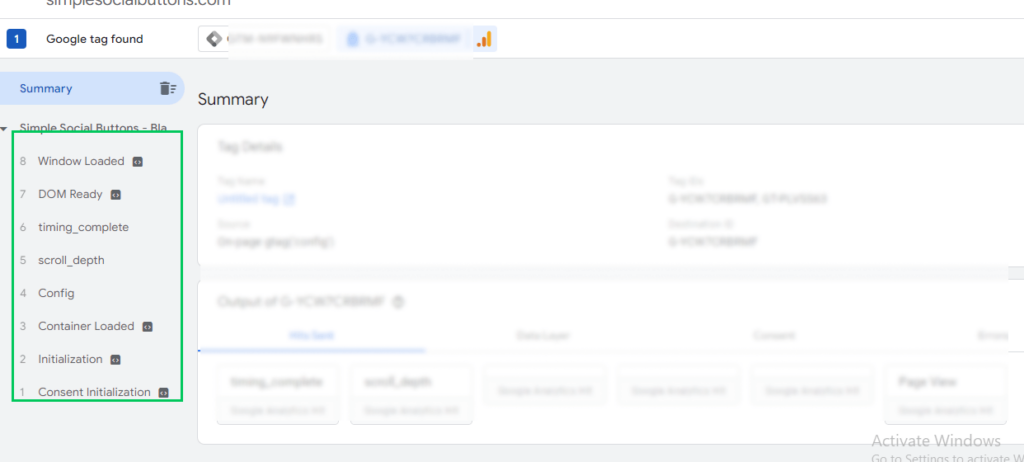
- You can see the tags on the left-hand menu.
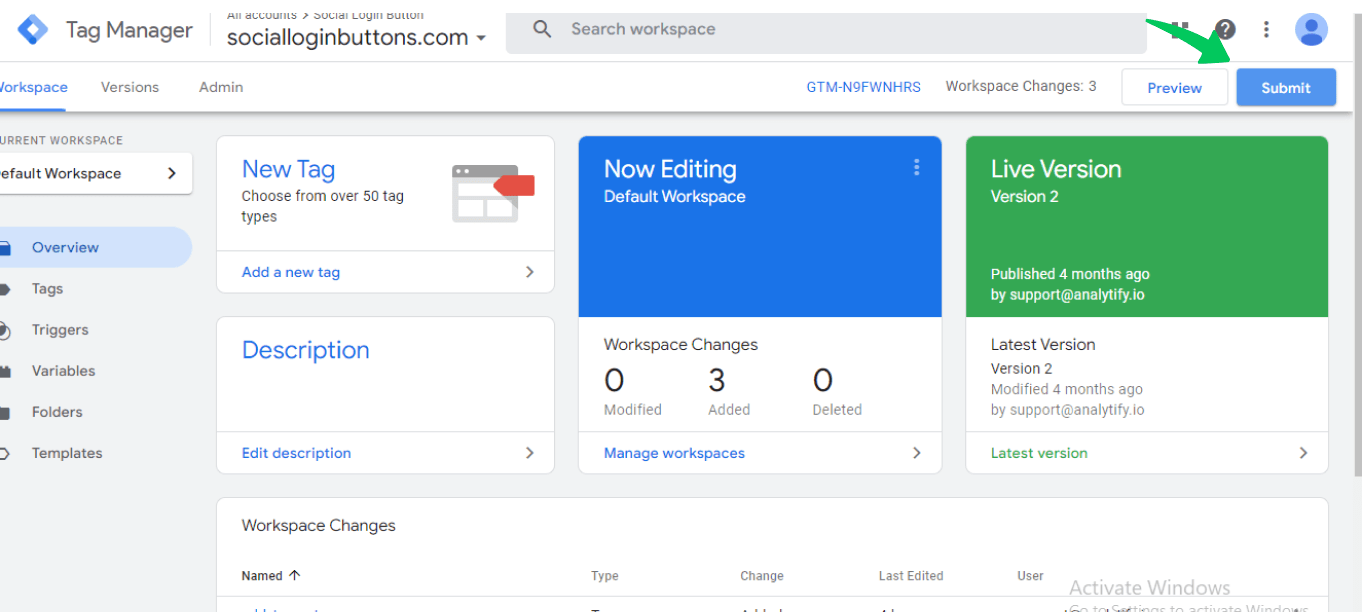
- Now, choose the submit option to publish all the changes that you have made.
How to Confirm Your Recommended Events Are Being Tracked in GA4?
Use the Realtime report or DebugView to confirm that GA4 receives your recommended events.
Method 1: Realtime Overview Report
This method offers a quick and easy way to see events firing in real time.
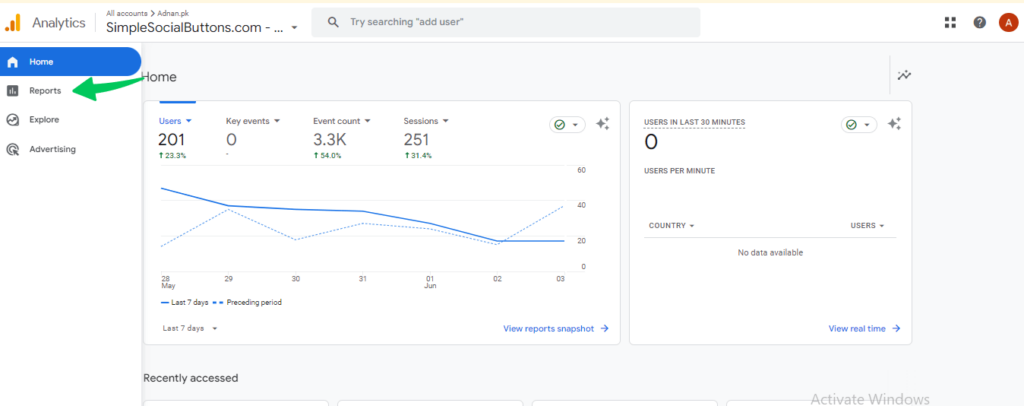
Navigate to Reports:
In your GA4 property, go to the Reports section from the left-hand side menu.
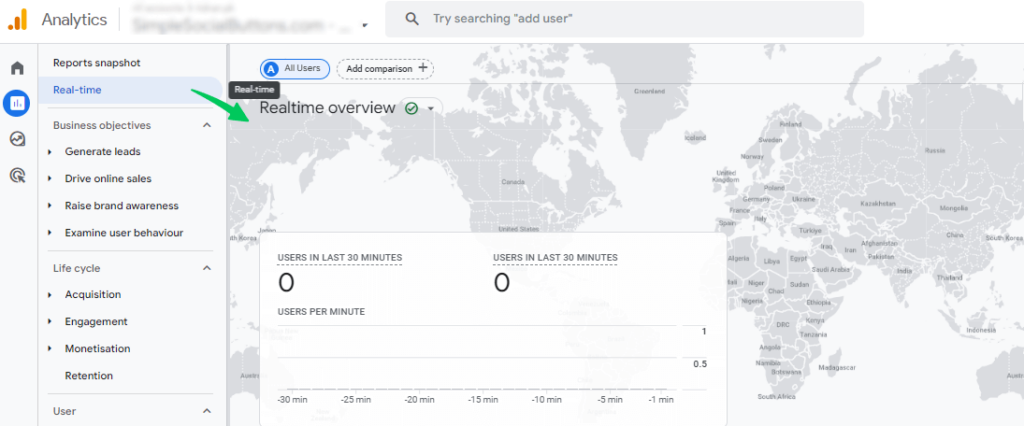
Open Realtime Overview:
Click Realtime.
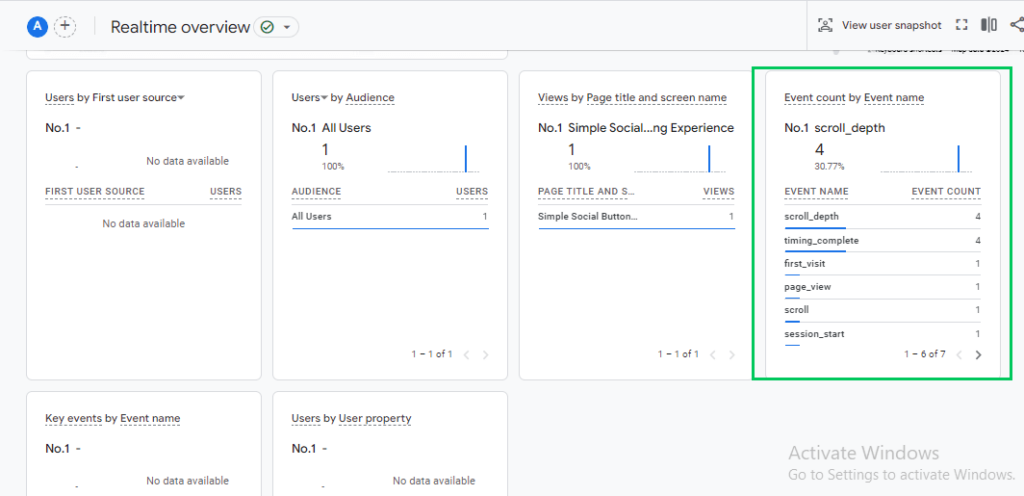
Look for Event Count:
At the bottom of the report, you’ll find an “Event count by Event name” table. This table shows events that GA4 is currently tracking.
Method 2: DebugView Report
The DebugView report provides a more detailed view of tracked events, including parameters.
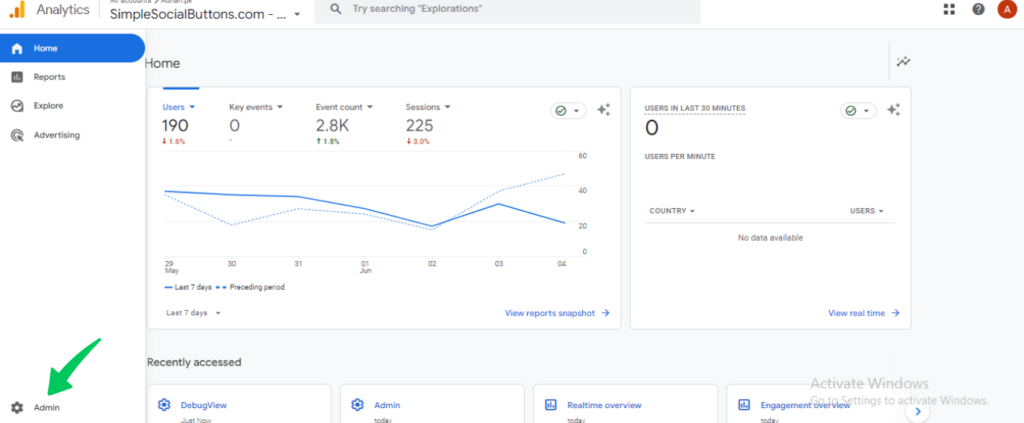
Go to GA4 DebugView:
In your GA4 property, navigate to the Admin option.
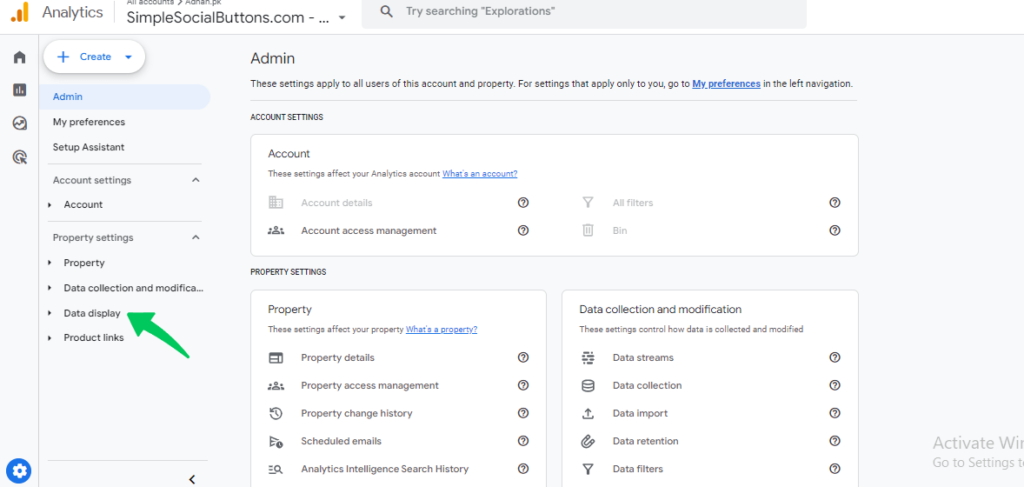
Enable Data Display:
Under Data display, click DebugView. DebugView needs debug mode: Preview mode in Google Tag Manager turns it on for your device.
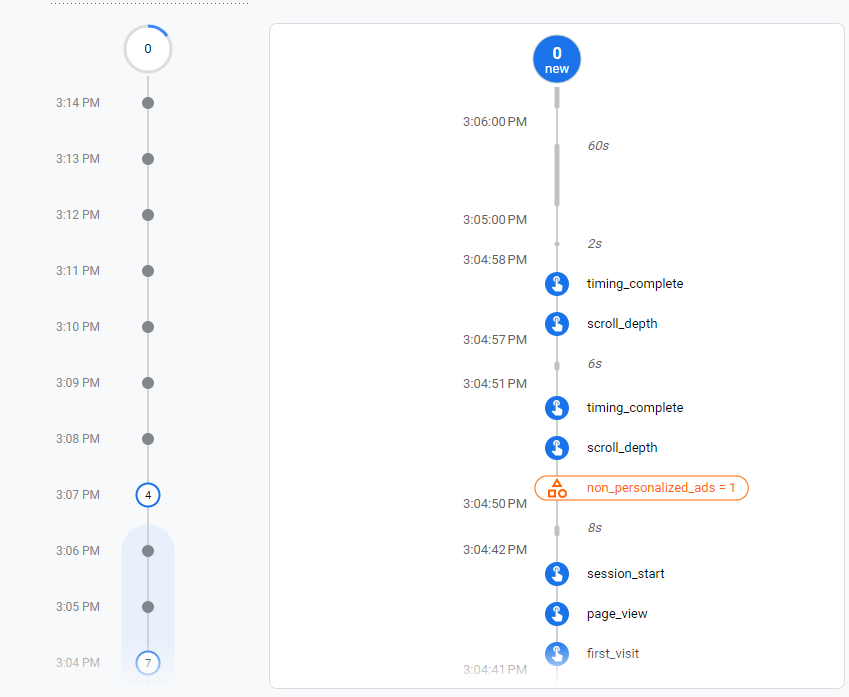
Review DebugView:
In the DebugView report, refresh the page and look for your event name and associated details, such as parameters.
Realtime and DebugView show events within minutes. Standard reports can take 24 to 48 hours to include new data.
How to Analyze GA4 Recommended Events?
To analyze recommended events in GA4, open the Events report. Follow these steps:
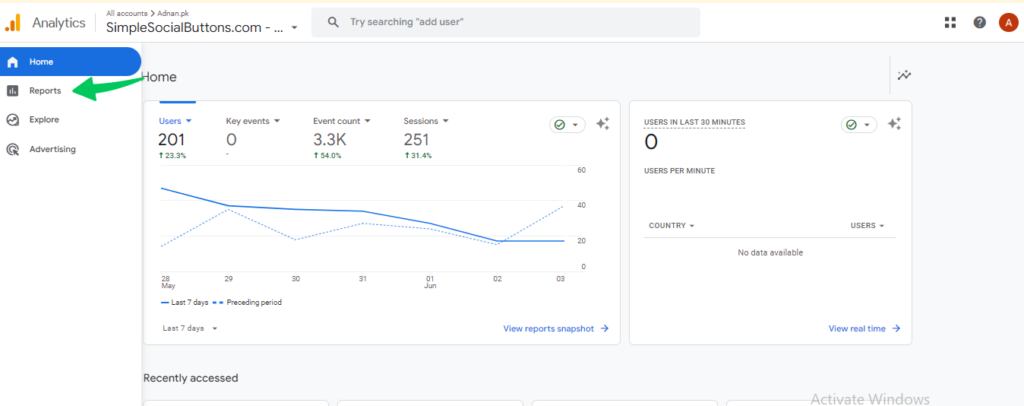
- Navigate to Reports in GA4.
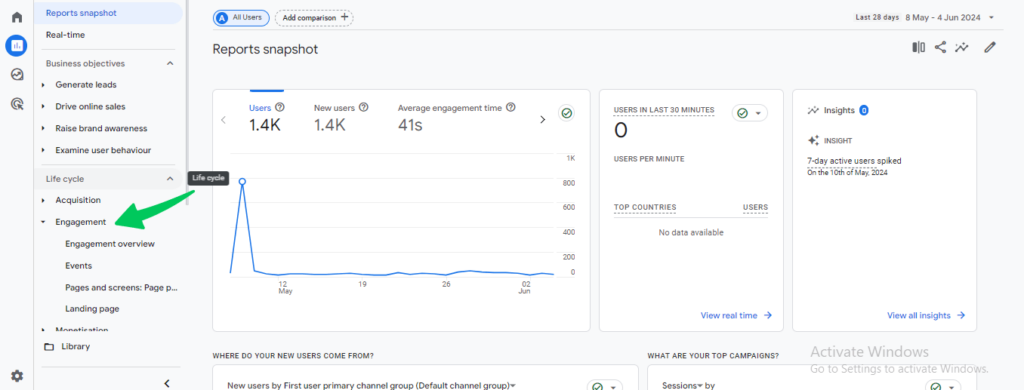
- Choose the Engagement option.
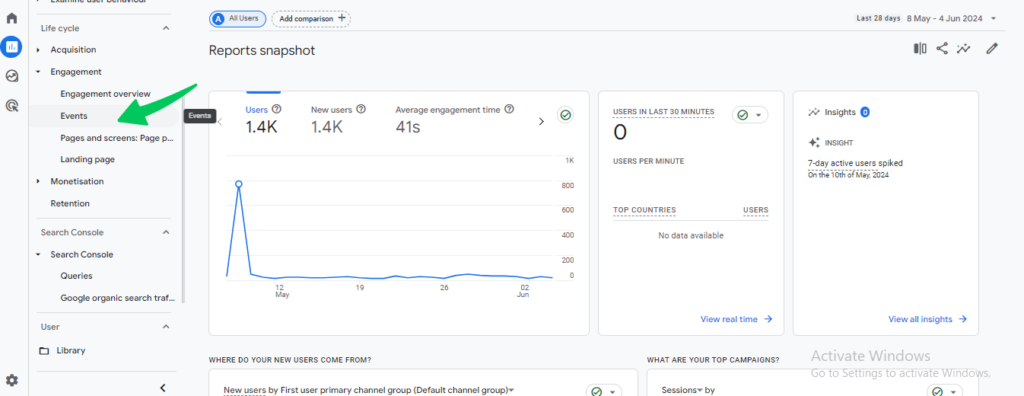
- Select the “Events” tab.
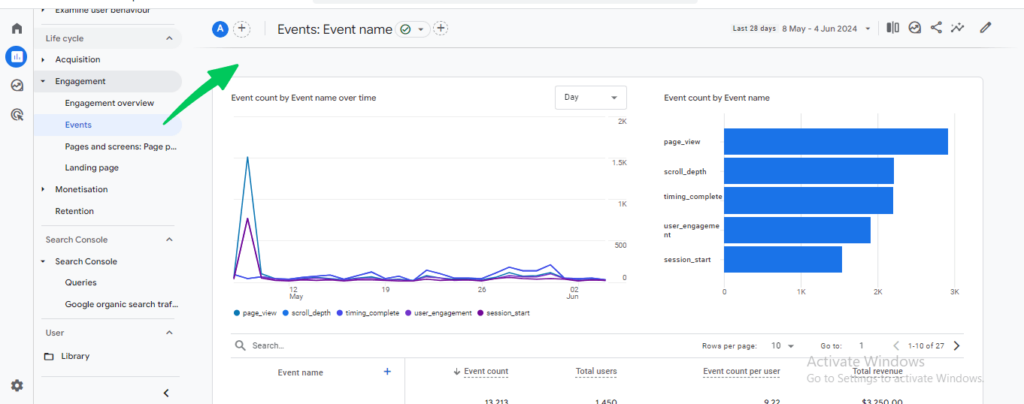
- The Events report provides a complete list of tracked events, their occurrence count, and trends.
Analyze Event Details:
Once you’ve chosen a report, explore the available data for your recommended event.
- Event Count: This indicates how many times the event occurred.
- Event Parameters: A parameter appears in reports as a dimension only after you register it as a custom dimension (Admin, Data display, Custom definitions), unless a predefined dimension already exists.
- Compare to Other Metrics: Analyze event data alongside other relevant metrics, such as conversion rates, revenue, or session duration, to understand the event’s impact on overall user behavior.
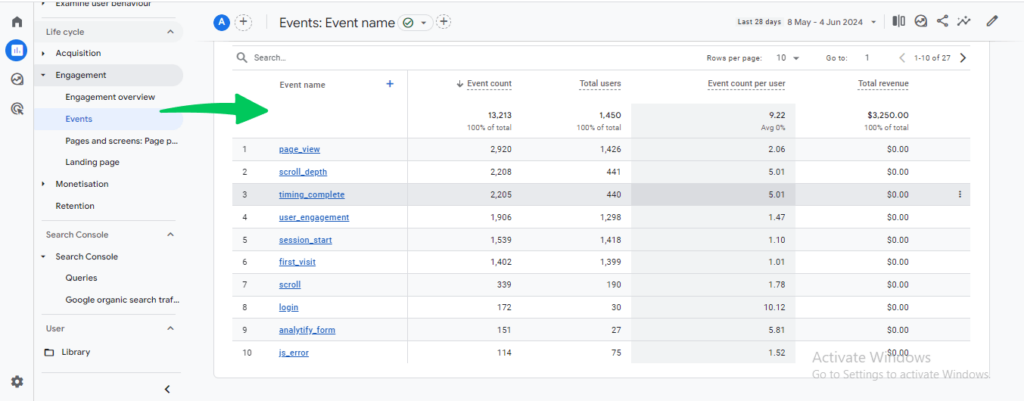
By following these steps and continuously analyzing your recommended events, you can gain valuable insights into user behavior on your website or app. This knowledge can then be used to optimize your marketing strategies, improve user experience, and ultimately drive business growth.
Bonus: GA4 Events Tracking in WordPress
Setting up GA4 recommended events in GTM takes some technical knowledge. WordPress users have an alternative inside the WordPress dashboard. Analytify is a WordPress plugin that connects Google Analytics 4 and sets up event tracking.
Join 50,000+ Beginners & Professionals who use Analytify to Simplify their Google Analytics!
Here’s how it can help:
Analytify connects your WordPress site to your GA4 property.
Analytify offers a user-friendly interface to set up recommended events. You can also create custom events specific to your website’s needs.
Analytify also offers an Events Tracking Addon.
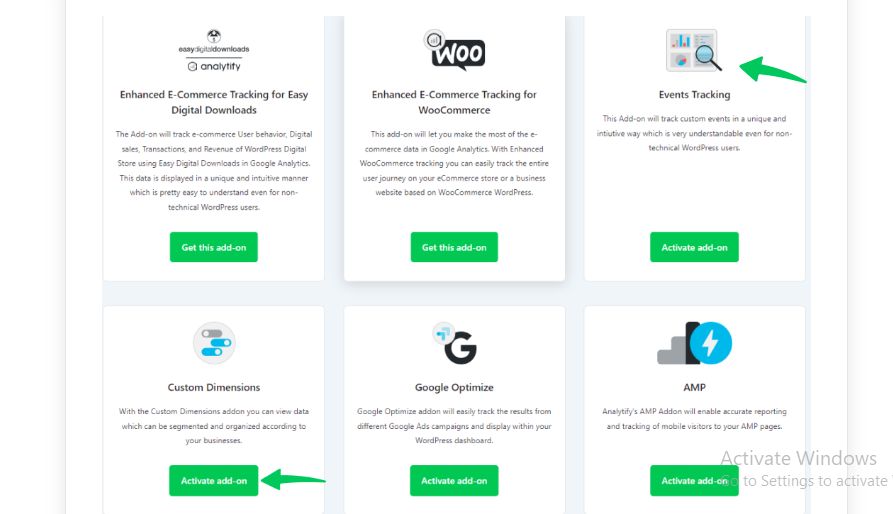
This addon allowing you to gather more specific data about user interactions on your WordPress site.
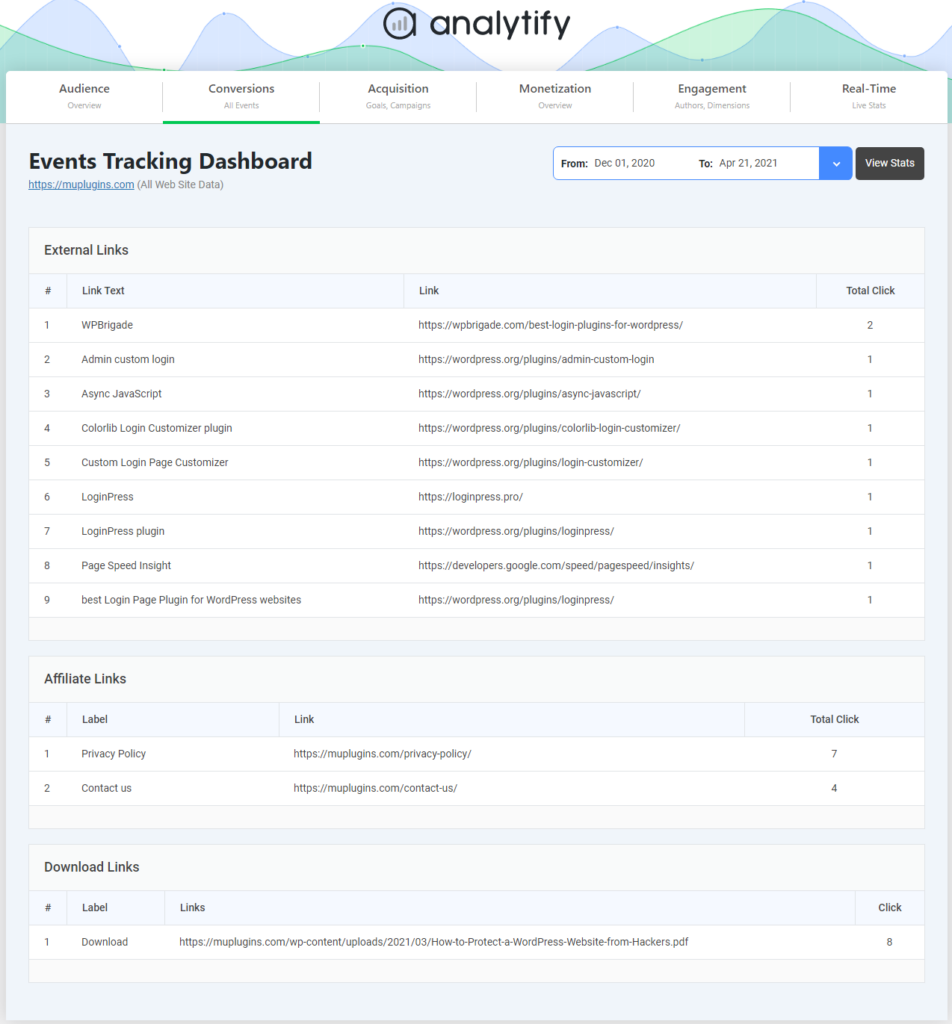
Analytify tracks events across all devices (desktop, mobile, tablet), ensuring a complete picture of user interactions.it empowers you to optimize your marketing strategies and user experience based on user actions.
By using Analytify, you can avoid technical complexities and effortlessly track recommended and custom events within your WordPress dashboard. This lets you gain valuable user insights to improve your website’s performance and achieve your business goals.
GA4 Recommended Events FAQs
1. What are recommended events in GA4?
Google Analytics 4 (GA4) offers a set of recommended events that are pre-defined actions you can track to understand user behavior on your website or app. These events are designed to be consistent across different businesses, making benchmarking your data against industry standards easier. For example, add_payment_info.
2. What type of events does GA4 normally track?
GA4 tracks two main types of events:
Automatically Collected Events: GA4 automatically captures these events by default without any additional setup. They provide basic information about user interactions, such as page views, scroll depth, and user engagement.
Custom Events and Recommended Events: These events require you to set them up specifically to track necessary user actions for your business.
3. What events are automatically collected in GA4?
GA4 automatically tracks core events like session starts, page views, scroll depth, and engagement time to understand basic user behavior on your website or app. Depending on your platform, it might also collect additional events, such as in-app purchases (for apps), video engagement (for videos), and form interactions.
4. What events should I set up in GA4?
Here are the events you should set up in GA4 for deeper insights:
Recommended Events: Track industry-standard actions like “add_to_cart” or “sign_up” for easier comparison with benchmarks.
Custom Events: Capture specific user interactions important to your business, like button clicks or form submissions.
These go beyond automatic events (page views, sessions) and provide a more tailored view of user behavior on your website or app.
5. Which events are accounted for in the real-time report GA4?
The GA4 real-time report focuses on events within the last 30 minutes and provides a snapshot of current user activity. Here’s what it accounts for:
Event Count by Event Name: This section displays the number of times each custom event, and the recommended event has been triggered in the past 30 minutes.
Users by Event: This section might show the number of users who triggered specific events during the timeframe.
The real-time report does not include automatically collected events like page views or sessions; these are reflected in other GA4 reports.
Recommended events in Google Analytics 4: Final Thoughts
Recommended events give GA4 consistent names and parameters for common actions. You set them up with a GA4 Event tag in GTM, confirm them in Realtime or DebugView, and analyze them in the Events report.
Using this knowledge alongside custom events in GA4 empowers you to comprehensively understand how users interact with your platform. You can identify areas for improvement on your website or app, personalize marketing messages based on user actions, and effectively measure the impact of your marketing campaigns.
But remember, this is just the beginning! The world of GA4 user tracking is vast. What questions do you have? Leave a comment below and share your thoughts.




 Halloween Sale: Know which campaigns drive sales this season.