What Is Google Tag Gateway? A First Look for WordPress Sites (2026)

I’ve seen the term “Google Tag Gateway” pop up in forums, in newsletters, and inside the Site Kit settings screen. If you’ve spotted it and aren’t sure whether it’s a new problem to fix or a free upgrade you’re missing, you’re not alone.
In this guide, I’ll give you a plain answer on what it actually does, whether it changes anything on a WordPress and GA4 setup, and whether your Analytify dashboard needs any changes at all. We’ll cover what it is, how to turn it on, how it compares to server-side tagging, and what it means for the reports you already see inside WordPress.
Table of Contents
What Is Google Tag Gateway?
This feature is a free Google feature. It loads your GA4, Google Ads, and Google Tag Manager scripts from your own website domain instead of a Google-owned domain. A content delivery network sits in between the two.
Your site asks the CDN for the tag. The CDN fetches it from Google, then hands it back under your own domain. To the browser, the request now looks first-party.
The feature currently covers four products:
- Google Analytics 4 (GA4)
- Google Ads
- Floodlight / Campaign Manager 360 (CM360)
- Google Tag Manager itself
This is a different approach from server-side tagging, which moves where the data gets processed rather than where the tag loads from. The section below covers that difference in detail. For the full technical breakdown, Google documents the feature at Google Tag Gateway for advertisers.
If you’re still getting your head around GA4’s tagging basics, our GTag vs Google Tag Manager guide covers the difference between the two before you go further here.
How Does Google Tag Gateway Affect WordPress Tracking?
This setup does not change what data GA4 collects. It only changes where the tracking request appears to come from. That helps it survive some browser ad blockers and privacy extensions more often than before.
Three limits to know before you turn it on:
- It reduces the impact of some browser extensions, not all. More aggressive blockers still detect and stop Google Analytics requests, even when routed through your own domain.
- It doesn’t extend cookie lifetime under Apple’s Intelligent Tracking Prevention on its own. Only a full server-side GTM setup does that.
- Some requests can still reach Google’s servers directly in certain regions. EU traffic under regional data rules is one example. It isn’t a 100 percent first-party guarantee.
Your GA4 events, goals, and property itself stay exactly the same. Only the transport layer changes.

How to Enable Google Tag Gateway on a WordPress Site
There are two ways to enable this capability on a WordPress site. You can set it up directly inside Google Tag Manager, or use the official Google Site Kit plugin if you don’t manage a GTM container.
Most guides to it in WordPress skip the one check that decides whether either method will even work: platform support. That’s where WordPress sites get stuck, so it comes first below.
Step 1: Check Whether Your Site Qualifies
This feature only works if your site already runs through a supported platform. If it doesn’t, setup won’t complete no matter which method you choose.
Google currently supports six platforms:
- Akamai
- Amazon CloudFront
- Cloudflare
- Fastly
- Google Cloud Load Balancer
- Webflow
The fastest way to check is inside Google Tag Manager itself:
- Open Google Tag Manager and select your container.
- Click the Admin tab.
- Click Google Tag Gateway. It shows “Not started” before setup.
- Click Continue on the Introduction screen.
- Paste your site URL into the Scan your site box and click Scan.

The scan tells you which platform Google detects. If it finds no supported platforms, skip to the “If Your Platform Isn’t Supported” section below.
Managed WordPress hosts are the biggest gap here. If your site runs on WP Engine, Kinsta, SiteGround, Flywheel, or a similar managed host, you likely have no supported platform by default. Many managed hosts run their own internal CDN, and this tool doesn’t recognize it.
You can confirm this yourself. Open your site, press F12, open the browser’s Network tab, and reload the page. Click the first request and check the response headers: a cf-ray header means Cloudflare, while an x-powered-by: WP Engine header means WP Engine, which isn’t supported.
Option 1: Using Google Tag Manager
Google Tag Manager is the more complete setup path, and it’s the one to use if you already manage tags through GTM. This Google Tag Manager gateway setup takes about five minutes once you’re signed into your platform account.
This fits an agency or in-house marketer managing a client site with an existing GTM container that includes some non-Google tags too. If you haven’t set up a GTM container yet, start with our guide on how to install Google Tag Manager first.
You need admin access to both your Tag Manager account and your platform account, such as Cloudflare or Fastly. Google requires this to authorize the connection.
- Open Google Tag Manager and select your container.
- Click the Admin tab.

- Click Google Tag Gateway. The status reads “Not started.”
- Read the Introduction screen, then click Continue.
- On Choose your platform, select your provider from the list.
- Click Continue.
- Complete Sign in and complete. Sign in to your platform account and authorize the connection.

Tag Manager writes the routing rules for you. You don’t edit your tag code directly.
If a GTM or GA4 snippet already exists on your site, this capability honors that setup. It won’t create a duplicate.
One setup detail matters here. Don’t run this on a test container pointed at a local domain. Google verifies the live domain, so the connection will fail.
Cloudflare users can also complete their side of the setup from the Cloudflare dashboard. Cloudflare documents its own steps at Google Tag Manager for Advertisers, including the zone-level settings.
Option 2: Using Google Site Kit
Google Site Kit is the simpler path if you don’t use GTM and prefer a plugin-based setup.
This fits a solo blogger or small site owner who installed Site Kit just to connect GA4 and has no GTM knowledge.
Site Kit calls this feature “Google Tag Gateway for advertisers” and currently labels it beta.
- Install and activate the Site Kit by Google plugin, if you haven’t already.
- Complete Site Kit’s setup and connect your Google account.
- Go to Site Kit >> Settings >> Connected Services.
- Open Ads, Analytics, or Tag Manager, whichever module you have connected, and click Edit.
- Find the Google tag gateway for advertisers toggle and switch it on.
Turning the toggle on in any one module applies the same setting across Ads, Analytics, and Tag Manager if you have more than one connected.
One implementation detail matters here. Site Kit places a file called measurement.php at /wp-content/plugins/google-site-kit/gtg/, and that file needs to be publicly reachable. Some strict hosting setups block it by default, and Site Kit shows a warning about server configuration when that happens. Ask your host to allow public access to that path, then try again.
This toggle belongs to Google Site Kit, not to Analytify. Analytify doesn’t configure tag delivery, so it has no matching setting.
If Your Platform Isn’t Supported
You still have three options if the scan in Step 1 found no supported platform.
- Put a supported CDN in front of your site. Cloudflare has a free tier and is the most common choice for WordPress. This changes how your whole site is served, so test it on staging first.
- Set it up manually. Google links to manual setup instructions from the platform chooser under “Don’t see your platform?” This route is more technical and needs someone comfortable editing CDN or server configuration.
- Skip it. Google Tag Gateway is an optional improvement, not a requirement. Your GA4 tracking keeps working exactly as it does today.
Confirm Google Tag Gateway Is Working
Checking your setup takes less than a minute in Chrome DevTools.
- Open your site in Chrome.
- Press F12 and open the Network tab.
- Reload the page.
- Filter for gtag or gtm.
- Check the request domain. It should now show your own domain.
One caveat worth flagging before you turn this on. Google’s own setup screen notes that Google Tag Gateway can affect how your tag interacts with on-page code such as consent settings. If you run a consent management platform or cookie banner, test your consent flow after enabling it and confirm consent signals still reach GA4 correctly before leaving it running on a live site.
Google Tag Gateway vs Server-Side Tagging: What’s the Difference?
Google Tag Gateway only changes where the Google tag script loads from. Server-side tagging moves the entire data collection and processing layer onto a server you control. The two solve different problems, and Google recommends using both together for the most durable setup.
Neither option is strictly better. It comes down to what your site already uses and how many platforms you’re tracking.
Table 1: Core comparison
| Google Tag Gateway | Server-Side GTM | |
|---|---|---|
| Cost | Free | Free to configure; hosting and infrastructure costs apply |
| Setup complexity | Low: a few clicks with a supported CDN | Higher: requires server setup and ongoing maintenance |
| Platforms supported | Google tags only (GA4, Ads, Floodlight, GTM) | Any platform, including Meta, TikTok, and others |
| Cookie lifetime control | No change on its own | Extends cookie lifetime under ITP when configured |
| Best for | Sites using only Google tags that want a quick, low-effort improvement | Sites needing multi-platform tracking, deeper data control, or compliance filtering |
Table 2: Tag and platform coverage
| Tag / Platform | Google Tag Gateway | Server-Side GTM |
|---|---|---|
| Google Analytics 4 | Supported | Supported |
| Google Ads | Supported | Supported |
| Floodlight / CM360 | Supported | Supported |
| Meta Pixel / other non-Google tags | Not directly supported (may benefit indirectly if in the same GTM container) | Supported |
Table 3: Quick decision reference
| Your Current Setup | Recommendation |
|---|---|
| Only using GA4, Google Ads, and client-side GTM | Enable Google Tag Gateway. It’s a free, low-effort improvement. |
| Already running server-side GTM with a custom loader | Skip it. The benefits are already covered. |
| Mixing Google and non-Google tags in one GTM container | Enable Google Tag Gateway alongside server-side GTM for the non-Google tags. |
For most WordPress sites using only Google’s own tools, Google Tag Gateway is the lower-effort starting point. Once it’s running, our Google Tag Manager Best Practices guide covers how to keep your container organized as you add more tags.
Does Analytify Need Any Changes for Google Tag Gateway?
No, Analytify does not need any changes. Analytify reads and displays GA4 data after it reaches Google. It doesn’t matter which domain the original tracking request loaded from.
Analytify is a GA4 dashboard presenter, not a tag deployment tool. Analytify pulls your GA4 reports and shows them inside WordPress, no matter which tagging method your site runs: client-side GTM, Google Tag Gateway, or server-side tagging.
Switching Google Tag Gateway on or off has no effect on your GA4 property connection, the reports Analytify shows, or the setup wizard.
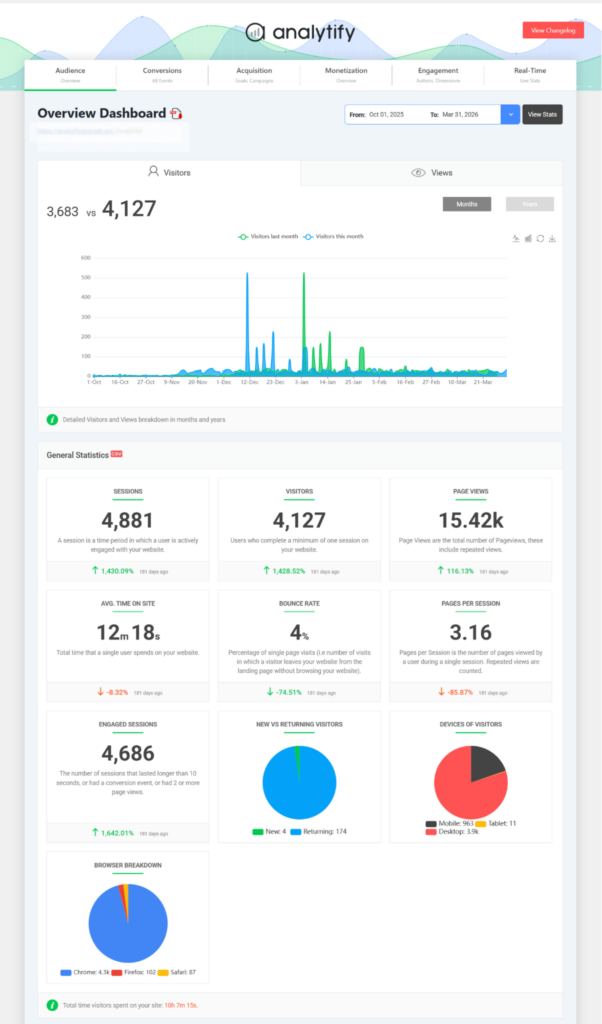
This is where Analytify makes the results of any tagging setup easier to use. Checking GA4 through Google’s own interface means logging into a separate dashboard every time you want a quick number. Analytify shows your sessions, pageviews, and top pages directly inside WordPress, regardless of which tagging method your site uses. The free version covers core GA4 stats, and Analytify Pro adds WooCommerce revenue tracking and per-post reports for deeper detail. If you haven’t connected GA4 to WordPress yet, our guide on how to connect Analytify to your GA4 data walks through the setup.
Should You Set Up Google Tag Gateway on Your Site?
Set up Google Tag Gateway if your site relies only on Google tags and already runs on Cloudflare or Akamai. Skip it if you already have server-side GTM in place.
Here’s the short version:
- Only using GA4, Google Ads, and client-side GTM? Enable Google Tag Gateway. It’s free and low-effort.
- Already running server-side GTM with a custom loader? Skip it. You already have the benefits.
- Mixing Google and non-Google tags in one GTM container? Enable Google Tag Gateway alongside server-side GTM for the non-Google tags.
Google’s 2026 Google Tag Manager updates have leaned toward first-party measurement, as third-party tracking keeps getting blocked by default in more browsers. Google Tag Gateway is one small, free part of that shift. If GTM’s complexity is the real problem rather than tag delivery, our Google Tag Manager alternatives roundup covers simpler options for WordPress sites.
Frequently Asked Questions
1. What is Google Tag Gateway?
Google Tag Gateway is a free feature that loads Google tags, including GA4, Google Ads, and Google Tag Manager, from a site’s own domain rather than a Google-owned one. A content delivery network, such as Cloudflare, sits between the site and Google’s servers and reroutes requests so they appear to be first-party. It does not change what data GA4 collects, only where the request appears to come from.
2. How does Google Tag Gateway affect WordPress tracking?
On a WordPress site, Google Tag Gateway reduces the impact of some browser extensions that block third-party tracking domains, since requests now load from the site’s own domain. It does not extend cookie lifetime under Apple’s Intelligent Tracking Prevention unless combined with server-side Google Tag Manager. GA4 properties, events, and reports remain unchanged.
3. How does Google Tag Gateway affect WordPress tracking?
On a WordPress site, Google Tag Gateway reduces the impact of some browser extensions that block third-party tracking domains, since requests now load from the site’s own domain. It does not extend cookie lifetime under Apple’s Intelligent Tracking Prevention unless combined with server-side Google Tag Manager. GA4 properties, events, and reports remain unchanged.
4. Is Google Tag Gateway the same as server-side tagging?
No. Google Tag Gateway only changes where Google tag scripts load from, while server-side Google Tag Manager moves the entire data-processing layer onto a server the site owner controls. Server-side tagging also supports non-Google platforms and gives more control over cookies. Google recommends using both together rather than choosing one.
5. Does Google Tag Gateway require a CDN?
Yes. Google Tag Gateway requires a supported content delivery network; Cloudflare offers direct integration, and Akamai was recently added as a second option. Sites without a CDN need to set one up first, which is usually the most time-consuming part of the process.
6. Why is my GA4 location data showing as “(not set)” after enabling Google Tag Gateway?
Yes. Google Tag Gateway requires a supported content delivery network, with Cloudflare offering direct integration and Akamai recently added as a second option. Sites without a CDN need to set one up first, which is usually the most time-consuming part of the process.
Final Thoughts
Google Tag Gateway is a free, low-effort way to make Google tracking requests first-party. It only changes how tags are delivered, not how GA4 data is collected, processed, or displayed in your WordPress dashboard.
If you’re also cleaning up how visitors first experience your site, LoginPress lets you replace WordPress’s default login page with one that matches your brand.
Here’s what to do next:
- Check whether your site already runs on Cloudflare or Akamai as its CDN.
- Enable the Google Tag Gateway via Google Site Kit or directly in Google Tag Manager.
- Confirm your GA4 dashboard in Analytify is still connected and reporting normally after setup.
See Your GA4 Data Inside WordPress with Analytify
Further Readings: