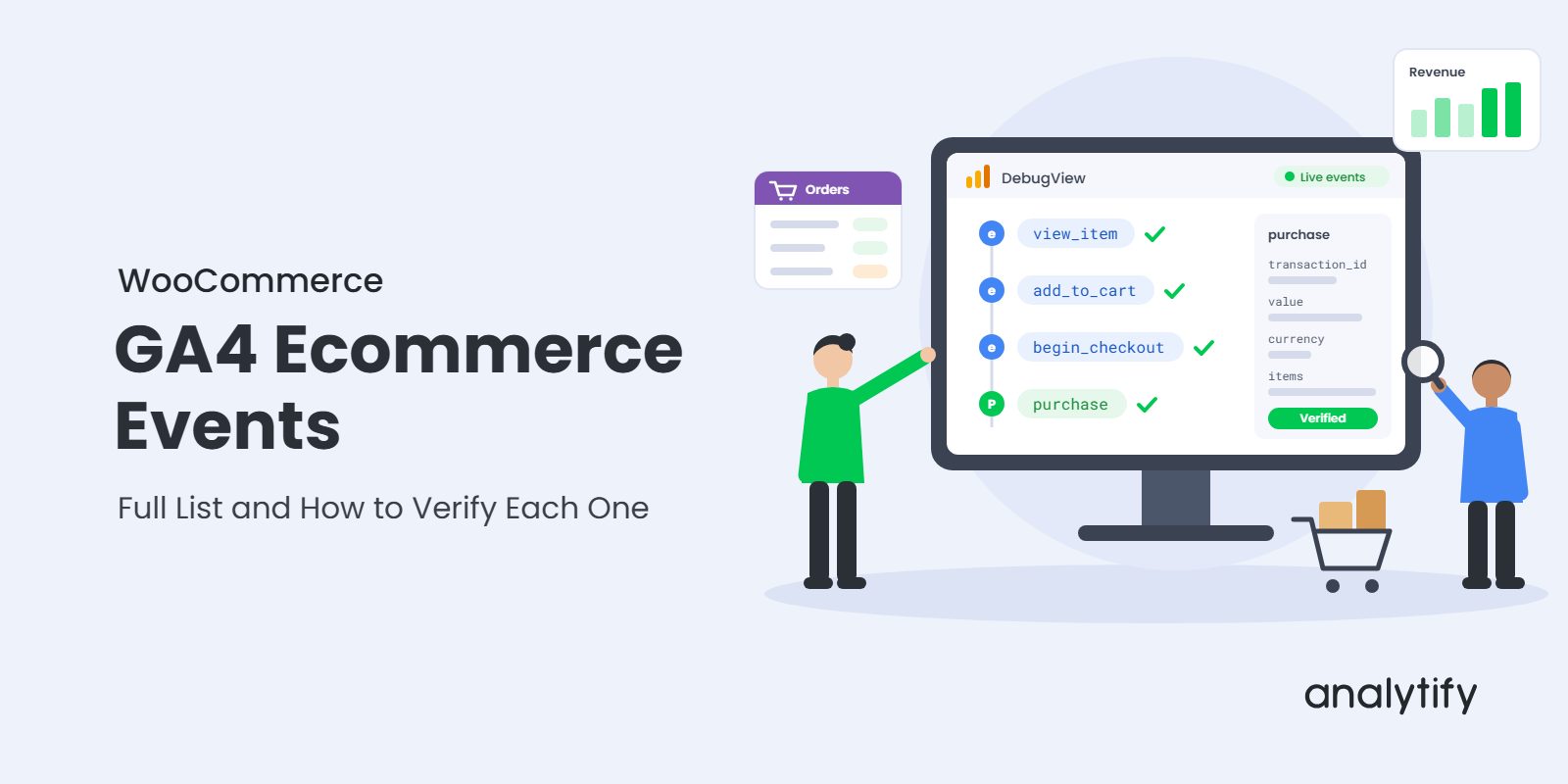
GA4 Ecommerce Events for WooCommerce: Full List and How to Verify Each One

Is your WooCommerce store sending GA4 the full shopping journey, or only the sale?
Google defines 14 GA4 ecommerce events. A WooCommerce store needs the 11 core ones: product views, carts, checkout, purchases and refunds. The other three are optional. The purchase event matters most. Without it, GA4 shows no revenue at all.
Quick answer: The 11 core GA4 ecommerce events for WooCommerce are view_item_list, select_item, view_item, add_to_cart, remove_from_cart, view_cart, begin_checkout, add_shipping_info, add_payment_info, purchase and refund. Every one needs an items array. The purchase and refund events also need transaction_id, value and currency.
Missing events break your reports in quiet ways:
- No add_to_cart means no cart-to-purchase rate.
- No begin_checkout means an empty checkout funnel.
- No refund means revenue that looks higher than it is.
- A missing currency means revenue shows as zero.
This guide lists every GA4 ecommerce event, the WooCommerce action behind it, and the parameters it needs. Then it shows four ways to check each one is firing. If orders are already missing from GA4, start with WooCommerce Orders Not Showing in GA4? instead.
Table of Contents
What Are GA4 Ecommerce Events?
GA4 ecommerce events are recommended events that describe shopping actions. Each one has a fixed name and fixed parameters. Google sets the names, such as add_to_cart and purchase. GA4 only fills its Monetization reports when your store sends these exact names.
GA4 ecommerce events differ from other GA4 events in three ways:
- Enhanced measurement does not send them. GA4 tracks page views and scrolls on its own. It never sends ecommerce events. A plugin or custom code must.
- They carry an
itemsarray. Each event lists the products involved, with ID, name, price and quantity. - They feed revenue metrics.
purchaseandrefundchange the revenue numbers in GA4.
Ecommerce events are one group inside Google’s wider set of GA4 recommended events. Google’s help center has a short overview of ecommerce events, and it documents every name and parameter in its ecommerce measurement guide. For how these events fit into a full store setup, see Google Analytics ecommerce tracking on WordPress.
GA4 Ecommerce Events List for WooCommerce
The GA4 ecommerce events list has 11 core events and 3 optional ones. The table maps each event to the WooCommerce action that should trigger it. Events are in funnel order, from first product view to refund.
| # | GA4 event | WooCommerce action that triggers it | Key parameters | Funnel stage | Needed? |
|---|---|---|---|---|---|
| 1 | view_item_list | Shop, category, tag or search results page loads | item_list_name, items | Discovery | Core |
| 2 | select_item | Shopper clicks a product in a list | item_list_name, items | Discovery | Core |
| 3 | view_item | Single product page loads | currency, value, items | Product | Core |
| 4 | add_to_cart | Shopper clicks Add to cart (product or shop page) | currency, value, items | Cart | Core |
| 5 | remove_from_cart | Shopper removes a product in the cart or mini cart | currency, value, items | Cart | Core |
| 6 | view_cart | Cart page loads | currency, value, items | Cart | Core |
| 7 | begin_checkout | Checkout page loads | currency, value, coupon, items | Checkout | Core |
| 8 | add_shipping_info | Shopper picks or submits a shipping method | shipping_tier, items | Checkout | Core |
| 9 | add_payment_info | Shopper picks or submits a payment method | payment_type, items | Checkout | Core |
| 10 | purchase | Order is placed (Order received page) | transaction_id, value, currency, tax, shipping, coupon, items | Conversion | Core |
| 11 | refund | Refund is issued in WooCommerce > Orders | transaction_id, value, currency, items | Post-purchase | Core |
| 12 | add_to_wishlist | Shopper saves a product with a wishlist plugin | currency, value, items | Product | Optional |
| 13 | view_promotion | An internal banner or promo block is shown | promotion_id, promotion_name | Discovery | Optional |
| 14 | select_promotion | Shopper clicks that banner | promotion_id, promotion_name | Discovery | Optional |
Three notes help you read the table:
- WooCommerce has no built-in wishlist or promo banners. Skip events 12 to 14 unless a plugin adds those features.
- Event names are case-sensitive.
Add_To_Cartis a custom event, not the recommended one. It won’t fill any Monetization report. - Order matters for funnels. GA4’s checkout journey report expects
begin_checkout, thenadd_shipping_info, thenadd_payment_info, thenpurchase.
Discovery and product events
Discovery events show which product lists get attention. view_item_list and select_item tell you if shoppers click through from category pages. view_item is the base of every product conversion rate.
Cart events
Cart events show intent. add_to_cart is the first strong buying signal. For setup details, see how to track add to cart events in Google Analytics. remove_from_cart and view_cart explain where carts stall. They feed your WooCommerce cart abandonment rate.
Checkout and purchase events
Checkout events show where buyers drop off before paying. begin_checkout through purchase build the GA4 ecommerce checkout funnel. A big drop between add_shipping_info and add_payment_info often points to surprise shipping costs.
Which Parameters Does Each Event Need?
Every GA4 ecommerce event needs an items array. Any event with a value also needs a currency. purchase and refund also need a transaction_id. Those four parameters decide whether your revenue numbers are right.
| Parameter | What it holds | Required? | What breaks if it’s wrong |
|---|---|---|---|
transaction_id | The WooCommerce order number | Yes, for purchase and refund | A reused or missing ID causes duplicate or lost orders |
value | Order total: price × quantity for all items | Yes, for meaningful revenue | Revenue shows as zero or wrong |
currency | Three-letter code, such as USD or EUR | Yes, whenever value is set | GA4 can’t compute revenue, so it reports zero |
items | The list of products in the event | Yes | Product reports stay empty |
tax | Tax charged on the order | No | Tax totals are missing |
shipping | Shipping charged on the order | No | Shipping totals are missing |
coupon | Coupon code used at checkout | No | Coupon reports stay empty |
Each entry in items describes one product:
| Item parameter | Example | Required? |
|---|---|---|
item_id | SKU or product ID, such as HOODIE-01 | One of item_id or item_name |
item_name | Blue Cotton Hoodie | One of item_id or item_name |
price | 39.00 (the unit price after discount) | No, but needed for product revenue |
quantity | 2 | No (defaults to 1) |
item_category | Hoodies | No |
item_variant | Large | No |
Two rules from Google catch most stores out:
valueexcludes shipping and tax. Send those in their own parameters.- Send both
item_idanditem_name. Google recommends both, and it makes product reports easier to read.
An items array can hold up to 200 products. Missing value or currency is the most common cause of zero revenue. Our guide on how to fix missing revenue in GA4 covers that problem in full.
The purchase event
The GA4 purchase event records a completed order and is the only event that adds revenue. GA4 marks it as a key event by default. It should fire once per WooCommerce order. A healthy purchase event looks like this:
gtag('event', 'purchase', {
  transaction_id: '1042',
  value: 78.00,
  tax: 6.24,
  shipping: 5.00,
  currency: 'USD',
  coupon: 'WELCOME10',
  items: [{
    item_id: 'HOODIE-01',
    item_name: 'Blue Cotton Hoodie',
    price: 39.00,
    quantity: 2
  }]
});
The transaction_id is the order number. GA4 uses it to drop duplicates. So if the same order fires twice with the same ID, GA4 counts it once. If two different orders share an ID, GA4 can drop a real sale.
The refund event (full and partial refunds)
The GA4 refund event subtracts a refunded order from your revenue. It must use the same transaction_id as the original purchase. Without it, GA4 never learns the money went back.
There are two refund types:
- Full refund: send
refundwith the order’stransaction_id,valueandcurrency. - Partial refund: also include the refunded products in
items, each withitem_idandquantity.
WooCommerce refunds happen in the admin, not on the storefront. So the refund event must be sent from the server or by a plugin. A tag on the thank-you page can’t catch it.
Which WooCommerce GA4 Events Does Analytify Send Automatically?
Analytify sends WooCommerce GA4 events automatically, with no code or Tag Manager setup. Its Enhanced E-Commerce Tracking for WooCommerce add-on does the work. The add-on is included in every Analytify Pro plan: StartUp, Agency and Developer.

Here is what Analytify sends for the purchase event:
- Every order parameter GA4 needs:
transaction_id,value,tax,shipping,currency,couponanditems. - A browser copy and a server copy. Both use the same
transaction_id, so GA4 counts the order once. If the thank-you page never loads, the server copy still reaches GA4. - No duplicates on reload. Refreshing the Order received page does not send the order again.
- Consent respected. The server copy is not sent for visitors who decline tracking.
Analytify also sends product view events, including view_item_list on shop pages and view_item on product pages.
You don’t need a Measurement Protocol secret either. Analytify creates it for you under Analytify > Settings > Advanced.
Want to see these events as reports instead of raw data? Analytify shows them inside WordPress under Analytify > Dashboards > Monetization > WooCommerce. Setup takes a few clicks, covered in the ecommerce tracking setup doc.
How to Verify Each GA4 Ecommerce Event
You verify GA4 ecommerce events with a test order. Watch each event arrive in DebugView as it fires. Then you confirm the order in GA4’s Monetization reports a day later. Four tools cover the job:
| Tool | Where to find it | What it shows | How fast |
|---|---|---|---|
| DebugView | GA4 > Admin > Data display > DebugView | Every event and its parameters, from your test session only | Seconds |
| Tag Assistant | tagassistant.google.com | Which tags fire on each page you visit | Instant |
| Realtime report | GA4 > Reports > Realtime | Event counts from all visitors in the last 30 minutes | Seconds to minutes |
| Monetization reports | GA4 > Reports > Monetization | Final revenue, product and checkout data | Up to 24 to 48 hours |
Before you start, check three things:
- Log out of WordPress, or use a private window. Many setups, Analytify included, skip events from logged-in admins by default.
- Turn off your ad blocker. Blockers stop GA4 requests before they leave the browser.
- Accept the cookie banner. Declined consent can block or reduce events.
Check events live in DebugView
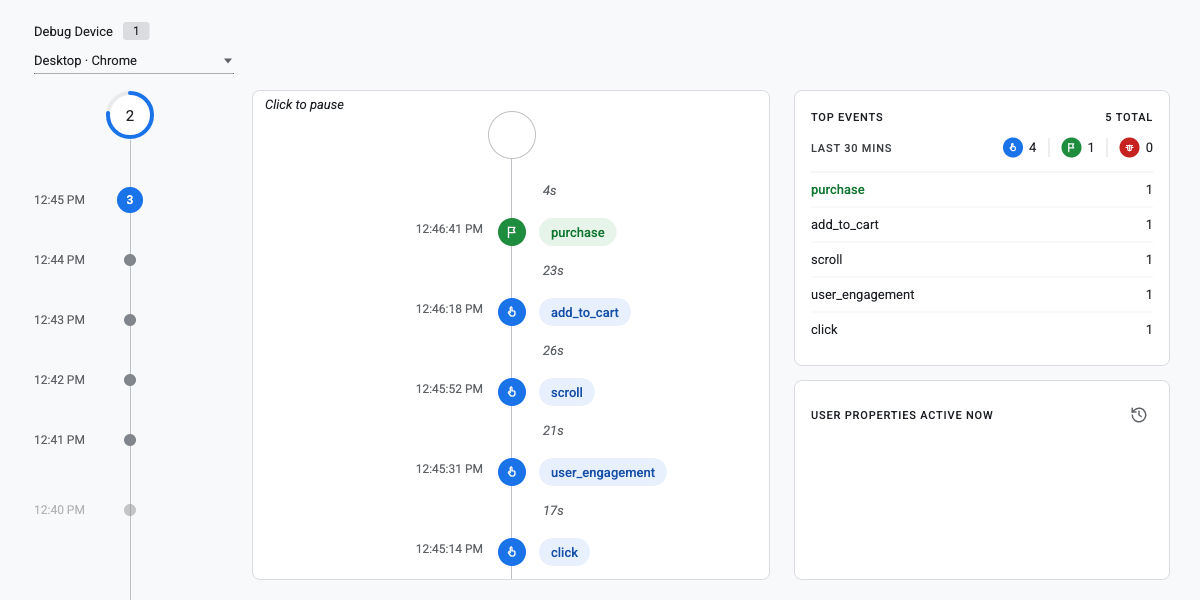
DebugView is the best way to check event parameters, because it shows each event’s full details as it fires.
- Open Tag Assistant and enter your store URL. This turns on debug mode for that tab.
- In GA4, go to Admin > Data display > DebugView.
- Browse your store in the Tag Assistant tab. Each event appears on the timeline within seconds.
- Click an event, such as
add_to_cart. Check thatcurrency,valueanditemsare there. - Click into
itemsand confirm the product ID, name, price and quantity match the product.
Use Tag Assistant to see what fires on each page
Tag Assistant shows which events fire on which page. That helps you spot events on the wrong page. I’d use it to answer three questions:
- Does
begin_checkoutfire on the checkout page, not the cart page? - Does
add_to_cartfire once per click, not twice? - Do
add_shipping_infoandadd_payment_infofire when a method is chosen, not on page load?
Run a test order from start to finish
A full test order is the only way to confirm the whole funnel works in sequence. Use a test payment method, such as Cash on delivery or a gateway’s sandbox mode.
Run a WooCommerce test order and confirm every GA4 ecommerce event fires in the right order.
Step 1: Open a category page
Expect view_item_list.
Step 2: Click a product
Expect select_item, then view_item.
Step 3: Add the product to the cart
Click Add to cart. Expect one add_to_cart.
Step 4: Open the cart
Expect view_cart. Remove an item and expect remove_from_cart.
Step 5: Go to checkout
Expect begin_checkout.
Step 6: Choose shipping, then payment
Expect add_shipping_info, then add_payment_info.
Step 7: Place the order
Expect one purchase with your order number as transaction_id.
Step 8: Reload the Order received page
No second purchase should appear.
Step 9: Refund the test order
In WooCommerce > Orders, refund the order. Expect refund with the same transaction_id.
Note your order number. You’ll need it for the next step.
Confirm the data in Monetization reports
Monetization reports confirm that GA4 processed the events, not just received them. Google says data processing can take 24 to 48 hours. So wait that long after your test order, then open these three reports under Reports > Monetization:
- Ecommerce purchases: your test product shows views, add-to-carts and purchases.
- Checkout journey: each step shows at least one user.
- Transactions: find your order number in the Transaction ID column, with its revenue beside it.
If the order shows in DebugView but not in reports after 48 hours, I’d check currency first. A missing currency is the most common reason revenue reads zero. To read these reports in depth, see how to analyze sales and ecommerce metrics in GA4.
What to Do When a GA4 Ecommerce Event Is Missing
When an event is missing, find the symptom in the table below and apply the fix in that row. Most gaps trace back to a handful of causes. I’d start with the first row, because it’s the quickest to rule out.
| Symptom | Likely cause | Fix |
|---|---|---|
| No events at all in DebugView | You’re logged in as admin, or an ad blocker is on | Test logged out, in a private window, with blockers off. More checks: Google Analytics not working |
| Orders missing from GA4 | Thank-you page doesn’t load, or a payment gateway skips it | Follow WooCommerce Orders Not Showing in GA4? |
| Revenue shows as zero | currency or value missing | Add both to every event that has a value. See how to fix missing revenue in GA4 |
| Purchases counted twice | Two tracking setups, or a changing transaction_id | Remove the second tag, then keep one ID per order. See how to run Analytify with custom GTM tracking |
add_to_cart fires twice per click | The script is loaded twice | Check for a theme, plugin or Tag Manager tag that adds the same code |
| Checkout funnel looks wrong | begin_checkout fires on the cart page | Move it to the checkout page load |
refund never appears | Refunds happen in admin, where no browser tag runs | Send refund from the server or a plugin |
| Events appear in DebugView but not in reports | Normal processing delay | Wait 24 to 48 hours before you troubleshoot. Still empty? See how to fix No Data Available in GA4 |
Fix one row at a time, then rerun the test order. Two changes at once make it hard to tell which one worked.
See Your WooCommerce GA4 Events Inside WordPress With Analytify
Analytify sends WooCommerce ecommerce events to GA4 without code. It then shows the results as reports in your WordPress dashboard. You skip Tag Manager, custom events and GA4’s report menus. For the full store setup, follow our WooCommerce conversion tracking guide.
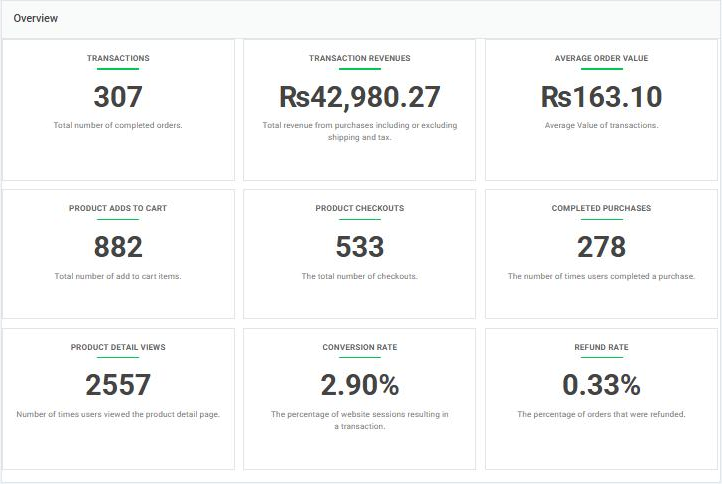
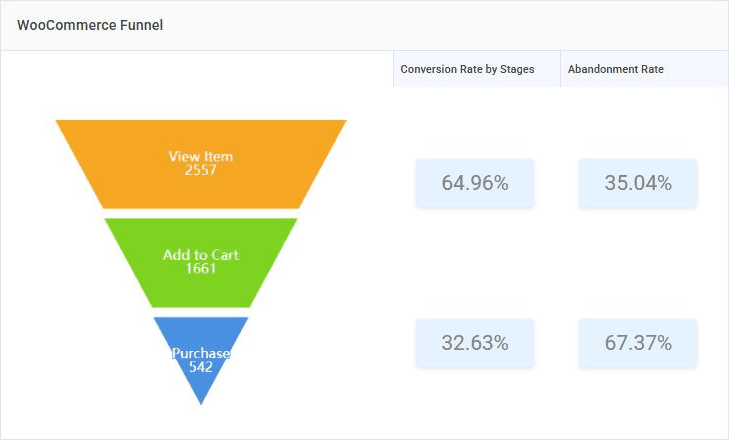
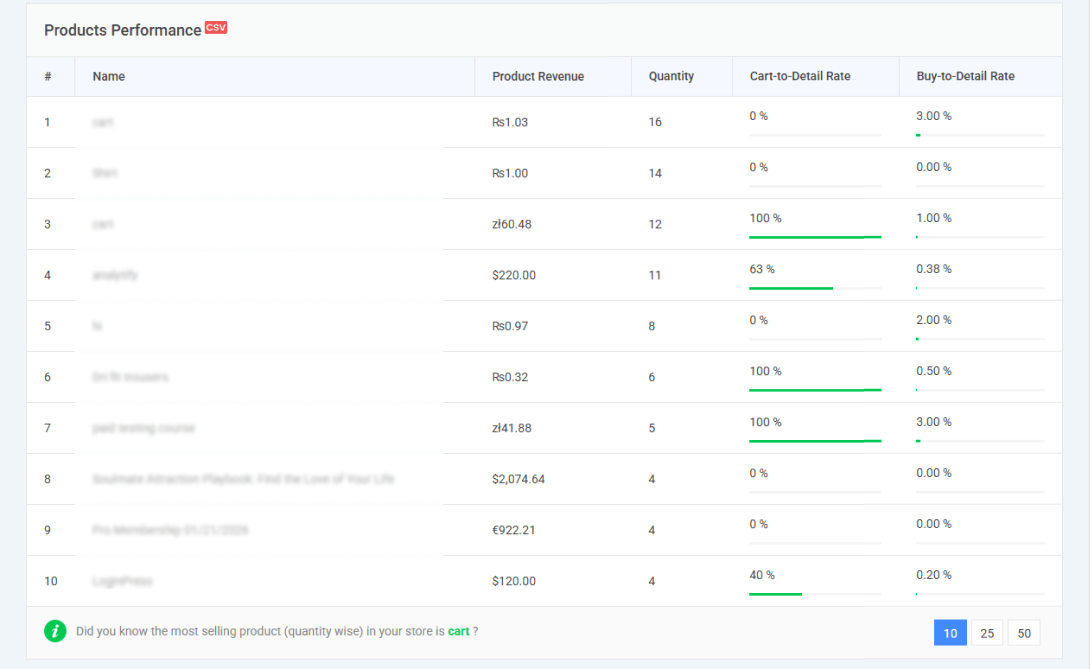
Under Analytify > Dashboards > Monetization > WooCommerce, you get:
- Shopping Behavior: how shoppers move from product views to carts to orders.
- Checkout Behavior: each checkout step, so you can see where buyers leave.
- Product Performance: sales, transactions, average order value and refunds per product.
- Sales Performance: revenue over time.
- Coupons and refunds: which coupons get used and your refund rate.
Here’s how the two setups compare:
| Task | Manual setup (code or Tag Manager) | Analytify Pro |
|---|---|---|
Send the purchase event | Write a data layer and a tag | Activate the add-on |
| Back up orders when the thank-you page fails | Build a Measurement Protocol call | Included (server copy, same transaction_id) |
Add currency, tax, shipping, coupon | Map each field by hand | Included |
| View revenue and product reports | GA4 > Reports > Monetization | Inside WordPress |
| Maintenance after WooCommerce updates | You retest and fix tags | Handled in plugin updates |
Frequently Asked Questions
What are the most important GA4 ecommerce events for WooCommerce?
purchase is the most important GA4 ecommerce event, because it is the only one that records revenue. After it, add_to_cart, begin_checkout and refund matter most. Together they show intent, drop-off and true revenue.
Is the purchase event tracked automatically in GA4?
No. GA4’s enhanced measurement never sends ecommerce events, including purchase. A plugin, Google Tag Manager or custom code must send it from your WooCommerce store.
Why are my WooCommerce ecommerce events not showing in GA4 reports?
GA4 reports can take 24 to 48 hours to show ecommerce data. Check DebugView or the Realtime report first, because both show events within seconds. If events don’t appear there either, test while logged out with your ad blocker off.
What’s the difference between add_to_cart and begin_checkout?
add_to_cart fires when a shopper adds a product to the cart. begin_checkout fires when the shopper opens the checkout page. The gap between the two shows how many carts never reach checkout.
Does GA4 track WooCommerce refunds automatically?
No. GA4 only records a refund when your store sends a refund event with the original transaction_id. Because WooCommerce refunds happen in the admin, that event has to come from the server or a plugin.
Can I track partial refunds in GA4?
Yes. Send a refund event with the order’s transaction_id, plus an items array listing only the refunded products and their quantities. GA4 then subtracts just that amount from revenue.
Do I need Google Tag Manager to send ecommerce events from WooCommerce?
No. Tag Manager is one option, but it needs a data layer and a tag for every event. A WordPress plugin like Analytify sends the events for you, with no code.
Why does GA4 show duplicate purchases?
Duplicate purchases usually mean two tracking setups are running, or the transaction_id changes between sends. Check for a second plugin, a theme tag or a Tag Manager tag sending purchase. Keep one setup and one ID per order.
Do GA4 ecommerce events work with the WooCommerce block checkout?
Yes, the event names and parameters are the same for block and classic checkout. The difference is how events get triggered. Block cart and checkout pages don’t use the classic page hooks. Older scripts can miss remove_from_cart or checkout steps. After you switch to blocks, rerun the full test order.
Next Steps
Your next step is one test order, checked in DebugView, against the 11 core events above. That single test tells you which events work and which need fixing.
A quick checklist:
- Log out and turn off your ad blocker
- Run a test order from category page to Order received page
- Confirm one
purchasewith the righttransaction_id,valueandcurrency - Refund the test order and confirm the
refundevent - Check Monetization reports 48 hours later
If you’d rather skip the code, Analytify Pro sends the WooCommerce events and shows the reports inside WordPress.
Further Reading
- Google Analytics eCommerce Tracking on WordPress (Explained)
- How to Set Up WooCommerce Conversion Tracking (Complete Guide)
- Understanding DebugView in Google Analytics 4
- GA4 vs Analytify eCommerce Metrics: Which Metrics to Trust and Why
- Micro-Conversions: How to Track the Signals That Drive Sales
- Google Analytics Best Practices for WordPress
- Best WooCommerce Plugins for WordPress (Top 10)