How to Combine Analytify Script with Custom GTM Tracking Without Double Hits

To combine the Analytify script with custom GTM tracking without double hits, let Analytify load GA4 and use Google Tag Manager (GTM) only for custom event tags. I show you how to set this up in seven steps.
Double hits happen when a plugin and GTM both initialize GA4 on the same page. Double tracking inflates sessions and makes reports unreliable. Pausing the GA4 Configuration tag in GTM stops GA4 from being initialized twice. Analytify then sends pageviews and standard events, and GTM sends only the custom events you define, such as CTA clicks, custom button clicks and form submissions.
In this hybrid approach, Analytify handles the core GA4 tracking and GTM handles only custom events. Site owners no longer have to choose between a plugin-based analytics setup and a full GTM implementation.
This guide is for site owners, marketers and agencies who want clean, accurate data. I explain why the setup works and which mistakes to avoid.
Analytify with Custom GTM (TOC):
TL;DR: Hybrid Tracking Setup Summary
Let Analytify load GA4 and use GTM only for custom event tags:
• Use Analytify to handle GA4 setup and base tracking
• Install Google Tag Manager on your site
• Pause or disable the GA4 Configuration tag in GTM
• Create only GA4 Event tags in GTM for custom tracking
• Test in GA4 Realtime to confirm no duplicate pageviews
This ensures Analytify initializes GA4 once, while GTM is used only for advanced custom events like CTA clicks and form submissions.
Why This Hybrid Tracking Approach Matters
This approach matters because Analytify and GTM each handle a separate job, which keeps GA4 from receiving duplicate hits.
Analytify is designed to simplify Google Analytics for WordPress. It takes care of authentication, GA4 configuration, script injection, and reliable baseline tracking. This means pageviews, sessions, and standard events start working immediately without manual setup.
Google Tag Manager excels at customization. GTM lets you track very specific interactions without editing your site code. However, when GTM is used to initialize GA4 alongside a plugin, it often leads to duplicate tracking.
By clearly defining responsibilities, this hybrid setup gives you:
• Accurate baseline GA4 tracking handled by Analytify
• Full flexibility to add advanced custom events using GTM
• No duplicate pageviews or sessions
• Cleaner reports inside GA4 and Analytify
Understanding the Double Tracking Problem
Double tracking happens when GA4 is initialized more than once on the same page. This commonly occurs when:
• Analytify injects the GA4 tracking script
• GTM also fires a GA4 Configuration tag using the same Measurement ID
When this happens, Google Analytics receives duplicate pageview and event hits, which leads to:
• Inflated session counts
• Duplicate events
• Skewed engagement metrics
• Unreliable conversion data
Many users try to fix this by disabling one tool entirely, but that removes useful functionality. The correct solution is to prevent GA4 from being initialized twice.
The Correct Tracking Strategy
The correct strategy gives Analytify sole control of GA4 initialization and limits GTM to custom GA4 events.
• Analytify initializes GA4 and handles base tracking
• Google Tag Manager is used only for custom GA4 events
• The GA4 Configuration tag in GTM is paused or disabled
This ensures GA4 loads once, while GTM sends only the events you explicitly define.
Step 1: Install and Configure Analytify
Start by installing the Analytify plugin on your WordPress website
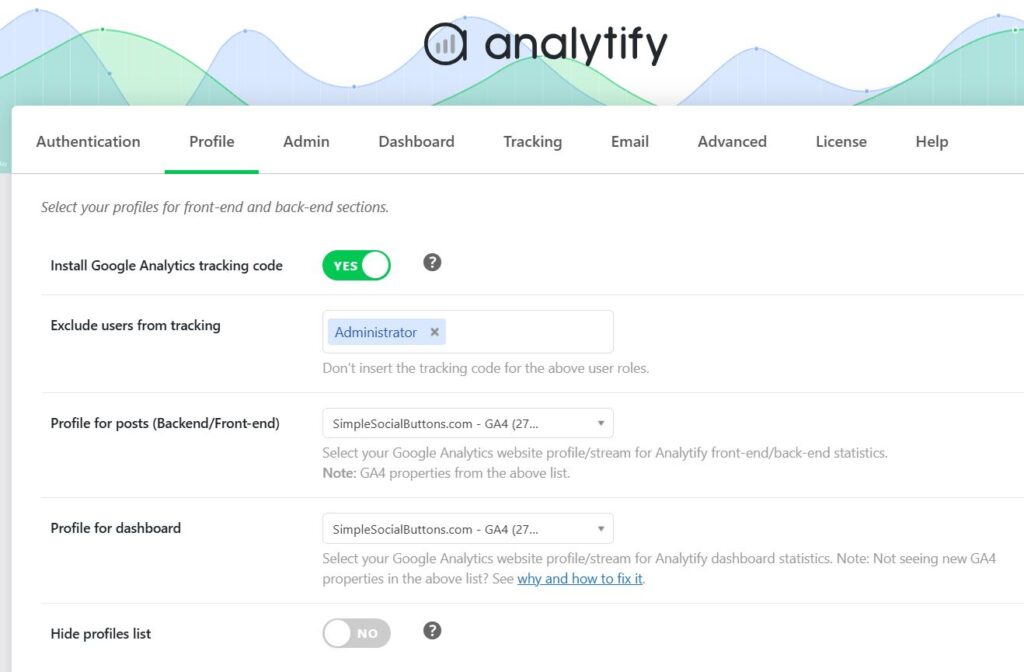
Once installed, go to the profile tab:
• Connect your Google Analytics account
• Select the correct GA4 property
• Enable frontend tracking
• Save your settings
At this point, Analytify will automatically inject the GA4 tracking script across your site and begin collecting pageviews and standard engagement data.
Step 2: Verify GA4 Is Tracking Correctly
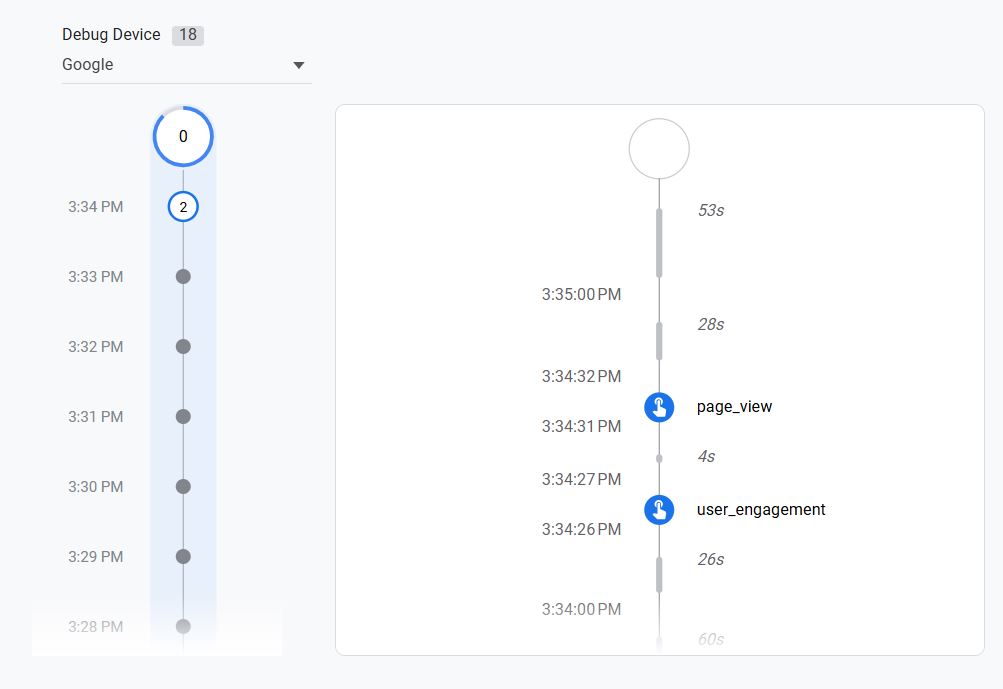
Before adding GTM, confirm that GA4 tracking is working as expected.
You can do this by:
• Visiting your site in an incognito window
• Opening the GA4 DebugView mode
• Checking for the page_view events
This verification step is important because it helps isolate issues later. If something breaks after adding GTM in the following steps, you will know exactly where the problem was introduced.
Step 3: Install Google Tag Manager
If Google Tag Manager is not already installed on your site, add your GTM container. Here’s a detailed guide to installing GTM on your website.
This can be done using:
• A WordPress plugin such as Insert Headers and Footers
• Theme header and footer files
• Custom code injection
Once installed, use GTM Preview mode or Google Tag Assistant to confirm that the container is loading correctly.
Step 4: Pause the GA4 Configuration Tag in GTM
Pausing the GA4 Configuration tag in GTM is the step that prevents double hits.
Inside your GTM container, locate the GA4 Configuration tag that uses your GA4 Measurement ID. Google has replaced this tag type with the Google tag and upgraded existing GA4 Configuration tags automatically, so in your container it may appear as the Google tag.
• Pause or disable this tag
• Do not publish it
• Keep it inactive at all times
In the screenshot below, the Google Analytics configuration tag is paused in GTM. Open the relevant GA4 config tag and select the pause option:
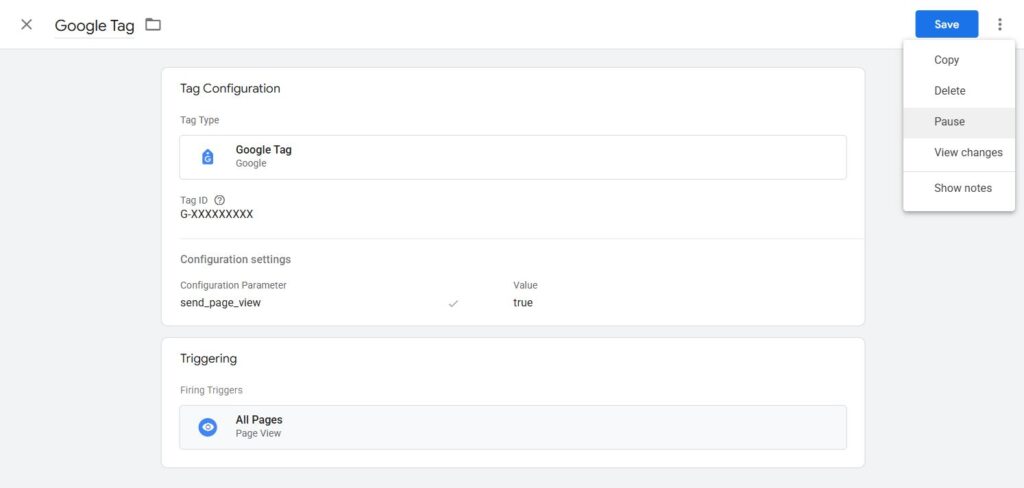
After selecting the pause option, the tag will be shown as paused in the list of all your GTM tags.
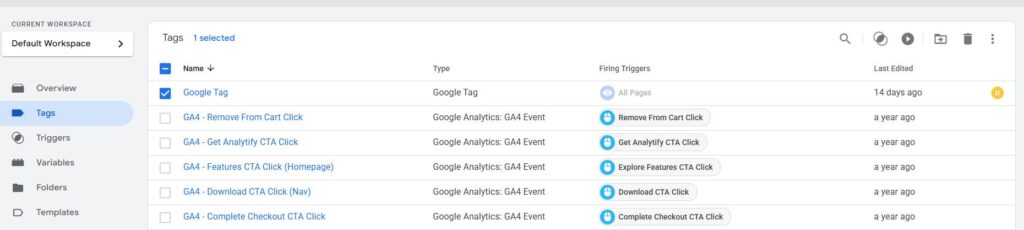
Pausing the GA4 Configuration tag prevents GTM from initializing GA4 a second time.
Analytify will remain the only tool responsible for loading the GA4 tracking script.
Step 5: Create Custom GA4 Event Tags in GTM
Analytify now handles GA4 initialization, so you can create custom GA4 Event tags in GTM for the events you need.
Note: Make sure to enable all relevant variables in your GTM container, navigating to the variables tab and using the ‘Configure’ button. For instance, if you’re looking to track custom clicks on your site, you need to configure all click variables as shown below:
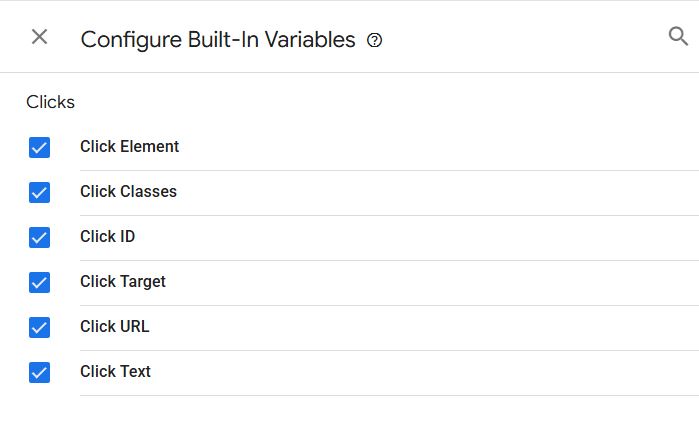
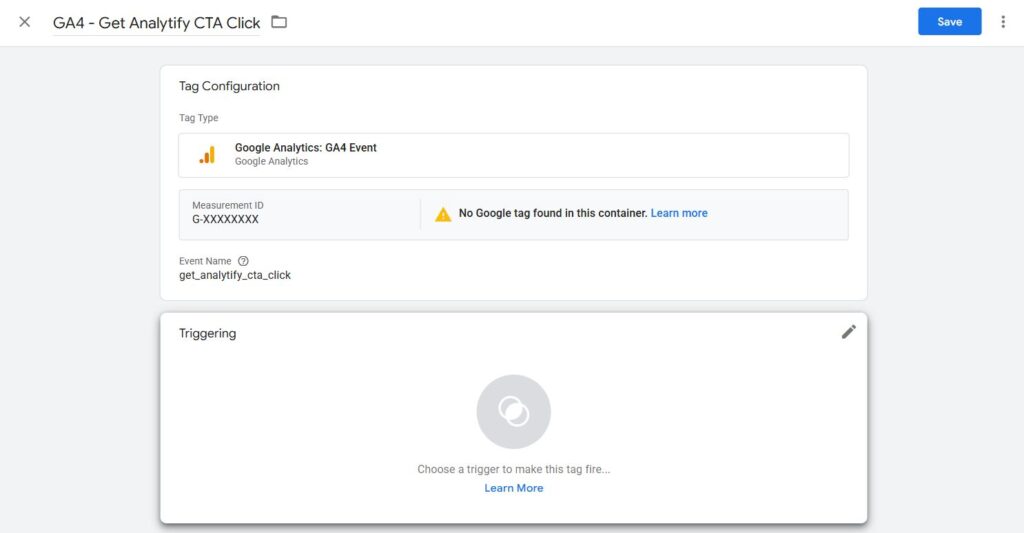
Let’s go through an example of setting up a custom tag for a button click.
Start by navigating to the tags section and clicking the ‘New’ button.
When creating a GA4 Event tag:
• Choose GA4 Event as the tag type
• Enter your GA4 Measurement ID manually
• Use clear and consistent event names
• Define relevant parameters where needed
Click on the ‘Save’ button after you’ve made all the changes, and your new custom tag will be created.
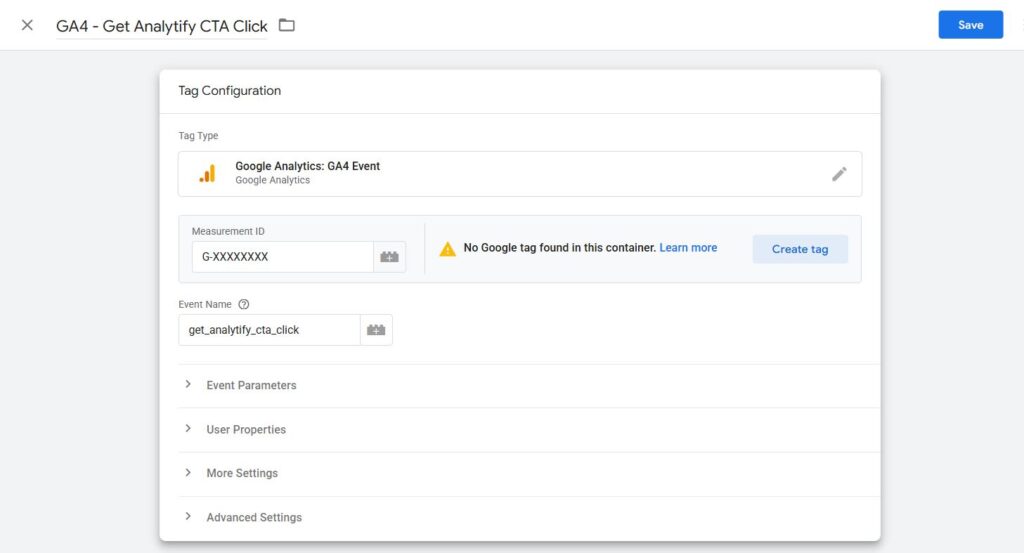
Examples of other events you can track include:
• Outbound link clicks
• File downloads
• Form submissions
• Scroll depth
• Video interactions
Custom GA4 Event tags extend tracking without interfering with base analytics.
Step 6: Set Up Triggers for Custom Events
Triggers define when your custom GA4 events fire. After creating a custom tag, a custom trigger also needs to be set for that relevant tag.
Some common trigger examples include:
• Click triggers for specific buttons or links
• URL based triggers for outbound links
• Form submission triggers
Since we already have a button-click example from the previous step, we will continue creating a custom trigger for the same tag.
Start by navigating to the tags section and clicking the ‘New’ button. Carefully define trigger conditions to avoid firing events unintentionally. Precision here keeps your data clean and meaningful.
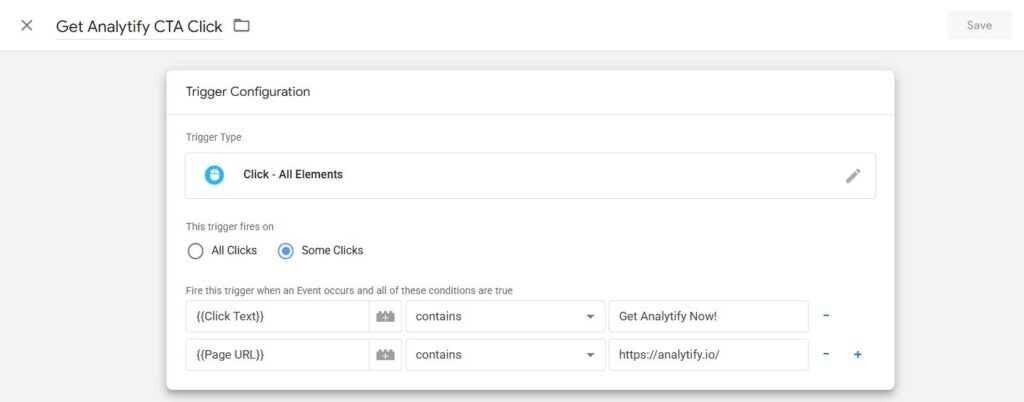
As you can see, we selected the trigger type as Click – All Elements and configured it to fire on specific clicks based on the conditions defined using Click Text and Page URL parameters. Please note that this is an example only; your custom click-tracking scenario may vary based on your requirements. If you need help setting up custom tags and triggers, explore our Google Tag Manager services.
After the conditions are defined, you can save your trigger. Next, just open the tag again where you want to add this trigger you created for your custom tag.
Choose the right trigger for your custom tag and click on the ‘Add’ button as shown below:
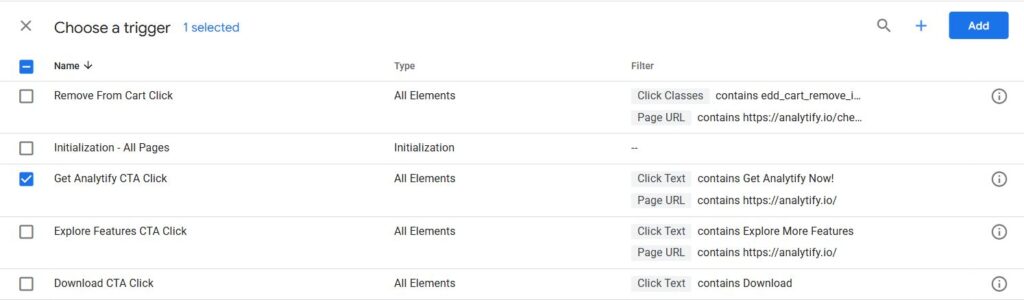
Your new custom tag is now connected to its trigger for custom event tracking in GTM.
Step 7: Test Everything Before Publishing
Test the setup in GTM Preview mode and GA4 DebugView before you publish.
Use the following checklist:
• Enable GTM Preview mode
• Perform the tracked actions on your site
• Check GA4 DebugView and/or Realtime events
• Ensure pageviews are not duplicated
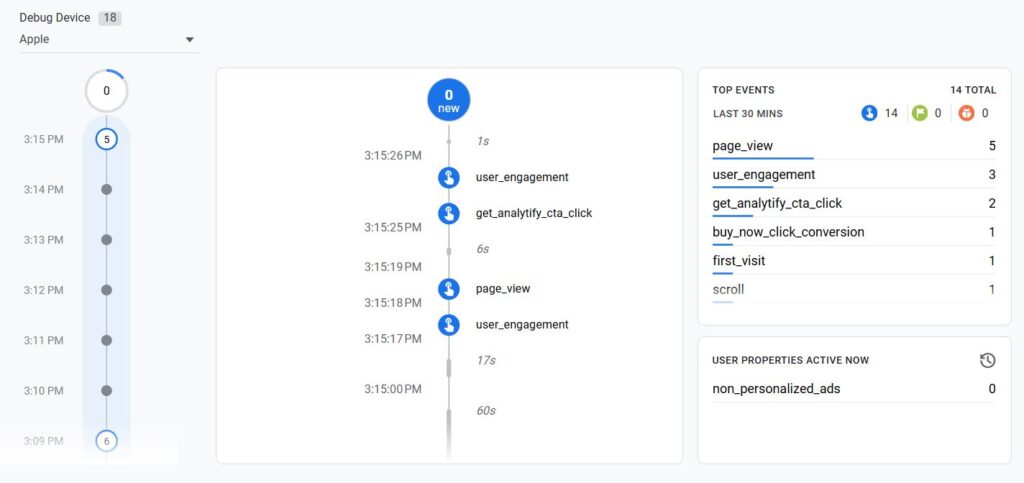
In GA4 DebugView, the page_view event (from the Analytify script) and the custom GA4 event (from Google Tag Manager) both appear.
Analytify continues to report core analytics. Custom GTM events appear alongside them in Analytify reports where applicable.
How This Setup Benefits Analytify Users
This hybrid approach lets Analytify users add advanced tracking while the base setup stays simple.
• Beginners get instant analytics without setup friction
• Advanced users gain full control over custom events
• Agencies can standardize tracking across projects
• Ecommerce and lead generation sites get cleaner conversion data
Common Use Cases
This setup works especially well for:
• Marketing CTA tracking
• Funnel and conversion optimization
• Campaign performance measurement
• WooCommerce custom events
• SaaS and lead generation websites
Best Practices to Follow
• Never enable a GA4 Configuration tag in GTM when using Analytify tracking
• Keep event naming consistent across GTM
• Document your custom events
• Test after every GTM publish
• Monitor reports regularly for anomalies
Common Mistakes to Avoid
Five mistakes can break GA4 tracking or pollute your data in this setup. Avoid each one to keep your analytics accurate.
Enabling GA4 Configuration Tag in GTM
The most common mistake is enabling a GA4 Configuration tag in GTM alongside Analytify. This will immediately cause double pageviews and inflated sessions.
Always keep the GA4 Configuration tag paused when Analytify tracking is enabled.
Using Different Measurement IDs
Using different GA4 Measurement IDs between Analytify and GTM can split your data across properties or cause missing events.
Make sure all GTM GA4 Event tags use the same Measurement ID that Analytify is connected to.
Poor Event Naming
Inconsistent or unclear event names make reports difficult to understand and analyze later.
Use clear, descriptive, and consistent naming conventions for all custom events.
Not Testing After Publishing
Publishing GTM changes without testing often leads to broken or missing events.
Always verify changes using GTM Preview mode and GA4 Realtime reports before and after publishing.
Tracking Too Much Too Early
Adding too many custom events at once makes debugging difficult.
Start with high value actions like CTAs or form submissions, then expand gradually.
Frequently Asked Questions
1. Can I use Analytify and Google Tag Manager together safely?
Yes. Analytify and Google Tag Manager can be used together safely as long as Analytify handles the GA4 initialization and the GA4 Configuration tag in GTM is disabled. GTM should be used only for custom GA4 event tracking.
2. Will this setup cause double tracking in Google Analytics?
No. Double tracking only occurs when GA4 is initialized more than once. In this setup, Analytify initializes GA4 and GTM sends only custom events, which prevents duplicate pageviews and sessions.
3. Do I need Google Tag Manager if I am already using Analytify?
Google Tag Manager is not required for basic tracking. Analytify alone is sufficient for pageviews and standard analytics. GTM is useful if you want to track advanced interactions like CTA clicks, form submissions, or custom conversions.
4. Which GA4 Measurement ID should I use in GTM event tags?
You should always use the same GA4 Measurement ID that Analytify is connected to. Using a different ID can split data across properties or result in missing events.
5. Will custom GTM events appear inside Analytify reports?
Yes. Custom GA4 events sent through GTM will appear in Google Analytics and can also be viewed inside Analytify reports, where applicable, alongside your core analytics data.
Final Thoughts: Analytify Script with Custom GTM Tracking
The Analytify script with custom GTM tracking gives you one GA4 initialization from Analytify and custom events from GTM.
Analytify simplifies GA4 setup and reporting. Google Tag Manager adds custom event tracking. Keeping the GA4 Configuration tag paused prevents duplicate pageviews. Explore our custom options for GA4 and GTM tracking.