
Google Analytics Audit Checklist: 10 Steps to Ensure Data Accuracy

A Google Analytics audit checks that your GA4 setup tracks accurate data and matches your business goals. Run it regularly to catch broken tags, missing events and wrong settings before they distort your reports.
This guide covers a detailed Google Analytics Audit Checklist with all the requirements for an audit. It helps you make your GA4 Audit thorough and effective. You’ll also discover how tools like Analytify can simplify the process to optimize your analytics.
The checklist below has 10 steps you can run in order.
Google Analytics Audit (TOC):
What is a Google Analytics Audit?
A Google Analytics audit evaluates your Google Analytics account and setup. It checks that your setup is correctly configured, tracks data accurately, and matches your business goals.
Regular GA4 audits let you spot data inconsistencies and refine custom reporting. They also keep your setup current with the latest Google Analytics features and best practices.
Why Do You Need to Audit Your Google Analytics?
You need to audit Google Analytics to confirm that you collect accurate data that supports your goals. Over time, changes to your website, tracking implementation, or Google Analytics itself can introduce errors in your data. Conducting a regular google analytics audit helps maintain data quality.
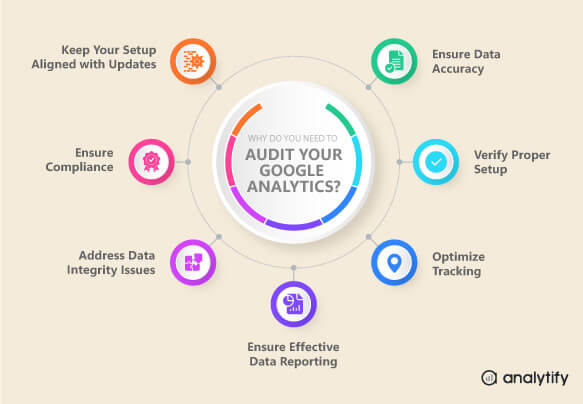
Here are several key reasons for why Google Analytics 4 Audit is necessary:
- Ensure Data Accuracy: An audit finds and corrects data collection issues, such as tracking code errors or misconfigured settings. Your data stays accurate and reliable.
- Verify Proper Setup: It ensures your Google Analytics account, properties, and data streams are set up correctly. They should match your business objectives and reporting needs.
- Optimize Tracking: By reviewing your tag implementation and event tracking, you can optimize how interactions and conversions are recorded.
- Ensure Effective Data Reporting: Auditing checks that your reports and dashboards deliver meaningful data and support effective analysis.
- Address Data Integrity Issues: It helps identify and resolve issues, such as spam, that distort your data and affect your analysis.
- Ensure Compliance: Regular audits confirm your setup complies with data protection regulations like GDPR or CCPA. That protects user privacy and avoids legal issues.
- Keep Your Setup Aligned with Updates: An audit helps you adapt your setup as your business evolves or Google Analytics updates its features. Tracking and reporting stay effective.
You should perform a GA4 audit at least once or twice a year. However, more frequent audits may be necessary if your website, business objectives, or Google Analytics features change significantly. That keeps tracking and reporting accurate. Our Google Analytics and Google Tag Manager Audit services let professionals handle your underlying tracking issues.
For example, export your GA4 reports and convert them into Excel spreadsheets. That enables deeper analysis and sharing across teams. It helps when you need to convert PDF to Excel for flexible data manipulation.
Requirements for Performing a GA4 Audit
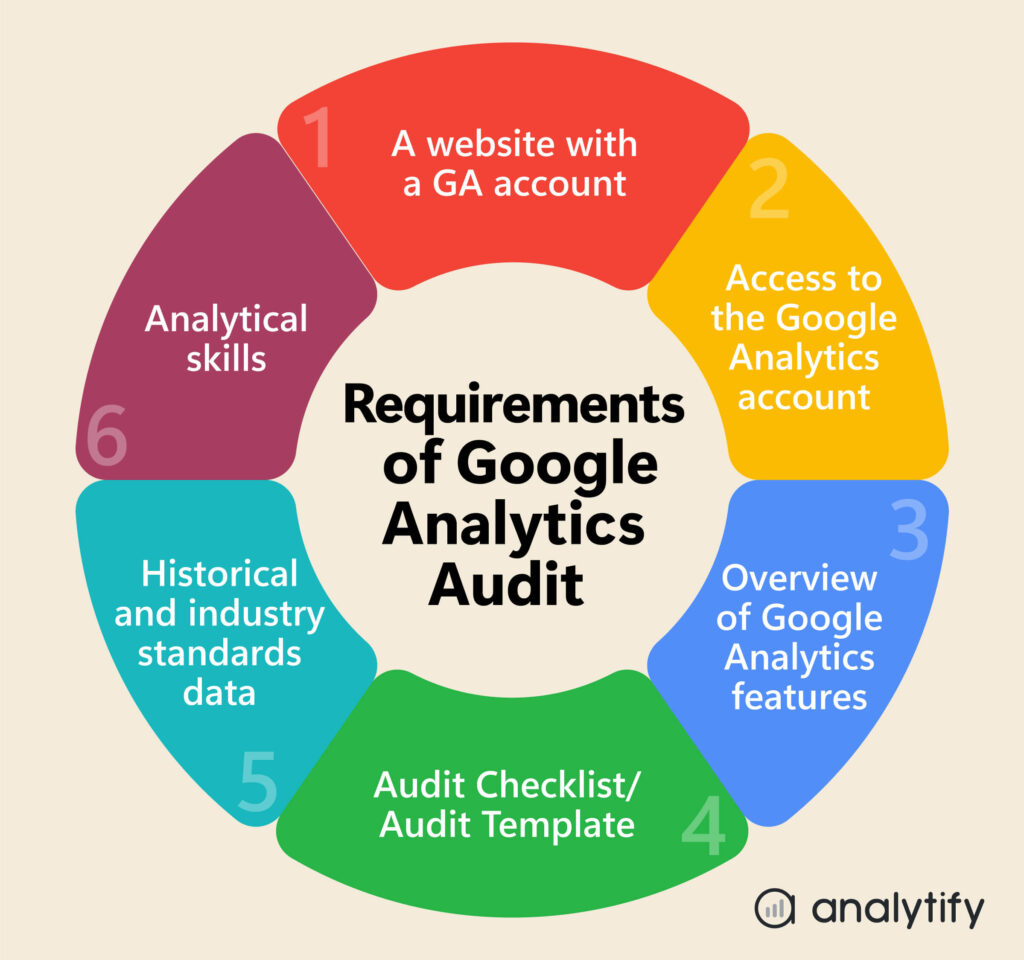
To conduct a Google Analytics audit, you’ll need the following:
- A website with a GA4 account: You’ll need a website, either your own or your client’s. It must be properly integrated with Google Analytics (GA4). This means ensuring that the GA4 tracking code is installed on all relevant pages across the site.
- Access to the Google Analytics account: Ensure you have the necessary permissions to view and analyze the account data.
- Understanding of Google Analytics features: Familiarity with the platform’s features and metrics is essential for accurate interpretation.
- Audit Checklist/ Audit Template: This can help you structure your analysis and ensure you cover all important areas.
- Historical and Industry Standards data: Access to previous months or years of data helps. Comparing with industry competitors shows trends, performance, and relative standing.
- Analytical skills: The ability to interpret data and draw meaningful conclusions.
Google Analytics Audit (10-Point Checklist)
The checklist below has 10 checks that confirm your GA4 data is accurate. Together they verify that your key metrics are tracked and that your property settings match your business goals.
Here’s a checklist for GA4 audit to ensure your GA4 is appropriately configured:
1. Check Whether the Default URL Is Set Correctly in GA4 Property
Ensuring that the default URL is set correctly in your GA4 property is crucial for accurate data tracking. This setting helps GA4 understand your website’s base URL, ensuring the data corresponds to the correct domain. An incorrect URL may lead to fragmented data in your reports, impacting accuracy.
To check the default URL:
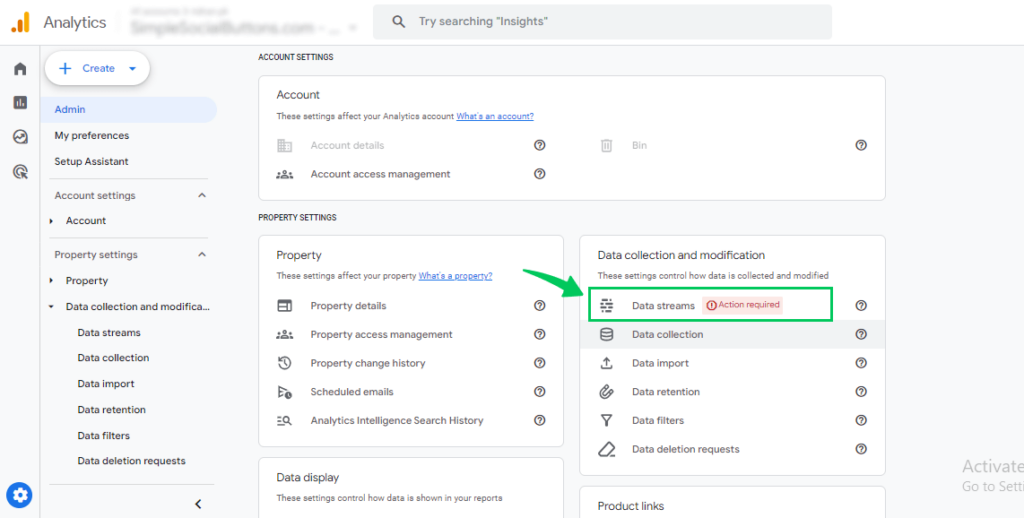
- Navigate to Admin in GA4.
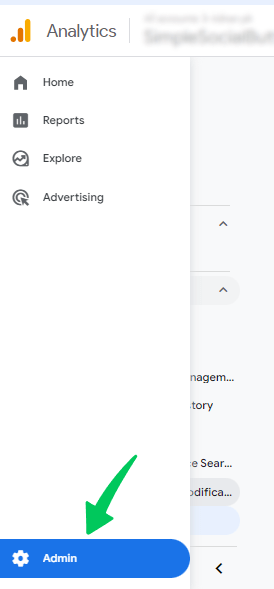
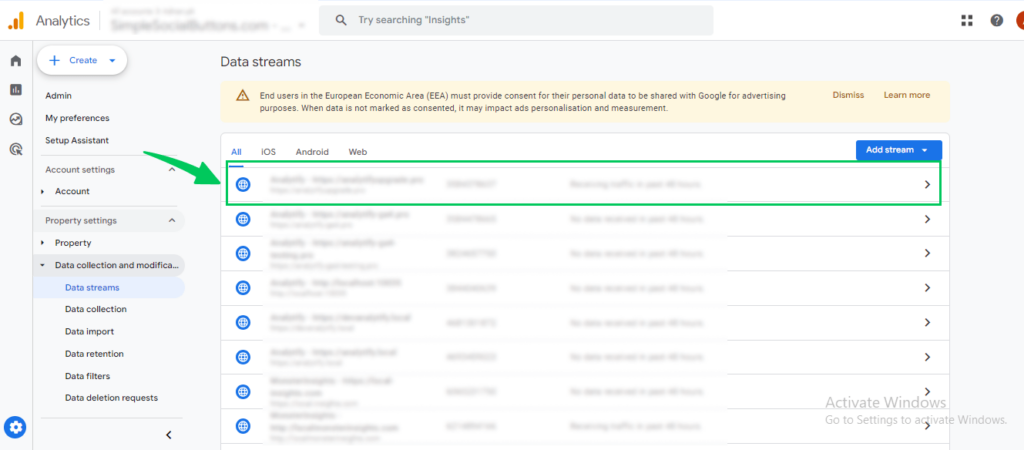
- Under the Property column, click on Data Streams.
- Select your web data stream.
- Ensure the URL is correct and properly formatted(e.g., “https://example.com”).
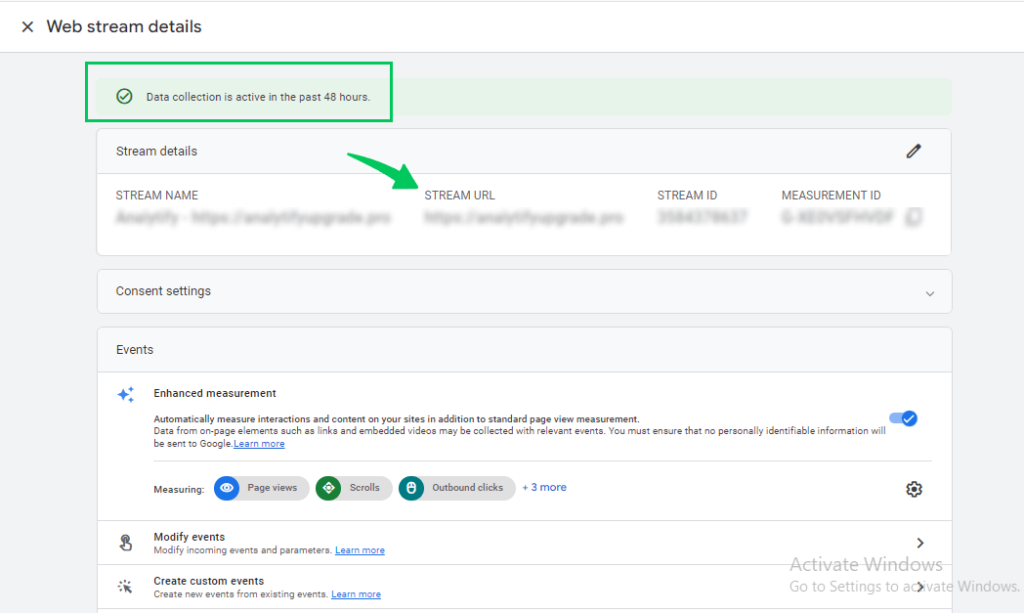
If the URL is incorrect, change it to your website’s main domain. This avoids discrepancies in data collection.
2. Review the Enablement of Demographic and Interest Reports
Demographic and Interest Reports provide a valuable understanding of your audience. However, Google Signals must be enabled to access these reports in GA4. This feature uses data from Google accounts that have opted into ad personalization. It offers detailed information about user demographics and interests. Ensure that Google Signals is activated for proper audience data collection.
Here’s how to enable it:
- Log in to your GA4 property.
- Navigate to Admin settings.
- Go to Data Collection.
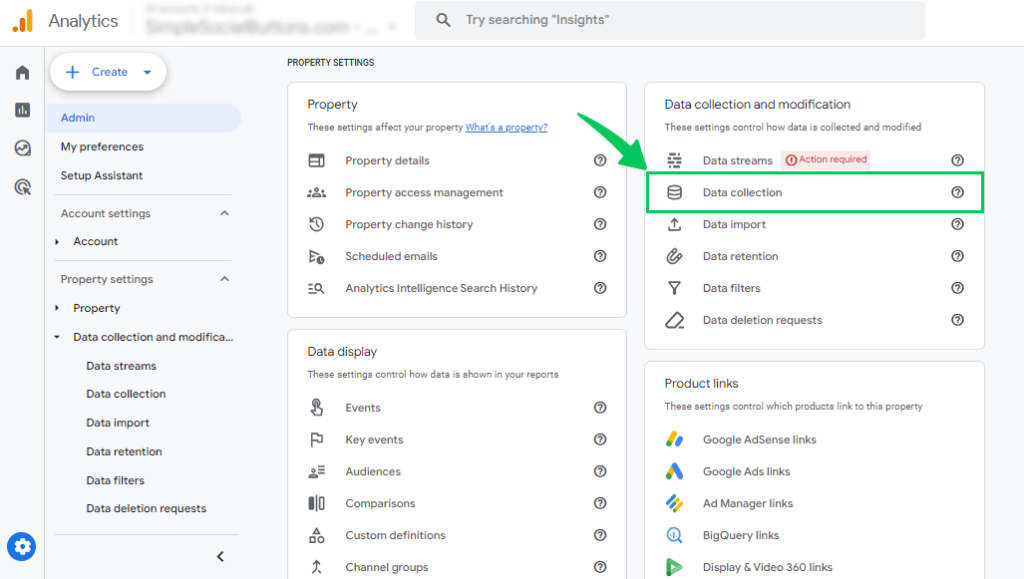
- Click on Toggle under “Google Signals data collection” to enable it.
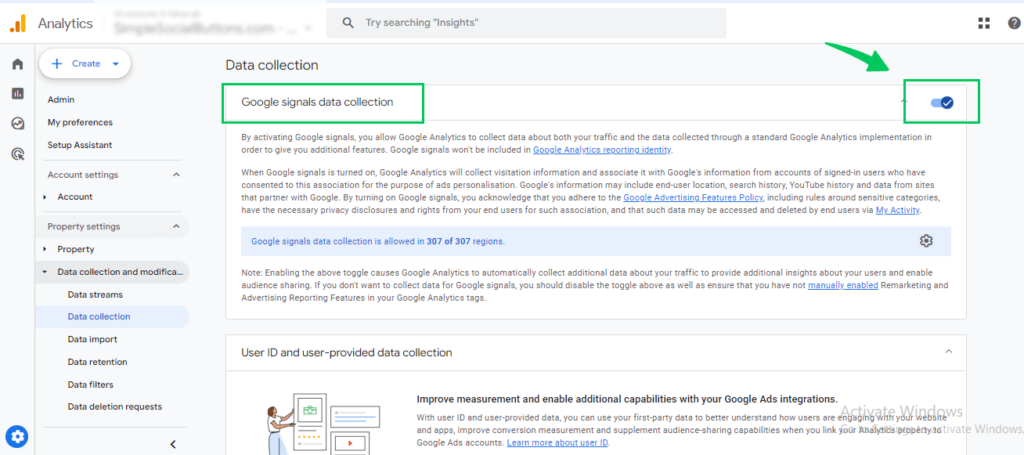
If not enabled, turn it on to collect demographic and interest data for more audience details.
3. Check if Bot Traffic Is Being Excluded
Google Analytics Help says GA4 automatically excludes traffic from known bots and spiders. You cannot turn this off, so there is no setting to change in this step.
Key points about known bot traffic exclusion in GA4:
- Automatic Exclusion: GA4 automatically excludes known bot and spider traffic from your reports.
- No Manual Control: Currently, you cannot disable this bot traffic exclusion. You also cannot view how much bot traffic was excluded from your data.
- Data Accuracy: The exclusion improves the reliability of your analytics. It focuses on genuine user interactions rather than automated traffic.
Confirming that this feature is functioning ensures your analytics data remains focused on fundamental user interactions.
4. Verify Time zone and Currency Settings
Make sure both the time zone and currency in your GA4 account are correct for your target market. The time zone setting affects how data is recorded and displayed in your reports. In contrast, the currency setting ensures that monetary transactions are accurately tracked and displayed correctly.
Correct time zone and currency settings align your reports with your region. They also make transaction tracking accurate. Misconfigurations can lead to discrepancies in reporting, especially in time-based and e-commerce data.
To set the correct time zone and currency:
- Go to Admin in GA4.
- Under the Property column, select Property Details.
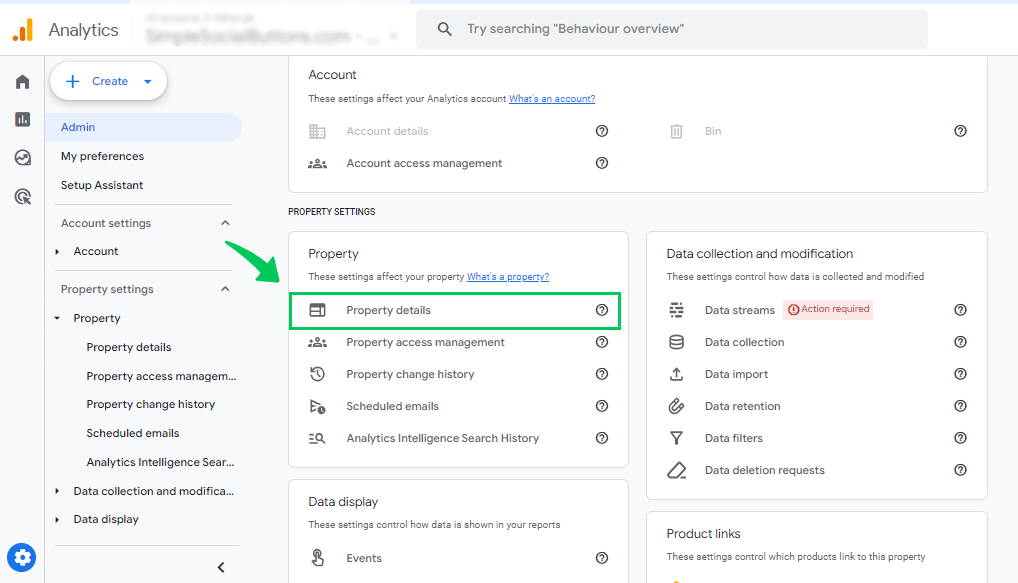
- Check the Reporting Time Zone and ensure it matches your region or target market.
- Verify that the Currency is set to the one used by your business or target market for ecommerce tracking.
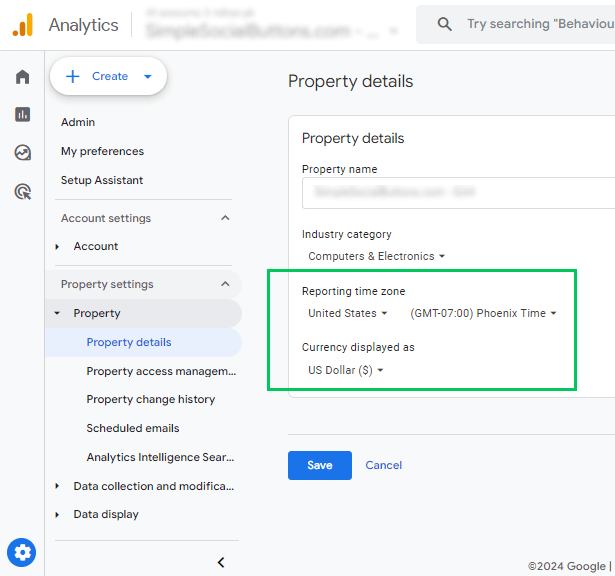
Accurate settings maintain the integrity of your data. This matters most when reviewing financial transactions or time-based reports.
A complete audit needs more than checking for technical issues. You also need to understand how data is structured and reported.
The Google Analytics Demo Account is an excellent tool for this purpose. It provides a real-life example of a fully configured account. Explore the demo to test audit strategies. You see firsthand how properly implemented tracking appears. That helps you build a more effective audit checklist.
5. Ensure Conversions Are Set Up Correctly
In Google Analytics 4 (GA4), key events (called conversions before Google renamed them) are events that measure actions important to your business. Make sure your most important key events are configured correctly, such as form submissions, product purchases and sign-ups.
To set up key events in GA4:
- Navigate to Admin.
- Select Events under your property.
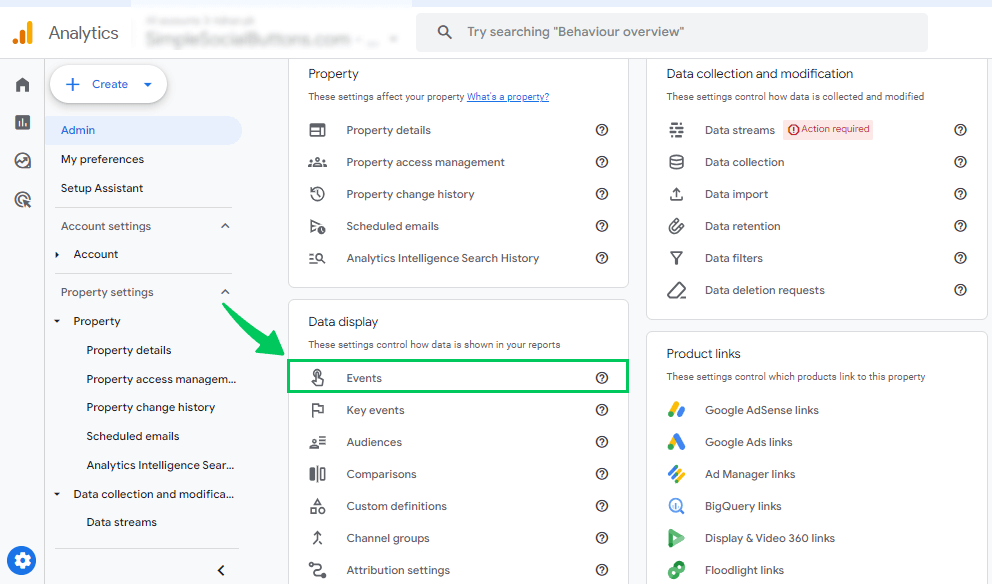
- Identify important events (e.g., form_submit, purchase) that should be tracked as key events.
- Mark each of these events as a key event by toggling the Mark as key event option next to it.
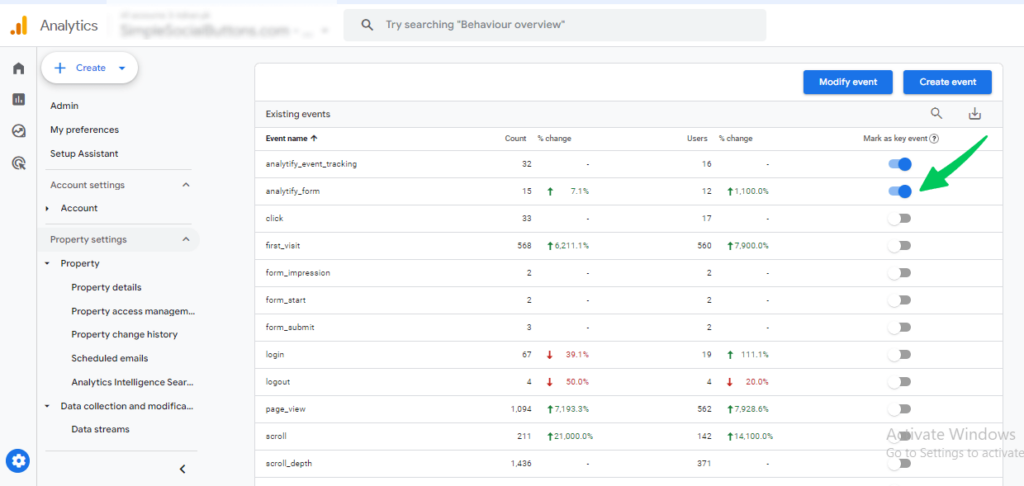
- If the event isn’t automatically listed, create a custom event. Set the correct parameters for actions like form submissions or button clicks.
Proper conversion setup lets you track how well your site meets key performance objectives. You can then optimize based on user behavior.
This article, “Conversion Rate in GA4,” provides more detailed guidance on tracking conversion rates in Google Analytics 4.
6. Check if Site Search Tracking & Enhanced Measurement Are Enabled
To track internal searches, enable Site Search Tracking and Enhanced Measurement in GA4. This captures valuable user behavior. This shows what terms visitors search for on your site. It helps you optimize content and improve user experience.
Here’s how to enable it:
- In GA4, go to Admin.
- Select your Data Stream under the Property column.
- Select web data stream.
- In the Enhanced Measurement section, check whether the toggle is enabled for enhanced measurement, then click the gear icon.
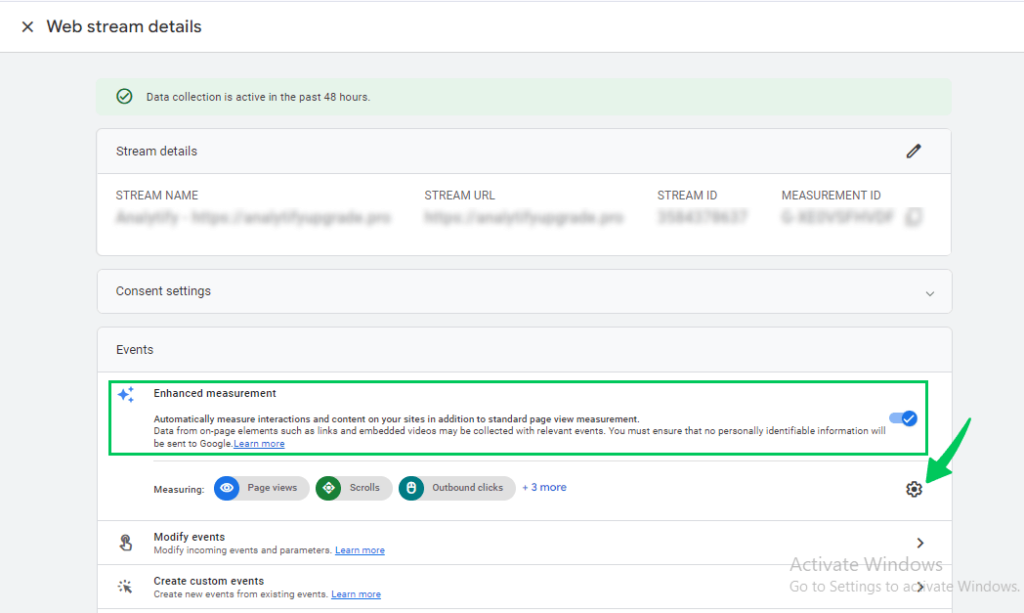
- Ensure Site Search is toggled on.
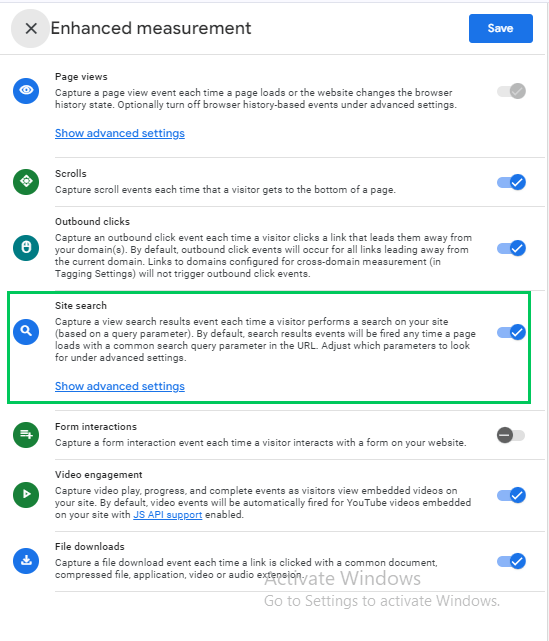
This captures the search terms users enter automatically. You can analyze which keywords they use and what information they want.
Google Analytics Help says Site search records a view_search_results event each time a user sees a search results page with a URL query parameter. GA4 watches the parameters q, s, search, query and keyword by default, so add your own parameter in the advanced settings if your site search uses a different one.
7. Verify the Filters Added to Your Views
To keep reporting clean and accurate, make sure data filters like excluding internal traffic are applied correctly in GA4. That avoids irrelevant or misleading data. Misconfigured filters can skew your data by including irrelevant interactions, such as those from your team members or employees.
To set up filters:
- Go to Admin in GA4.
- Under the Data Collection and modification, click on Data Filters.
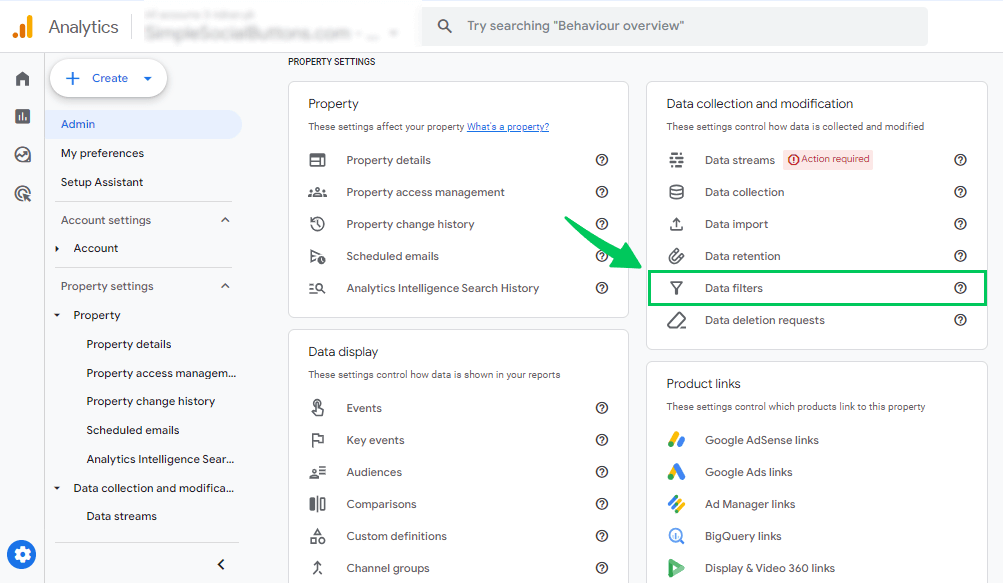
- Choose one data filter and click on it to display the settings of this data filter.
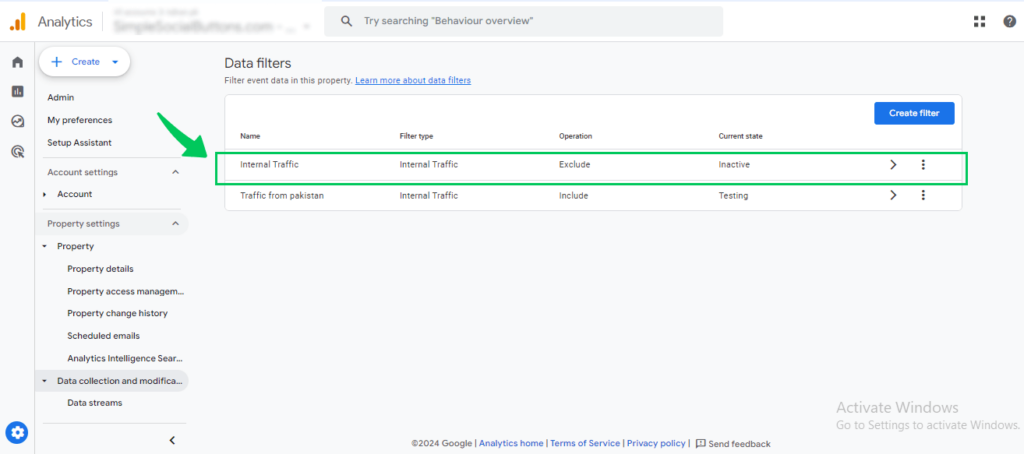
- Ensure that filters like Internal Traffic are set up and active, so the traffic you want to exclude is left out. Google Analytics Help says data filters do not affect historical data, so a filter only changes data processed after it is created.
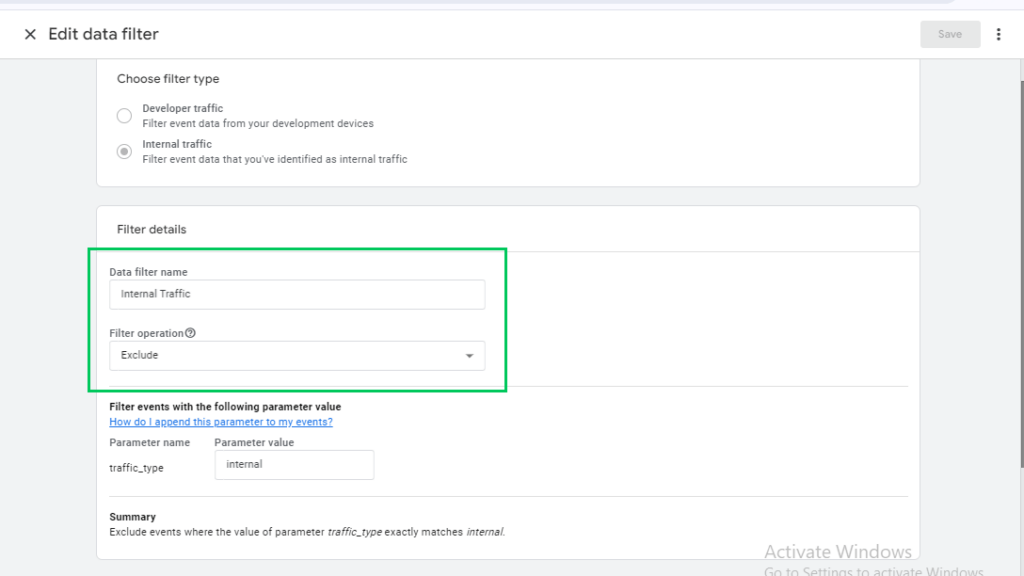
With these filters applied, you maintain the integrity of your analytics data. Only real user interactions are recorded and reported.
8. Validate Data in the Real-time Reports
The Real-time Reports in GA4 provide a snapshot of user activity on your site or app as it happens. This information can help you monitor live user interactions and understand the immediate impacts of recent changes or campaigns.
The Real-Time report shows current user activity on your site or app. It includes metrics such as active users, user locations, traffic sources, and the events they trigger. This helps you monitor live user activity and spot any anomalies or issues.
To access real-time reports:
- Go to the reports section.
- Choose the “Realtime” report.
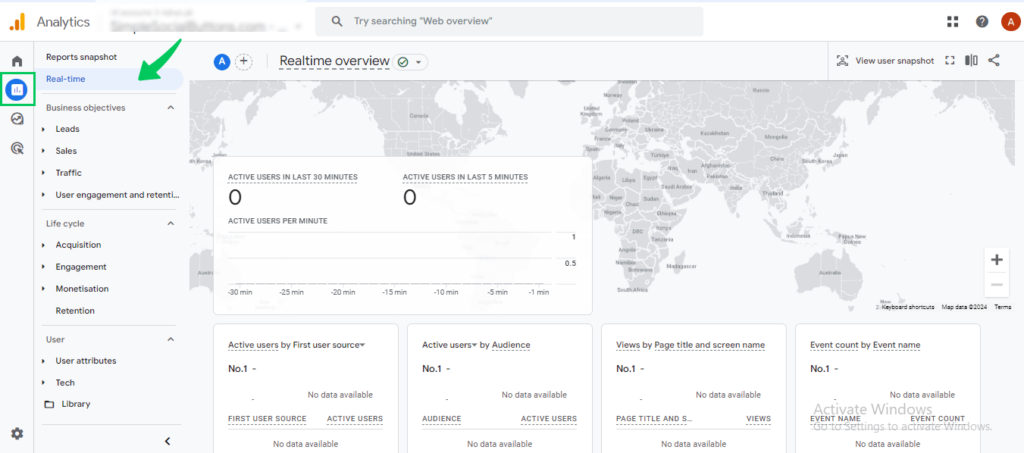
Check the Real-time Reports regularly. Monitor active users, their locations, traffic sources, and events to confirm that your tracking works as expected. If discrepancies are found, investigate potential issues with tag implementation.
9. Review Ecommerce Reports for Accuracy
If you have an ecommerce site, make sure e-commerce tracking is enabled in GA4. It measures revenue, product performance, and transactions. To check Ecommerce Reports in GA4 after enabling ecommerce tracking, follow these steps:
- Go to your GA4 property.
- On the left-hand menu, click on “Reports.”
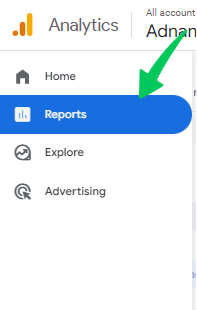
- Under “Reports,” find and click on “Monetization.”
- Within the Monetization section, click “Ecommerce Purchases.” This report shows key ecommerce metrics such as Revenue, Product Performance, and Transactions.
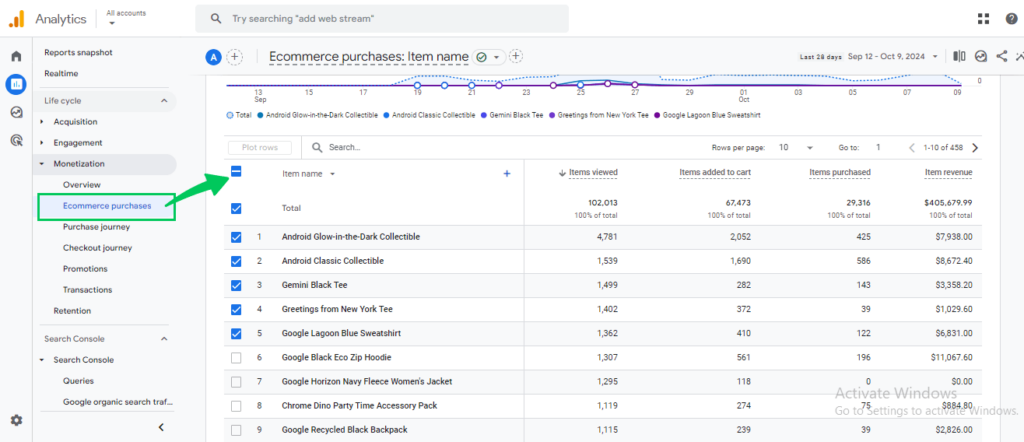
If these reports are empty, incomplete or incorrect, check your ecommerce events. Google Analytics Help says Analytics does not collect ecommerce events automatically, so your site must send events such as add_to_cart and purchase. If a required parameter is missing, the event is treated as a custom event and does not appear in the report.
The Ecommerce report also shows average purchase value, items per purchase, and the most popular products.
For more on e-commerce metrics and how they can improve your store’s performance, read this guide: 10+ important e-commerce metrics to Track in GA4.
10. Check if Google Search Console is Properly Linked
To ensure integration between Google Analytics 4 (GA4) and Google Search Console, verify that both are linked correctly. This lets GA4 pull organic search data directly from Search Console. You get an understanding of search performance and user behavior from search engines.
Steps to verify Search Console linking:
- In GA4, go to Admin.
- Under the Property column, select Product Links. Click Search Console links to check if your property is linked to your Search Console account.
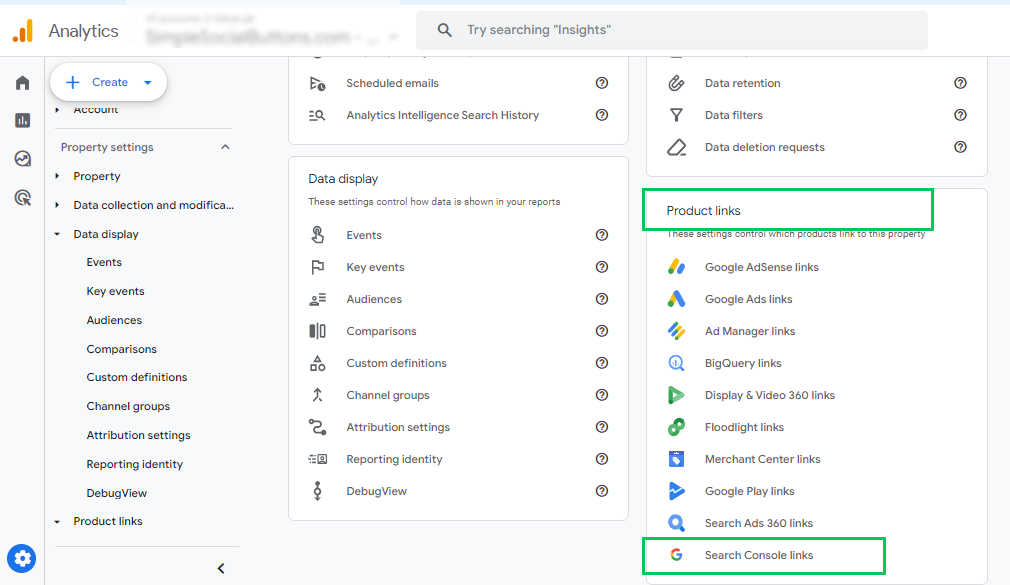
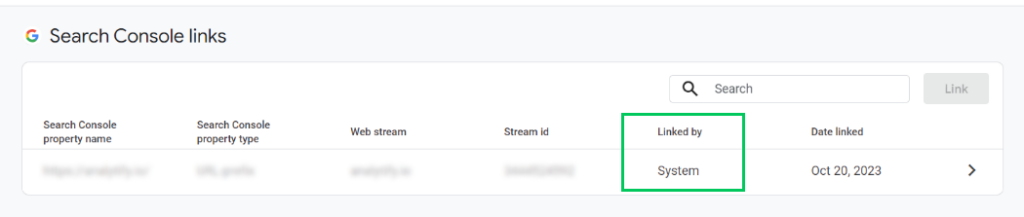
- If not, click Link. Follow the instructions to select your Search Console account and link it to the correct GA4 property.
- Confirm that the link is active. Google Analytics Help says the Search Console collection of reports is unpublished by default, so open Library in the left navigation and publish it to see the reports.
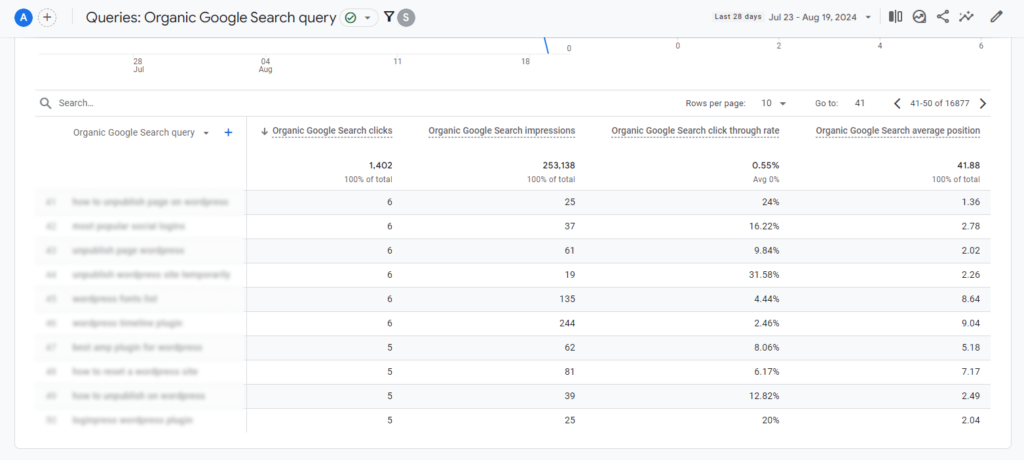
Ensuring proper linkage helps you analyze how your site is performing in Google Search and optimize your SEO strategy.
Conducting a thorough audit helps you maximize the SEO benefits of Google Analytics. Learn how to use Google Analytics for SEO here.
Simplify Google Analytics Audit with Analytify
Conducting a thorough Google Analytics audit can be complex, especially when managing various reports and metrics in GA4. Analytify makes this process much easier by offering a user-friendly interface that consolidates all important data into one place. It removes the need to navigate complicated menus.
Join 50,000+ beginners & professionals who use Analytify to simplify their Google Analytics!
Below are the key features that help streamline your auditing process:
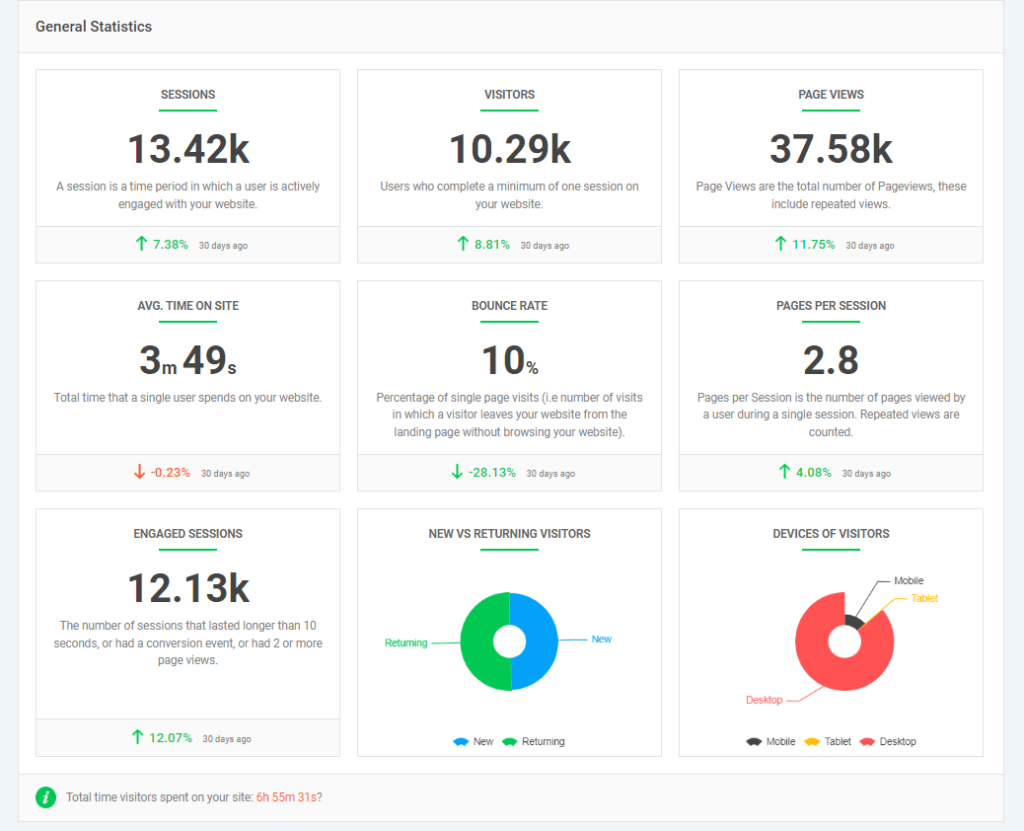
- Key Metrics displayed directly on the dashboard:
Analytify’s dashboard consolidates essential metrics like sessions, page views, and bounce rates. It makes reviewing your site’s overall performance easier.
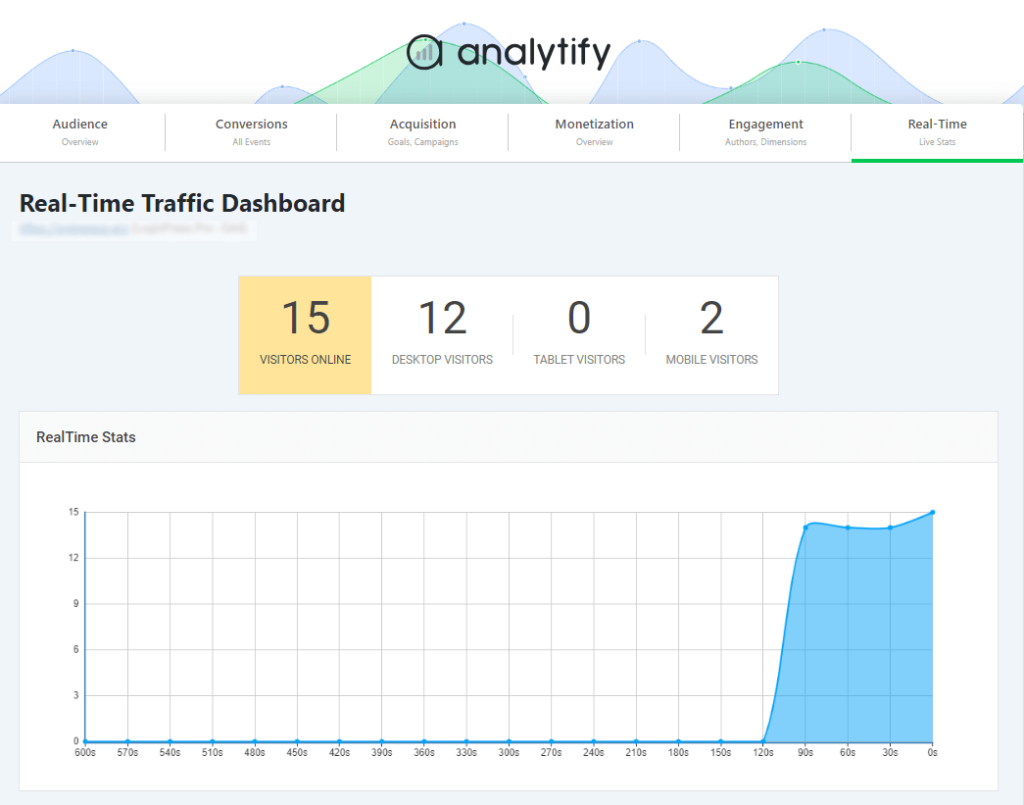
- Real-time Report
The real-time reporting feature provides live data on user activity. Monitoring a campaign or making immediate changes to your site, Analytify shows the impact in real time.
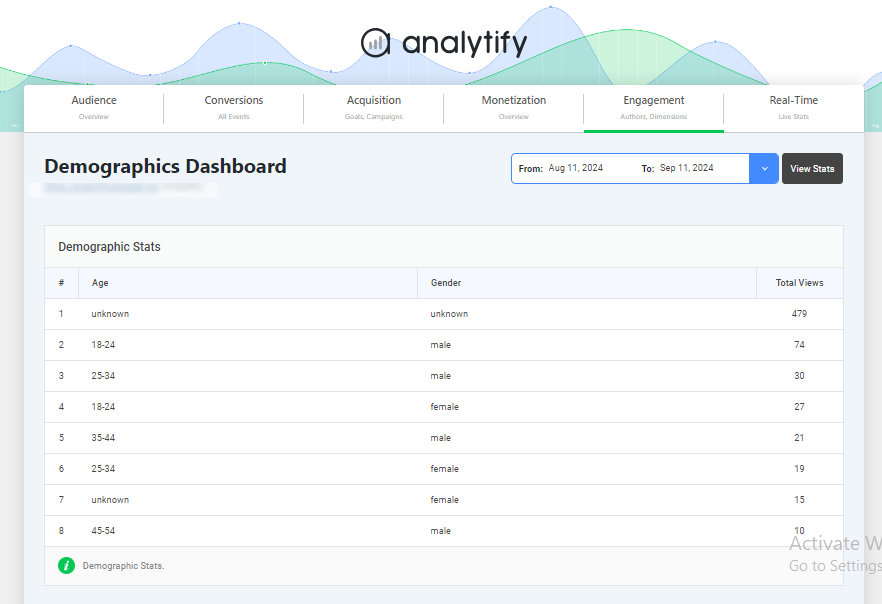
- Demographic and Interest Reports
Get details of your audience with Analytify’s demographic reports. This data is presented clearly and directly in the dashboard without manually setting up Google Signals in GA4.
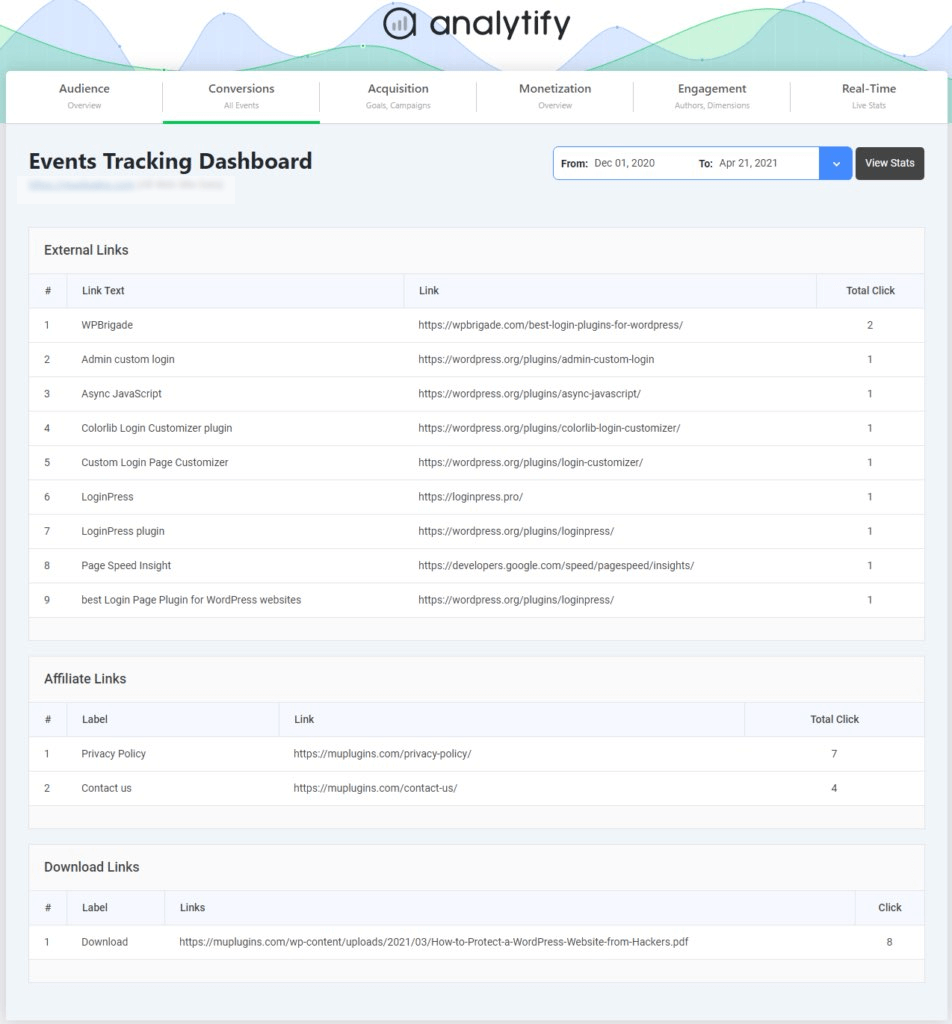
- Event Tracking
The Analytify Event Tracking add-on makes setting up and monitoring events straightforward. You can track essential user interactions like form submissions, downloads, and button clicks without exploring GA4’s complex event setup.
- Goal Tracking
Set and track goals in Analytify with the Goal Tracking add-on. It monitors and reports all key conversion actions (e.g., purchases, sign-ups). This feature helps verify your goals are correctly configured for accurate reporting during audits. - Ecommerce Tracking
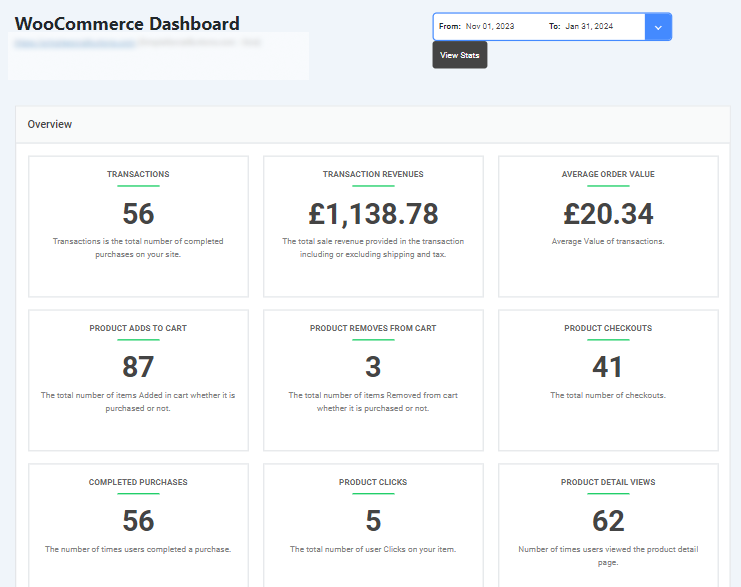
For e-commerce websites, the WooCommerce add-on provides integration, allowing you to track revenue, product performance, and transactions effortlessly. Analytify displays these metrics clearly, simplifying e-commerce audits.
- Email Notification Addon
Stay informed with real-time updates on your website’s performance via email, using the Email notification add-on. This feature keeps you updated on critical metrics without constantly logging in, enhancing the auditing process. - UTM Campaign Tracking
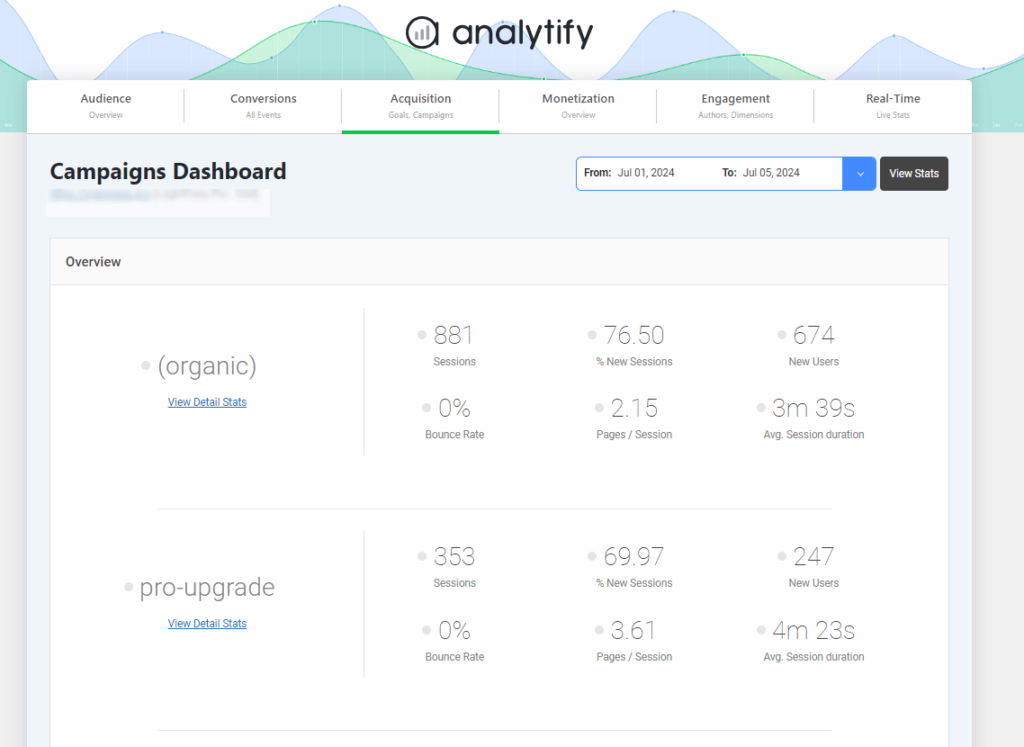
Analytify supports UTM campaign tracking, making it easy to see how your marketing efforts are performing. It tracks the success of various campaigns so that you can evaluate them during your audit.
- Search Term Dashboard
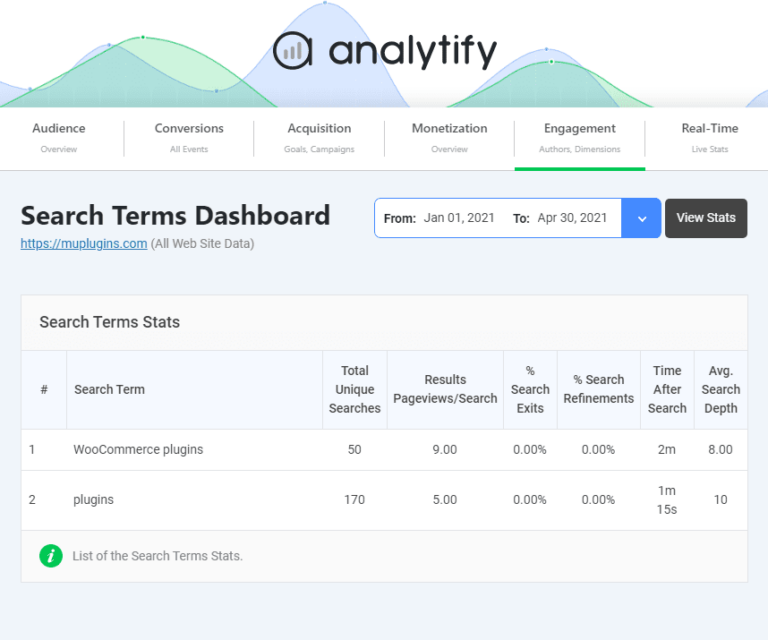
Analytify captures internal search queries entered by users and displays them in a search term dashboard. This valuable data helps identify what visitors are looking for on your site.
Using these features, Analytify simplifies auditing Google Analytics account, allowing users to focus on useful information and data accuracy. If you are shortlisting tools for GA4 audits, compare the best Google Analytics plugins first.
GA4 Audit FAQs
1. How often should I audit my GA4 setup?
It’s recommended to audit your GA4 setup periodically, especially after major website updates, changes to your business objectives, or any significant GA4 updates. Conducting an audit at least every six months helps maintain data accuracy and aligns your analytics with your evolving goals.
2. What are common issues found during a GA4 audit?
Some common issues include:
Misconfigured tracking codes or events.
Incorrectly set conversion goals.
Internal traffic is not being excluded.
Filters are not applied correctly.
3. When Should You Perform an SEO Audit?
You should conduct an SEO audit after major website changes, updates to search engine algorithms, or if you experience a notable decline in organic traffic.
4. How do I check my SEO audit?
Generate a checklist of all site issues and recommend fixes.
Run your website URL through a site audit tool. Before you get started, you’ll need to find a website auditing tool that can help you analyze how your website is performing.
Find technical errors.
Identify SEO problems.
5. What is the difference between audit and analytics?
Audit refers to reviewing, assessing, and verifying data, systems, or configurations to ensure accuracy, compliance, and optimization. In the context of GA4, an audit checks if the setup is correctly tracking data.
Analytics involves collecting, analyzing, and interpreting data. GA4 refers to examining user behavior, traffic sources, and conversion metrics.
Final Thoughts: Google Analytics Audit
A thorough Google Analytics 4 (GA4) audit is essential for accurate, reliable analytics data on your website. A regular audit helps identify and resolve common issues. These include misconfigured tracking codes, incorrect conversion setup, and internal traffic distortion.
Check settings like your URL, timezone, filters, and ecommerce tracking. This ensures your GA4 setup aligns with your business objectives. Ultimately, this helps optimize data collection and reporting, improving performance analysis.
For more on key Google Analytics reports that explain your site’s performance, read this article on Important Google Analytics reports for WordPress sites.
Running a SaaS platform? See our Technical SEO Audit Checklist For SaaS.
Feel free to leave a comment below to share your thoughts or ask any questions!



 Halloween Sale: Know which campaigns drive sales this season.