
16 Best Practices for WordPress SEO to Improve Search Rankings

WordPress powers over 40% of all websites. But having a WordPress site does not automatically mean you rank well in search.
Good WordPress SEO comes down to a set of specific practices, most of which take less than an hour to set up correctly.
This guide covers 16 proven WordPress SEO best practices to improve your search rankings, increase organic traffic, and fix the most common mistakes site owners miss.
Table of Contents
Improve your WordPress SEO today with these useful tips!
What is Search Engine Ranking?
Search engine ranking is a website’s position on a search engine results page (SERP) for a specific keyword. The higher you rank, the more organic traffic you get.
Google determines rankings based on content quality, site authority, and user experience. SEO is the practice of improving these factors so your site appears higher in search results.
Keeping track of your website’s search engine ranking is essential for monitoring its performance. To help you with that, I have compiled a list of 5 ultimate tools and tips for better SEO. These tools and tips will help you improve your website’s search engine ranking, increase your visibility to potential customers or audiences, and ultimately drive more organic traffic to your website.
Why is Search Engine Optimization (SEO) Important for Ranking on Search Engine Results Pages (SERP)?
WordPress SEO optimization tips work because they help search engines understand what your content is about and whether it deserves to rank. Optimizing your site’s structure, content, and keywords leads to better visibility and more organic traffic.
Higher rankings bring more clicks, more leads, and more conversions. SEO is also a long-term strategy. Sites that rank well build credibility and authority over time.
Google’s John Mueller has noted that SEO helps websites communicate their relevance to search engines. His core advice: create high-quality, informative content that is easy for both users and search engines to navigate.
Are you searching for SEO statistics that can help improve your website’s rankings? You’re not alone. Keeping up with the latest SEO statistics is essential in the ever-changing digital world.
Here are 24+ SEO statistics that can guide you in creating an effective strategy.
16 Best WordPress SEO Practices To Improve Your SERP Ranking
| WordPress SEO Practice | Why It Matters |
|---|---|
| Set your time zone | Ensures scheduled posts publish at the right time |
| Enable social media metadata | Improves link previews and drives referral traffic |
| Create and submit an XML sitemap | Helps Google and Bing crawl and index your site |
| Configure permalinks | Improves CTR and keyword relevance in URLs |
| Publish content consistently | More keywords covered, more ranking opportunities |
| Fix broken links | Prevents crawl errors and poor user experience |
| Fix memory exhausted errors | Keeps the site stable and avoids downtime |
| Update existing content | Revives old posts and maintains ranking longevity |
| Take regular backups | Protects against hacking, data loss, and errors |
| Check Core Web Vitals | Page speed is a confirmed Google ranking factor |
| Fix 404 errors | Reduces crawl waste and improves user experience |
| Decide on AMP | Commit fully or skip entirely to avoid conflicts |
| Set WWW vs. non-WWW | Prevents duplicate content and split link equity |
| Check site visibility setting | Ensures search engines can crawl your site |
| Track SEO performance with Analytify | See GA4 data inside WordPress for smarter decisions |
| Install an SSL certificate | Required for HTTPS, a confirmed Google ranking signal |
Here are 16 WordPress SEO optimization tips to improve your website’s ranking on search engine results pages (SERPs).
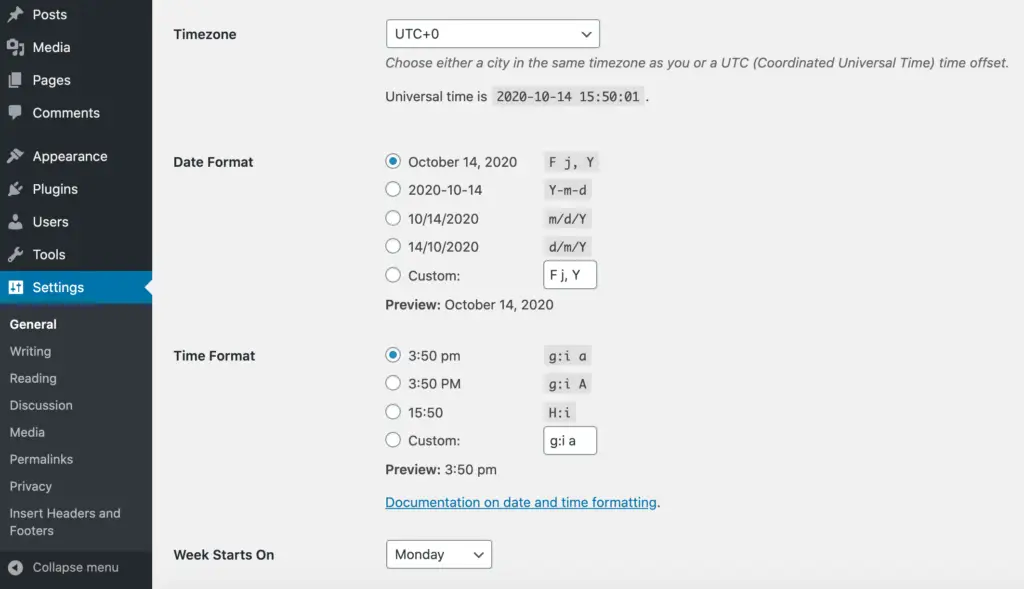
Set your Time Zone
First, start with an easy thing: set your time zone.
When you schedule posts, WordPress uses your site’s time zone to determine when to publish them.
If the time zone is wrong, posts go live at the wrong time. That affects views, shares, and organic engagement.
This will affect everything from views to shares of your content; overall, it will affect your organic engagement.
You can set the time zone of your WordPress website by going to settings and clicking on the General option.
You will see a section named Timezone that allows you to select a time zone from a drop-down menu.
You are Avoiding Social Media Meta Data
Social media does not directly affect Google rankings. But it drives traffic to your site, and more traffic signals to Google that your content is worth ranking.
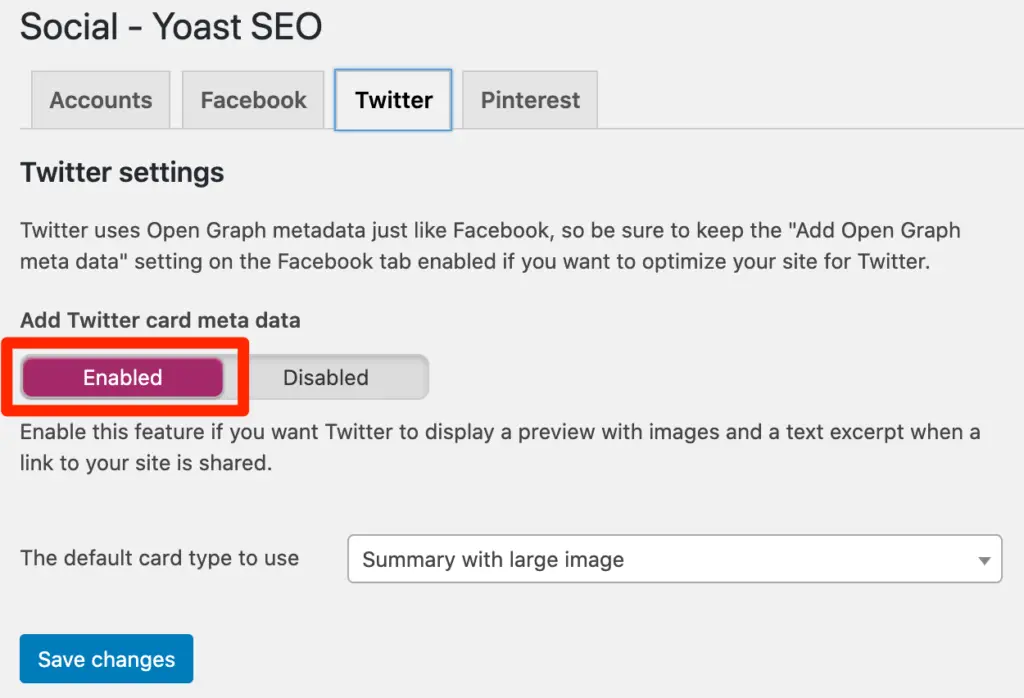
You can use the Yoast SEO plugin to enable the Open Graph metadata for Facebook, Twitter, and Pinterest.
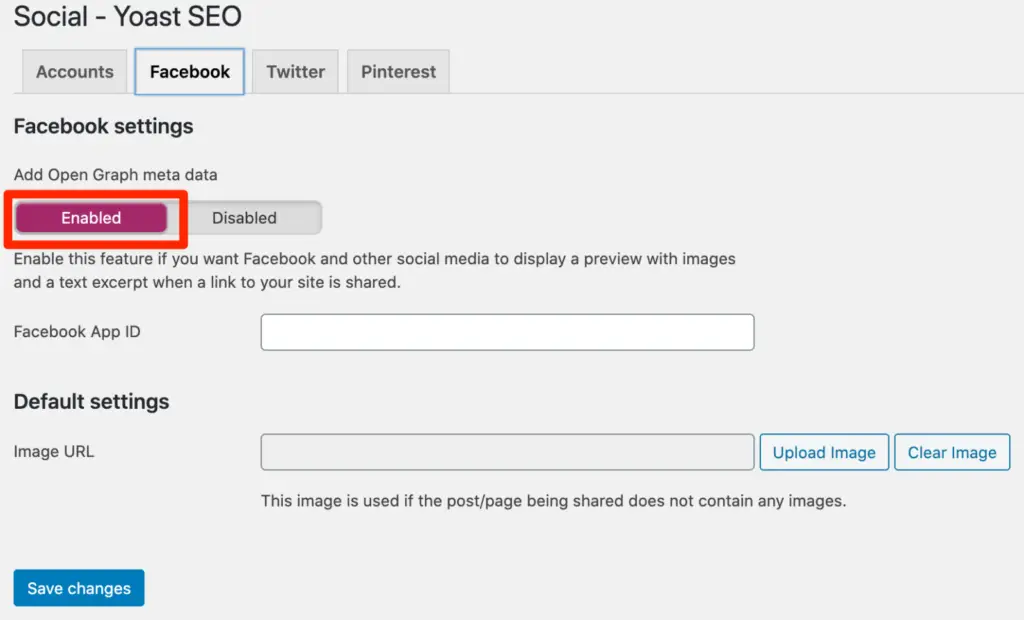
To perform this action, go to your Yoast SEO plugin for WordPress, simply slide the enable or disable option to Add Open Graph Metadata.
Create an XML Sitemap if you don’t have one
An XML sitemap tells search engines which pages exist on your site and how to find them. If you have not submitted one yet, do it now.
You can use the Yoast SEO plugin to create a sitemap for your website. Go to your Yoast SEO plugin, click on the SEO option, and go to XML sitemaps.
To create a sitemap for your website, simply enable the XML sitemap functionality from the disabled option.
Now submit your website’s sitemap to Google Search Central, as well as the Bing Webmaster Tool.
Set your Permalinks
Your permalink structure directly affects both SEO and CTR (click-through rate). A clean, keyword-rich URL is easier for search engines to read and more likely to get clicked in search results.
WordPress can generate clean permalinks automatically, so you do not have to set each one manually.
In the setting, click on the permalinks, and you will find a handful of different options like date, numeric, and plain permalink options.
But to automate the process, you have to select the option Post name.
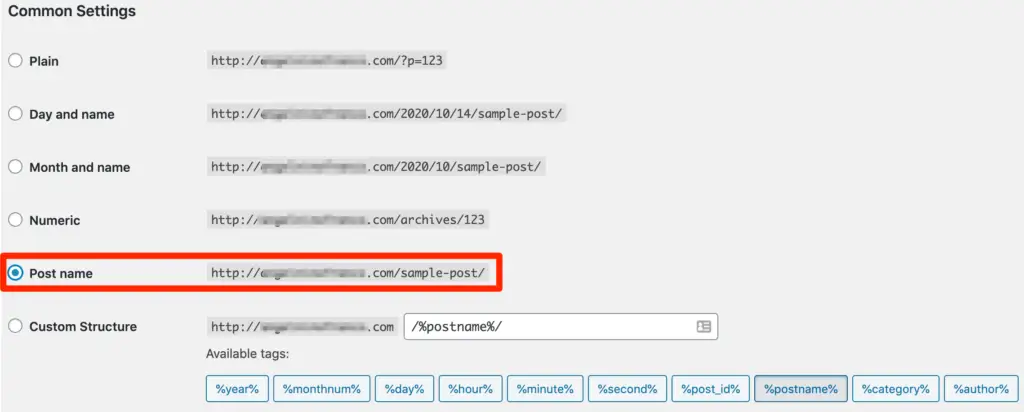
This option will automatically create permalinks of your post according to the title of the post, plus you can also change the permalink if you want.
Write and Publish More Content
Publishing more content means targeting more keywords. More keywords mean more ranking opportunities. Each new post gives Google another page to index and another chance for your site to appear in search results.

Fix your Broken links
Broken links occur when an external URL changes or when you update a post’s permalink. Check your site regularly to catch and fix them before they hurt your SEO.
You do not need to hunt for broken links manually.
You can use a WordPress plugin called Broken Link Checker, an amazing plugin to find the broken links in a WordPress website.
Fix Memory Exhausted WordPress Error
WordPress sets a default memory limit for your site. If a plugin or script pushes past that limit, you will see a “Fatal error: Allowed memory size exhausted” message.
To resolve this error, simply of your WordPress website’s ” wp-config.php ” file and add the following code within your main body of PHP tags
define('WP_MEMORY_LIMIT', '64M');
This code sets your memory limit to 64M, you can change the number if you want to set a higher value.

Update your Existing or previous Content
Creating new content matters. But updating your existing content matters just as much.
One of the most common WordPress SEO mistakes is letting old content go stale.
Refreshing an old post makes it relevant again and can recover lost search rankings.
Most blog posts have a useful life of around 2 years. After that, traffic drops unless you refresh the content.
If you don’t update your old content, you will lose a lot of valuable blog traffic.

Take a backup of Your Website/Blog
Hacking, viruses, or plugin conflicts can damage or destroy your website without warning.
Always take a backup before making changes or fixing errors. A repair attempt can sometimes make things worse..
Check for Core Web Vitals Errors and Page Speed Issues
Core Web Vitals have been a confirmed Google ranking factor since 2021. Check Google Search Console regularly to catch and fix any Core Web Vitals issues on your site.
Fast-loading sites rank better. Google also rewards speed with a visible label in mobile search results.
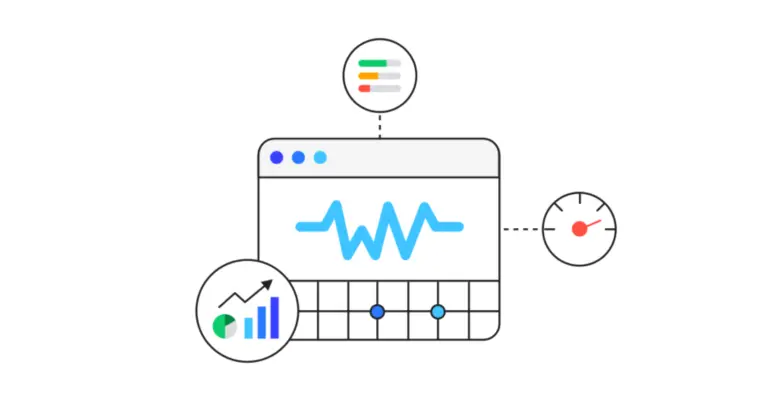
Your hosting plays a critical role in maintaining website speed. Choosing the right hosting provider, especially for complex setups like WordPress Multisite, is critical. Poor hosting can lead to slow load times, frequent downtime, and other technical SEO mistakes that negatively impact your search rankings and user experience.
Fix WordPress 404 Error
A 404 error occurs when a URL no longer exists, usually after a permalink change. There are two fixes: reset your permalinks manually, or set up a 301 redirect from the old URL to the new one.

Decision on AMP Pages
AMP (Accelerated Mobile Pages) requires a clear commitment. Either implement it across your blog section or skip it entirely. A partial rollout creates maintenance problems and inconsistent page experiences.
AMP should be used for the blog section only, you can also use AMP for other website pages but you have to maintain these pages.
WWW vs. non-WWW in URLs
Every WordPress site has two possible URL versions: www.example.com and example.com. They look similar, but using both without a redirect can hurt your SEO.
If both versions are active without a redirect, search engines treat them as two separate sites. This splits your link equity and lowers your rankings. Pick one version and stick with it.
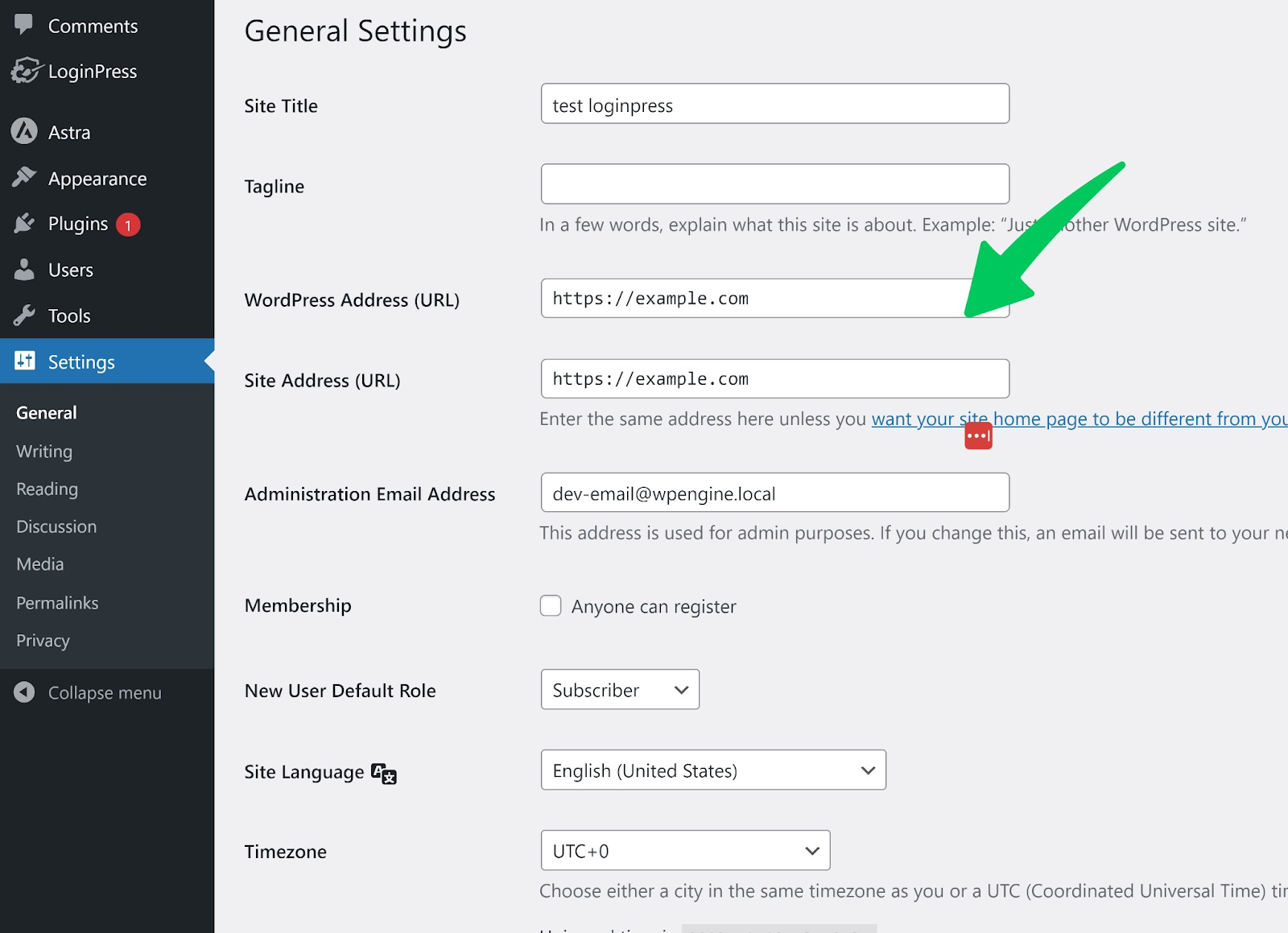
To set your preferred URL in WordPress, you’ll need to navigate to the Settings section and select General. Once you’re on the General page, you’ll notice two fields titled ‘WordPress Address’ and ‘Site Address.’
In these fields, you can add your preferred URL for your website. It’s important to ensure that both fields have the same URL to avoid issues with your site’s functionality. By setting your preferred URL, you can ensure that visitors are directed to the correct domain and that your website is optimized for SEO. Check your site’s visibility setting.
Check Your Site’s Visibility Setting
WordPress has a setting that can block search engines from indexing your site. It is easy to turn on accidentally during development. Check it now to make sure your site is visible.
To check your site’s WordPress visibility setting, you must first log in to your WordPress dashboard. From there, navigate to the ‘Settings’ tab and click ‘Reading.’ Here, you will see an option that says ‘Search Engine Visibility.’
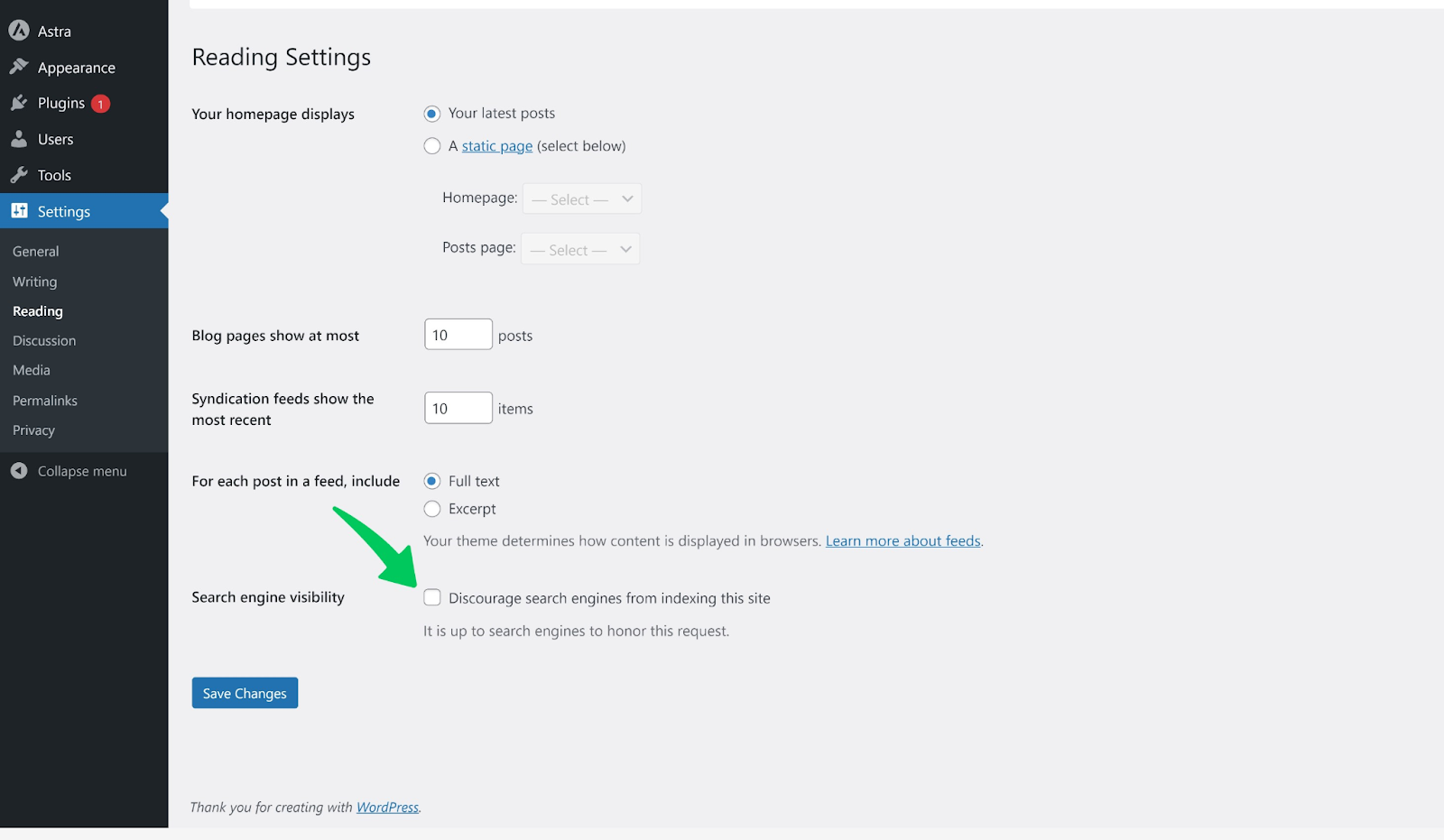
Ensure this box is unchecked, as it allows search engines to crawl your website and index its content. If this box is checked, your website will not be visible to search engines, and your content will not appear in search results. By ensuring this box is unchecked, you can keep your website visible to the public and ensure your content is easily discoverable.
Tip: Adding schema markup helps search engines display rich snippets (star ratings, event dates, product info) directly in search results. This can improve your click-through rate significantly.
Track Your WordPress SEO Performance with Analytify
Analytify connects Google Analytics to your WordPress dashboard so you can track traffic, page views, and bounce rate without leaving your site. It turns GA4 data into clear, readable reports that are easy to act on.
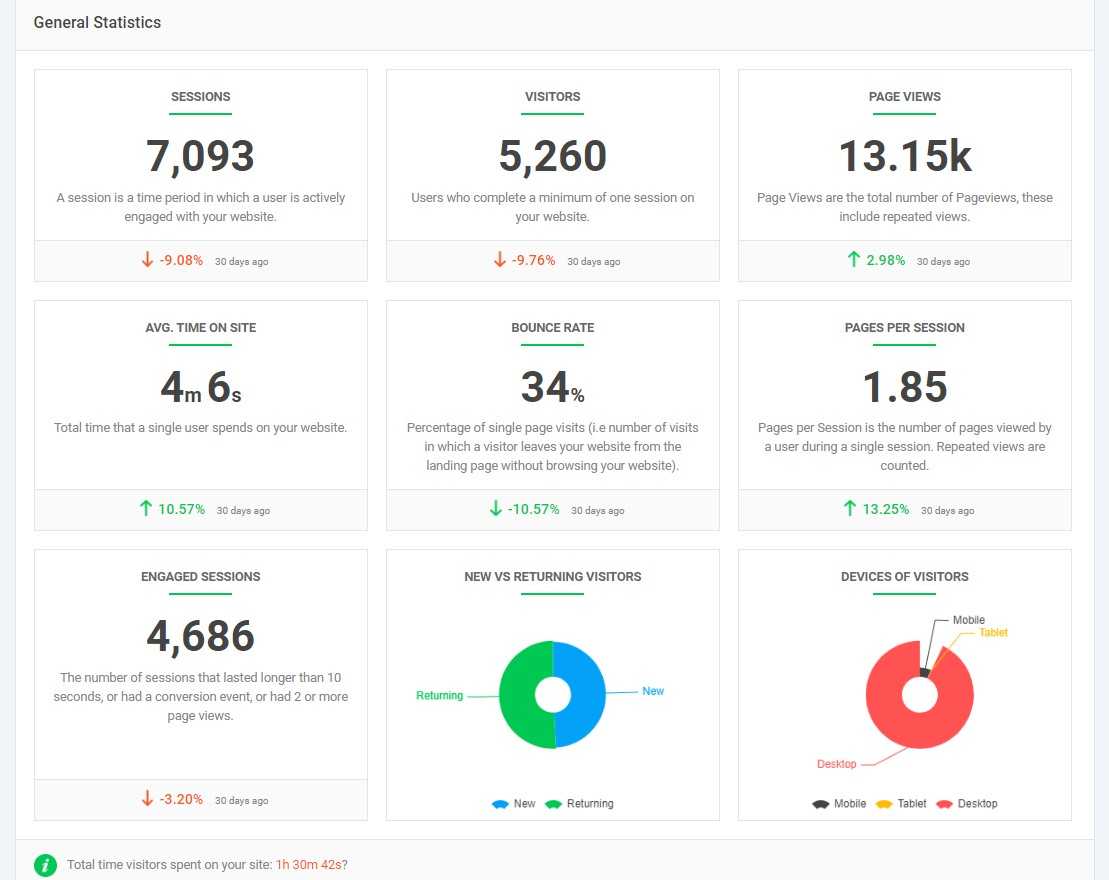
When you know which pages are gaining traffic and which are losing it, you can take action. Analytify gives WordPress site owners that visibility without needing to open GA4 separately.
By tracking important metrics like page views, bounce rate, and average session duration, website owners can identify areas for improvement and take action to optimize their website’s content and user experience.
Learn how to install and set up Analytify in your WordPress dashboard today!
Use of SSL Certificate
SSL (Secure Sockets Layer) encrypts data between your server and your visitors. Without it, browsers show a “Not Secure” warning, which drives visitors away and hurts your rankings.
Google confirmed SSL as a ranking signal in 2014. HTTPS sites consistently outperform HTTP sites in search results.
Google and other search engines give preference to secure websites over non-secure websites. Hence, having an SSL certificate installed on your website can help it rank higher in the search engine results pages (SERPs).
Additionally, SSL certificates also enhance the user experience, as they provide a sense of security and trust to your website and visitors. Overall, using SSL certificates is a good practice for website owners who want to improve their search engine rankings and provide a safe browsing experience to their users.
Frequently Asked Questions: WordPress SEO Tips
1. Does WordPress do SEO?
Yes, WordPress offers several SEO features and plugins to help improve your website’s search engine rankings.
2. How do I SEO my WordPress site?
1. Install an SEO plugin such as Yoast SEO or All in One SEO Pack
2. Use keyword-rich titles and descriptions for your pages and posts
3. Optimize your images by compressing them, adding alt tags, and using descriptive file names
4. Optimize your content by using header tags (H1, H2, H3), writing quality content, and including internal links
5. Improve your site speed by using a reliable hosting provider, optimizing your images, and using caching plugins
6. Build quality backlinks by guest blogging, participating in forums, and writing valuable content to which other sites will link.
3. Does SEO need money?
Yes, SEO requires money as it involves creating quality content, optimizing website structure, and building backlinks, which may require investment.
4. How do I set the time on my WordPress site?
Here are the steps to set the time on your WordPress site:
1. Log in to your WordPress dashboard.
2. From the left-hand menu, click on Settings and General.
3. Scroll down to the Timezone section.
4. Select your time zone from the dropdown menu.
5. Click the Save Changes button at the bottom of the page.
Your WordPress site will then display the correct time according to your time zone
5. How do I turn off metadata in WordPress?
To turn off metadata in WordPress, you can use a plugin like WP Meta and Date Remover or manually edit the PHP code of your WordPress theme to remove the metadata tags.
6. Is XML sitemap free?
An XML sitemap is a file that lists all the meaningful URLs of a website for search engines. It helps search engines crawl a website more efficiently and effectively. The good news is that XML sitemap is free and easy to create. There are various online tools available that can generate XML sitemap for your website without any cost. Many content management systems, such as WordPress, also have plugins that can automatically generate and update XML sitemaps for your website. So, you can create an XML sitemap for your website without any cost.
7. How do I add a sitemap?
To add a sitemap, you need to create an XML file that lists all the pages on your website. Then, submit the sitemap to Google Search Console or any other search engine you want to appear on.
8. How do I publish high-quality content?
Here are some specific points for publishing high-quality content:
Know your audience
Conduct thorough research
Create a clear and concise message
Use proper grammar and formatting
Engage with your readers
As for the opinion of John Mueller, is a webmaster trends analyst at Google. He has emphasized the importance of creating high-quality content that is relevant and useful to users. He has also stressed the importance of avoiding black hat SEO techniques and focusing on creating valuable content for users.
9. How do I find broken links?
You can use various online tools such as Dr. Link Check, Broken Link Checker, or Google Search Console to find broken links. These tools can crawl your website and detect any broken links so that you can fix them.
10. What are the best WordPress SEO tips?
The best SEO tips for WordPress include setting a clean permalink structure, submitting an XML sitemap, enabling HTTPS, keeping content updated, and tracking performance with a plugin like Analytify. Start with the technical foundations before optimizing individual posts.
11. How to improve SEO with WordPress?
To improve SEO with WordPress, install an SEO plugin like Yoast SEO, configure your permalink structure, create and submit an XML sitemap, fix broken links, and regularly update your content. Use Analytify to track your progress directly inside your WordPress dashboard.
12. Why isn’t my WordPress site showing up in Google search results?
A site usually fails to appear in Google because it is still set to discourage search engines, a setting found under Settings, Reading, or because key pages carry a noindex tag from your SEO plugin. Check Google Search Console’s URL Inspection tool to see whether the page is indexed and what is blocking it. New sites can also take one to two weeks to appear after their first sitemap submission, so confirm the sitemap was actually submitted before assuming something is broken.
WordPress SEO: Conclusion
These 16 WordPress SEO best practices do not require advanced technical skills. Most can be set up in under an hour.
Start with the quick wins: fix your permalink structure, submit your sitemap, and check your site visibility setting. Then work through the rest.
To track whether your WordPress SEO is improving, use Analytify. It shows your GA4 data directly inside WordPress, so you can see what is working and what still needs attention.
You may also like to read: Top 10 Google Analytics Tips And Tricks (2026)


This is really impactful content, it can help me to grow and know what’s the real mistake I just doing on WordPress SEO. I just need more can you update more and notify me.
Thank you Shubham for your Appreciation, we will update you with new articles and tips.