
How to Use Google Analytics 4 Audiences To Drive Growth?

A Google Analytics 4 audience is a group of users who meet conditions you define. You can use audiences to analyze user behavior and retarget those users.
I recommend the separate guide on the full GA4 setup: How to Set Up Google Analytics 4 and Connect it to Your WordPress Site?.
Audiences group users by behaviors, characteristics, or actions, so you can analyze what each group does and retarget it more precisely. A new GA4 audience can take 24 to 48 hours to start filling with users, and you can use audiences for remarketing in Google Ads.
I cover what GA4 audiences are, their components, and their types below. I also show how to create, manage, and analyze audiences in Google Analytics 4, and how Analytify simplifies audience insights inside your WordPress dashboard.
Google Analytics 4 Audiences (TOC):
What are GA4 Audiences?
In Google Analytics 4, Audiences are groups of users who share common characteristics based on conditions you define, such as behaviors, attributes, or events. These audiences help you analyze targeted user groups and deliver personalized experiences through Google Ads and other platforms.
Unlike segments, which are temporary filters applied to your reports for analysis, audiences are persistent groups that GA4 keeps updating as new data arrives, and that you can use for remarketing.
Key Components of GA4 Audiences
There are the following three components of GA4 Audience:
- Dimensions:
These are the qualitative attributes used to define audience conditions, such as device type, city, browser, or user age. For example, you can create an audience of users aged 25–34 using mobile devices. - Metrics:
These are the quantitative values that help qualify audience behavior, like session count, conversion rate, or average time on site. For instance, you might build an audience of users who’ve had more than three sessions in the last 7 days. - Events:
Specific user interactions like clicking a button, making a purchase, or watching a video can be used as triggers to include users in a GA4 audience.
Types of Audiences in GA4
GA4 allows you to group users based on shared characteristics or behaviors using Audiences. These are primarily divided into two categories:
1. Prebuilt Audiences (Suggested by GA4)
Prebuilt Audiences are ready-made audience templates automatically suggested by Google Analytics 4 based on standard user behaviors and engagement patterns. These suggestions help you quickly create audiences without starting from scratch.
They are divided into two main types:
a) General Suggested Audiences
General Suggested Audiences in GA4 are predefined audience templates recommended by Google based on common user behavior and marketing needs. These audiences help users quickly set up audience segments without having to build them from scratch. Examples include:
- All Users
- Purchasers
- Returning Users
- 7-Day Active Users
Suggested audiences are easy to use and can be customized later.
b) Predictive Audiences
Predictive Audiences are dynamic audience segments created using AI in GA4. They automatically group users based on their likely future behavior, such as the probability of making a purchase or churning.
These predictions are based on historical user data and behavioral patterns tracked by GA4. Examples of Predictive Audiences:
- Likely 7-day purchasers
- Likely 7-day churning users
- Likely first-time 7-day purchasers
- Predicted 28-day top spenders
2. Custom Audiences
Custom Audience in Google Analytics 4 is a user group you create manually in GA4 by setting specific conditions based on dimensions, metrics, and events. Unlike Prebuilt Audiences, these are tailored to your unique business goals and allow more flexibility and control. For example, Use Cases:
- Users from Pakistan who visited the “Pricing” page more than twice
- Mobile users who spent over 5 minutes on the site but didn’t convert
How to Create an Audience in Google Analytics 4 (Step by Step)
To create an audience in Google Analytics 4, go to Admin > Data display > Audiences, click New audience, choose a template or build a custom audience, set your conditions, and save. The steps below show each screen.
Step 1: Log In to Google Analytics
Go to Google Analytics and log in with your Google account. Once you’re in, choose the GA4 property you want to work with.
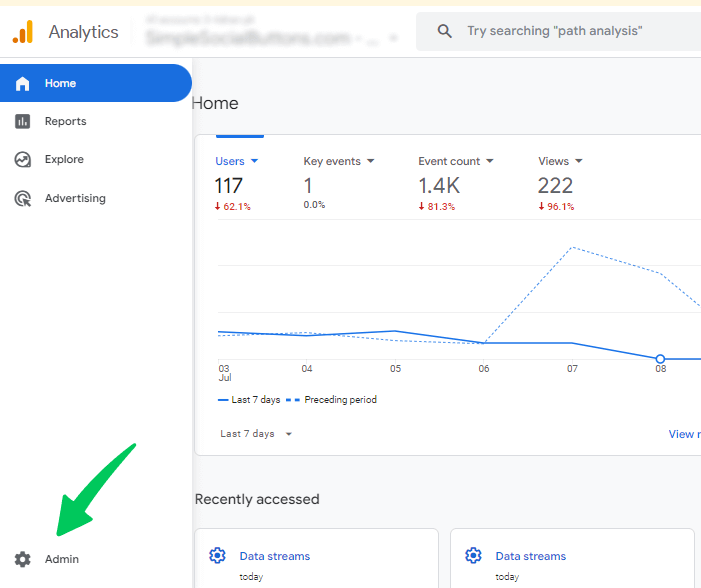
Step 2: Access the Admin Panel
Click on the gear icon (bottom-left corner) to open the Admin panel.
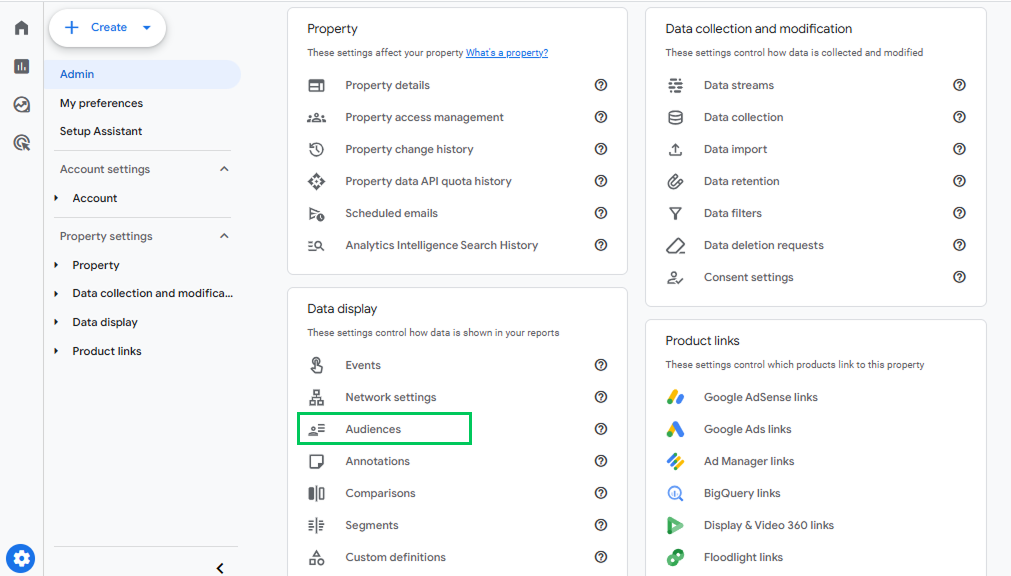
Step 3: Navigate to Audiences
Under the Property settings, click Audiences under the Data Display section.
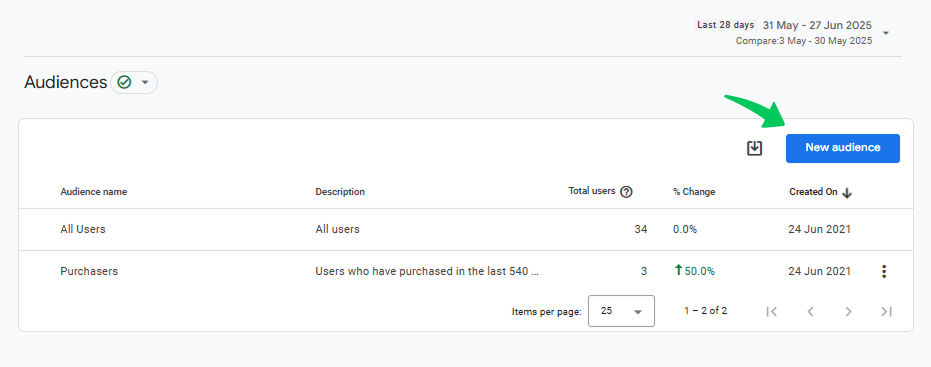
Step 4: Click “New Audience”
Click the New Audience button.
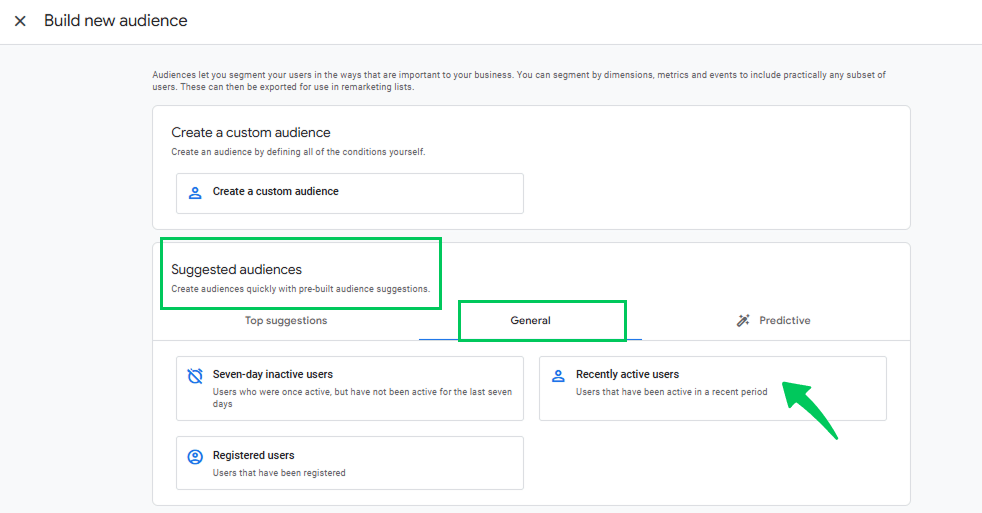
Step 5: Use a Template or Start from Scratch
Choose a Suggested Audience template (like recently active users).
Step 6: Configure Audience Conditions
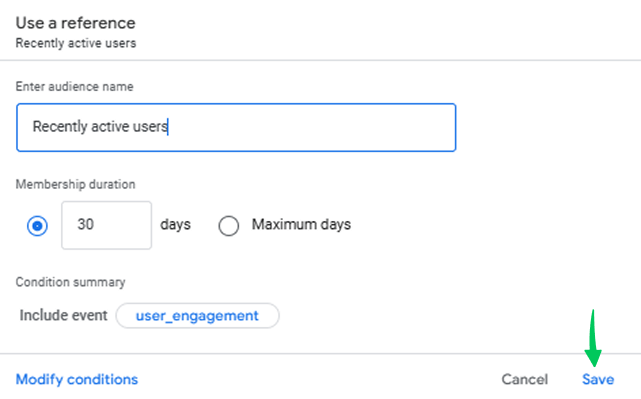
Set up your conditions. Give your audience a clear name, like Recently Active users and click Save.
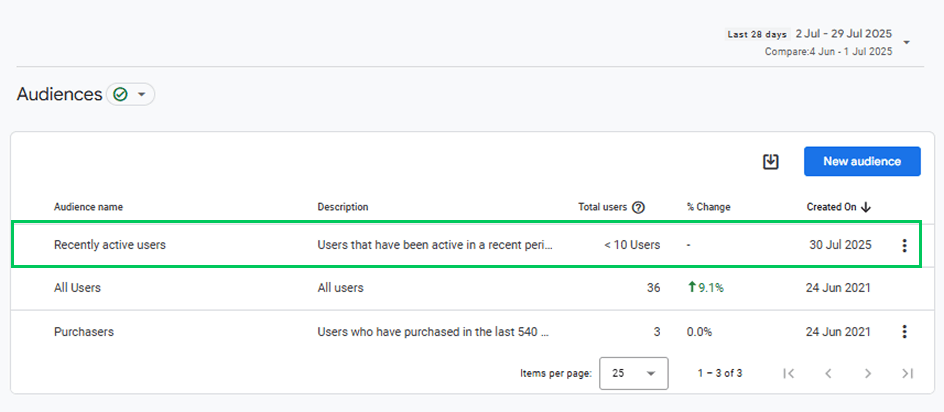
After saving, you will see a newly created audience in the audience list.
Step 7: Create Custom Audience
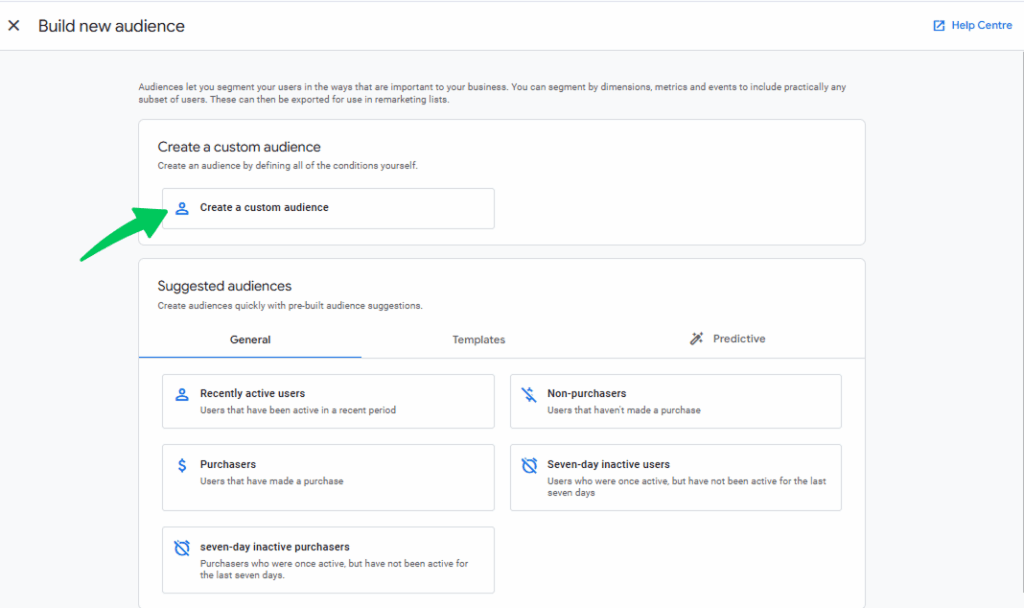
You can create a custom audience. Click Create a custom audience to define your conditions.
Step 8: Define Audience Conditions
Set filters using:
- Dimensions (e.g., Country, Device Category)
- Metrics (e.g., Session Duration, Conversions)
- Events (e.g., purchase, button_click)
For example, you can create a Custom Audience in Google Analytics 4 to target users who viewed a product page but didn’t complete a purchase. This helps you re-engage visitors who showed buying intent but dropped off before converting.
To configure this audience,
- Include users when:
- event_name = page_view
- AND page_location contains /product/
- Exclude users when:
- event_name = purchase
- Membership duration:
- Set to 30 days (or your desired timeframe)
- Audience name:
- “Product Viewers – No Purchase”
You can add sequence-based conditions or membership duration as needed.
Step 9: Name and Save the Audience
Give your audience a meaningful name (e.g., “Mobile Users from US”) and click Save.
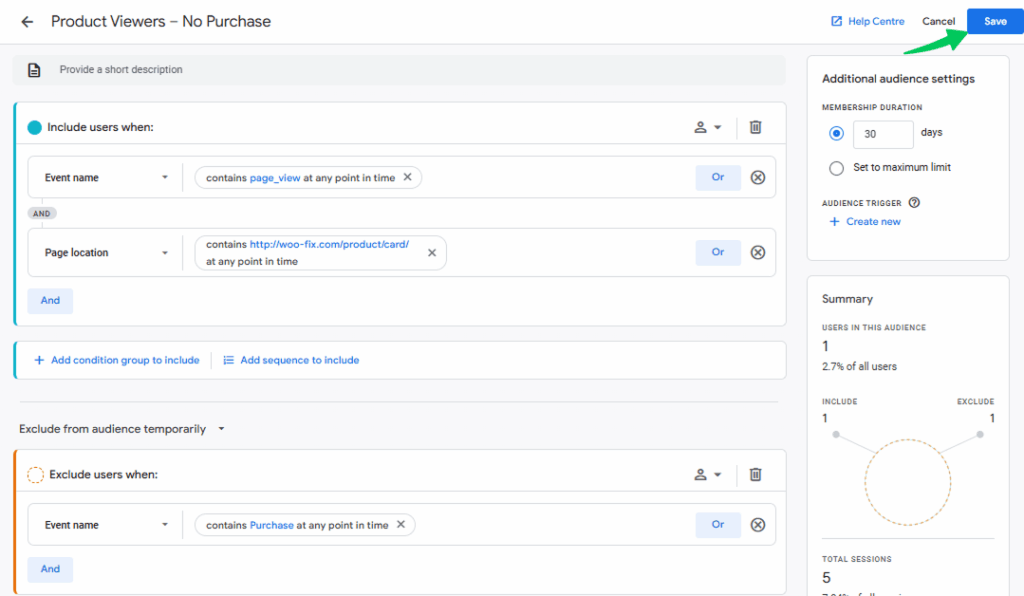
Once saved, your GA4 audience becomes available for use in reports, comparisons, and remarketing campaigns (if linked with Google Ads).
GA4 Audience Reporting
GA4 Audience Reporting allows you to analyze user behavior within specific audience groups you’ve created. Instead of analyzing all users as one group, you can narrow it down to custom audiences like users who visited a product page but didn’t make a purchase and explore their behavior in more detail.
With Audience Reporting, you can see how long they stayed, which pages they visited next, and whether they returned later. These insights help you understand where users drop off and what might encourage them to come back, like a personalized ad or a follow-up email with a discount.
Audience reporting helps you:
- Compare engagement, conversion, and retention between different user groups.
- Identify which user traits (like traffic source, device, or location) lead to better performance.
- Optimize marketing strategies based on real audience behavior and trends.
You can also apply audiences as comparisons in standard reports or use them in custom funnels to better understand the user journey.
Where to Find Audience Reports in GA4
You can view and analyze audience performance in two key areas:
1. Audiences Report
- Go to Reports >> User attributes >> Audiences.
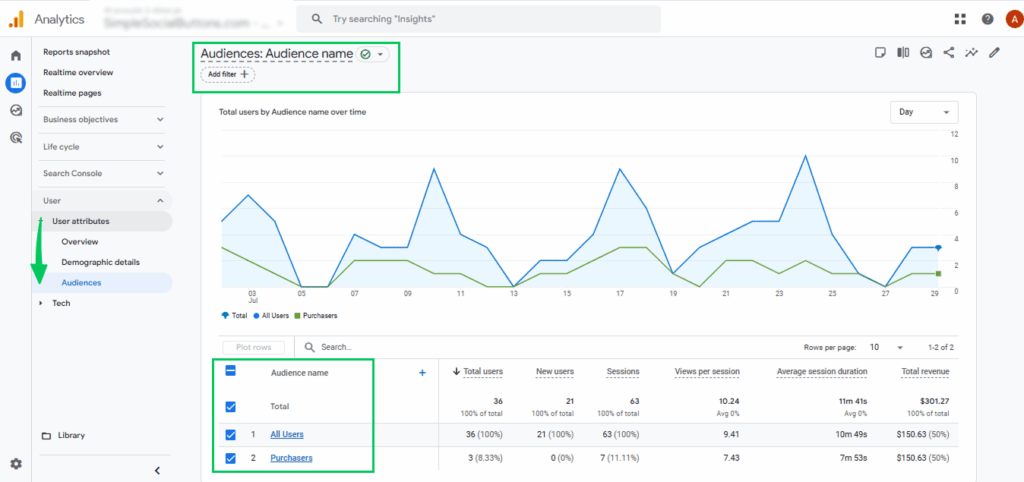
This section gives you an overview of all your published audiences. You’ll see performance metrics like:
- Active users
- Sessions
- Engagement rate
- Conversions
You can also compare how different audiences are performing side by side. These insights help you understand which audiences are most valuable, identify drop-off points, and adjust your marketing or content strategies accordingly.
How to Manage Audiences in GA4
You manage GA4 audiences by editing their name and description, archiving outdated or duplicate ones, and reviewing their performance regularly.
- Edit Audience Conditions as Goals Evolve:
You can adjust audience rules or timeframes based on changing marketing goals or user behavior. - Archive Outdated Audiences:
If an audience is no longer in use but might be useful later, archive it to keep your dashboard clean without losing historical data.
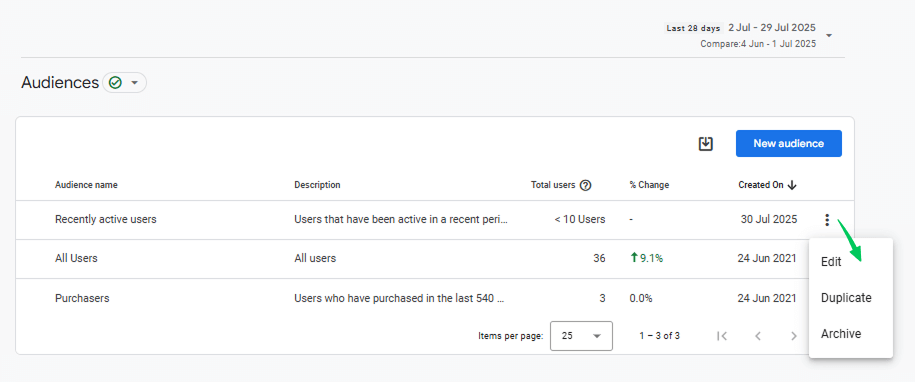
- Delete Irrelevant or Duplicate Audiences:
Permanently remove audiences that serve no further purpose to reduce clutter and keep your setup streamlined. - Rename Audiences for Clarity:
Use clear and descriptive names to avoid confusion, especially when working in teams or handling multiple campaigns. - Review Audience Performance Regularly:
Monitor metrics like engagement and conversions to identify which audiences are driving results and which need adjustments.
Common Challenges and Troubleshooting
The most common GA4 audience problems are data delay, audience limits, and predictive audience eligibility.
Data Latency
A new GA4 audience can take 24 to 48 hours to accumulate users. A new user who meets the audience conditions can take a day or two to be included in the audience and to appear in reports or linked tools like Google Ads.
Audience Size Limitations
GA4 limits the number of audiences per property: up to 100 for standard properties and up to 400 for Analytics 360 properties. If your criteria are too broad or your property has restricted data thresholds, you might not see the full audience size.
Predictive Audience Eligibility
Predictive Audiences (like “likely to purchase”) require a minimum amount of historical data. If your property doesn’t meet the volume or quality requirements, these predictive features won’t be available.
How to Use Analytify for GA4 Audiences (A Dedicated Analytify Section)
Join 50,000+ beginners & professionals who use Analytify to simplify their Google Analytics!
Analytify makes it easier to understand and use your GA4 audience data right inside your WordPress dashboard. Instead of navigating through complex GA4 reports, Analytify provides clear visuals and simplified reporting that reflect audience behavior.
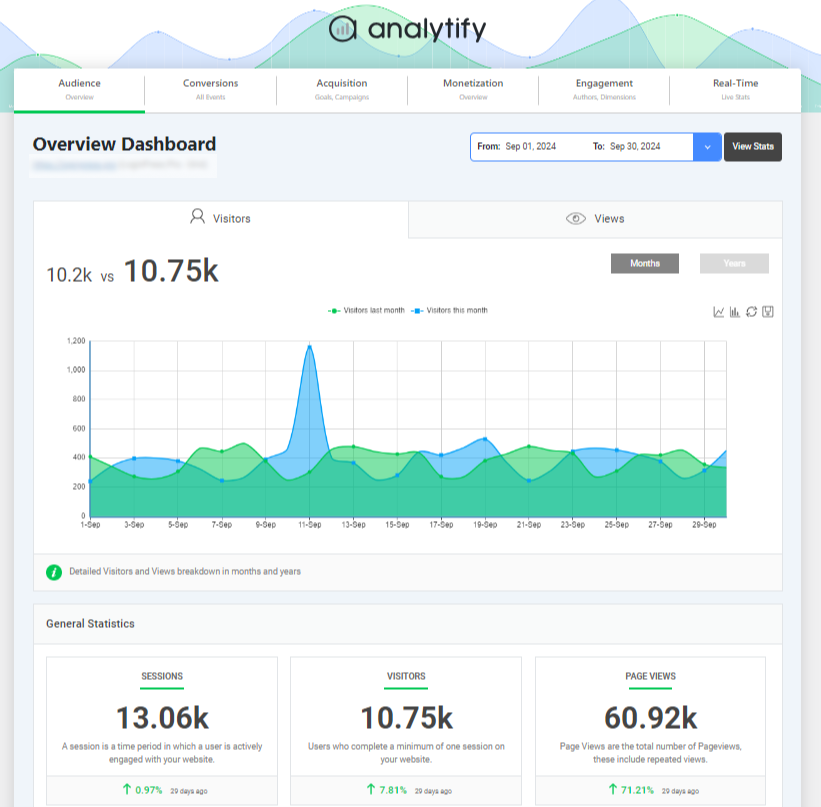
Here are the Analytify features for working with GA4 audiences:
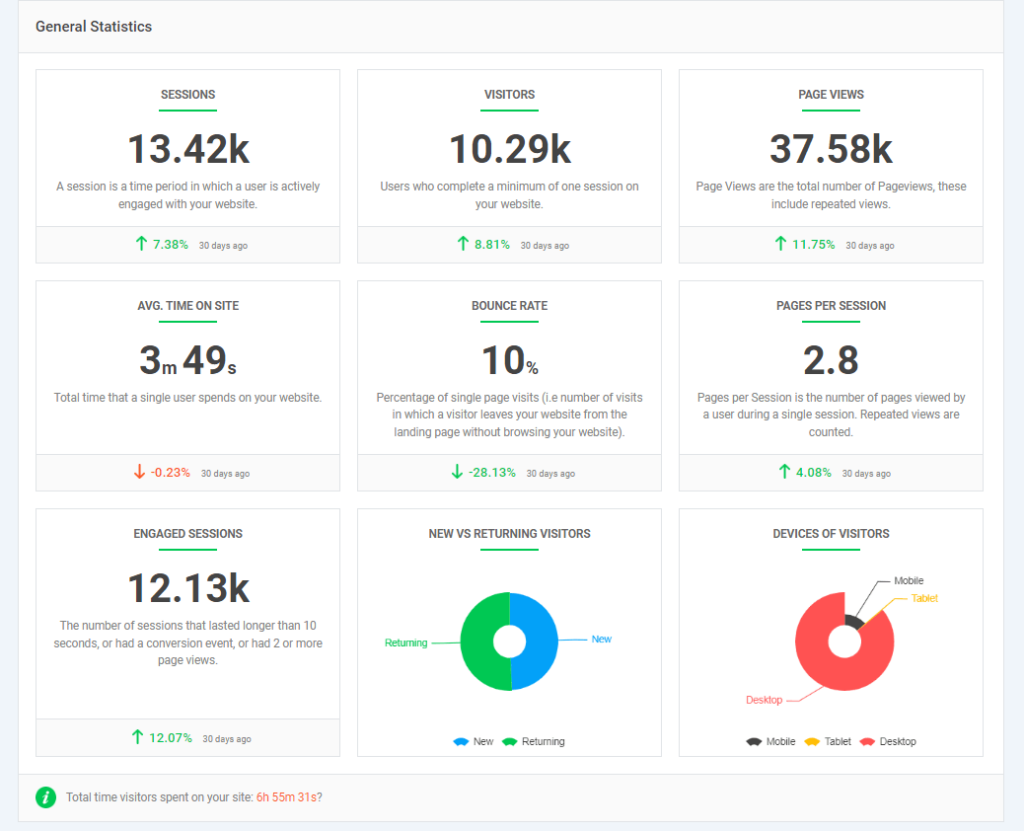
- Easily Monitor Audience Performance: Once you’ve created audiences in GA4, Analytify displays how each group engages with your content, highlighting metrics like bounce rate, average session duration, and conversions.
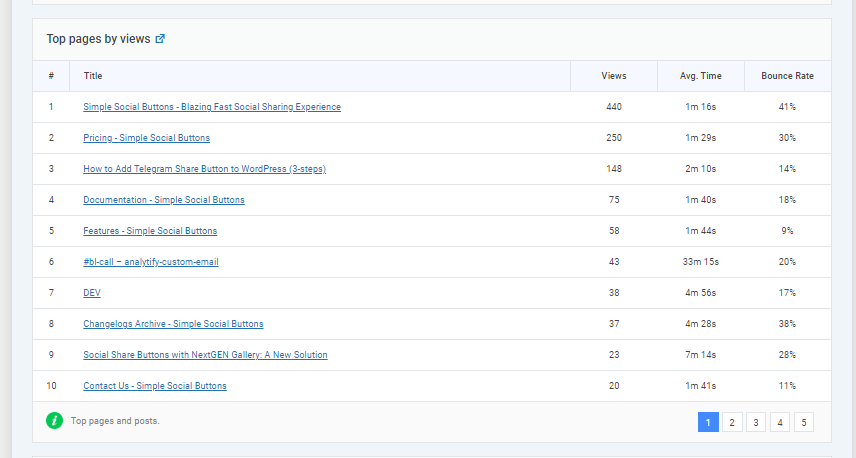
- Track Audience Behavior by Page/Post: See which audience segments visit specific pages or blog posts, helping you tailor content to their interests.
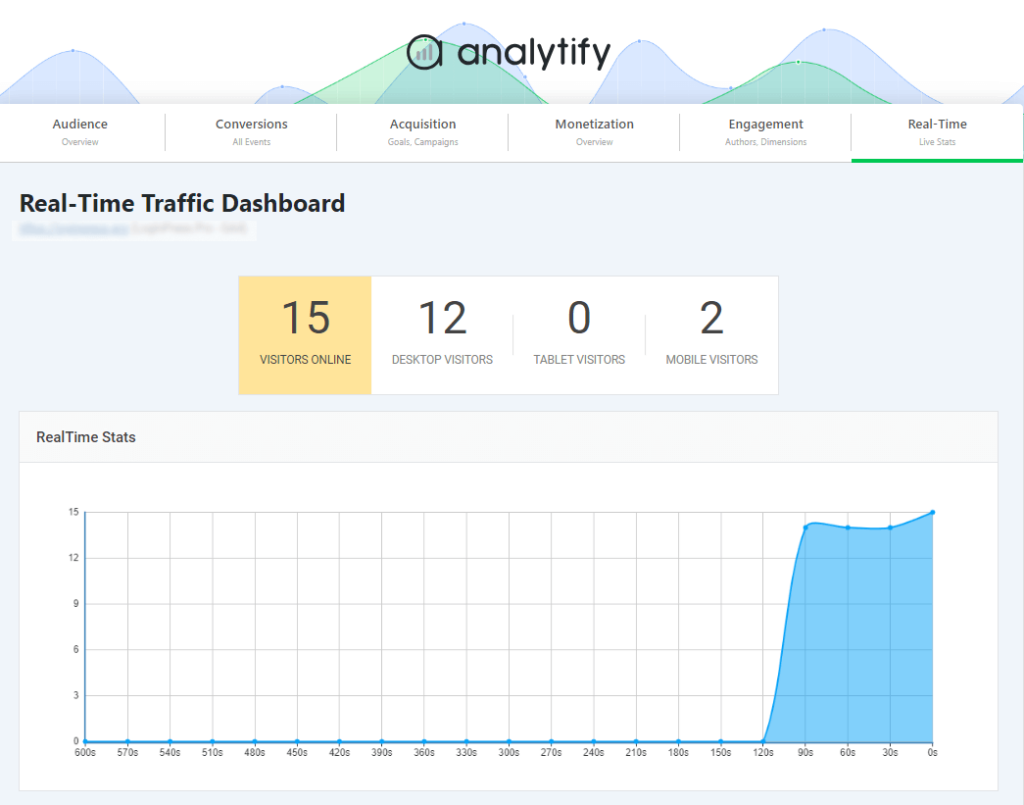
- Use Real-Time Insights: View live interactions by audience group to identify which segments are active and how they behave in real time.
- Simplified Reporting for Marketers: No need for advanced technical knowledge, Analytify breaks down audience metrics into easy-to-understand stats with exportable reports.
- Campaign Optimization: Use these insights to adjust your messaging, retarget specific audiences, or identify top-performing user segments for future campaigns.
By combining GA4’s audience segmentation with Analytify’s user-friendly interface, you get powerful audience insights without the complexity, perfect for marketers, bloggers, and WordPress site owners.
Frequently Asked Questions About GA4 Audiences
1. What is the difference between segments and audiences in GA4?
Segments are temporary user groups created for analysis inside Exploration reports. You can use them to break down data by user, session, or event conditions, but they don’t persist outside of Explorations.
Audiences, on the other hand, are persistent user groups defined in GA4 that update in real time. They are used for long-term tracking, remarketing (like in Google Ads), and trigger-based actions such as conversions or audience triggers.
2. How to create an audience in Google Analytics 4 (GA4)?
Go to Admin >> Audiences >> New Audience. Choose a suggested template or create a custom audience by setting conditions like behavior, demographics, or events. Name your audience and click Save. Data collection starts from the moment the audience is created, not retroactively.
3. How many audiences can I have in GA4?
In GA4, you can create up to 100 audiences per property.
Here are a few important things to note:
Archived audiences still count toward the limit. To free up space, you must delete them, not just archive them.
Audience data collection starts only after the audience is published; it’s not retroactive.
Each audience can be used for reporting, audience triggers, remarketing, and Google Ads syncing (if linked).
4. What tasks can be done using audience triggers in GA4?
Audience triggers allow you to perform actions when a user becomes part of an audience. You can:
Trigger an event when a user qualifies for an audience (e.g., audience_membership_triggered).
Use the triggered event as a conversion, enabling you to track and optimize for specific audience behaviors.
Export triggered events to Google Ads for more precise remarketing or bidding strategies.
5. What are the 4 audience segments?
In GA4, audience segments are not fixed to just four types, but commonly, marketers refer to four major audience segment types used for targeting and analysis: Demographic, Technographic, Behavioral, and Acquisition.
Final Thoughts: Google Analytics 4 Audiences
GA4 Audiences lets you group users based on their actions or characteristics. There are two main types: prebuilt audiences, including general audiences and predictive ones powered by AI, and custom audiences tailored to your goals.
The step-by-step process for creating a Google Analytics audience involves choosing a template or starting from scratch, setting conditions, and saving the audience to begin tracking. GA4 starts adding users to an audience from the moment you create it, and a new audience can take 24 to 48 hours to accumulate users.
You can explore this behavior through the Audiences Report and deeper analysis via Explorations like Free Form and Funnel reports. To manage audiences, you can edit, rename, or archive them based on evolving goals. It’s important to monitor performance.
Common issues include delayed updates in audience data, too-small audience sizes for meaningful analysis, and eligibility requirements for predictive audiences, which need strong data quality and volume.
Analytify simplifies all of this by pulling GA4 audience data into your WordPress dashboard, showing you which audiences are interacting with specific pages and what changes might improve performance.
For further guidance, you can read:
How are you currently using GA4 audiences to refine your marketing strategy? Drop your thoughts or questions in the comments. We’d love to hear from you.




 Halloween Sale: Know which campaigns drive sales this season.