Key Events in Google Analytics (Explained)

A key event in Google Analytics 4 (GA4) is an event you mark as important to your business, such as a purchase, a form submission or a sign-up. Google replaced the term “conversions” with “key events” in 2024, so key events are what you may know as conversions.
This article covers what key events are, why key events in GA4 replaced conversions, and how to create and track them.
GA4 Key Events (TOC):
What is a Key Event in Google Analytics?
Key events in Google Analytics 4 (GA4) are specific user actions or interactions that are essential for understanding audience behavior and achieving business goals. They are essentially regular events but marked as particularly important or key events.
Events in GA4 refer to any user interaction or action tracked on your website or app. If an event is important to your business’s success, you can mark it as a key event in Analytics.
GA4 has four types of events:
- Automatically Collected Events
- Enhanced Measurement Events
- Recommended Events
- Custom Events
These different events, which include actions like button clicks, video plays, and form submissions, give information about how users engage with your website or app.
GA4 provides two distinct conversion rates (now called Key Event Rates) that offer a more accurate understanding of how effectively your website converts visitors into customers: the session conversion rate (session key event rate) and the user conversion rate (user key event rate).
Understanding the Shift from Conversions to Key Events
Google replaced the term “conversions” with “key events” in GA4. Universal Analytics used “conversions” to describe fixed, predefined goals like form submissions.
In GA4, these significant user interactions are now called key events, giving businesses more flexibility in tracking important actions. While conversions are now primarily used in Google Ads, key events in GA4 replace the old “conversions” concept. This change allows businesses to customize and define what counts as a key event based on their specific goals.
In Universal Analytics, conversions were preset. GA4 lets you decide which actions matter most, such as a page view, download, or scroll depth, and mark any event as a key event. As a result, you’re not restricted to predefined goals and can easily adjust your tracking as your business evolves.
Reasons behind the Shift from Conversions to Key Events in GA4
The shift from “Conversions” to “Key Events” in Google Analytics 4 (GA4) reflects Google’s move toward more flexible and customizable tracking. Here are the main reasons behind this shift:
- Flexibility and Customization: GA4 allows businesses to define their own key events, going beyond Universal Analytics’ predefined goals.
- Enhanced User Behavior Tracking: GA4’s key events offer more granular data on user interactions, tracking critical actions beyond conversions.
- Event-Based Data Model: GA4 operates on a system where every interaction, including page views and clicks, is categorized as an event. This method is more comprehensive than Universal Analytics’ previous data tracking approach.
- Adaptation to Business Goals: Key events can be adjusted as business objectives evolve, providing flexibility without completely restructuring tracking configurations.
- Integration with Google Ads: Key events in GA4 are distinct from conversions used in Google Ads, allowing for more accurate alignment with specific marketing objectives.
- Improved Reporting and Analysis: Tracking a broader set of key events offers valuable takeaways for optimizing user engagement and marketing efforts.
Events vs Conversions GA4
In Universal Analytics, the term “conversions” was used for rigid, pre-set goals, like submitting a form. These goals were limited and couldn’t be easily adjusted. In GA4, “conversions” are now called “key events.” Key events are more adaptable and customizable than the rigid goals of Universal Analytics.
You can define any event as a key event and update it based on your changing priorities. Key events give businesses more control over what to track, making monitoring and acting on specific user behaviors that drive growth easier. This shift offers businesses more flexibility to track the top activities that occurred on your site.
How to Create Key Events in GA4?
Create a key event in GA4 by marking an existing event as key, or by adding a new key event by name. By marking or creating events as key events, you can prioritize those interactions in your reports, making it easier to analyze their impact and optimize performance.
Here’s a step-by-step guide to creating key events in GA4:
Step 1: Log in to GA4 and Access the Admin Panel
- Log in to your GA4 account. Choose the GA4 property where you want to create key events.
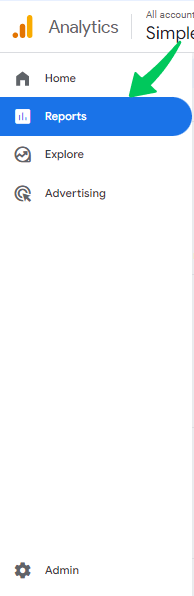
- Click on the admin option.
Step 2: Select the “Events” Tab
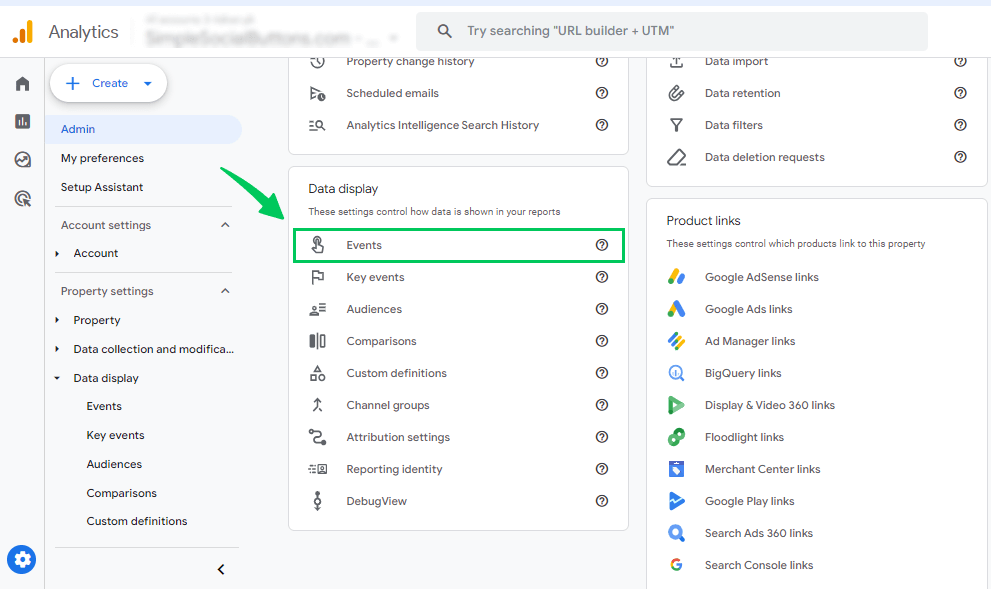
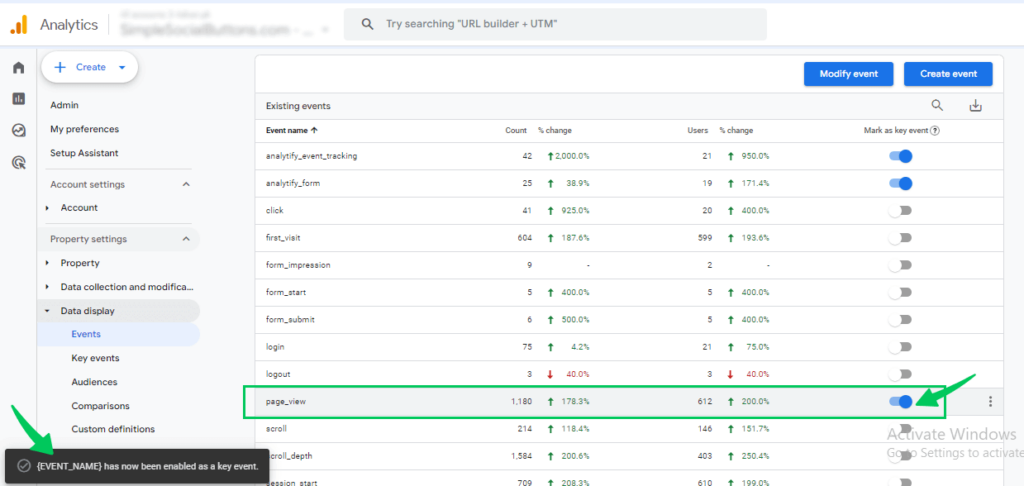
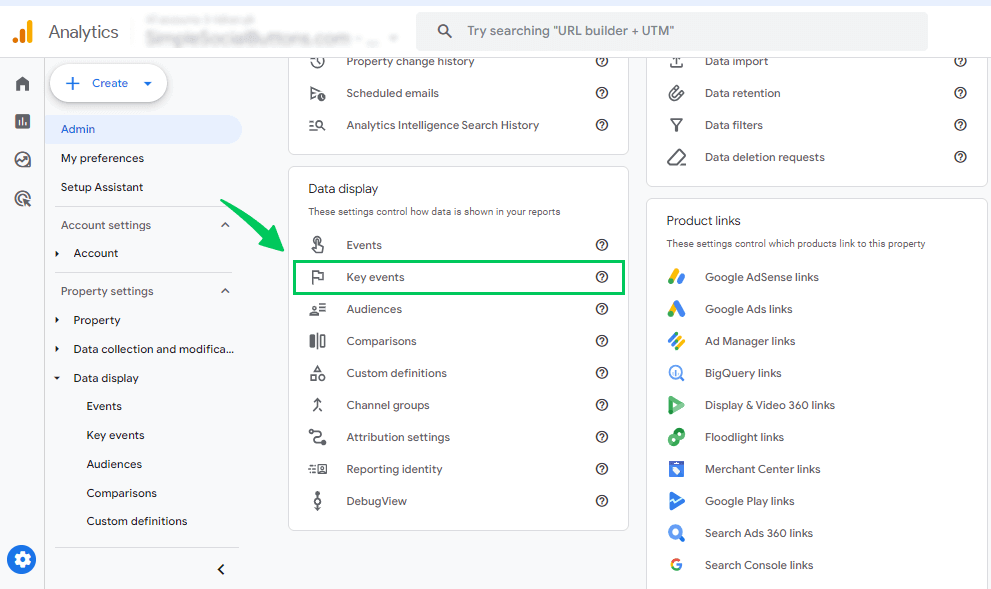
In the property column, open Data display, then click Events. This shows a list of all the events tracked for the selected property.
Step 3: Mark an Existing Event as a Key Event
Scroll through the list or use the search bar to locate the event you want to mark as a key event. Once you find it, click the star icon next to the event name. The star marks the event as a key event for reporting and analysis.
Step 4: Create a New Event
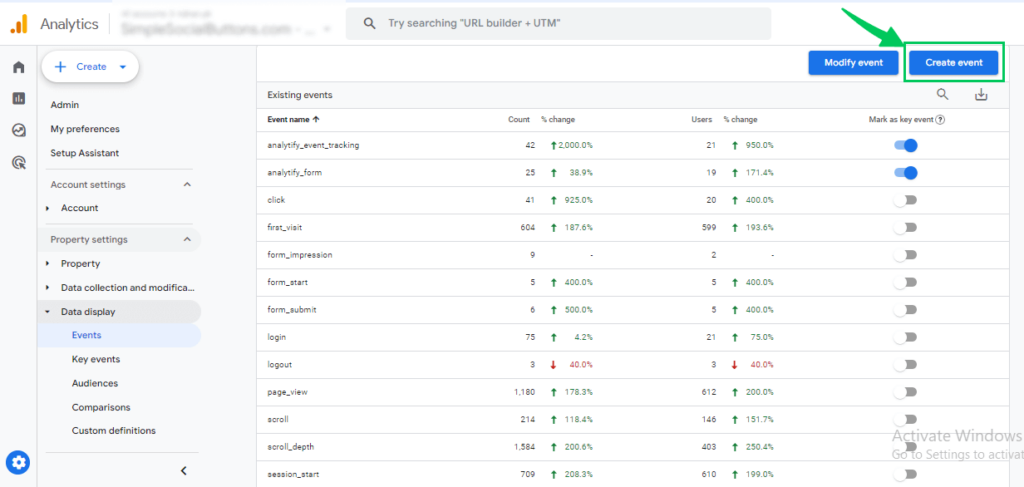
- If you want to create a new event, click the Create Event option.
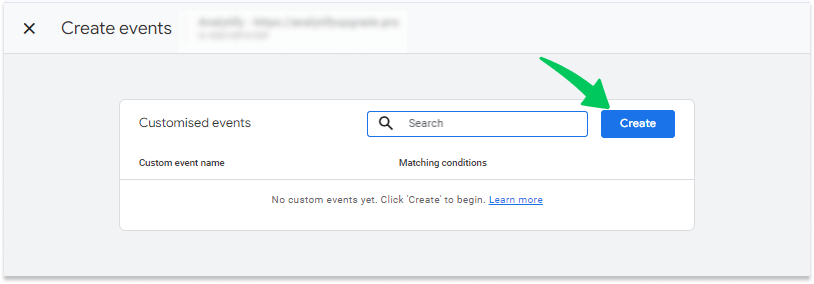
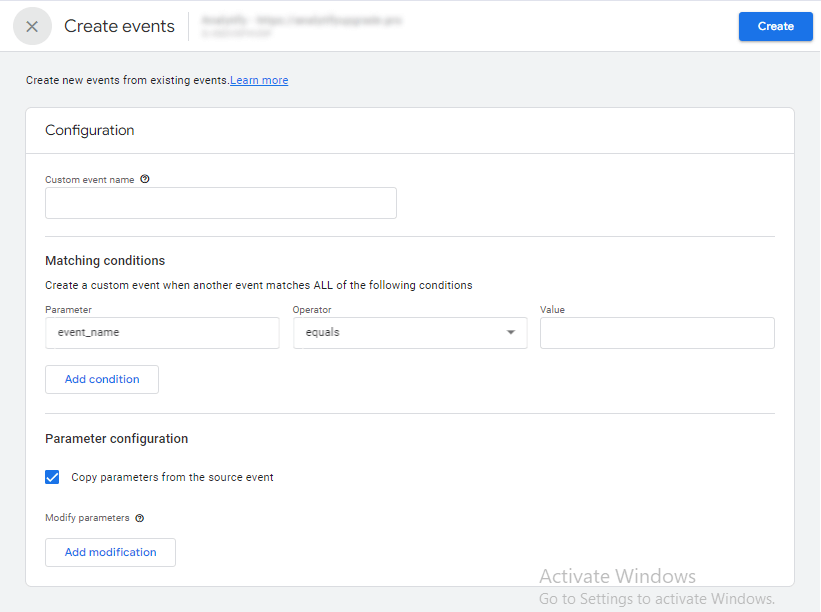
- Name it and define the conditions (e.g., a specific page load, button click, or form submission). You can specify additional parameters to customize the event more.
For more details on customizing events, you can refer to the Custom Events Guide.
Step 5: Review or Add Key Events
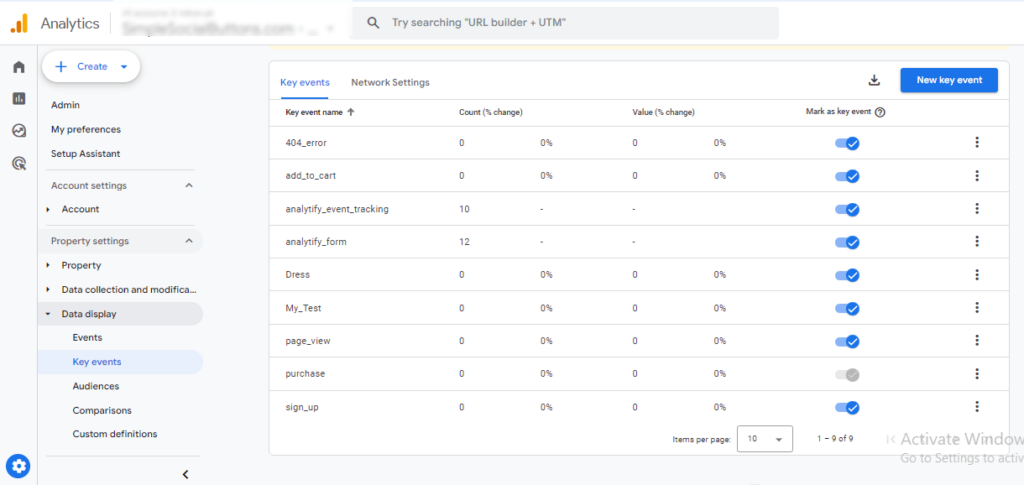
Go to the “Key Events” tab to review your key events. Here, you will see the list of events you have designated as key events.
A standard Google Analytics 4 property supports up to 30 key events. Analytics 360 properties support up to 50.
- Here, you can see the list of key events.
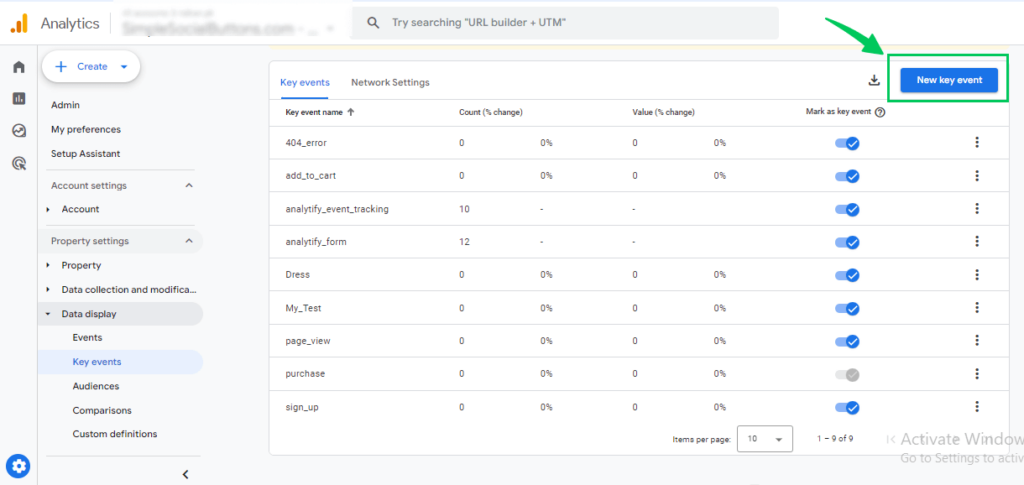
Step 6: Directly Add a New Key Event
- Click the New Key Event tab if you prefer to add a key event directly without first marking it in the “Events” section.
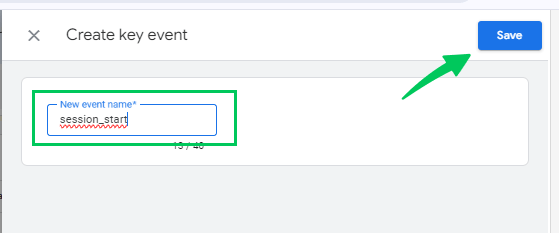
- Enter the event name, such as “session_start,” then click Save.
- You can see the new key event “session_start” added here.
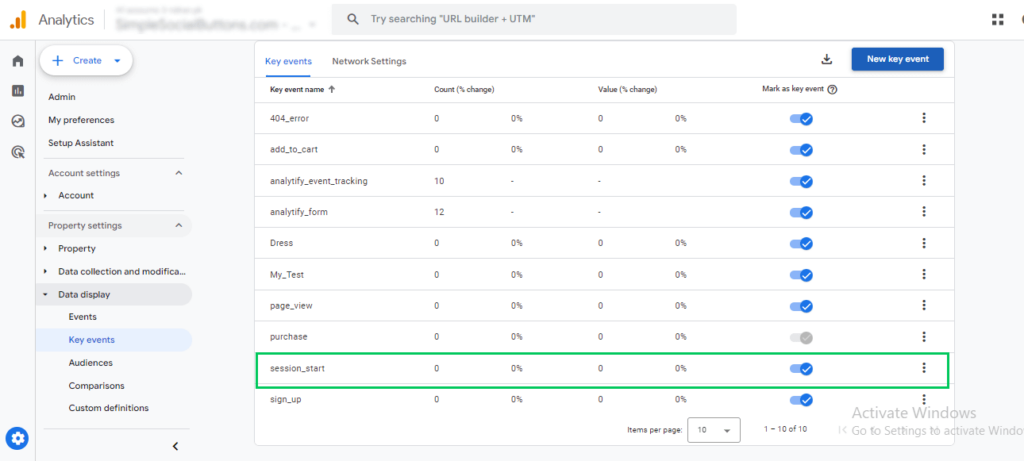
This method ensures that your most important events are prioritized for your business goals, allowing for more efficient tracking and reporting in GA4. Once your key events are set, you can monitor them through detailed reports in GA4.
GA4 allows you to track key events that provide valuable insights into user behavior. However, if you’re still getting familiar with the fundamentals of Google Analytics, our beginner’s guide will help you build a solid foundation before diving into event tracking.
How To Track Key Event Reports in GA4?
You can track key events in GA4 in two ways: the Events report (under Life cycle, Engagement) or a custom exploration report. Tracking key events helps you understand user behavior and the impact of these events on your website.
Method 1: Viewing Key Events in the Engagement Report
To get a quick overview of how your key events are performing, follow these steps:
- Log in to your GA4 property.
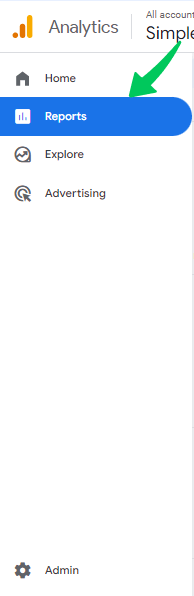
- Click “Reports” to open the reporting section of GA4.
- Under “Life cycle,” select Engagement, then click on Events. This report will show all the events being tracked on your site or app.
- Once you’re in the Events report, you can focus specifically on key events.
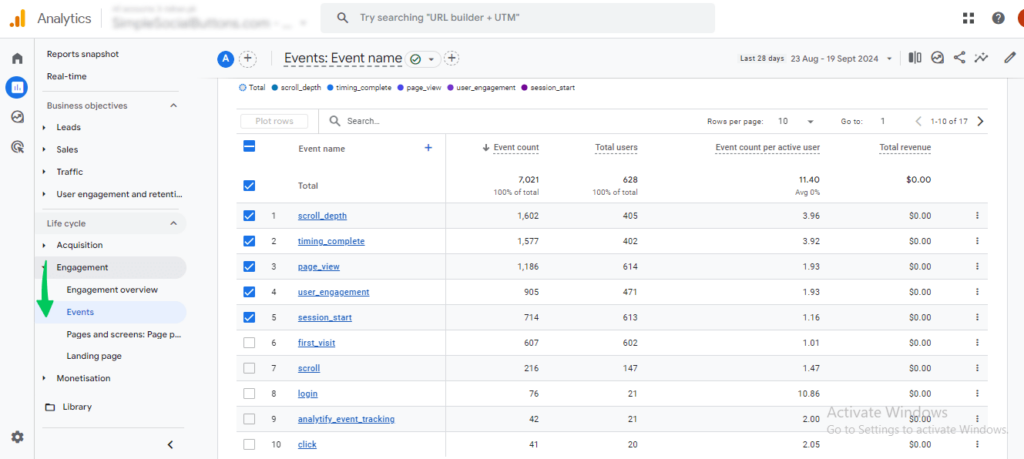
This method provides a straightforward view of your key events within the context of all tracked events.
Method 2: Create a Custom Exploration Report
If you want a more detailed analysis:
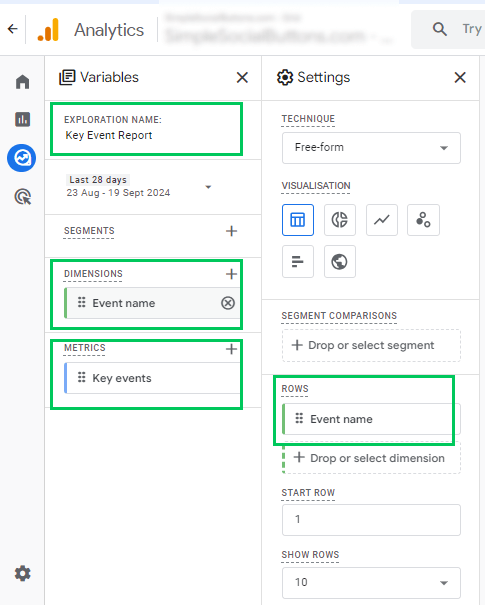
- Go to the Explore section. Select the blank template of the exploration report.
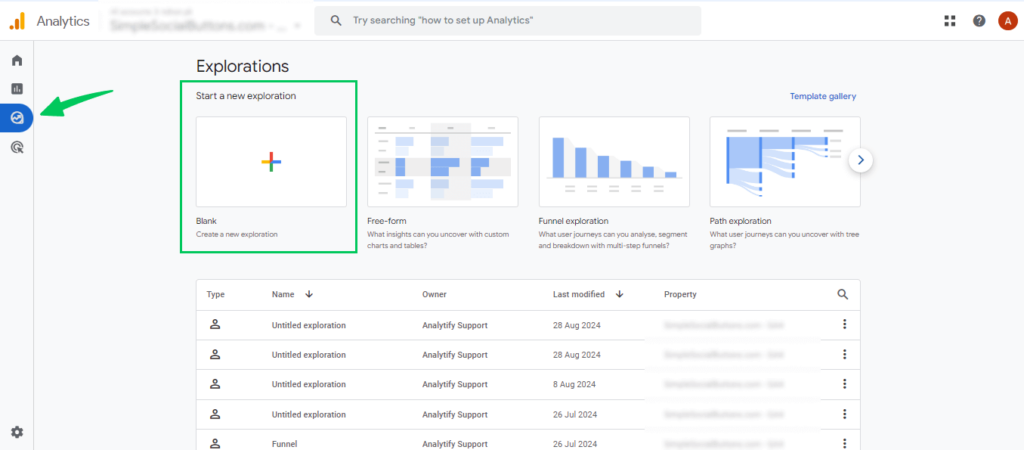
- Add a descriptive name to your exploration, such as “Key Event Report.”
- Under dimensions, add “event name,” and for metrics, choose “Key events” to display the data.
- Next, add “event name” in the Rows section to display each key event in your report.
(Note: The screenshot below will visually guide you for each step.)
- Double-click on the “Key events” metric to generate a detailed report of your key events.
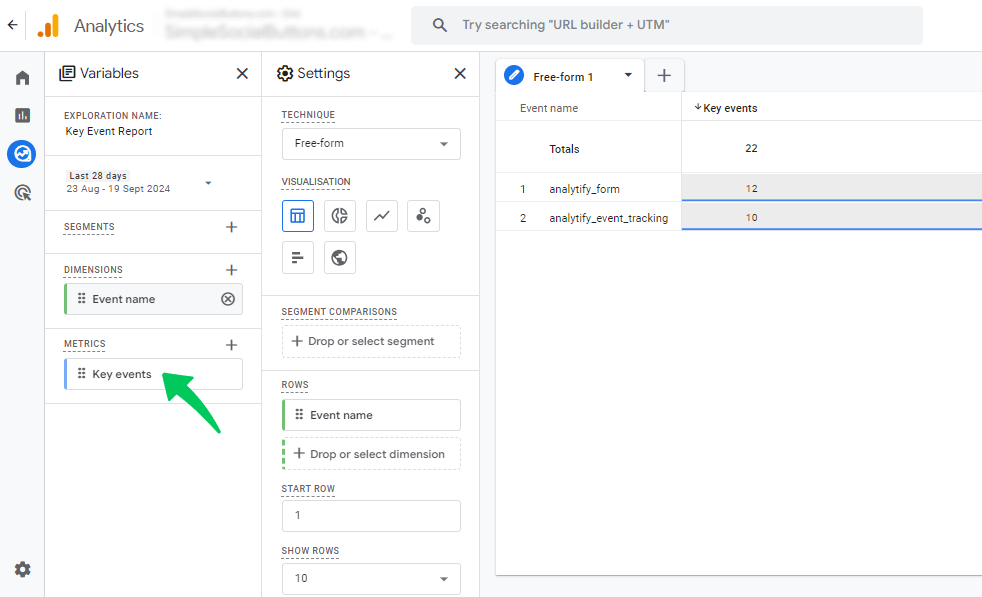
By using custom exploration reports, you can gain a more comprehensive understanding of how key events contribute to user engagement and conversions.
Use Analytify to Track Key Events in WordPress
Join 50,000+ beginners & professionals who use Analytify to simplify their Google Analytics!
Analytify, a popular WordPress plugin for Google Analytics, simplifies the tracking and reporting of events, including key events, directly from your WordPress dashboard. Analytify makes it easier to manage and monitor these important interactions without needing to navigate the complexities of the GA4 interface.
Analytify offers an Events Tracking Addon that enhances your event tracking capabilities.
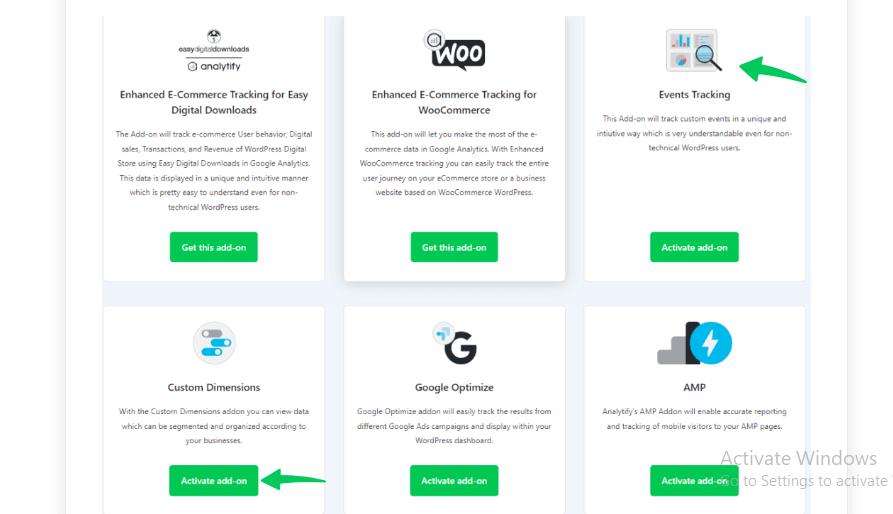
This add-on extends your ability to track events, allowing you to gather more specific data about user interactions on your WordPress site.
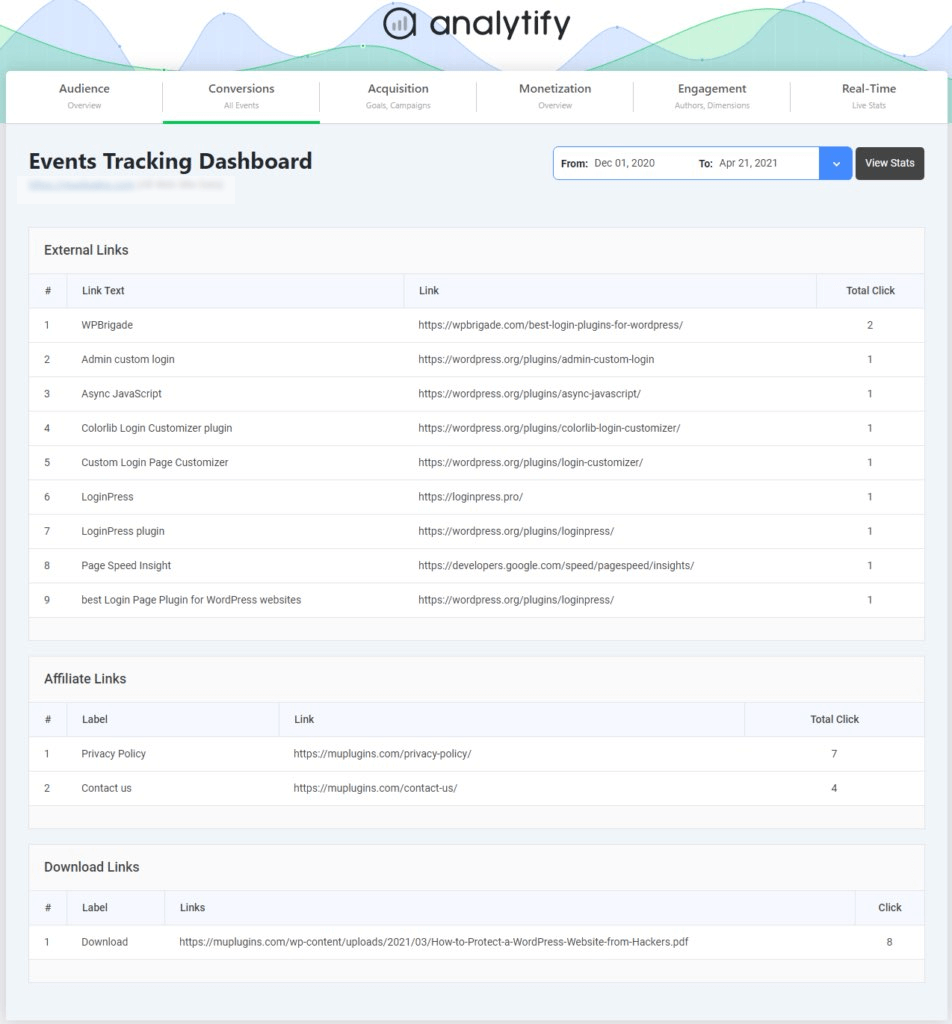
Read: How To Get Started With The Events Tracking Addon.
Analytify makes it simple to track events on your WordPress website. Here’s why it’s a valuable tool:
1. User-Friendly Setup: Analytify’s user-friendly interface ensures that even those with limited technical expertise can easily set up event tracking for WordPress.
2. Real-Time Reporting: With Analytify, you can access real-time data on your events’ performance, allowing you to stay informed and make timely adjustments.
3. Event Tracking: Analytify covers many events, including page views, downloads, and outbound link clicks, so you can see how users interact with your site.
4. Customization: Analytify offers customization options, allowing you to define specific events you want to track and tailor them to your website’s unique needs.
5. Integration with Google Analytics 4: Analytify connects to GA4 so that you can monitor and analyze your WordPress events within your familiar Google Analytics interface.
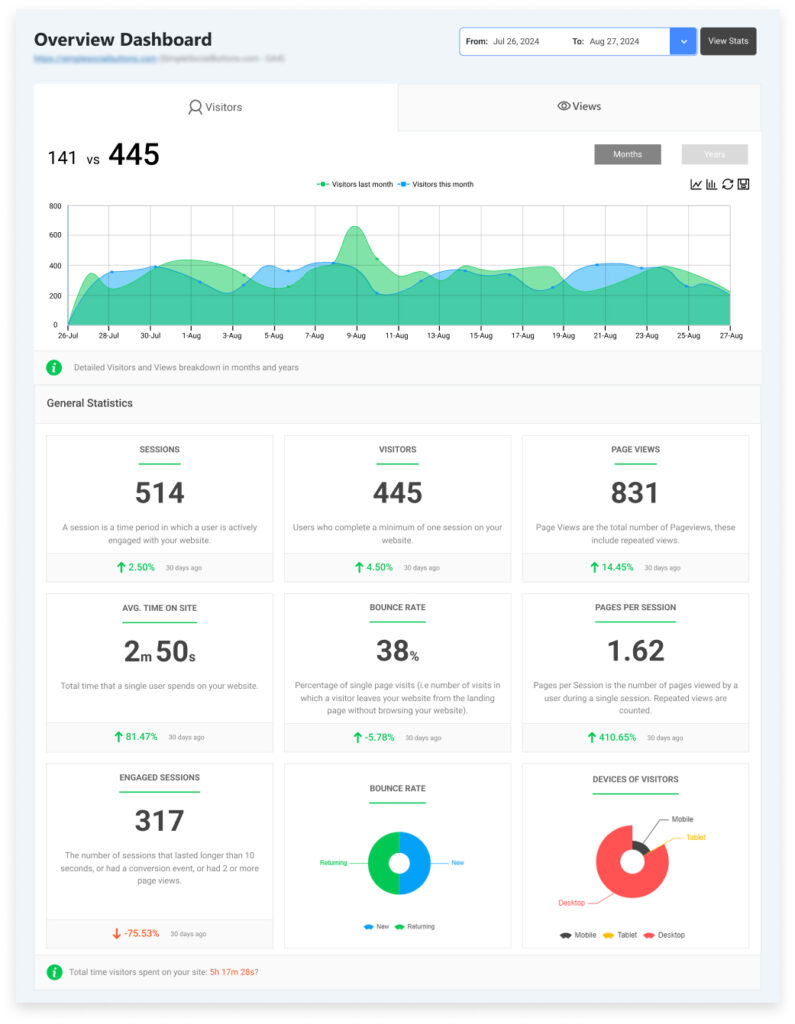
By using Analytify and its Events Tracking Addon, you’ll be well-equipped to create and monitor events easily in GA4. This will ultimately boost your website’s performance and help you achieve your digital marketing objectives.
Key Events in GA4 (FAQs)
1. How do I create key events in GA4?
To create key events in Google Analytics 4, go to the “Events” section under Admin. Find the event you want to prioritize and toggle it to mark it as a key event. You can also create a new event from scratch and mark it as a key event for tracking.
2. Can I track multiple key events in Google Analytics 4?
Yes, GA4 allows you to mark and track multiple key events. You can select various interactions, such as downloads, form submissions, or video plays, as key events to monitor how users engage with your website.
3. How do Google key events improve reporting?
By designating key events in GA4, you can focus your reports on the top activities that occurred on your site. This enables you to draw more valuable conclusions by highlighting user behaviors that align with your business objectives.
4. What is the difference between key events and all events in GA4?
All events in GA4 include every user interaction tracking on your site, while key events are a subset of these that you’ve marked as important. Key events are highlighted for deeper analysis because they represent actions that matter most to your business.
5. Can I change a key event back to a regular event in GA4?
Yes, in GA4, you can toggle off an event that you no longer wish to prioritize as a key event. This will return it to a regular event, although you can still track its data in your reports.
Final Thoughts: Google Analytics Key Events
In conclusion, grasping the concept of key events in Google Analytics 4 (GA4) is crucial for effectively monitoring user interactions that drive your business goals. By identifying and marking significant actions as key events, you can focus on the top activities that occurred on your site and gain deeper knowledge about user behavior.
Creating and tracking these key events is straightforward. This allows you to customize your analytics to reflect your priorities and enhance your ability to analyze performance compared to traditional metrics like conversions. It will enable you to tailor your tracking to align with your specific objectives.
For more information, explore these dedicated sources: GA4 Custom Events, GA4 Custom Events Not Showing Up in Reports, and GA4 Recommended Events.
If you have any questions or thoughts about key events in GA4, feel free to share them in the comments!
Not sure how to get your tracking set up first? Start with our guide on How to Set Up Google Analytics 4 and Connect it to Your WordPress Site.