Google Ads vs Google Analytics: Key Differences and How They Work Together

Confused about where to track your conversions, Google Ads vs Google Analytics?
Google Ads tracks conversions from ad clicks. Google Analytics (GA4) tracks how users behave across every traffic source, not just ads.
Confusing the two causes bad budget decisions. This guide clears that up.
This guide covers Google Ads vs Google Analytics conversions. You will learn what Google Ads conversion tracking is. You will learn how GA4 tracks conversions differently. Then you will see how Analytify brings both into one WordPress dashboard.
Let’s get started!
Google Ads vs Google Analytics (TOC):
Google Ads Conversion Tracking
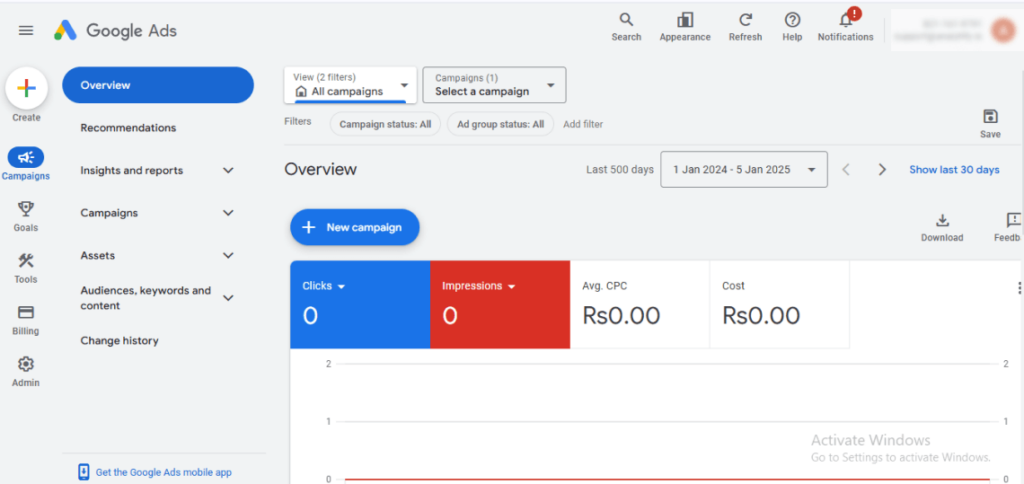
Google Ads Conversion Tracking tracks direct actions after an ad click. Those actions include a purchase, a form, a newsletter signup, or a call.
Google Ads conversion tracking uses a small tracking tag on your site or app. The tag fires when someone clicks your ad and completes the action. It sends that event back to Google Ads. You then see which keywords, ads, and campaigns produce results.
With Google Ads, you can track different types of conversions based on your business goals. These include:
- Website actions: Purchases/Sales, Form Submissions (Leads), Sign-ups (e.g., newsletters, accounts), Specific Button Clicks
- App Conversions: App Installs/Downloads, In-App Actions (e.g., purchases)
- Phone Calls: Calls made directly from ads, Calls to a number on your website
- Offline conversions (sales tracked by uploading data from your CRM/offline system)
Google Ads Conversion Tracking measures ad performance directly. It shows how well clicks turn into paying customers.
Once conversion data is collected, it doesn’t just sit there. It turns this conversion data into valuable insights that help you improve your campaigns. It offers several key benefits, including:
- Enables you to understand which ads truly deliver results.
- Makes it easier to allocate budget to high-performing campaigns.
- Improves ROI by using accurate data for smart targeting bidding.
- Provides actionable insights to refine and improve your ad strategy.
Key Features of Google Ads Conversion Tracking
Here are its key features:
- Tracks all Key Actions: It doesn’t just count clicks; it records important results, such as purchases, form fills, phone calls, app downloads, and even in-store visits.
- Assigns a Value to Conversions: You can inform Google Ads of the monetary value associated with each action (e.g., a sale is $50, a lead form is $10), which enables you to focus on the most profitable results.
- Connects Online Ads to Offline Results: It can track when a lead originates from an online ad, even if the final sale occurs offline (such as over the phone or in a store), thereby closing the loop on your marketing efforts.
- Smart Bidding: It sends conversion data directly to Google’s automatic bidding tools (Smart Bidding), allowing them to adjust your bids in real-time to maximize conversions within your budget.
- Campaign and Keyword-Level Insights: Provides detailed reports showing which campaigns, ads, or keywords drive the most conversions.
- Integration with Other Tools: Works directly with Google Analytics and other tools for detailed analysis and better targeting.
That is the core Google Ads vs Google Analytics comparison. Both tools measure results, but in different ways.
Google Analytics Conversion Tracking (GA4)
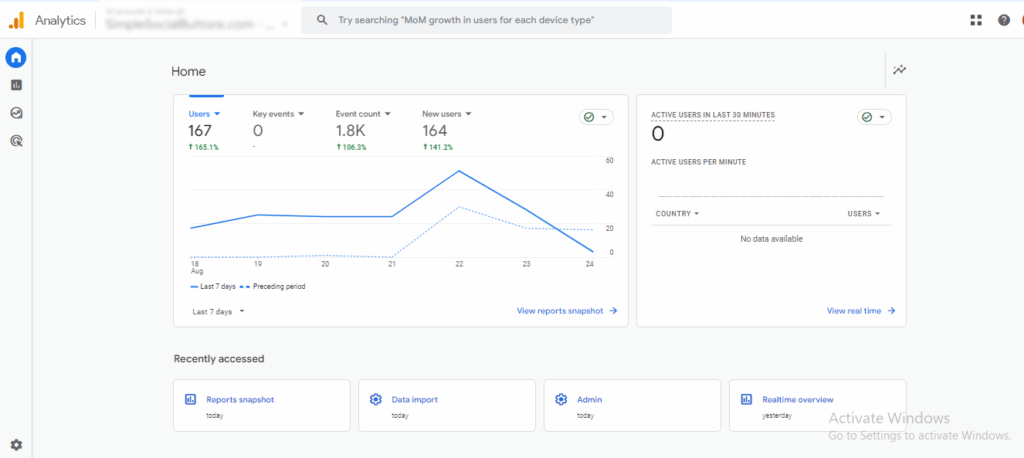
A GA4 conversion is any action that matters on your site. That includes a purchase, a form, a signup, or a download. Conversion tracking in GA4 records each one. You then measure how well your site turns visitors into customers.
Google Ads only tracks ad-driven conversions. GA4 tracks every source. That includes organic search, social media, email, referrals, and paid ads.
GA4 vs. Universal Analytics: How Conversions Are Tracked
GA4 replaced the old goals system with events, and it changed how credit for a conversion gets assigned. Here is how the two compare.
| Aspect | Universal Analytics (UA) | Google Analytics 4 (GA4) |
| Tracking model | Goals | Events |
| What gets recorded | Reaching a thank-you page or completing a purchase | Every interaction: page views, clicks, downloads, purchases |
| Conversion label | Goals | Key events |
| Attribution model | Last-click attribution by default | Data-driven attribution across touchpoints |
Key Features and Advantages of GA4 Conversion Tracking
Here are the following Key features and advantages of GA4 Conversion tracking:
- Event-Based Tracking: Every interaction is tracked as an event, making tracking more flexible than the old goal system.
- Cross-Platform Measurement: Tracks conversions across websites and mobile apps for a full view of the user journey on multiple devices.
- Multi-Channel Attribution: Distributes credit across multiple touchpoints, rather than just the last click.
- Real-Time Reporting: lets you monitor conversions instantly and react quickly to trends, campaign performance, and user behavior as they happen
- Integration with Google Ads: You can link GA4 with Google Ads to import conversions, optimize bidding strategies, and measure the impact of your ad spend more accurately.
- Deeper User Insights: GA4 offers detailed insights into user behavior, demographics, devices, and traffic sources.
- Better Customization: Define custom events and mark them as conversions based on your business goals.
- Improved Privacy Compliance: Comes with privacy-friendly features that support GDPR and cookie compliance.
Key Differences Between Google Ads and Google Analytics Conversion Tracking
Both tools track conversions, but for different questions. Google Ads answers which ad drove the sale. GA4 answers how the whole site performs.
| Aspect | Google Ads Conversion Tracking | Google Analytics Conversion Tracking (GA4) |
| Primary Purpose | Focuses on direct actions that happen after an ad click, such as purchases, form submissions, or calls. | Tracks the entire user journey on your website or app, not just ad-driven actions. |
| Attribution | Uses the last Google Ads click attribution by default, crediting the final ad clicked before conversion. | Uses a data-driven attribution model in GA4, distributing credit across multiple touch points. |
| Data Collection Method | Relies on conversion tags (pixels) added to your site or app to track post-click actions. | Tracks events via GA4 tags, including page views, button clicks, scrolls, and more. |
| Scope of Tracking | Campaign-specific, only tracks conversions that come directly from Google Ads campaigns. | Tracks conversions from all traffic sources (organic, social, direct, referral, ads |
| Level of Detail | More precise for ad performance, but limited to demographics or wider behavior. | Offers detailed insights into user demographics, interests, devices, and multi-channel attribution. |
| Conversion Definition | Defined directly in Google Ads based on ad-related actions (purchase, signup, call). | Defined in GA4 as key events that may or may not come from ads. |
| Optimization Use | Feeds directly into Google Ads for automated bidding strategies to maximize conversions. | Provides insights into customer journeys for broader marketing, UX, and content strategies beyond ads. |
| Reporting | Simple and ad-focused reporting that helps optimize budgets, keywords, and ad creatives. | Comprehensive reporting with tools like path exploration, funnel analysis, and cross-device tracking. |
| Integration with Google Ads | Works within Google Ads to improve campaign performance. | Can integrate with Google Ads by importing GA4 goals and audiences, enabling remarketing and better targeting. |
When to Use Google Ads vs Google Analytics
Use the table below to match your situation to the right tool.
| Scenario | Recommended Tool | Why |
| Measuring ad performance and ROI on ad spend | Google Ads | Built to report on clicks, cost, and conversions tied to your campaigns |
| Optimizing bids and budgets in real time | Google Ads | Feeds conversion data straight into Smart Bidding |
| Crediting the last ad click before a sale | Google Ads | Uses last-click attribution by default |
| Tracking the full user journey across all traffic sources | Google Analytics (GA4) | Covers organic, direct, social, and referral traffic, not just paid ads |
| Understanding site-wide behavior: bounce rate, session duration, demographics | Google Analytics (GA4) | Built for broader engagement and audience reporting |
| Distributing credit across multiple touchpoints and channels | Google Analytics (GA4) | Uses data-driven attribution across the full funnel |
Even when both are set up correctly, Google Ads and GA4 can show different numbers for the same conversions. Common reasons include:
- Different attribution models: Google Ads credits the last ad click, GA4 spreads credit across touchpoints
- Different or missing conversion tags on the destination page
- Time zone settings that do not match between the two accounts
- Filters, exclusions, or bot-traffic settings applied in one tool but not the other
How Analytify Bridges the Gap Between Google Ads and Google Analytics
Join 50,000+ beginners & professionals who use Analytify to simplify their Google Analytics!
Analytify pulls Google Ads and GA4 data into one WordPress dashboard. You stop switching between platforms. Analytify makes that real difference.
Analytify is a WordPress plugin. It simplifies Google Analytics and Google Ads conversion tracking. All the important data sits in one clean view inside WordPress.
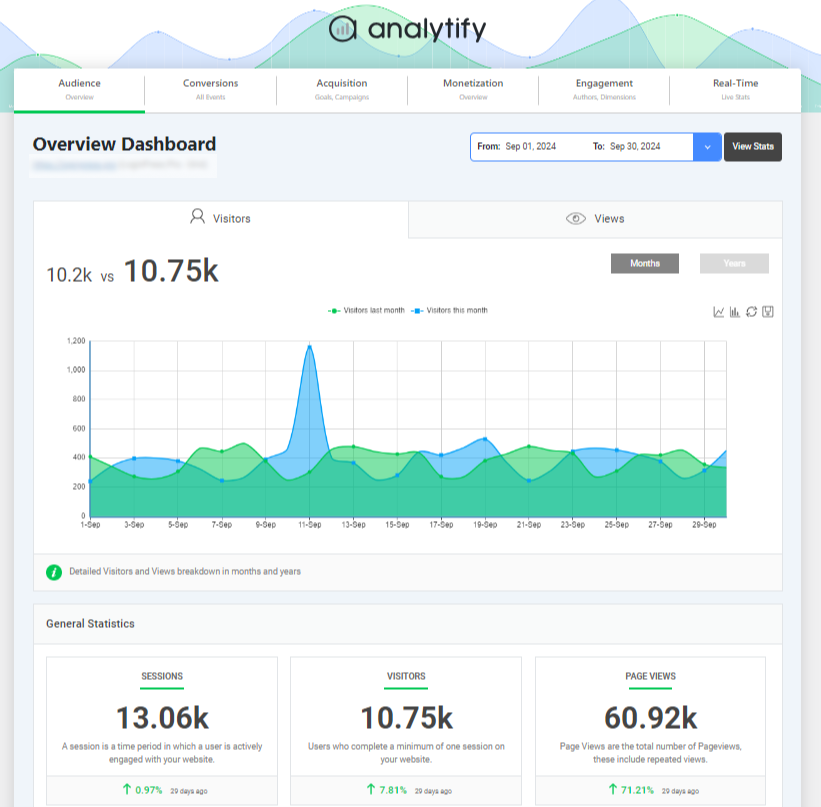
Instead of switching back and forth between Google Ads and GA4, you get a single place to track performance. Here’s how Analytify can help you:
- Real-Time Dashboard
- General Performance Metrics
- System and Device Reports
- Traffic Sources and Referral Tracking
- Event and Conversion Tracking
- E-Commerce Tracking with the WooCommerce add-on
- UTM Campaign Tracking
- Automated Email Reports
- Demographics and Interests Reports
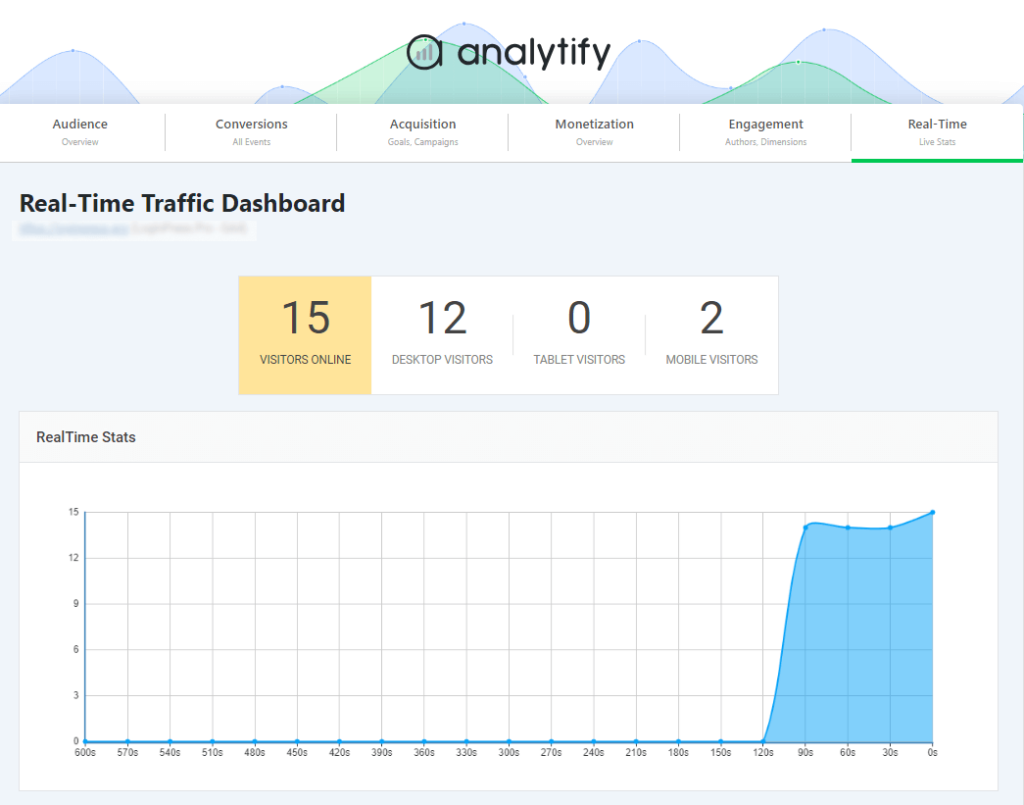
Real-Time Dashboard: See visitors on your site right now. Track live traffic without leaving WordPress.
General Performance Metrics: See sessions, users, bounce rate, and session duration. One place holds every core number.
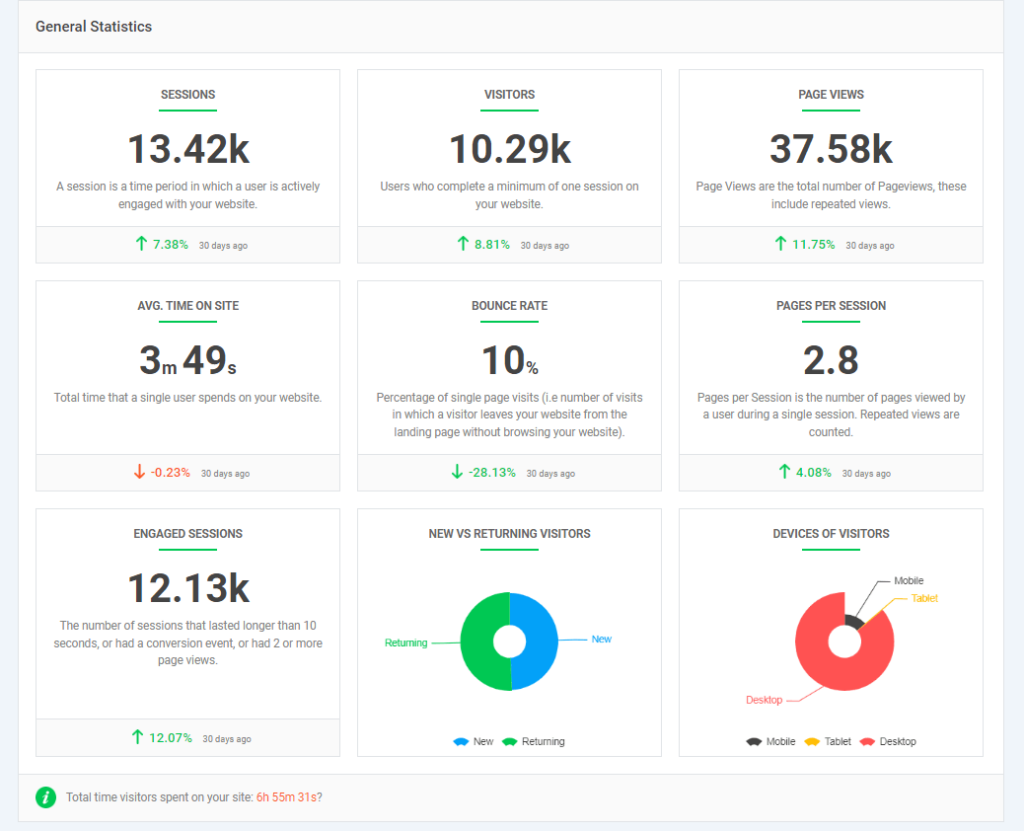
System and Device Reports: GA4 usually needs manual segmentation by device or browser. Analytify presents that breakdown automatically.
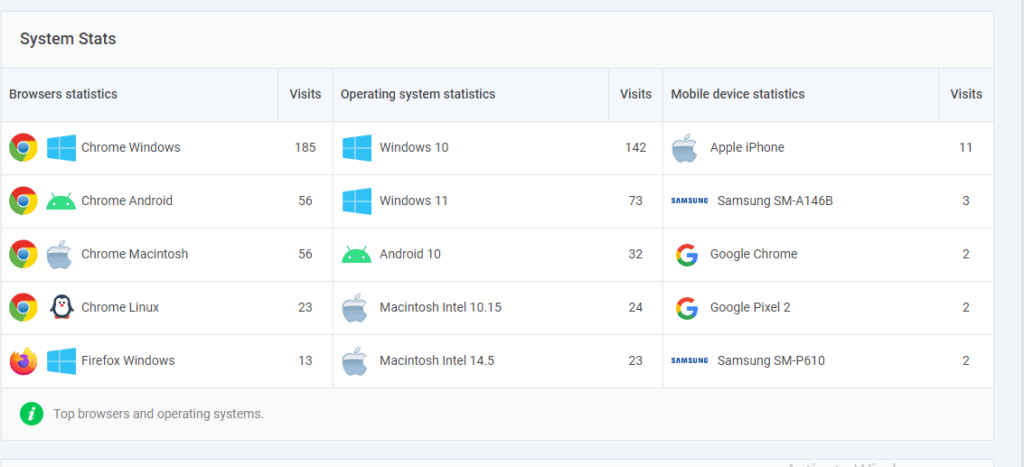
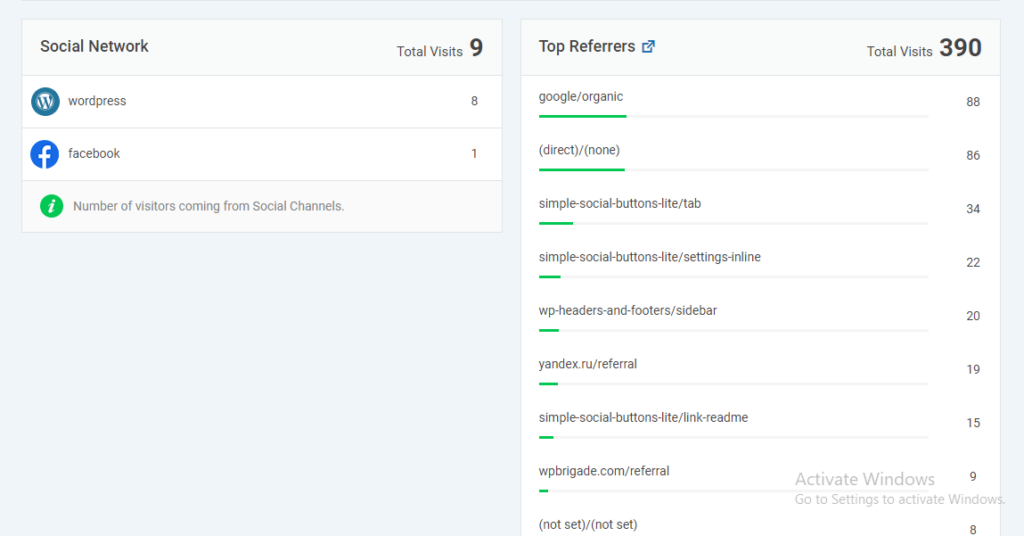
Traffic Sources and Referral Tracking: Traffic source drives GA4 audience segmentation. Analytify breaks it down by organic, social, paid, and referral traffic sources.
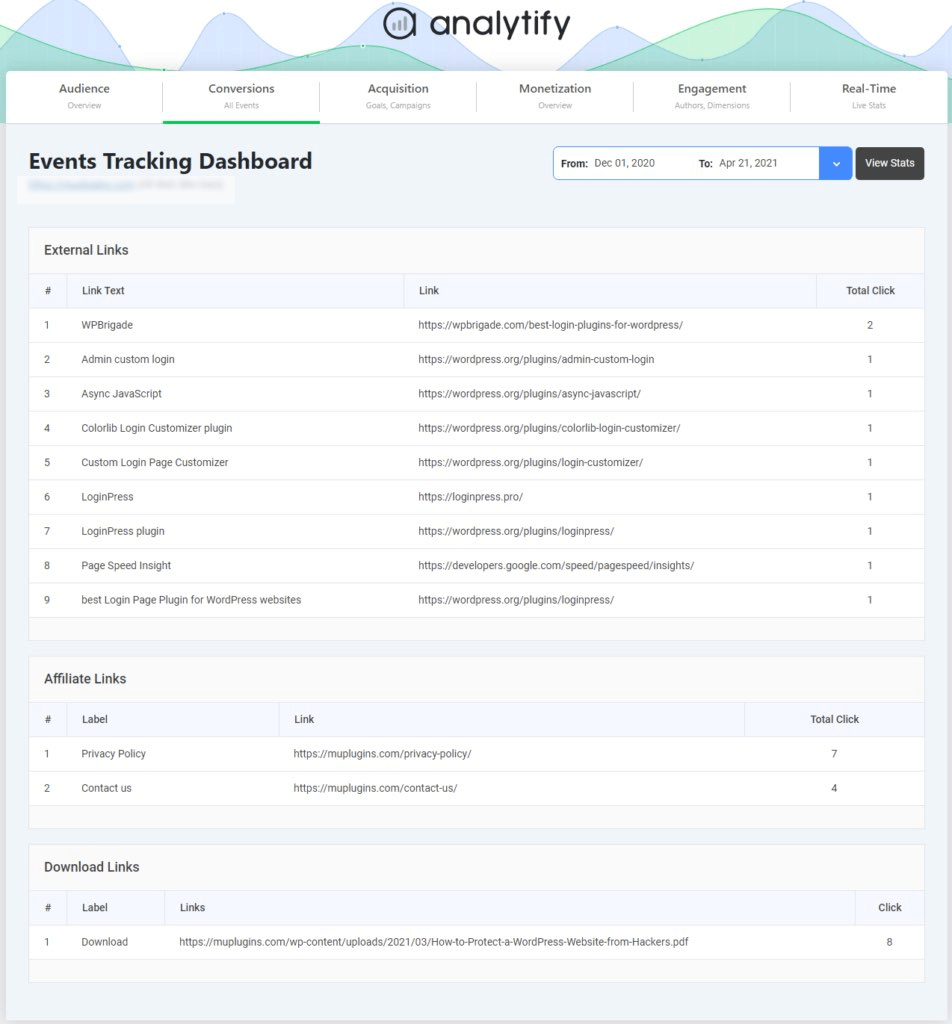
Event and Conversion Tracking: Google Ads and GA4 numbers can differ. attribution models cause most of that gap. Analytify shows which actions drive results. Those actions include downloads, form submissions, or purchases.
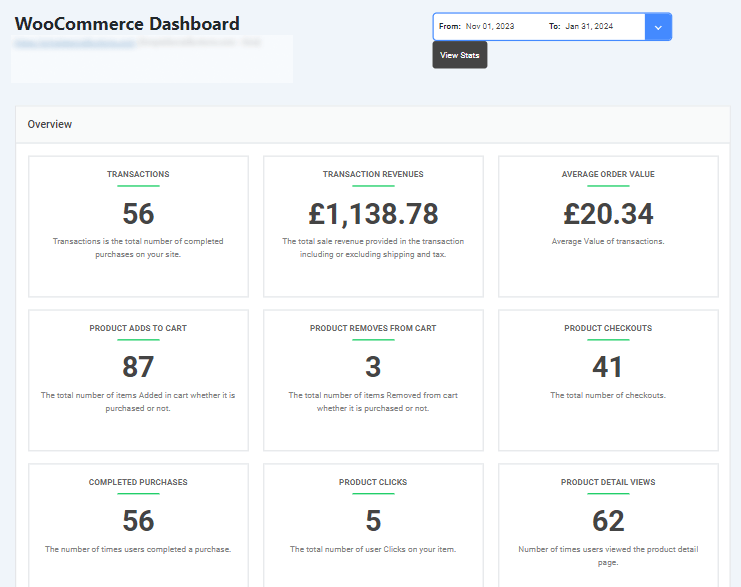
E-Commerce Tracking with WooCommerce Add-on: Analytify’s WooCommerce add-on shows transactions, revenue, and product performance. All of it stays inside WordPress.
UTM Campaign Tracking: Stop juggling separate UTM reports across two tools. Analytify tracks UTM campaigns directly in WordPress. Email, social, and paid campaigns all show which one delivers the best ROI.
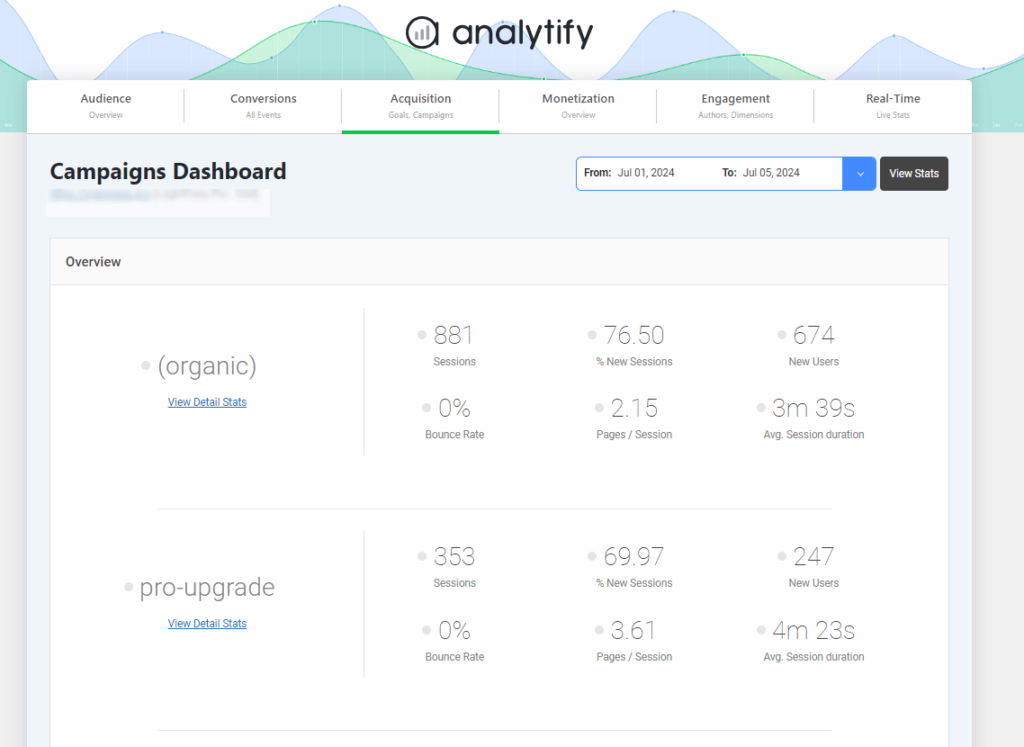
Automated Email Reports: The Email Notification Add-on sends your key metrics on a schedule. Choose daily, weekly, or monthly.
Demographics and Interests Reports: GA4 segments visitors by age, gender, and interests. Analytify surfaces that same data in one readable view.
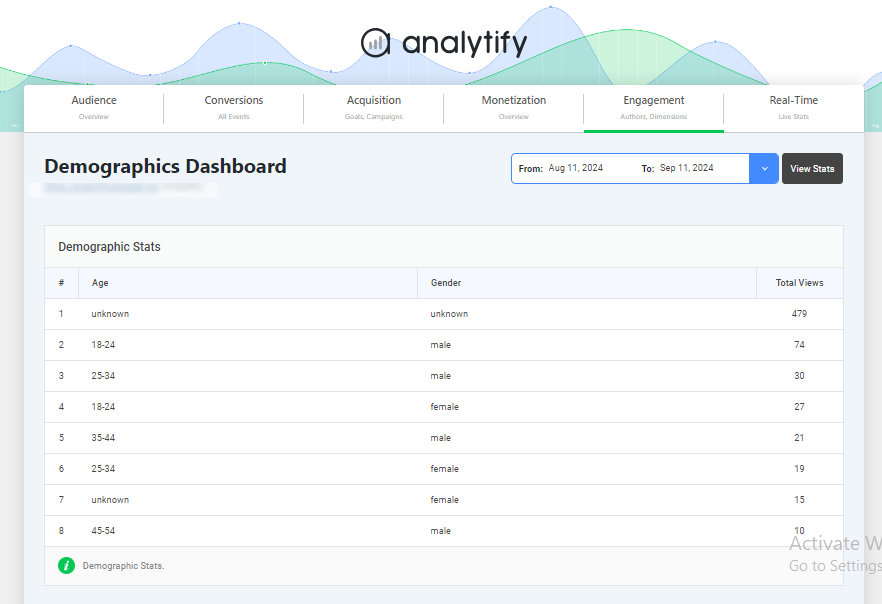
Analytify removes the complexity from Google Ads vs Google Analytics reporting. One dashboard replaces two separate logins and two separate learning curves.
Frequently Asked Questions About Google Ads vs Google Analytics
1. What is the main difference between Google Ads vs Google Analytics conversions?
Google Ads tracks conversions from ad clicks only. Google Analytics (GA4) tracks all user behavior across your site. That includes organic search, social media, email, and referrals, not just ads.
2. Can I use Google Ads conversion tracking vs Google Analytics 4 together?
Yes, and you should. Link Google Ads with GA4 to import conversions, audiences, and goals. You then optimize ad bidding while seeing the full picture of user behavior.
3. Do Google Ads vs Analytics report the same conversions?
Not always. Different attribution models cause the gap. Google Ads usually credits the last ad click. GA4 spreads credit across multiple touchpoints. Tracking tags, time zone settings, and filters can also cause small variations.
4. How to track Google Ads conversions in Google Analytics?
Link your Google Ads account to GA4 first. Once connected, import Analytics events or conversions into Google Ads. You then measure ad-driven actions and overall site behavior in one place.
5. Can I run Google Ads without conversion tracking?
Yes, but it is not recommended. Without conversion tracking, you cannot see which ads drive sales or leads. Conversion tracking is what lets you optimize campaigns and allocate budget well.
6. Why isn’t my Google Ads data showing in Analytify?
This usually means one thing: your Google Ads account is not linked to GA4 yet. Or the link was created after your selected date range. Check the connection in Google Ads account settings. Confirm conversion import is turned on. New data can take up to 24 hours to sync into Analytify.
Final Thoughts: Google Ads vs Google Analytics
Google Ads and Google Analytics answer different questions. Google Ads shows how your ad spend converts. GA4 shows how visitors behave once they land on your site. Track both, and pull the data into one dashboard with Analytify, and you get a clear picture of what is actually working.
- Google Ads tracks ad-driven conversions using last-click attribution
- GA4 tracks all traffic sources using data-driven attribution across touchpoints
- The two tools rarely report identical numbers, and that is expected
- Linking Google Ads and GA4 gives you both ad performance and full-site behavior
- Analytify combines both data sets in one WordPress dashboard
For further guidance, you can read:
Have you encountered discrepancies in conversion data between Google Ads and Google Analytics? Please share your thoughts in the comments section. I would love to hear from you!