Google Ads Conversion Tracking Not Working? (Solved)

Google Ads conversion tracking usually breaks when the conversion tag is missing or misconfigured. It also breaks when the tag does not fire on the confirmation page. Check the tag with Google Tag Assistant first, then work through the 27 causes below.
Google Ads conversion tracking is necessary to see how well your ads are performing. It helps you understand whether clicks on your ads are turning into valuable actions, like purchases or sign-ups. Without accurate conversion tracking, you cannot tell if campaigns work. You could be wasting money on ads that do not deliver.
But sometimes, Google Ads Conversion Tracking is not working as expected. You might see no conversions in your reports. Or you might be unsure whether your tags fire properly. This is frustrating when you spend money on ads and want a return.
This article walks you through 27 reasons why Google Ads conversion tracking is not working. Each comes with a fix. Whether you’re using Google Tag Manager (GTM) or manually adding tags, we’ve got you covered.
Google Ads Conversion Tracking Not Working (TOC):
Why Is Google Ads Conversion Tracking Important?
Google Ads conversion tracking helps you measure the success of your ad campaigns. It shows you what happens after a person clicks on your ad. Did they make a purchase? Did they sign up for your newsletter? Did they download your app?
Without conversion tracking, you wouldn’t know whether your ads are actually helping you reach your goals. It’s like running a race without a finish line. You would not know if you are making progress.
When Google Ads Conversion Tracking is not working, you might be flying blind. You’re spending money on ads, but you can’t see if they’re bringing in the results you want. Fixing these issues is essential for ensuring you’re getting the best value for your advertising spend.
Common Reasons Behind Google Ads Conversion Tracking Not Working (With Solutions)
Google Ads conversion tracking usually stops working in three cases. GTM changes are unpublished, tracking codes are removed from the site, or no ad click came before the conversion. Each common reason below has a fix.
Here are the most common issues behind Google Ads conversion tracking not working, and how to fix them.
1. GTM Container Changes Have Not Been Published
Reason:
So, you’ve made some updates in Google Tag Manager (GTM) to improve your tracking. But wait: if you forgot to hit Publish, those changes won’t go live. Your conversion tracking won’t work as expected.

Solution:
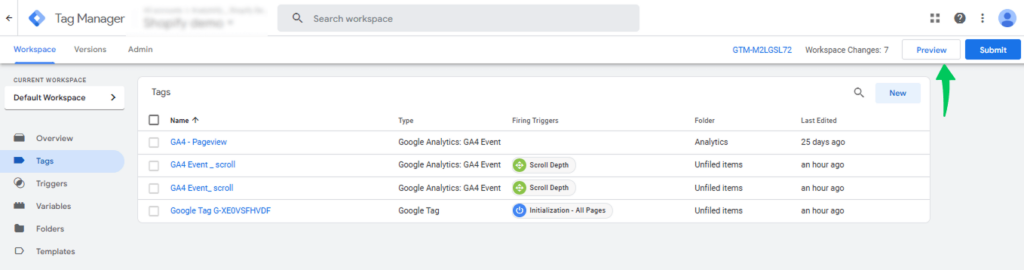
No worries! Simply head over to GTM, click on Submit, and publish those changes. Once everything is live, test your tags with GTM’s Preview Mode. Confirm everything fires correctly. It’s an easy fix, and you’ll be back on track in no time!
It is the first step to check whether Google Ads conversion tracking is working or not.
2. Review the Changes Made in Google Tag Manager
Reason:
Ever find yourself wondering what exactly went wrong after making some changes in GTM? It can be tricky to pinpoint which tweak caused the issue, especially when it’s not immediately obvious.
Solution:
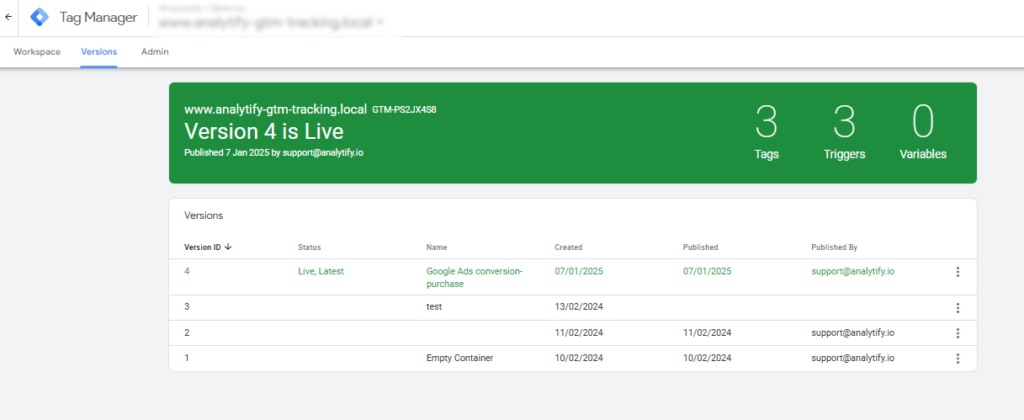
Here’s the trick – head to the Version History section in GTM. You can easily see what changes were made and when. If something feels off, you can track down the root cause. Then revert to an earlier version or adjust your changes.
3. Tracking Codes May Have Been Removed from Your Website’s Code
Reason:
Sometimes, developers unintentionally remove GTM tracking codes or Google Ads conversion tags from a website’s code. This can be the most common reason behind the conversion tracking tag not working in Google Ads. As a result, your tracking can break, leaving you with inaccurate data.
Solution:
Ask your developers to double-check the website’s code. Make sure all tracking tags are added back in. You can confirm everything’s working with Google Tag Assistant or by using GTM Preview Mode.
4. An Ad Click Is Required Before a Conversion Event
Reason:
Google Ads needs an actual ad click before it can track a conversion. Without that click, Google Ads won’t record the conversion. That holds even if the user completes an action like a purchase or a form.
Solution:
To make sure everything’s working properly, ensure the conversion action happens after the user clicks on your ad. If a user visits your site organically (without clicking the ad), Google Ads won’t register that as a conversion. So, double-check your data to make sure the click happens first!
5. Auto-Tagging Is Disabled in Google Ads
Reason:
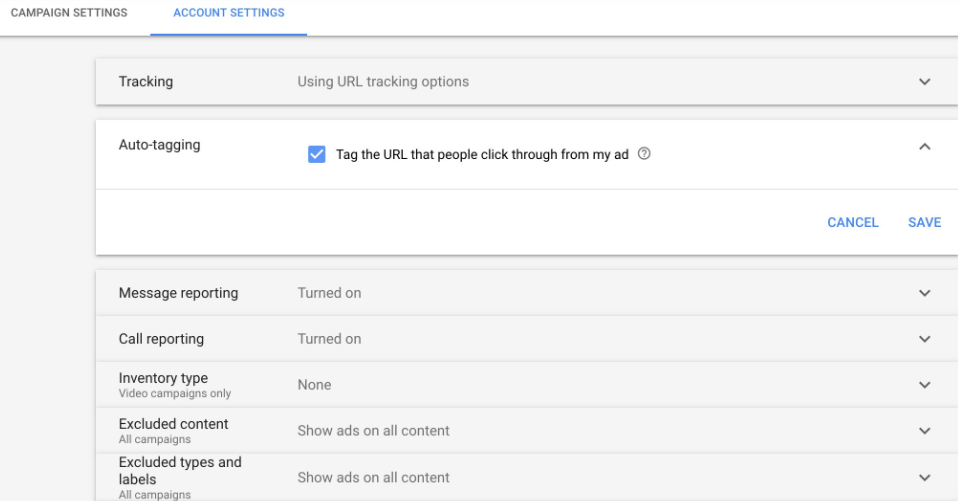
Auto-tagging is a Google Ads feature that adds tracking parameters like gclid to your URLs when someone clicks your ad. If auto-tagging is off, that tracking data never reaches Google Ads. Your conversion tracking misses conversions.
Solution:
Go to your Google Ads account, open Settings, and switch auto-tagging on. This adds the gclid (Google Click ID) to your landing page URL. Your conversions are then tracked accurately. It’s a small setting, but it makes all the difference!
6. Missing gclid Parameter in the Landing Page URL
Reason:
When someone clicks your ad, Google adds the gclid (Google Click ID) to the URL. It uses the gclid to track the conversion. But what happens if this little piece of data goes missing or gets stripped away? Google Ads conversion tracking won’t work properly!
Solution:
After an ad click, check the URL to ensure the gclid is still there. If it’s gone, it might be due to redirects or some modifications that are removing it. Use tools like the Redirect Path Chrome extension to trace redirects. Make sure the gclid stays intact throughout. It’s a simple check, but it’s key to accurate tracking!
7. gclid Parameter Is Not Passed Correctly in GTM
Reason:
Sometimes, the gclid gets lost in translation within your Google Tag Manager (GTM) container. A misconfiguration can cause it to be removed or not passed correctly, disrupting your conversion tracking.
Solution:
In GTM, set up a variable to preserve the gclid in the URL. This ensures that the gclid is properly passed from the landing page URL to GTM. By doing this, you’ll keep your conversion tracking spot on and make sure no data gets left behind!
8. gclid Parameter Has Been Altered
Reason:
A modified gclid throws off Google Ads conversion tracking. For example, changing uppercase to lowercase breaks it. Google needs that ID to stay exactly as it was when it first appeared in the URL.
Solution:
Make sure the gclid remains untouched! It needs to stay in the same format that was originally passed through in the URL. Double-check that no one (including automated processes) is changing the case or structure of the gclid. Consistency is key for flawless conversion tracking.
9. Consent Mode Implementation May Have Affected Tracking
Reason:
Consent Mode can interfere with conversion tracking. This can happen if you recently rolled it out to comply with privacy regulations like GDPR or CCPA. If the user hasn’t consented to cookies, the tracking data may be blocked or delayed.
Solution:
Take a moment to review your Consent Mode settings. Make sure that Google Ads tracking is activated when users consent to cookies. Use Google Tag Assistant to test the setup. Confirm the consent data reaches Google Ads correctly.
10. Consent Mode: ad_storage and ad_user_data Denied
Reason:
If the consent settings for ad_storage and ad_user_data are set to “denied,” you’ll face issues with conversion tracking. These settings block tracking cookies, which are essential for tracking user data related to ads.
Solution:
Check your consent settings using Google Tag Assistant to ensure that ad_storage and ad_user_data are being granted properly. Your consent management tool or popup should let users consent to these settings. That keeps your conversion tracking working. It’s all about giving the green light to tracking when users agree to it.
11. Incorrect Region Settings in Consent Mode
Reason:
Consent Mode settings that are not configured for specific regions can cause tracking issues. This matters most where privacy laws differ, like the EU.
Solution:
Take a moment to review your Consent Mode settings for each region. Make sure the configurations align with the privacy laws for that specific location. Adjust the region-specific settings in your consent code to ensure that conversion tracking works across various regions. It’s a small tweak, but it can save you from a lot of tracking headaches!
12. Consent Popup or Bar Was Overlooked by Users
Reason:
If users ignore your consent popup or cookie bar, your tracking code might not fire. You then miss valuable conversion data.
Solution:
It’s time to make that consent popup impossible to ignore! Consider redesigning the popup to make it more noticeable or even more engaging. Use clear and compelling messaging to encourage users to provide consent. This way, you’ll ensure that conversion tracking is allowed, and you won’t lose out on any key data!
13. Consent Data Is Not Being Sent to Google
Reason:
In regions with strict privacy laws, like the EU, conversion tracking can fail if consent data is not sent to Google. If consent isn’t properly transmitted, tracking data simply won’t be captured.
Solution:
Implement Advanced Consent Mode or Basic Consent Mode. Either one sends consent data correctly to Google Ads. Double-check that your consent management platform is configured to send the necessary consent data when users grant permission. This ensures that everything is working properly, especially in privacy-regulated regions.
14. Not Enough Time Has Lapsed for Conversion Data to Appear
Reason:
Have you recently set up or made changes to your conversion tracking? If so, don’t panic if you don’t see the data right away. Conversion tracking isn’t always immediate – it can take some time to populate in your Google Ads reports.
Solution:
Give it some time! Wait for at least 24–48 hours to see the data appear in Google Ads. Sometimes, the system just needs a little while to sync everything. So, be patient and check back later – the data will show up soon!
15. Conversion Tracking Issues Caused by Iframes
Reason:
If your site uses iframes (like embedded forms or third-party content), conversion tracking can break. The tracking code inside the iframe may not reach Google Ads properly. That causes issues with your conversion data.
Solution:
To fix this, make sure you pass the conversion events from the iframe to the parent page. This way, the conversion tags can fire on the parent page, ensuring accurate tracking. You can also use Google Tag Manager to properly track conversions inside an iframe. Fire tags on the parent page once the event occurs. It’s a bit of extra setup, but it ensures that your tracking works no matter where the action happens!
With these tips, you can fix consent-related and technical problems that affect conversion tracking. A little attention to detail keeps everything running smoothly and your data accurate.
16. Incorrect Tracking Code Is Being Used
Reason:
A wrong tracking code or a mismatched conversion ID stops conversion tracking from working. It is easy to get lost among different tags. Using the wrong one makes your data off or missing.
Solution:
Double-check the conversion tracking code you’re using in your Google Ads account. Ensure that the conversion ID matches the one in your tracking setup. If needed, copy the correct code directly from Google Ads. Paste it into the right place on your site. This small fix can make a world of difference in ensuring accurate tracking.
17. Conversion Tags Are Triggering on Incorrect Pages
Reason:
Conversion tags sometimes fire on the wrong pages, like a thank-you page that should not trigger the event. This can lead to inaccurate data and inflated conversion numbers.
Solution:
Review your tag firing rules in Google Tag Manager. Make sure that your tags are only firing on the pages where conversions are supposed to happen. For example, the conversion tag should fire only on the confirmation page. That means after a purchase or form submission. Tighten up your triggers, and you’ll ensure that the data is accurate and on point.
18. Improper Integration Between Google Analytics and Google Ads
Reason:
Google Analytics and Google Ads work well together. If they are not set up properly, things get messy. Sometimes, Google Analytics tracking can override Google Ads conversion tracking, or the two systems might not be aligned.
Solution:
Make sure your Google Analytics and Google Ads accounts are properly linked. Double-check that the conversion actions in both accounts are synced up and reporting the same information. Once everything is linked and aligned, you can gather accurate data from both platforms without any conflicts.
WordPress users can read our guide on How To Set Up Google Ads Conversion Tracking with Analytify.
19. Conversion Tracking Is Not Implemented Across All Funnels
Reason:
If conversion tracking is not set up on every funnel step, you could miss important data. For example, you might track a purchase but not a lead submission or checkout start. Then you lose visibility into the earlier stages of the customer journey.
Solution:
Review the entire conversion path – from the initial touchpoint to the final purchase. Ensure that conversion tracking is set up at every step, not just at the final action. This gives a complete picture of how users move through your funnel. It helps you find bottlenecks and missed opportunities.
20. Issues with Your Data Layer Configuration
Reason:
Your data layer sends accurate data to Google Tag Manager and then to Google Ads. If the data layer isn’t configured correctly, conversion tracking might not pick up the right information.
Solution:
Check that your data layer is set up correctly. Make sure it passes the necessary information to Google Tag Manager. For example, push transaction values, product IDs, and other key details to the data layer when a conversion happens. A properly configured data layer makes your tracking far more accurate. You also get better insights into performance.
21. Tracking Codes Forgotten After Website Migration
Reason:
After a website migration, it’s easy to overlook the conversion tracking codes. If these aren’t properly updated or re-implemented, you could miss out on crucial conversion data.
Solution:
Once your website migration is complete, review the tracking codes in Google Tag Manager (GTM) or in your website’s code. Ensure that all GTM tags and Google Ads conversion codes are correctly re-added to the new site. This is a simple but essential step to make sure your tracking continues after the move.
22. Conversion Tag Is Not Firing
Reason:
If the conversion tag isn’t firing properly, incorrect triggers or misconfigurations in Google Tag Manager are often the cause. Without the tag firing, no conversions will be tracked!
Solution:
Use GTM Preview Mode to test whether the conversion tag fires correctly on your confirmation or Thank You page. Review your GTM triggers to make sure they fire at the right time. For example, when a user lands on the confirmation page or submits a form. A quick check can save you from missed conversions!
23. Conversion Tag Fires Too Early Before the Redirect
Reason:
If your conversion tag fires too early, before the redirect to the confirmation page, the data may not reach Google Ads.
Solution:
Adjust the firing settings of your conversion tag to ensure it triggers after the page redirects. Ideally, it should fire on the confirmation or Thank You page after the conversion action is completed. You can also use Event Tags in GTM to fire after the user completes the action. This ensures that the data is accurately recorded and sent to Google Ads.
24. “Still Running” Status for Google Tag Manager Tags
Reason:
In Google Tag Manager, tags sometimes show “Still Running.” That means they have not fired correctly, and conversion tracking fails.
Solution:
Check the tag conditions to ensure they are set up correctly. Make sure the tag isn’t being blocked by other tags or conflicts. Use GTM Preview Mode to verify the trigger conditions and tag firing sequence. Once you’ve made adjustments, re-test the tag to ensure everything works as expected.
25. Conversion Linker Tag Is Missing
Reason:
If the Conversion Linker tag is missing in Google Tag Manager, cross-domain tracking or third-party cookie tracking can fail. That corrupts your conversion data.
Solution:
Add the Conversion Linker tag to Google Tag Manager. This tag stores conversion data in the browser and ensures that it gets sent to Google Ads properly. Place the Conversion Linker on all relevant pages where conversions occur. This keeps the data flowing.
26. Time Zone Differences
Reason:
A time zone mismatch between your Google Ads account and your website can cause discrepancies. Conversion data can appear at the wrong time or not at all.
Solution:
Double-check that the time zone settings in your Google Ads account match the time zone on your website. This helps ensure that conversions are attributed to the correct time and date. You can easily update your time zone settings in Google Ads under Account Settings. This small step can clear up any reporting confusion.
27. Conversion Window Setting Is Too Short
Reason:
If your conversion window in Google Ads is too short, say less than a day, you might miss conversions that happen after it expires. This results in incomplete tracking and data gaps.
Solution:
Extend the conversion window in Google Ads to match the typical conversion time for your business. This ensures conversions that happen a few days after the ad click are still tracked and reported accurately. A longer conversion window ensures you capture all of those valuable conversions.
These tips should help you keep your conversion tracking accurate and your Google Ads campaigns running smoothly. A little attention to detail helps you avoid these common pitfalls and keep your tracking on point.
How Analytify Can Help WordPress Users with Google Ads Conversion Tracking
Join 50,000+ beginners & professionals who use Analytify to simplify their Google Analytics!
If you use WordPress and find Google Ads conversion tracking tricky to set up, Analytify can help. It simplifies the Google Analytics integration. That integration is crucial for accurate, up-to-date conversion tracking. Here’s how Analytify can help you maintain flawless conversion tracking:
Integration with Google Analytics & Google Ads: Analytify ensures that Google Analytics is properly integrated with your WordPress site. It also works with your Google Ads account. This means your conversion tracking events are logged correctly. You can monitor them in your Google Analytics dashboard.
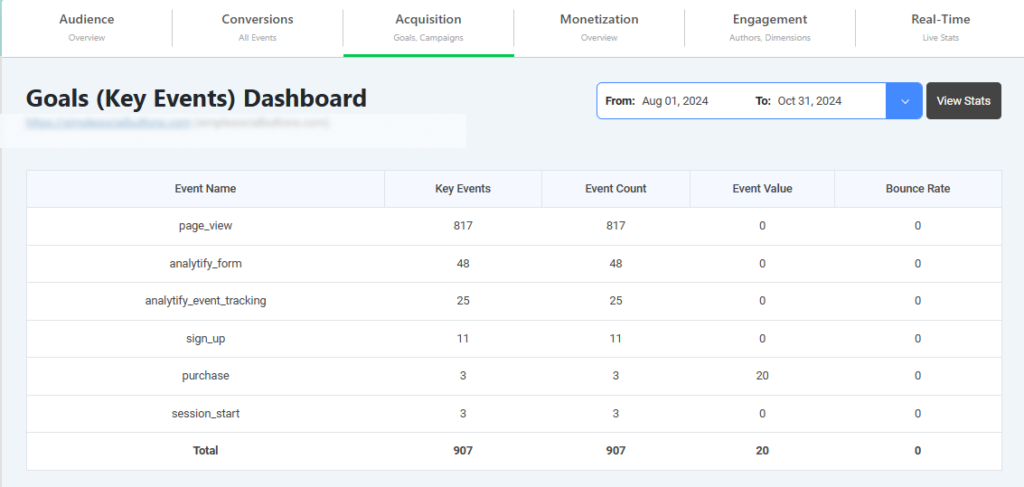
Simplified Event Tracking for Accurate Conversions: Setting up event tracking for specific conversions by hand is hard. Analytify tracks custom events (like form submissions or button clicks) with a few clicks. This ensures that all conversions, big or small, are accurately reported to Google Ads.
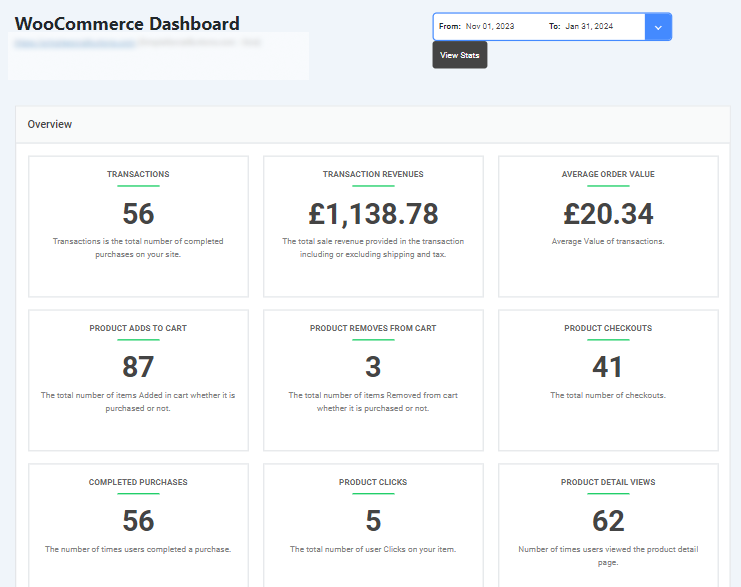
Enhanced eCommerce Conversion Tracking: For WooCommerce store owners, Analytify’s integration makes tracking purchases, cart additions, and checkout completions straightforward. This is critical when troubleshooting issues with conversions not appearing or discrepancies in conversion windows.
With Analytify, WordPress users get a solid Google Ads conversion tracking setup. It minimizes common issues like tags not firing, missed conversions, or misconfigured tracking. It simplifies the tracking process, letting you focus on optimizing your campaigns with confidence.
Frequently Asked Question About Google Ads Conversion Tracking
1. Why is Google Ads Conversion Tracking Not Working?
Common causes behind Google Ads conversion tracking not working include misconfigured tags, missing tracking codes, issues with Google Tag Manager (GTM), or the gclid parameter being stripped. Ensure your tags are correctly implemented and test them using GTM Preview Mode.
2. What Should I Do if My Google Ads Conversion Tracking Tag is Not Firing?
If your Google Ads conversion tracking isn’t working, you must check your GTM trigger settings to ensure they are firing on the correct page. Use GTM Preview Mode to test the tag and verify it’s set to trigger when a conversion action occurs.
3. How Can I Check If Google Ads Conversion Tracking is Working?
Use tools like Google Tag Assistant or GTM’s Preview Mode to test if the conversion tracking tag is firing correctly. Check for any tracking errors or issues with the tag setup. This will most probably fix the problem if Google Ads conversion tracking is not working.
4. How to Fix Google Ads Conversion Tracking Not Working in Google Tag Manager (GTM)?
If your Google Ads conversion tracking is not working, ensure the Google Ads conversion tag is correctly set up in GTM, and the gclid is being passed. Use GTM Preview Mode to test and debug the tag’s firing sequence.
5. What Can I Do If Google Ads Conversion Tracking is Not Working Correctly?
If your Google Ads conversion tracking not working, check your tags, triggers, and ensure privacy settings like Consent Mode aren’t blocking tracking. Use GTM Preview Mode to test the data flow to Google Ads.
6. How Do I Fix Google Ads Conversion Tracking Not Working After a Website Migration?
If your Google Ads conversion tracking is not working after your website migration, you must review and re-implement the tracking codes in GTM after migration. Use GTM Preview Mode to test and ensure tags are firing correctly on the conversion pages.
Google Ads Conversion Tracking Not Working – Conclusion:
Follow the troubleshooting steps above to resolve most issues with Google Ads conversion tracking not working. Whether the cause is a misconfiguration in Google Tag Manager, the gclid, or Consent Mode, these solutions help you find and fix the root cause.
Test regularly with Google Tag Assistant and GTM Preview Mode. Check that all tags and triggers are set up correctly. This keeps your conversion tracking accurate and reliable.
Remember, Google Ads conversion tracking is important for optimizing your ad campaigns. It shows whether you get the best return on your investment. With the right setup and consistent monitoring, your conversion data will be accurate. It will also be useful for your marketing decisions.
We hope this tutorial helped you resolve the issues behind your Google Ads conversion tracking not working.
You may also like to further read: