Google EEA Compliance & Consent Signals Guide (2025)

Are you curious about how to manage consent signals in GA4? With data privacy laws such as the EEA, businesses must ensure they manage user consent effectively. This includes setting up Consent Mode in Google Analytics 4 (GA4), sending proper signals, and handling Google Ads personalization based on user preferences.
In this guide, we’ll explain everything you need to know about EEA compliance and consent management to comply with data protection laws.
Lets get started!
EEA Compliance (TOC):
What is Google EEA Compliance & Consent Signals?
Google’s EEA (European Economic Area) Compliance & Consent Signals refer to the measures Google has implemented to ensure its services comply with data privacy regulations, such as the General Data Protection Regulation (GDPR) and the ePrivacy Directive, which are prevalent in the EEA.
These regulations require websites and platforms to obtain explicit user consent before collecting, processing, or sharing personal data, especially for advertising and tracking purposes.
Google EEA Compliance is the overarching legal and operational framework ensuring that Google’s practices adhere to EEA data privacy laws.
Consent Signals are a technical component within that framework. They inform Google about individual user consent decisions and ensure that data collection and processing align with the user’s preferences.
What does the EEA Compliance message mean?
“End users in the European Economic Area (EEA) must consent for their data to be shared with Google for advertising purposes. When data is not marked as consented, it may impact ads personalization and measurement.”

The EEA Compliance Message means that for businesses and platforms operating in the European Economic Area (EEA), users must give explicit consent before their data can be shared with third parties like Google for purposes such as advertising and tracking. This message is part of Google’s adherence to the General Data Protection Regulation (GDPR) and the ePrivacy Directive, which require transparency and user control over data collection and processing.
Key Points in the Message:
- End Users in the EEA Must Provide Consent:
In the EEA, privacy regulations mandate that users must actively agree (give consent) to allow personal data to be collected, processed, and shared for purposes like personalized ads. This consent is often gathered through a consent management platform (CMP) that appears as a website cookie banner.
- Personal Data and Advertising:
In this context, personal data refers to any information that can identify an individual (such as IP addresses, browsing behavior, or location data) and is used to deliver personalized advertising or to track user interactions for advertising purposes (ad personalization).
- Impact on Ads Personalization and Measurement:
If a user does not consent, the personal data cannot be collected or shared with Google. As a result:
Ads personalization: The ads shown to the user may not be tailored to their preferences or online behavior. Instead, they may see generic ads.
Measurement: Tracking user interactions with ads, such as clicks and conversions, may be limited, affecting the accuracy of performance metrics and ad targeting capabilities.
This message is a reminder that websites and apps must get explicit consent from users in the EEA before sharing personal data with Google for advertising purposes. If consent is not provided, it can affect the ability to personalize ads and accurately measure ad performance, which aligns with EEA data protection laws like GDPR.
How to Manage Consent Settings in GA4 for Google EEA Compliance?
To manage consent settings in Google Analytics 4 (GA4), especially for end users in the European Economic Area (EEA), you must ensure compliance with the EU user consent policy. This involves setting up signals for data collection and managing how data is used for ads personalization and measurement. Below are the actions required to set up and manage consent settings:
Step 1: Access Your GA4 Property
- Log in to your Google Analytics account.
- Navigate to the desired GA4 property where you want to manage consent settings.
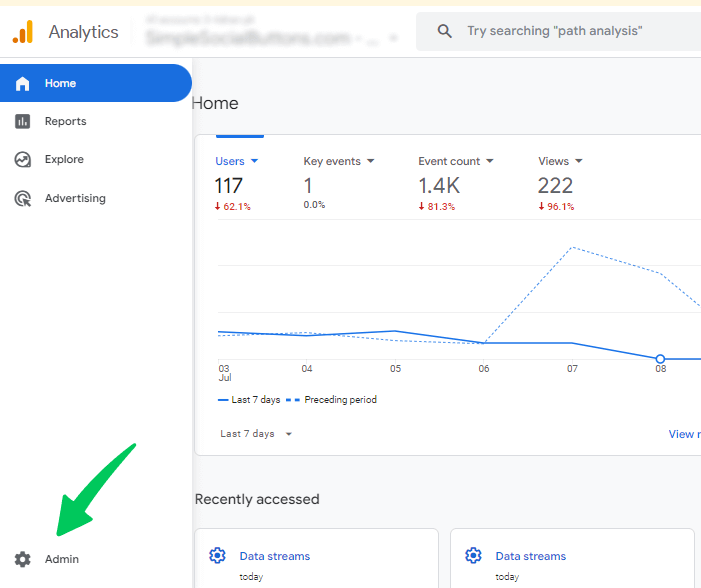
Step 2: Navigate to the Admin section
- Click on the Admin option at the bottom left menu bar.
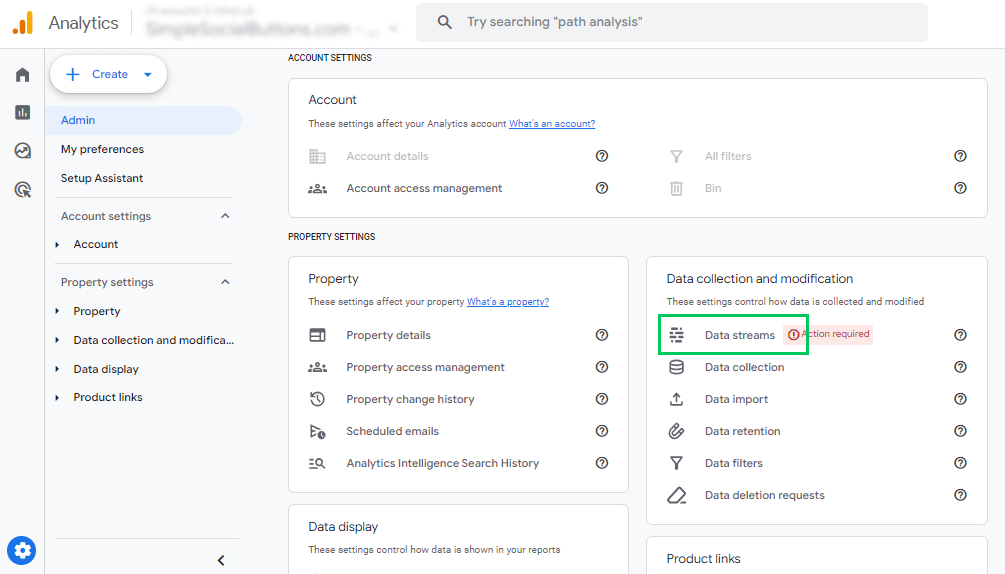
Step 3: Select Your Web Data Stream
- Select the Data Streams tab under the Data Collection and Modification.
- Click on the relevant web data stream.
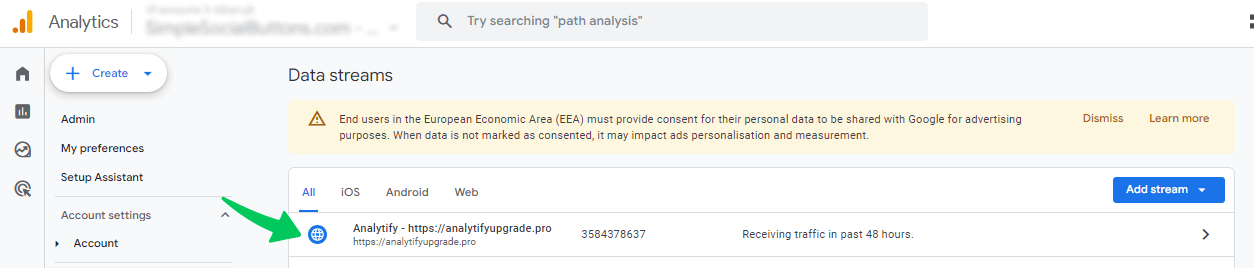
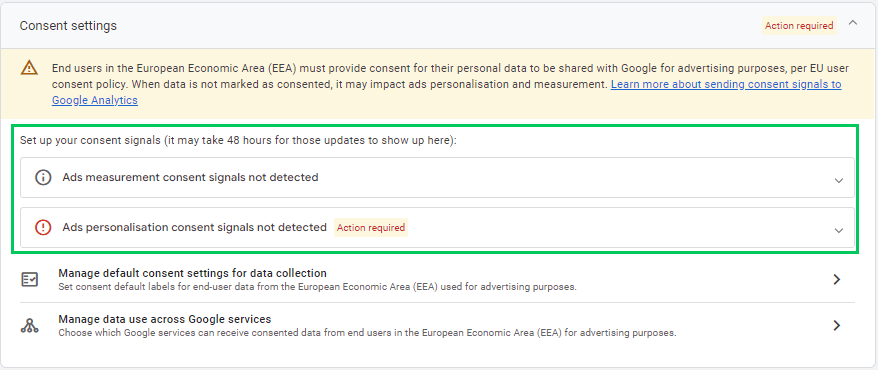
Step 4: Action Required for Consent Management
- Ads Measurement Consent Signals Not Detected:
- This warning indicates that Google Analytics has not received signals for measuring user interactions related to ads.
- To address this, ensure that your website sends consent signals whenever users interact with consent banners on your site. These signals inform GA4 whether it is allowed to collect ads-related data.
- Ads Personalization Consent Signals Not Detected:
- This warning means your website is not sending signals to Google Analytics regarding user consent for personalization ads.
- You must enable consent signals that inform GA4 whether users have agreed to personalized ad targeting.
Step 5: Set Up Consent Signals
You must use a Consent Management Platform (CMP) to display a consent banner and collect user consent signals.
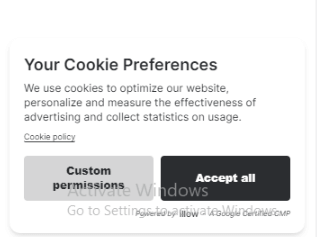
These signals will be sent to Google Analytics, ensuring compliance with user preferences. Read this guide to learn more about setting up a consent banner with a CMP.
To create a consent banner, follow these key steps:
- Insert CMP Code: Add the code from your chosen Consent Management Platform (CMP), such as Cookiebot or OneTrust, into your website’s header to initiate the consent banner display.
- Form the Consent Banner: Use the CMP dashboard to design a banner that categorizes user consent options (e.g., necessary, marketing, analytics) for different data uses.
- Customize User Interface: Ensure the banner is user-friendly and legally compliant, offering clear options for accepting, rejecting, or customizing consent preferences.
- Choose Display Settings: Decide when and how the banner will appear (e.g., on page load or scrolling) based on user location, particularly for EEA-specific banners.
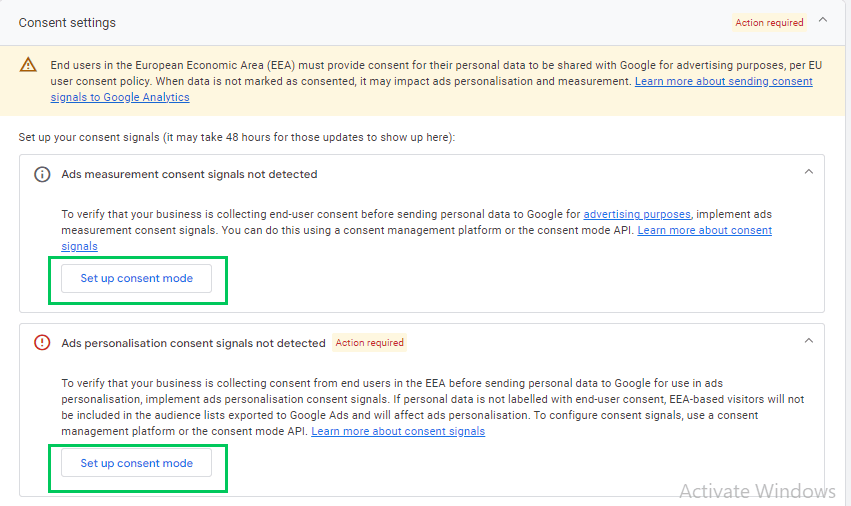
Step 6: Send Consent Signals to GA4
Once the consent banner is active on your site, every time a user interacts with the banner (accepting or rejecting categories), the CMP will send the corresponding consent signals to GA4. You can mention how the banner sends these signals here as well.
- Consent Signals Sent by Banner to GA4:
- Based on user interactions with the consent banner, the CMP will send signals indicating whether users have granted or denied consent for ad personalization and measurement.
- GA4 will process these signals, ensuring that data collection only happens based on user permissions.
- Enable Consent Mode in GA4:
- Enable Consent Mode in your GA4 property by accessing the Data Streams settings under Tagging Settings. Here, you can adjust consent settings and ensure GA4 respects user consent preferences.
Step 7: Manage Default Consent Settings for Data Collection
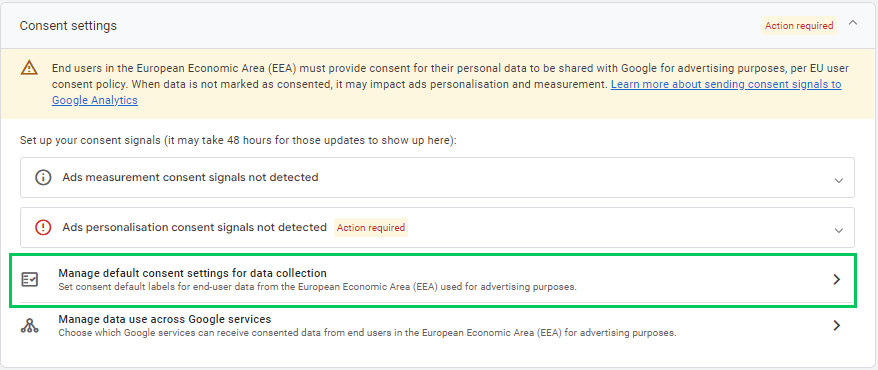
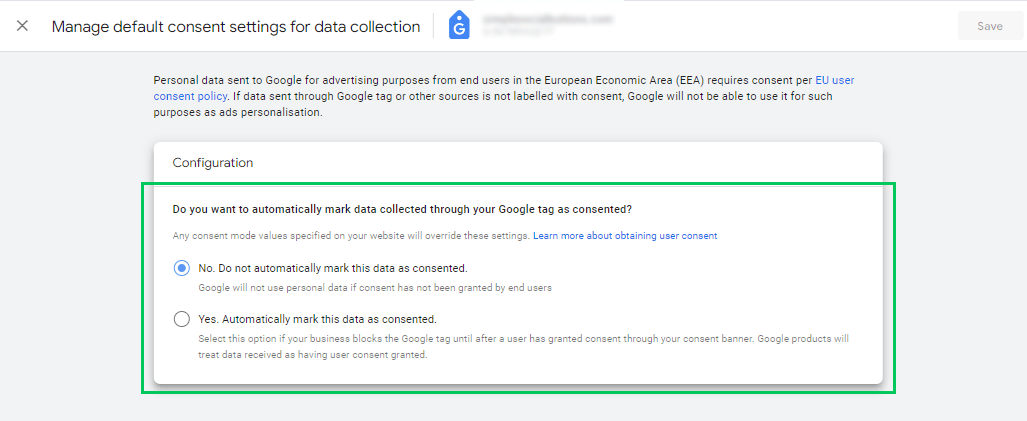
Google allows you to manage the default consent settings for EEA users. Personal data sent to Google for advertising purposes must have user consent. Without consent, Google cannot use this data for ad personalization.
If,” you want to automatically mark data collected through your Google tag as consented, you can override this automatic setting by any consent mode values specified on your website. The recommended option is “No”, meaning data will not be automatically marked as consented, ensuring compliance with EU consent policies.
Step 8: Manage Data Use Across Google Services
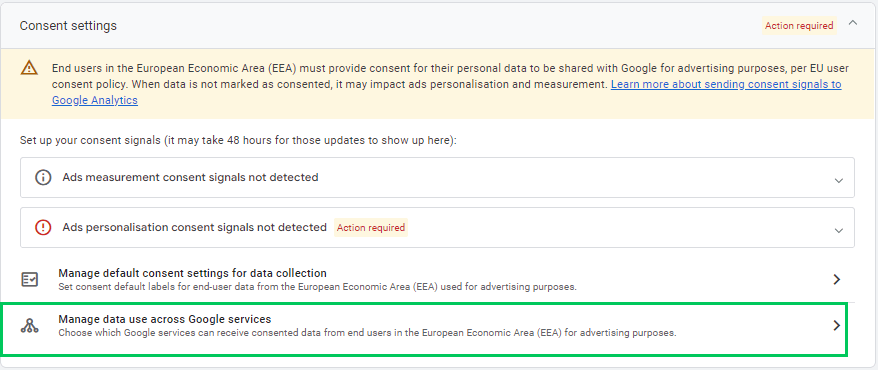
Under the consent settings, you can specify how end-user data is shared across Google services (e.g., Google Ads, Google Search, etc.).
Manage your preferences in Google Tag Manager or GA4 Data Settings to decide which Google services can receive consented data from EEA users for advertising.
Step 9: Test Consent Implementation
- Test Consent Banner:
- Visit your website and interact with the consent banner to verify that the signals are correctly sent to GA4. You can use GA4’s Real-Time Reports to observe whether data collection is in accordance with user consent preferences.
- Debug Consent Mode:
- Use Google Tag Manager’s Preview Mode to check whether your tags are firing based on the user’s consent.
- Also, verify in GA4’s DebugView if data collection is blocked or allowed according to the consent choices made.
By managing these consent settings, you ensure compliance with privacy laws while continuing to gather valuable analytics data based on user consent. This setup is essential for maintaining transparency and trust with your EEA users and optimizing data collection for advertising purposes.
How Analytify Ensures EEA Compliance for Your Website
Join 50,000+ beginners & professionals who use Analytify to simplify their Google Analytics!
Analytify is the best WordPress plugin for simplifying Google Analytics integration. It provides user-friendly dashboards and real-time reports directly within the WordPress dashboard. It also offers detailed reporting, enhanced tracking, and compliance tools to help businesses easily manage and analyze website data.
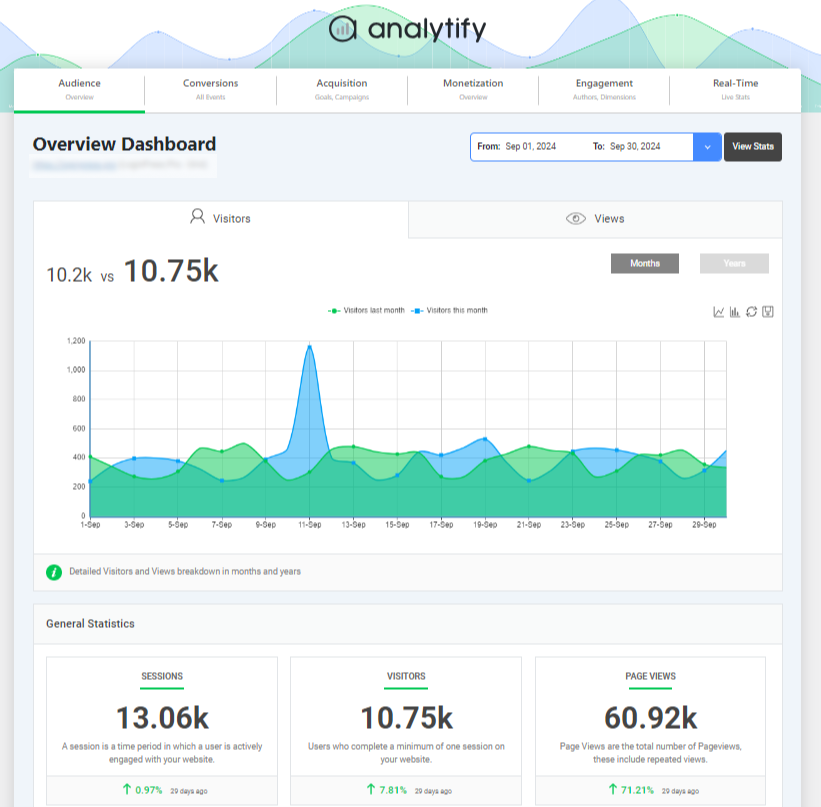
Analytify is crucial in ensuring EEA compliance by simplifying the process of managing consent signals. Analytify offers features that help businesses meet data privacy regulations in the European Economic Area (EEA). These features are specifically designed to protect user data and respect consent preferences while continuing to gather useful analytics.
Here’s how Analytify contributes to EEA compliance:
Anonymizing IP Addresses
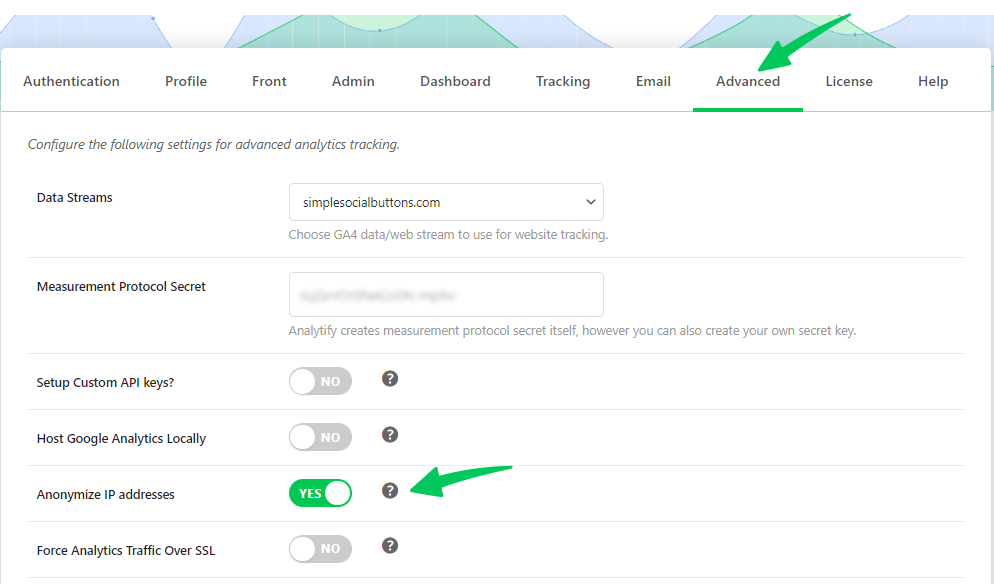
It automatically anonymizes user IP addresses, preventing the collection of personally identifiable information (PII) from users within the EEA. We recommend turning on the Analytify Anonymize IP settings. Follow the following steps for it:
- Login to your WordPress Admin Panel.
- Go to Analytify Settings >> Advanced Tab.
- Check the “Anonymize IP addresses” settings.
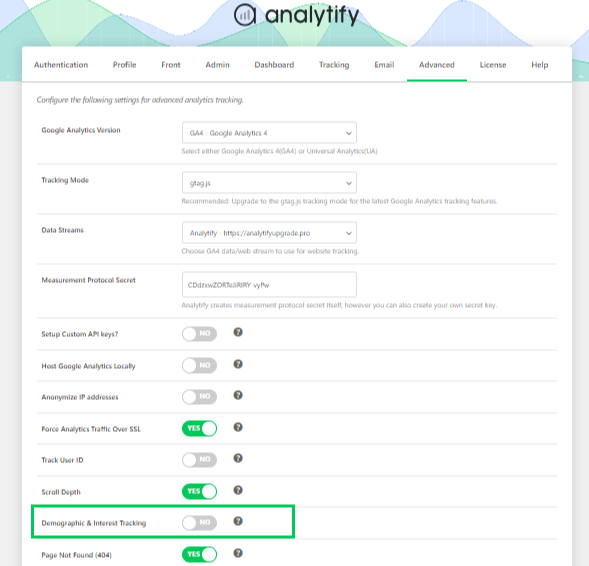
Limiting Demographic Data Collection
This policy restricts the collection of demographic information and interest reporting, ensuring that user data is gathered only with proper consent and in compliance with EEA privacy standards.
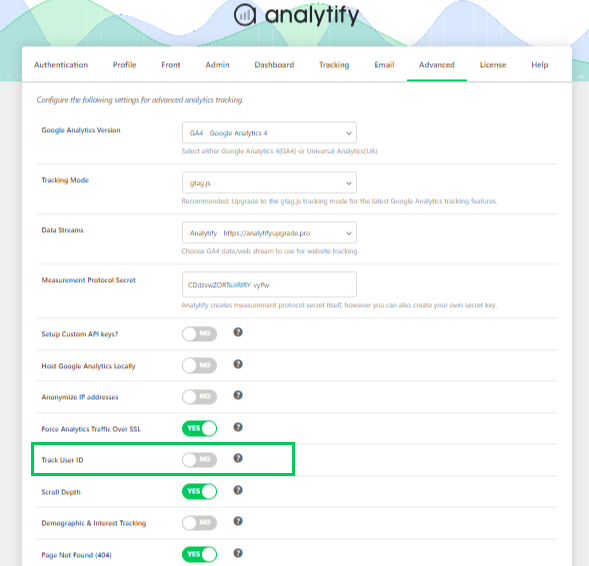
Disabling User ID Tracking
Disables the tracking of UserIDs, ensuring that individual user behaviors aren’t tied to unique identifiers unless explicit consent is provided.
Simplified Consent Banner Integration
Works alongside popular CMPs like Cookiebot or OneTrust enabling businesses to easily display consent banners and send consent requests to Google Analytics for compliant data collection.
With these features, Analytify not only makes it easier to use Google Analytics in line with EEA but also empowers businesses to continue collecting valuable data while respecting user privacy.
FAQs
1. What is EEA (European Economic Area) Compliance?
This compliance refers to following the privacy regulations set by the European Economic Area, particularly the General Data Protection Regulation (GDPR).
2. How does Google ensure EEA Compliance?
Google ensures EEA Compliance by implementing tools like Consent Mode, which adjusts data collection based on user consent in the EEA.
3. What are consent signals?
Consent signals are user choices regarding data collection, which inform Google services whether to enable or disable features like analytics or personalized ads.
4. How does Google Ads Personalization work with EEA Compliance?
Google Ads Personalization in the EEA complies with consent laws. Ads are personalized only if users give explicit consent, ensuring compliance with local data protection rules.
5. How does the EEA Consent Mode affect consent signals?
Consent Mode in the EEA sends consent requests to Google’s tags, informing them whether data like cookies can be used for analytics or advertising based on the user’s preferences.
Final Thoughts
In conclusion, ensuring EEA Compliance within your Google Analytics 4 (GA4) setup is crucial for adhering to the privacy regulations set by the European Economic Area(EEA), especially in light of GDPR.
By enabling Consent Mode, implementing a consent banner, and effectively managing consent signals, you can guarantee that user preferences are respected while maintaining the ability to collect valuable data for analytics and advertising.
This guide provides a comprehensive approach to managing consent for both ads personalization and measurement, ensuring transparency and legal compliance for businesses operating in the EEA.
For more details on how Google Analytics handles cookies and compliance, check out this dedicated article: Google Analytics Cookies.
Do you have any questions about setting up Consent Mode or managing compliance in GA4? Comment below, and we’ll be happy to help!