To add a website to Google Analytics, create a Google Analytics 4 property. Add a web data stream for your site URL. Then install the Measurement ID on your site. This guide shows each step, plus how to move or delete a property.
Google Analytics acts as the eyes and ears, keeping track of every interaction and footfall on your website. The success of your business depends on how well you know your online customers and website performance. To track the web performance, you must connect your website with a Google Analytics account.
In this blog, we will explain how to add a website to Google Analytics step by step. You’ll also find some expert tips on how to manage your GA4 Property.
If your site runs on WordPress, Analytify connects your GA4 property and shows the reports inside your WordPress dashboard.
Table of Contents
What is Google Analytics 4 Property
Google Analytics 4 property is any website, mobile app, or blog with a unique tracking ID. This tracking ID identifies the property. It lets you get correct data and analyze it.
Put simply, a property is an online container. It stores the insights and metrics that Google Analytics collects.
Having a Google Analytics account is a game changer when handling the data on your website. This powerful analytics tool lets you track and examine different parts of how well your website is doing.
However, did you know that a Google Analytics account can have multiple properties?
You may have one website or several online businesses. You can handle them all with a single Google Analytics account. This trait gives you a smooth ride.
Are you still confused between account and property? Don’t worry we’ll clear it out for you in the following section.
Google Analytics Account vs. Property
Google Analytics Account is the main portal for controlling and organizing your different websites and apps on Google Analytics. Your account is the way to get into analytics. A company or group can have one or more Analytics accounts.
You need at least one account to get to Analytics and determine which features you want to track. You decide how to handle the link between your accounts and your properties. You can set up a relationship between one account and one property or between one account and many properties.
GA4 Property, on the other hand, is a unique website or app we add to our Google Analytics account. The property is the website or app, which you’re tracking and gathering data for.
Think of Google Analytics as a bookshelf. The Account is an entire shelf. Each GA4 Property is an individual book on that shelf.
Let’s learn how to add a website (property) to Google Analytics account in the next section.
How To Add Website to Google Analytics [Step-by-Step]
You can add a property to Google Analytics in two different ways.
You can choose the one that works best for your needs. In this section, we’ll look at these two ways in-depth and discuss their differences and advantages.
1. Create a New Google Analytics Account
One way is to make a new Google Analytics account and start over. This lets you start over and make the account fit your needs. For example, create a new account if a website or app belongs to a different business.
2. Create a New Property Within an Existing GA4 Account
The second way is to make a new property within an existing analytics account if you already have one. This method helps if you want to keep all your tracking data in one place. You can still track different websites or apps in their own ways.
Both ways have advantages, so it’s important to consider your needs before choosing the one. You may choose a new Google Analytics account or a new property within an existing one. Either way, make sure you can track and analyze your website’s performance.
Now let’s find out how to connect your website to a Google Analytics account.
Note: If you don’t already have one, your first step is creating a Google Analytics Account. If you don’t want to make a different account for your website, you can skip to the second step.
Step 1: Create a Google Analytics Account
Go to the Google Analytics website.
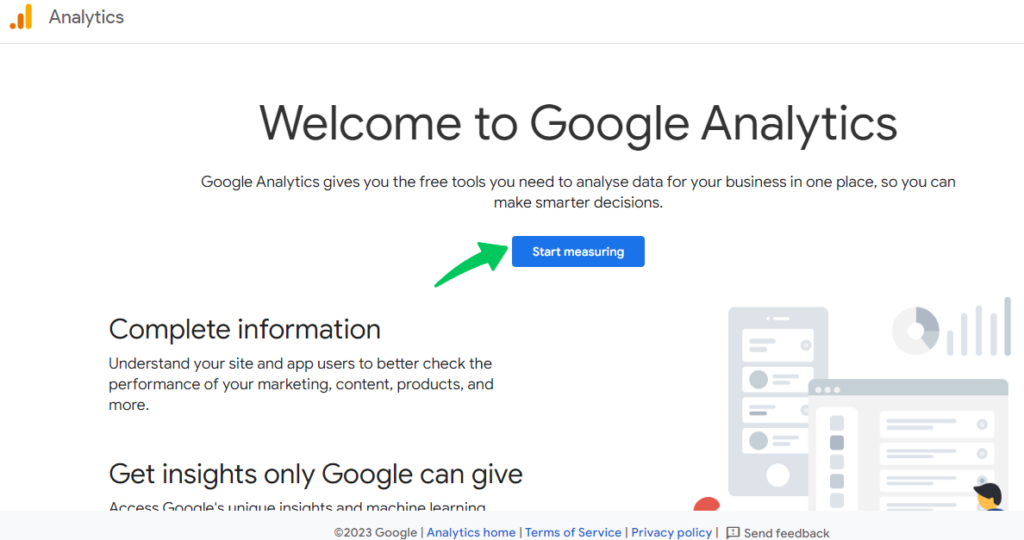
Click Start measuring under Welcome to Google Analytics if this is your first time setting up an Analytics account.
To make a new account, go to Admin and then click Create Account under the Account heading.

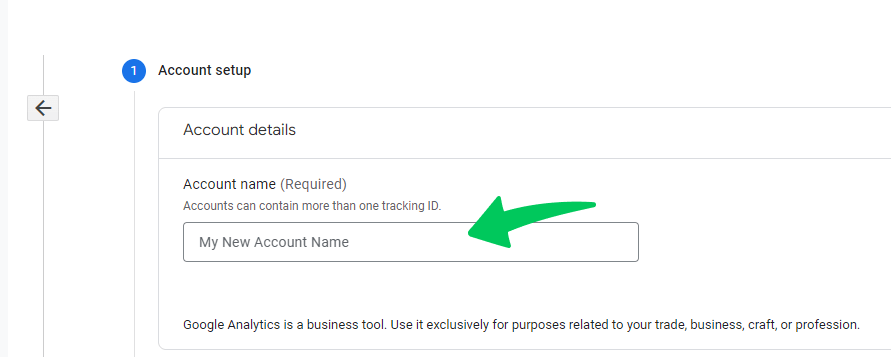
Give a proper name to the account. And then, change the data-sharing settings per your requirements to decide what information you want to share with Google.
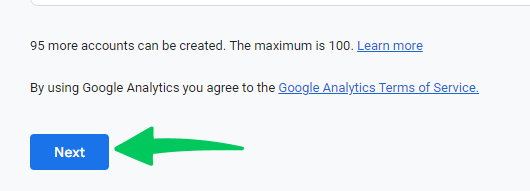
To add the first item to the account, click Next.
Step 2: Create GA4 Property
Note: You need the Editor role to add a property to a Google Analytics account. If you made the Google account, you have the Editor role by default.
To create a property for an existing Google Analytics account, click Create Property in your Google Analytics account. Follow the screenshot below:
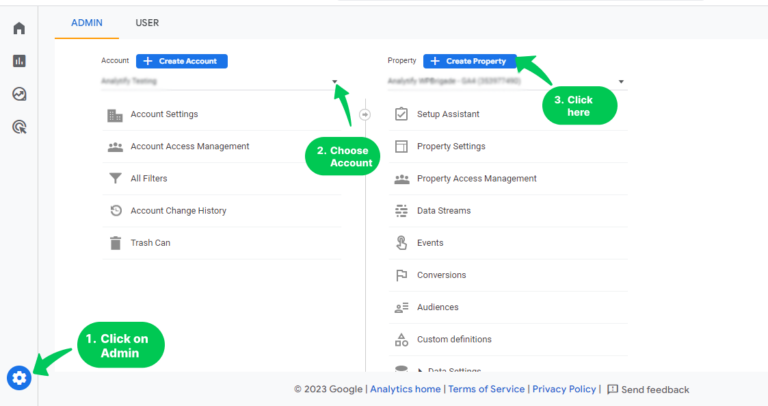
Enter a name for the property and choose the time zone and currency for reports. Then, click on Next.
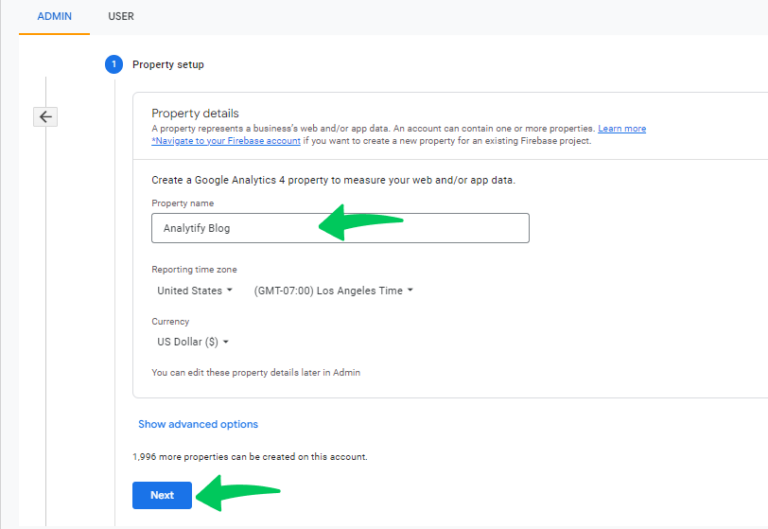
After clicking the next button, choose the industry category and business size.
Then, click the Next button and choose how you intend to use Google Analytics.
Finally, click on Create.
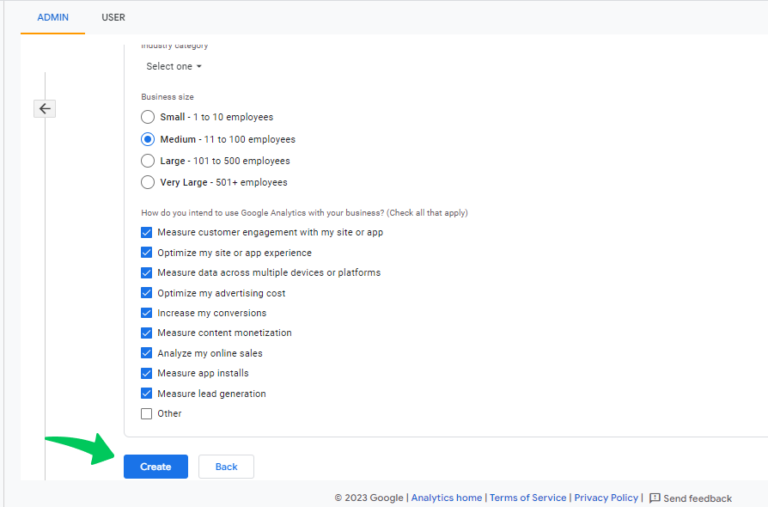
After clicking on Create, you’ll go to the Data Streams page.
Choose your data stream platform. In our case, we decided to use Web.
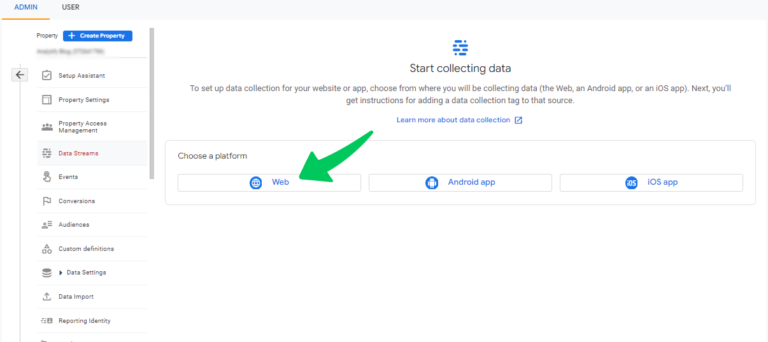
Step 3: Set Up the Data Stream
You’ll be automatically redirected to the Web Stream Page after the last step.
Enter the URL of your main website and a Stream name.
You can choose to turn on or off Enhanced measurement. Page views and other events are instantly tracked by enhanced measurement. After you set up the data stream, you can turn off the enhanced measurement events you don’t want to receive.
However, we recommend you turn on improved measurement. After this, click on Create stream.

Then, click on View Tag Instructions to see the installation instructions.
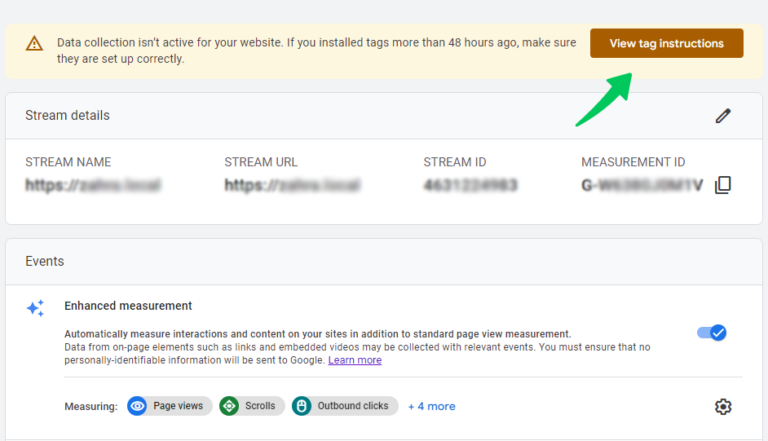
To activate data collection, you must integrate GA4 property with your WordPress site.
Step 4: Set Up Data Collection for Your Website
Your new Google Analytics 4 property needs GA4 on your WordPress site to show data. Integrate Google Analytics 4 into your site.
There are two ways to add Google Analytics 4 to your WordPress site:
- One way to add it is through a WordPress plugin, Analytify.
It is a one-stop analytics solution for your WordPress website. It needs no coding. In this blog, we’ll cover this method only. - The other way is without a WordPress plugin.
You can integrate Google Analytics and WordPress manually with code. You can also use Google Tag Manager. To know more, read our guide on: How To Add Google Analytics 4 to WordPress (Easy Way).
Let’s install it with Analytify first.
Step 5: Install Analytify on your WordPress Site
First, go to your WordPress dashboard. Then, click Plugins>>Add New.
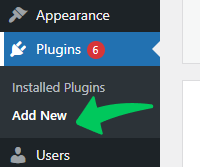
You’ll be navigated to a new page. Type Analytify into the search bar to find it, as shown in the picture below.
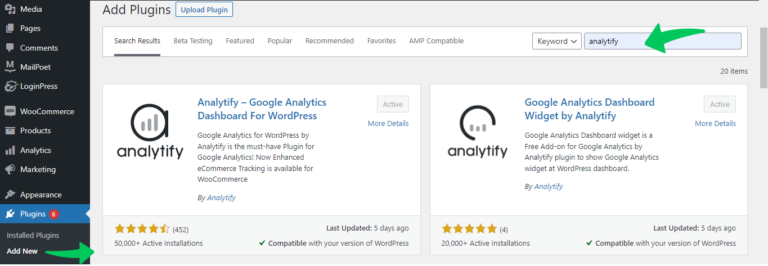
Find the Google Analytics Dashboard Plugin for WordPress by Analytify in the search results. Click Install Now. Click Activate when the installation is done.
You can buy Analytify Pro to make the maximum use of its features.
For more info, read How to Install And Activate Analytify Pro Plugin for a complete guide.
Step 6: Add Google Analytics Property to Your WordPress Site
After successfully installing Analytify, navigate to Analytify Dashboard >> Settings >> Authentication tab in your WordPress dashboard.
Then click on Log in with your Google Analytics Account.
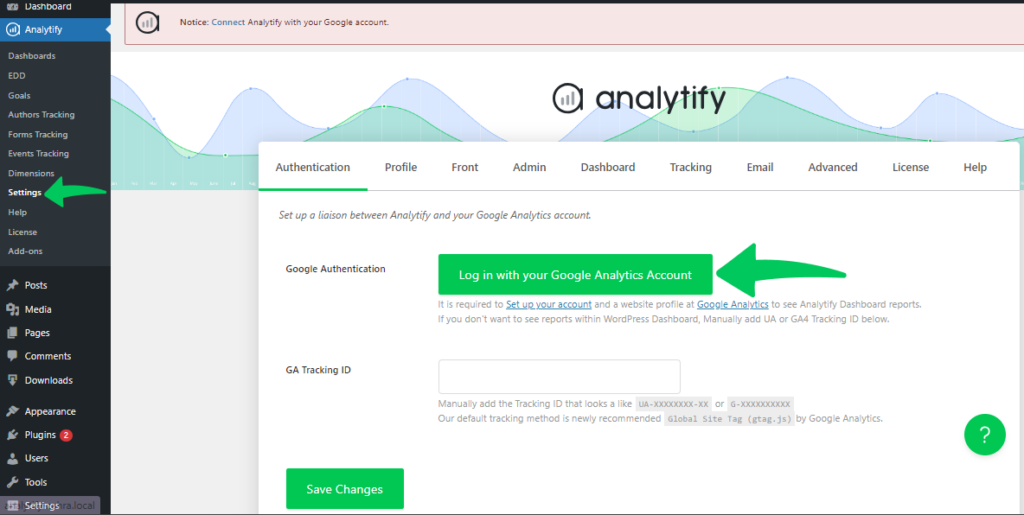
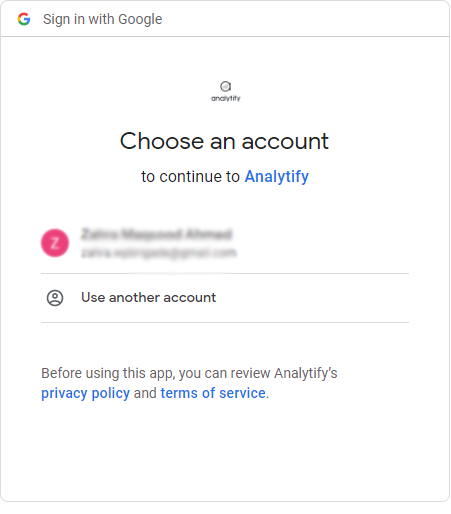
You’ll be navigated to the next page. Here, choose an account to continue with Analytify.
Next, grant the requested permissions. Then select Allow, as shown below:
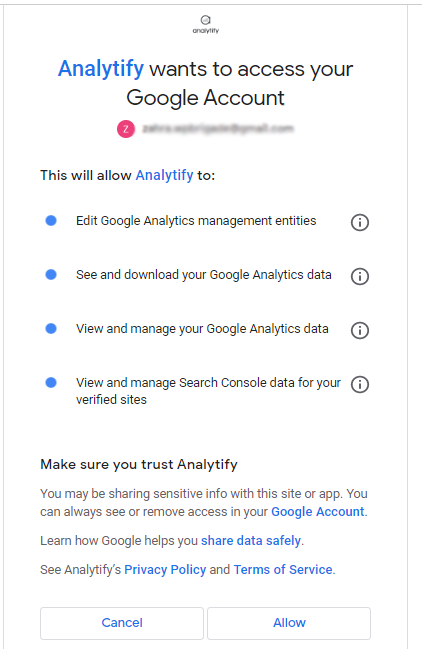
After you connect to your Google Analytics account, you’ll return to the Analytify settings page. It sits in your WordPress dashboard.
Here, select the Google Analytics profile (GA4 property) you want for your WordPress site from the dropdown menu. Click Save Changes.
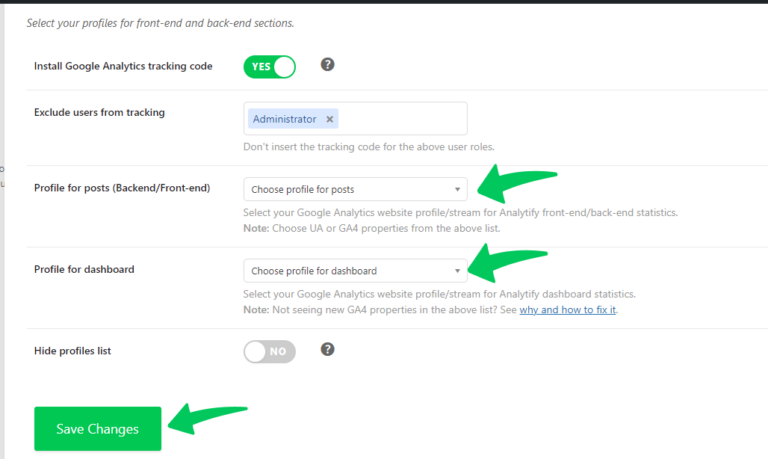
After setting up the basic settings, explore the other Analytify settings tabs. You can restrict particular user roles from being tracked. You can also improve eCommerce tracking.
Step 7: Verify If Google Analytics is Working Properly
Go to your Google Analytics account after visiting your website in a new browser or private window. Find out if your visit is tracked in the Realtime Report. The data should indicate at least one visitor if everything is set up correctly.
However, you can also see your analytics reports right on your WordPress Dashboard. For this, go to Analytify>>Dashboards.

Moving Google Analytics 4 Property to Another Account
Can you also move Google Analytics property from one account to another?
Yes, you can move properties (and their views) from one account to another. Do this if you need to rearrange your properties in Analytics.
You may need to move a Google Analytics property to another account for several reasons. Examples are reorganizing your business or handling properties for new clients.
To move a property, you must have the Administrator and Editor roles. You need them for both the source account and the account you move the property to.
How to Move Google Analytics 4 Property to another Account
You can follow the below simple steps to move a GA4 property from one account to another.
Go to Google Analytics account and click on Admin.
Go to Admin.
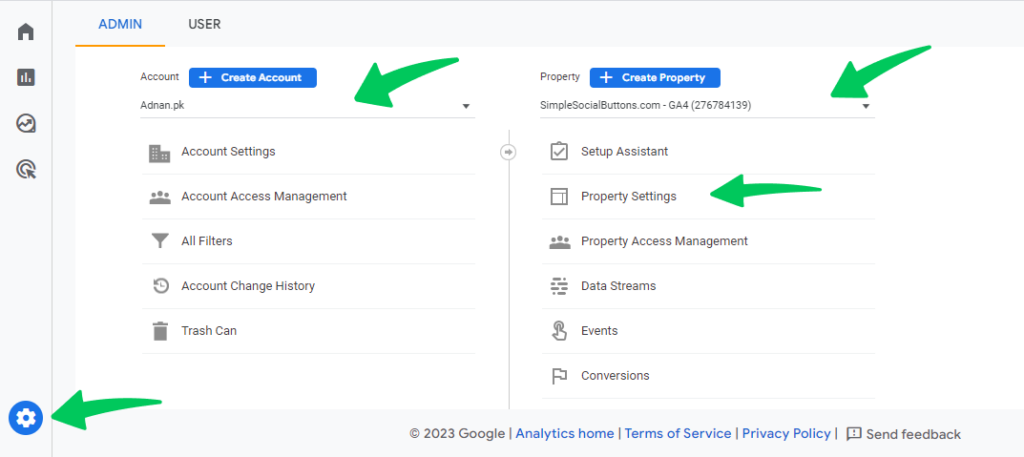
Choose the appropriate account from the account column, then choose the property that you want to move.
Then click on Property Settings.
Choose the Destiny account where you want to move your analytics property. Select the permission settings and click on Start Move.
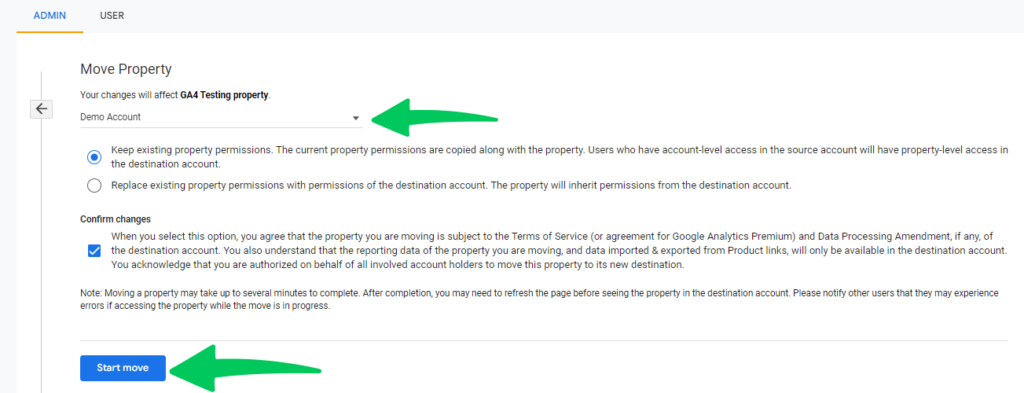
Confirm the handling of data, and then click Save.
Deleting Google Analytics Property
There are many reasons to delete a Google Analytics property. For example, you might want to get rid of old properties or switch to a new platform. No matter the reason, knowing that you can’t get it back once you delete a property is important. All the information about that property’s history will be gone permanently.
Let’s learn how to delete Google Analytics Property in simple steps.
How to Delete Google Analytics Property
Note: Ensure you have a copy of any important data from the property before deleting it. Once this info has been deleted, there is no way to get it back.
Follow the below steps:
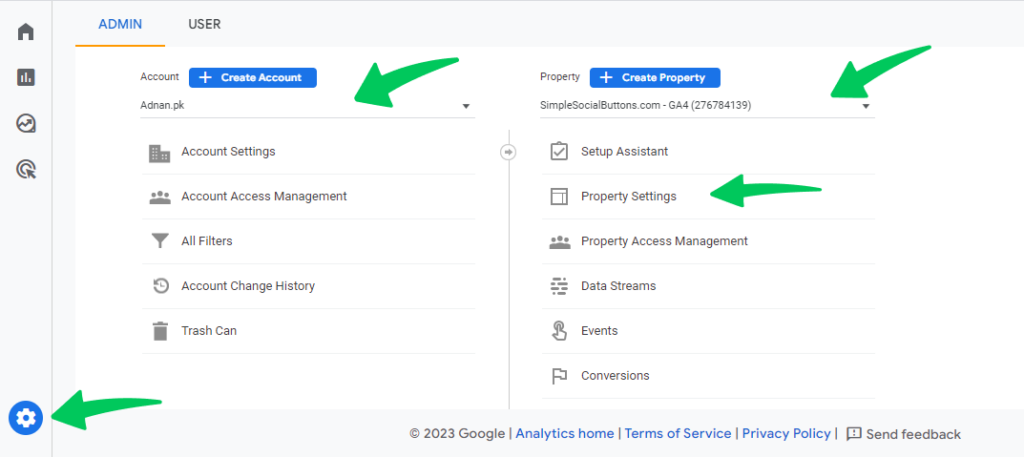
Go to your Google Analytics account.
Click Admin.
First, choose the appropriate Google Analytics account and then choose the property you want to delete.
Then click on Property Settings.
Finally click on Move to Trash Can.
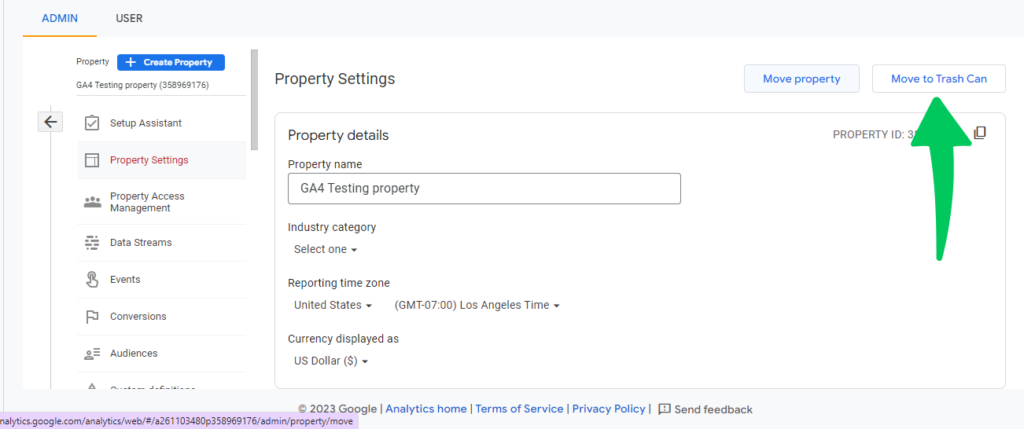
On the approval screen, click Move to Trash.

That’s how you can successfully delete your Google Analytics property.
4 Bonus Tips to Set Up Google Analytics Property
Four tips make a new Google Analytics property easier to run. Confirm your access and choose the right tracking code. Then filter out internal traffic and set up conversions.
- Ensure Right Access: Before you begin, make sure you have the right permissions. You need access to the Google Analytics account and the ability to add a website. Usually, you need an editor role.
- Choose the Correct Tracking Code: Putting the tracking code on your website can be done in different ways. To avoid tracking code issues, you can choose Analytify to connect your WordPress site to Google Analytics.
- Filter out Internal Traffic: To get the correct data, consider applying filters that exclude IP addresses on your network. This ensures that your analytics aren’t messed up by your team’s visits or any site testing.
- Set up Conversions: Don’t just track how many people visit your site. Figure out what success for your website looks like. Set up custom dimensions to track these conversions, whether form fill-outs, product purchases, or email sign-ups. Read more: Everything You Need to Know About Custom Dimensions GA4.
Add Website to Google Analytics FAQs
What is Google Analytics 4 Property?
GA4 property is designed for the future of measurement in Google Analytics 4. It can be a website or app. It means, it collects both website and app data to better understand the customer journey.
How do I view traffic by channels in GA4?
To view traffic by channels in GA4, navigate to the “Acquisition” report in the left-hand menu in your Google Analytics account, and then click on “Traffic Acquisition”.
What are the data sampling thresholds in GA4?
GA4 uses a different data sampling approach than Universal Analytics. It relies more on Google’s machine learning and data modeling, which means data sampling thresholds may vary depending on the size of your dataset and the complexity of your queries.
How do I set up content grouping in GA4?
Content grouping is not available in GA4 as it was in Universal Analytics. However, you can use custom dimensions and events to categorize and analyze your content.
Can I add a second website to Google Analytics?
Yes, you can add a second website to Google Analytics 4. In fact, you can add multiple websites. For each new website, you would need to create a new GA4 property.
Google Analytics Account vs. Property – What’s the Difference?
A Google Analytics Account is a top-level entity and can contain multiple properties. A Property, on the other hand, represents a specific website or app. For example, a company might have one account but multiple properties for its main website, blog, and mobile app.
Can I Move my Google Analytics 4 Property to Another Account?
Yes, it’s possible to transfer a GA4 Property to another account, but ensure you have the necessary permission role in both the source and destination accounts.
Conclusion
It’s not hard to set up and run Google Analytics, especially the GA4 Property. Knowing how it works is vital to get the most out of all of its features. You now know how to create, add, move, and delete a GA4 property. You also have some helpful tips. You’re on the right track to help your website grow.
Don’t forget that analytics is about more than just numbers. It’s the story of your audience and how they connect with you. It also gives you the chance to make decisions based on data.
We hope this blog, helped you to understand how to add a website to Google Analytics.
Looking for more information related to GA4? Our detailed guide, How Google Analytics work? has got you covered.
We’d like to know how you plan to add GA4 to your content analytics strategy. Are there any particular GA4 features you are excited about? Share your ideas in the comments!