
How to Login to Google Analytics: Step-by-Step Guide (2026)

To log into Google Analytics, go to analytics.google.com. Sign in with your Google account email and password. This guide covers each step in order. It also covers 2-step verification and a forgotten password.
I recommend turning on 2-step verification before you need it. Bookmark analytics.google.com so you always land on the right login page.
Manage a WordPress site? Analytify is a Google Analytics plugin for WordPress that pulls that same data into your dashboard. You connect once. After that you stop switching between two sites.
How to Login to Google Analytics (TOC):
Steps for Google Analytics Login
Logging in to Google Analytics takes five steps. Open analytics.google.com. Enter your Google email. Enter your password. Clear 2-step verification if it is on. Land on your GA4 home screen. Each step is below in detail.
What You Need Before You Log In
- The Google account email that has access to the property
- That account password, or a saved password manager entry
- Your phone or authenticator app, if 2-step verification is on
- The GA4 property name, if you have access to more than one
Step 1: Open the Google Analytics Website
Go to analytics.google.com in any browser. That is the only Google Analytics login page.
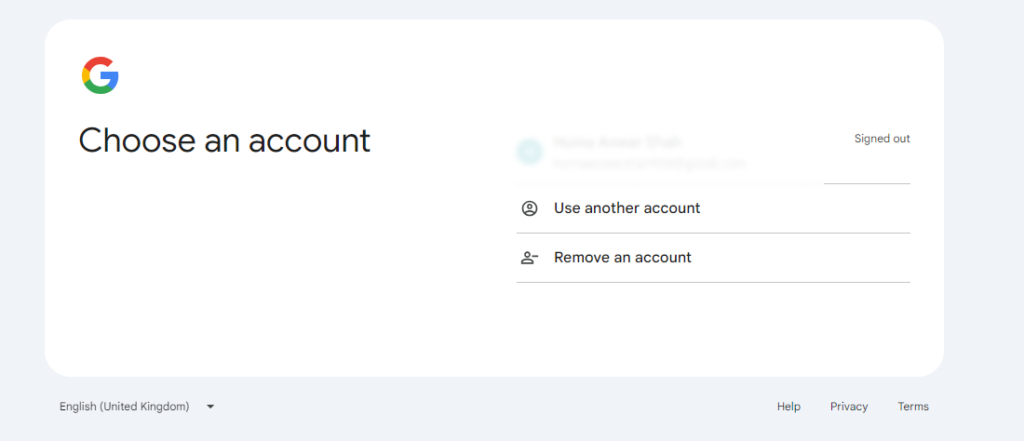
Google shows an account picker. Pick your Gmail account, or choose to use another account.
Already signed in to a Google account? Google may send you straight to your GA4 dashboard. If it does not, continue to step 2.
Step 2: Enter Your Google Email Address
Google asks for your email next. Use the Google address tied to your Analytics property.
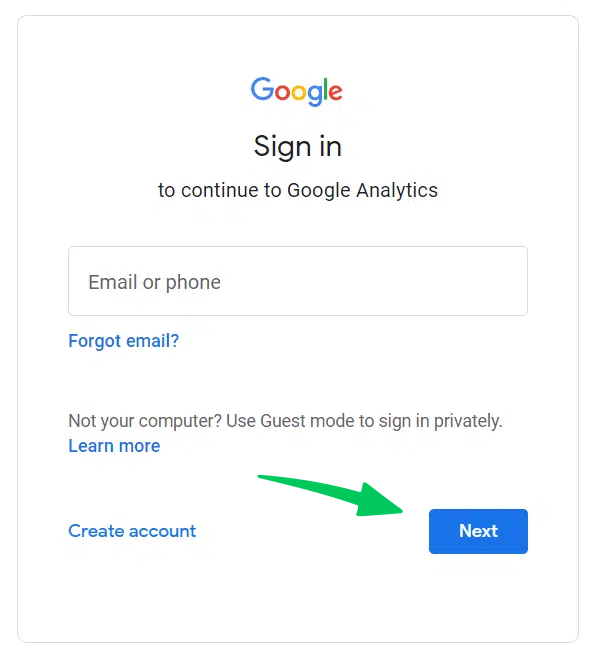
Check the address carefully, then select Next.
Step 3: Enter Your Password
Enter your account password on the next screen. Type it carefully. Repeated failures trigger a temporary lockout.
A password manager can fill this field for you.
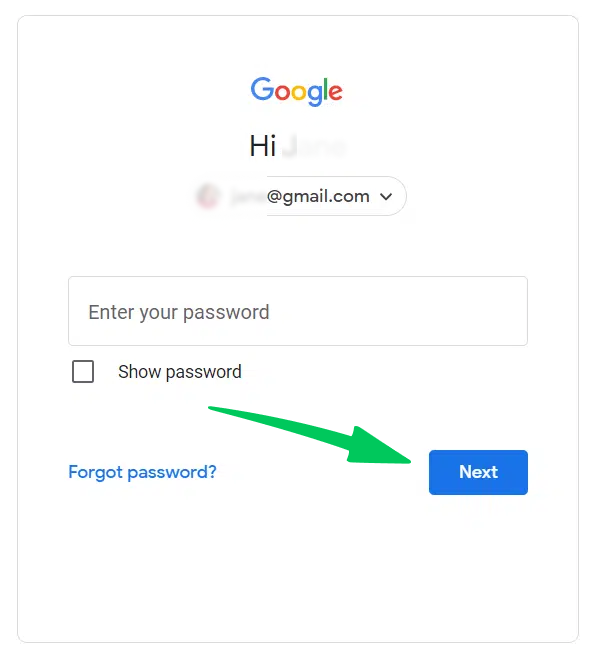
Forgot your password? Select the “Forgot password?” link on the same screen. Google walks you through a reset.
Step 4 (If Applicable): Complete 2-Step Verification
2-step verification adds one screen to the login. Google asks you to confirm the sign-in. Confirm with a phone code, an authenticator app, or a security key. Use whichever method your account has set up.
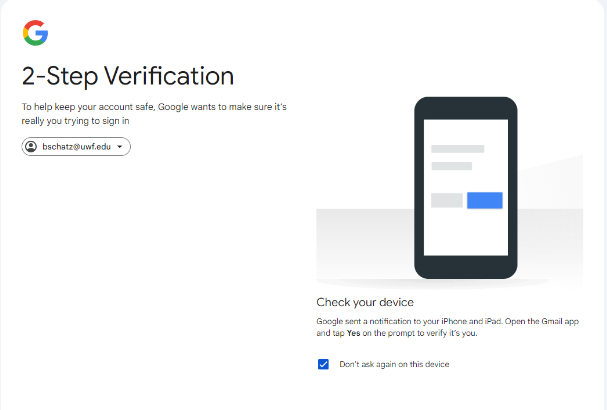
This step protects the account from stolen passwords. It cannot be skipped once enabled.
Step 5: Welcome to Your Google Analytics Dashboard
You are now on your Google Analytics dashboard. The login is complete.
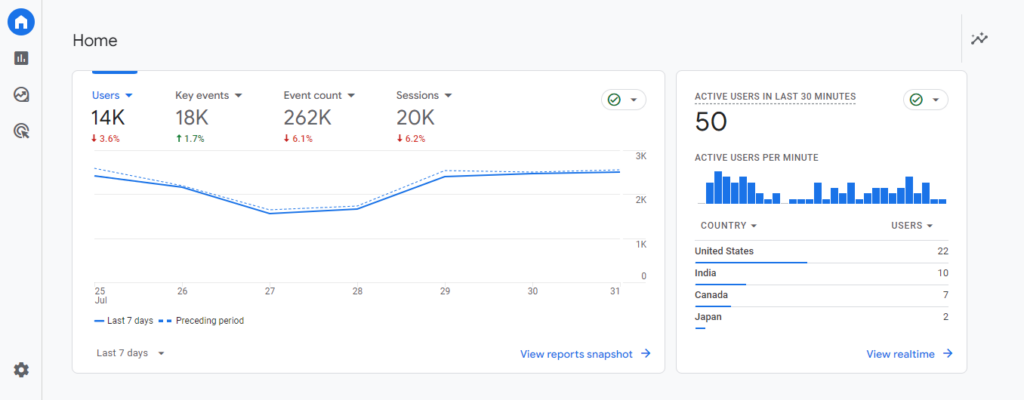
The GA4 home screen shows your core traffic data. You see visitor counts, traffic sources, and top pages. Real-time activity sits in the right-hand panel. Reports and Explore hold the deeper analysis.
| Access route | What you need | Best for |
|---|---|---|
| Desktop browser | Google account email and password | Full reports and Explore |
| Mobile browser | The same login, in a smaller layout | Quick checks away from your desk |
| Google Analytics mobile app | The same Google account | Real-time and key metrics on the go |
| WordPress dashboard with Analytify | A one-time Google connection | Checking traffic while you publish |
The Google Analytics Demo Account is the fastest way to learn GA4. It is a live property with real traffic data. Open every report without touching your own site. Practise there before your own data matters.
Google Analytics annotations let you mark specific dates with notes. Record a redesign, a campaign launch, or an outage. Later traffic spikes and dips then have context.
Consent and data privacy rules apply the moment you start collecting. The European Economic Area has the strictest requirements. Set up consent mechanisms before your first report matters.
Our Google EEA compliance and consent signals guide covers the requirements. It also covers how to implement consent mode.
Sharing reports with a team needs user permissions. Learn how to add users to Google Analytics. Give each person only the access their role needs.
| Role | View reports | Edit settings | Manage users |
|---|---|---|---|
| Administrator | Yes | Yes | Yes |
| Editor | Yes | Yes | No |
| Marketer | Yes | Audiences and conversions only | No |
| Analyst | Yes | Shared assets only | No |
| Viewer | Yes | No | No |
| Issue | Likely Cause | Fix |
| “Wrong account” or no data after login | Signed in with the wrong Google account | Sign out and sign back in with the Google account tied to your GA property |
| Stuck on the verification step | 2-step verification is enabled on your Google account | Use your phone or authenticator app to approve the sign-in request |
| “That password was incorrect” | Typo, caps lock, or an outdated saved password | Use “Forgot password?” on the login page to reset it |
| Login page keeps reloading | Browser cookies blocked or an outdated cache | Clear cookies for google.com or try a private/incognito window |
| Analytify shows no data after you log in | Analytify is not yet connected to the right GA4 property | Reconnect your Google account in Analytify’s settings and confirm the correct property is selected |
Simplify Google Analytics for WordPress with Analytify
Analytify removes the Google Analytics login from your daily routine. It connects once, then shows your GA4 data inside WordPress. You check traffic where you already publish. No second browser tab is needed.
Join 50,000+ beginners & professionals who use Analytify to simplify their Google Analytics!
Why Analytify?
- Easier Access to GA4 Data: Analytify brings all your Google Analytics data right into your WordPress dashboard. There’s no need to hop between different websites; it’s all there in one place.
- Simplified Reporting: Say goodbye to complex reports! Analytify offers user-friendly reports and visualizations that are easy to understand, even if you’re not a data whiz.
- Enhanced Features: Analytify goes beyond the standard Google Analytics features. It offers extra functions like real-time stats, e-commerce tracking, and more.
How to Use Analytify: A Quick Walkthrough
- Installation: First, you’ll need to install and activate the Analytify plugin on your WordPress website. It’s as easy as installing any other plugin.
- Connect to Google Analytics: Once Analytify is up and running, connect it to your Google Analytics account. This is a simple process.
- Explore Analytify Reports: Now comes the fun part! Head over to your WordPress dashboard, and you’ll see a new section for Analytify.
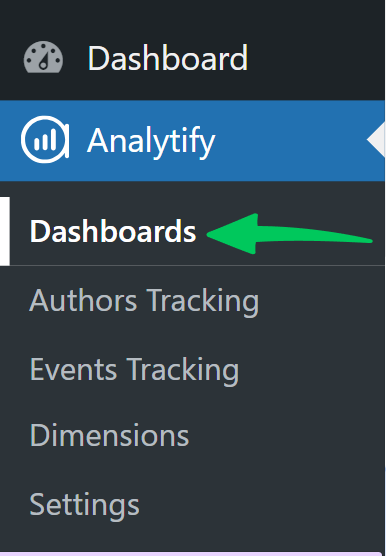
Each report covers one part of site performance. Traffic, top pages, and referral sources each have their own view.
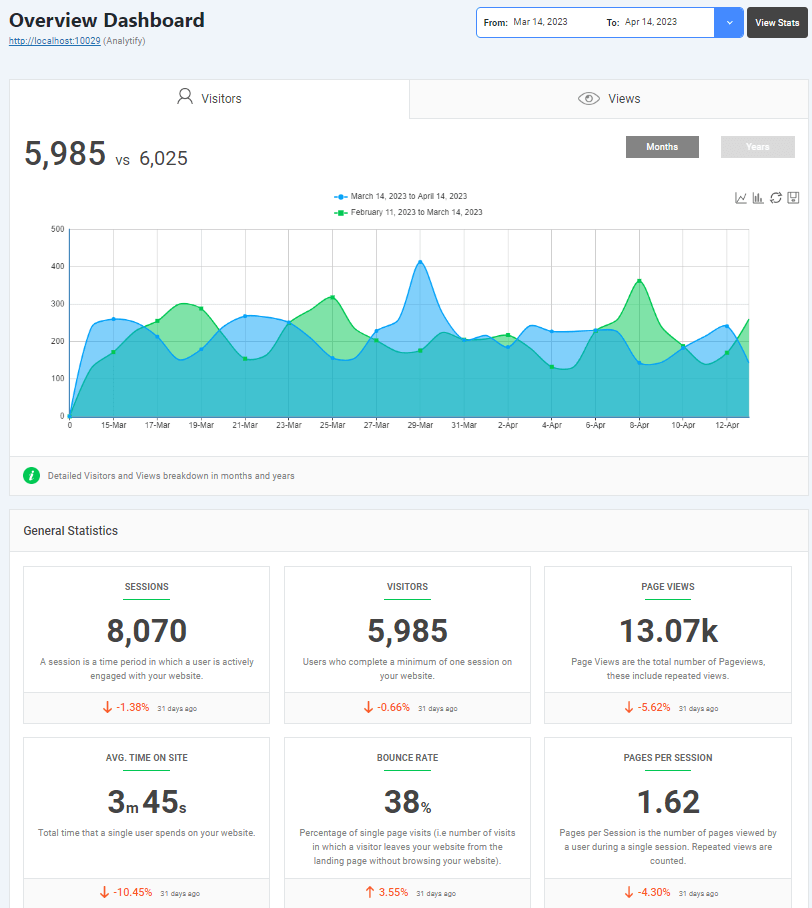
Analytify is the shortest path from GA4 data to a decision. Install it and connect your property once. The reports then stay in WordPress. Still choosing a tool? Compare every Google Analytics plugin for WordPress side by side.
Google Analytics Login FAQs
1. How do I log into Google Analytics?
To log into Google Analytics, go to analytics.google.com. Enter your Google email address, then your password. Complete two-factor verification if your account has it enabled.
2. What is the Google Analytics login page URL?
The Google Analytics login page is located at https://analytics.google.com/
3. How do I sign in to Google Analytics if I’ve forgotten my password?
Select the “Forgot password?” link on the Google Analytics login page. Google then walks you through the reset.
4. Can I log into Google Analytics with my Gmail account?
Yes. If your Gmail address has access to the property, those same credentials work. Google Analytics uses your Google account, not a separate login.
5. What is GA4, and how do I log in to Google Analytics?
GA4 is the current version of Google Analytics. The login is identical to any Google Analytics login. Go to analytics.google.com and enter your Google credentials. There is no separate GA4 login page.
6. How to log into Google Analytics on my mobile device?
Two routes work on mobile. Open analytics.google.com in your mobile browser. Or install the Google Analytics app for iOS or Android. The app suits quick checks, the browser suits full reports.
7. Do I need a Google account to login to Google Analytics?
Yes, you need a Google account to log into Google Analytics.
8. Why can’t I log into Google Analytics?
Six causes cover almost every failed Google Analytics login. First, you are signed in with the wrong Google account. Second, the password is outdated in your password manager. Third, 2-step verification is waiting on a device you do not have. Fourth, blocked cookies stop the login page loading. Fifth, an administrator removed your access to the property. Sixth, the property itself was deleted. Sign out fully, then sign back in with the correct account.
9. How do I log into multiple Google Analytics accounts?
Google Analytics switches accounts inside the interface. Use the account selector at the top of the screen. A separate browser or an incognito window also works.
10. Why doesn’t Analytify show my Google Analytics data even after I log in?
Logging into Google Analytics only confirms your Google account works. Analytify needs its own connection on top of that. Open Analytify settings and reconnect your Google account there. Confirm the correct GA4 property is selected. A fresh connection can take a few hours to show its first data.
Login to Google Analytics: Recap
Logging into Google Analytics takes an email and a password. Add 2-step verification if your account has it on. Once in, Analytify brings that same data into WordPress.
- Go to analytics.google.com and sign in with your Google account
- Complete 2-step verification if your account has it enabled
- Use “Forgot password?” on the login page if you are locked out
- Connect Analytify to see the same GA4 data inside WordPress
You may also like to Understand GA4 Event Reports.