
How to Anonymize IP Address in Google Analytics 4
In this guide, we’ll explain how to anonymize IP addresses in Google Analytics to protect the privacy of your website visitors.
The process is even easier if you’re using the Analytify plugin.
Anonymize IP Address in Google Analytics (TOC):
Why Anonymize IP Address in Google Analytics?
Anonymizing IP addresses ensures that personal information, such as a visitor’s location, is kept private. This is often required to comply with privacy regulations like GDPR.
IP addresses can reveal a user’s approximate location, potentially exposing sensitive information like their home or workplace. Anonymization helps safeguard this information, preventing it from being linked to an individual.
By anonymizing IP addresses, you can collect valuable website traffic data while still respecting user privacy and complying with legal requirements.
Step-by-Step Guide to Anonymize IP Addresses in Google Analytics
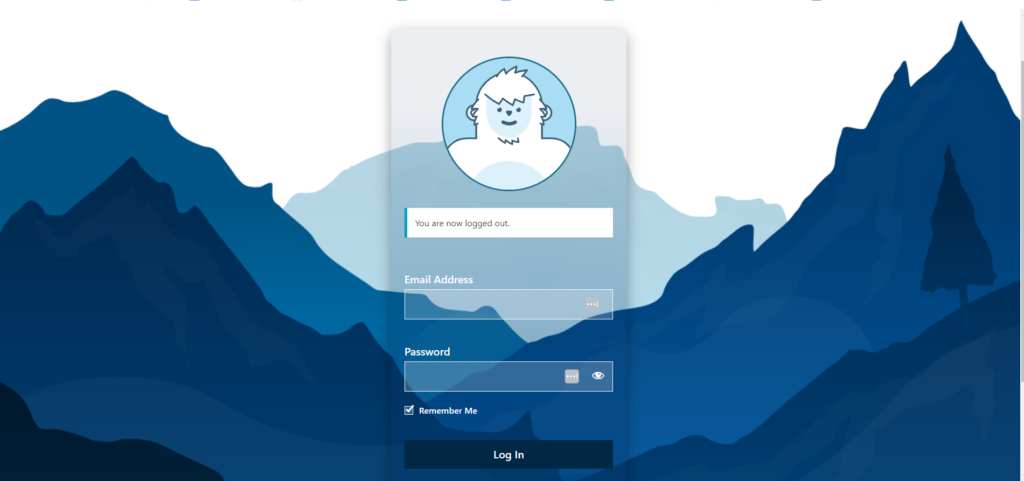
Step 1: Log in to Your WordPress Dashboard
- Go to your WordPress admin panel.
- Log in using your credentials.
Step 2: Install and Activate Analytify
If you haven’t installed Analytify yet:
- Go to Plugins >> Add New.
- Search for Analytify.
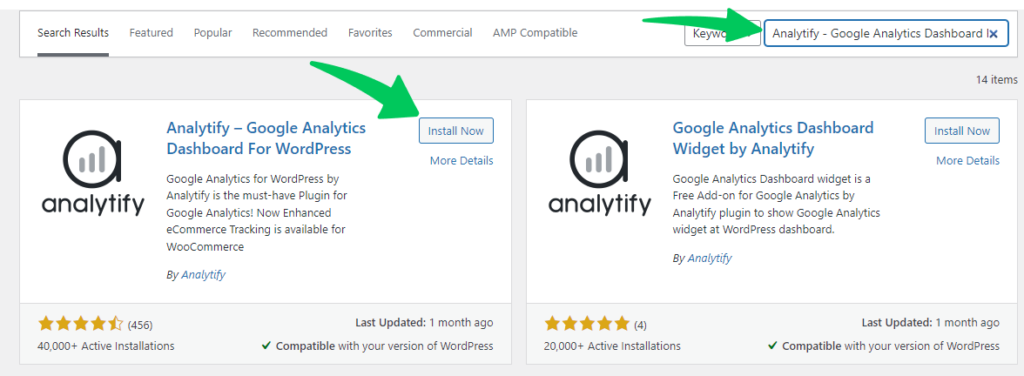
- Install and activate the plugin.
Read our complete guide to Install and Activate Analytify Plugin.
Join 50,000+ beginners & professionals who use Analytify to simplify their Google Analytics!
Step 3: Go to Analytify Settings
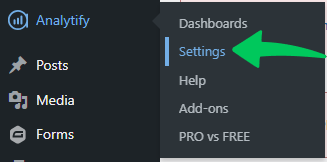
- In your WordPress dashboard, navigate to Analytify on the left-side menu.
- Click on Settings.
Step 4: Enable IP Anonymization
- In the settings, go to the Advanced tab.
- Look for the option labeled Anonymize IP addresses for all visitors.
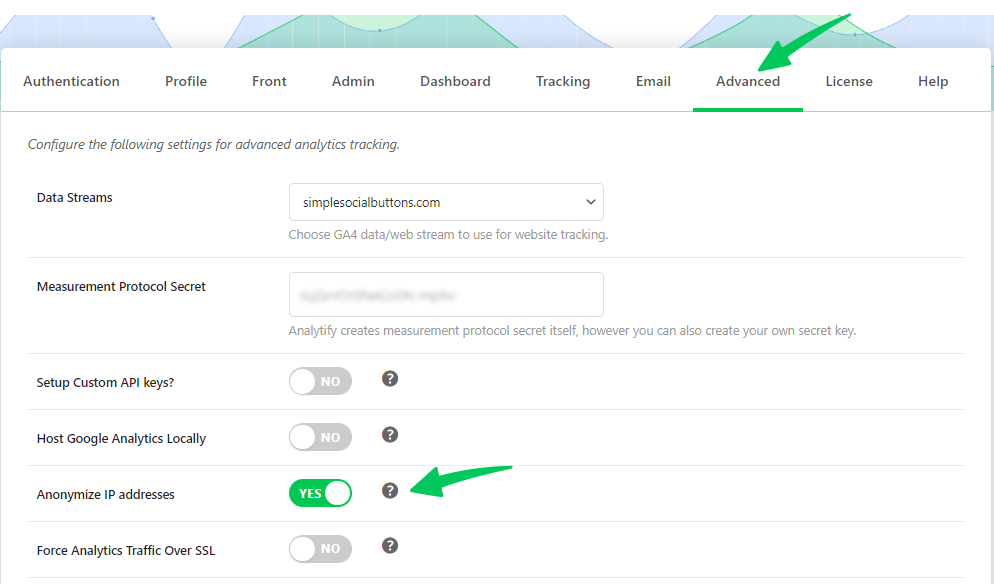
- Check this option to enable Google Analytics IP address anonymization.
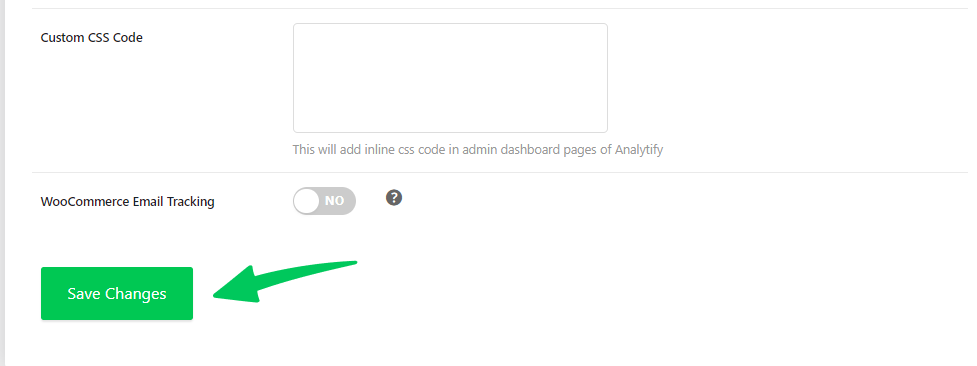
- Click Save Changes.
Done!
Now, all your visitors’ IP addresses are anonymized in Google Analytics. Analytify makes this process quick and simple, helping you comply with privacy laws like GDPR.
If you have any further questions, please review the FAQs on the Analytify website or contact the Analytify support team.