How to Track Form Submissions in GA4 (Explained)

GA4 tracks form submissions as a form_submit event. Enhanced Measurement captures this automatically. For manual control, set it up in Google Tag Manager.
Form tracking shows which forms drive leads. It captures contact requests, sign-ups, and other submissions as they happen.
This guide covers five tracking methods. They range from GA4’s built-in Enhanced Measurement to full Google Tag Manager setups. WordPress users have it easiest: Analytify’s forms tracking feature tracks every form automatically, with no code required.
Let’s get started.
Form Submission Tracking in GA4 (TOC)
What is Form Submission Tracking in GA4?
Form tracking reveals how visitors use your forms, whether contact, sign-up, or lead forms. In GA4, it shows which forms convert best. Use this to fix the ones that don’t.
GA4 tracks some interactions automatically, unlike Universal Analytics. Detailed form tracking still needs manual setup.
Google Tag Manager (GTM) handles advanced or flexible form tracking. It tracks submissions without touching your website’s code. You build a trigger that fires on submission. It sends that data to GA4 as a custom event.
Why Track Form Submissions with GA4?
GA4 form interactions tracking is crucial for several reasons. Here’s why you should implement it:
- Measure User Engagement: Form submissions are key interactions that indicate strong user engagement, such as lead generation or sign-ups. Tracking these events helps you evaluate how well your website encourages user participation.
- Optimize Conversion Rates: By analyzing form submission data in GA4, you can identify patterns in user behavior, such as which forms convert best, and make improvements to increase your overall conversion rates.
- Identify Drop-off Points: GA4 form interactions tracking allows you to see where users might abandon a form. This insight helps you optimize form design or simplify the submission process, improving completion rates.
- Monitor Key Events: Setting up custom events for form submissions in GA4 enables you to track and report on essential user actions, making it easier to measure campaign success or specific conversion goals.
- Use Google Tag Manager (GTM) for Advanced Tracking: Integrate GA4 with GTM to track submission messages, thank-you pages, and button clicks, all without touching your website code.
- Track Form Fills for Better Insights: You can create GA4 key events for form fills and other form interactions to gather comprehensive data about how users interact with your forms.
- Evaluate Campaign Performance: If your campaigns involve forms, such as sign-up forms or contact forms, form submission tracking in GA4 helps you measure how effective your marketing efforts are in driving conversions.
Form tracking in Google Analytics gives you detailed information about user behavior, helping you make informed decisions to improve engagement and optimize your site’s forms for better performance.
GA4 form_submit Event Parameters
GA4 logs these parameters automatically with every form_submit event captured by Enhanced Measurement.
| Parameter | What It Captures |
|---|---|
| form_id | The HTML id of the submitted form |
| form_name | The name attribute of the form |
| form_destination | The URL the form submits to |
| form_submit_text | The text on the submit button |
Which Form Submission Tracking Method to Use?
The right method depends on your technical skill and your forms. Simple setups work for basic forms. Advanced options give you more control.
- Direct Tracking in GA4: If your website uses simple forms or if you want to set up basic form submission tracking with minimal configuration, creating custom events directly in GA4 may be the easiest option. This method is best for straightforward form submissions where minimal interaction tracking is required.
- Google Tag Manager (GTM) Form Tracking: For more advanced tracking needs, using GTM offers greater flexibility. GTM allows you to track various form interactions without modifying your website’s code. It’s particularly useful when you want to track multiple forms or specific interactions (e.g., clicks, confirmation messages). GTM also enables you to fire specific triggers for unique forms based on form IDs, form classes, or submission buttons.
- Analytify Forms Tracking: If you’re a WordPress user and want all your form tracking analytics within your admin dashboard with simplified reports, Analytify is the best solution for you. Find out how by jumping to this section!
Pick the method that matches your form’s complexity, your tracking goals, and your comfort with code.
| Method | Best For | Skill Needed | Setup Time |
|---|---|---|---|
| Enhanced Measurement | Basic forms, quick setup | None | 2 minutes |
| GTM Form Submission Trigger | Custom or multiple forms | Basic GTM | 15 minutes |
| “Thank You” Page Trigger | Forms that redirect after submit | Basic GTM | 10 minutes |
| Element Visibility Trigger | Forms with an on-page success message | Basic GTM | 15 minutes |
| DOM Scraping | Forms with no other tracking option | JavaScript, CSS selectors | 30+ minutes |
How to Track Form Submissions in Google Analytics 4 (5 Methods)
The GA4 form submission event tracks fills, interactions, and confirmation messages. It shows which forms convert and where users drop off. Track it directly in GA4, or use GTM for more control.
Method #1: Track Form Submissions using Enhanced Measurement in GA4
To track form submissions using Enhanced Measurement in GA4, follow these steps:
Step 1: Enable Enhanced Measurement in GA4
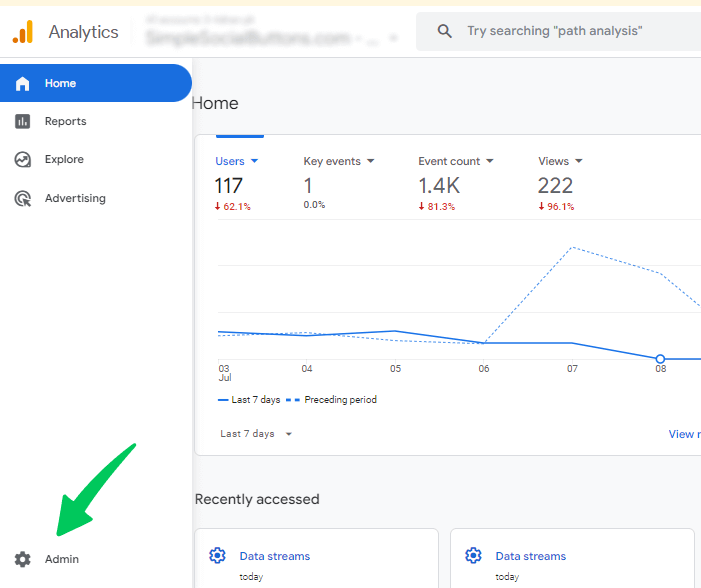
- Sign in to your Google Analytics account and navigate to the Admin section.
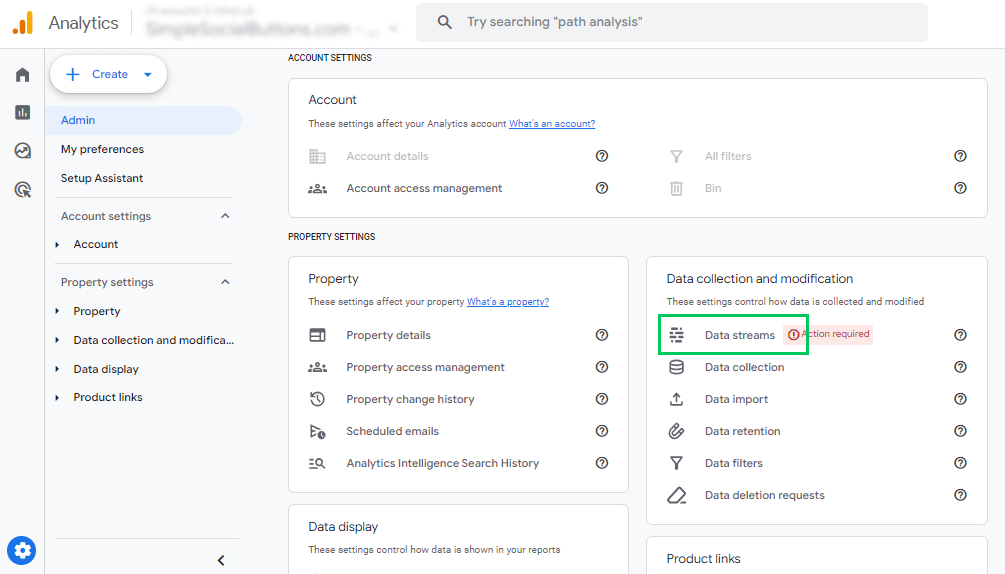
- Under Property, select Data Streams.
- Choose the data stream for your website.
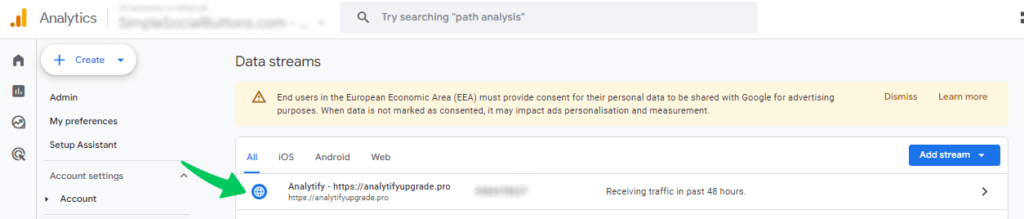
- Ensure it’s toggled On in the Enhanced Measurement section to track user interactions automatically.
- Click on the gear icon to access Settings of enhanced measurement events.
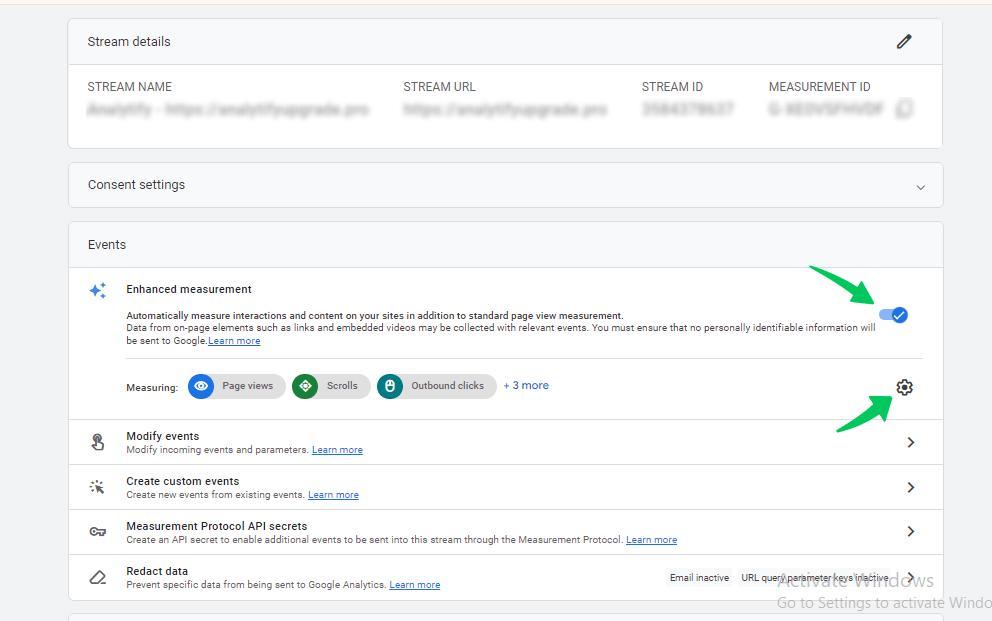
Step 2: Configure Form Interaction Tracking
- In the Enhanced Measurement settings, scroll down to see available events.
- Locate Form Interactions tracking options. Switch the toggle on to enable Form Interactions tracking. Then click on the save tab to save changes.
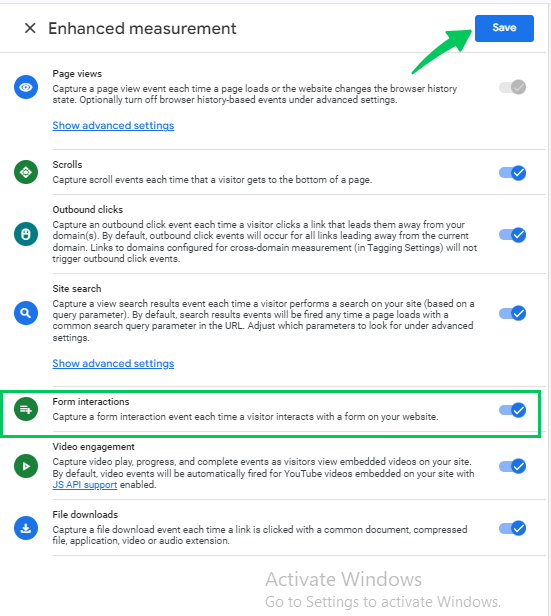
Step 3: View Form Submission Data in GA4 Reports
- Navigate to Reports > Engagement > Events in GA4 to see data for your form submission event.
- If marked as a conversion, form submissions will also appear under key events in the Reports section.
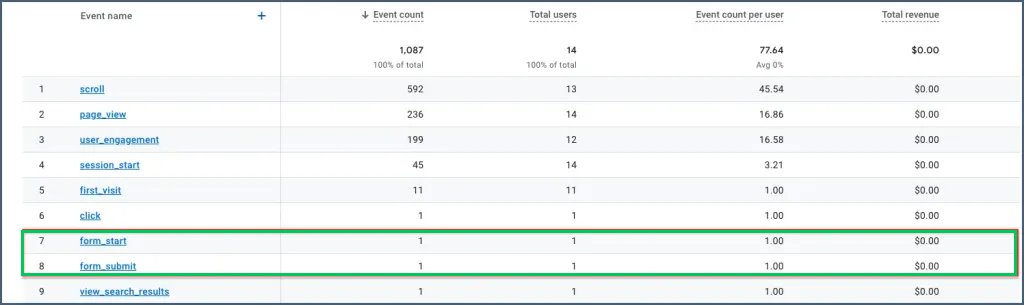
These steps allow you to track form submissions effectively in GA4 and see the impact of form interactions on engagement and conversion rates.
Tracking Form Submissions in GA4 with Google Tag Manager (GTM)
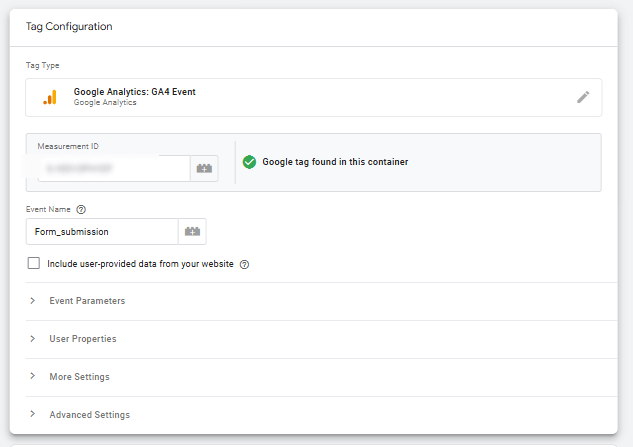
You need to set up a tag and a trigger for Google tag manager form tracking. Begin by creating a GA4 event tag, which involves adding your measurement ID to the tag configuration.
In this example, the event name is set to form _ submission, but you can choose a different name if needed. Save the tag for now, as triggers will be added later based on the form’s development. Follow the following steps to create the tag.
- Go to the Tags section.
- Press the New button.
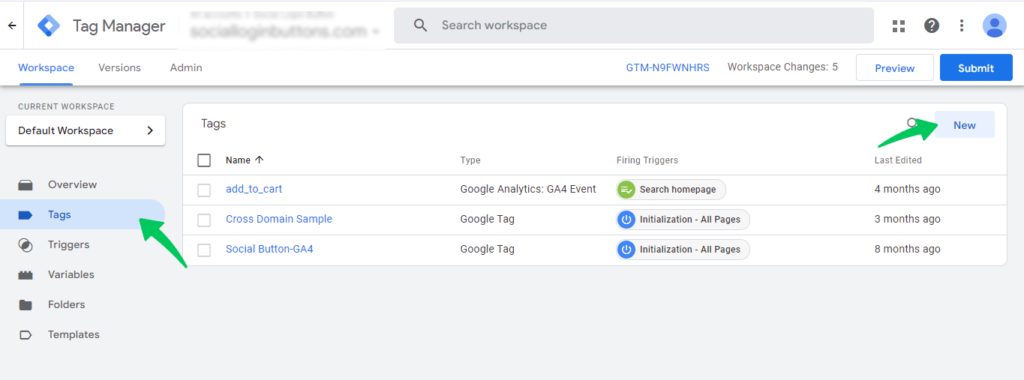
- In Tag Configuration, choose Google Analytics > Google Analytics: GA4 Event.
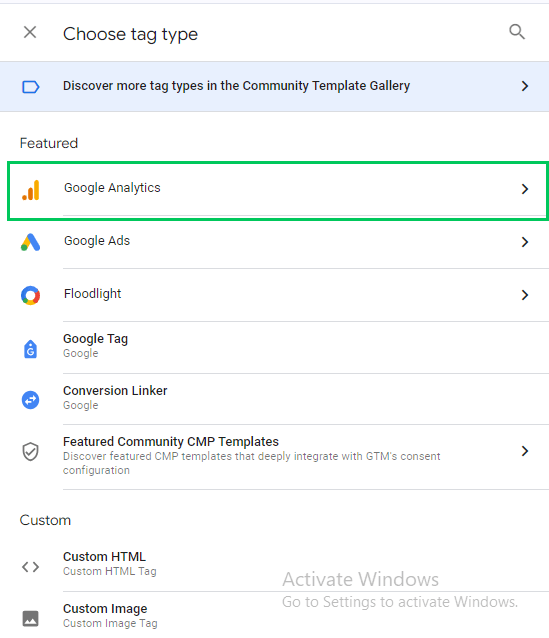
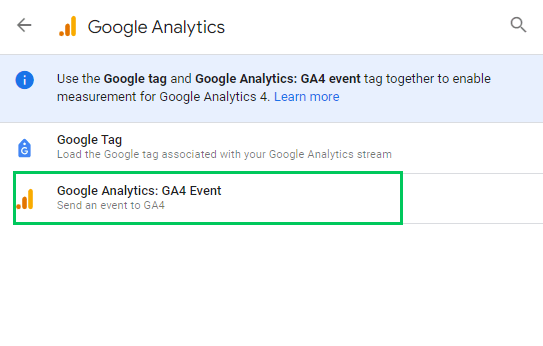
- In the Measurement ID section, insert Measurement ID
- In the Event Name field, I enter form_submission.
Method #2: Google Tag Manager Form Submission Trigger
This method uses Google Tag Manager’s (GTM) built-in form listener to track form submissions in GA4. Here’s how to set it up:
Step 1: Enable Form Variables
- In your GTM account, navigate to Variables on the left sidebar.
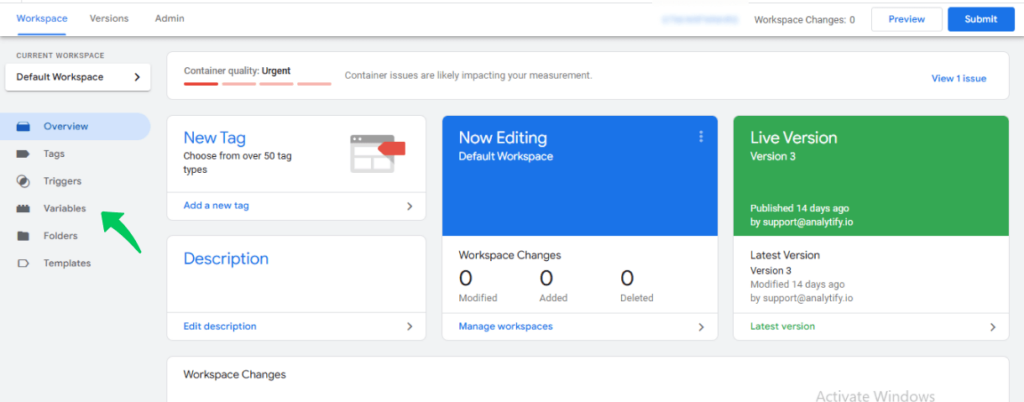
- Under Built-In Variables, click Configure.
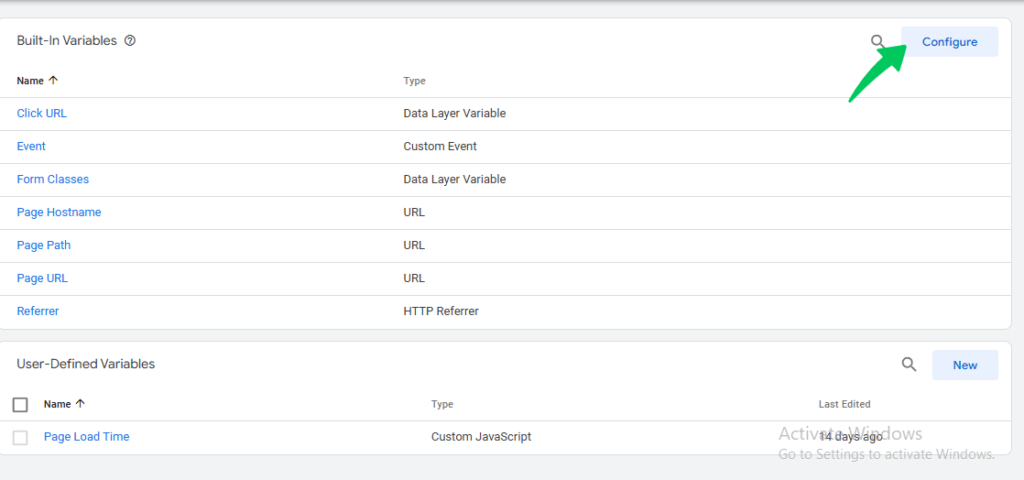
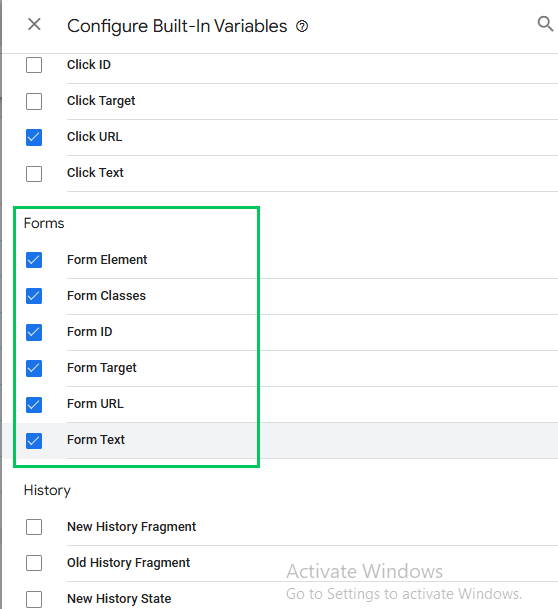
- Enable all Form variables in the right sidebar. These changes are saved automatically.
Step 2: Create a New Form Submission Trigger
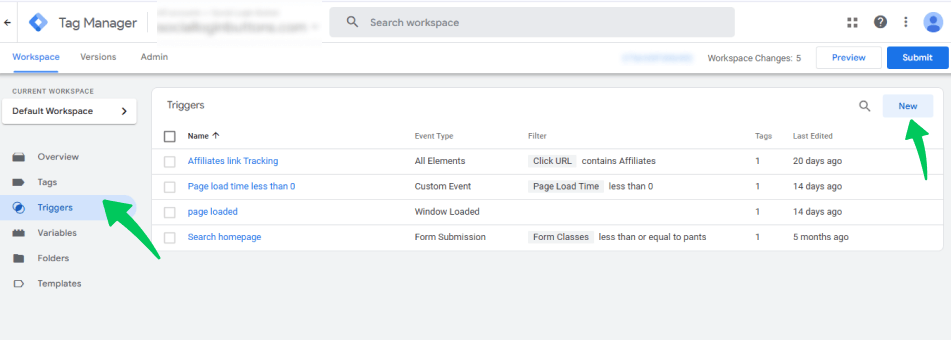
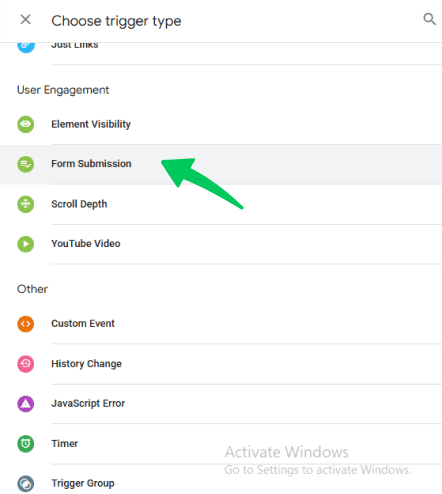
- Go to Triggers in GTM, then click New to create a new trigger.
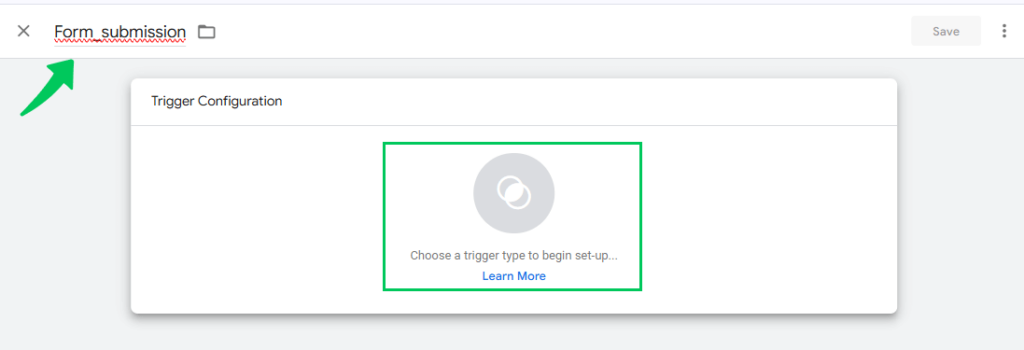
- Set the Trigger Type to Form Submission.
- Check Wait for Tags and set the timeout (e.g., 2000 milliseconds).
- Enable Check Validation to prevent the trigger from firing on invalid submissions. This way, the form submit trigger will only activate when the form is successfully submitted.
- Set Enable Trigger When… to activate on all pages by entering Page Path contains.
Step 3: Test the Trigger with Preview and Debug Mode
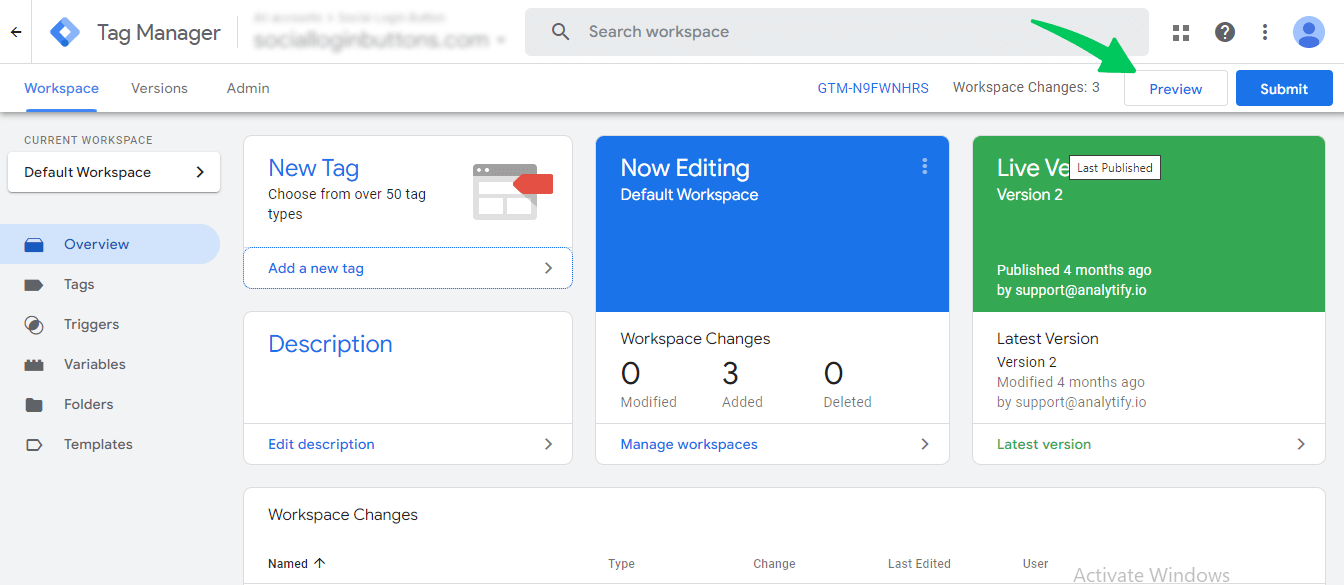
- In GTM, click Preview in the top-right corner to enter Preview and Debug mode.
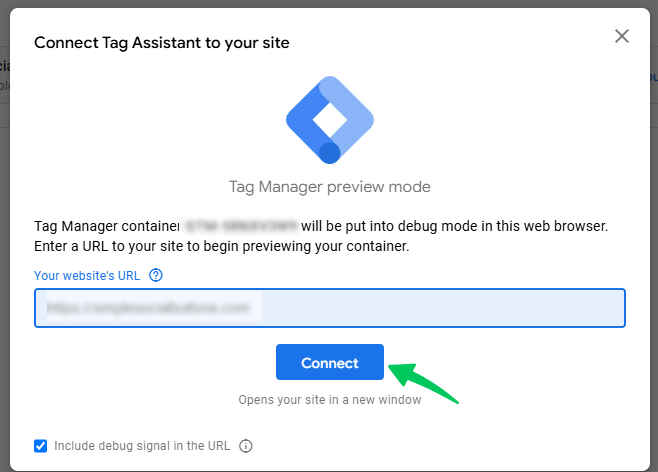
- Enter the page URL where the form is located and click connect.
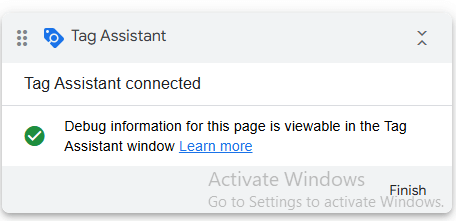
- Your website will open with a “Connected” badge at the bottom, confirming Preview mode.
- Fill in and submit the form to see if a Form Submit event appears in the GTM Preview console.
- If the event appears, try leaving a required field empty and resubmit. This will simulate an error in the form.
- If the Form Submit event does not trigger invalid submissions, the trigger is working correctly.
Step 4: Set Up a Trigger for a Specific Form
- In Preview mode, locate the Form Submit event, then click Variables.
- Look for a unique Form Variable, like Form ID, that identifies the form (e.g., wpdevart-forms-7).
- Go to Triggers, edit the Form Submission trigger, and select Some Forms instead of All Forms.
- Enter the condition (e.g., Form ID equals wpdevart-forms-7) to target only that specific form.
Step 5: Add a Custom Parameter for Tracking in GA4
- In GTM, go to Tags and open the GA4 Event Tag you created for form submissions.
- Add a custom parameter named form_id and set its value to the {{Form ID}} variable.
- Save the tag and ensure the trigger is assigned to this tag.
Step 6: Test and Register Custom Dimensions in GA4
- Refresh the Preview mode in GTM and submit the form to check if the GA4 event fires.
- To verify, open GA4 Debug View and ensure the form submission events appear.
- If using form_id or other custom parameters, register them as Custom Dimensions in GA4 to track and report on this data.
This setup allows GTM to track form submissions effectively, even across multiple forms, helping you monitor form performance directly in GA4.
Method #3: Tracking Form Submissions Using a “Thank You” Page with GTM
If the standard form listener in Google Tag Manager (GTM) isn’t compatible with your form, check whether the form redirects users to a “Thank You” page after submission. If so, you can track form submissions by setting up a trigger that only fires when users land on this page. Here’s how:
Step 1: Identify the “Thank You” Page URL
- Confirm that a successful form submission redirects to a unique URL, such as https://www.example.com/form/thankyou.html.
- Ensure that users can only reach this page by submitting the form to avoid accidental visits to the “Thank You” page.
Step 2: Create a “Thank You” Page Trigger
- In GTM, go to Triggers and click the New button.
- Set Trigger Type to Pageview.
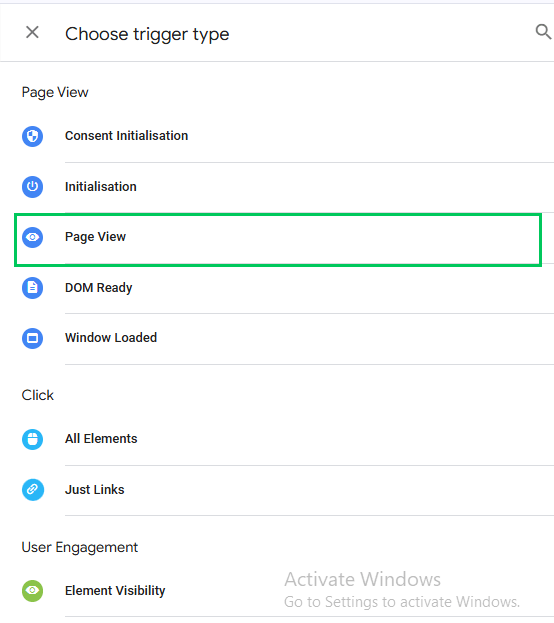
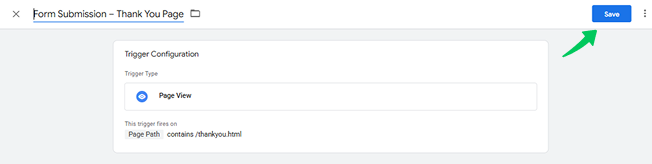
- Name your trigger (e.g. Form Submission-Thank you page ”) and choose Some Page Views.
- Then set the condition based on the Thank You page URL.
- Page Path equals /thankyou.html (Use this if your Thank You page has a unique path).
6. Page URL contains thankyou (Use this if multiple pages might include that word).
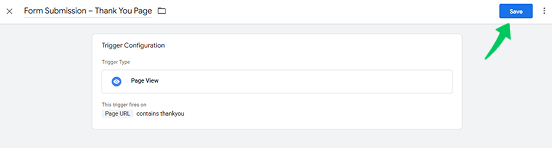
7. Save the trigger.
Step 3: Test the Trigger in Preview Mode
- Assign this trigger to your GA4 Event Tag for form submissions.
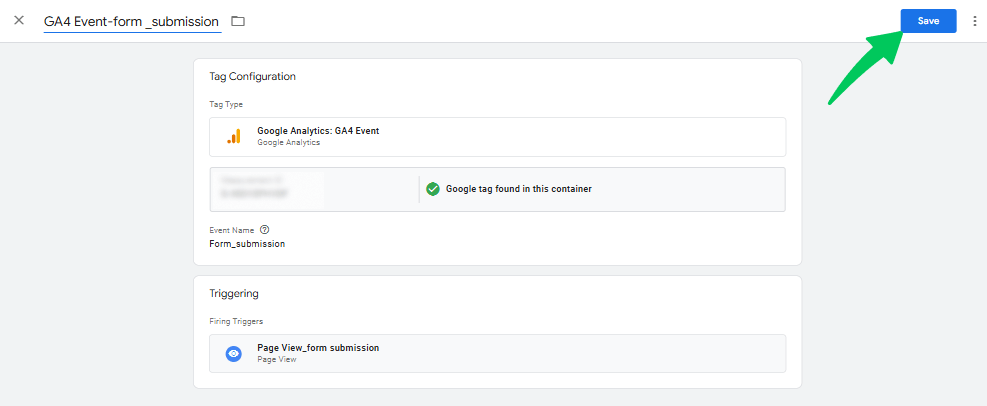
- Open Preview and Debug Mode in GTM and refresh the page where the form is located.
- Fill out and submit the form. After submission, the “Thank You” page should load, and the event tag should fire.
Step 4: Review Events in GA4 Debug View
- Open GA4’s Debug View to ensure the form submission events are tracking as expected.
Method #4: Track Form Submissions with the Element Visibility Trigger
One of the most useful triggers in Google Tag Manager form tracking is the Element Visibility trigger, which can track when a specific element appears on screen, such as a “Thank You” message that shows up after a form submission. This trigger is ideal if your form displays a success message without redirecting users to a new page.
Step 1: Inspect the Success Message Element
- Submit the form, then right-click on the success message and select Inspect Element to open the browser’s developer tools.

- Look for the element’s unique identifier, such as a CSS class or ID if it has a CSS class (e.g., .thanks), that can be used to create a trigger.
Step 2: Create an Element Visibility Trigger
- In your GTM container, go to Triggers and create a new trigger.
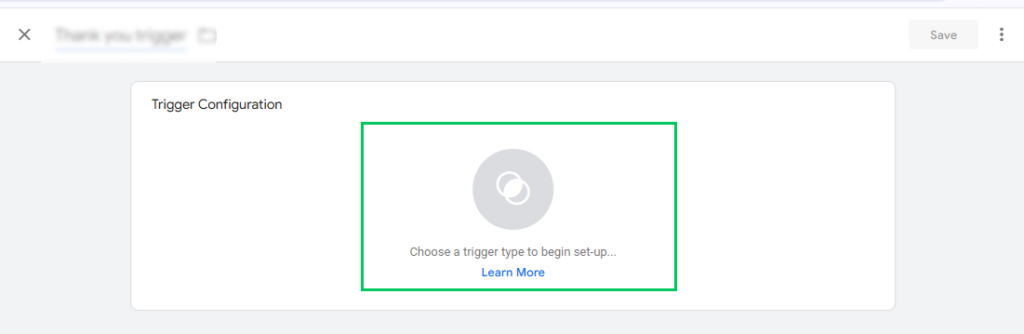
- Set the Trigger Type to Element Visibility.
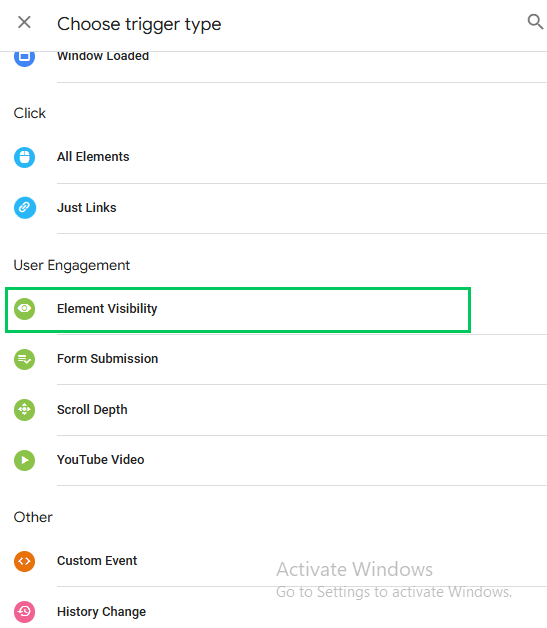
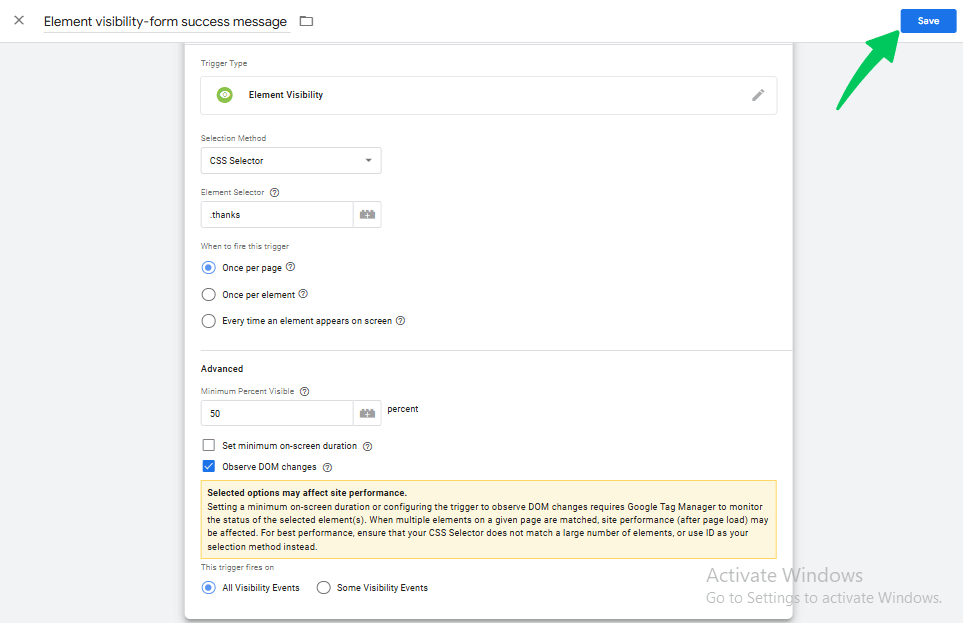
- In the Selection Method, choose either:
- Element ID if the success message has an ID.
- CSS Selector if it has a CSS class.
- In the CSS Selector field, add a period (.) before the class name (e.g., .thanks for a class called “thanks”).
- Tick Observe DOM Changes to ensure GTM detects the element if it dynamically appears without scrolling.
- Save the trigger.
Step 3: Test the Trigger
- Assign the new trigger to your GA4 Event Tag for form submissions.
- Open or refresh Preview and Debug Mode in GTM.
- Submit the form. If everything is set correctly, an Element Visibility event should appear in the Debug Console, confirming that the GA4 tag fired successfully.
- If the Element Visibility event doesn’t appear, recheck your selection method, CSS selector, or the Observe DOM Changes checkbox.
This method works well for most forms, though if your form resides within an in frame, additional GTM configuration may be necessary to capture the event.
Form tracking matters whether you track contact forms, newsletter signups, or appointment bookings. If you use Calendly, you can also track Calendly bookings in Google Analytics 4 to see how your booking page converts.
Method #5: Track Form Submissions Using DOM Scraping
Treat DOM scraping as a last resort. Try every other GTM method in this guide first.
DOM scraping breaks easily when your site’s code changes. One small edit can disrupt the setup. It also requires JavaScript and DOM knowledge.
In this example, we’ll use the DOM Element Variable in Google Tag Manager, which allows you to capture specific text or content directly from the Document Object Model (DOM) and pass it to marketing tools like Google Analytics. Here’s how to set it up using an example of successful newsletter subscriptions on the Analytify:
Step 1: Locate the Form Success Message
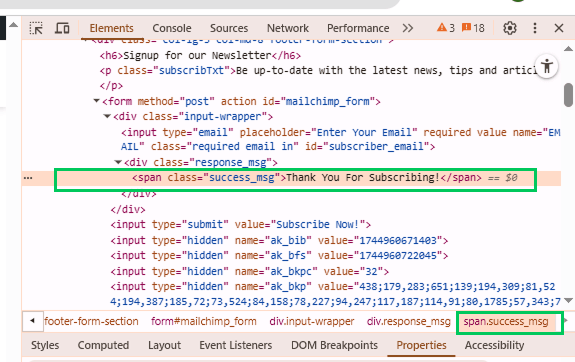
- On the Analytify website, there’s a newsletter signup form in the footer. After submitting an email address, the page doesn’t redirect. Instead, a “Thank You For Subscribing!” message appears on the same page. This is a great use case for DOM scraping.

Step 2: Inspect the Success Message
- Enter an email in the newsletter form and click Subscribe Now!
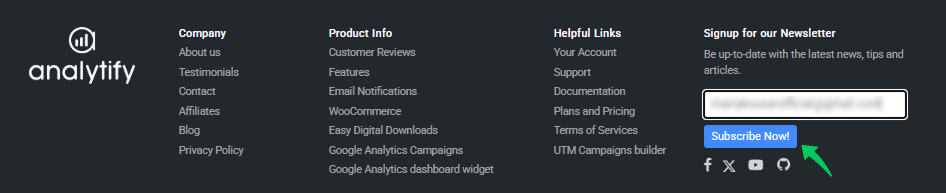
- Once the thank-you message appears, right-click it and select “Inspect”.
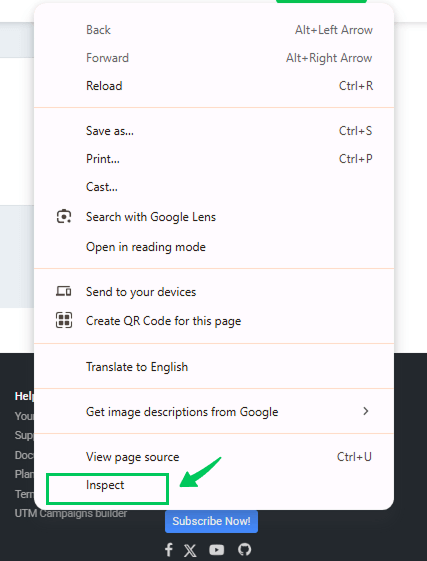
- Here, the success message is wrapped in a <span> with the class success_msg.
Step 3: Define the DOM Element Variable
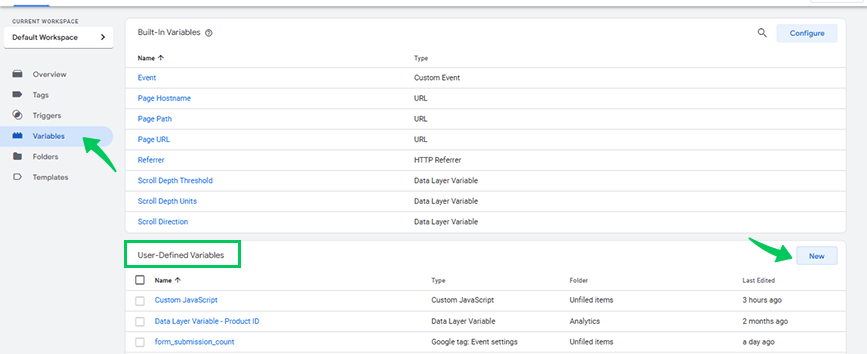
- Open GTM and go to Variables >> User-Defined Variables >> New
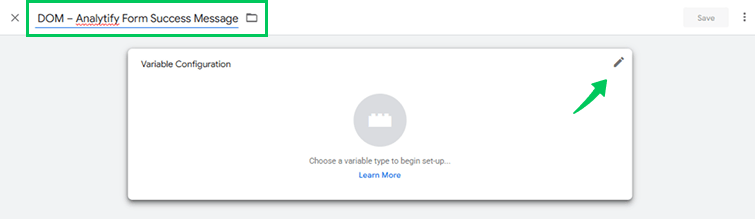
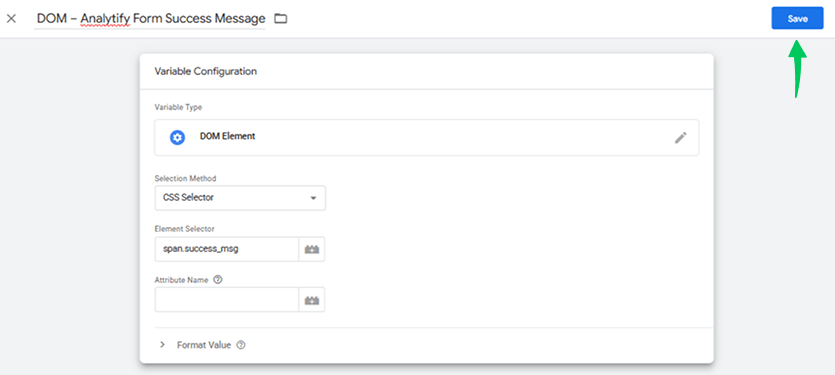
- Name your variable DOM – Analytify Form Success Message. Click on the pen icon to start its configuration.
- Choose DOM Element as the variable type.
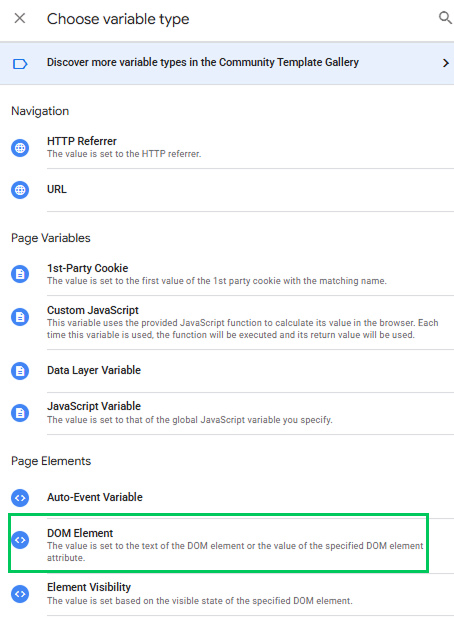
- Under Selection Method, select CSS Selector.
- In the Element Selector field, enter:
- Leave the Attribute Name blank to capture the inner text.
- Save the variable.
Step 4: Test the Variable
- Click Preview in GTM to open Debug mode.
- Go back to the Analytify site, fill out the form, and hit Subscribe Now!
- In the Debug panel, check if your variable correctly picks up the message of Thank You For Subscribing!
Step 5: Create a Trigger for the DOM Element Variable
- Go to Triggers >> New.
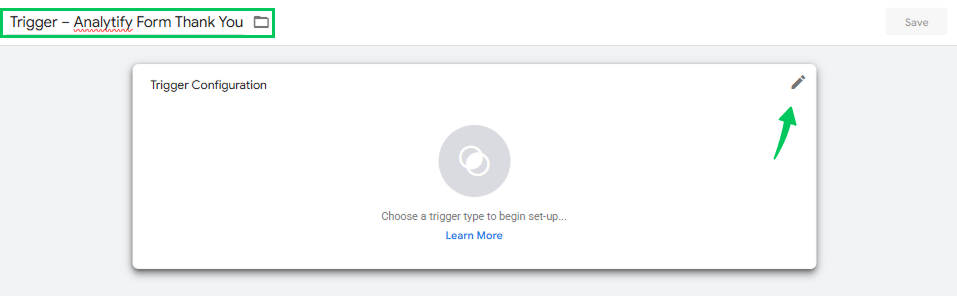
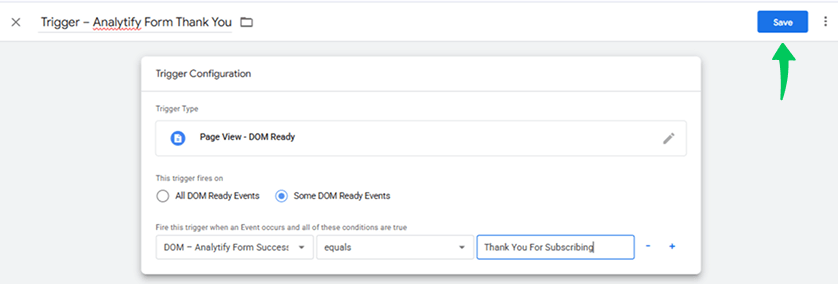
- Name the trigger: Trigger – Analytify Form Thank You. Click on the pen icon to start trigger configuration.
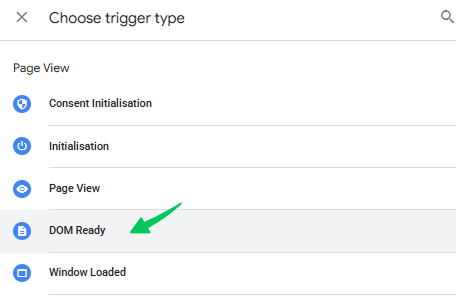
- Choose DOM Ready as the trigger type.
- Select Some DOM Ready Events.
- Set the following conditions:
- DOM – Analytify Form Success Message
- equals
- Thank You For Subscribing!
- Than, click on the save tab to save all the trigger configuration.
Step 6: Assign the Trigger to a GA4 Event Tag
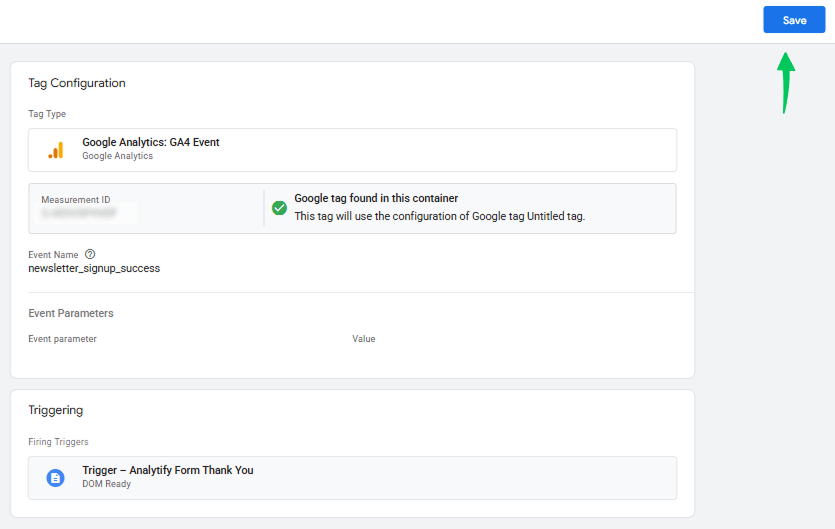
- Create a GA4 Event Tag.
- Set the event name (e.g., newsletter _signup_ success).
- Add required parameters.
- Attach the Trigger – Analytify Form Thank You.
- Save the tag.
Step 7: Final Testing
- Use GTM Preview mode and GA4 Debug View to ensure the tag fires only when the thank you message appears. Try submitting with invalid data and confirm that no event fires unless the success message is shown.
DOM scraping can be complex, especially if you’re unfamiliar with CSS selectors and JavaScript, but it can be a helpful workaround when other tracking options are unavailable.
Simplify Your Form Submission Tracking with Analytify
Join 50,000+ beginners & professionals who use Analytify to simplify their Google Analytics!
Analytify is a user-friendly WordPress plugin for Google Analytics. It turns complex GA4 data into easy-to-read reports, covering traffic, engagement, and conversions. No technical expertise is required.
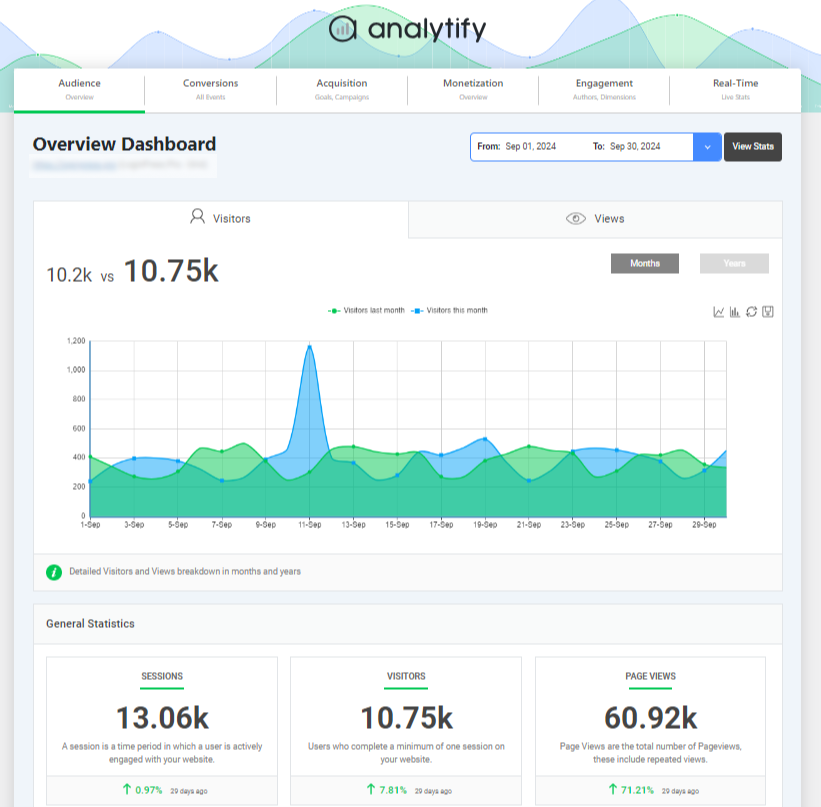
Forms Tracking Features & Functionality
Analytify Forms Tracking gives you everything you need to track leads and conversions from forms. Here’s what it includes:
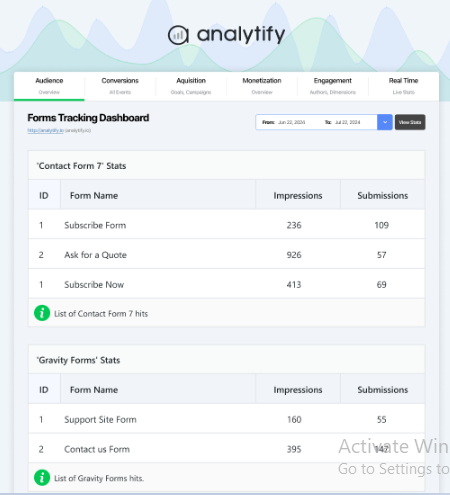
1. Multiple Form Submission Tracking
Analytify tracks multiple forms on your site at once. It works with popular form plugins like Gravity Forms. Compare each form’s performance to sharpen your lead generation strategy.
- Compatible with popular plugins such as Gravity Forms
- Tracks multiple forms on your website
- Helps analyze and improve form conversion rates
2. Forms Analytics Dashboard
Analytify’s dashboard shows your form metrics visually. See impressions, submissions, and other key data in one easy-to-read view.
- View impression and submission reports
- Identify your most popular forms
- Display key metrics for actionable insights
3. Customizable Reports
Build custom reports around your form-tracking data. Create targeted segments or time-specific views to understand your audience.
- Generate user segments and time-specific reports
- Create multiple form tracking reports within your dashboard
- Seamless tracking and export options
4. Integration with Google Analytics
Analytify connects your form data directly to Google Analytics. See form performance alongside your other website analytics in one place.
- Smooth GA4 integration for comprehensive analytics
- Track website performance in context
- Provides a complete view of online presence
5. Easy Setup
Analytify Forms Tracking takes minutes to set up. No technical skills are required. Configure it in a few clicks and start capturing form data right away.
- Easy configuration
- No coding skills needed
Analytify simplifies form submission tracking end to end. Use the data to make faster, better-informed improvements to your forms.
Why Form Submissions Aren’t Showing in GA4
Most missing form_submit events trace back to setup, not GA4 itself. Check these common causes first.
| Symptom | Likely Cause | Fix |
|---|---|---|
| No form_submit event at all | Enhanced Measurement is off | Turn it on in GA4 Admin > Data Streams |
| GTM trigger never fires | Trigger condition does not match the form | Test with GTM Preview mode before publishing |
| Event fires but is missing from reports | Reporting delay or wrong date range | Check GA4 Realtime, then wait 24-48 hours |
| Duplicate submissions logged | Both Enhanced Measurement and a GTM trigger are active | Use only one tracking method per form |
| Tracking works in one browser, not another | Ad blockers or consent tools are blocking the tag | Test in an incognito window with blockers disabled |
Form Submission Tracking in GA4 (FAQ)
1. What is the simplest way to track form submissions in GA4?
The simplest way is using GA4’s Enhanced Measurement feature, which automatically tracks fundamental interactions.
2. Can I track specific forms separately in GA4?
You can create custom events or use unique triggers in GTM to differentiate between multiple forms.
3. What’s the best method for tracking form submissions with thank-you pages?
Use a custom event or set up a URL-based trigger in GTM that fires when users land on the thank-you page.
4. Can GA4 track all types of form submissions?
GA4 can track many types, but for complex forms, custom events or GTM may be required for accurate tracking.
5. How do I view form submission data in GA4?
You can view form submission events under “Events” in the GA4 dashboard, where custom events will be listed.
6. Why isn’t GA4 tracking my form submissions?
Check that your GA4 tag and trigger are set up correctly, and confirm Enhanced Measurement is turned on. Ad blockers, consent tools, and cached pages can also block the form_submit event from firing.
7. Can Google Forms track your location?
No, Google Forms cannot track your exact location directly. However, if the form creator has enabled Collect email addresses or if you’re signed in, they may see some information like your IP address, which can provide general location data but not precise tracking.
Final Thoughts: GA4 Form Interactions Tracking
GA4 form tracking comes down to three things. Pick the right method, set up the event correctly, and check your reports regularly. This guide covered five methods, from GTM triggers to Analytify’s one-click setup.
This guide also shows how to track form submission messages in the Tag Manager. Set up specific triggers and variables to catch each one. The result is accurate data for improving user experience.
You may also like to read our guide on How to Track Affiliate Links with Google Analytics 4.
Now, we’d love to hear from you! Have you tried tracking form submissions in GA4? Share your thoughts, tips, or questions in the comments below – let’s continue the conversation!