How to Track Facebook Traffic in Google Analytics 4 (2026 Guide)

To track Facebook traffic in Google Analytics 4, connect your WordPress site to GA4 with Analytify. Then open Reports > Acquisition > Traffic acquisition, and filter the source for Facebook.
That single report shows visitors, session length, pages viewed, and conversions from Facebook. This is what it means to set up Facebook in Google Analytics: raw social clicks become numbers you can act on.
Quick Answer
To track Facebook traffic in Google Analytics 4: connect your WordPress site to GA4 with Analytify, then check these four things.
- Traffic Acquisition report: Reports > Acquisition > Traffic acquisition, filtered by Facebook as the session source.
- UTM parameters: tag every Facebook ad and post link so GA4 attributes it correctly.
- Analytify: connects GA4 to WordPress automatically, no manual tracking code.
- Key metrics: users, sessions, engagement rate, and conversions from Facebook.
Marketers need this data to prove which Facebook campaigns actually drive traffic. GA4 gives several ways to measure that accurately.
This guide covers how to track Facebook traffic in Google Analytics 4. You’ll also see why linking Google Analytics to the Facebook page matters for WordPress and eCommerce sites.
Table of Contents
Why It’s Important to Connect Google Analytics to Facebook Page?
Connecting Google Analytics to the Facebook page matters for one reason: it shows how many visitors that page actually sends to your website. Likes and shares don’t tell you that. This number lets you compare Facebook against every other channel you use.
Linking Google Analytics to your Facebook page lets you monitor traffic, engagement, and behavior in one place. You see exactly how Facebook visitors use your site.
You gain several benefits by tracking Facebook Traffic in Google Analytics this way, including:
- Better Audience Insights: See how your Facebook audience actually uses your website, then build Targeted & Efficient Facebook Ads.
- Improved Ad Targeting: Build Facebook audiences from real GA4 behavior: pages visited, time on site, and actions taken. This sharpens targeting and lifts ad ROI.
- Improved Conversion Tracking: See exactly how Facebook ads affect purchases and sign-ups, then adjust campaigns based on what converts.
- Simplified Reporting: Combine Google Analytics and Facebook data in one place so you can easily produce reports on Facebook’s effect on traffic and conversions.
How to Link Google Analytics to Facebook Page?
To link Google Analytics to your Facebook page, first install Google Analytics and connect it to your WordPress site. See our guide: How To Integrate Google Analytics In WordPress With Analytify?.
Once Analytify is connected to WordPress, you’re done. It handles Google Analytics integration automatically, so you can analyze the Facebook traffic coming from Facebook without adding tracking codes by hand.
Analytify is a WordPress Google Analytics dashboard plugin. It tracks your site’s traffic, user behavior, and other key metrics inside your WordPress admin.
Analytify makes GA4 stats easy to read, even if you’ve never used Google Analytics before. Key features include Social Media Stats, Realtime Stats, GA4 Tracking, Enhanced Ecommerce Tracking, and Front End Reporting.
Connecting Google Analytics to Facebook takes little effort. Analytics records your Facebook traffic automatically, unless you’re running Facebook Ads.
To track Facebook campaigns and ads in GA4, add UTM parameters to each ad link.
Marketing automation tools make this easier across every channel, not just Facebook. They automate campaigns, collect data, and integrate with marketing automation tools for one comprehensive view.
Ways to Track Facebook Traffic in GA4
Four methods cover most setups, ranked here by effort and what each one is best for.
| Method | Best For | Setup Time |
|---|---|---|
| Analytify Integration | Automatic tracking with no manual code | One-time setup |
| GA4 Traffic Acquisition Report | Seeing all Facebook sessions in one view | Built-in, no setup |
| UTM Parameters | Tracking specific Facebook ads or posts | 5 minutes per link |
| Google Ads Linking | Comparing Facebook traffic against paid Google Ads | 10 minutes |
Posting good content is not enough for social media domination in digital marketing. You need to measure its real impact across every channel you use.
Facebook is one of many social platforms worth tracking this way. Once you know which ones connect with your audience, you can fine-tune each campaign to fit.
Checking Facebook Analytics In Google Analytics 4
Check Facebook analytics in GA4 by opening Reports, then Acquisition, then Traffic acquisition, and filtering the session source for Facebook.
This works the same way in GA4 and in Universal Analytics, with no extra setup needed.
Here is the exact process, step by step:
Step 1: Traffic Acquisition
To see the traffic coming to your website through Facebook, you need to navigate to Reports>>Acquisition>>Traffic acquisition.
UTM Parameters to Add
- utm_source=facebook: identifies Facebook as the traffic source.
- utm_medium=social or cpc: separates organic posts from paid ads.
- utm_campaign= your campaign name, so GA4 groups sessions by campaign.
- utm_content= the ad or post variant, useful for A/B testing.
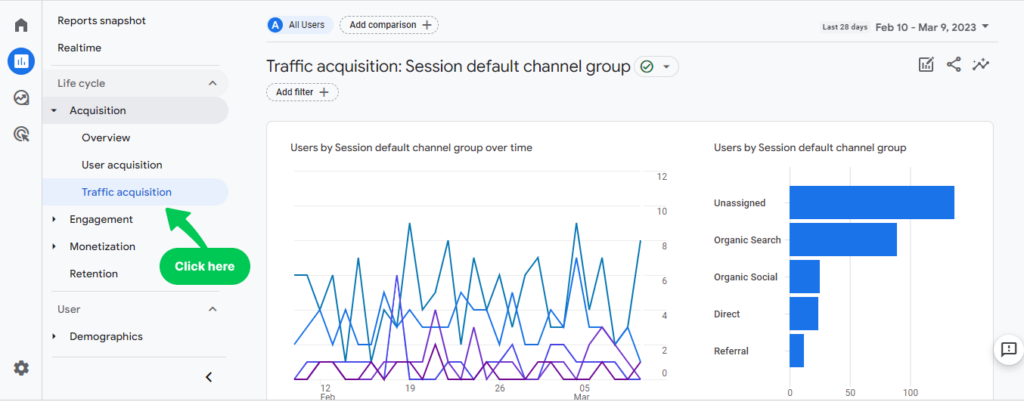
Step 2: Click on Plus Icon
Follow these four steps to isolate Facebook traffic inside your GA4 reports.
Open Traffic Acquisition
Go to Reports, then Acquisition, then Traffic acquisition inside Google Analytics 4.
Add a New Dimension
Scroll to the report table and click the plus icon to open the dimension picker.
Select Session Source
Click Traffic Source, then Session Source, to open the search bar.
Filter for Facebook
Type “Facebook” in the search bar and press Enter to see only Facebook traffic.
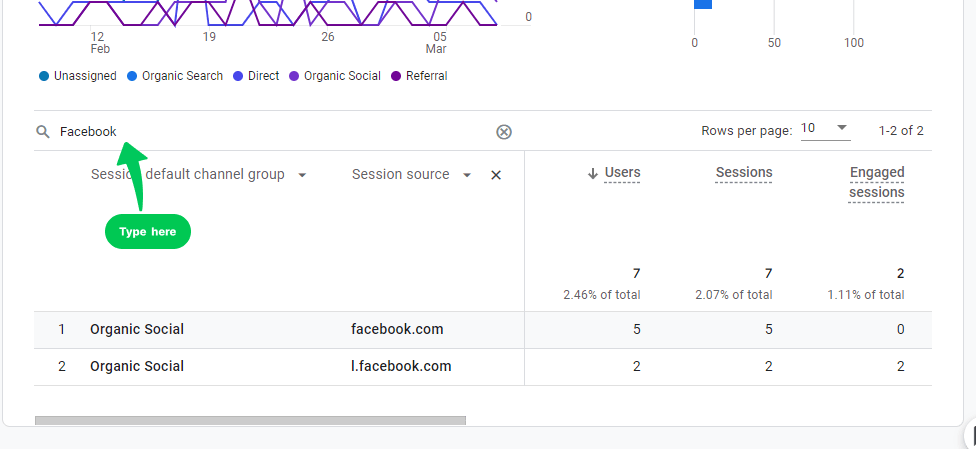
Scroll down to the table and click on plus sign +, as shown in the picture below. You’ll see a new dimension page.
Step 3: Traffic & Session Source
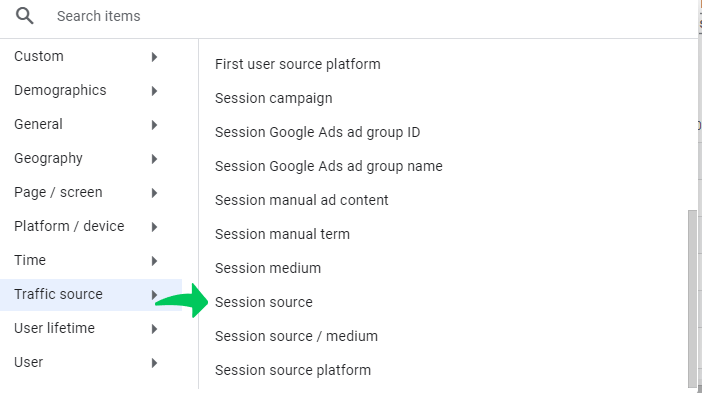
Next, click on Traffic Source and then on Session Source. You’ll see a search bar table.
Step 4: Type Facebook
Write “Facebook” in the search bar and press Enter. Now, you’ll have a report showing only the traffic from Facebook.
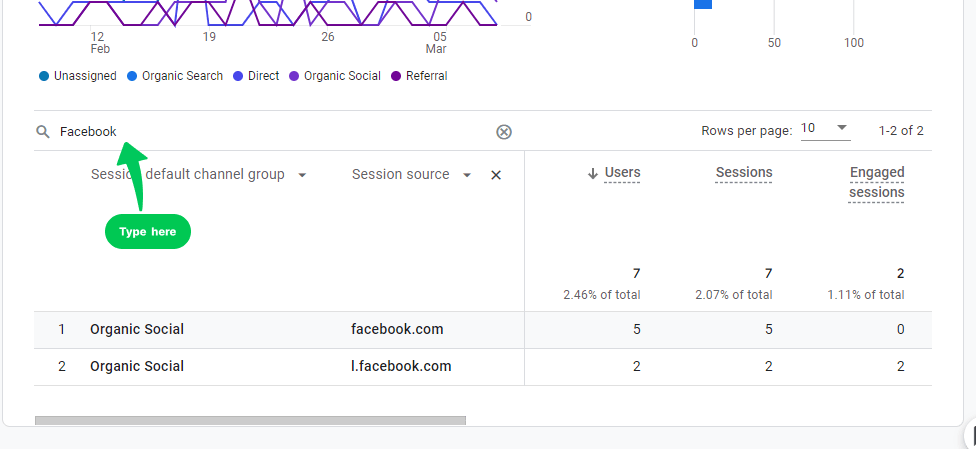
Scroll right to see more metrics: event count, engagement per session, events per session, and average engagement time.
Track interactions and conversions from Facebook by setting up custom UTM parameters. This shows exactly what users do after clicking through from Facebook.
You can build these by hand, or use UTM campaign builder tools to reduce errors and keep tracking consistent. Either way, you’ll measure Facebook’s impact on user behavior in Google Analytics, including page views, form submissions, and purchases.
Related: How to Track Thank You Page in Google Analytics 4.
The same logic applies to PPC marketing efforts: measure Google Ads performance in GA4 with proper UTM parameters to see what’s actually working.
This separates traffic by campaign and ad group inside GA4. Using Google Ads conversion tracking with GTM, you can track purchases and lead form submissions as concrete results.
Wrapping Up
Tracking Facebook traffic in Google Analytics 4 shows exactly how your audience behaves and what they respond to.
Key Facebook Traffic Metrics in GA4
| Metric | What It Shows |
|---|---|
| Users | Unique visitors who arrived from Facebook |
| Sessions | Total visits from Facebook, including repeat visits |
| Engagement Rate | Share of Facebook sessions that were meaningfully active |
| Average Engagement Time | How long Facebook visitors stayed on your site |
| Conversions | Purchases, sign-ups, or form fills from Facebook traffic |
Page views, bounce rates, and conversion rates from Facebook let you make campaign decisions based on data, not guesswork.
That covers how to track Facebook traffic in Google Analytics 4 for one platform. Your customers likely interact with your brand across several other channels too.
That’s where what ‘cross-network’ in Google Analytics means helps. It shows the full user journey across every advertising network, not just one, so you can optimize budget with accurate attribution.
Just as Facebook traffic matters for campaign performance, measuring email marketing impact matters too.
Using the best email tracking tools gives you the same depth of insight for opens, clicks, and conversions from email campaigns.
You now have a full setup for how to track Facebook traffic in Google Analytics 4, and why connecting Google Analytics to the Facebook page matters. Traffic is one metric; engagement is another. See our guide on 11 key customer engagement metrics in 2024 to go further.
For other analytics platforms and what they offer, see our guide: Best Website Analytics Tools.
Questions? Leave them in the comments below.
Still on Universal Analytics? See How to Migrate to Google Analytics 4.
Frequently Ask Questions
1. How is Google Analytics 4 different from Universal Analytics?
Google Analytics 4 is the most recent version. It has more advanced features, such as tracking across devices. GA4 uses events and parameters to collect data and track user behavior more flexibly than Universal Analytics, which mostly uses cookies to track website visitors.
2. How do I set up Facebook traffic tracking on Google Analytics 4?
To track your website traffic coming from Facebook with GA4, you need to link your WordPress site to Google Analytics using the Analytify plugin. Once you’ve integrated Google Analytics into your WordPress site with Analytify, you can easily analyze the Facebook traffic coming to your website through a traffic acquisition report.
However, to track your Facebook campaigns and ads on Google Analytics 4, you’ll need to add UTM parameters to your Facebook ads.
3. How do I use GA4 to look at traffic on Facebook, and what metrics should I track?
Some important metrics to keep an eye on are the number of people who came to your site from Facebook, how long they stayed on your site, and how many of them bought something.
4. How can I improve my Facebook marketing campaigns by using GA4’s insights?
Having Facebook analytics in GA4 allows you to gain valuable insights into your audience’s preferences and behavior. You can use these insights to optimize your Facebook campaigns by targeting specific audiences, creating more relevant content, and improving your website’s user experience.
5. Can I use GA4 to track other Social Media Traffic besides Facebook?
You can use GA4 to track traffic from other social media platforms such as Twitter, LinkedIn, and Instagram. You need to set up the appropriate tracking pixels and integrate them with your website to track data from these sources.
6. Why isn’t Facebook traffic showing up in GA4?
Check that Google Analytics is correctly connected to your WordPress site and that the Facebook links use UTM parameters. Ad blockers, consent tools, and cached pages can also block the GA4 tag from firing. GA4 does not track retroactively, so traffic from before setup will not appear.
That’s all. Analytify vs. Jetpack Stats – Which One is Better? and How to Set Up Phone Call Tracking in Google Analytics cover related setups worth checking next.
Not using Analytify yet? What are you waiting for?
Why Facebook Traffic Might Not Show in GA4
Most missing-data cases trace back to one of these four causes.
| Symptom | Likely Cause | Fix |
|---|---|---|
| No Facebook traffic at all | Google Analytics not connected to WordPress | Reconnect GA4 through Analytify and verify the tracking code fires |
| Traffic shows as “referral,” not “social” | Links shared without UTM parameters | Add utm_source=facebook and utm_medium=social to shared links |
| Facebook Ads traffic missing | Ad destination URLs have no UTM tags | Tag every ad link before launching the campaign |
| Old Facebook traffic missing after setup | GA4 does not track retroactively | Expect data only from the setup date forward |
Key Takeaways
- Use Analytify to connect GA4 to WordPress automatically, no manual tracking code needed.
- Check Facebook traffic in Reports> Acquisition> Traffic acquisition, filtered by session source.
- Tag every Facebook ad and post link with UTM parameters for accurate attribution.
- GA4 does not track retroactively, so set this up before you need the data.
- Compare Facebook against other channels using the same Traffic Acquisition report.