How to Track Facebook Ads in Google Analytics 4: A Complete Setup Guide

To track Facebook Ads in Google Analytics 4, add UTM parameters to each ad’s destination URL, then open the Traffic acquisition report and view the Session source / medium dimension.
You can reach a large audience with Facebook Ads. Tracking the traffic that Facebook Ads send to your site shows which ads, ad sets, and campaigns bring visitors.
This guide is for marketers and WordPress site owners who run Facebook Ads. I show you how to build a UTM link, add it to your ad, and read the traffic in GA4 and in Analytify.
Table of Content
- Why Should You Track Facebook Ads in Google Analytics 4
- Why’s There a Difference in Google Analytics and Facebook Insights Data?
- How to Track Facebook Ads in Google Analytics
- Track UTMs in Analytify
- Conclusion
- Frequently Ask Questions
Why Should You Track Facebook Ads in Google Analytics 4
Track Facebook Ads in Google Analytics 4 because Facebook Insights reports performance on Facebook, while GA4 shows how visitors behave on your website after they click.
Facebook Ads campaigns need tracking to show which ideas convert the Facebook audience into website visitors and customers.
Facebook Insights reports the performance of your Facebook Ads. You can see the reach of the ads, information about the target audience, and the actions they took in response to the ads.
Include Google Analytics in your ads performance reporting alongside Facebook Insights.
1. More Accuracy in Ad Performance Data
Facebook Insights reports ad performance on the Facebook platform only. It cannot track users after they leave Facebook.
When you add Google Analytics to the reporting mix, you can now track the users who interacted with your Facebook ads and clicked over to your website. You can easily track the traffic that Facebook ads send to your website and how these visitors interact with your website.
2. Compensate for Third-party Privacy Settings
Google Analytics compensates for privacy changes that limit Facebook’s data. Apple, for example, restricts user data collection and tracking by platforms such as Facebook.
These changes affect the way Facebook collects and reports data.
Google Analytics adds website data to what Facebook Insights collects. Together, the two sources give you a clearer picture of audience behavior.
Why’s There a Difference in Google Analytics and Facebook Insights Data?
Facebook Insights and Google Analytics can report different numbers for the same ads.
Privacy-related changes that many platforms made after laws such as GDPR are one cause of the difference.
The difference complicates sales attribution and the ROI calculation for Facebook Ads spend.
UTM tracking shows the visits each ad sends to your site. The next section explains how to track Facebook Ads in Google Analytics 4.
How to Track Facebook Ads in Google Analytics
To track Facebook Ads in Google Analytics, generate a UTM link, add it to the ad URL, and read the traffic in GA4.
1. Generate a Trackable Link
Generate a trackable link by adding UTM parameters to your landing page URL.
UTM parameters pass information about the ad to Google Analytics. Google recommends always using utm_source, utm_medium, and utm_campaign.
You can find popular UTM generators by Facebook and Google that can generate a trackable UTM based on the information you add to the form.
This guide uses the Analytify UTM builder to create a UTM that you can use in the Facebook Ads campaign to help Google Analytics track the ads’ performance.
When building the UTM, you need to provide the following information to uniquely identify the ad and the campaign in Google Analytics.
Website URL: This is your website’s main URL.
Campaign Source: Enter facebook in lowercase so that Google Analytics attributes all traffic from the UTM link to Facebook. UTM values are case sensitive, so Facebook and facebook appear as separate sources.
Campaign Medium: This parameter identifies the type of traffic coming to your website. Enter cpc for Facebook Ads that you pay for per click. When the source is a social site such as facebook, a medium of cpc, ppc, or paid_social places the traffic in the Paid Social channel in GA4.
Campaign Name: Use the name of the larger campaign you wish to track. For instance, we’ve used facebook_Summer_Sales to identify all Facebook Ads campaigns that are part of the summer sales seasonal marketing campaign.
Campaign Term: This parameter usually contains keywords for paid ad campaigns. However, for our Facebook Ads campaign, we’ll use this parameter to identify the ad set.
Campaign Content: This is where you can enter the name of the individual ads.
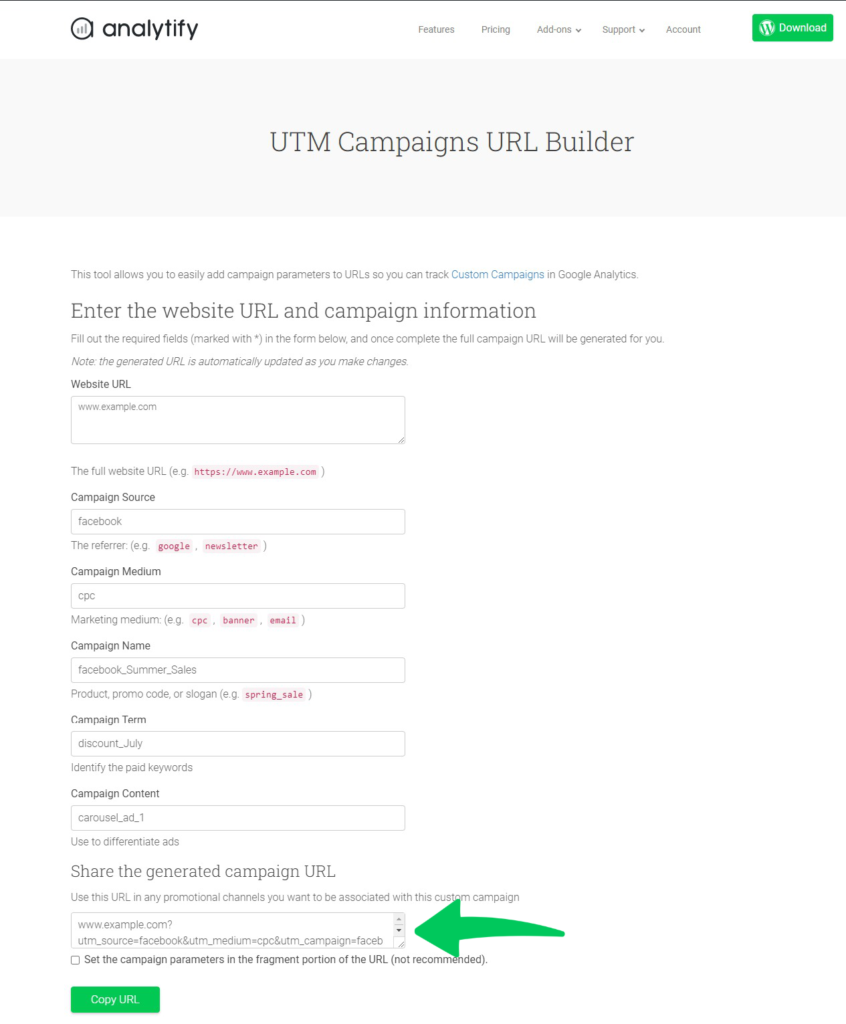
The UTM builder produces the following trackable UTM link:
www.example.com?utm_source=facebook&utm_medium=cpc&utm_campaign=facebook_Summer_Sales&utm_term=discount_July&utm_content=carousel_ad_1
For more detail on UTM parameters, see the guide covering the process of UTM creation.
2. Add the UTM Link to the Ad URL
Add the UTM link to the website URL field of your ad in Facebook Ads Manager.
Go to the Facebook Ads Manager and create the ad. In the field for website URL, add the UTM link.
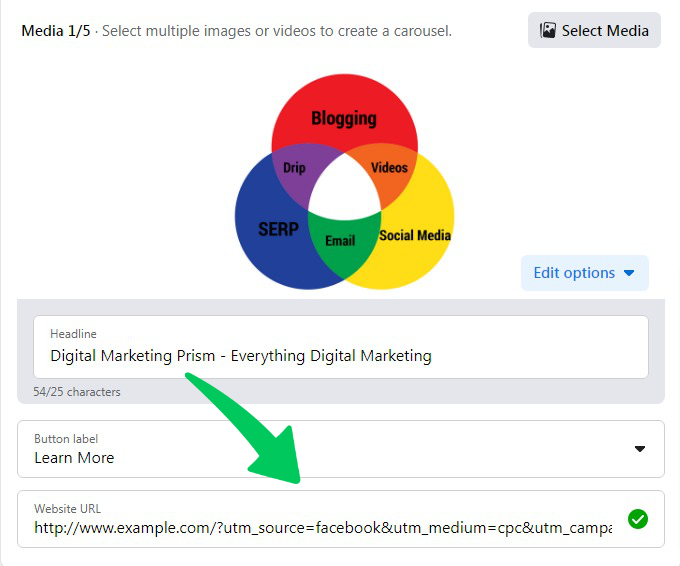
Check and preview the ad and make it live.
3. Track Facebook Ads in Google Analytics 4
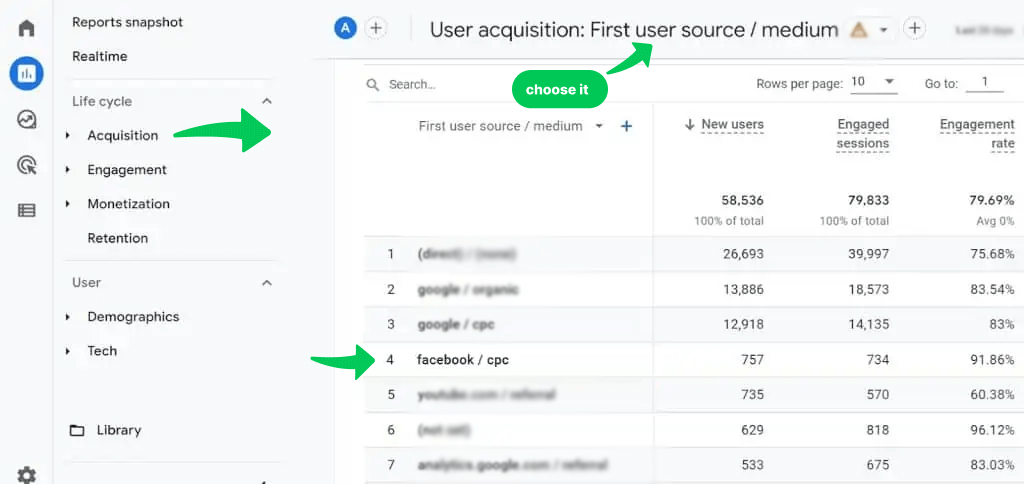
To see Facebook Ads traffic in GA4, open Reports, select Acquisition, then select Traffic acquisition. Use the dimension picker at the top left of the table to select Session source / medium.
The row facebook / cpc shows traffic from your ad, based on the source and medium in your UTM link. Standard reports can take 24 to 48 hours to finish processing, and the Realtime report shows visits within a few minutes.
You can now see the traffic coming in from the Facebook ad campaign.
Track UTMs in Analytify
If you have a WordPress website, you can use Analytify, a WordPress Google Analytics dashboard plugin that brings essential information to your website.
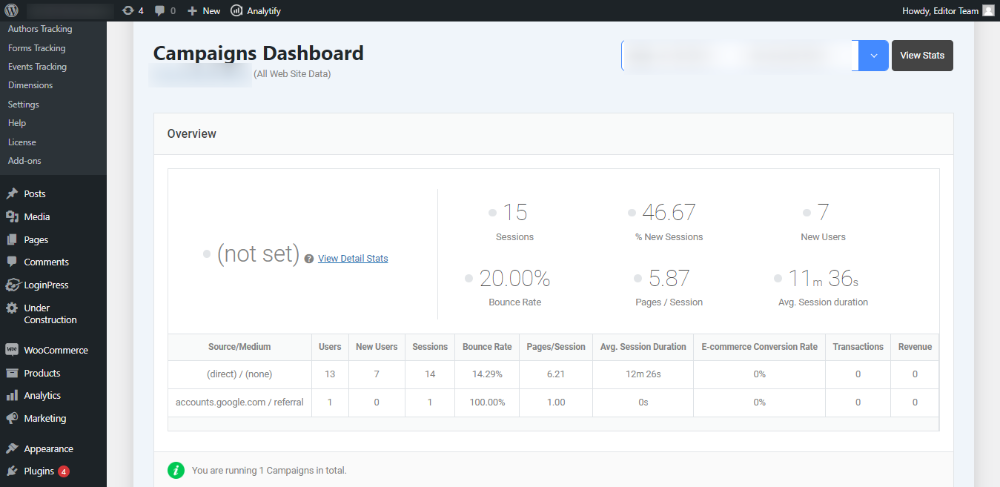
Analytify has a dedicated dashboard for tracking the traffic coming in via UTM. To see this traffic, go to the Analytify dashboard and hover over Acquisition.
From the drop-down menu, select Campaigns. You can see important metrics such as Users, Sessions, Bounce Rate, and Revenue for each UTM source.
Conclusion
To track Facebook Ads in GA4, add UTM parameters to each ad URL and read the traffic in the Traffic acquisition report.
Facebook Ads can potentially bring in traffic and conversions for your business. However, you need to know the traffic arriving at your website from each ad so that you know what works for your audience.
Let us know what parameters you prefer to add to the Facebook Ads UTM and how you track this UTM.
Frequently Ask Questions
Can I link my Facebook Page to Google Analytics?
You can’t directly link a Facebook page to Google Analytics. However, you can use UTM to push data to Google Analytics.
Can I upload Facebook campaign data to Google Analytics?
At the moment, Google Analytics can only pull data from other Google products.
Do I need to add values for all UTM parameters?
You need to fill in the mandatory fields such as source, medium, and name. However, the more parameters you add, the more detailed results you can see in Google Analytics.
You can also read How to Use Google Analytics to Increase Traffic and10 Facebook Ads Targeting Tips To Skyrocket Your Conversions in 2022.
Not using Analytify yet? What are you waiting for?