Google Analytics Keyword Report: A Complete Guide on Tracking Keywords in GA4

The Google Analytics keyword report shows which search keywords bring visitors to your site. It also shows how those visitors engage once they arrive.
Use it to find keywords worth more content, and keywords that attract visits but no engagement.
Google Analytics shows how various keywords perform. It tells you what visitors search for and how those searches turn into engagement on your site. The keyword report in Google Analytics provide valuable insights that can significantly impact your content strategy and website optimization.
In this comprehensive guide, we’ll discuss the Google Analytics Keyword Report in detail. This guide covers the basics of keywords in Google Analytics. It then shows you how to master keyword tracking in Google Analytics 4 (GA4).
You may be a seasoned SEO expert or a beginner in digital marketing. Knowing how to track keywords in Google Analytics gives you a competitive edge.
We’ll also highlight how Analytify can make keyword tracking even more insightful.
So, let’s get started!
Google Analytics Keyword Report (TOC):
Understanding Keywords in SEO
In the area of SEO, keywords are more than just words. They’re the bridges that connect your content with your audience. But what makes some keywords more effective than others?
Let’s explore.
Keywords are the queries that users type into search engines when looking for information, products, or services. They range from single words to complex phrases. They fall into two broad types: short-tail keywords and long-tail keywords.
- Short-tail keywords are broad, often consisting of one or two words. They’re high in search volume but also high in competition. Imagine you’re a baker in Boston. A short-tail keyword for your website might simply be “bakery.”
- Long-tail keywords, on the other hand, are more specific and usually longer. They have lower search volumes but also lower competition, leading to higher conversion rates. For our baker, a long-tail keyword could be “gluten-free bakery in Boston.”
Google’s algorithm updates have significantly impacted the evolution of keyword analysis. Initially, stuffing articles with keywords was enough to rank. However, Google’s algorithms have become more sophisticated. They focus on the intent behind the search queries rather than just the keywords themselves. This shift underscores the importance of understanding the Keywords in Google Analytics and how they align with user intent.
How Google Analytics Helps
Google Analytics helps by providing data on how users find your website through keywords. Analyze the Google Analytics Keyword Report to see which keywords drive traffic. You also see how those users behave once they land on your page. You see whether they convert into customers or subscribers.
Understanding which keywords drive traffic to your landing pages is essential for SEO success. Using Google Analytics keyword reports, you can identify high-performing keywords and optimize your content accordingly. A well-optimized SEO landing page matches search intent and includes relevant keywords. It can attract more organic traffic and boost engagement.
This data is invaluable for refining your SEO strategy. It allows you to focus on keywords that bring traffic and are relevant to your target audience. Moreover, with the advent of GA4, understanding keywords in Google Analytics has become even more nuanced and powerful.
Why It Matters
Understanding keywords and their performance can significantly enhance your website’s SEO. By targeting the right keywords, you ensure that the right audience is discovering your content. It increases your site’s visibility. It also increases your relevance to the people most likely to engage with your content.
How to Check Google Analytics Keyword Reports?
The Google Analytics Keyword Report shows how various keywords perform at driving traffic to your website. However, accessing and making sense of this report can initially seem daunting. Let’s learn how to check Google Analytics reports.
Accessing Keyword Reports in Google Analytics
Google Analytics 4, in its commitment to user privacy and data security, does not directly share keyword reports. This detail might initially seem like a barrier to understanding how users find your website through search. But. GA4 tells you an overview of sources and channels that bring traffic to your site.
You can check it by navigating to GA4 Reports >> Acquisition.
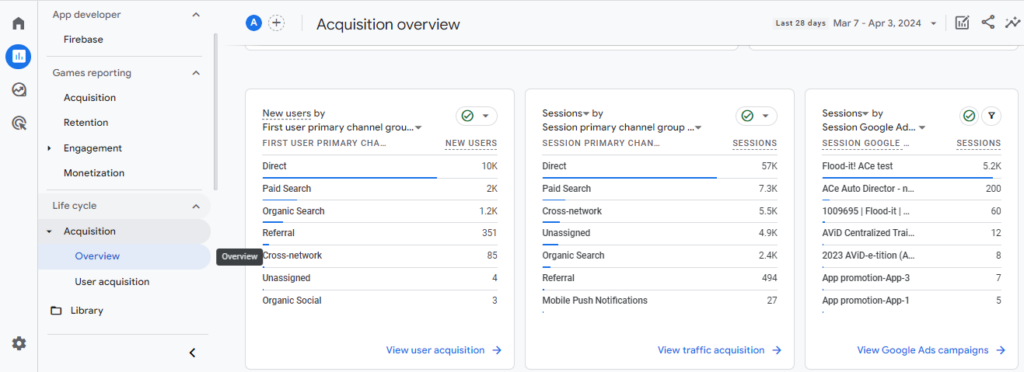
To track keywords in Google Analytics 4, first link your Google Search Console account with Google Analytics. This link lets Google Analytics pull detailed keyword data from the Search Console. You get a fuller view of keyword performance.
Steps to Link GA4 and Google Search Console
1. Access GA4 Property: First, make sure you have administrative rights. You need them on your GA4 property and on the Google Search Console account you plan to link. This step is crucial as it requires permission to make changes and establish links between the two platforms.
2. Navigate to Admin Section: Within your GA4 dashboard, navigate to the Admin section, typically in the lower-left corner. This area serves as the control center for managing your property’s settings and configurations.
3. Product Linking: Look for the “Product Linking” menu within the Admin section, specifically under the property column. Here, you’ll find the option for “Google Search Console.” Click on it to initiate the linking process.
4. Add Link: When you select to link Google Search Console, you’ll be prompted to choose a Search Console property. Pick the one that matches your GA4 property. Follow the on-screen instructions carefully to ensure a successful link.
5. Verify and Save: After selecting the desired Search Console property, review the settings to make sure everything is correct. Confirm your choices and save the configuration to establish the link.
Your Google Analytics keyword report already gives you great insights. Now imagine getting deeper, predictive intelligence from your data. AI data analytics takes your numbers to the next level. It can uncover hidden patterns, forecast trends, and even automate finding actionable insights.
How to Track Keywords in Google Analytics 4
You have now integrated Google Analytics 4 with Google Search Console. Next, let’s learn how to access the Google Analytics keyword report.
Step 1: Sign in to Google Analytics
- Go to your Google Analytics account. Select the GA4 property whose keyword data you want to view.
Step 2: Navigate to Reports
- On the left-hand side menu, click on “Reports.”
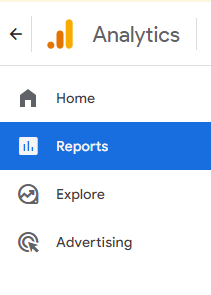
Step 3: Accessing Search Console Queries Report
- Scroll down in the Reports menu to find the Acquisition section.
- Click on “Acquisition” to expand it, then find and click on “Search Console.”
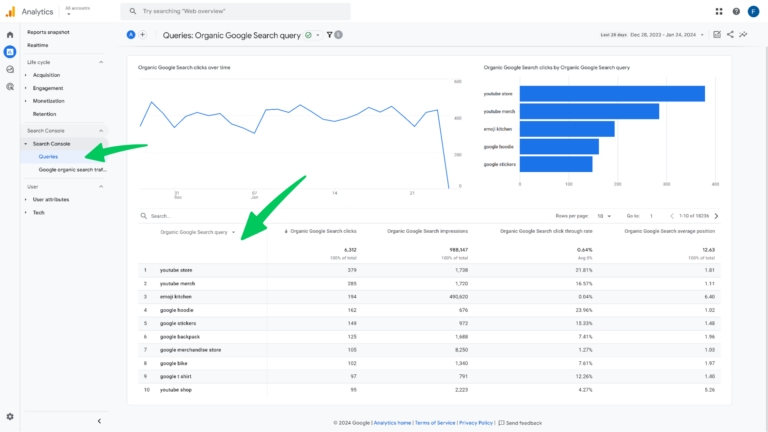
- Under “Search Console,” select Queries.
- This report shows you the keywords and phrases that users have typed into Google Search to find your site.
Understanding Your Keyword Report
The Google Analytics Keyword Report provides several key metrics, including:
- Queries: The actual search terms people used to find your site.
- Clicks: How many times users clicked on your site’s listing in search results.
- Impressions: The number of times your site appeared in search results.
- CTR (Click-Through Rate): The percentage of impressions that resulted in a click.
- Position: The average ranking of your site in search results for each query.
To truly succeed in digital marketing, relying on assumptions is no longer sufficient; success hinges on deriving data-driven insights. Analyze your Google Analytics keyword report thoroughly. It gives you insight into user intent and search trends. Use it to inform your content and SEO strategies.
The Importance of Keyword Data
GA4 provides limited keyword data and should be linked to GSC. You can combine it with SEO tools like Keyword Rank Tracker by SE Ranking to get the full picture. This tool offers detailed keyword tracking across major search engines and locations. It includes daily rankings, keyword search volume, SERP features, visibility trends, and more. This data fills the gaps GA4 leaves. You get a complete view of how your content performs in search results. That supports smarter SEO decisions.
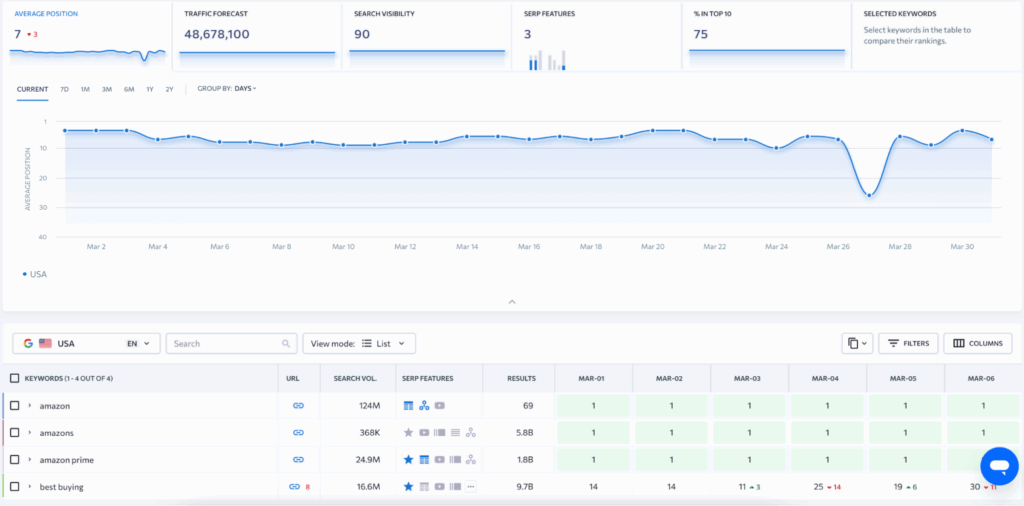
The keyword data in general is invaluable for several reasons:
- Identifying High-Performing Keywords: Discover which keywords draw traffic to your site. Then optimize your content to target these terms.
- Spotting Opportunities: Identify relevant keywords with high impressions but low CTR. That suggests your page might not match the search intent.
- Refining SEO Strategy: Use the average position metric to see how well you compete in search rankings for your targeted keywords. Adjust your SEO tactics accordingly.
Google Analytics 4 and Google Search Console both provide keyword data. Understanding their differences helps you optimize your SEO strategy. Read their key differences here to determine which tool suits your needs best.
How to Check GA4 Keywords Report in WordPress (Analytify)
To check keyword performance without leaving WordPress, use Analytify. It shows your keyword performance straight in the WordPress dashboard.
We Make GA4 Keyword Reporting Easy!
You know Google Analytics and love the keyword data it provides. Wouldn’t it be nice to manage that complex information inside your WordPress dashboard?
Read our guide on How Can I Find The Google Analytics Search Terms In Analytify Plugin?
Analytify brings Google Analytics into your WordPress dashboard. It makes monitoring your site’s performance user-friendly. But how do you use Analytify to check your Google Analytics keywords report? Let’s break it down into straightforward steps.
Step 1: Ensure Analytify is Installed and Set Up
First, confirm that Analytify is installed and activated on your WordPress site. It should also be connected to your Google Analytics (GA) account.
If you still need to do this, follow this guide to install and activate Analytify Pro.
Step 2: Navigate to the Analytify Dashboard
- Log into your WordPress dashboard.
- Find Analytify on the menu. It’s located on the left-hand side of your dashboard.
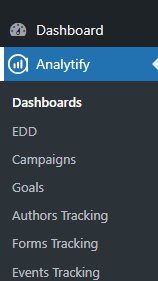
- Click Analytify to open its dashboard to see an overview of your site’s analytics.
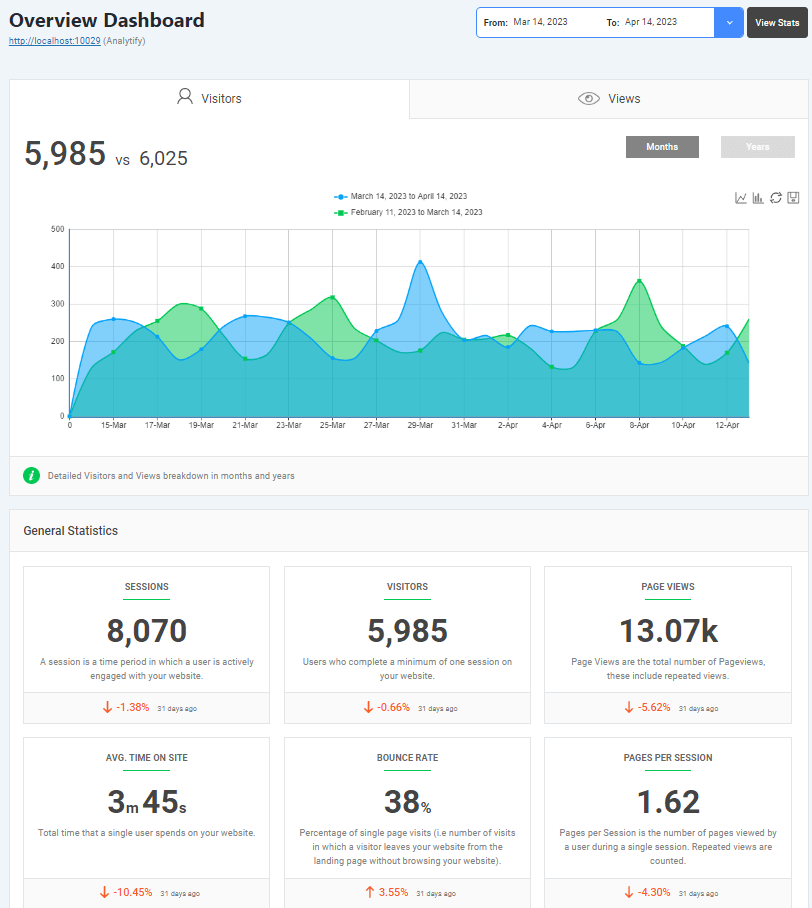
Step 3: Access the Search Terms
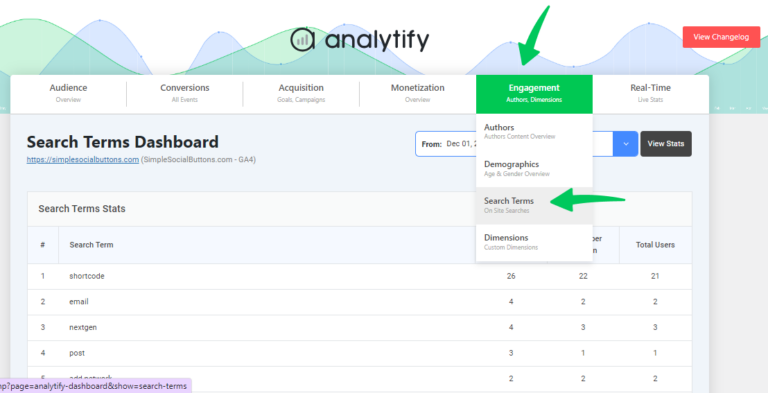
Analytify simplifies access to GA data. Note that GA does not directly provide search term data, for privacy reasons. However, Analytify integrates with Google Search Console (GSC) to bring those insights into your WordPress dashboard. Here’s how to access them.
- Ensure you’ve integrated Google Search Console with your Google Analytics account. This step is essential for the search terms to appear in Analytify.
- From the Analytify dashboard, navigate to the ‘Search Console’ section. If you haven’t linked GSC with GA, Analytify will prompt you to do so.
Step 4: Analyzing the Search Terms
Once in the “Search Console” section:
- Look for the ‘Queries’ report. This report displays the search terms users have entered in Google to find your website.
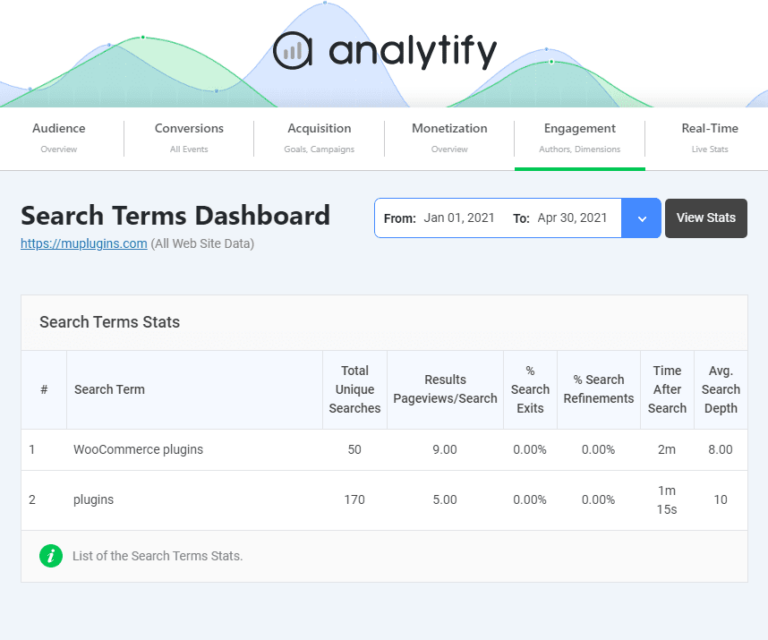
- Use the data to understand what your audience is looking for.
Tips for Using Search Term Data
- Identify High-Performing Keywords: Focus your content around these to drive more traffic.
- Spot Opportunities: Look for terms with high impressions but low clicks. They might be opportunities to improve your content or meta descriptions.
- Understand User Intent: Align your content strategy with the needs and questions of your audience.
If you’re new to Google Analytics, key terms like ‘Organic Traffic,’ ‘Keyword Report,’ and ‘Search Console’ can be challenging. That’s why we’ve developed a GA4 glossary. It defines all the important GA4 terms, so you can analyze your keyword performance effectively.
The Google Analytics keyword report gives you insight into organic search performance. The integration of AI in marketing analytics is changing how we interpret and act on such data. AI tools can analyze vast keyword datasets and identify emerging trends. They can even predict performance. That helps you uncover hidden opportunities and optimize your SEO strategy.
GA4 Keyword Tracking FAQs
1. What is the Google Analytics Keyword Report?
The Google Analytics Keyword Report is a feature within Google Analytics that provides insights into the search terms users type into search engines to find your website. It shows data like clicks, impressions, click-through rate (CTR), and the average position of your site in search results for each keyword.
2. How do I access the Keyword Report in Google Analytics?
To access the Keyword Report in Google Analytics, navigate to the ‘Acquisition’ section, then to ‘Search Console’, and finally to ‘Queries’. This report integrates data from Google Search Console, offering detailed insights into the performance of your keywords.
3. What are GA4 Keywords?
GA4 Keywords refer to the search terms associated with your website’s traffic as tracked by Google Analytics 4, the latest version of Google Analytics. GA4 offers a new, more user-centric approach to analytics, including advanced tracking of user interactions and the keywords they use.
4. How can I track keywords in Google Analytics 4 (GA4)?
To track keywords in GA4, ensure your Google Analytics account is linked with Google Search Console. While GA4 doesn’t directly offer a ‘keyword report’ like its predecessor, linking with Search Console allows you to access detailed keyword data, including impressions, clicks, and CTR.
5. Can Analytify help with keyword tracking?
Yes, Analytify simplifies and enhances keyword tracking by integrating with Google Analytics and Google Search Console. It presents keyword data in an easy-to-understand format, providing actionable insights into keyword performance, which is crucial for SEO optimization.
6. Why am I seeing ‘not provided’ instead of actual keywords in my reports?
The ‘not provided’ label appears in Google Analytics reports due to privacy measures implemented by Google, such as encrypting search queries to protect users’ privacy. To get around this, link your Google Search Console with Google Analytics, as it offers access to more comprehensive keyword data.
7. How can I improve my website’s ranking for specific keywords?
To improve your website’s ranking for specific keywords, focus on creating high-quality, relevant content that addresses the intent behind the search queries. Use insights from Google Analytics and Analytify to understand which keywords are driving traffic and engagement, and optimize your content and SEO strategies based on this data. Regularly updating your content, improving your site’s loading speed, and ensuring it’s mobile-friendly are also critical factors.
Conclusion
We have covered the Google Analytics Keyword Report and keyword tracking in Google Analytics 4 in a simple and detailed way. We’ve also discussed, particularly, the capabilities of Analytify, making GA4 keyword tracking navigable and exciting. If you are still choosing a tool, see the best Google Analytics plugins for WordPress.
Keywords are the cornerstone of SEO, acting as the critical link between your content and your audience. Google Analytics and Analytify show how analyzing keyword performance improves content relevance and website optimization. Know which keywords resonate with your audience and how they interact with your content. You can then make informed decisions that grow your website.
The Google Analytics keyword report provides valuable insights. The integration of Artificial Intelligence (AI) is changing how we extract deeper intelligence from our data.
AI in Google Analytics can uncover hidden patterns and predict future trends. It can also automate complex analysis. That goes beyond traditional reporting to give more proactive, actionable insights for marketing strategies.
We hope this article has helped you to know how to track Google Analytics Keyword Report.
You may also like to track organic keywords in Google Analytics 4.
Now, we’d love to hear from you. Which keyword SEO strategy does your marketing team prefer? Share your thoughts in the comments below.