How to Use Google Analytics to Improve Your SEO (15 Effective Ways)

Google Analytics is one of the most powerful tools for improving your SEO. It shows you where your traffic comes from, how users behave on your site, and which pages are performing best.
For a complete walkthrough, see our guide: How to Set Up Google Analytics 4 and Connect it to Your WordPress Site?.
This guide covers 15 ways on how to use Google Analytics for SEO, the key reports that matter, and how to measure your progress
Let’s get started with our Google Analytics SEO guide!
Google Analytics for SEO (TOC):
What is SEO Analytics?
SEO analytics is the process of collecting and analyzing data to understand how your website performs in search engines.
It focuses on metrics like traffic, keyword rankings, and conversions. These numbers help you find what is working and what needs to improve.
This way, you can identify opportunities to improve your search engine optimization strategies.
Key areas SEO analytics covers:
- Keyword rankings and organic visibility
- Backlink quality and quantity
- Website speed and Core Web Vitals
- User behavior, such as bounce rate and time on page
- Conversion rates from organic traffic
What is Google Analytics in SEO?
Google Analytics in SEO is a tool that helps you understand how your website performs in search results.
It tracks user behavior, website traffic sources, and content engagement, enabling you to measure how well your site ranks and performs for organic search queries.
With Google Analytics, you can:
- Track organic traffic and keyword performance
- Identify top-performing pages
- Spot pages with high bounce rates
- Measure goal completions from search traffic
- Integrate with Google Search Console for deeper keyword data
Tip: For WordPress users, Analytify connects GA4 data directly to your WordPress dashboard. You get the same insights without leaving your site.
Getting Started with Google Analytics 4
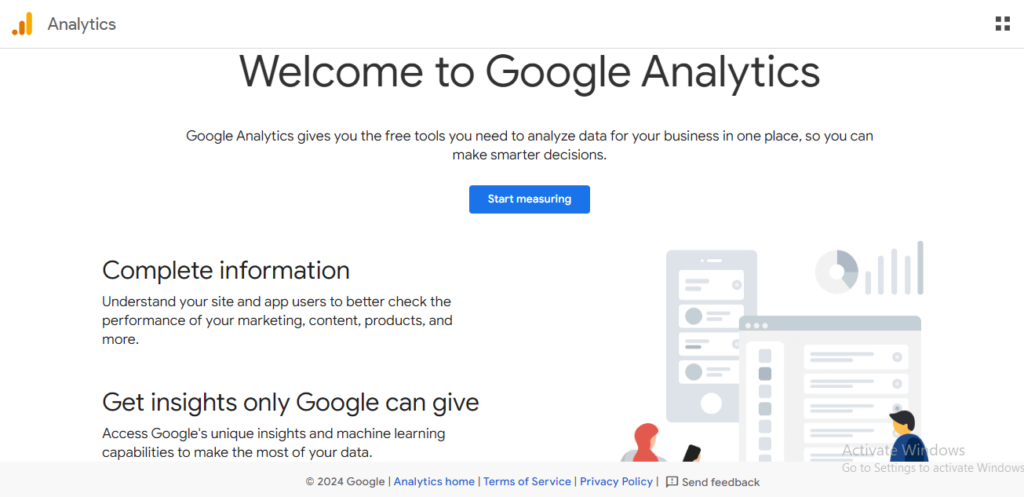
Google Analytics 4 (GA4) is the current version of Google Analytics. It uses event-based tracking instead of session-based tracking.
GA4 is useful for SEO because it tracks:
- Which pages bring in the most organic traffic
- Where users drop off during their visit
- How keywords influence engagement and conversions
Note: Need help setting up GA4? See our step-by-step guide on How to Login to Google Analytics.
Key GA4 Reports for SEO
GA4 has four main report types that are useful for SEO Google Analytics tracking:
| Report | What It Shows | SEO Use Case |
|---|---|---|
| Acquisition Report | How traffic reaches your site, including organic search | Track organic visitors by search engine and keyword |
| Engagement Report | How users interact with your content | Find high-performing pages and spot weak ones |
| Conversions Report | Which actions users complete after arriving | Measure SEO impact on sign-ups, purchases, and goals |
| Landing Page Report | Which pages users land on first | Evaluate first impressions and bounce rates |
With these reports, GA4 provides the insights needed to refine SEO strategies, boost rankings, and enhance user experience.
Tip: Analytify displays all four of these report types inside your WordPress dashboard. No need to switch between tools.
Join 50,000+ beginners & professionals who use Analytify to simplify their Google Analytics!
How to Measure SEO Performance with Google Analytics (15 Ways)
Here are 15 effective ways to use Google Analytics SEO tools to measure and improve your search performance.
1. Analyze Organic Traffic with the Acquisition Report
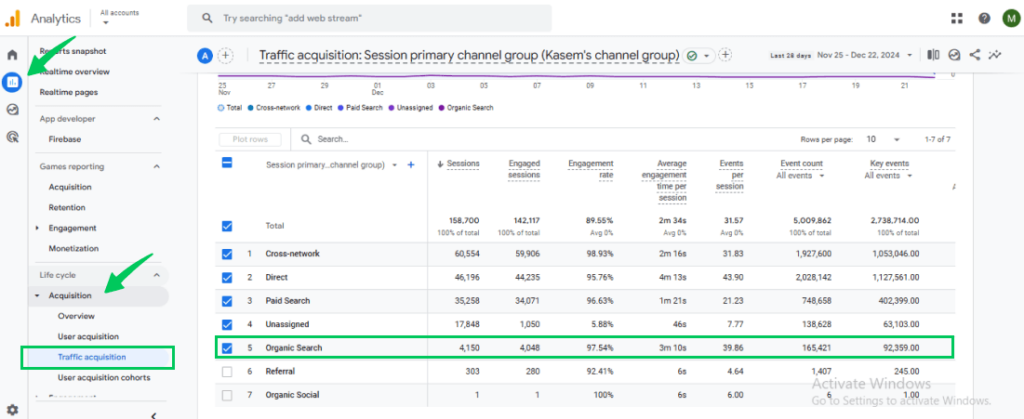
The Acquisition Report shows how visitors find your website. It separates traffic by source, including organic search, paid ads, and social media.
How to access it in GA4:
- Filter by Organic Search.
- Go to Reports.
- Click Acquisition.
- Select Traffic Acquisition.
What to look for:
- Which search engines send the most traffic
- Traffic trends over time
- Changes after a site update or algorithm change
Tip: Analytify shows your organic traffic data directly in WordPress. You can check it without opening GA4.
2. Monitor Keyword Performance Using Google Search Console Integration
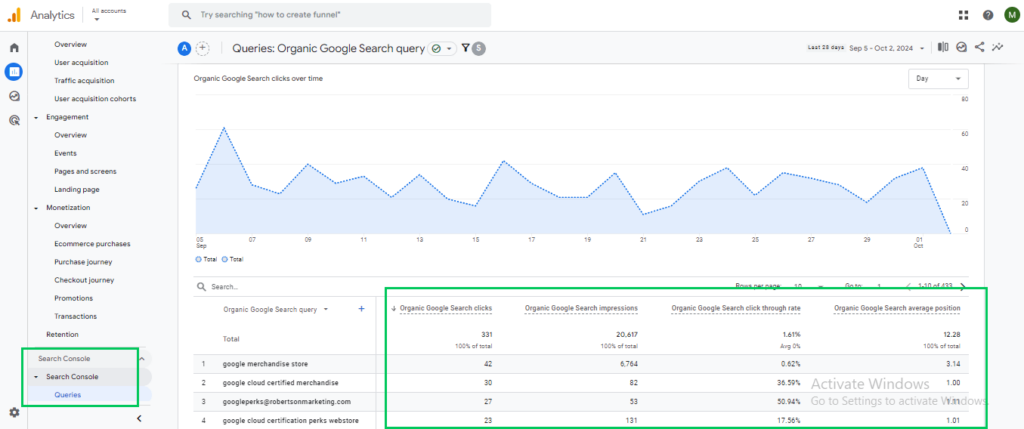
Integrating Google Search Console with GA4 helps you find keyword data. This is one of the most useful Google Analytics SEO features.
How to access it in GA4:
- Select Google Organic Search Queries.
- Go to Reports.
- Click Acquisition.
Key metrics to review:
- Impressions: how often your site appears in search results
- Clicks: how many people click through to your site
- CTR (click-through rate): the percentage who click after seeing your listing
Keywords with high impressions but low CTR are opportunities. Improving the meta title and description for those pages can boost clicks.
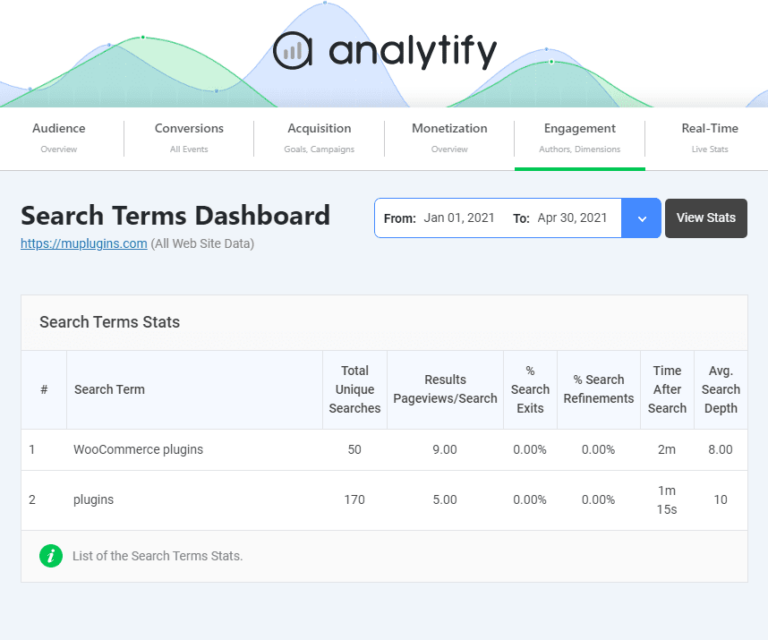
Tip: Analytify’s Search Term Dashboard shows keyword performance inside WordPress. No need to switch to Search Console.
3. Track Landing Page Performance
Landing pages are the first pages visitors see when they arrive from search. Tracking them shows which pages attract organic traffic and which ones lose visitors quickly.
How to access it in GA4:
- Go to Reports.
- Click Engagement.
- Select Landing Pages.
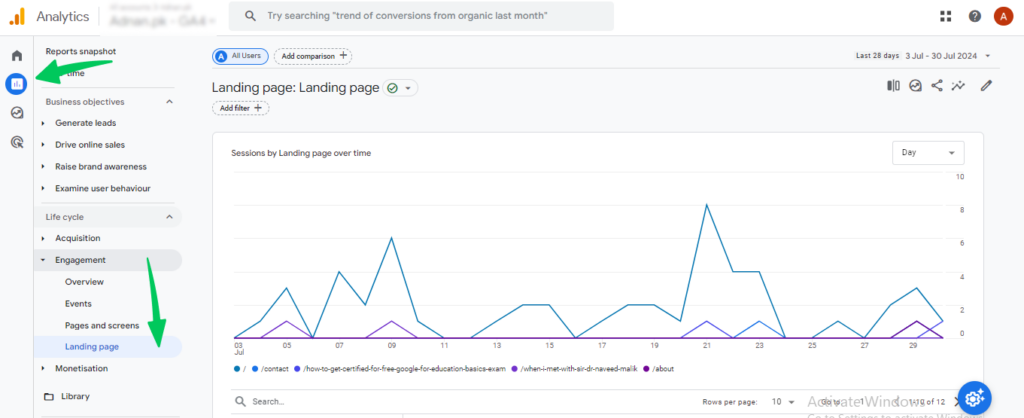
Metrics to check:
- Sessions: total visits to the page
- Engagement rate: percentage of visits with meaningful interaction
- Bounce rate: percentage of visitors who leave without clicking anything
- Key events: conversions triggered from this page
A high bounce rate on a landing page often means the content does not match what the user expected.
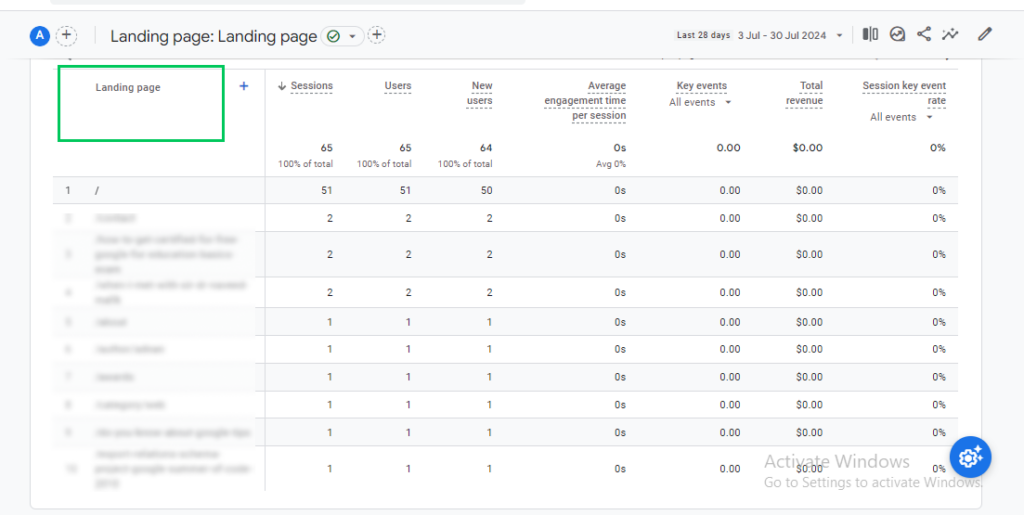
For a complete guide on setting up and analyzing landing page reports in GA4, check out this GA4 Landing Page Report guide.
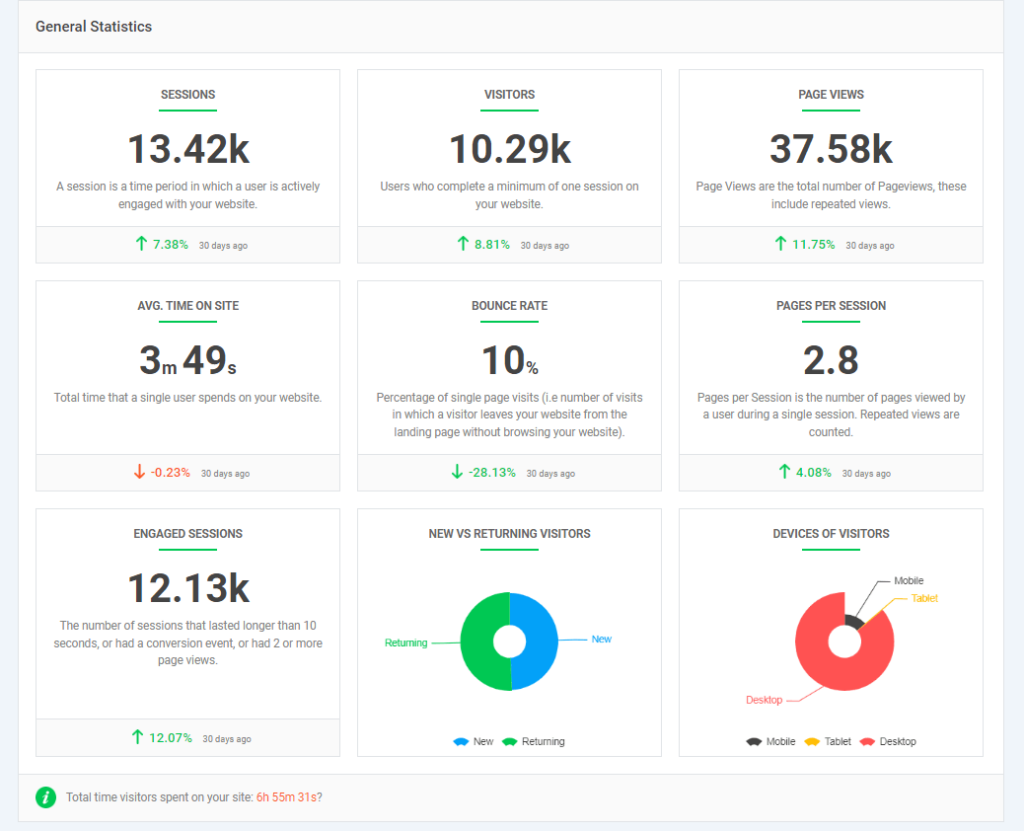
Analytify shows landing page metrics directly on your WordPress dashboard for quick analysis.
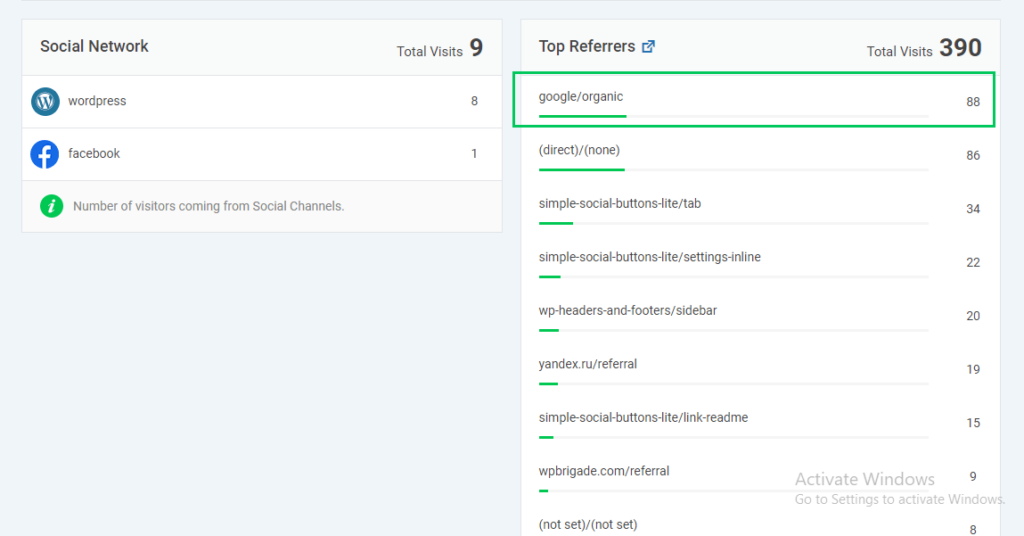
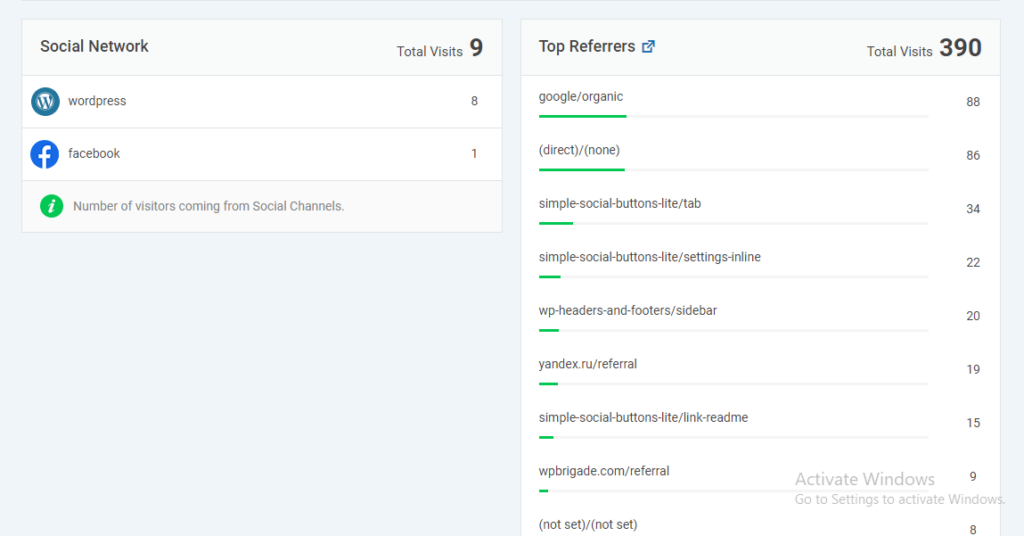
4. Identify Top Referrers to Analyze Backlink Traffic
Backlinks drive referral traffic and improve your authority in search engines. GA4 shows you which external sites are sending visitors.
How to access it in GA4:
- Filter by Referral.
- Go to Reports.
- Click Acquisition.
- Select Traffic Acquisition.
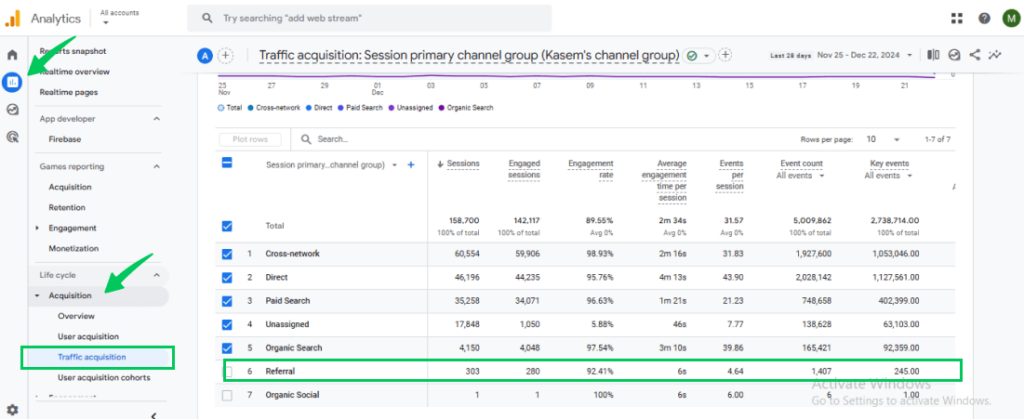
What to do with this data:
- Check whether high-traffic referrers are relevant to your niche
- Build stronger relationships with top referrers
- Look for patterns to find new backlink opportunities
Analytify’s Top Referrers feature shows this data inside your WordPress dashboard
5. Compare Mobile vs. Desktop SEO Performance
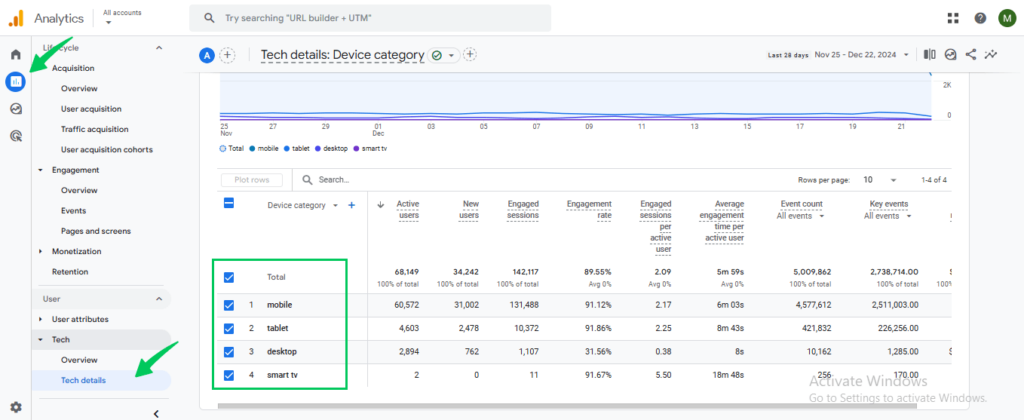
Many sites get more mobile traffic than desktop traffic. If your site performs poorly on mobile, you are likely losing rankings too.
How to access it in GA4:
- Go to Reports.
- Click Tech.
- Select Tech Details.
- View the Device Category breakdown.
What to compare:
- Bounce rate on mobile vs. desktop
- Conversion rate on mobile vs. desktop
- Session duration on each device
If mobile bounce rate is significantly higher, prioritize mobile speed and layout improvements.
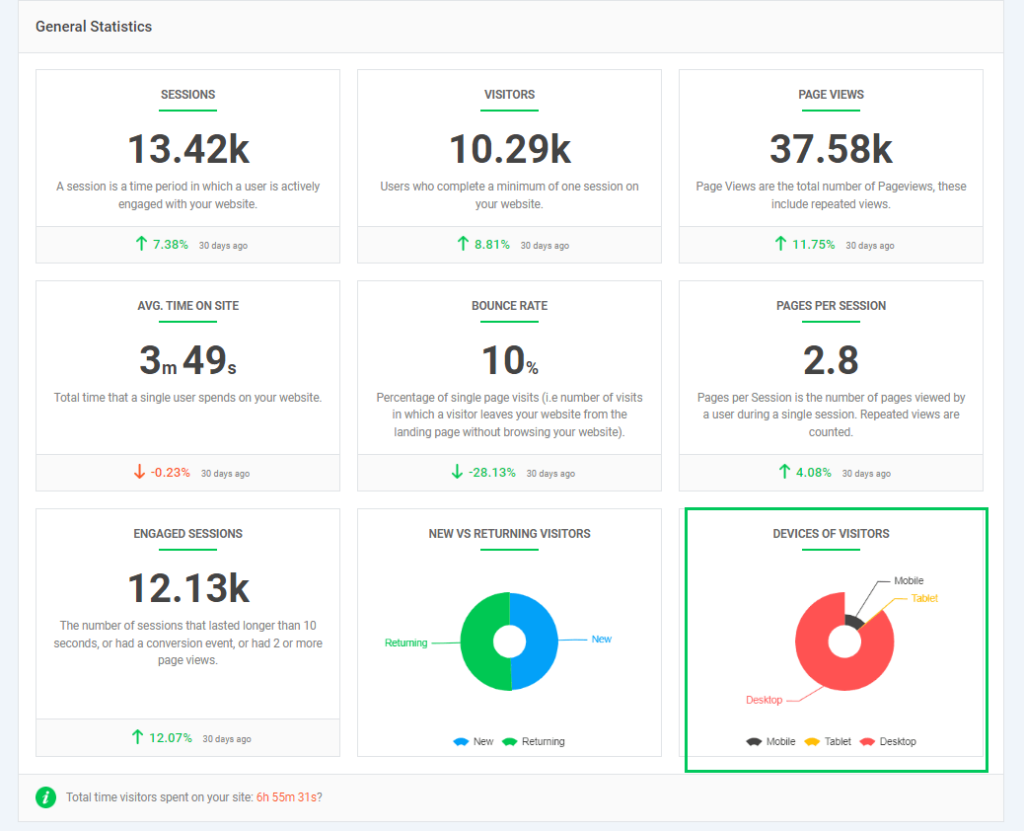
Analytify displays device performance data directly in your WordPress dashboard.
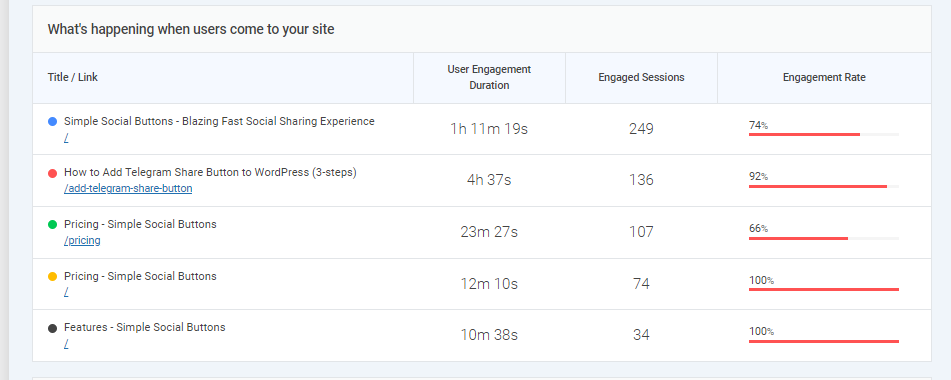
6. Monitor Engagement Metrics
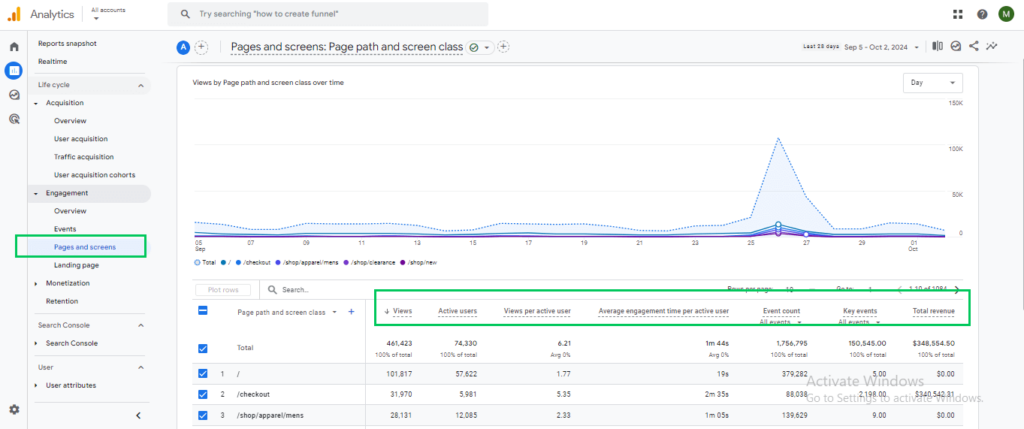
Engagement metrics show how users interact with your content. Low engagement often signals a mismatch between what the user searched for and what your page offers.
How to access it in GA4:
- Select Pages and Screens.
- Go to Reports.
- Click Engagement.
Key engagement metrics to track:
- Bounce rate: high rate means users are leaving without engaging
- Average session duration: longer means your content is relevant
- Engagement rate: percentage of sessions with meaningful activity
- Pages per session: more pages means users are exploring your site
Analytify displays bounce rate, sessions, and average time on site directly in WordPress.
This allows you to quickly identify areas of improvement without leaving your WordPress admin, making it easier to act on data.
7. Track and Fix Broken Links
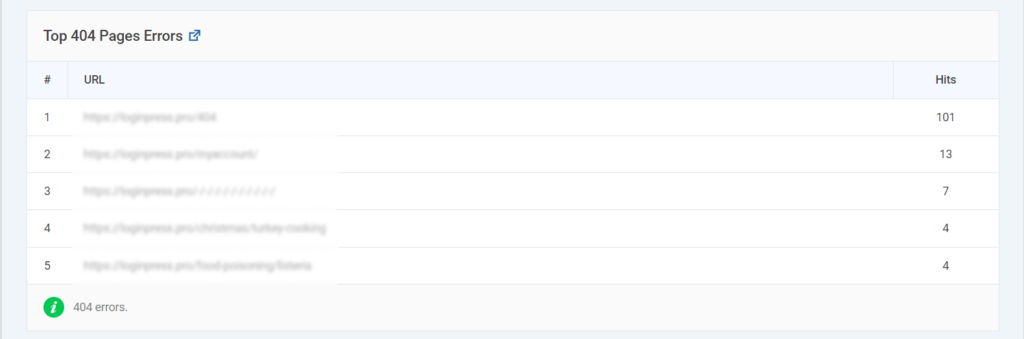
Broken links create 404 errors. They hurt user experience and can negatively affect your SEO rankings.
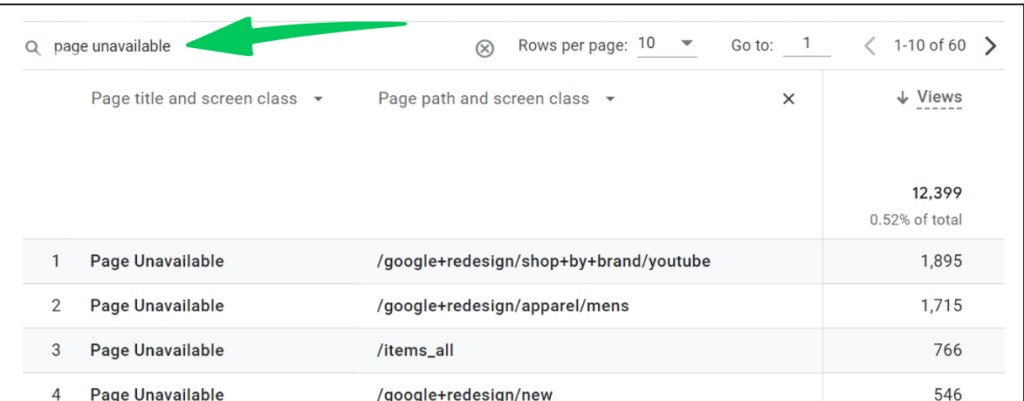
How to find 404 errors in GA4:
- Set up a custom event for page_not_found.
- Or use the Page Unavailable report if available.
- Filter for pages returning 404 status.
- Set up a 301 redirect from the broken URL to the correct page
- Update internal links pointing to the broken URL
- Remove or replace broken external links
Analytify includes a broken link checker feature. It identifies 404 errors inside your WordPress dashboard so you can fix them quickly.
8. Manage Your PPC (Paid Per Click) Spend
Comparing organic and paid traffic helps you spend your budget more efficiently.
How to use GA4 for PPC decisions:
- Find keywords where organic search already drives strong results. Reduce PPC spend for those terms.
- Find keywords with high conversion potential but low organic rankings. Increase PPC to fill the gap.
- Track both channels over time to refine your budget as trends change.
To effectively manage your PPC spend, Analytify offers powerful addons that simplify tracking and analysis.
- The Campaign Tracking Addon allows you to monitor the performance of paid campaigns, including clicks and conversions, directly from your WordPress dashboard.
- For eCommerce websites, the WooCommerce Addon provides a detailed understanding of product performance, customer behavior, and conversion paths, making it easier to evaluate the impact of paid campaigns on sales.
9. Evaluate Core Web Vitals for SEO Impact
Core Web Vitals are Google’s page experience signals. They directly affect your search rankings.
| Metric | What It Measures | Target |
|---|---|---|
| LCP (Largest Contentful Paint) | How fast the main content loads | Under 2.5 seconds |
| CLS (Cumulative Layout Shift) | How much the layout shifts while loading | Under 0.1 |
| INP (Interaction to Next Paint) | How fast the page responds to clicks | Under 200ms |
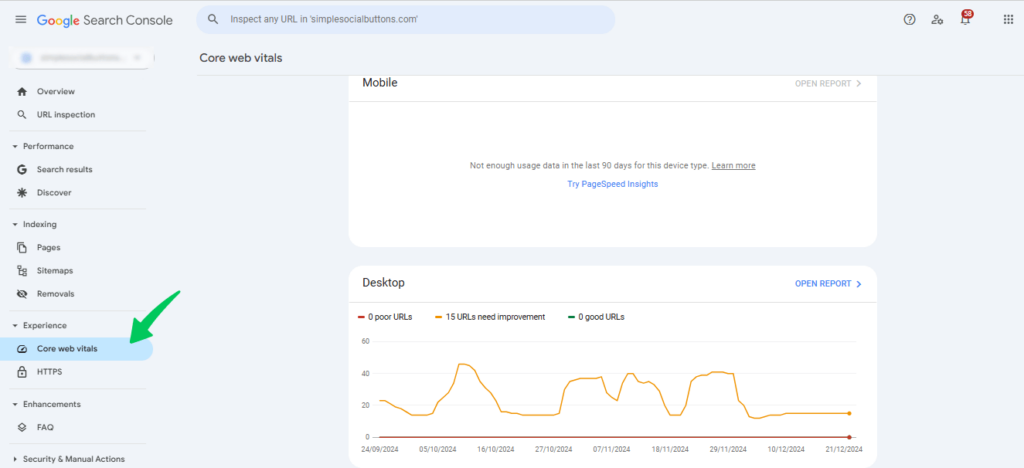
How to check Core Web Vitals:
- Use Google PageSpeed Insights for a quick check.
- Check the Core Web Vitals report in Google Search Console.
- Fix issues flagged as Poor or Needs Improvement.
10. Track Geographic Data for Local SEO
Knowing where your traffic comes from helps you create content that speaks to specific audiences.
How to access it in GA4:
- Go to Reports.
- Click Demographics.
- Select Location.
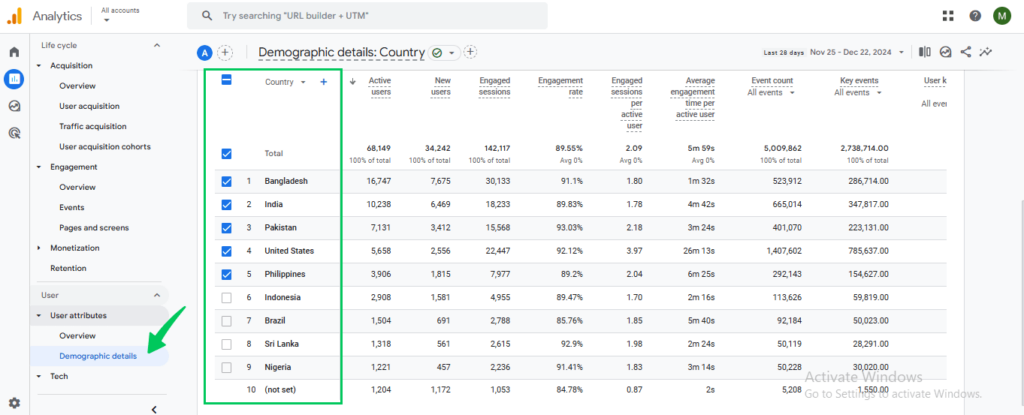
What to do with geographic data:
- Find your highest-traffic regions and create location-specific content
- Adjust keywords to target local search terms
- Run location-targeted campaigns for high-value regions
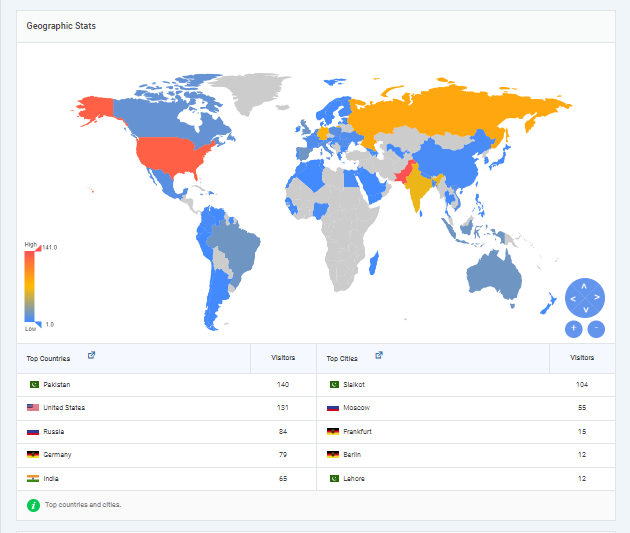
Analytify’s Geographic Dashboard shows your audience location data inside WordPress.
Additionally, Analytify provides demographic breakdowns by age and gender, allowing you to fine-tune your strategies based on a deeper understanding of your user base.
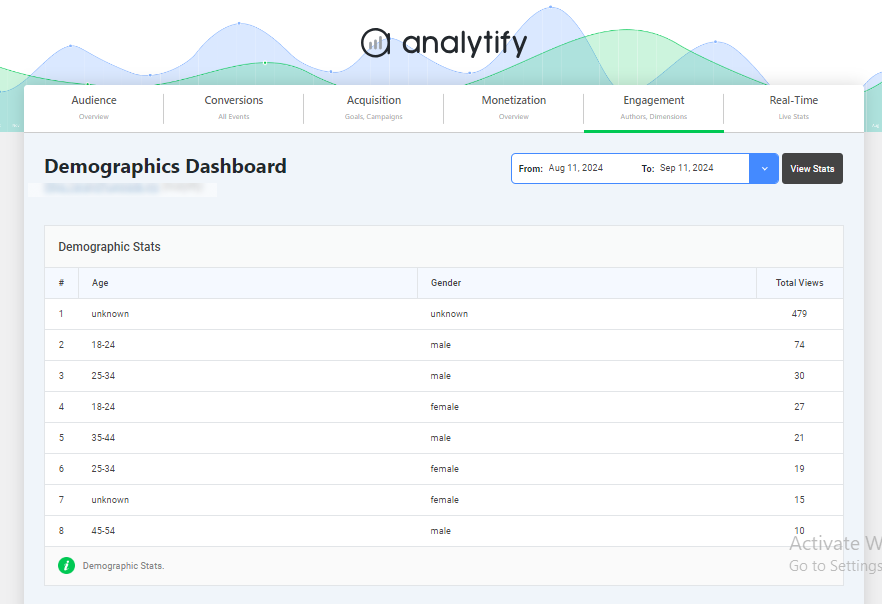
By utilizing this data, you can create content that speaks directly to the preferences of your target audience and optimize your SEO efforts for maximum impact.
11. Set Up Custom Alerts to Monitor Traffic Changes
Traffic drops can happen quickly after a Google algorithm update. Custom alerts help you catch problems early.
What to set alerts for:
- Sudden drops in organic traffic (more than 20% in a week)
- Spikes in bounce rate on key landing pages
- Increases in 404 errors
- Drops in conversion rate from organic search
Analytify’s Email Notification Addon sends custom traffic alerts directly to your inbox. You stay informed without checking the dashboard every day.
12. Use the Multi-Channel Funnel Report
Most users do not convert on their first visit. The Multi-Channel Funnel Report shows how different channels work together to drive conversions.
Key reports to review:
- Assisted Conversions: shows how organic search supports other channels like email or social before a conversion
- Path Analysis: reveals the sequence of touchpoints that lead to a purchase or goal completion
- Funnel Exploration: visualizes where users enter and drop off in the conversion process
Understanding these paths helps you see the full value of SEO on Google Analytics, not just last-click attribution.
13. Find Low-Hanging Opportunities to Boost Traffic
Some of the fastest SEO wins come from optimizing pages that already get impressions but not enough clicks.
How to find these opportunities:
- Landing Pages Report: look for pages with high impressions but low clicks or conversions. Improve the title tag and meta description.
- Search Console Integration: find keywords with impressions but no clicks. Update the page content to match what users are searching for.
- Behavior Flow: identify pages where users drop off. Improve the content or add a clearer call to action.
Tip: These quick wins can significantly improve organic traffic without creating new content.
14. Create Custom Google Analytics SEO Dashboard
A custom Google Analytics SEO dashboard dashboard puts your most important metrics in one place. It saves time and makes it easier to spot trends.
What to include in your SEO dashboard:
- Organic sessions and users
- Bounce rate and engagement rate
- Top landing pages by organic traffic
- Keyword impressions and CTR from Search Console
- Goal completions from organic search
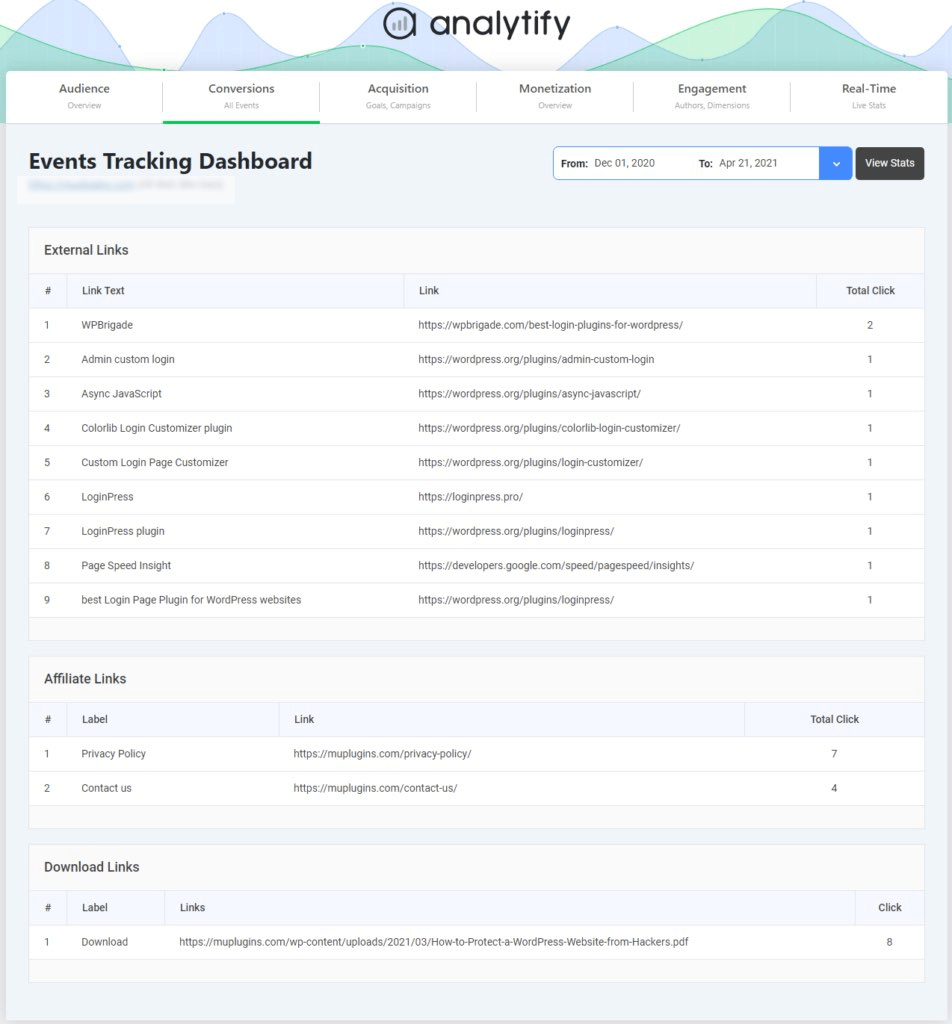
15. Track Key Events in GA4 for SEO
GA4 tracks user actions as events. These show which pages and keywords lead to meaningful interactions.
Common events worth tracking for SEO:
- Button clicks on key CTAs
- Form submissions from organic traffic
- Video plays on SEO-landing pages
- File downloads from blog posts
- Scroll depth on long-form content
Event data shows which pages are driving real engagement, not just traffic. This helps you prioritize content updates.
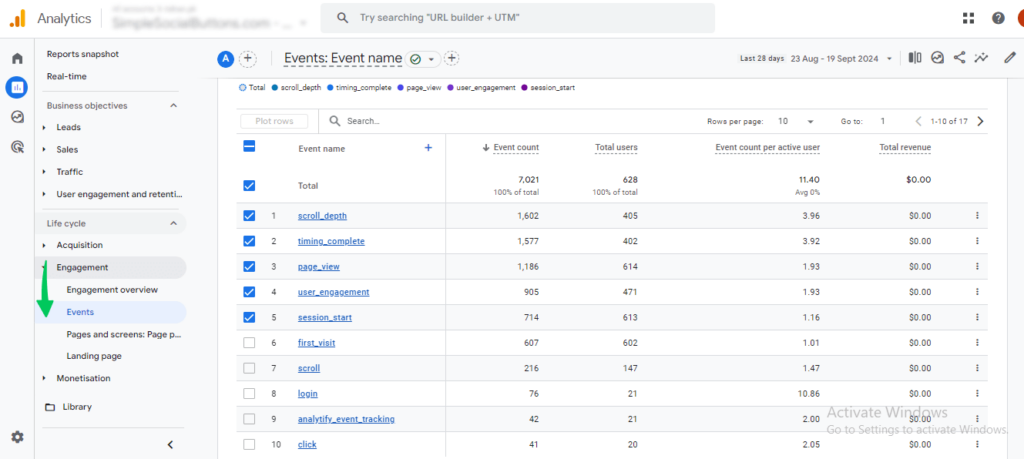
Analytify’s Event Tracking Addon tracks all of these events inside WordPress without any custom code.
8 Essential SEO Metrics to Track Organic Search Performance in Google Analytics
Using SEO Google Analytics effectively means tracking the right metrics. Here are the 8 most important ones:
| Metric | What It Measures | Why It Matters |
|---|---|---|
| Bounce Rate | Visitors who leave after one page | High bounce rate signals poor content match or slow load times |
| Dwell Time | Time spent on a page before returning to search | Longer dwell time signals valuable, relevant content |
| Click-Through Rate (CTR) | Percentage of searchers who click your listing | Higher CTR improves organic visibility over time |
| Average Session Duration | Average time visitors spend on your site | Longer sessions indicate engaging, relevant content |
| Pages per Session | Average number of pages visited per session | More pages means better content depth and internal linking |
| Page Load Time | How fast your pages load | Slow pages increase bounce rate and hurt rankings |
| Organic Conversion Rate | Percentage of organic visitors who complete a goal | Measures the real business value of SEO traffic |
| ROI from SEO | Financial return on SEO investment | Ensures SEO efforts deliver measurable business results |
Google Analytics for SEO (FAQs)
1. How can Google Analytics be used for SEO?
Google Analytics for SEO works by tracking organic traffic, user behavior, and conversions. You can identify which pages rank well, which keywords drive traffic, and where users drop off. These insights help you optimize content and improve rankings over time
2. How do I use Google Analytics for keywords?
Connect GA4 to Google Search Console. Then go to Reports >> Acquisition >> Google Organic Search Queries. You will see impressions, clicks, and CTR for each keyword. Focus on keywords with high impressions but low CTR as quick optimization opportunities.
3. What are the main benefits of using Google Analytics for SEO?
The main benefits include:
Tracking organic traffic trends over time
Identifying high-performing and underperforming pages
Understanding how users find and interact with your content
Measuring the conversion impact of SEO efforts
Spotting technical issues like 404 errors and slow pages
4. What metrics should be tracked for SEO on Google Analytics?
The most important SEO metrics to track are organic sessions, bounce rate, CTR, average session duration, pages per session, conversion rate, and Core Web Vitals. Together they give a full picture of how your SEO is performing.
5. How does Google Analytics SEO help with content strategy?
GA4 shows which pages attract the most organic traffic and which keywords drive that traffic. It also shows where users drop off. This data helps you decide which content to update, which topics to expand, and where to improve calls to action.
Final Thoughts: SEO in Google Analytics
Google Analytics gives you the data you need to make smarter SEO decisions. From tracking organic traffic to monitoring keyword performance and Core Web Vitals, the insights are all there.
Here is a quick summary of the 15 ways covered in this guide:
- Analyze organic traffic with the Acquisition Report
- Monitor keyword performance using Search Console integration
- Track landing page performance
- Identify top referrers and backlink traffic
- Compare mobile vs. desktop SEO performance
- Monitor engagement metrics
- Track and fix broken links
- Manage PPC spend using organic data
- Evaluate Core Web Vitals for SEO impact
Further Readings:
- Top 10 Google Analytics Tips And Tricks (2025)
- Top 20 Marketing Hacks for Website Traffic Growth (2026)
We’d love to hear your thoughts. Comment below with your questions or experiences!