How To Track and Measure Leads in Google Analytics 4 (Ultimate Guide)

To track leads in Google Analytics 4, mark the event that signals a lead, such as a form submission or file download, as a key event. Lead tracking shows which visitor actions signal real buying interest, like form fills, downloads, or calls. GA4 records these actions as events, and you choose which of them count as key events.
For full setup steps, see our guide: How to Set Up Google Analytics 4 and Connect it to Your WordPress Site.
This guide covers how to track leads in Google Analytics 4, including phone calls, form submissions, and lead generation reports. Each method shows you which visitors are worth following up with.
It works whether you’re setting up lead tracking for the first time or building advanced lead generation reports.
Google Analytics Lead Tracking (TOC):
What is a Lead in Digital Marketing?
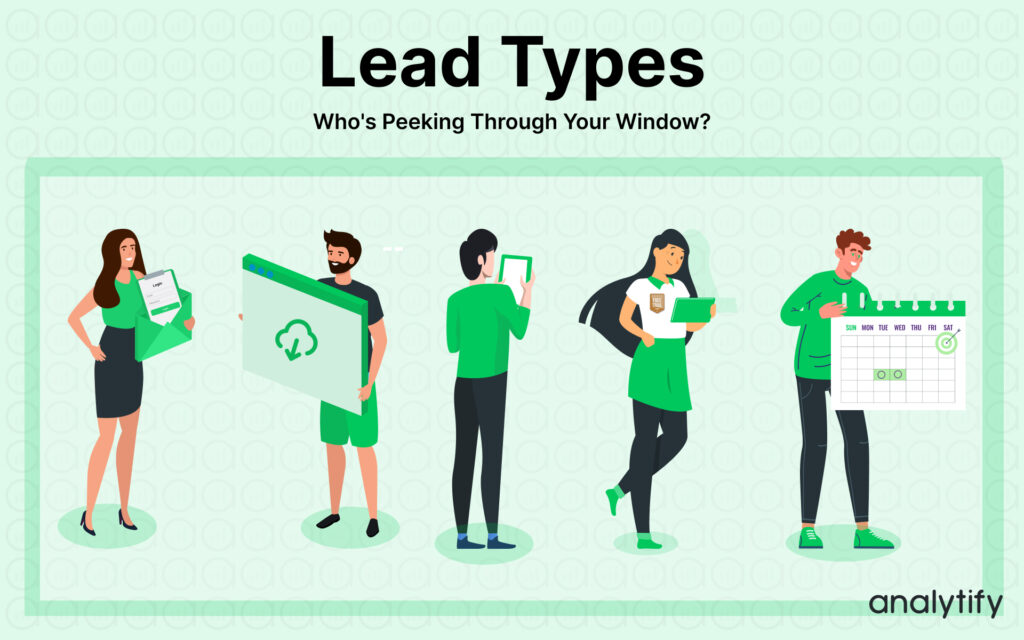
A lead is someone who might be interested in buying from you. Imagine them as potential customers browsing your online store (website). They might show their interest by:
- Downloading a free resource
- Signing up for your newsletter
- Signing up for a free trial
Generating leads is crucial because it’s the first step in converting potential customers into paying ones. By providing relevant information and nurturing their interest, you guide them through the sales funnel until they’re ready to purchase.
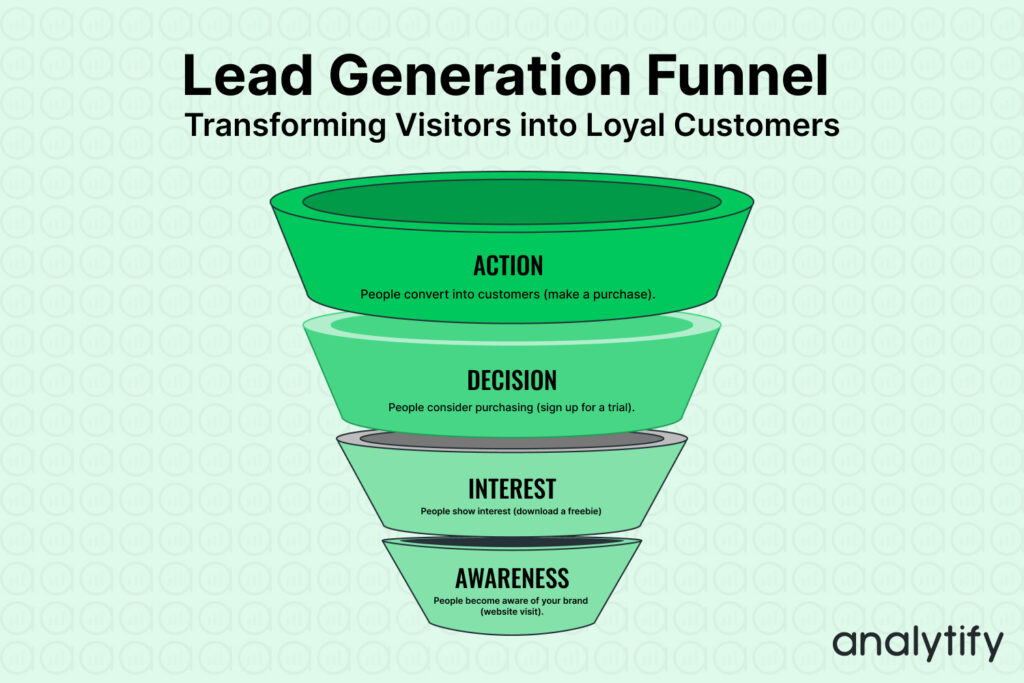
So, what makes someone a lead?
Any action that shows someone’s interest in your business, like downloading an ebook or subscribing to your blog, qualifies them as a lead. From there, it’s your job to nurture these leads, build trust, and convert them into loyal customers.
Why is Lead Tracking Important?
Lead tracking shows which marketing efforts actually bring in customers, not just visitors.
- Informed Marketing: It sheds light on potential customers, allowing you to tailor content and messages for better engagement.
- Data-Driven Optimization: Helps focus energy and budget on effective marketing strategies, eliminating wasted resources.
- Targeted Nurturing: Enables re-engagement with interested leads at the right time, building trust and fostering long-term relationships.
- Improved Products and Services: Provides valuable data for analyzing lead behavior and feedback, allowing for adjustments to better meet market needs.
- Increased Sales and Conversions: Ultimately leads to a deeper understanding of your audience, resulting in higher conversion rates and increased sales.
Good lead tracking in GA4 follows how visitors move through your conversion funnel as well as counting form submissions. Different approaches, such as using an open funnel versus a closed funnel, can have a significant impact on the insights you gain. For a detailed explanation and practical tips on optimizing your funnel strategy, check out our guide on open vs closed funnel in GA4.
Common Ways to Define a Lead in GA4
Pick the signal that matches your business, then track it as a GA4 event.
| Lead Signal | GA4 Event | Setup Method |
|---|---|---|
| Contact form submitted | form_submit | Enhanced Measurement (automatic) |
| Free trial or demo signup | Custom key event | Tag the button click in GA4 |
| Whitepaper or PDF download | file_download | Enhanced Measurement (automatic) |
| Phone call from the site | Custom event | Third-party call tracking tool |
How to Track Leads in Google Analytics 4?
Track leads in GA4 in this order: define what counts as a lead, mark it as a key event, turn on Enhanced Measurement, create custom events for anything Enhanced Measurement misses, analyze your reports, and build audiences and funnels. The steps below use a free trial signup as the example.
Set up lead tracking in GA4 in six steps.
Define Your Leads
Decide which actions count as a lead for your business, such as a form fill or a trial signup.
Set Up Conversion Tracking
Mark that action as a key event in GA4 so it counts as a conversion.
Turn On Enhanced Measurement
Enable Enhanced Measurement in GA4 Admin to auto-capture form submissions and downloads.
Create Custom Events for Anything Else
Build a custom event in GA4 for actions Enhanced Measurement does not catch automatically.
Check Your Reports
Use GA4 reports to see where leads come from and how they behave on your site.
Step 1: Define Your Leads
First, defining what constitutes a lead for your business is important. It could be any action that indicates a user’s interest, such as signing up for a newsletter, downloading a whitepaper, or filling out a contact form.
Consider an Example: Suppose you consider a lead as someone who signs up for a free trial of your product. This action clearly indicates interest in your offering.
Step 2: Set Up Conversion Tracking
Next, mark these lead actions as key events in GA4. Google Analytics Help defines a key event as an event that measures an action particularly important to the success of your business.
- Go to your GA4 property.
- Go to Admin and open the Key events page.
- Mark relevant events as key events. If the event you consider a lead (e.g., free trial sign-up) isn’t automatically tracked, you may need to create it as a custom event.
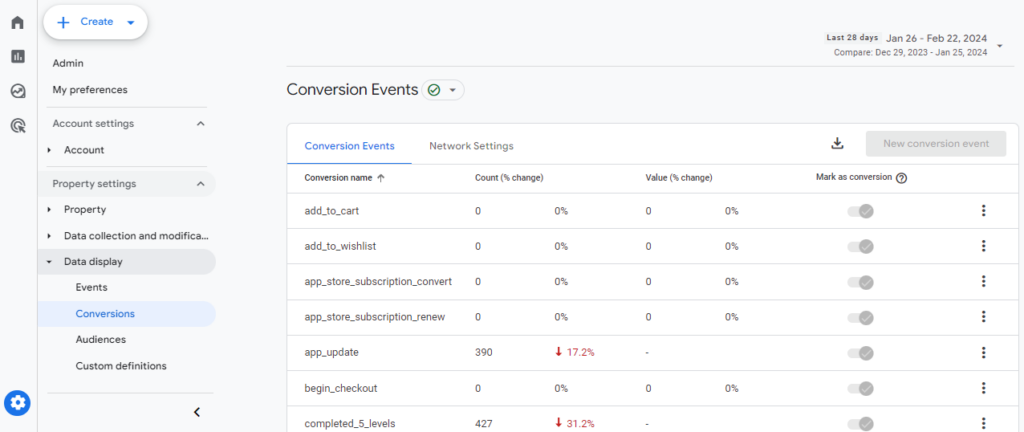
Note: To track free trial sign-ups, you might have a button on your site that says “Start Free Trial.” You would mark clicks on this button as a key event. If GA4 doesn’t track this by default, you will set up a custom event to capture clicks on this specific button.
Step 3: Turn On Enhanced Measurement
GA4’s Enhanced Measurement automatically tracks a range of interactions. Google Analytics Help gives these steps to turn it on: go to Admin, click Data streams under Data collection and modification, click the name of your data stream, and slide the Enhanced measurement switch On. It then captures events like form submissions and file downloads without extra setup.
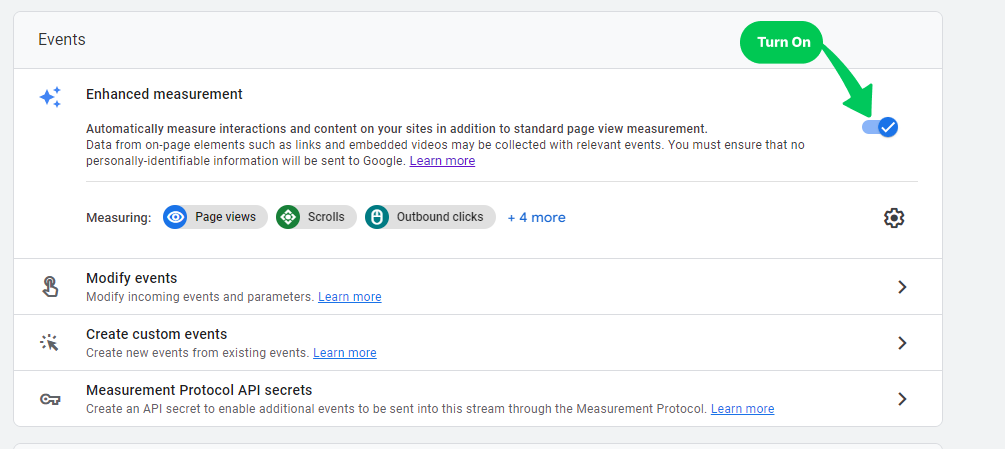
For a business that considers a PDF download as a lead, Enhanced Measurement might automatically track this action if the download starts with a click on a link.
Step 4: Create Custom Events and Parameters
For actions not automatically tracked or needing specific details, create custom events.
- In GA4, go to Admin, open Data display, then Events, and then click Create event.
- Define your event with unique parameters that match the interactions on your site.
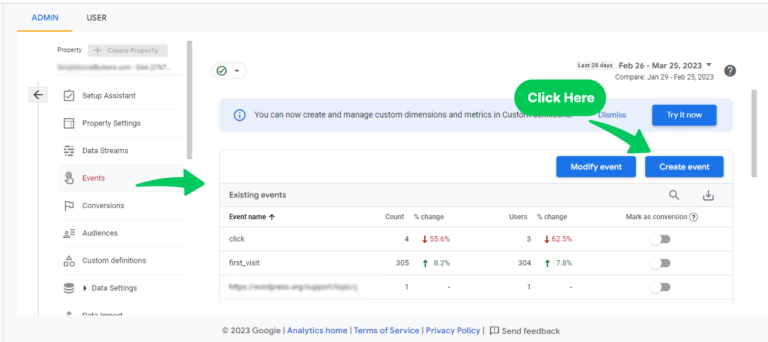
If your free trial sign-up involves a two-step process not automatically captured, create an event that tracks the completion of the second step, ensuring you capture the entire lead generation action.
Read our complete guide on How to Create Custom Events in GA4.
Step 5: Analyze User Acquisition and Behavior
Use GA4 reports to understand where your leads come from and how they behave on your site.
- Acquisition Reports: Go to Reports >> Acquisition>> Traffic acquisition and see which channels bring in the most leads.
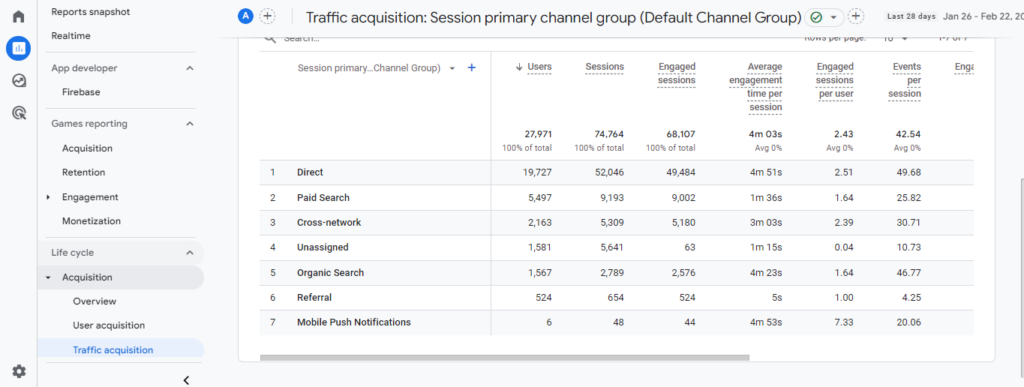
Example: Discover that most of your leads come from organic searches, and they spend significant time on product tutorial pages. This insight could inform your SEO and content strategy.
Engagement Reports: Navigate to Reports >> Engagement >> Pages and screens. Analyze what content or pages your leads interact with the most.
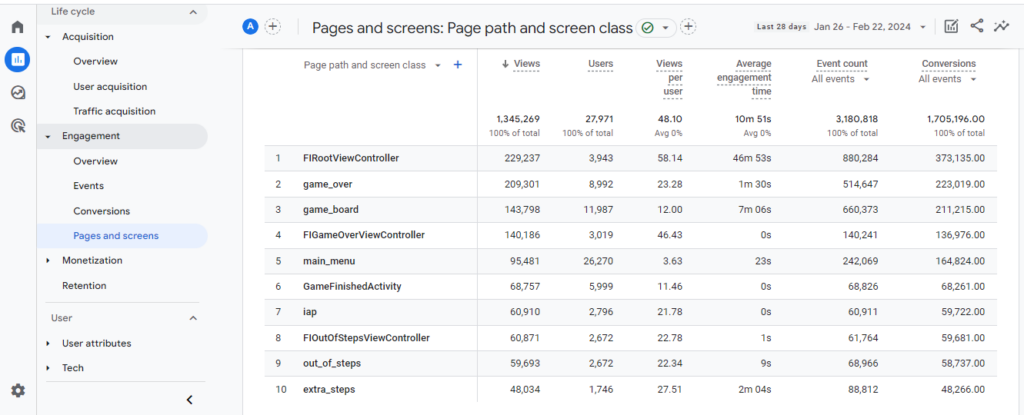
Understand which content is attracting the most attention.
Check Average Engagement Time to identify which content keeps users engaged longer.
Step 6: Build Audiences and Funnels
Create audiences based on actions defining your leads (e.g., started a free trial) to further analyze their journey and behavior.
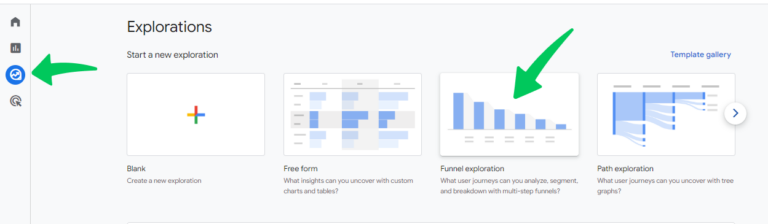
Example: Build an audience of users who started but didn’t complete the free trial sign-up. Analyze where users drop off in the process and make necessary adjustments.
Read a complete guide on How to Build GA4 Funnel Exploration Reports.
Dive deeper into lead behavior with Explorations and Path Analysis to understand the common conversion paths and where potential leads might drop off.
Use Path Analysis to see how many users visit your pricing page before starting a free trial. This could indicate the importance of clear pricing information in the conversion process.
Additional Tips
- Regularly review and adjust your tracking setup to ensure it continues to meet your needs as your business evolves.
- Test different lead definitions and tracking strategies to find what works best for your specific goals and audience.
By following these steps, you can effectively track leads in GA4, gaining valuable insights into how users interact with your site and what drives them to engage with your business. Remember, the key is to continuously refine your approach based on the data you collect to improve your lead generation and conversion processes.
For businesses running Google Ads campaigns, tracking conversions such as form submissions and sign-ups is key to measuring success. By setting up Google Ads conversion tracking with GTM, you can accurately attribute leads to specific ad campaigns and refine your targeting strategy for better performance.
How to Measure Lead Quality With Analytify
Analytify connects your Google Analytics account directly to your WordPress dashboard. This puts your campaign and goal data where you already manage your site.
The Best Google Analytics Plugin for WordPress
With Analytify, you can easily track your website’s performance right from your WordPress dashboard
When measuring lead quality, it’s vital to look beyond the number of leads. Lead quality, indicated by actions such as file downloads, form submissions, and visits to landing pages, provides deeper insight into how likely leads are to convert into paying customers. Analytify enhances this process with its add-ons designed to track these specific activities, offering a streamlined way to evaluate the potential value of each lead.
| Lead Quality Signal | What It Tells You | Where to See It in Analytify |
|---|---|---|
| Form submissions | Which forms convert best | Forms Tracking dashboard |
| File downloads | Which resources attract serious buyers | Events Tracking dashboard |
| Landing page traffic | Which pages turn visitors into leads | Page Analytics report |
Form Submission
Forms play a crucial role in lead generation strategies, acting as a bridge between site visitors and your sales team. Whether it’s a simple contact form, a detailed service inquiry, or a registration form for webinars, each form filled out is a potential lead.
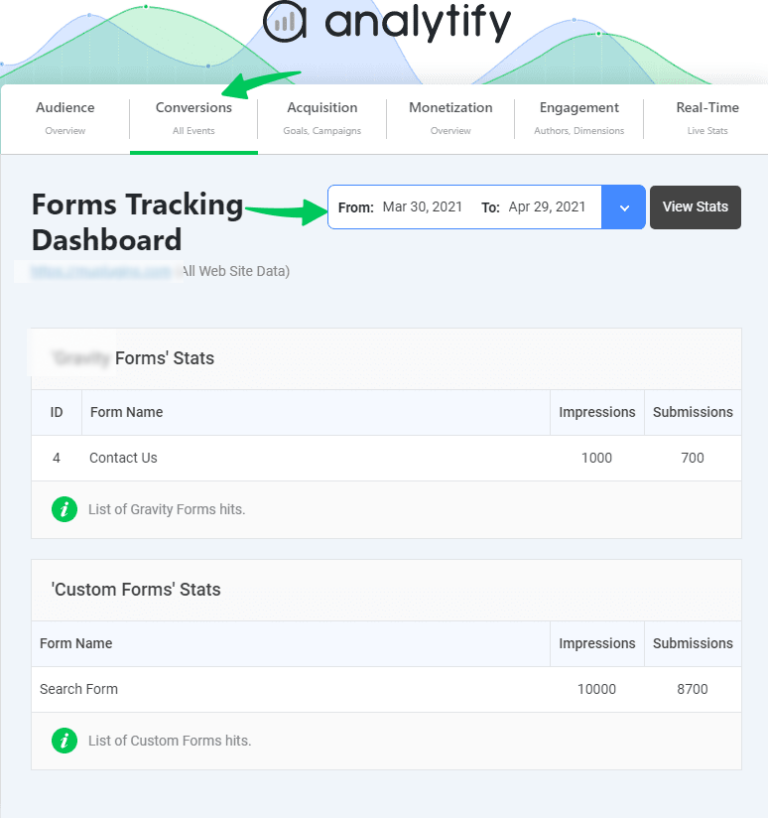
Analytify’s form tracking dashboard connects directly with popular WordPress form plugins like Gravity Forms and Contact Form 7, showing lead data in your dashboard. See which forms get filled out and which perform best, so you can focus on what works.
Read more on How Does Analytify Forms Tracking Work?
File Downloads
If you offer files at any stage of your marketing funnels, file downloads can be an important indicator of lead quality. For example, users might be interested in your services or products if they download a file. Analytify allows you to set the types of files (for instance, PDF and RAR) and then present a report of the file downloads. You can view this report in the Events Tracking dashboard tab.
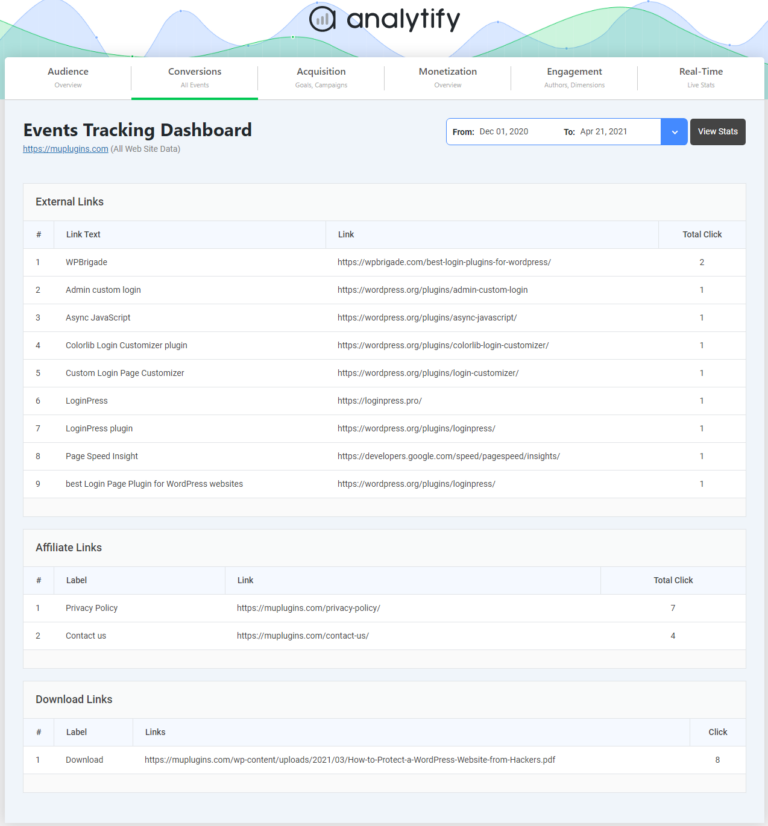
The Events Tracking dashboard tab within Analytify presents a comprehensive report of these downloads, offering insights into which content pieces are driving the most interest and engagement. This data is invaluable for understanding which resources are most effective at attracting potential customers.
Traffic on Landing Pages
Landing page performance is another critical indicator of lead quality. Landing pages are designed with a single goal in mind: conversion. Whether it’s signing up for a newsletter, registering for a product demo, or downloading a guide, the conversion rate of these pages tells you a lot about the effectiveness of your sales copy.
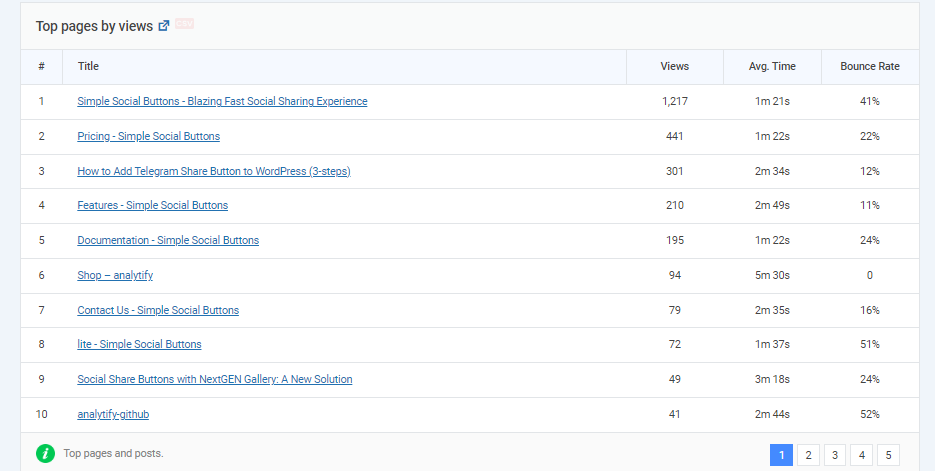
Analytify provides detailed analytics on page visits, allowing you to see which landing pages are most effective at converting visitors into leads. This insight helps you optimize your pages for better performance, ensuring that you’re not just attracting traffic but the right kind of traffic.
Measuring lead quality is a multifaceted process that goes beyond simply counting leads. With Analytify, you have a powerful tool that brings Google Analytics data into your WordPress dashboard, simplifying the process of tracking and evaluating the actions that signify high-quality leads. Analytify’s add-ons for form submissions, file downloads, and landing page traffic can help you understand which leads hold the most promise. Use that data to decide where to focus your marketing.
Why Leads Aren’t Showing in GA4
Missing leads in GA4 usually come from a setup problem. Check these causes first.
| Symptom | Likely Cause | Fix |
|---|---|---|
| No conversions logged at all | Event is not marked as a key event | Mark it as a key event in GA4 Admin |
| Form fills missing | Enhanced Measurement is off | Turn it on in Data Streams settings |
| Old leads missing after setup | GA4 does not track retroactively | Only leads after setup will show |
| Leads work in one browser, not another | Ad blockers or consent tools | Test in incognito with blockers off |
Google Analytics Lead Tracking FAQs
1. What is Google Analytics lead tracking, and how does it work?
Google Analytics lead tracking refers to using Google Analytics 4 (GA4) to monitor and analyze user actions on your website that indicate interest in your products or services, such as form submissions or downloading a whitepaper. It involves setting up specific events in GA4 to capture these interactions, allowing you to see how users engage with your content and which leads are most likely to convert.
2. How can I track leads in Google Analytics 4 for free?
You can track leads in Google Analytics 4 for free using GA4’s event tracking capabilities. Define what constitutes a lead for your business, such as a newsletter sign-up or a product inquiry form submission, and then set up events in GA4 to capture these interactions. GA4’s free version lets you track leads in detail by monitoring these defined actions as conversions.
3. What steps should I follow to track form submissions in Google Analytics 4?
To track form submissions in Google Analytics 4, you need to:
1. Define a form submission as a conversion event in GA4.
2. Use the built-in or custom event tracking to monitor when users submit a form.
3. Optionally, set up Enhanced Measurement or use Google Tag Manager to capture form submission events, allowing for detailed analysis of how users interact with your forms.
4. Can I track phone call leads in Google Analytics?
Yes, you can track phone call leads in Google Analytics by using third-party tools that integrate with GA4. These tools typically generate events when a call is made through your website, allowing these interactions to be tracked as conversions within GA4. It requires setting up a custom event to capture the call data, which can then be analyzed to understand the volume and quality of phone call leads.
5. How do I ensure I’m effectively tracking leads in Google Analytics?
To ensure you’re effectively tracking leads in Google Analytics, follow these best practices:
1. Clearly define what actions constitute a lead for your business.
2. Set up conversion events in GA4 to capture these actions.
3. Regularly review your conversion events to ensure they’re capturing the desired interactions.
4. Use GA4’s reports and analysis tools to monitor lead sources, behavior, and conversion paths.
6. What are lead generation reports in Google Analytics 4, and how can I use them?
Lead generation reports in Google Analytics 4 are custom reports that you can set up to analyze the performance of your lead generation efforts. These reports can include data on conversion events, user demographics, acquisition channels, and behavior flow, helping you to understand where your leads are coming from and how they interact with your site. Use these reports to refine your marketing strategies and improve lead quality and quantity.
7. How can I enhance lead tracking with Google Analytics advanced features?
To enhance lead tracking in GA4, use its advanced features: Audiences, Funnels, and Path Analysis. Audiences segment users by lead-related actions. Funnels show the steps users take before converting. Path Analysis finds the common paths to conversion.
8. Why isn’t GA4 showing my leads?
Check that your conversion events are marked as key events in GA4, and confirm Enhanced Measurement is turned on. Ad blockers and consent tools can also block the event. GA4 does not track retroactively, so leads before setup will not appear.
Conclusion
Google Analytics lead tracking comes down to three things: define what counts as a lead, set it up as a GA4 event, and check the reports regularly. This covers form fills, downloads, and phone calls.
Analytify brings this same data into your WordPress dashboard, including how to track form submissions in Google Analytics 4. Use it to skip the manual GA4 setup entirely. This guide covered tracking GA4 leads from setup to reporting, so you always know which visitors are worth following up with.
Share your own lead-tracking tips or questions in the comments below.