

How to Create Advanced Segments in Google Analytics (2025)

To create advanced segments in Google Analytics 4, open Explore, start a new exploration, click the plus next to Segments, choose a User, Session or Event segment, add your conditions, then name and save it.
If GA4 is not yet connected to your site, I recommend this guide first: How to Set Up Google Analytics 4 and Connect it to Your WordPress Site?.
Advanced segments in Google Analytics filter your data down to the users, sessions or events that match conditions you define. I show you how to build a user segment and a session segment in GA4 Explorations, step by step. This guide is for site owners and marketers who want to compare how specific groups of visitors behave.
Advanced Segments in Google Analytics (TOC):
What are Google Analytics 4 Segments?
A segment in Google Analytics 4 is a subset of your data that you isolate to analyze specific users, sessions or events. Segments let you set one group’s behavior against your overall traffic.
Basic Segments
At its most fundamental level, a basic segment in Google Analytics groups users based on pre-existing conditions. These conditions can range from their traffic source, direct, search, referral, or social to their location, the type of device they’re using (mobile, desktop, tablet), or user demographics such as age, gender, and interests.
These segments are incredibly easy to create, often available as dropdown options within Google Analytics reports. For instance, selecting a traffic source segment can quickly show you how users from search engines behave differently from those who come directly to your site.
Example of Basic Grouping: Imagine you run an online bookstore and want to understand where your visitors are coming from. By creating a segment for traffic sources, you can isolate users who find your site through search engines. This allows you to analyze their behavior: what pages they visit, how long they stay, and their conversion rate compared to visitors from other sources.
- Traffic Source: Direct, Search, Referral, Social
- Location: Countries, Cities
- Device Type: Mobile, Desktop, Tablet
- User Demographics: Age, Gender, Interests
These basic segments are useful for quick analysis, providing a general understanding of different user groups and how they interact with your site.
Advanced Segments in Google Analytics: Highly Customizable Insights
An advanced segment is a segment you define yourself with specific conditions and dimensions. You might create a segment for users who viewed a particular product page, completed a contact form, or spent over a certain amount on their purchase.
The criteria for advanced segments can be complex, allowing you to combine multiple dimensions and metrics to create intricate user groups. This level of customization reveals hidden trends and patterns that are invisible in aggregate data, providing deeper insights into user behavior and the effectiveness of your marketing efforts.
Examples of Advanced Segments in Google Analytics
Continuing with the online bookstore example, let’s say you want to analyze the behavior of high-value customers. You create an advanced segment for users who have purchased exceeding $50. This segment could help you understand what drives higher spending, such as specific marketing campaigns, time spent on certain pages, or the path they took through your site before making a purchase.
- Custom Conditions: Viewed specific page, Completed a form, Purchase amount
- Complex Criteria: Combining conditions (e.g., viewed a page and made a purchase)
- Intricate User Groups: High-value customers, Engaged readers, Repeat visitors
Some More Examples of Advanced Segments:
- Users Who Visited a Product Page but Didn’t Purchase: This segment can help identify barriers to conversion, offering insights into product interest versus actual purchase behavior. Understanding their browsing history on other pages might reveal where users are getting distracted or losing interest.
- Mobile Users Who Engaged with Video Content: By focusing on mobile users who spent an average of 2 minutes or more engaging with video content, businesses can gauge the effectiveness of their multimedia strategies and optimize for higher engagement.
- Desktop Users Who Abandoned Their Carts: Segmenting users who added high-value products to their carts but didn’t complete the purchase can highlight issues in the checkout process or opportunities for retargeting campaigns.
- Users Who Viewed Blog Posts and Downloaded an eBook: Identifying users who interact deeply with content by viewing multiple blog posts and downloading an eBook can help recognize highly engaged users, enabling targeted outreach or content creation.
Creating advanced segments requires more effort, as you need to define the conditions in the segment builder within Google Analytics. However, the insights gained from this detailed analysis can significantly impact your strategic decisions.
Whether utilizing basic grouping for a quick overview or delving into the details with advanced segments, Google Analytics provides the necessary features to tailor your analysis to your needs. By segmenting your audience, you can uncover valuable insights that inform smarter strategies and drive your online success.
Types of Advanced Segments in Google Analytics
Advanced segments in GA4 fall into three types: user segments, session segments and event segments.
Advanced Segments Based on Users
User segments include the users who meet your conditions, such as users who have previously purchased.
Advanced Segments Based on Sessions
Session segments include the sessions that meet your conditions, such as sessions that came from a particular advertising campaign. Because one visitor can have several sessions, they suit questions about what users do within a single visit.
Advanced Segments Based on Hits
GA4 does not use hit-based segments. Event segments include only the events that match your conditions, such as all purchase events from one location.
Importance of Advanced Segments in Google Analytics 4
Advanced segments in Google Analytics 4 (GA4) help marketers, analysts and business owners see how specific groups of users behave and how the site performs for each group.
Let’s see how important Advance Segments are:
- Highly Customizable
Advanced segments in GA4 are highly customizable. You define segments using specific conditions and dimensions, so the analysis fits your objectives.
Whether it’s tracking users who viewed a particular product page, completed a form, or spent a significant amount on a purchase, the precision in defining these segments ensures that the data you analyze is directly relevant to your goals.
- Complex Criteria
The ability to combine multiple dimensions and metrics to create intricate user groups is another pillar of the importance of advanced segments. This complexity allows for the segmentation of users based not just on single actions but on a combination of behaviors, engagements, and demographics. Such detailed criteria enable identifying very specific user groups, from high-intent shoppers to engaged content readers, providing a nuanced understanding of different audience segments.
- Deeper Insights
Advanced segments excel in revealing hidden trends and patterns that are invisible in aggregate data. By isolating specific user behaviors and transactions, analysts can uncover insights that would otherwise be diluted in the broader data set. Deeper analysis helps you find optimization opportunities in marketing, website design and content.
- More Effort, Greater Reward
While advanced segments require more effort to create, their targeted analysis can significantly improve user experience and conversion rates.
How to Create Advanced Segments in Google Analytics 4
You create advanced segments in GA4 inside Explore, using the segment builder. Universal Analytics, which Google has shut down, handled segments differently, so the comparison below shows what changed.
Universal Analytics vs. Google Analytics 4 Segments:
Universal Analytics, which Google has shut down, applied segments at the report level. A segment filtered the data inside the report you were viewing, so you could compare segmented data against the site’s overall data directly in standard reports.
In Google Analytics 4, you build and apply segments in Explore. GA4 Explorations let you slice the data in different ways to find insights that standard reports do not show.
Steps to Create Advanced User Segments in Google Analytics 4
Create an advanced user segment in GA4 with these steps:
- Access Explorations: Navigate to the Explorations section within GA4. You’ll find the tools to build and analyze custom segments here.
- Create a New Exploration: Start by clicking “Free form.”
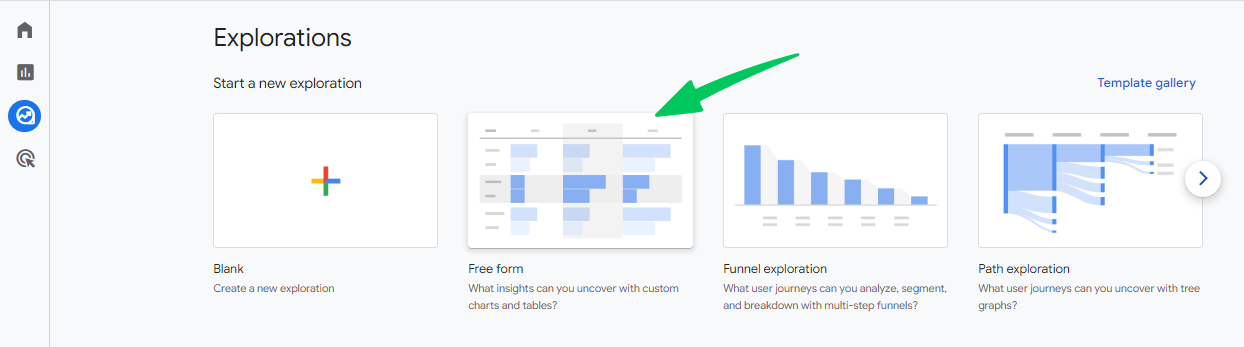
3. Add New Segment: Click on + to add new Segment.
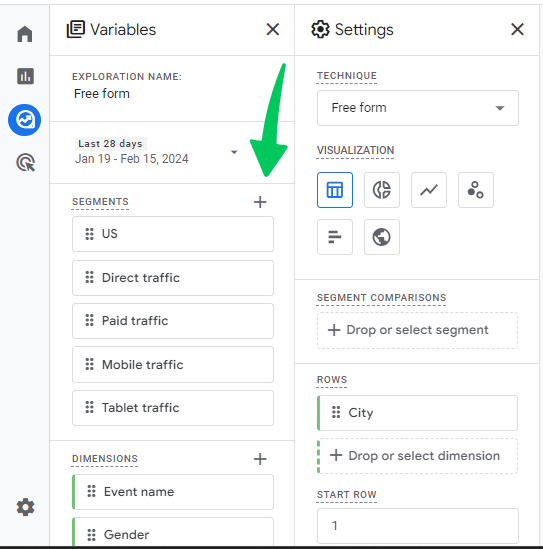
- Choose Your Segment Type: GA4 allows you to choose from User, Session, and Event segments. Each type serves different analytical purposes, from understanding overall user behavior to analyzing specific interactions or events.
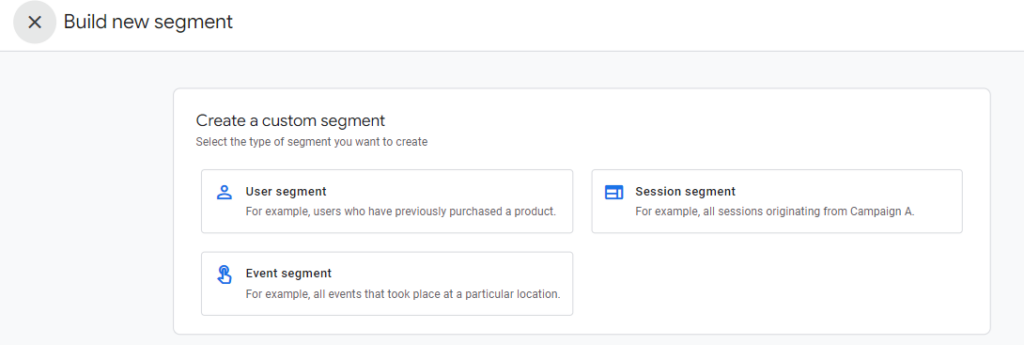
Suppose we create a user segment.
Then, click on Add new condition.
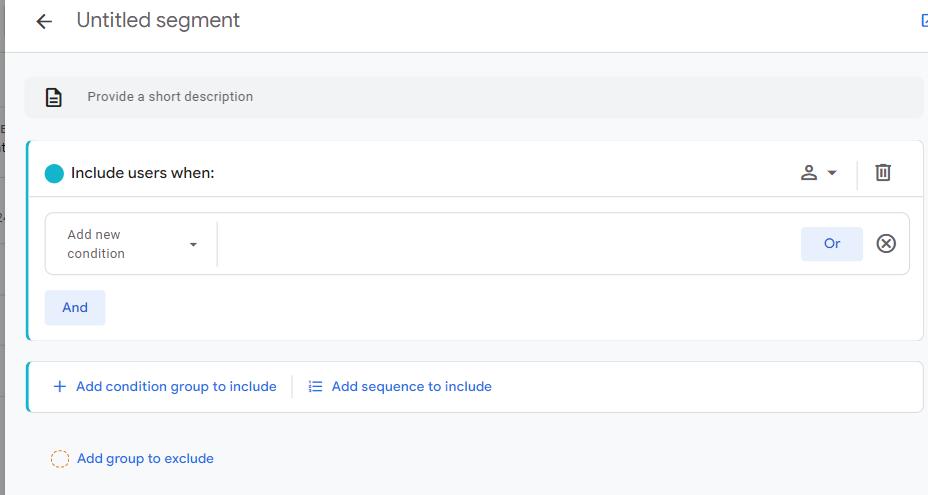
- Define Your Conditions: This step is where your segment comes to life. Specify your criteria using the dimensions and metrics available in GA4. Advanced segments thrive on multi-dimensional conditions, allowing for a detailed dissection of user groups.
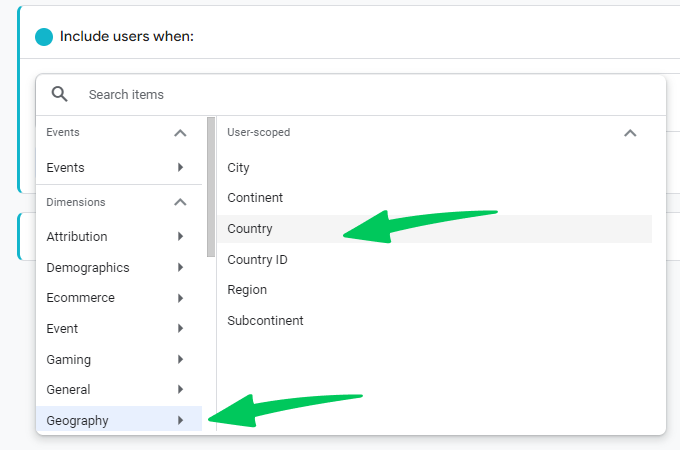
Let’s suppose we select Geography as dimension and Country as user-scoped.
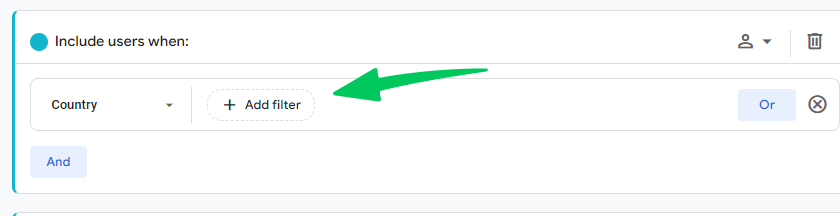
Next, we add Filter.
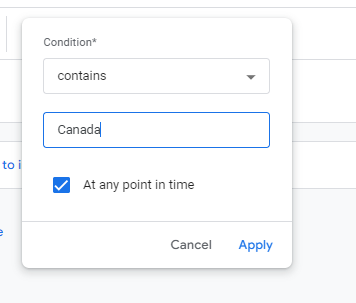
Then we select the condition as per requirement.
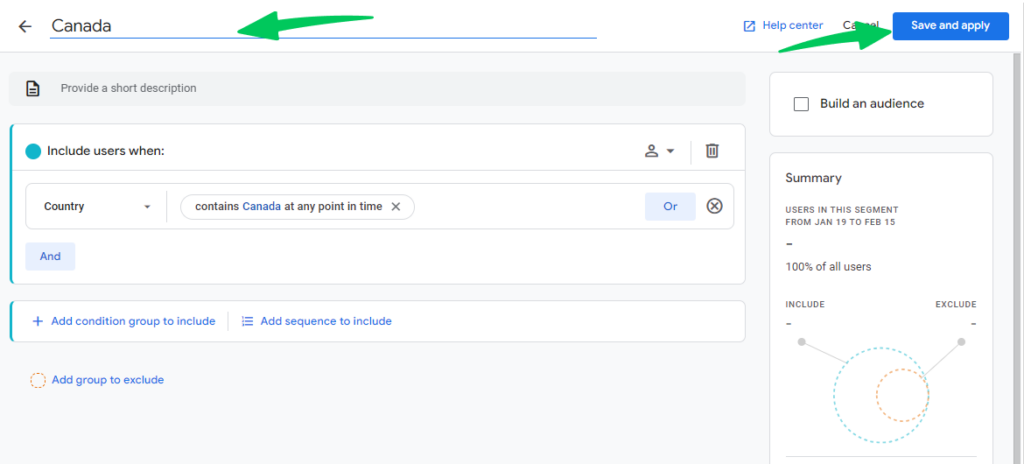
5. Name and Save Your Segment: Give your segment a clear, descriptive name and save it. This makes it easily accessible for future explorations or analysis within GA4. After this, we name the segment, click Save and apply.
Steps to Build Advanced Session Segments in GA4
A GA4 session segment includes only the sessions that meet your conditions, so you can see how users navigate your website within one session.
These advanced session segments let you analyze a specific user session journey you want to analyze.
Let’s build an advanced session segment together!
Step 1: Navigate to Explorations
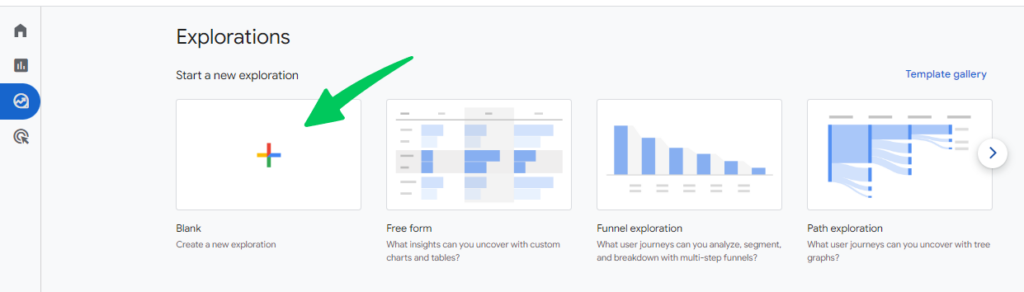
First, navigate to the Explore section in GA4. Then, click on the “+” button to start a new exploration.
Step 2: Unleash the Segment Builder
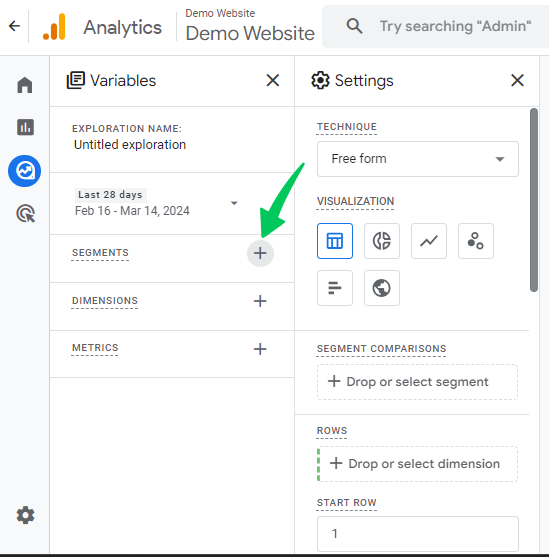
Look for the “+” icon in the Variables column and click on it.
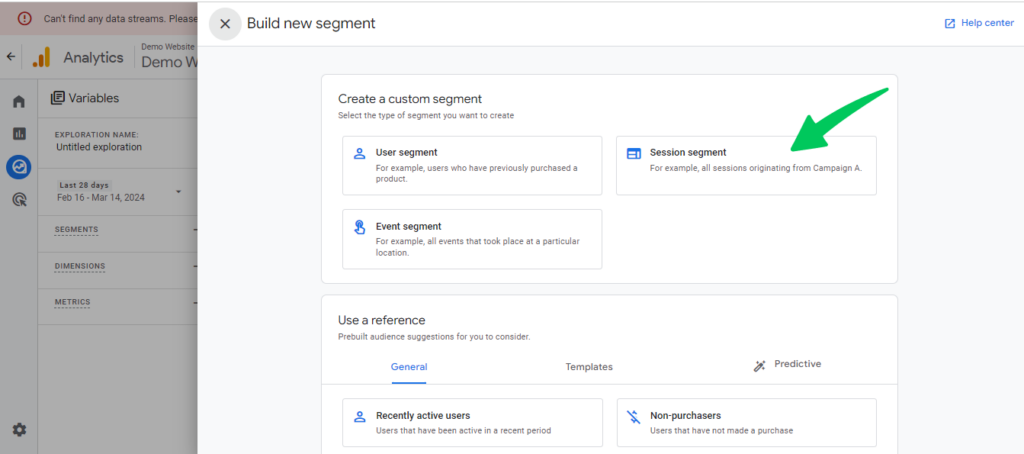
Here, you’ll see three options: User, Session, and Event segments.
Since we’re focusing on session behavior, pick the Session segment.
Step 3: Add Condition to your Segment
This is where you can define your session segment. Here are multiple ways to build a session segment:
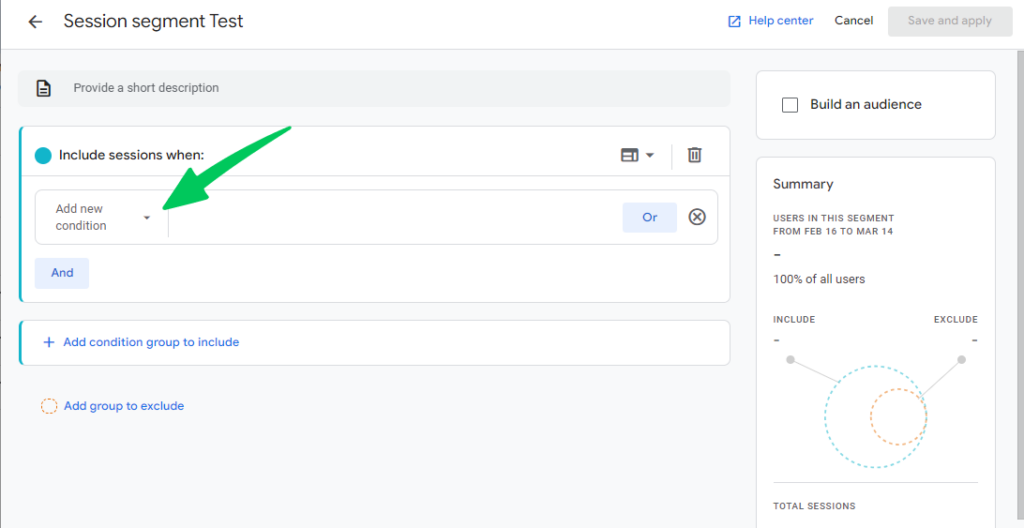
- Landing page: To analyze sessions that started on a specific page or blog post, use the “Landing page” dimension and enter the exact page path.
- Session Duration: To track a user’s time on your site, use the “Session duration” condition.
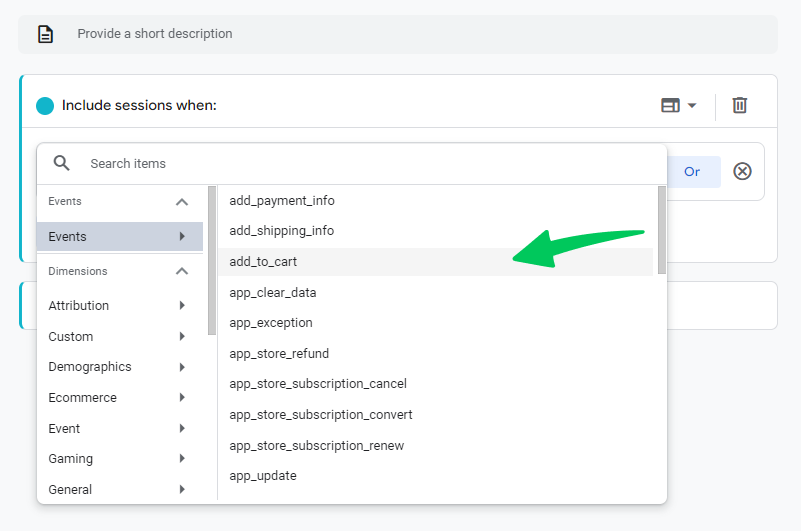
- Tracking Events: If you want to track a particular event during the session, like adding a product to the cart or completing a form, use the “Event name” condition to pinpoint those sessions or users who shop.
Let’s create it to show you an example. Follow the below screenshot:
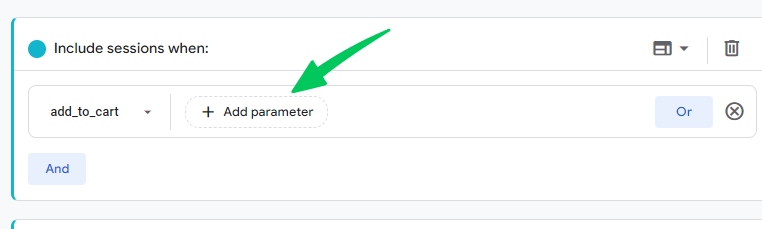
Next, you can add parameters according to your requirements.
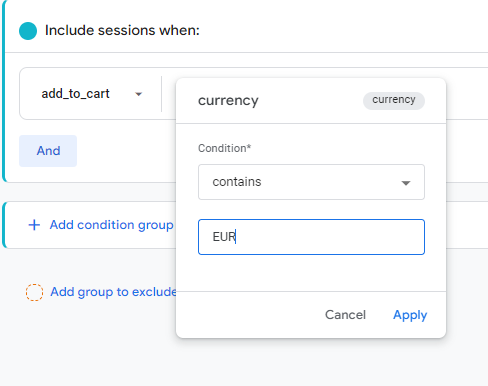
Let’s suppose you have users from multiple regions with different currencies. Use the “currency” parameter as a filter to analyze “add_to_cart” behavior for users in a specific currency zone (e.g., segment for sessions where “currency” equals “EUR”).
You can combine multiple conditions using “AND” to create super-specific segments.
Remember:
- The “currency” parameter works in conjunction with the “value” parameter. You’ll need both to analyze total cart value based on currency.
- You can combine “currency” with other parameters like “item_category” or “item_brand” to create even more granular segments.
For example, you could segment users who added items from a specific category (e.g., “Electronics”) and filter by currency (“USD”) to analyze the average cart value for electronics purchases in US dollars.
Segmenting by the “currency” parameter shows how shoppers behave in each region and currency.
Step 4: Apply the Segment!
Once you’ve built your session segment, give it a descriptive name that reflects its purpose.
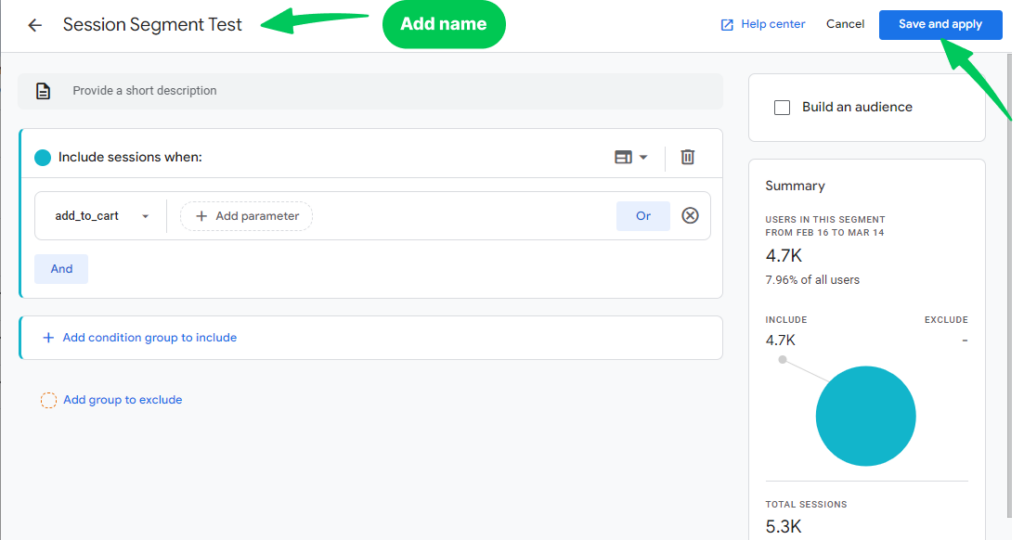
Click on the Save and Apply button in the top right corner. Your custom segment is ready to use.
Step 5: Let the Data Flow
Go back to your exploration. Your new segment now appears under Segments in the Variables column. Double-click it, or drag it from Variables into Tab Settings, to apply it to your analysis and see how this group interacts with your site.
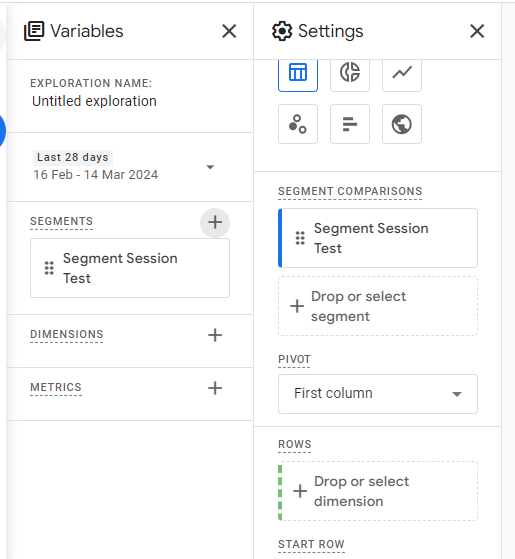
By building advanced session segments, you can uncover hidden user patterns and optimize your website for better conversions.
Tips for Creating Advanced Segments
- Start Simple: Familiarize yourself with GA4’s segment builder by starting with basic segments before progressing to more complex configurations.
- Focus on Actionable Insights: Keep your analytical goals front and center. The aim is to unearth insights that can directly influence your strategies.
- Refine and Iterate: Be prepared to adjust your segments as you delve deeper into the data. The most valuable insights often come from an iterative process of refinement.
Advanced segments in GA4 go beyond mere traffic source or location groupings, allowing for a granular analysis that can significantly impact marketing and site optimization strategies. By understanding and utilizing the advanced segmenting capabilities of GA4, you can unlock a deeper understanding of your audience, tailor your offerings more effectively, and ultimately drive better business outcomes.
Use Analytify for Advanced eCommerce Segmentation
Segments in GA4 show how groups of shoppers behave, and Analytify shows the eCommerce data for your store inside WordPress.
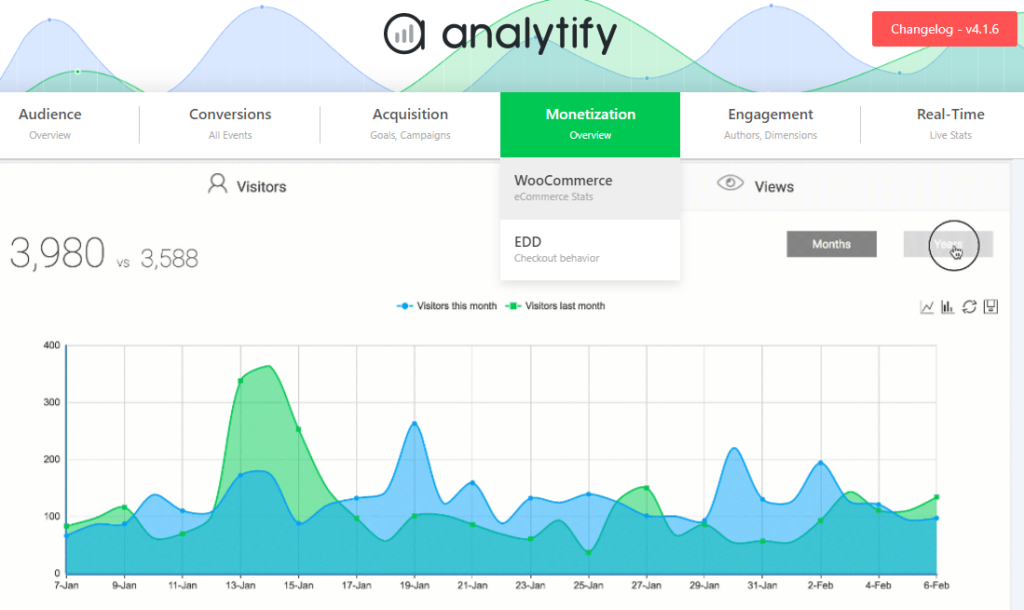
Analytify, the most advanced Google Analytics Plugin brings all this information to your website’s dashboard through its eCommerce Tracking modules for both WooCommerce and Easy Digital Downloads. When any of these modules is active, you can see advanced eCommerce stats such as volume and revenue of transactions, products added and removed from the cart, and unique transactions.
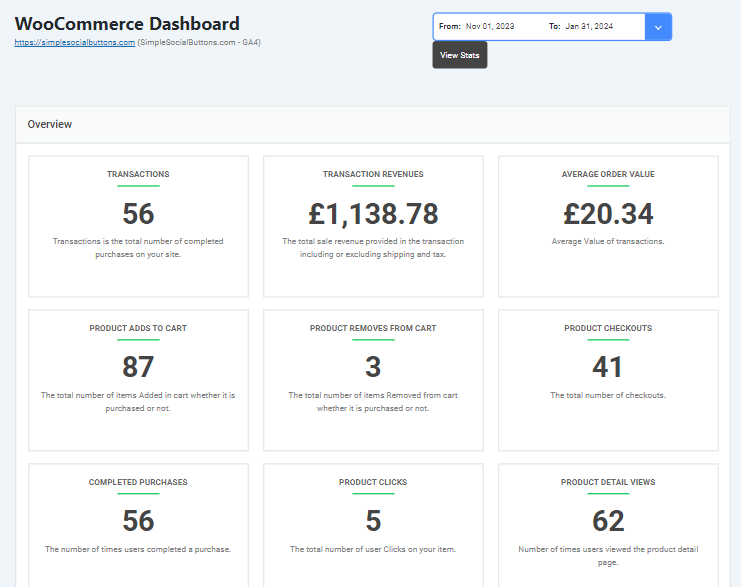
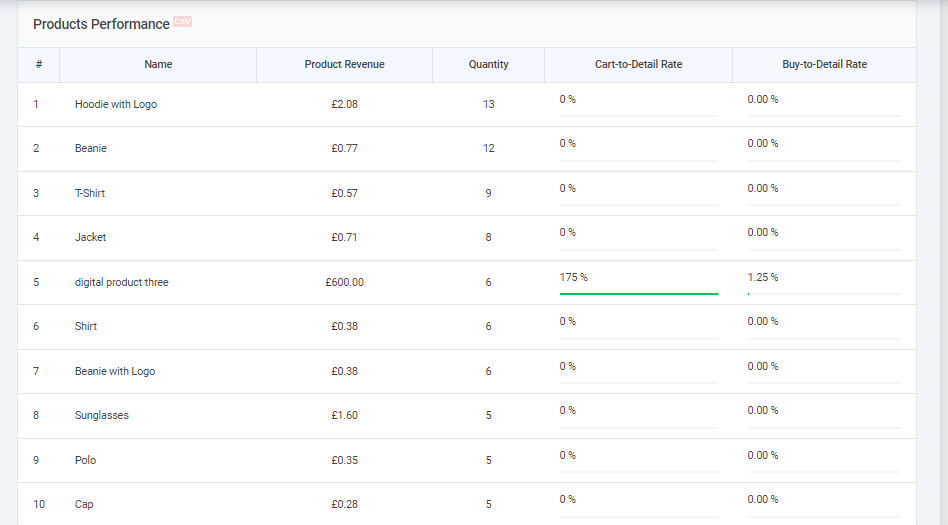
In addition, you can also see information such as Top Countries by Sales and Product Performance Information, including revenue and number of sales for each product in your store, along with other useful metrics.
Join 50,000+ beginners & professionals who use Analytify to simplify their Google Analytics!
FAQs about Advanced Segments in Google Analytics and Analytify
1. What is a segment in Google Analytics?
A segment in Google Analytics is a subset of your data that allows you to isolate and analyze specific trends and patterns in user behavior. Segments can be based on predefined criteria such as demographics, traffic sources, device types, and custom criteria like specific page views or transactions.
2. How do I create advanced segments in Google Analytics 4?
To create advanced segments in Google Analytics 4, navigate to the Explorations section, select “Create a New Exploration,” and choose your segment type (User, Session, or Event). Define your conditions using the available dimensions and metrics to tailor your segment to your analysis needs. You can also utilize sequences and comparisons for deeper insights.
3. What are the benefits of using advanced segments in Google Analytics?
Advanced segments allow for more granular analysis of your data, enabling you to uncover hidden trends, understand specific user behaviors, and make informed decisions for targeted marketing and website optimization. They provide deeper insights than basic segmentation by allowing complex criteria and multi-dimensional analysis.
4. Can I use Analytify to create advanced segments for my eCommerce website?
Yes, Analytify simplifies the process of creating and analyzing advanced eCommerce segments on your WordPress site. It integrates with Google Analytics to provide user-friendly insights into customer behavior, allowing you to segment users based on specific eCommerce actions and optimize your online store accordingly.
5. How does Analytify enhance the analysis of eCommerce data?
Analytify presents Google Analytics data in an accessible format, focusing on actionable eCommerce insights. It enables detailed segmentation, such as tracking high-value customers or analyzing cart abandonment, providing a comprehensive view of the customer journey and highlighting areas for optimization.
6. What is the difference between Universal Analytics segments and Google Analytics 4 segments?
Universal Analytics segments are applied at the report level, filtering data within specific reports. Google Analytics 4 segments, however, are used at the explore level, offering a more exploratory and customizable approach to data analysis. This allows for deeper dives into data and more nuanced insights.
7. How can I optimize my eCommerce strategy using advanced segments with Analytify?
Creating custom advanced segments in Analytify allows you to analyze specific aspects of your eCommerce performance, such as promotional campaign effectiveness or user engagement with product pages. These insights help identify optimization opportunities, guiding you to adjust marketing strategies, improve product offerings, or streamline the checkout process for better results.
Conclusion
Advanced segments in GA4 let you analyze specific groups of users, sessions or events instead of averages across all traffic.
If you have questions about advanced segments in GA4, ask them in the comments.
You may also like to explore: How to Fix Google Analytics Real Time Not Working?




 Halloween Sale: Know which campaigns drive sales this season.