
Google Ads Tutorial: How to Set Up and Optimize Your Campaigns (Updated 2026)

Google Ads setup fails for one of two reasons. People skip the account structure that makes campaigns trackable. Or they launch without conversion tracking and never learn what worked. This tutorial covers both, plus a real campaign setup walkthrough most guides skip.
I’d start with the Sales objective and one Search campaign. Add more only after you have purchase data.
You get the exact 10-step setup and a worked example configuring a real Search campaign. You also get optimization strategies and common mistakes. Then you learn how to track results in real time with Google Analytics 4 and Analytify.
Last Updated: September 2026
Google Ads and Google Ad Manager
Google Ads and Google Ad Manager serve different needs. Google Ads runs targeted campaigns across Google’s search and display networks, and it is the tool this tutorial covers.
Google Ad Manager handles direct and programmatic ad sales for websites, apps, and other digital properties. It connects with Google Ads so publishers can manage inventory and track performance in one place. It is a separate tool built for a separate job: selling ad space, not buying it.
How to Set Up Google Ads (Step by Step)
Setting up a Google Ads account takes about 15 minutes if you have your billing details ready. Here is every step, in order.
Step 1. Create and Link Your Google Ads Account
Create a Google Ads account first if you do not already have one.
- Head to the Google Ads website and sign up with your Google account.
- Click “Start Now” to begin the sign-up process.

- Follow the on-screen prompts to set up your account: business name, website URL, and the country you operate in.
- Choose your time zone and currency. This affects how billing and reporting display for the life of the account. You cannot change it later without creating a new account.
Step 2. Set Up Billing Information
- Enter your billing information to activate the account. Google Ads supports automatic or manual payment options.
- Provide a payment method (credit or debit card) and your billing address.
Step 3. Link Your Google Ads Account to GA4
Linking Google Ads to Google Analytics 4 (GA4) lets you track ad performance and measure conversions accurately. This step is mandatory to get full value from ad spend, not optional polish.
- Sign in to Google Analytics and select the GA4 property to link with Google Ads.
- Click Admin (the gear icon) in the left-hand menu.
- Under the Property column, select Google Ads Links.
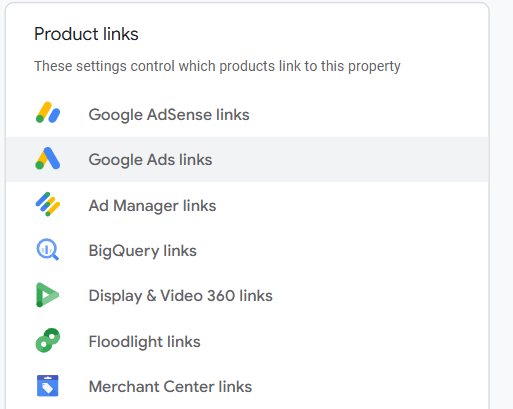
- Click Link and select the Google Ads account from the list.
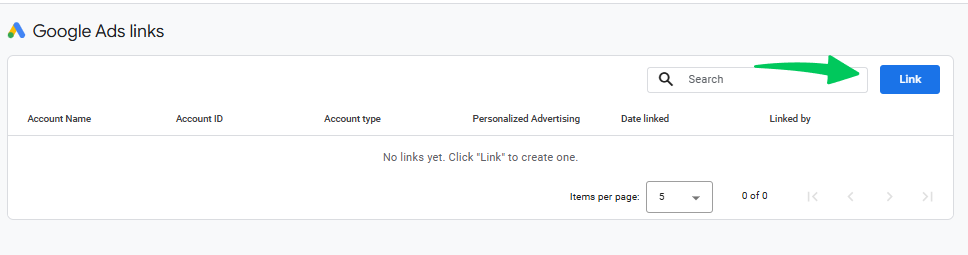
- Follow the prompts to complete linking. Enable Auto-Tagging to ensure Google Ads data tracks correctly. Read the full walkthrough: how to link Google Ads with GA4.
- Confirm the conversion actions you want to track are set up in both Google Ads and GA4. Performance then measures accurately from day one.
Step 4. Using Analytify for Streamlined Tracking (For WordPress Users)
Native GA4 and Google Ads integration works. Analytify adds a dashboard inside WordPress that shows performance metrics from both in one place, without switching tabs.
Why Use Analytify
- One-Click Authentication: Analytify links your Google Ads and GA4 accounts to your website without a manual setup process.
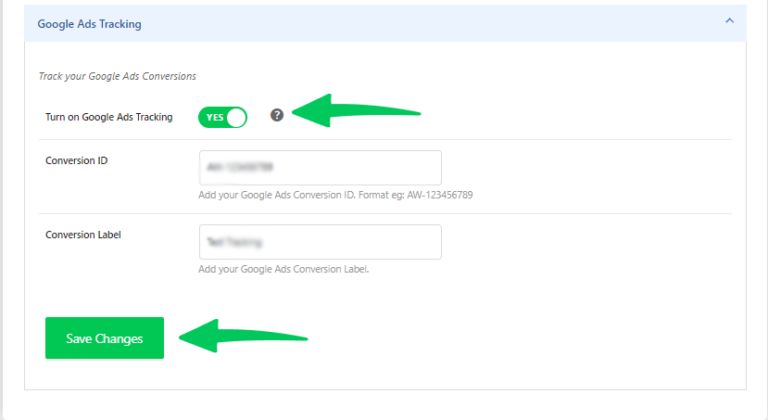
- Real-Time Tracking: Analytify shows conversions, traffic, and other key metrics directly in the WordPress dashboard, as they happen.
- Custom Dashboards: Build custom reports and dashboards that combine Google Ads and GA4 data in one view.
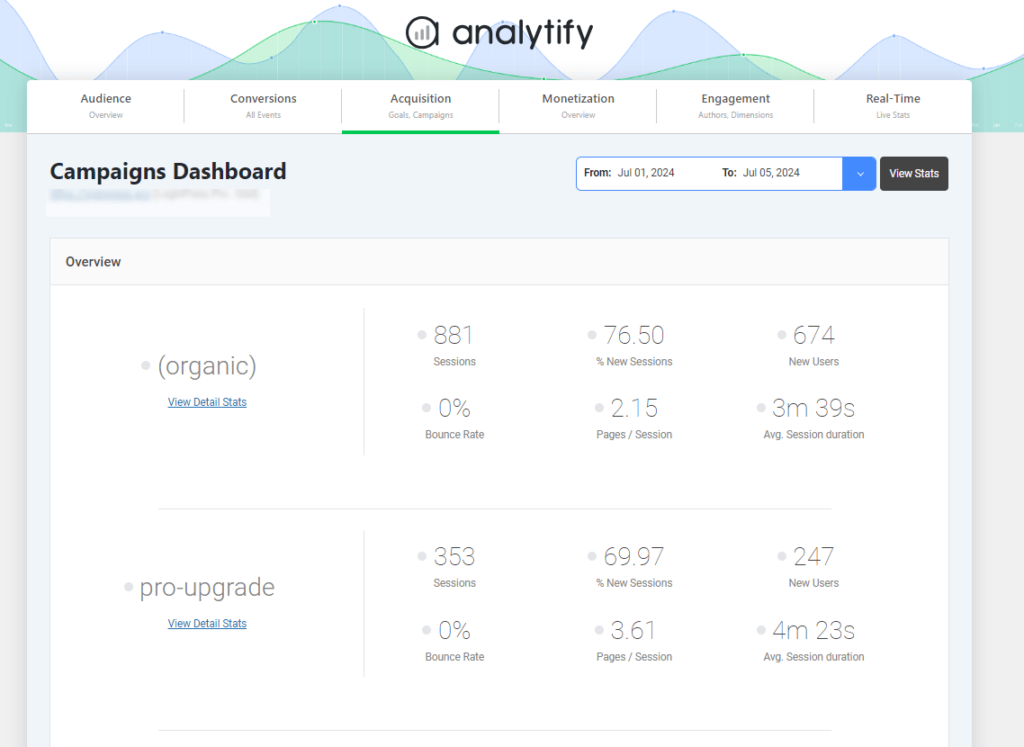
Linking Google Ads and GA4 through Analytify enables auto-tagging automatically. Clicks, impressions, and conversions track without manual setup.
Without Analytify: you set up Google Ads conversion tracking manually. Go to Tools & Settings, then Measurement, then Conversions. Choose your conversion type (purchase, form submission). Google gives you a tracking tag to place on the page where the conversion happens, such as a “Thank You” page.
Step 5. Google Ads Dashboard
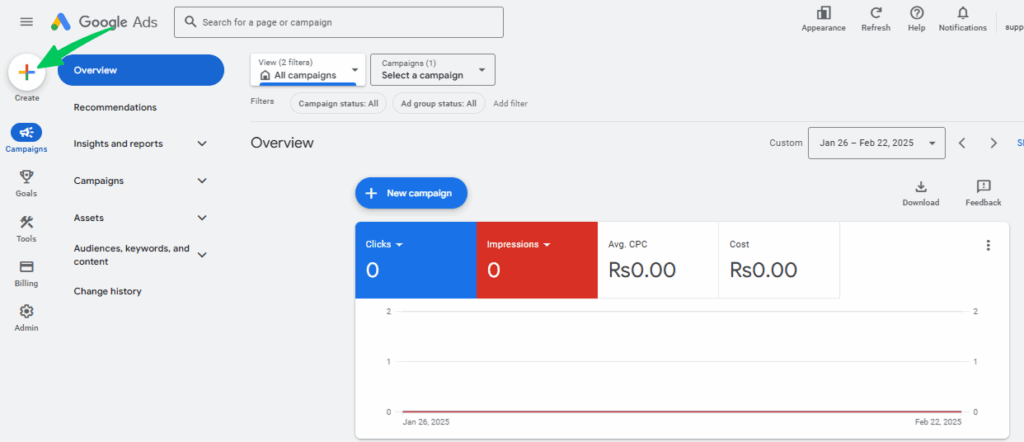
The Google Ads dashboard is the first screen after login, and it gives a high-level overview of account performance. It shows:
- Campaigns: A list of all active and past campaigns.
- Ad Groups: Groups of ads within campaigns that target specific keywords or audience segments.
- Ads: The actual ads being shown to users.
- Keywords: The terms being targeted in each campaign.
Every dashboard section has clickable options to dig into and adjust campaigns directly.
Step 6. Creating Campaigns in Ads Manager
Click “+ New Campaign” on the dashboard to start.
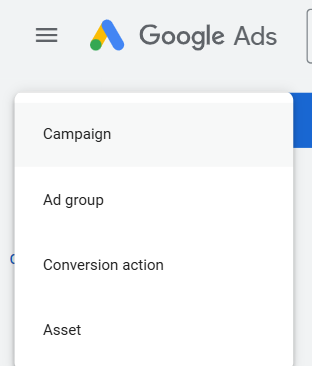
Campaigns break down into ad groups. Each ad group is made up of ads that share common keywords or targeting settings. When setting up ad groups:
- Keep keywords closely aligned with the ad group’s theme.
- Write specific, engaging ad copy that speaks directly to that theme’s audience.
Step 7. Select Your Campaign Objective
Your campaign objective shapes how the campaign is structured and optimized. Pick the one that matches your actual business goal, not the one that sounds most impressive.
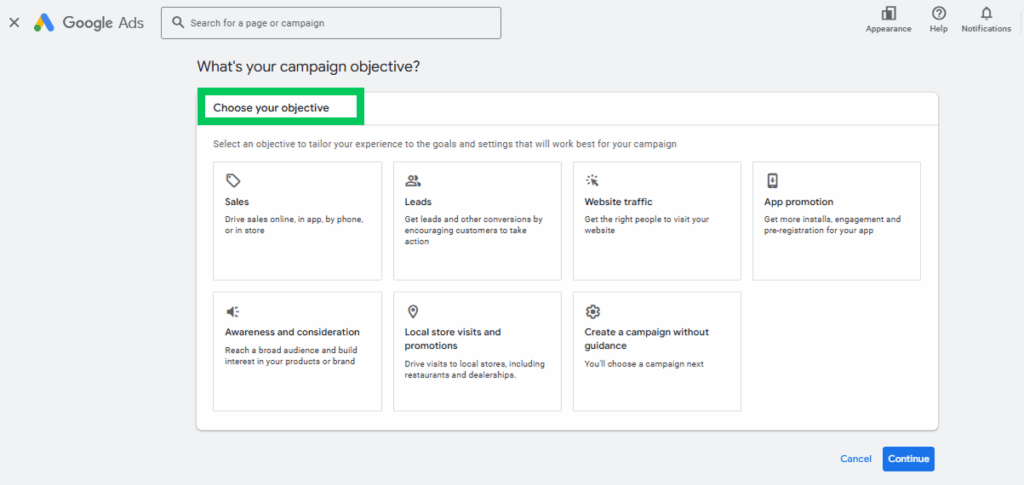
- Sales: Choose this to drive purchases or conversions on your website.
- Leads: Choose this to generate customer inquiries or sign-ups.
- Website Traffic: Choose this to increase visitors when conversions are not yet the priority.
- App Promotion: Choose this to promote a mobile app.
Step 8. Choose Conversion Goals
A conversion goal is the specific action you want a user to take after clicking your ad. Examples: a purchase, sign-up, or contact form submission. Google Ads asks you to choose this right after your objective.
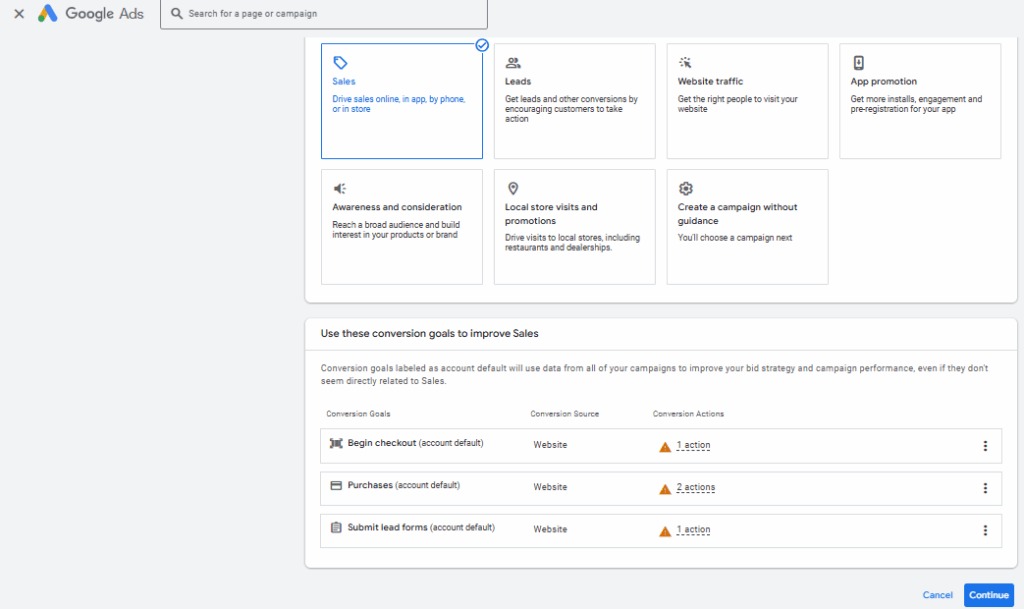
For a Sales campaign, that action is usually a completed purchase. Google Ads also offers a default goal that optimizes bids across all conversion types. A sales-focused campaign should stick to sales as the goal, not the default blend.
- Completed Purchase: Choose this if conversion tracking is already set up for purchases. It tracks every completed transaction after an ad click.
- Add to Cart: Choose this if purchase tracking is not set up yet. You can still measure buying intent. This tracks when users add products to their cart. It is a signal worth watching even before full purchase tracking is live.
- Checkout Initiated: Tracks when users start the checkout process, a step before Add to Cart converts into a sale.
Add to Cart and Checkout Initiated are secondary signals. Once the campaign is live, set up full conversion tracking in Google Analytics or Google Ads. Then fine-tune from there.
Step 9. Choose Your Campaign Type
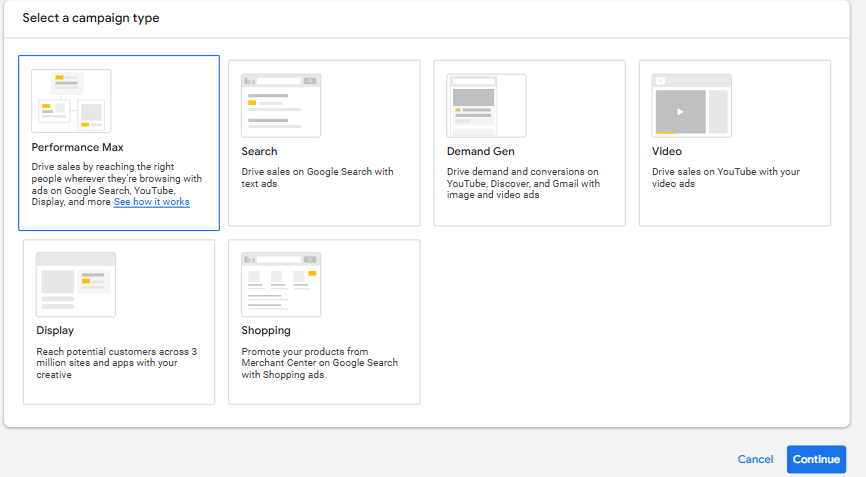
Campaign type depends on where you want ads to appear and what action you want from viewers.
| Campaign Type | Where It Shows | Best For |
|---|---|---|
| Search | Google search results | Direct sales or leads |
| Display | Google’s partner websites and apps | Brand awareness, remarketing |
| Video | YouTube and Google partner sites | Engagement, video awareness |
| Shopping | Google’s shopping feed | Ecommerce product sales |
| Smart | Automated, Google-managed placement | Beginners, small businesses |
- Search Campaigns: Text ads shown on Google search results for related keywords. Best for direct sales or leads.
- Display Campaigns: Visual ads shown across Google’s partner websites and apps. Best for brand awareness or remarketing to past visitors.
- Video Campaigns: Video ads shown on YouTube and Google partner sites. Best for engagement and awareness.
- Shopping Campaigns: Product ads with images, prices, and store info shown in Google’s shopping feed. Best for retailers.
- Smart Campaigns: Fully automated campaigns where Google handles bidding and targeting. Best for beginners or small businesses that want a simple setup.
Step 10. Finalize Your Setup
Four things remain once the campaign type is chosen: budget, bidding, targeting, and creative.
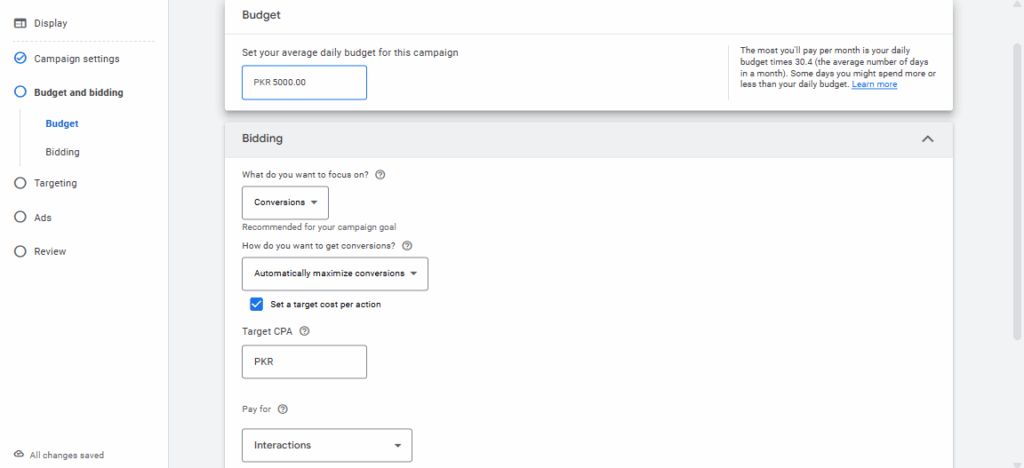
Daily budget is the amount you are willing to spend on ads each day. Google Ads will not exceed this amount on average. It may spend more on a strong day and less on a slow one. A $10 daily budget aims for roughly $10 in daily spend, not a hard $10 ceiling.
- For beginners: Choose “Maximize Conversions.” Google Ads adjusts bids automatically to get as many conversions as possible within budget.
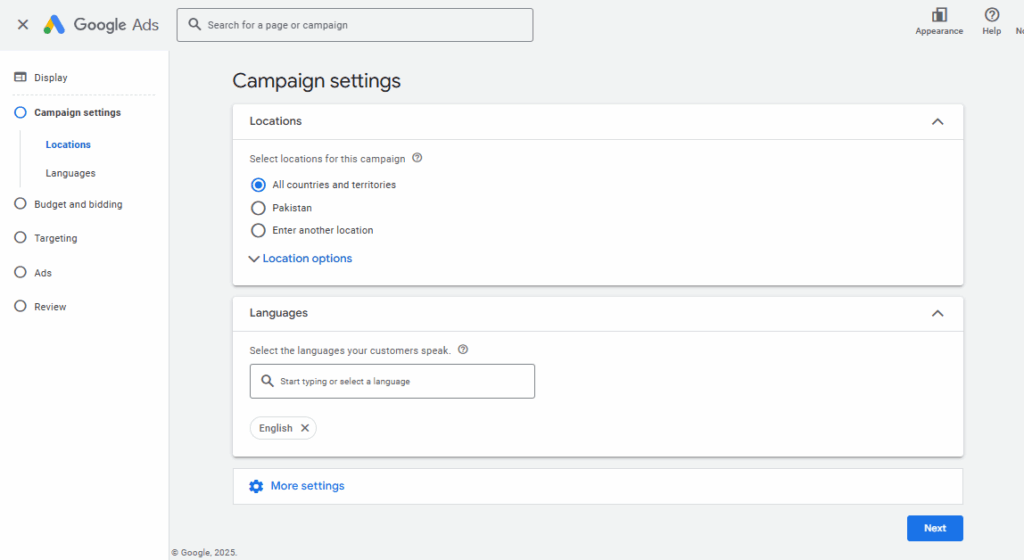
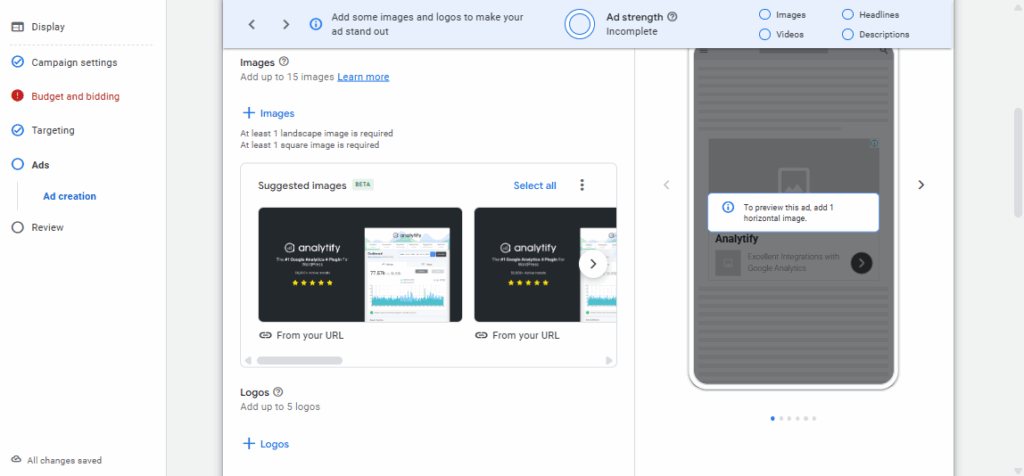
Set targeting (location, language, devices). Create the ads themselves (text, images, or video). Set up conversion tracking to monitor results. Once these are done, launch the campaign and start optimizing based on real performance data.
| Bidding Type | You Pay For | Best For |
|---|---|---|
| CPC | Each click on your ad | Driving traffic and clicks |
| CPM | Every 1,000 ad impressions | Brand awareness |
| CPA | A completed action (purchase, sign-up) | Lead or sales campaigns |
| ROAS | A target return on ad spend | Advanced, goal-based advertisers |
Real Example: Setting Up a Search Campaign for a WordPress Plugin
For a WordPress plugin pricing page, choose the Sales objective and track Completed Purchase as the main conversion. Then run a Search campaign. This walkthrough covers a Search campaign for a WordPress plugin’s pricing page. It is the exact situation most Google Ads tutorials skip.
The scenario: You are launching paid search for a WordPress analytics plugin. Traffic goes to a pricing page, and you have a monthly budget to justify.
- Objective chosen: Sales. The pricing page has a clear checkout flow. Website Traffic would waste budget on clicks that were never going to convert.
- Conversion goal chosen: Completed Purchase as the primary goal. Add to Cart is tracked as a secondary signal for the first two weeks, while purchase volume is too low to optimize bidding against directly.
- Campaign type chosen: Search, not Display. Search campaigns show ads to people already typing relevant terms. That matches a checkout-ready audience better than a passive display placement.
- Daily budget set: $15/day to start. That is deliberately conservative. It is enough to gather two to three weeks of click and conversion data without risking a month of spend on an unproven ad group.
- Bidding strategy chosen: Maximize Conversions for the first three weeks. There is not yet enough conversion history for a target ROAS strategy to optimize against.
The table below shows how that setup maps to the metrics you will actually watch in week one:
| Metric | What to Watch For | Action If It’s Off |
|---|---|---|
| CTR | Below 3% on Search usually signals weak ad copy or a mismatched keyword. | Rewrite the headline to match the exact search term, not just the general topic. |
| CPC | Spiking CPC on a specific keyword often means it is more competitive than the Keyword Planner data suggested. | Pause the keyword or lower its individual bid. |
| Conversion Rate | Clicks arriving with no purchases after 50+ clicks usually points to the landing page, not the ad. | Check that the landing page headline matches the ad’s promise exactly. |
The lesson that generalizes: Set the conservative budget and the conservative bidding strategy first. A campaign that is under-spending for two weeks costs you data. A campaign that is over-spending on unproven keywords costs you money you cannot get back. The first mistake is recoverable within a week; the second usually is not.
Strategies for Successful Google Ads Campaigns
Setup gets a campaign live. These five practices are what keep it profitable after launch.
Keyword Selection
Keywords drive every Google Ads campaign. Use Google Keyword Planner to research terms that match what customers actually search for, not what sounds right internally. The right keywords put ads in front of the right audience. That happens before a single dollar goes to an underperforming ad group.
Optimizing Ad Copy
Ad copy quality makes or breaks a Google Ads campaign. It needs to earn the click in about two seconds of scan time. Four things matter most:
- Compelling Headlines: State the benefit or solution directly, using keywords that match what users searched for.
- Clear, Actionable CTAs: Phrases like “Buy Now,” “Get Started,” or “Learn More” tell users what happens after the click.
- Unique Selling Points: Discounts, features, or details that separate the offer from competitors.
- Ad Extensions: Sitelinks, callouts, and structured snippets give searchers more information. They also make the ad take up more space in results.
A/B Testing Your Ad Copy
A/B testing improves ad performance directly, by removing guesswork from what copy actually works. Run two ad versions with different headlines, descriptions, or CTAs at the same time. Use the winner to refine future ads.
Optimizing Landing Pages
The landing page decides whether a click turns into a conversion. A well-optimized landing page raises Quality Score, lowers CPC, and boosts conversions. Three fixes matter most:
- Match the ad’s promise exactly. If the ad mentions a discount, the landing page should feature that discount prominently. Do not bury it below the fold.
- Improve load speed. A slow landing page drives visitors away before they see the offer. Use Google PageSpeed Insights to test it.
- Simplify the experience. One clear call-to-action, no distractions, easy navigation. See the full guide to optimize your landing pages.
Quality Score and Ad Rank
Quality Score measures how relevant your ads, keywords, and landing pages are to each other. Google uses it to set Ad Rank and auction position, and a higher score lowers CPC while boosting visibility. To improve it:
- Keep ad copy highly relevant to the keywords being targeted.
- Align landing page content with the ad for a consistent experience.
- Improve your click-through rate (CTR) by writing compelling ads and targeting the right audience.
Analyzing Google Ads Performance and Making Adjustments
Monitor a live campaign regularly to confirm it is meeting its goals. Five metrics track key metrics that matter most:
- CTR (Click-Through Rate): The percentage of people who click after seeing your ad. A higher CTR means the ad is relevant and compelling.
- Conversion Rate: The percentage of clicks that lead to a purchase or form submission. This is the number that connects ad spend to actual results.
- CPC (Cost Per Click): What you pay per click. Monitoring CPC keeps spend inside budget and flags bids that need adjusting.
- Cost Per Conversion: The cost tied to each completed action. Lowering this number directly raises ROI.
- ROAS (Return on Ad Spend): Revenue generated per dollar spent. A high ROAS means the spend is working. A falling ROAS is the earliest warning sign a campaign needs adjustment.
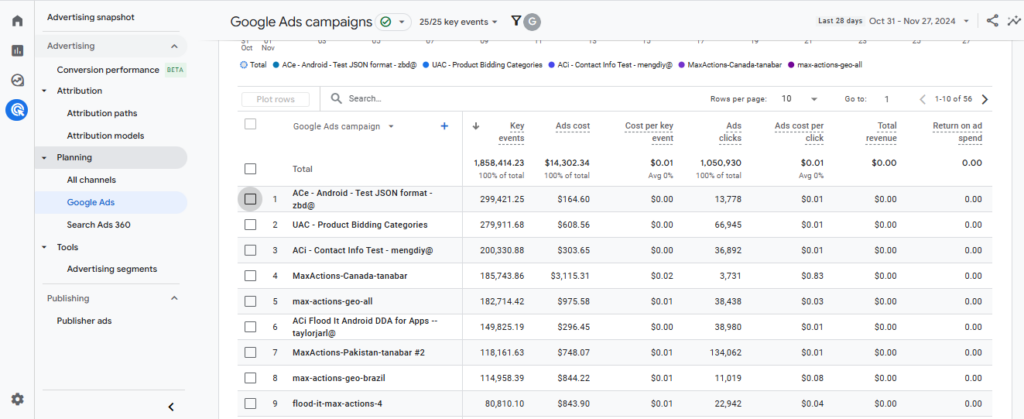
Analytify integrates with Google Ads to show these metrics in real time inside the WordPress dashboard. A slipping ROAS shows up the same day, not at the end of the month. See the full guide on how to find Google Ads report in GA4.
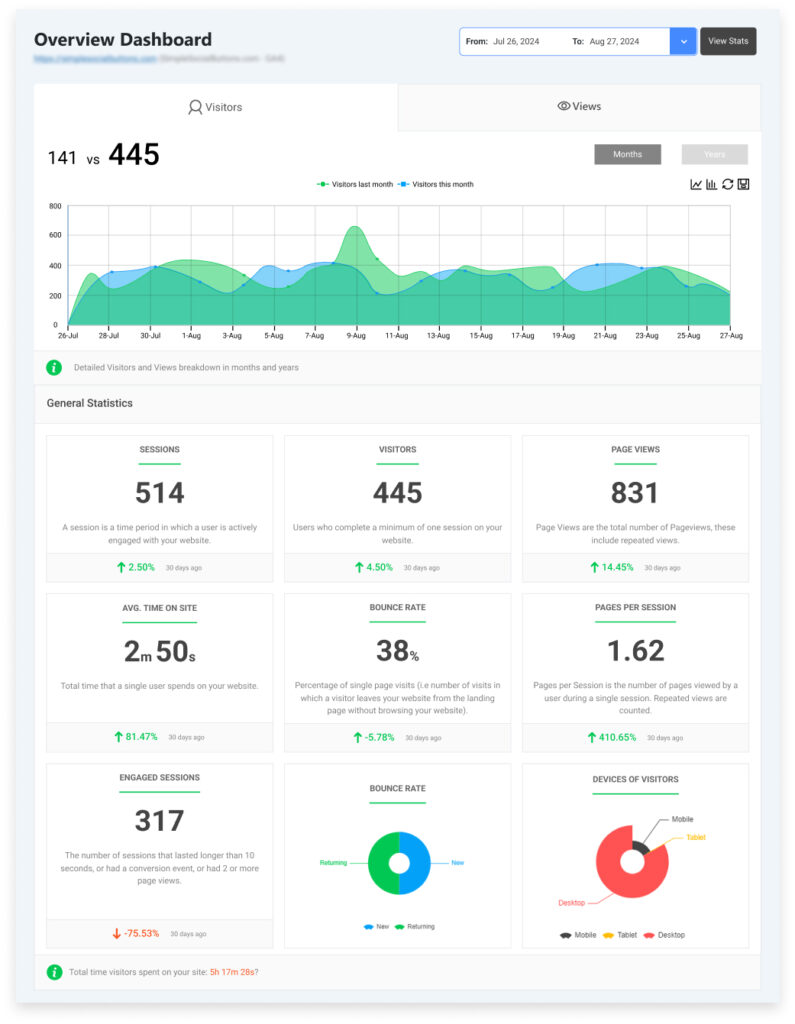
Analytify users can check full GA4 website analytics inside WordPress. They do not switch between two dashboards to compare ad and site performance.
Optimizing Campaigns Based on Data
Three adjustments cover most performance problems once data is in hand:
- Adjust Bidding: Raise bids on keywords performing well despite high CPC, to secure a better position. Lower bids on underperforming keywords instead of letting them drain budget.
- Refine Targeting: If specific demographics, locations, or devices drive more conversions, narrow the campaign’s targeting to those segments.
- Revise Ad Copy: A low CTR calls for new headlines, descriptions, and CTAs. A/B test the changes rather than replacing copy on a guess.
A campaign that under-delivers rarely needs a full restart. It usually needs one of these three fixes, applied to the specific ad group where the data points.
Common Google Ads Mistakes and How to Avoid Them
Four common Google Ads mistakes account for most wasted spend. They appear even in accounts that are technically set up correctly.
| Mistake | Fix |
|---|---|
| Overbidding or underbidding | Monitor CPC and conversion rate; test CPC, CPA, or ROAS bidding |
| Ignoring negative keywords | Review search terms regularly and add irrelevant ones to your negative keyword list |
| Poor landing pages | Fix slow load times, misaligned messaging, and confusing forms or navigation |
| Skipping conversion tracking | Set up conversion tracking in Google Ads and use Analytify to analyze the data |
1. Overbidding or Underbidding
Improper bidding wastes budget in both directions. Overbidding means paying more than necessary for clicks. Underbidding means ads show less often or in weaker positions.
- Monitor CPC and conversion rate continuously to find the right balance.
- Test CPC, CPA, or ROAS bidding strategies to see which one actually optimizes bids for your goal.
2. Ignoring Negative Keywords
Skipping negative keywords wastes ad spend on searches that were never going to convert. Negative keywords block ads from showing for irrelevant terms, such as excluding “cheap” or “discount” when selling high-end products.
- Review search terms regularly and add irrelevant ones to the negative keyword list before they burn through budget.
3. Poor Landing Pages
Even a strong ad underperforms when it points to a weak landing page. A poor landing page lowers Quality Score, which raises costs and drops ad positions. The usual culprits:
- Slow loading times
- Misalignment with the ad’s message
- Complex forms or confusing navigation
A fast, clear landing page tied directly to the ad’s content boosts conversions and reduces bounce rates.
4. Not Utilizing Conversion Tracking
Skipping conversion tracking means you never learn which ads, keywords, or campaigns drove results. You only learn which ones spent money.
- Set up setting up conversion tracking in Google Ads to measure purchases, sign-ups, or key on-site actions.
- Use Analytify to track and analyze that conversion data inside WordPress. It informs the next round of campaign decisions.
Google Ads Tutorial FAQs
1. How much does it cost to set up a Google Ads campaign?
Cost depends on your bidding strategy, industry, and keyword competition. With CPC bidding, you pay per click, ranging from a few cents to several dollars depending on competition. Set a daily budget to control spend, and adjust it regularly based on ROI.
2. How can I improve my Quality Score in Google Ads?
Write ad copy that matches search intent, align your landing page with the ad, and use targeted keywords specific to your product. A higher Quality Score lowers your CPC and improves your ad position.
3. What are negative keywords in Google Ads?
Negative keywords block your ads from showing for irrelevant searches. Selling luxury watches? Add “cheap” as a negative keyword. Set them at the campaign or ad group level to cut wasted spend.
4. How do I track conversions in Google Ads?
Set up conversion tracking in Google Ads by placing a tracking tag on your site or app. It fires when a user completes an action like a purchase or form fill. Analytify shows this same data on your WordPress dashboard for easier analysis.
5. Why isn’t my Google Ads conversion tracking showing any data?
Check that the tracking tag is installed on the correct page, usually the “Thank You” or confirmation page, not the form page itself. Confirm the tag fires only once per conversion, and that your browser’s ad blocker or cookie settings aren’t blocking it during testing. Data can also take 24 to 48 hours to appear after setup.
6. How often should I review and adjust my Google Ads campaigns?
Check bidding and budget pacing weekly, and do a full keyword and negative-keyword review every 2 weeks. Pull a complete performance audit, covering Quality Score, CTR, and conversion rate, every 90 days, since seasonal search behavior shifts enough in that window to justify resetting your keyword targets.
Key Takeaways
- Link Google Ads to GA4 before launching a single campaign. Conversion data collected late can never be recovered for the days it was missing.
- Start with a conservative daily budget and Maximize Conversions bidding. Keep them until there is enough data for a target ROAS strategy.
- Competition level and Quality Score are separate signals. A high-competition keyword with a well-matched landing page can still earn a strong ad position at a lower cost.
- Conversion tracking is not optional polish. Without it, spend and results are two numbers that never connect.
Google Ads is not “set it and forget it.” Continuous monitoring, testing, and optimization separate a campaign that breaks even from one that compounds. If you are tightening up other parts of your WordPress site, LoginPress secures and customizes your login page without code.
Track every campaign’s real-time performance inside WordPress: get Analytify now.
You may also like to read: How To Improve Google Ads ROI (2026 Guide), How To Optimize Google Ads Campaigns (20 Tips For 2026), How To Link Google Ads To Google Analytics, and A Beginners Guide To Local PPC Advertising.
Want to dig deeper into campaign performance? Check out the PPC Analysis Guide – 2026 Strategies, Tools & Metrics.

good work done please keep it up