How to Use Plot Rows in Google Analytics 4: Visualizing Specific Data Trends

Plot rows in Google Analytics 4 let you add the total row and up to five table rows from a detail report to its line chart, so you can compare how each row changes over time.
For a complete walkthrough, see our guide: How to Set Up Google Analytics 4 and Connect it to Your WordPress Site?.
Each selected row gets its own line, which makes differences between the rows easy to see.
This guide explains what plot rows are, how to plot rows in a detail report, and how to use them to compare traffic sources.
GA4 Plot Rows (TOC):
What are Plot Rows in Google Analytics 4?
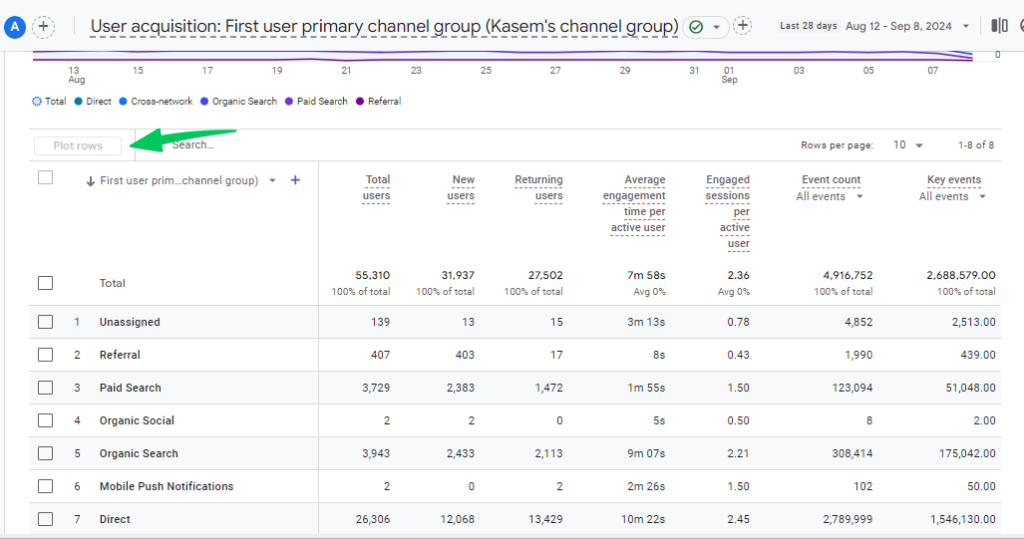
Plot rows in GA4 add the total row and up to five table rows from a detail report to the report’s line chart. Each selected row appears as its own line. Only those rows appear in the chart, so you can compare how each one changes over time.
For example, you can plot the total row next to the rows for two traffic sources to see which source drives a change in total traffic. The worked example later in this guide shows the steps.
Why Use Plot Rows in GA4?
Plot rows let you compare specific rows from a report table on one line chart, which gives you four benefits:
- Better Trend Analysis: Plot specific rows from a detail report to isolate the trend of each row over time. This allows for a more focused analysis than looking at aggregated data.
- Enhanced Comparative Visualization: You can plot multiple rows simultaneously on the same chart, enabling direct visual comparison of their performance and trends. This facilitates the identification of correlations, discrepancies, and patterns between different data points.
- Improved Data Granularity: Instead of relying solely on overall trends, you can see specific segments or components of your data. This reveals insights that might be hidden in the aggregated view.
- Identifying the Driving Forces Behind Overall Trends. For example, if you see a spike in traffic, you can use plot rows to quickly see which specific channels or sources contributed to that spike.
Accessing and Enabling Plot Rows in GA4
To use plot rows, open a detail report in GA4, select the total row and up to five table rows, and click Plot rows at the top of the table.
Here’s how to access plot rows in Google Analytics:
- Head to your GA4 Reports: Log in to your Google Analytics 4 account and navigate to the “Reports” section.
- Navigate to any Report: Open any detail report in GA4 where you have a table of data and a corresponding line chart.
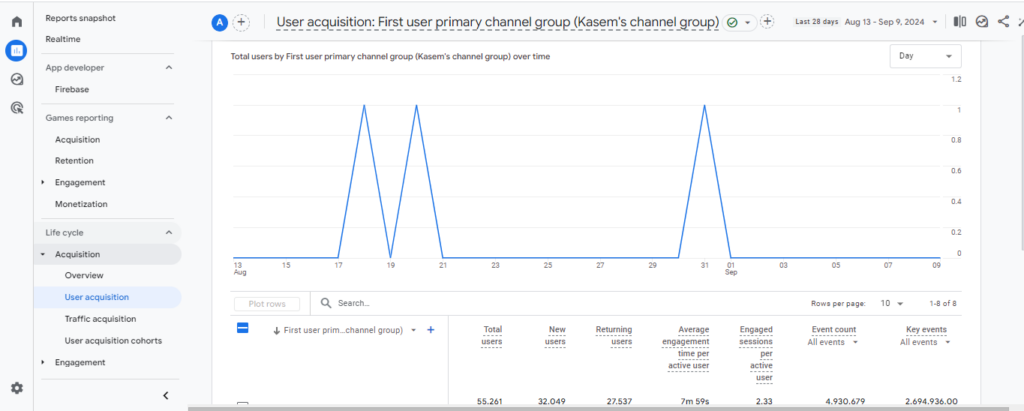
You’ll typically find these in reports like “Acquisition Overview,” “User Acquisition,” or any custom report you’ve created with a line chart.
- Select Rows: In the data table, select the “Total” row and/or up to 5 individual rows that you want to plot on the chart.
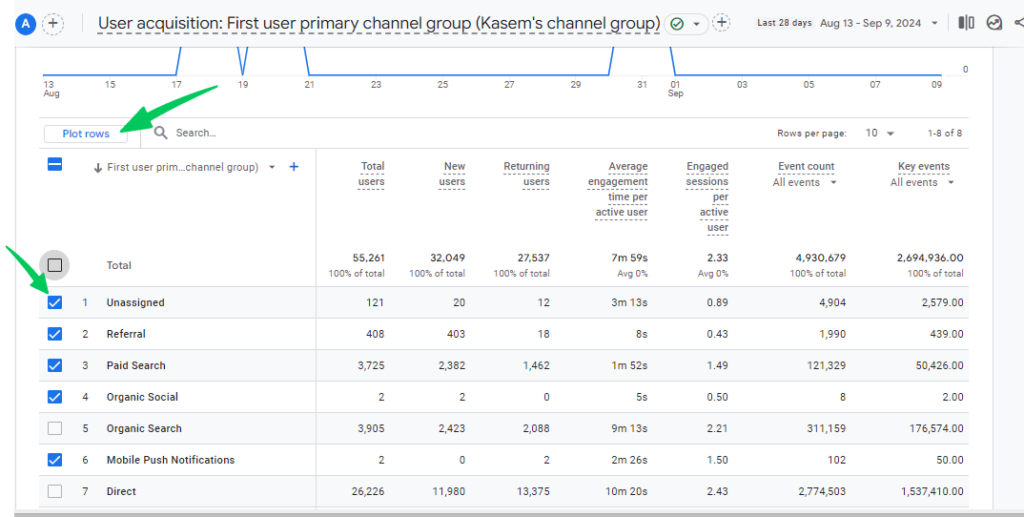
- Click “Plot Rows”: Look for the “Plot rows” option at the top of the table and click on it.
- View the Chart: The line chart will update to display only the selected rows, allowing you to focus on specific trends and comparisons.
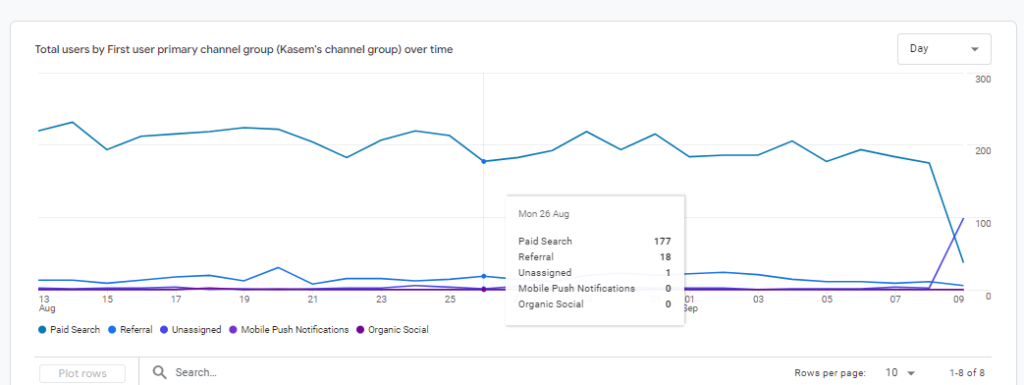
Key Points:
- You can plot the Total rows and a maximum of 5 individual rows at a time.
- This feature is particularly useful for comparing specific dimensions or metrics over time without the clutter of other data.
- The “Plot Rows” functionality enhances the flexibility and customization of data visualization in GA4, enabling users to gain deeper insights into specific aspects of their data.
Remember: The availability of the “Plot Rows” feature may depend on your GA4 account and the specific report you are viewing. If you don’t see the option, it might not be supported in that context yet.
How Plot Rows Can Be Used to Analyze Website Traffic Patterns
Suppose you want to compare the performance of organic search traffic from Google vs. Bing over the last month in Google Analytics charts.
Steps:
- Access the Traffic Acquisition Report: Navigate to Reports>>Acquisition>>Traffic acquisition in GA4.
- Adjust the Date Range: Set the date range to the past month.
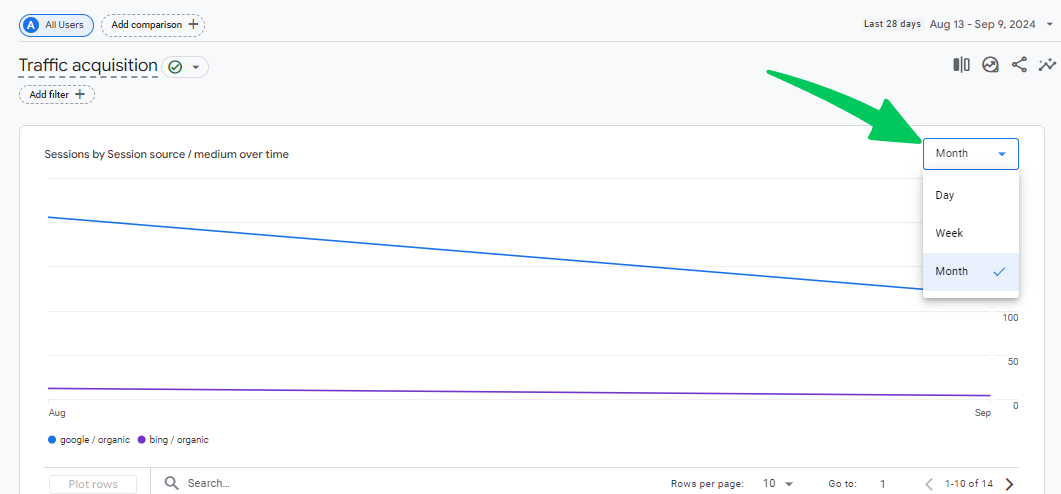
- Identify Relevant Rows: In the data table, locate and select the rows for:
- google / organic
- bing / organic
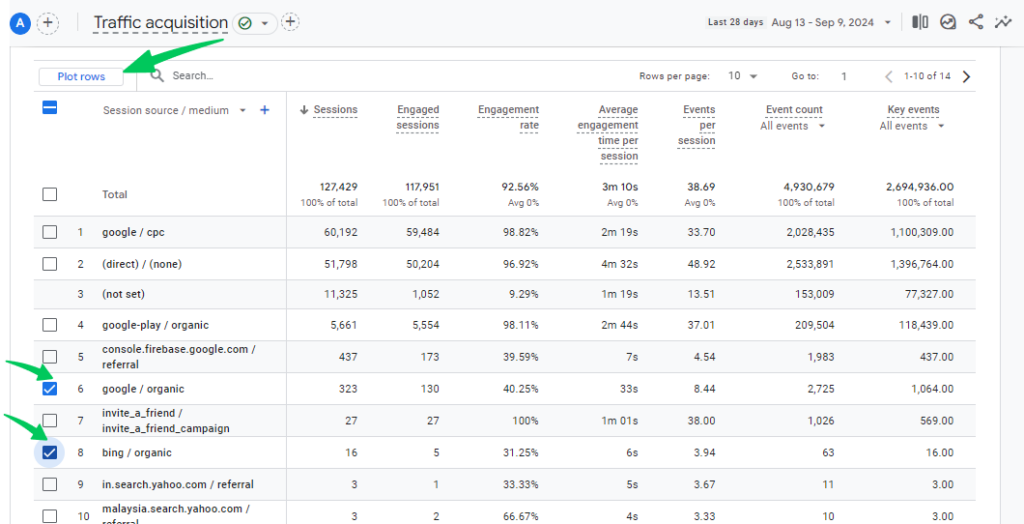
- Plot the Rows: Click the “Plot rows” button at the top of the table.
- Analyze the Chart: The line chart will now display three lines:
- One for the total traffic
- One for “google / organic” traffic
- One for “bing / organic” traffic
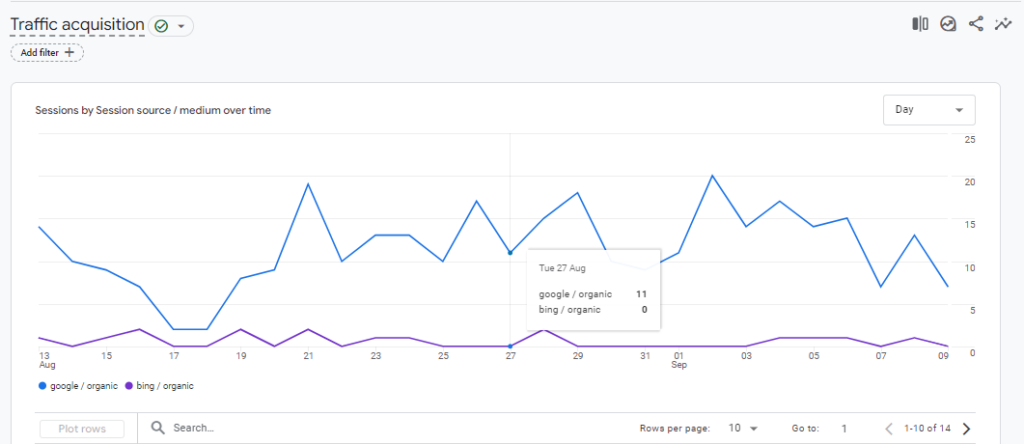
You can visually compare their trends over the month, observing:
- Which search engine drove more traffic overall.
- If there were any significant fluctuations or spikes for either source.
- The relative contribution of each search engine to your total traffic.
Additional Tips:
- You can hover over the chart to see the exact values for each source at specific points in time.
- You can further customize the chart by adding comparisons (e.g., compare to the previous month) or applying segments.
- Consider plotting other relevant dimensions, such as “Session medium” (to compare organic vs. paid traffic) or “Session campaign” (to evaluate the performance of specific campaigns).
Remember: Plot Rows is a powerful tool for isolating and comparing specific trends within your traffic acquisition data, helping you gain deeper insights into your marketing efforts.
Bonus for WordPress Users: Simplify GA4 with Analytify
If you’re a WordPress user using the best Google Analytics plugin to integrate GA4 with your site, you have several options to access and analyze your GA4 data right from your WordPress site.
Join 50,000+ beginners & professionals who use Analytify to simplify their Google Analytics!
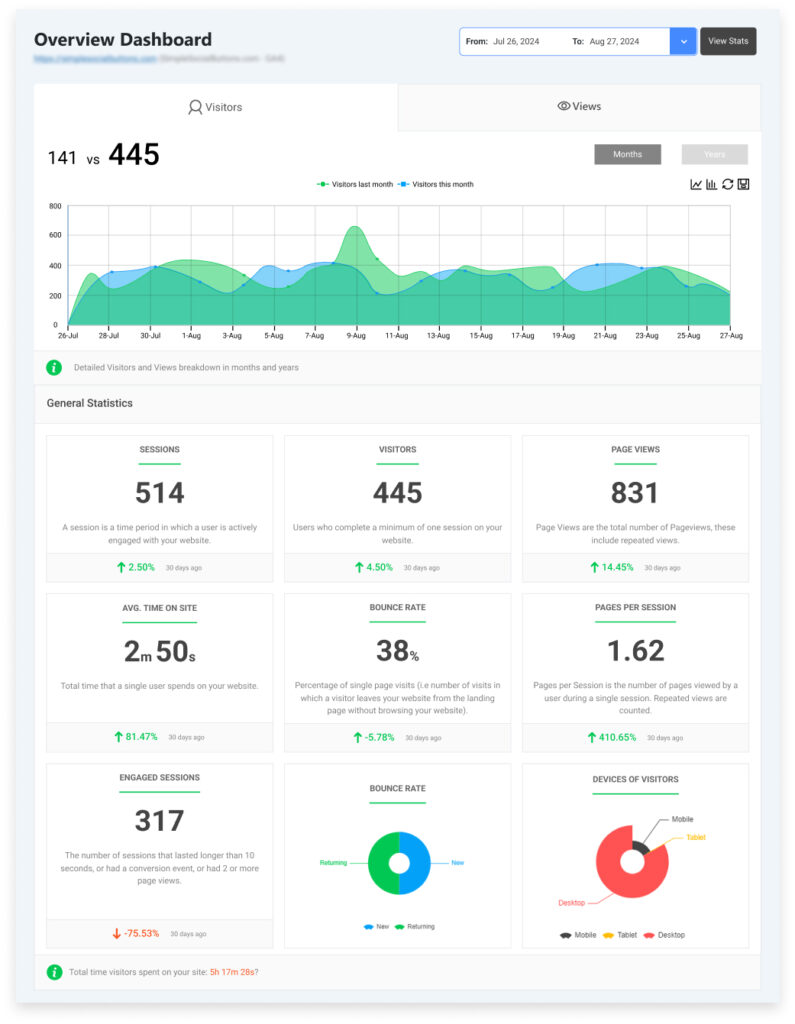
- Analytify Dashboard: Analytify creates a dedicated dashboard within your WordPress admin area. Here, you can access various pre-built GA4 reports.
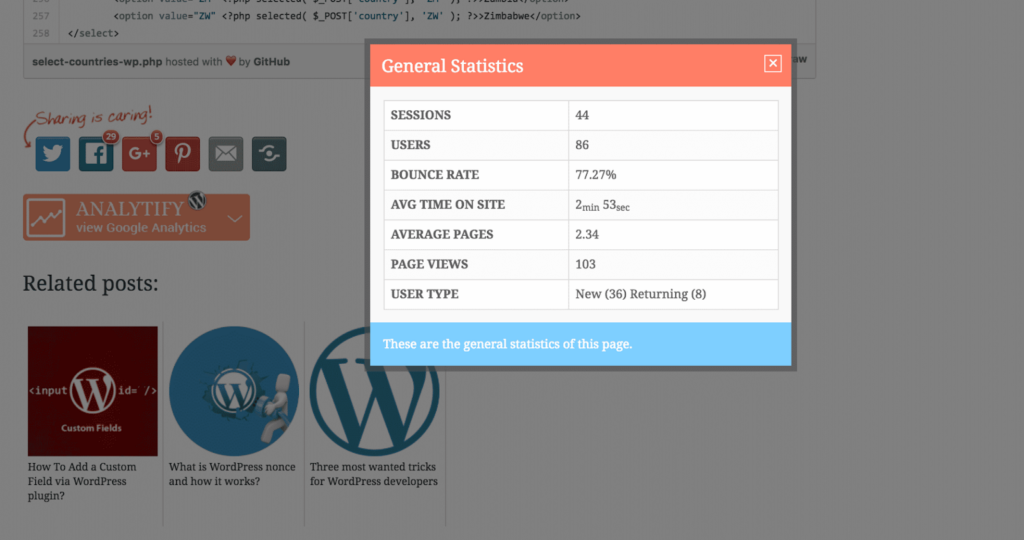
- Frontend Reports: Analytify also allows you to embed GA4 reports directly on your frontend WordPress pages or posts using shortcodes or Gutenberg blocks. This gives you and your team (or even your clients if you’re an agency) the ability to view GA4 data without leaving your WordPress environment.
GA4 Plot Rows (FAQ)
1. How to plot rows in Google Analytics?
In GA4, navigate to a detailed report with a table and line chart.
Select the “Total” row and up to five individual rows in the table.
Click the “Plot rows” button at the top of the table.
The line chart will update to display only the selected rows, allowing you to focus on specific trends and comparisons.
2. What do plot rows mean?
Plot rows is a feature in GA4 that lets you visualize specific rows from a data table directly onto a line chart. It isolates the data you want to see, helping you focus on specific trends and comparisons.
3. How do I track leads in Google Analytics 4?
Identify lead actions: Determine what actions on your website indicate a lead (for example, form submission, download, or signup).
Mark them as key events: If these actions are already tracked as events, go to Admin, click Events under Data display, and select the star icon next to each lead event.
4. What is the other row in GA4?
The (other) row appears when a report has more unique values than its row limit allows. GA4 shows the most common values and groups the rest under (other). This keeps reports clean and focused on the most significant data.
5. How to change the graph in GA4?
You can customize visualizations in GA4 reports and explorations in a few ways:
Change chart type: In some reports, you might be able to switch between line charts, bar charts, pie charts, etc.
Add/remove metrics and dimensions: Choose which data points you want to display on the axes.
Apply filters and segments: Focus on specific subsets of your data.
Use explorations: Create custom visualizations and analyses with more flexibility.
Final Thoughts: GA4 Plot Rows
In this article, we covered plot rows in GA4, from the basics to a worked example with traffic sources.
Key Takeaways:
- Plot rows add the total row and up to five table rows from a detail report to its line chart.
- They enhance clarity and make it easier to compare different metrics simultaneously.
- To plot rows, select them in the report table and click Plot rows at the top of the table.
- Use Plot Rows to identify trends, patterns, and correlations in your data.
- Follow best practices to ensure your charts are informative and easy to understand.
We hope this article helped you understand Plot Rows in Google Analytics 4.
You may also like to read about How to Create a GA4 Landing Page Report.
Now, we want to know which GA4 report you want to use plot rows for. Please let us know in the comment box so that we can discuss it further.