Using the GA4 Ecommerce Checkout Funnel in WordPress

Seeing a high checkout abandonment rate in GA4 without knowing where customers leave can make optimization feel impossible.
A GA4 ecommerce checkout funnel shows exactly how shoppers move from viewing a product to completing a purchase and where they drop off.
In this guide, I will show you how to find these leaks directly in your WordPress dashboard and which specific fixes to apply. Using Analytify, I will show a simplified 3-step WooCommerce funnel that makes your data actionable without ever leaving your site. This is powered by Analytify’s Enhanced eCommerce Tracking with Analytify add-on.
GA4 Ecommerce Checkout Funnel(TOC):
What is a GA4 Ecommerce Checkout Funnel?

A GA4 ecommerce checkout funnel tracks how many shoppers move through each stage of your purchase journey, from viewing a product to adding it to the cart to completing the order, and shows exactly where they drop off.
Understanding these GA4 checkout steps in WordPress is important for identifying friction points that cause potential customers to drop out of the buying process.
In GA4 checkout steps WordPress, these steps are powered by specific events and actions users take on your website. While GA4 records several interactions, four primary events define the standard ecommerce journey.
| GA4 Event | Plain English | WooCommerce Trigger | Visible in Analytify Funnel? |
| view_item | Shopper views a product page | Product page visit | Yes — Step 1: View Item |
| add_to_cart | Shopper adds item to cart | Add to Cart button click | Yes — Step 2: Add to Cart |
| begin_checkout | Shopper starts checkout | “Proceed to Checkout” click | No — (See Overview metrics) |
| purchase | Shopper completes order | Order confirmation page loads | Yes — Step 3: Purchase |
Analytify simplifies the WooCommerce Funnel into three core conversion stages, while the begin_checkout event appears separately in the Overview metrics as “Product Checkouts.”
How Do You Set Up a GA4 Ecommerce Checkout Funnel in WordPress?
To set up a GA4 ecommerce checkout funnel in WordPress, install Analytify Pro with the WooCommerce addon.
Once connected to your GA4 property, the WooCommerce Funnel section appears automatically inside Analytify >> WooCommerce, showing your View Item, Add to Cart, and Purchase drop-offs without any manual configuration.
This approach removes the need for complex tools like Google Tag Manager (GTM) or custom code snippets and helps you track checkout abandonment in GA4.
Because Analytify includes the WooCommerce addon, it handles the heavy lifting of “event tracking”, the process of recording specific user actions, by automatically sending your store’s data to Google.
Follow these steps to activate your WooCommerce GA4 checkout funnel:
- Install Analytify Pro: Download and activate the Pro plugin from the Analytify website to access advanced reporting features.
- Activate the WooCommerce Addon: Navigate to Analytify >> Add-ons, then click “Activate” in the WooCommerce section to enable e-commerce-specific tracking.

- Connect to GA4: Go to Analytify >> Settings and select Authenticate with Google to securely link your WordPress site to your GA4 property.

- Wait for Data Population: Allow 24 to 48 hours for Google to process the new ecommerce events before they appear in your reports.
- View Your Funnel: Navigate to Analytify >> WooCommerce and scroll past the overview metrics to find the WooCommerce Funnel section.

Analytify organizes your GA4 ecommerce data into simplified WordPress dashboards for easier analysis.
Once your GA4 ecommerce checkout funnel is visible, the next step is to learn how to interpret the numbers and identify where you are losing money.
How Do You Read WooCommerce Checkout Steps in GA4?
To read your WooCommerce checkout funnel, open Analytify >> WooCommerce and scroll to the WooCommerce Funnel section. Check the Abandonment Rate column for each step: a high abandonment rate between View Item and Add to Cart indicates the product page is not convincing, while a high abandonment rate between Add to Cart and Purchase points to friction in the checkout or payment process.
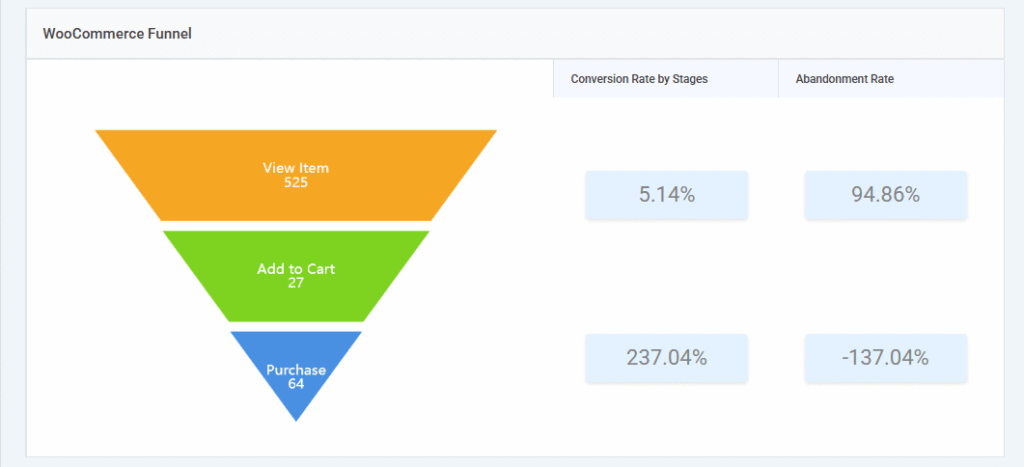
Within this dashboard, Analytify presents your GA4 checkout steps in WordPress using two primary metrics.
First, the Conversion Rate by Stages shows the percentage of shoppers who successfully moved from the current step to the next.
Second, the Abandonment Rate shows the percentage of visitors who exited the funnel at that specific stage.
But seeing where people drop off is only half the job. Here is what each pattern means and what to fix:
| Drop-Off Location | What It Means | Most Likely Cause | First Thing to Check |
| View Item to Add to Cart | The product page is not converting | Price, low-quality images, or missing reviews | Compare conversion rates of similar products |
| Add to Cart to Purchase | Checkout or payment friction | High shipping costs, forced account creation, or missing payment options | Guest checkout settings and shipping cost visibility |
| Both transitions high | Tracking issue or site-wide trust problem | Misconfigured events or a lack of site credibility | Compare GA4 purchase counts to actual WooCommerce orders |
The key insight is simple: the stage with the highest Abandonment Rate is your highest-priority fix. For a more granular view, look at the Overview section just above the funnel.
It displays Product Checkouts as a raw count; this represents the begin_checkout data. By cross-referencing this count with your funnel, you can determine whether shoppers leave immediately after clicking “Checkout” or later during the payment phase.
How Do You Analyze GA4 Checkout Drop-Offs in WordPress?
To improve checkout conversions WordPress, open Analytify >> WooCommerce, scroll to the WooCommerce Funnel section, and identify the step with the highest Abandonment Rate; that is where to focus first.
Conducting a GA4 ecommerce drop-off analysis doesn’t require complex data science; it just requires knowing which numbers indicate a “leak” in your sales process.
You can perform a complete analysis on GA4 eCommerce checkout funnel using these two workflows:
- The 30-Second Dashboard Check: Open your Analytify WooCommerce dashboard and head straight to the visual funnel. Look at the Abandonment Rate, the percentage of users who left the funnel at a specific stage, for each step. If “Add to Cart” has a 90% abandonment rate, you immediately know your product pages are failing to convince visitors.
- Product-Level Inspection: Scroll just below the funnel to the Product Performance table. Focus on the Cart-to-Detail Rate (how many people added a product to their cart after viewing it) and the Buy-to-Detail Rate (how many people actually bought it after viewing it). This tells you if specific products are dragging down your overall funnel performance.
For a deeper drill-down on your GA4 eCommerce checkout funnel , you may want to use the GA4 Explore section for a “Funnel Exploration” report. This is useful when you want to segment your data into smaller groups by device category or traffic source.
This native Google report also includes the begin_checkout step as an optional metric if you need to see exactly when the checkout form was first opened.
Note: Watch for False Positives. Always compare your GA4 transaction count to your actual WooCommerce order count weekly. It is normal to see a 5–10% difference due to ad blockers or cookie consent settings.
However, if the gap exceeds 15%, you likely have a tracking issue that needs to be fixed before you can trust your analysis.
Finding funnel leaks is only useful if you turn those insights into measurable conversion improvements.
How Do You Use GA4 Data to Improve Checkout Conversions?
To use GA4 data to improve WooCommerce checkout conversions, match each funnel drop-off to its most common cause and apply the fix: high abandonment on View Item to Add to Cart means better product pages, high abandonment on Add to Cart to Purchase means removing checkout friction, and the Measuring ROI table in Analytify tells you which traffic sources actually drive completed orders.
Use the following table to pair your funnel data with specific site improvements for GA4 eCommerce checkout funnel:
| Drop-Off Stage | Most Common Cause | Fastest Fix to Test | How to Track Improvement |
| View Item to Add to Cart | The product page is not convincing | Add product reviews, improve hero images, or show shipping costs early | Check the Cart-to-Detail Rate in Analytify Products Performance |
| Add to Cart to Purchase | Checkout friction or surprise costs | Enable guest checkout, show a free shipping threshold, or add more payment methods | Check Abandonment Rate in the WooCommerce Funnel |
| High abandonment across both | Tracking gap or site-wide trust issue | Verify events in GA4 DebugView and compare GA4 transactions to admin orders | Fix tracking first; funnel data is unreliable until order counts match |
Beyond the funnel, you should scroll down to the Measuring ROI table. This section displays your Source/Medium, the specific origin of your traffic, like Google search or a Facebook ad, alongside Sessions, Bounce Rate (the percentage of visitors who leave after viewing just one page), and Transactions Revenue.

By focusing on channels with low bounce rates and high revenue, you can stop wasting ad spend on “browsers” and optimize for buyers. To maintain a high-performing store, adopt these three ongoing actions:
- Review the WooCommerce Funnel weekly: Don’t obsess over daily fluctuations; look for weekly trends instead.
- Benchmark your changes: When you update a checkout form or product page, note the date and compare your Abandonment Rate exactly 14 days later.
- Automate your insights: Use Analytify’s automated email reports to get these WooCommerce stats delivered to your inbox every week.
If jumping between GA4 tabs and your WordPress dashboard every week is slowing you down, Analytify with the WooCommerce addon brings your 3-step checkout funnel and traffic attribution into one screen.
Does Analytify Track Checkouts for Non-WooCommerce Stores?
Yes, Analytify also provides dedicated dashboard sections for LifterLMS, PMPro, and Easy Digital Downloads (EDD), where you can check the GA4 eCommerce checkout funnel.
Each platform has its own analytics view inside WordPress, completely separate from the WooCommerce dashboard.
This ensures that whether you are selling digital files, online courses, or memberships, you can track your specific sales performance without digging through generic reports.
Analytify offers tailored tracking for several non-WooCommerce platforms:
- Easy Digital Downloads (EDD): Monitor downloads, earnings, and sales for your digital storefront. With the EDD dashboard, find out how and when customers use them and what their conversions are:
- Track coupon usage and conversion rates
- Monitor total transactions made with coupons
- View the total number of refunds and the refunded amount
- Use data to make informed decisions about coupon usage

- LifterLMS: Track course progress and student engagement metrics. See exactly how learners discover, browse, and engage with your content.
- Track course page views and unique visitor sessions
- Monitor conversion rates and course entry points
- Analyze learner behavior across course pages
- Optimize course visibility and content engagement

- Paid Memberships Pro (PMPro): Analyze membership sign-ups and recurring revenue data for GA4 ecommerce checkout funnel. You can check drop-offs and optimize each stage of your conversion flow.
- Track conversion rates and abandonment rates at each stage
- Identify where prospective members drop off before completing checkout
- Optimize your membership pages for higher conversions

Having these individual sections means you don’t have to deal with isolated data that is hard to combine, because all your ecommerce stats are organized by the exact plugin you use.
FAQs
1. How do I see WooCommerce checkout steps in GA4?
Analytify shows WooCommerce checkout steps inside WordPress at Analytify >> WooCommerce. Scroll to the WooCommerce Funnel section to see 3 steps: View Item, Add to Cart, and Purchase, each with a Conversion Rate by Stages and Abandonment Rate. For a 4-step view that includes the begin_checkout stage, open GA4 > Reports > Monetization > Purchase Journey.
2. How do I analyze GA4 checkout drop-offs in WordPress?
Open Analytify >> WooCommerce and scroll to the WooCommerce Funnel. Check the Abandonment Rate column for each step. The step with the highest Abandonment Rate is your first optimization priority. For a device-level breakdown (mobile vs desktop), open Explore > Funnel Exploration in GA4, add your ecommerce events as steps, and apply device category as a segment comparison.
3. What GA4 ecommerce events does WooCommerce track?
The four core GA4 ecommerce events for WooCommerce are view_item (product page visit), add_to_cart (cart addition), begin_checkout (checkout start), and purchase (completed order). Analytify Pro with the WooCommerce addon automatically fires all four events. The WooCommerce Funnel dashboard shows View Item, Add to Cart, and Purchase. The begin_checkout count appears separately as ‘Product Checkouts’ in the Overview metrics above the funnel.
4. Why does GA4 show different numbers than my WooCommerce order count?
A 5–10% difference between GA4 purchase events and WooCommerce orders is normal, caused by ad blockers, browser privacy settings, and consent restrictions. A gap above 15% indicates a tracking problem. Go to GA4 >> Admin >> DebugView, then complete a test purchase to verify that your purchase event is firing. If GA4 misses the event, check your Measurement ID in Analytify >> Settings.
5. Why is the WooCommerce Funnel in Analytify not showing data?
The WooCommerce Funnel in Analytify shows no data because ecommerce events are not firing to GA4. Verify in GA4 >> Admin >> DebugView that view_item, add_to_cart, and purchase events appear when you simulate those actions on your store. Check that the WooCommerce addon is active under Analytify >> Add-ons and that your GA4 Measurement ID is entered correctly in Analytify >> Settings. Allow 24–48 hours after setup for data to populate.
Conclusion: GA4 Ecommerce Checkout Funnel
Your GA4 checkout funnel data already shows you exactly which step in your sales process is leaking revenue.
By matching each drop-off pattern to its specific fix and tracking the results, you can systematically lower your abandonment rate, the percentage of shoppers who leave your site before completing a purchase.
To turn this GA4 eCommerce checkout funnel, follow these three steps:
- Activate Analytify Pro: Install the plugin and the WooCommerce addon, then connect your GA4 property to start tracking events such as view_item (viewing a product) and purchase (completing an order).
- Identify Your Biggest Leak: Open Analytify >> WooCommerce, scroll to the WooCommerce Funnel, and find the stage with the highest Abandonment Rate.
- Apply and Test a Fix: Implement the matching solution from this guide, record the change date, and compare your funnel performance in 14 days to measure success.
Set up your WooCommerce checkout funnel tracking in Analytify
That is all for this post. For more related posts, check:
- How to Set Up WooCommerce Conversion Tracking (Complete Guide)
- Micro-Conversions: How to Track the Signals That Drive Sales
- Website KPIs That Actually Matter (And How to Track Them Easily)
Which stage of your checkout funnel is the biggest ‘leak’ right now, and what is the first change you’re going to test to fix it?