
GA4 Organic Traffic Report for WordPress Sites (Explained)

You’ve likely spent twenty minutes clicking through Google Analytics 4 menus just to find a simple list of which blog posts are actually growing.
It is frustrating to have all that data at your fingertips but still feel like you’re guessing which content is performing. You need to know which posts attract visitors from search engines, not just the total traffic number.
In this guide, I will show you exactly where the GA4 organic traffic report lives and how to decode the metrics. We will also look at how you can see organic traffic, the visitors who find you via search engines like Google, directly on your WordPress dashboard using Analytify.
I will also cover what this report actually tells you, how to distinguish between organic and direct traffic, and how to connect Google Search Console to view your keywords.
First, let’s look at what the data is actually telling you.
GA4 Organic Traffic Report (TOC):
What Is Organic Traffic in Google Analytics 4
The Google Analytics organic traffic report shows sessions and users who arrived from unpaid search engine results, categorized under the Organic Search channel in the Traffic Acquisition report.
Organic traffic includes any unpaid clicks from search engines like Google, Bing, or DuckDuckGo.
Google Analytics 4 classifies a visit as organic when the medium and the source’s general category are “organic,” and no paid tracking tags (such as a gclid from Google Ads) are present.
It serves as a health check for your SEO efforts, showing you which pages are attracting visitors naturally without a dedicated ad spend.
However, it is important to note that this report does not show specific search keywords by default. Because Google began encrypting keyword data years ago, GA4 natively hides the exact terms people typed to find you.
To see those specific keywords, you must integrate Google Search Console, which we will cover later in this guide.
Once you understand what organic traffic is in Google Analytics and what the data represents, the next step is to locate it in the complex GA4 interface.
Where to Find the GA4 Organic Traffic Report
The GA4 organic traffic report is inside Reports >> Acquisition >> Traffic Acquisition, filtered to the Organic Search channel.
Finding this report allows you to isolate visitors who found you via search engines from those who clicked on an ad or a social media link.
Follow these steps to access your data and understand what organic traffic is in Google Analytics:
Step 1: Log in to GA4
Open your Google Analytics dashboard for the property associated with your WordPress site.
Step 2: Navigate to Traffic Acquisition
Click the Reports icon in the primary left-hand navigation menu. Select Acquisition and then click Traffic Acquisition. This Google Analytics organic traffic report shows where your sessions come from.

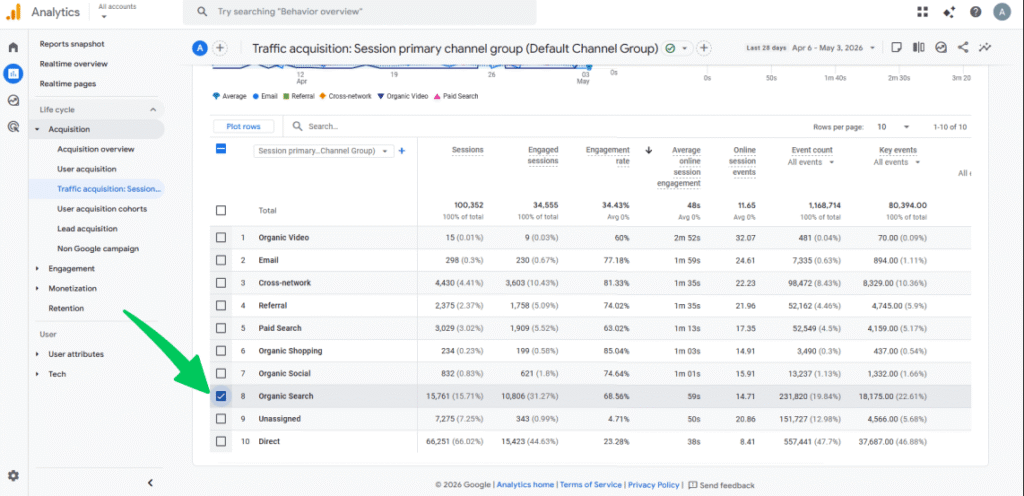
Step 3: Locate GA4 Organic Search Traffic
Scroll down to the table and find the row labeled Organic Search.
Step 4: Filter the View
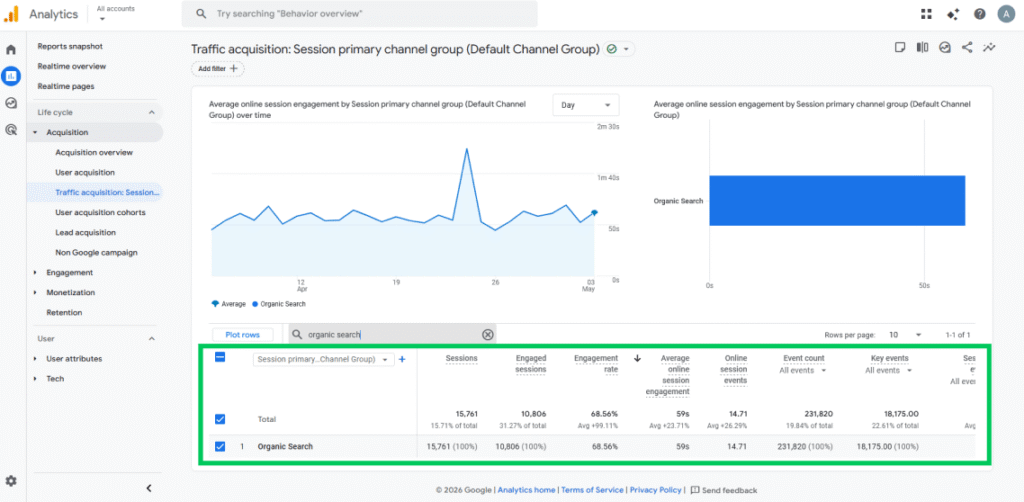
Click the Organic Search text in Google Analytics organic traffic, or use the search bar above the table to filter the report to show only search engine data.
Step 5: Compare Date
Use the date range selector in the top right to compare your current performance of GA4 organic search traffic against the previous period (e.g., last 28 days vs. previous 28 days).

Key Metrics in the GA4 Organic Traffic Report
When you look at this table, focus on these four key metrics to judge your SEO health using Google Analytics organic traffic:
| Metric | What It Means | What to Watch |
| Sessions | Total visits from organic search. | Trending up means your SEO is working. |
| Engaged sessions | Visits lasting 10+ seconds or resulting in a conversion. | Low numbers suggest the content doesn’t match the search intent. |
| Engagement rate | The % of total sessions that were “engaged.” | If this is below 40%, you may have a “bounce” issue. |
| New users | First-time visitors arriving via search. | High numbers mean you are reaching a fresh audience. |
GA4 Organic vs Direct Traffic
In GA4, Organic Search traffic comes from unpaid search results, while direct traffic comes from visitors with no trackable source, such as untagged links, bookmarks, and app clicks.
Distinguishing between these two is necessary for GA4 organic traffic analysis, as your growth stems from active SEO efforts or from existing brand recognition.
Understanding these differences helps you identify potential blind spots in your marketing.
Use the table below to quickly compare how Google Analytics 4 categorizes these visitors:
| Factor | Organic Search | Direct |
| Source | Google, Bing, DuckDuckGo (unpaid) | No identifiable source |
| Common cause | User clicked a search result | Typed URL, bookmark, or untagged link |
| What it signals | SEO content is working | Brand awareness or tracking gap |
| When to investigate | If organic drops suddenly | If Direct is over 30% of sessions |
If Direct traffic accounts for more than 30% of your total sessions, you likely have a tracking issue rather than a massive surge in brand fans.
This often happens when marketing links in emails, social media posts, or mobile apps lack tracking parameters.
Before assuming your brand awareness is skyrocketing, perform a UTM audit using specific tags to identify where a link was clicked, ensuring your traffic is categorized correctly.
Analytify helps you monitor this balance by showing a clear traffic source breakdown directly in your WordPress dashboard, making GA4 organic traffic analysis easy to spot shifts in how people arrive at your site.

Traffic source alone isn’t enough; you need page-level insights to act on it.
How to See Organic Traffic Per Post in WordPress
Using Analytify, you can check GA4 organic traffic data inside your WordPress dashboard, including per-post stats directly below each post in the editor, without requiring you to open GA4.
This GA4 organic traffic analysis setup eliminates the constant switching between your content and a separate analytics tab, keeping your focus where you actually work.
When you log in to WordPress, the Analytify overview dashboard immediately displays your most important metrics. You can see Users, the unique individuals visiting your site, and Sessions broken down by channel.
This allows you to confirm that Organic Search is driving the traffic you expect without digging through multiple Google Analytics menus.
For those who publish regularly, the per-post stats are particularly useful. Instead of searching for a specific URL in GA4, you can view performance data directly below the post you are currently editing.
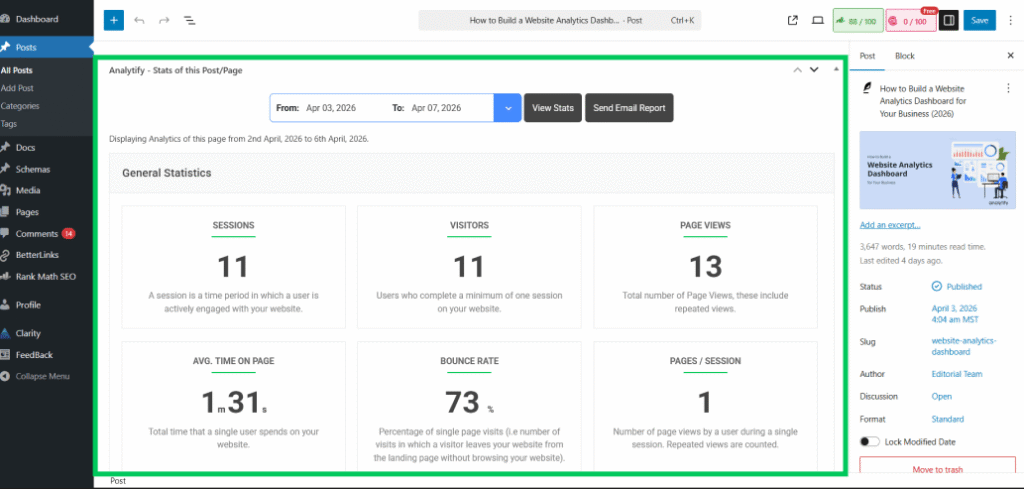
This section displays traffic to that specific page, broken down by source, so you know exactly how many people found that particular post through a search engine.
This feature is designed for site owners who want to quickly check post performance while managing their content.
Seeing these numbers in context helps you understand which topics resonate most with your audience.
While seeing the traffic totals for each post is helpful, you might also want to know the exact words people typed into Google to find you.
How to Connect GA4 with Search Console for Keywords
To see the GA4 organic keywords with Search Console, you must link Google Search Console to your GA4 property and publish the Search Console report collection.
While the organic traffic report tells you where users came from, Search Console integration tells you why, revealing the specific queries they typed into Google.
Follow these steps to bridge the gap between your search rankings and your analytics data:
Step 1: Link Search Console to GA4
First, you need to create a data pipeline between the two platforms.
- Log in to GA4 and click the Admin icon in the bottom left.
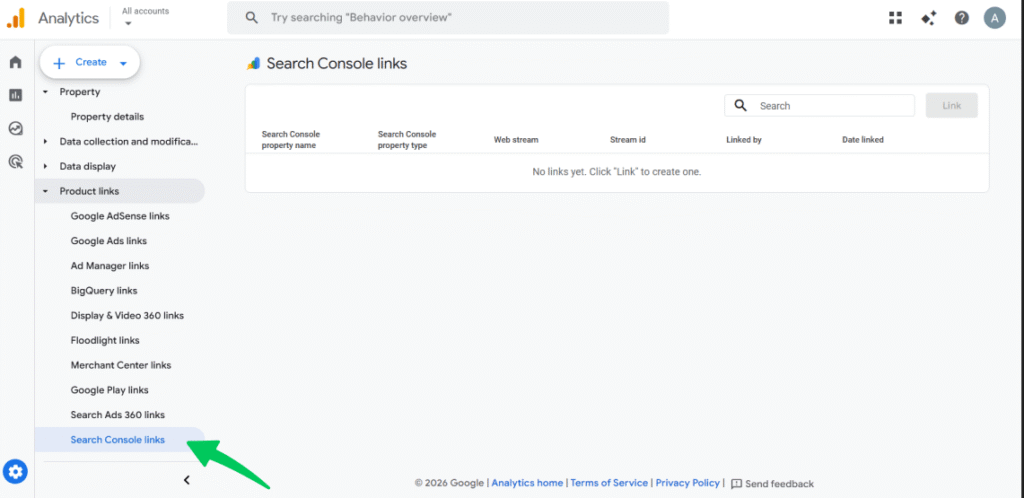
Under the Property column, scroll down to Product Links and select Search Console Links.
- Click the blue Link button.
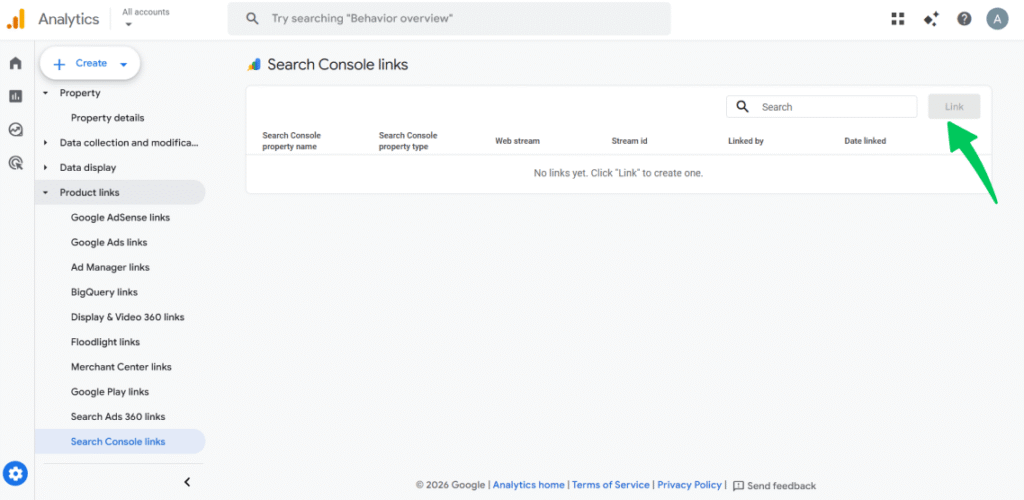
- Click Choose Accounts to select your verified Search Console property.
- Select your GA4 web data stream (your website’s tracking ID).
- Review your settings and click Submit.
Step 2: Publish the Search Console Report Collection
Surprisingly, linking the accounts doesn’t make the data appear in your menu immediately. You have to “publish” the reports manually.
- Navigate to Reports >> Library (the folder icon at the bottom of the Reports menu).
- Find the card labeled Search Console.
- Click the three dots (vertical ellipsis) and select Publish. The “Search Console” section will now appear in your left-hand navigation.
Step 3: Read the Organic Search Queries Report
With the reports published, go to Reports >> Search Console >> Queries. This report displays the exact terms users used to find you. Focus on these metrics:
- Organic Google Search Clicks: The number of times users clicked your site in search results.
- Impressions: How many times your site appeared in search results.
- CTR (Click-Through Rate): The percentage of impressions that resulted in a click.
- Average Position: Your site’s typical ranking for that specific keyword.
Step 4: Use Analytify to see this data in WordPress
If navigating the GA4 Library feels like extra work, you can use the Analytify Search Console Report to understand the differences between GA4 organic vs direct traffic.
It pulls your top-performing organic keywords and their ranking pages directly into your WordPress dashboard. You can see which search terms drive the most value without ever leaving your site.

Note: Search Console data takes 24–48 hours to sync with GA4 after you link them. Additionally, keep in mind that Search Console only retains data for the past 16 months, so you won’t see keyword trends older than that.
Now that you’ve connected GA4 organic keywords with Search Console, it’s time to use this information to improve your content’s performance.
How to Analyze GA4 Organic Traffic to Improve SEO
To improve SEO using the GA4 organic traffic report, look at which pages have high impressions but low clicks, which pages have high clicks but low engagement rate, and which posts have declining organic sessions compared to the previous period.
Identifying these patterns allows you to move beyond simply observing data and start taking specific actions to grow your search visibility.
Use this decision framework to diagnose and fix common SEO issues:
| What You See | What It Means | What to Do |
| High impressions, low CTR | Your page ranks, but the title or meta description is not compelling. | Action: Rewrite the title tag and meta description to better appeal to searchers. |
| Good organic sessions, low engagement rate | Visitors arrive, but the content does not match their search intent. | Action: Review your opening section and ensure the content aligns with the user’s goal. |
| Organic traffic is dropping on a specific post | You may have experienced a ranking drop, or the content may have become stale. | Action: Update the post with fresh information and check for recent algorithm changes. |
| Organic search traffic is growing | Your SEO strategy is working effectively for this specific content type. | Action: Replicate this format and topic cluster across other areas of your site. |
When you see organic sessions, it means the total visits, while engaged sessions showcase the sessions with activity (10s+, conversion, or 2+ views) on your site after a search.
If your ranking position remains steady but your sessions are falling, investigate your CTR (Click-Through Rate).
External factors, such as changes to the SERP (Search Engine Results Page) layout or the presence of an AI Overview above your organic result, may be diverting clicks away from your link.
Analyzing these trends helps you prioritize which posts need an update to maintain your hard-earned rankings.
Frequently Asked Questions
1. Where is the organic traffic report in GA4?
The organic traffic report in GA4 is inside Reports >> Acquisition >> Traffic Acquisition. In the table, find the row labeled Organic Search and click it to filter the report to that channel. You can also use the search bar at the top of the table to filter by channel name.
2. Why is organic traffic not showing in GA4?
Organic traffic may not appear in GA4 for several reasons: the GA4 tracking code is not installed correctly on your WordPress site, your site has cookie consent settings blocking GA4 from firing, or your date range is set to a period before your GA4 property collected data. If tracking is confirmed to be working but numbers look very low, check that the Traffic Acquisition report is not filtered to a different channel group.
3. Can GA4 show organic search keywords?
GA4 does not show organic keywords natively because Google encrypts search query data for privacy reasons. To see the keywords driving organic traffic, you must link Google Search Console to your GA4 property. Once linked and published, the Search Console Queries report shows exact search terms along with clicks, impressions, CTR, and average position.
4. What is the difference between organic and direct traffic in GA4?
Organic traffic in GA4 comes from unpaid search engine results. Direct traffic comes from visitors with no identifiable source, which includes typed URLs, bookmarks, and untagged marketing links. If Direct traffic is unusually high (over 30% of sessions), audit your UTM tagging to ensure campaigns are tracked correctly.
5. How do I see organic traffic per post in WordPress?
Use Analytify to see organic traffic per post directly inside WordPress. After installing and connecting Analytify to your GA4 property, post-level traffic data appears below each post in the WordPress editor. This shows sessions, users, and page views broken down by traffic source, including organic search, without requiring you to open GA4.
Conclusion: GA4 Organic Keywords With Search Console
The GA4 organic traffic report tells you how many visitors found your site through search. Connecting it to per-post data and Search Console keywords turns it from a raw number into a concrete SEO action plan.
To start using this data effectively, we can follow these three steps:
- Review Your Top Pages: Open GA4 >> Traffic Acquisition and filter to Organic Search. Note your top three landing pages, the first pages visitors see when they arrive, by organic sessions.
- Enable Keyword Data: Link Google Search Console to GA4 and publish the Search Console collection. Review the Queries report to find keywords with high impressions but low CTR (Click-Through Rate), which indicates your titles might need an update.
- Simplify Your Workflow: Install Analytify to see organic traffic per post inside WordPress without switching between platforms.
If you are also looking to customize your WordPress login page, LoginPress lets you design, secure, and control your login experience from one place.
That is all for this post. For more related posts, check:
- How to Analyze Traffic Sources in GA4 (Step-by-Step)
- How to Build AI-Optimized Reports Using Analytify (for Teams & Clients)
- How to Read GA4 Traffic Reports in WordPress (2026)
With your Search Console now connected, what’s the first ‘high impression, low click’ keyword you’re going to optimize for? We’d love to hear your strategy below!


 Halloween Sale: Know which campaigns drive sales this season.