How to Read GA4 Traffic Reports in WordPress (2026)

GA4 traffic reports tell you exactly where your traffic comes from, but finding that information usually means navigating complex menus and decoding channel names that aren’t easy to understand.
Most WordPress site owners give up before they get the answers they need to grow their business.
This guide will help you understand GA4 user acquisition for beginners, using simple explanations to demonstrate what each channel means, where to find your data, and what to do with it.
You will learn how to navigate the two primary acquisition reports, understand the 6 main traffic channels, and view all this data directly in your WordPress dashboard with Analytify, without having to access GA4.
GA4 Traffic Reports In WordPress (TOC):
The 6 GA4 Traffic Channels Explained for WordPress
GA4 traffic reports in WordPress automatically group your visitors into channel categories.
These GA4 traffic channels explained for WordPress can help you differentiate between guessing and knowing which marketing efforts are profitable.
Check out the quick traffic channels summary I have added in the infographic below:

- Organic Search
- What it is: Visitors who found your site by typing a query into Google, Bing, or another search engine and clicked a non-paid result.
- What counts: GA4 assigns the “organic” medium when no paid tracking tag is present, and the referral source is a recognized search engine.
- What to do: Organic search is your SEO scorecard. If it is growing, your content strategy is working. If it is flat while overall traffic grows, your site is likely over-reliant on paid ads or social media.
- Common mistake: Do not confuse high volume with high quality. A page with 5,000 organic visits but zero conversions is underperforming just as much as one with 50 visits.
- Direct
- What it is: Sessions where GA4 cannot determine the source, the visitor typed your URL directly, used a bookmark, or arrived via an untracked link.
- Important accuracy note: “Direct” in GA4 is often inflated by untagged marketing links, app traffic, or “link-in-bio” clicks that aren’t UTM-tagged.
- What to do: If Direct traffic accounts for more than 30% of your total sessions, audit your links. Ensure your email campaigns and social bios use UTM parameters. Untagged links get dumped into Direct, hiding your true ROI.
- Referral
- What it is: Visitors who clicked a link to your site from another website that is not a search engine or social media platform.
- What counts: Blog mentions, partner sites, press coverage, directory listings, and affiliate links.
- What to do: High-quality referral traffic is a massive trust signal. Note which referring domains drive “engaged” visitors (those with a high engagement rate) versus those that bounce immediately.
- Organic Social
- What it is: Visitors from unpaid posts on social media platforms like Instagram, LinkedIn, Facebook, X (Twitter), Pinterest, and TikTok.
- What to do: Compare organic social volume against your engagement rate. Social visitors are often “browsing” rather than “searching,” leading to lower conversion intent. If social traffic drives high traffic but low sales, focus on improving your landing page “hook.”
- What it is: Visitors who clicked a link in one of your email campaigns, identified by a UTM medium tagged as “email.”
- Critical note: Email traffic will show as “Direct” if your campaigns don’t use UTM parameters. If you send a weekly newsletter but see zero “Email” traffic in GA4, your tagging is likely broken. Always use utm_medium=email.
- What to do: Email is typically the highest-converting channel for WordPress businesses. People who buy products through email marketing spend up to 138% more than buyers who didn’t receive the email. If your email traffic is low, check your technical tagging before assuming your newsletter isn’t working.
- Paid Search
- What it is: Visitors from paid ads on search engines like Google Ads or Microsoft Ads. This requires auto-tagging or utm_medium=cpc tags.
- What to do: Compare your Paid Search engagement rate against Organic Search for the same pages. If paid traffic converts significantly less than organic on the same page, you likely have a targeting mismatch in your ad settings.
Where to See GA4 Traffic Reports In WordPress Using Analytify
You can see GA4 traffic sources in WordPress by using Analytify, which displays your acquisition data directly inside your dashboard without opening GA4. If you haven’t connected your site to GA4 yet, start with our guide on How to Set Up Google Analytics 4 and Connect it to Your WordPress Site?
It doesn’t just display the data; it translates complex GA4 acquisition metrics into a beginner-friendly format that you can access without ever leaving your site.
Here is how you can check your GA4 traffic reports in WordPress using Analytify:
Why Analytify is the Best Way to Read GA4 Traffic Reports
Instead of navigating through multiple GA4 sub-menus and fighting with interface limitations, Analytify provides a streamlined view of exactly where your visitors are coming from.
- Native WordPress Overview Dashboard: The moment you log in, Analytify shows your primary traffic metrics, Users, Sessions, and Page Views, broken down by channel. You get a clear visual of whether Organic Search, Direct, or Social traffic is leading the pack.
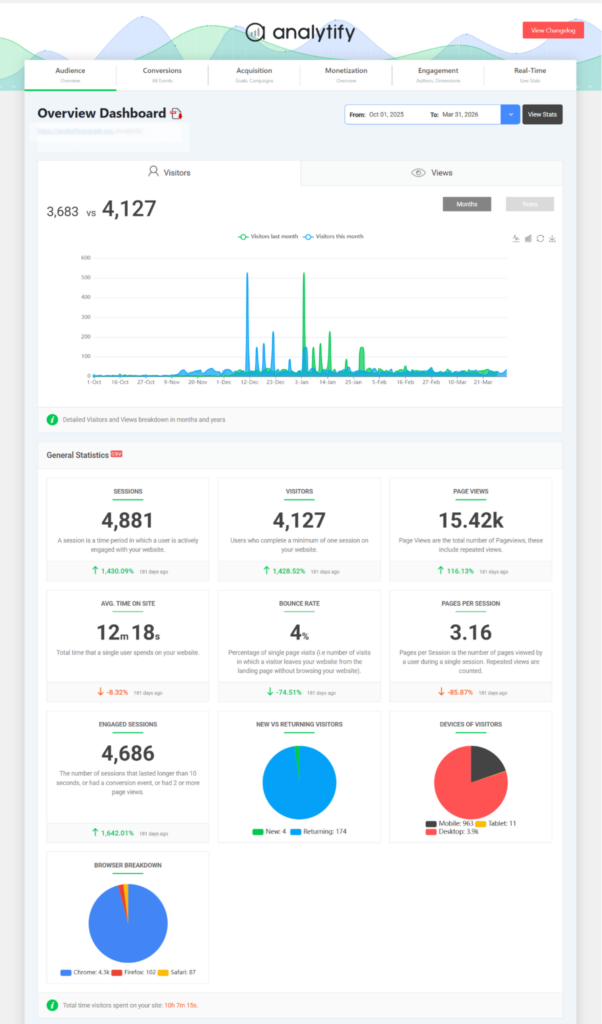
- Simplified Channel Breakdowns: Analytify presents your traffic sources in a clean, high-level summary. It’s designed specifically for founders and marketers who need to make quick decisions without becoming data analysts.
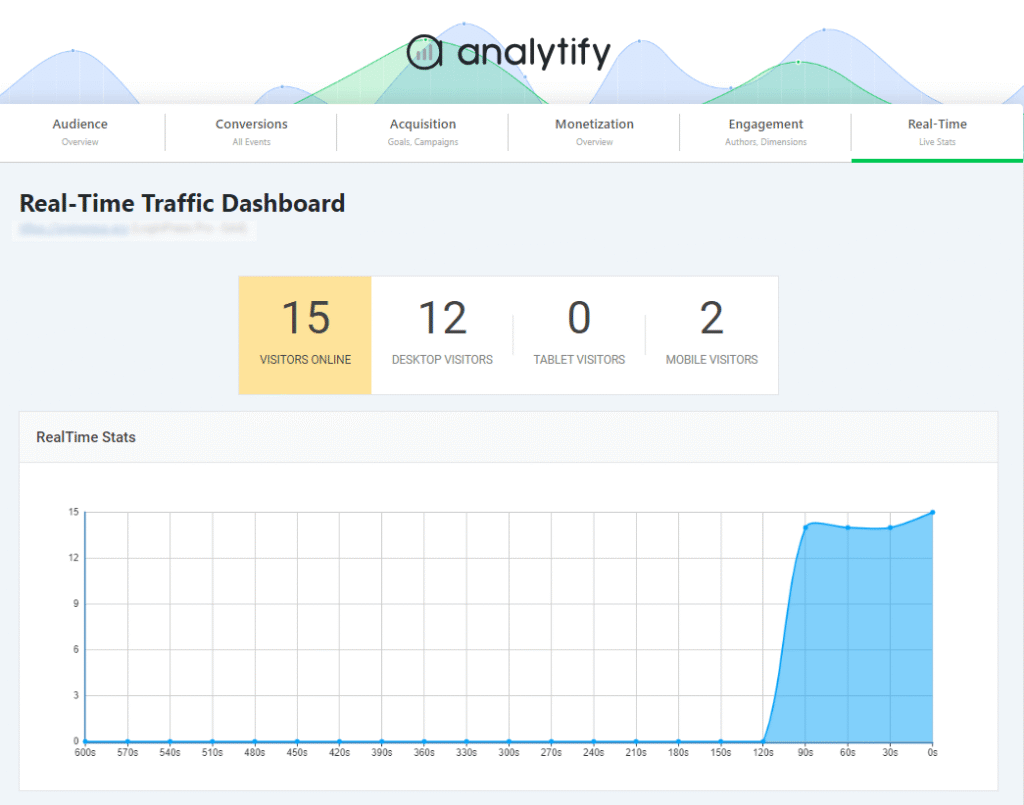
- Real-Time Traffic Insights: Analytify’s real-time feature shows you exactly who is on your site right now and which source sent them there, all within your WordPress admin area.
- Campaign Tracking: If you struggle to find your email or paid ad performance in GA4, Analytify’s Campaign Tracking add-on pulls that data to the forefront. You can see exactly which specific marketing campaigns are driving engagement and conversions without setting up secondary dimensions or complex filters.

- Automated Email Reports: You don’t even have to log in to WordPress to stay informed. Analytify can send weekly or monthly traffic summaries directly to your inbox, highlighting your top-performing channels so you never miss a trend.

For many users, the native GA4 interface feels like a “read-only” environment where you can’t easily add the metrics that matter (like Engagement Rate or specific Key Events) without technical knowledge.
By using Analytify as your primary lens for GA4, you stop fighting the interface and start using your data to grow your WordPress site.
Ready to simplify your analytics? Try Analytify Pro and see your traffic sources clearly
What to Do With Your GA4 Traffic Channel Data
Use Analytify to see GA4 traffic reports in WordPress and turn this traffic channel data into a marketing plan without leaving WordPress.
1. If Organic Search Is Your Top Channel
When you see GA4 traffic reports in WordPress and your Organic Search leading in your Analytify Overview, your SEO strategy is winning.
Open the Analytify Top Pages report. Look at the specific posts driving the most traffic.
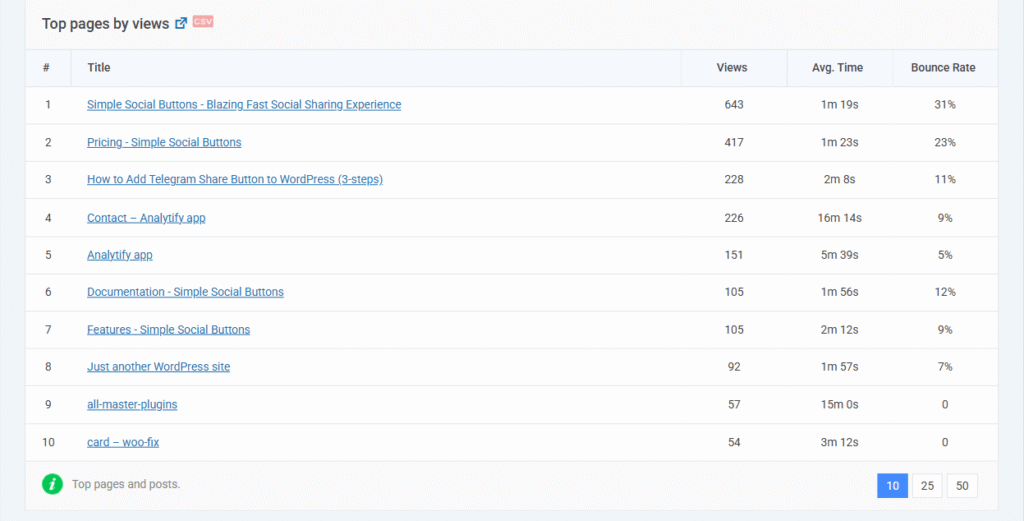
Create a “Part 2” or an updated 2026 version of your top-performing post.
Since you already know this topic resonates with Google, doubling down here is your safest bet for more growth.
2. If Direct Is Disproportionately High (30%+)
If your Analytify chart shows a massive slice for Direct traffic, don’t assume it’s brand fame. It usually means your marketing links are untagged.
In the Campaign Tracking report, you see GA4 traffic reports in WordPress, with very few campaigns listed; even though you sent emails or posted on social media, your links are broken.
Re-audit your email signatures and social bios. Use the Analytify-suggested UTM format to ensure every link you share is correctly categorized as “Email” or “Social,” rather than getting lost in “Direct.”
3. If Social Is High but Conversions Are Low
Social visitors are often just browsing. If Analytify shows high Social traffic but your “Total Conversions” stat isn’t budging, your landing page is likely too aggressive.
Check the Real-Time stats on Analytify GA4 traffic reports in WordPress when you drop a new social post. Watch how those users behave.
Instead of a “Buy Now” button, replace your social landing page’s call to action (CTA) with a lead magnet, such as a free PDF or checklist. Capturing an email is much easier than closing a sale with a casual social scroller.
4. If Email Is Low Despite Sending Regularly
If your Analytify dashboard shows a tiny sliver for Email traffic, your hard work is likely being misattributed.
Look at your Analytify Overview Statistics. Compare your “Direct” traffic spikes with the dates you sent your newsletters.
If “Direct” spikes every time you send an email, your UTM tags are missing. Ensure your email provider (Mailchimp, HubSpot, etc.) is set to include utm_medium=email. Once fixed, you’ll see your true email ROI reflected correctly in the Analytify Email channel report.
Data without action is just noise. Use Analytify to identify the gap, make one change to your WordPress strategy, and check your GA4 traffic reports in WordPress again in 30 days to see the results.
Where to Find Traffic Reports in GA4
GA4 traffic reports data is found in two distinct reports found under Reports >> Acquisition.
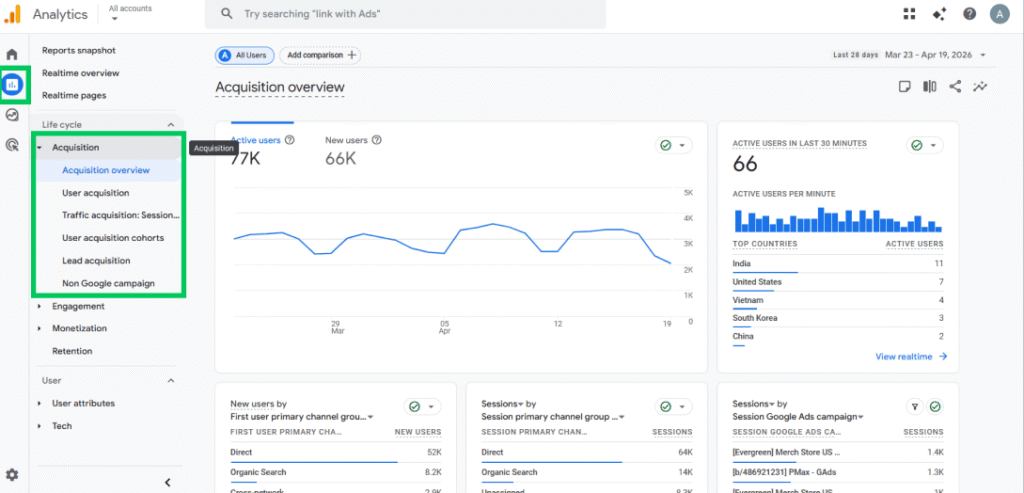
While the acquisition data might look similar at first glance, they serve different purposes for your WordPress site.
Note: You can read GA4 acquisition reports with Analytify right inside your GA4 dashboard as well.
- User Acquisition (Reports >> Acquisition >> User acquisition): This report shows where new users came from when they first visited your site.

- Traffic Acquisition (Reports >> Acquisition >> Traffic acquisition): This report shows where all sessions originated, including those from returning visitors. Use this to identify which channels drive the most ongoing activity and repeat business.
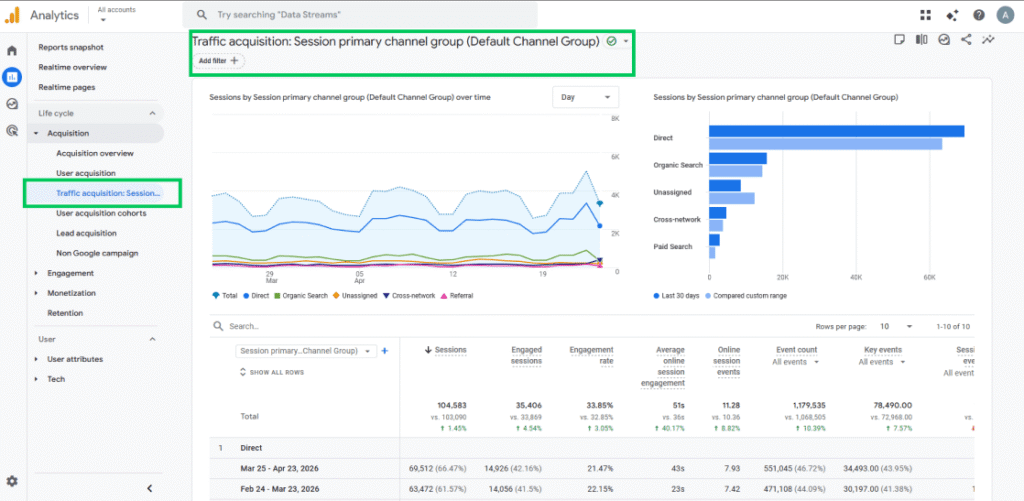
If you are asking, “Which channel brings the most new people to my site?” Use User Acquisition.
If you are asking, “Which channel is responsible for the most visits overall?” Use Traffic Acquisition.
For most WordPress site owners, the Traffic Acquisition report is the best place to start for a daily health check.
You can learn more about user acquisition vs traffic acquisition in this detailed guide: GA4 User Acquisition vs Traffic Acquisition: Which Report Should You Use? (2026)
Now that you know where to look, here is exactly what those channel names actually mean.
FAQs: GA4 Traffic Reports in WordPress
1. How do I see GA4 traffic reports in WordPress without logging into Google Analytics?
The most efficient way to see your GA4 traffic reports in WordPress is by using Analytify. It pulls your acquisition data directly into your WordPress dashboard, showing you a clear breakdown of Organic, Social, Referral, and Email traffic on a single screen. This eliminates the need to navigate the complex GA4 interface and keeps your marketing data right where you manage your content.
2. Why don’t I see the “Pencil” icon or dropdown options in my GA4 traffic reports?
If you cannot see the customization pencil icon or the primary dimension dropdown in GA4, it is usually because you have Viewer rather than Editor permissions. This is a common point of frustration for WordPress site owners. Analytify bypasses these permission-based interface hurdles by presenting the most important traffic source metrics in a pre-configured dashboard that doesn’t require GA4 editor access to read.
3. What is the difference between User Acquisition and Traffic Acquisition in GA4?
User Acquisition focuses on “First-touch” attribution, it shows where new users came from during their very first visit to your site. This is great for measuring audience growth. Traffic Acquisition shows where all sessions originated, including returning visitors. For most WordPress users looking to understand overall channel performance, Traffic Acquisition provides the most complete picture.
4. Why is my Direct traffic so high in GA4?
High Direct traffic usually points to sessions that GA4 can’t identify because the links weren’t tagged. This happens frequently with links in email signatures, PDFs, or social media bios. To fix this, use the Analytify Campaign Tracking features to ensure every link you share includes proper UTM parameters that accurately move that traffic from “Direct” into the “Email” or “Social” categories.
5. What does “Unassigned” traffic mean in your GA4 report?
“Unassigned” appears when GA4 receives traffic that doesn’t match its default channel rules, often because UTM tags are missing or non-standard. If you see a large “Unassigned” bar in your Analytify dashboard, it’s a signal to audit your UTM tagging. Ensuring your utm_medium matches GA4 standards (like “email” or “social”) will help clean up your reports.
6. Which traffic channel converts best for most WordPress sites?
On average, Organic Search and Email tend to have the highest conversion rates for WordPress sites. Organic visitors are actively searching for a solution, while Email visitors are already engaged with your brand. You can compare these conversion rates side-by-side in the Analytify General Statistics report to see which channel is your true revenue driver.
Conclusion: Understand GA4 User Acquisition For Beginners
Reading GA4 traffic reports in WordPress is about gaining the clarity needed to invest your time and money where they actually drive results.
As we’ve seen, while the native GA4 interface can be restricted and confusing, you don’t have to stay stuck behind permission hurdles and complex menus.
To take control of your GA4 traffic reports in WordPress today:
- Check your Analytify Dashboard: Identify your top-performing channel right from your WordPress admin area to see what’s currently working.
- Audit your “Direct” traffic: Use the Analytify Campaign Tracking report to spot untagged links and ensure your marketing efforts are being credited correctly.
- Optimize your top pages: Use Analytify Top Pages insights to double down on your high-ranking SEO content or adjust your social media landing pages for better conversions.
Analytify brings GA4 traffic reports to WordPress with an actionable view.
That is all for this post. For more related posts, check:
- How to Track Lead Quality in GA4 for WordPress Sites (2026)
- How to Use GA4 Anomaly Detection Insights in WordPress (2026)
- How to Track User Engagement Time in GA4 (2026 Guide + Benchmarks)
Which GA4 traffic channel has been the most confusing for you to track? Let us know in the comments below!