Why Is Your GA4 Pages Report Wrong? (5 Common Causes)

Your GA4 pages report shows incorrect data when traffic is split, duplicated, inflated, or missing due to five common WordPress configuration issues. The same URL appears three times with different session counts. Your top post shows 200 visits, while the campaign data shows 800. Or last month’s spike makes no sense at all.
In this guide, you’ll get to identify 5 specific causes of GA4 inaccurate data in WordPress and show you how to fix the most common one without GTM, without code, and without a developer.
You will get a symptom-to-cause diagnostic, a fix for each cause, and how Analytify lets you resolve Cause 1 directly from your WordPress admin.
Table of Contents:
Important:
| The GA4 Pages report shows how many views each page on your site receives, based on the page URL collected during each user session. GA4 records every unique URL as a separate page, which means configuration issues like URL parameters, duplicate tags, or unfiltered internal traffic directly distort what the report shows. |
Pages report vs Landing Page report: if you are analyzing entry pages (where visitors start a session), use the Landing Page report instead. The Pages report shows all pageviews across a session, not just the first page. Confusing the two is a common source of mismatched data expectations.
How Do You Know If Your GA4 Pages Report Wrong Data?
Four symptoms in your GA4 Pages report signal a data accuracy problem, and each one points to a different cause.
- The same page URL appears multiple times with different traffic numbers (Cause 1: URL query parameters splitting traffic)
- Traffic is slightly higher than expected, especially on low-traffic sites (Cause 2: your own visits counted as real sessions)
- Pageview totals are almost exactly double what you expect (Cause 3: two GA4 tags firing on every page)
- Sudden unexplained traffic spikes with 0% engagement rate (Cause 4: bot traffic passing through GA4 filters)
A fifth issue produces the opposite problem: your data is lower than expected across all pages, not higher. That is Cause 5, covered below.
GA4 Pages Report Wrong Data (5 Reasons)
Here are the causes of inaccurate GA4 data and how to fix them.
Why Does GA4 Show the Same Page Multiple Times? (Cause 1: URL Query Parameters)
GA4 pages report wrong data when URL query parameters UTM tags, fbclid, and gclid are appended to page links, because GA4 treats each unique URL as a separate page entry when query parameters are included in the page path or in the tracking setup.
URL query parameters are the strings added after a ? in a URL. They appear automatically when someone clicks a link from an email campaign, a paid ad, or a social post.
Here is the problem in practice. Your /about/ page gets 800 visits per month. Two hundred came from email (with ?utm_source=email), 150 from Facebook (with ?fbclid=ABC), and 450 arrived directly. GA4 records each as a different page and splits the traffic across three rows. This is the leading cause of GA4 inflated pageviews on WordPress sites.
The fix: Analytify lets you exclude common query parameters, so GA4 records a clean version of each page URL going forward, without splitting traffic across parameter variations. Go to Analytify >> Settings and enter the parameters in the Exclude URL Query Parameters field. Click Save. Future page data will no longer be fragmented by these parameters. (Confirm with your product team that this setting is in Core before publishing.)
For existing fragmented data, the fix is forward-looking: once parameters are excluded, new sessions record cleanly. Historical data does not change retroactively.
For the GTM method, see how to exclude URL query parameters in GA4 using GTM.
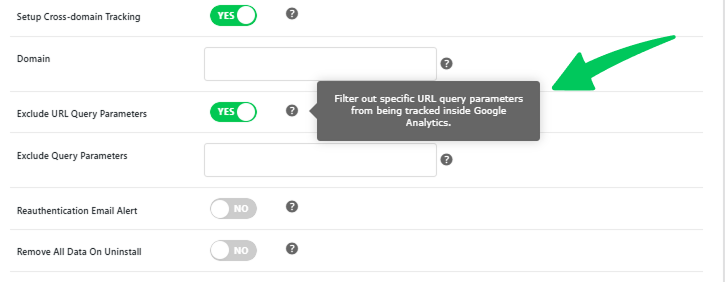
For a full step-by-step walkthrough, see the Analytify Exclude URL Query Parameters guide (Article 03). For UTM background, see GA4 UTM parameters.
| Parameter | What It Does | Safe to Exclude? |
|---|---|---|
| utm_source | Identifies traffic source (email, google, facebook) | Yes, always |
| utm_medium | Identifies channel type (cpc, organic, email) | Yes, always |
| utm_campaign | Identifies the campaign name | Yes, always |
| fbclid | Facebook click ID — added automatically to all Facebook links | Yes |
| gclid | Google Ads click ID — added automatically to Google Ads links | Yes |
URL query parameters that fragment your GA4 Pages report — and whether to exclude each one.
Are Your Own Visits Counted in GA4? (Cause 2: Internal Traffic Not Filtered)
If you have not set up an internal traffic filter in GA4, every visit you and your team make to your own site is counted in your Pages report alongside real visitor data.
On low-traffic sites, this matters most. If your site gets 800 sessions per month and your team visits 100 times for content checks, testing, and reviews, that is a 12.5% inflation of your data.
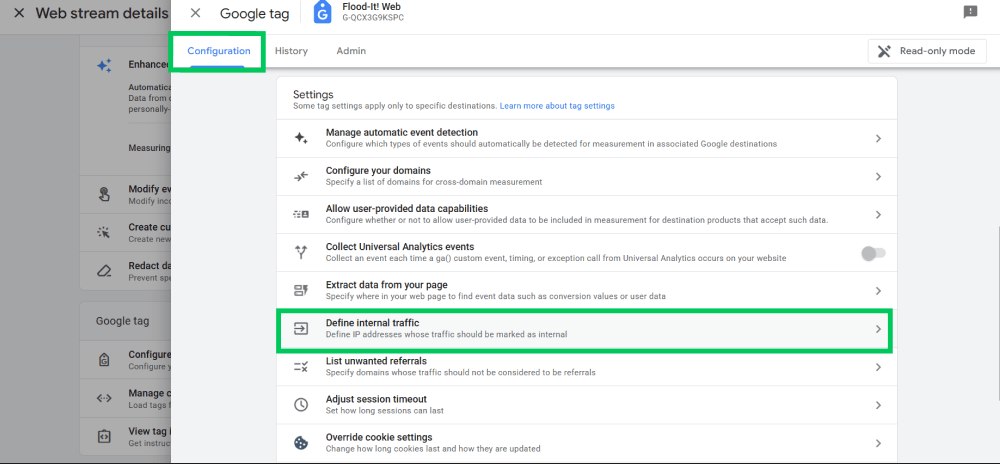
Here is how to set up the internal traffic GA4 filter:
- Go to GA4 Admin (gear icon, bottom left).
- Under Data Collection and Modification, click Define Internal Traffic.
- Add your office or home IP address as a traffic type rule.
- Go to Data Filters and activate the Internal Traffic filter.
Important: GA4 data filters apply to future data only. They cannot reverse historical sessions.
Dynamic IP limitation: if your IP address changes frequently (home connections, mobile, remote workers, VPN users), static IP filtering will miss self-visits. In these cases, use a traffic_type custom parameter sent via GTM, or ask your developer to tag internal sessions at the code level. Static IP filtering only works reliably for fixed office connections.
Why Are GA4 Pageviews Exactly Double What They Should Be? (Cause 3: Double Tracking)
GA4 double tracking WordPress happens when two separate GA4 tags are both firing on every page, and it inflates every pageview metric by exactly 100%.
This is a common WordPress problem. The most frequent causes of GA4 inaccurate data in WordPress are:
- A GA4 WordPress plugin runs at the same time as a GTM container pointing to the same GA4 property
- A site uses both gtag.js (hardcoded in the theme) and GTM, both sending to the same Measurement ID
- Two GTM containers are installed on the same site one from the developer, one added later
- A theme or page builder includes its own GA4 integration that fires alongside a separate plugin
The tell: pageview numbers are almost exactly 2x what you expect, and sessions are doubled. This differs from GA4 inflated pageviews caused by URL parameters, which produces uneven fragmentation rather than a clean 100% doubling.
Worth noting: double tracking is one of the most common GA4 configuration issues on WordPress sites. If your numbers doubled recently, check your plugin and GTM setup before investigating anything else.
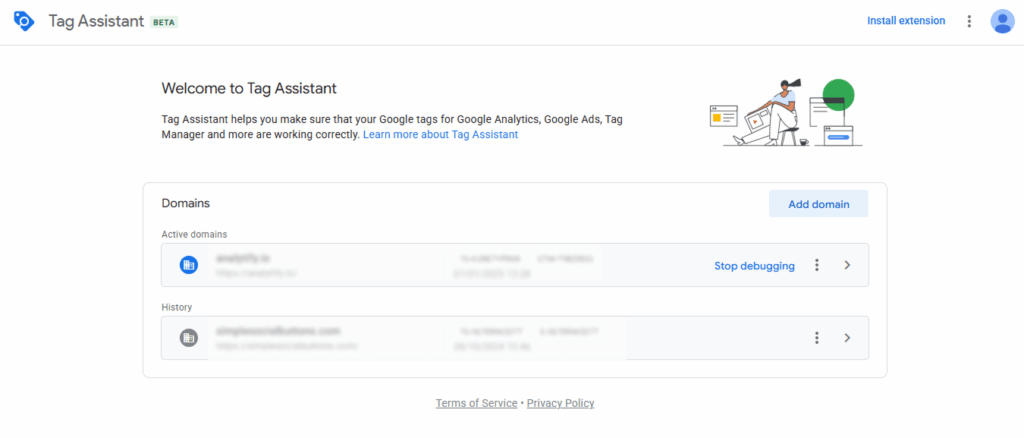
How to check for GA4 double tracking in WordPress:
- Open Google Tag Assistant in Chrome.
- Enter your site URL and click Connect.
- Visit any page on your site and watch the tag log.
- If the same Measurement ID fires twice per page, you have double tracking.
The fix: identify which connection is the duplicate and remove it. If you use a GA4 WordPress plugin, disable any GTM container or hardcoded analytics snippet in your theme. If you use GTM, disable the plugin’s native GA4 output. If two GTM containers are installed, merge them into one.
Is Bot Traffic Inflating Your GA4 Pages Report? (Cause 4: Unfiltered Bot and Spam Traffic)
GA4 automatically filters known bots, but unknown or newer bot patterns pass through and appear in your Pages report as real visits with zero engagement.
GA4 uses the IAB (Interactive Advertising Bureau) bot list to filter recognized crawlers. Newer or custom bots not on that list appear as real sessions.
Bot traffic in your GA4 Pages report looks like this:
- Sudden unexplained traffic spikes with no matching referral source
- Sessions with 0% engagement rate
- Single-page visits with no scroll events recorded
- High traffic concentration from unexpected geographic locations
Worth noting: many WordPress site owners saw large spikes in Direct traffic from unfamiliar Asian cities in 2025 and early 2026. This was a known bot wave, not a configuration error in their GA4 setup.
How to identify bot traffic in your Pages report:
- Go to Reports > Engagement > Pages and Screens in GA4.
- Add a secondary dimension: Session default channel group.
- Filter for pages with high view counts but 0% engagement rate.

The fix (three options, use in combination):
- Block at the server level. A WordPress security plugin or WAF (Web Application Firewall), such as Cloudflare or Wordfence, can block known bot IP ranges before they reach your site and GA4.
- Exclude in GA4 reports. In GA4 Explore, create a segment that excludes sessions with zero engagement time. Use this segment in your regular reporting to see only real visitor data.
- Monitor weekly. Bot patterns change. Check your Pages report every week for sudden unexplained spikes with 0% engagement rate to catch new bot patterns early.
Can WordPress Caching Plugins Break GA4 Tracking? (Cause 5: Caching and Script Conflicts)
WordPress caching plugins can break GA4 tracking by deferring or minifying the analytics script, which causes it to fire late or not at all, and the result is missing sessions rather than inflated ones.
This is the opposite problem from Causes 1 through 4. Your data is lower than expected, consistently across all pages, not just some.
Caching plugins like WP Rocket, LiteSpeed Cache, and W3 Total Cache can affect GA4 tracking in two ways:
- Minification: compresses the analytics script, sometimes breaking it in the process.
- Deferred or delayed JS execution: WP Rocket’s ‘Delay JavaScript Execution’ feature holds scripts until user interaction. If GA4 fires on this delay, bounced visitors are never tracked.
The fix in WP Rocket: go to Settings > File Optimization > Exclude from Minification and add your analytics script URL. For Delay JS: add the GA4 script or analytics plugin script to the Delay JS exclusion list under Settings > Performance.
One More Thing: Self-Referrals and Payment Gateway Redirects
Self-referrals are a separate cause of wrong data in the GA4 Pages report, one that many WordPress site owners discover only when auditing their traffic sources.
Self-referrals occur when GA4 records your own domain as a traffic source. This typically happens during payment gateway redirects: a user checks out on your site, gets sent to Stripe, PayPal, or another payment processor, then returns. GA4 treats the return visit as a new session from your own domain, splitting the conversion journey.
The fix: add your domain and payment gateway domains to the Unwanted Referrals list in GA4 Admin > Data Streams > Configure Tag Settings > List Unwanted Referrals. This tells GA4 not to start a new session when users return from these domains.

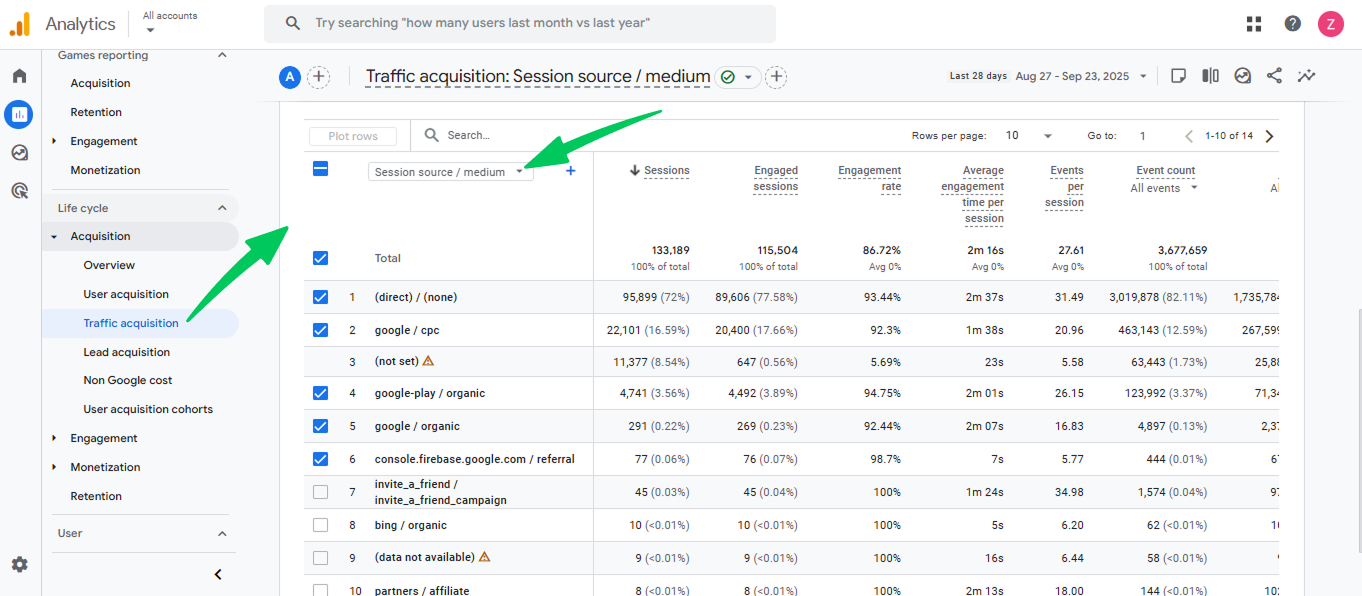
Self-referrals do not fragment the Pages report the same way as URL parameters, but they inflate session counts and distort attribution. Check your Traffic Acquisition report for your own domain appearing as a referral source.
How Does Analytify Show You Accurate Page Data Inside WordPress?
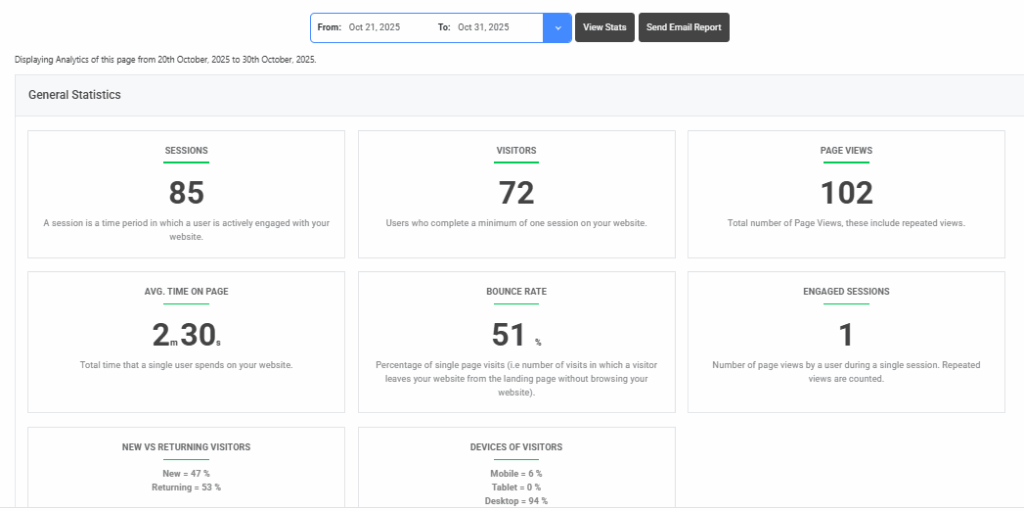
Analytify displays your GA4 page data in the WordPress dashboard, and its Exclude URL Query Parameters setting lets you prevent parameter fragmentation before it reaches GA4.

If you are checking GA4 and WordPress side by side every day to make sense of your page data and still not trusting the numbers, then the problem is the setup, not you.
Three things Analytify does for GA4 data accuracy in WordPress:
- Analytify lets you set a parameter exclusion list from your WordPress admin. Enter your UTM parameters and click IDs once. GA4 will record a clean, consistent page URL for future sessions. No GTM required.
- Analytify surfaces per-page GA4 data directly inside the WordPress editor. No tab-switching to GA4 to check whether your report is fragmented. See your actual page performance without leaving WordPress.
- It is free. No Pro license required for the parameter exclusion feature or the WordPress dashboard reports.
Which Cause Matches Your Symptom? (Quick Reference)
Use this table to match what you see in your GA4 Pages report to its most likely cause and fix.
| GA4 Pages Report Wrong Data Symptom | Why Your GA4 Pages Report Is Wrong | Fix Summary |
|---|---|---|
| Same page URL appears 3–10 times with split traffic | Cause 1: URL query parameters (UTM, fbclid, gclid) | Exclude parameters or via GTM |
| Traffic slightly higher than expected, especially on low-traffic sites | Cause 2: Internal traffic not filtered | Add office IP to GA4 internal traffic filter |
| Pageview totals are almost exactly 2x expected | Cause 3: Double tracking (two GA4 tags firing) | Use Tag Assistant to find and remove the duplicate tag |
| Sudden unexplained traffic spikes with 0% engagement rate | Cause 4: Bot/spam traffic passing filters | Block via WAF; exclude in GA4 Explore; monitor weekly |
| All page data consistently lower than expected | Cause 5: Caching plugin deferring or delaying the tracking script | Exclude analytics script from minification and Delay JS |
| Your own domain appearing as a referral; sessions split at checkout | Bonus Cause: Self-referrals / payment gateway redirects | Add domain to Unwanted Referrals in GA4 Data Streams |
GA4 Pages Report Wrong: Frequently Asked Questions
1. Why does my GA4 show different numbers for the same page?
GA4 shows different numbers for the same page when URL query parameters such as UTM tags or fbclid are appended to the page link. Each unique URL is recorded as a separate page, so traffic splits across multiple rows. A page that gets 800 visits per month can appear as three rows, each with a fraction of the real count. Excluding these parameters ensures GA4 records a clean URL going forward, and a tool like Analytify 9.0 lets you set this exclusion directly from WordPress admin.
2. How do I know if GA4 data is accurate for my WordPress site?
GA4 data is accurate when your Pages report shows consistent URLs, expected pageview counts, and no unexplained spikes or drops. Four symptoms signal inaccurate data: the same page appears multiple times in the Pages report; pageview totals are twice what you expect; you see traffic spikes with zero engagement rate; or all data is consistently lower than expected. Each symptom points to a different cause. Start by checking for URL parameter duplication in the Pages report, then verify you are not counting your own visits, and use Google Tag Assistant to confirm only one GA4 tag fires per page.
3. Why is GA4 counting my own visits?
GA4 counts your own visits because no internal traffic filter has been set up. Every time you visit your own site to check content, test links, or review a page, GA4 records it as a user session. On low-traffic sites, self-visits can inflate the data by 10 to 30 percent. Fix this by going to GA4 Admin > Data Collection and Modification > Define Internal Traffic, adding your IP address, then activating the Internal Traffic data filter. Note: static IP filtering only works for fixed connections — dynamic IPs and remote workers need a different approach.
4. What causes GA4 pageviews to be double the expected number?
Exactly doubled pageviews in GA4 almost always mean two GA4 tags are firing on every page. This is a common WordPress problem: a GA4 plugin is running at the same time as a GTM container or hardcoded snippet, both pointed at the same GA4 property. Open Google Tag Assistant, visit your site, and check how many times the GA4 tag fires per page. If it fires twice, find and remove the duplicate connection — whether that is a second GTM container, a theme integration, or a plugin’s built-in GA4 output.
5. Can I fix GA4 data without using Google Tag Manager?
Yes. For the most common cause of wrong data in the GA4 Pages report (URL parameter fragmentation), Analytify includes an Exclude URL Query Parameters setting that works directly from WordPress admin, no GTM required. For internal traffic filtering, the fix is in the GA4 Admin settings — no GTM needed. According to Google’s Analytics Help documentation, internal traffic filters are configured entirely within the GA4 Admin interface. GTM is only required for more advanced configurations, such as dynamic IP tagging or cross-domain tracking.
Final Thoughts
Fix the wrong GA4 Pages report by identifying which of the causes applies to your site. Most WordPress site owners face Cause 1 (URL parameters) first,
The GA4 Pages report is not broken. It is responding to real inputs: duplicate URLs, unfiltered internal sessions, double-firing tags, bot traffic, deferred scripts, or payment gateway redirects. Each cause has a direct fix.
Next steps:
- Open your GA4 Pages report and check your symptom against the table above. Match it to its cause.
- Fix Cause 1 first: install or update to Analytify 9.0 and enter your parameter exclusion list inside WordPress admin.
- Work through Causes 2 through 5 in order. Most sites are fully resolved after the first two.
Clean up your wrong GA4 Pages report and see accurate page data inside WordPress
Further Readings:
- Google Analytics Not Working? 10 Ways To Fix GA4
- How To Fix Content Decay Using Google Analytics Data
If you still signal you GA4 pages report wrong, share your query in the comments. I’d love to help you out.