
How to Exclude URL Query Parameters in Google Analytics 4(Step-by-Step Guide)

To exclude URL query parameters in Google Analytics 4, use a Google Tag Manager (GTM) variable that sends a cleaned page_location to GA4. I show you each step below.
Universal Analytics (GA3) had a built-in setting for this. GA4 needs a GTM workaround: find the parameters in Explore, trim them with the Trim Query variable template, send the result as page_location, and verify it in DebugView.
URL query parameters are bits of information attached to a URL after a question mark (?). They pass data between pages, track marketing campaigns, and personalize user experiences. In GA4, they can clutter your reports, skew your data, and raise privacy concerns.
This guide is for site owners and analysts who want clean page URLs in GA4 reports. I recommend following the steps in order and testing in GTM Preview mode before you publish.
Exclude URL Query Parameters (TOC):
What are URL Query Parameters?
A URL query parameter is a way to pass information to a website via the URL. It consists of a key-value pair, separated by an equals sign (=), and multiple parameters are separated by ampersands (&). Here’s a simple example:
https://www.example.com/products?category=electronics&brand=apple
In this URL:
- category=electronics is one parameter
- brand=apple is another
These parameters might tell the website to display products in the “electronics” category from the brand “Apple”.
In GA4 reports, the Page location dimension shows the complete URL, and the Page path + query string dimension shows the page path with its query string.
Why Exclude URL Query Parameters in GA4?
Exclude URL query parameters in GA4 for cleaner reports, accurate page data, fewer privacy risks, and clearer site search analysis:
- Cleaner Reports: Too many parameters can create a long list of unique URLs in your reports, making them difficult to read and analyze. Excluding unnecessary parameters streamlines your data.
- Accurate Data: Some parameters, like those used for tracking marketing campaigns (e.g., utm_source, utm_medium), can create duplicate pageviews. Keep the utm parameters that you use for campaign reporting, because Google Analytics receives them from the URL and shows the values in the Traffic acquisition report. Exclude only the parameters you do not need.
- Privacy Concerns: Certain parameters might contain personally identifiable information (PII). Excluding them helps you avoid sending personal data to Google Analytics.
- Improved Site Search Analysis: If you have site search functionality, excluding the search query parameter (q or similar) prevents each unique search term from creating a new pageview, giving you a clearer picture of overall search behavior.
Is GA4 Data Redaction Feature Enough to Remove URL Query Parameters?
No, GA4 data redaction is not enough to remove URL query parameters.
The GA4 Data Redaction feature replaces the values of the parameters you list with (redacted), but the parameter names stay in the URL. A page with and without a redacted parameter still appears as separate rows in your reports.
Data redaction hides the values of the listed parameters. It does not remove the parameters, so several URLs can still represent the same page.
The GTM method below removes the parameters from page_location before the data reaches GA 4.
How to Exclude URL Query Parameters in Google Analytics 4
To exclude URL query parameters in GA4, identify the parameters in an Exploration, trim them with a GTM variable, and verify the result in DebugView.
Step 1: Identify URL Query Parameters to Exclude
Step 1 is to list the query parameters you want to remove. Use a blank exploration in the Explore section of GA4 to find them.
- Create a Custom Report:
- Navigate to Explore >> Blank to start a new report.
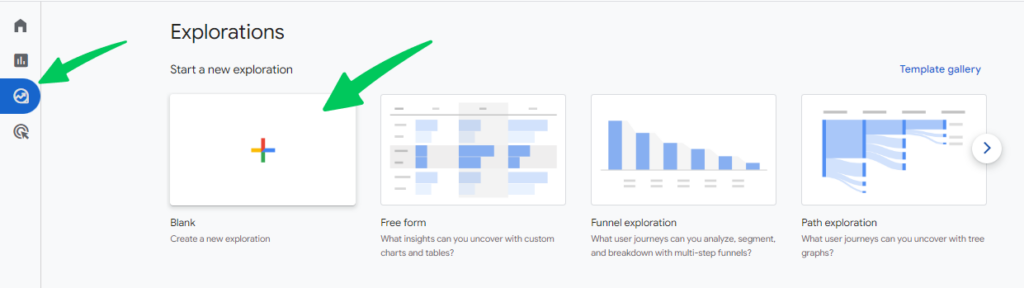
- Add Dimensions and Metrics:
- Locate the Page path + query string (or Page location) dimension and click the Plus icon to import it.
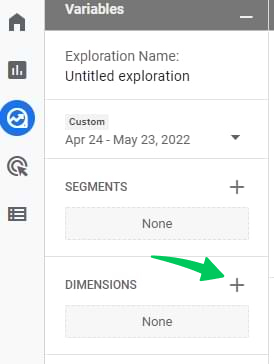
- Similarly, import the Views metric.
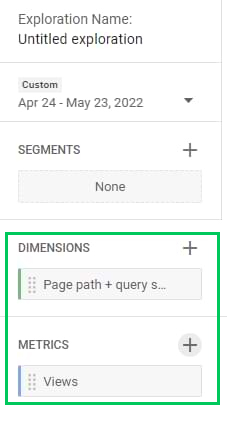
- Double-click on both the dimension and the metric to add them to the “Rows” and “Values” sections of the Variables tab.
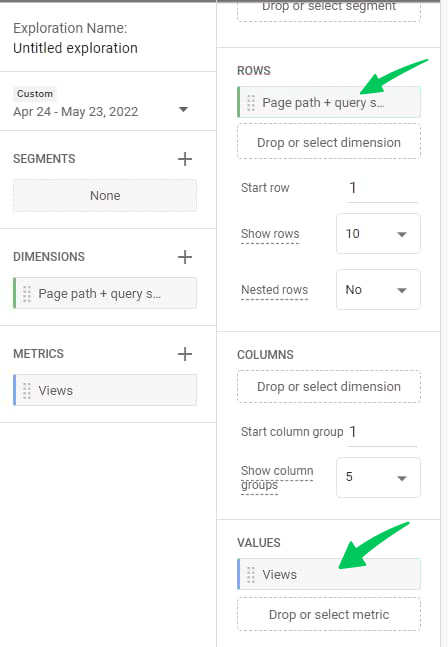
- Filter for URLs with Query Parameters:
- In the “Filters” section, set up a filter with the condition: Page Path + Query strings contains ?. This ensures the report only shows URL Query Strings that have at least one query parameter.
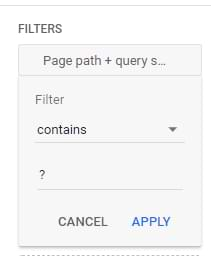
- Analyze and List Parameters:
- You now have a report listing URL Query Strings with query parameters.
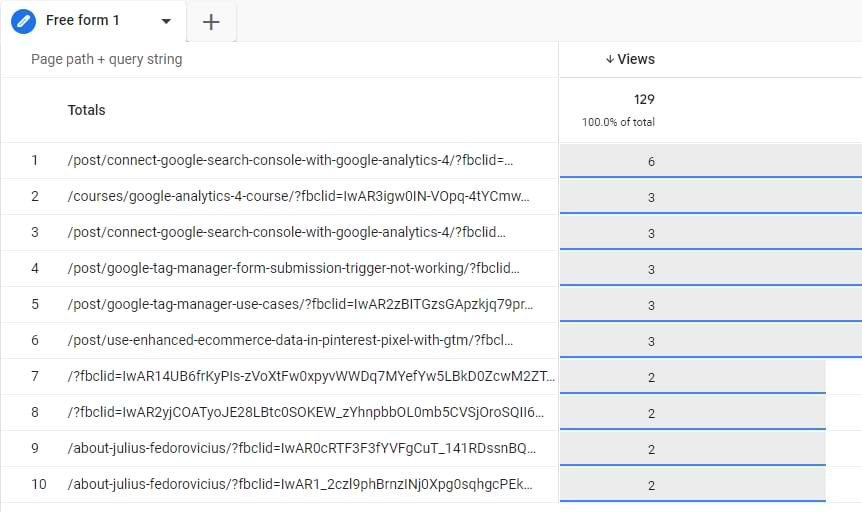
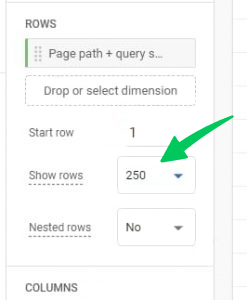
- Select to show more rows if needed.
- Carefully examine the URLs and identify the query parameters you don’t want to see in your GA4 reports.
- Make a list of these parameters – we’ll use this list later in the process.
These steps produce a list of the query parameters that clutter your data. You use that list in Step 2.
Step 2: Implement the Custom Template in GTM
Use the Trim Query variable template in GTM to remove the parameters you listed in Step 1 from the page URL.
- Import the Custom Template:
- Log in to your GTM container and navigate to Templates.
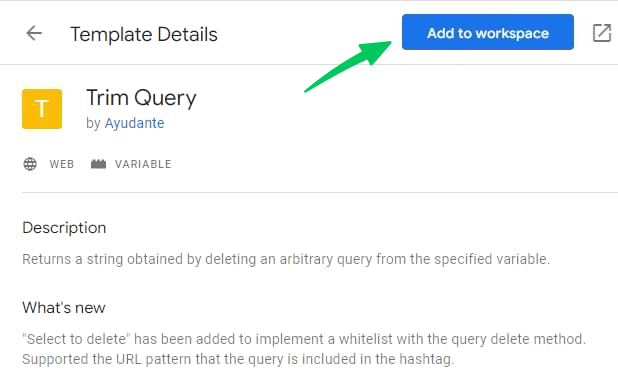
- Click on Search Gallery in the Variable Templates section.
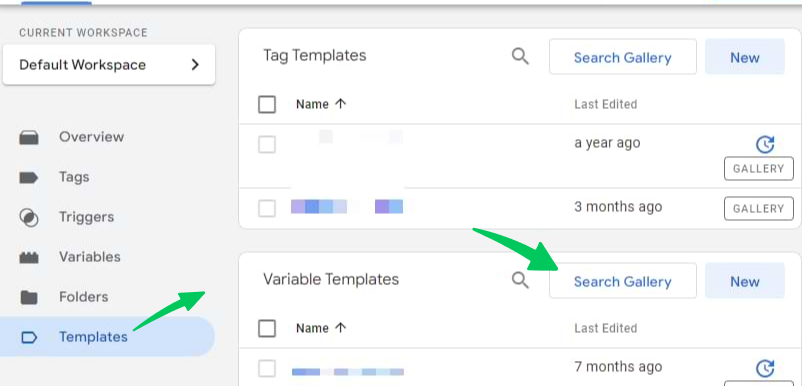
- Search for the template named “Trim Query,” created by Ayudante.
- Click Add to Workspace and then Add to import it into your container.
- Create a Variable to Exclude Query Parameters:
- Go to Variables>> New >> Variable Configuration.
- Select “Trim Query” as the variable type.
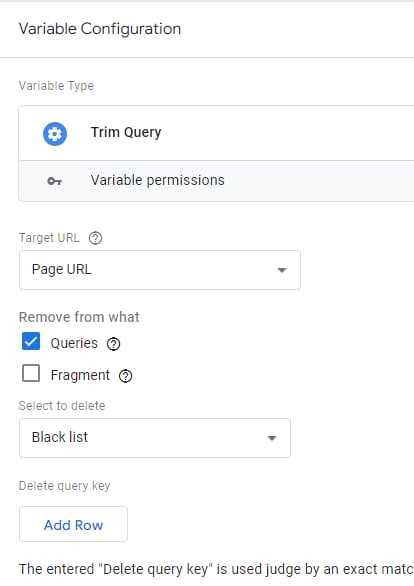
- Set Page URL as the Target URL – this is the URL the variable will clean up.
- Leave other settings as the default.
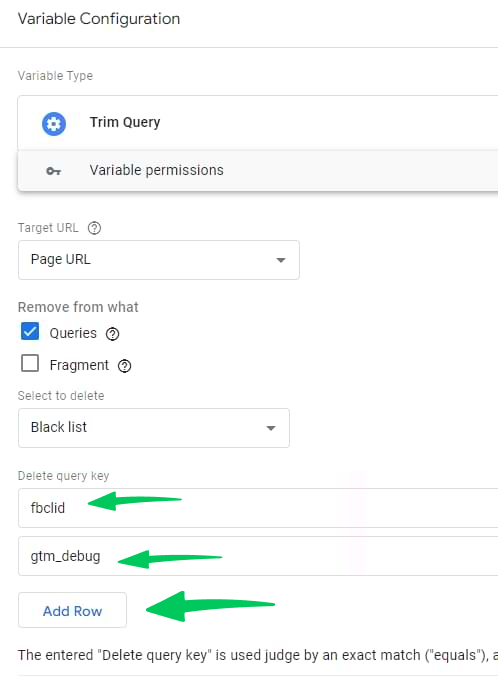
- Important: This variable doesn’t change the actual URL visitors see; it creates a cleaned version for GA4.
- Now, list all the query parameters you identified earlier, one per row, in the designated section.
- Save the variable with a descriptive name like “Page URL excluding unwanted query parameters”.
- Update GA4 Configuration and Event Tags:
- GA4 collects page_location automatically. You override it with the cleaned variable.
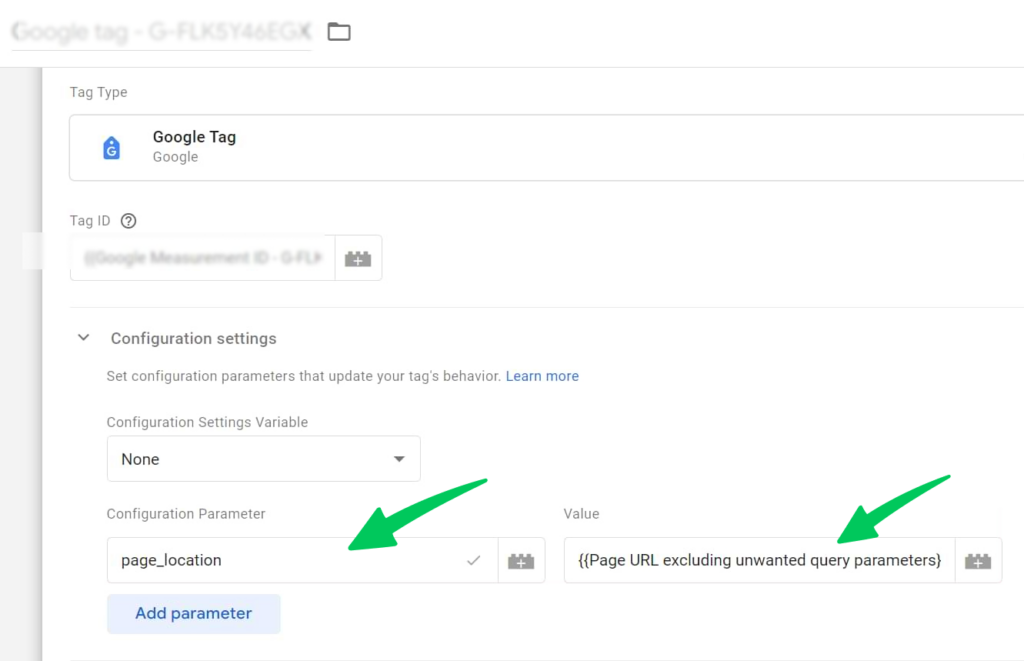
- In your Google tag (formerly the GA4 configuration tag), add a configuration parameter named page_location and set its value to the custom variable you created. Tag Manager now also offers a Configuration settings variable for this.
- Save the tag.
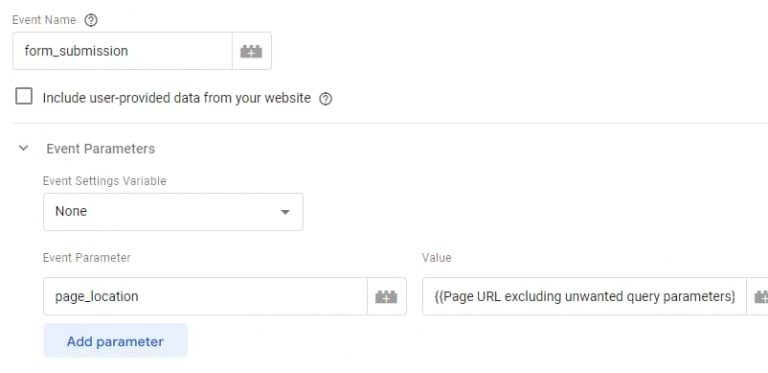
- For all GA4 Event tags:
- You can manually add the page_location parameter with the custom variable to each tag.
- Recommended: Create a GA4 event settings variable to manage the page_location parameter centrally. Then, use this settings variable in all your GA4 event tags for easier maintenance.
By implementing these steps, you’re instructing GTM to send a cleaned version of the Page URL to GA4, ensuring your reports are free of the unwanted query parameters you identified.
Step 3: Verify Your Setup
Test the setup in GTM Preview mode and GA4 DebugView before you publish.
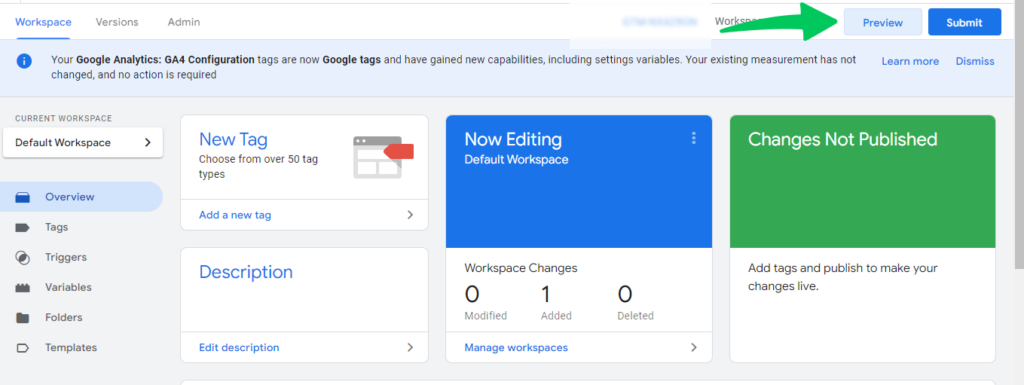
- Enable GTM Preview Mode:
- Click the Preview button in the top right corner of the GTM interface.
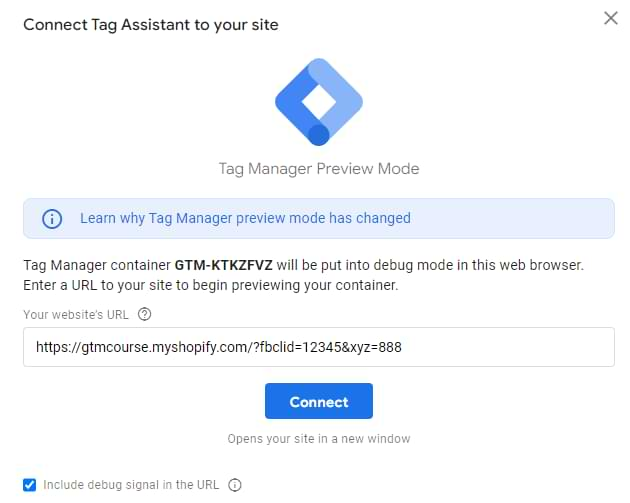
- Enter Test URL:
- In the Preview window, enter your website’s URL along with:
- Several query parameters you’ve excluded (e.g., fbclid, mc_cid).
- You want to keep at least one parameter (e.g., utm_campaign).
- Separate all parameters with &.
- Example: yoursite.com?fbclid=12345&utm_campaign=summer_sale&xyz=888
- Click Connect.
- Check GA4 DebugView:
- Once your GA4 tags have fired, open Google Analytics, go to Admin, and under Data display click DebugView.
- Locate your device in the list.
- Examine the most recent events.
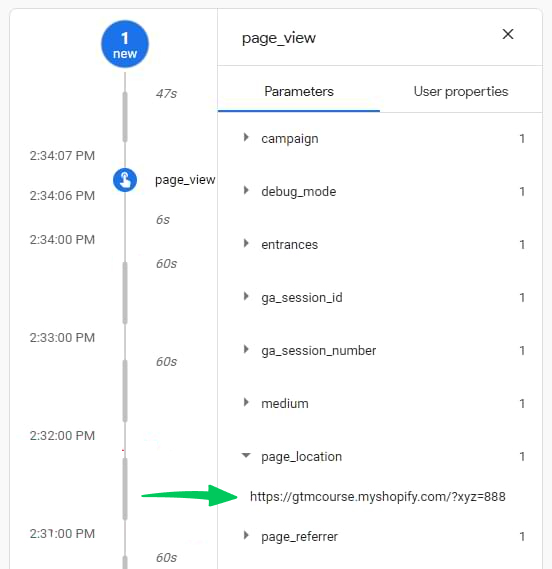
- Verify that the page_location value in these events does NOT contain the excluded parameters but DOES include the parameters you want to keep.
- Publish Changes:
- If everything looks good in DebugView, you’re ready to go live!
- Click the SUBMIT button in GTM and follow the prompts to publish your container.
Remember:
- Testing is essential to catch any errors before they impact your GA4 data.
- If you encounter issues, double-check your variable configuration and tag settings.
- If you’re still having trouble, consider contacting a GTM expert for assistance.
Bonus: Analytify For WordPress Users
Join 50,000+ beginners & professionals who use Analytify to simplify their Google Analytics!
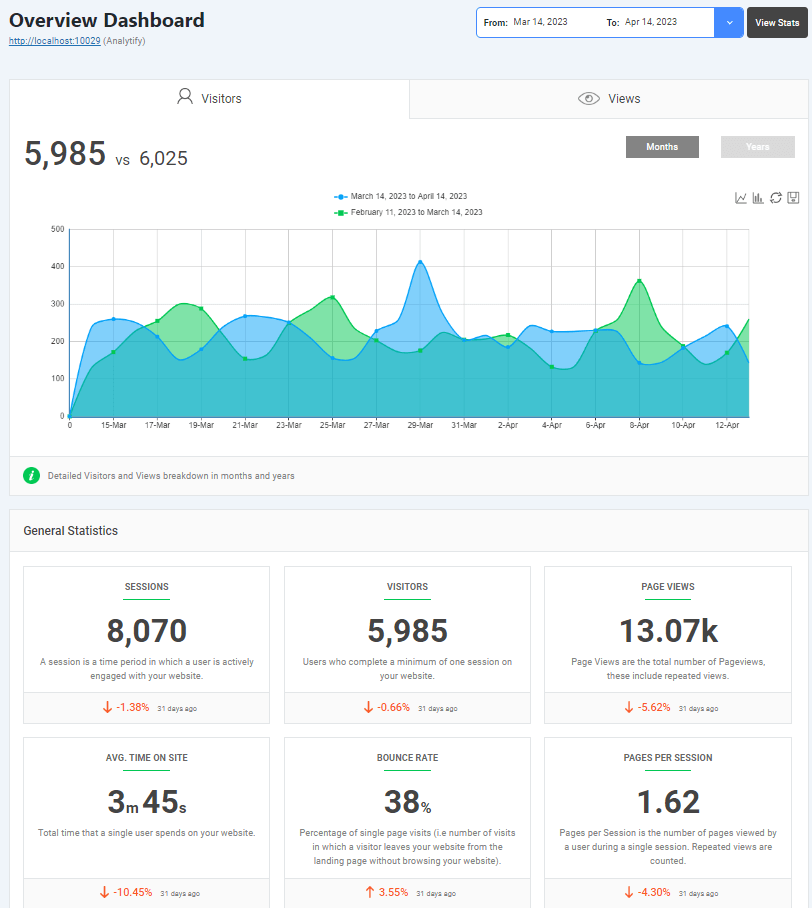
Think of Analytify as your friendly Google Analytics assistant inside your WordPress dashboard. It takes all that complex GA4 data into simple visuals that anyone can understand.
What it Does for WordPress
- Easy Setup: You don’t need to be a tech expert. With a few clicks, Analytify is connected to your WordPress site, pulling in all your GA4 data.
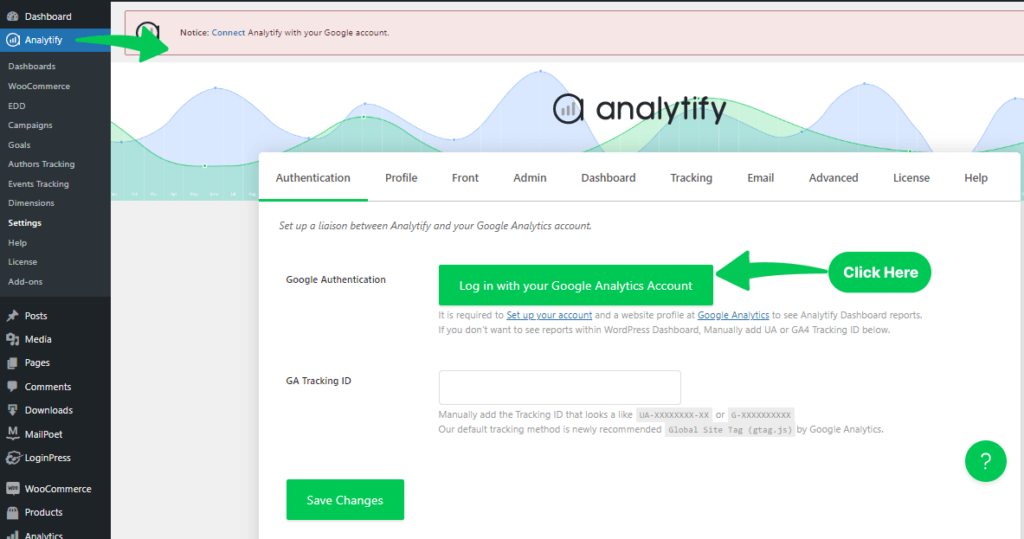
- See Stats on Your Dashboard: Get a quick snapshot of how your site’s doing right when you log in to WordPress. No need to jump between different tools.
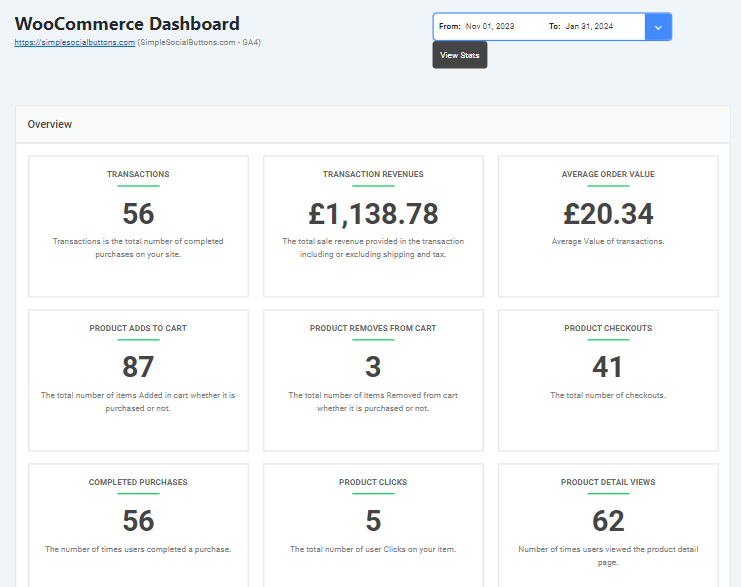
- eCommerce Tracking: If you sell stuff online, Analytify can track your sales, popular products, and even where shoppers drop off.
- No More Code Headaches: You don’t need to mess with any complicated tracking code. Analytify handles it all behind the scenes.
In short, Analytify shows Google Analytics 4 data in your WordPress dashboard, so you can read it without being a data expert.
FAQs: URL Query Parameters
Q: What are URL query parameters, and why should I exclude them?
URL query parameters are bits of information added to the end of a URL after a question mark (?). They often track things like campaign sources, user IDs, or other data useful for external tools. However, they can clutter your Google Analytics 4 (GA4) reports by creating multiple versions of the same page. Excluding unnecessary parameters helps you maintain clean and actionable data.
Q: How do I exclude URL query parameters in GA4?
GA4 doesn’t have a built-in feature for this yet. You’ll need to use Google Tag Manager (GTM) and a custom template called “Trim Query”. This template allows you to create a variable that removes specific query parameters from the page_location sent to GA4.
Q: Can I use GA4’s data redaction feature instead?
Data redaction can hide sensitive information, but it doesn’t solve the issue of duplicate URLs caused by query parameters. Redacted parameters still result in separate entries in your reports.
Q: How do I identify which query parameters to exclude?
Use a custom report in GA4’s Explore section. Filter for URLs containing query parameters and analyze the results to identify the ones you don’t need for your GA4 analysis.
Q: What are some common query parameters I might want to exclude?
Some popular ones include:
fbclid (Facebook)
mc_cid & mc_eid (Mailchimp)
_hsenc & __hstc (HubSpot)
igshid (Instagram)
gclid (Google Ads)
Q: Can I exclude all query parameters except specific ones?
Yes, the “Trim Query” template has a whitelist feature. You can list the parameters you want to keep, and all others will be automatically excluded.
Q: Will excluding query parameters affect my historical data?
No, this change only applies to future data collected after implementing the GTM solution.
Q: I’m using GTAG, not GTM. Can I still exclude query parameters?
Yes, but it requires custom code. Your developer will need to modify the gtag implementation to send a cleaned page_location to GA4.
Final Thoughts
To exclude URL query parameters in GA4, identify the parameters to remove, trim them with a GTM variable, and send the cleaned page_location to GA4. This declutters your reports and removes the listed parameters from the URLs GA4 stores.
You may also like to know about GA4 Data Import (Ultimate Guide 2024).
Now, we’d like to hear from you. Are you excluding URL query parameters from your analytics reports? Share your thoughts in the comments below.