

How to Track Add to Cart Events in Google Analytics (Easy Guide)

Track Add to Cart events in Google Analytics 4 with a Google Tag Manager trigger on the add_to_cart event, or automatically through Analytify’s WooCommerce and Easy Digital Downloads integration. GA4 does not capture this event by default.
Add to Cart data shows which products visitors want before they decide to buy. It catches the drop-off between browsing and checkout that sales totals alone cannot show.
This guide covers both setup methods, plus how to check the resulting data in GA4 and inside your WordPress dashboard.
In this article, we’ll cover how you can track Add to Cart Events in Google Analytics and then show you how Analytify simplifies eCommerce metrics analysis.
Let’s start with the need to track the Add to Cart event.
Table of Contents
- Why Should You Track Add to Cart Events?
- How to Track Add To Cart Events in Google Analytics?
- How to Track Add to Cart Events with Google Tag Manager
- How to Track Add to Cart Events with Analytify
- How to View Add to Cart Reports in GA4 (Funnel Exploration)
- Conclusion
- Frequently Asked Questions
Why Should You Track Add to Cart Events?
Add to Cart events show which products visitors want before they reach checkout. A product added to cart but never bought is still a signal worth acting on, something sales totals alone cannot show.
Tracking this event flags where interest does not convert. That points to pricing, copy, or checkout friction before it costs you a customer.
This guide covers two ways to capture the event, Google Tag Manager or Analytify, so this data is easy to act on.
How to Track Add To Cart Events in Google Analytics?
Track Add to Cart events with two methods: a Google Tag Manager trigger on the add_to_cart event, or Analytify’s automatic tracking. Add to Cart is one of the most important eCommerce performance metrics to monitor regularly.
GTM gives full control over what counts as an Add to Cart event, but takes manual setup. Analytify requires no code and works once the WooCommerce or Easy Digital Downloads add-on is connected.
The Analytify method below assumes you’ve already installed and activated the core Analytify plugin and the WooCommerce add-on.
How to Track Add to Cart Events with Google Tag Manager
Set up Add to Cart tracking in GTM with a GA4 event tag and a click trigger. This takes about 10 minutes and needs no developer help.
GTM tracks clicks, not confirmed cart updates. For code-free tracking tied to actual WooCommerce or Easy Digital Downloads cart activity, use Analytify instead.
| GA4 Event Name | Fires When | Funnel Stage |
| view_item | A visitor opens a product page | Before cart |
| add_to_cart | A visitor adds a product to the cart | This guide |
| begin_checkout | A visitor starts checkout | After cart |
| purchase | An order is completed | Funnel end |
How to Track Add to Cart Events with Analytify
Analytify tracks Add to Cart events automatically once the WooCommerce or Easy Digital Downloads add-on is active, no code or GTM setup needed. Open the Monetization tab in the Analytify Dashboard to see products added to cart alongside your other eCommerce stats.
| Method | Ease of Setup | Customization | Reporting |
| Google Tag Manager (GTM) | Moderate | High | GA4 Interface |
| Analytify (WooCommerce / EDD) | Easy | Moderate | Integrated within WordPress |
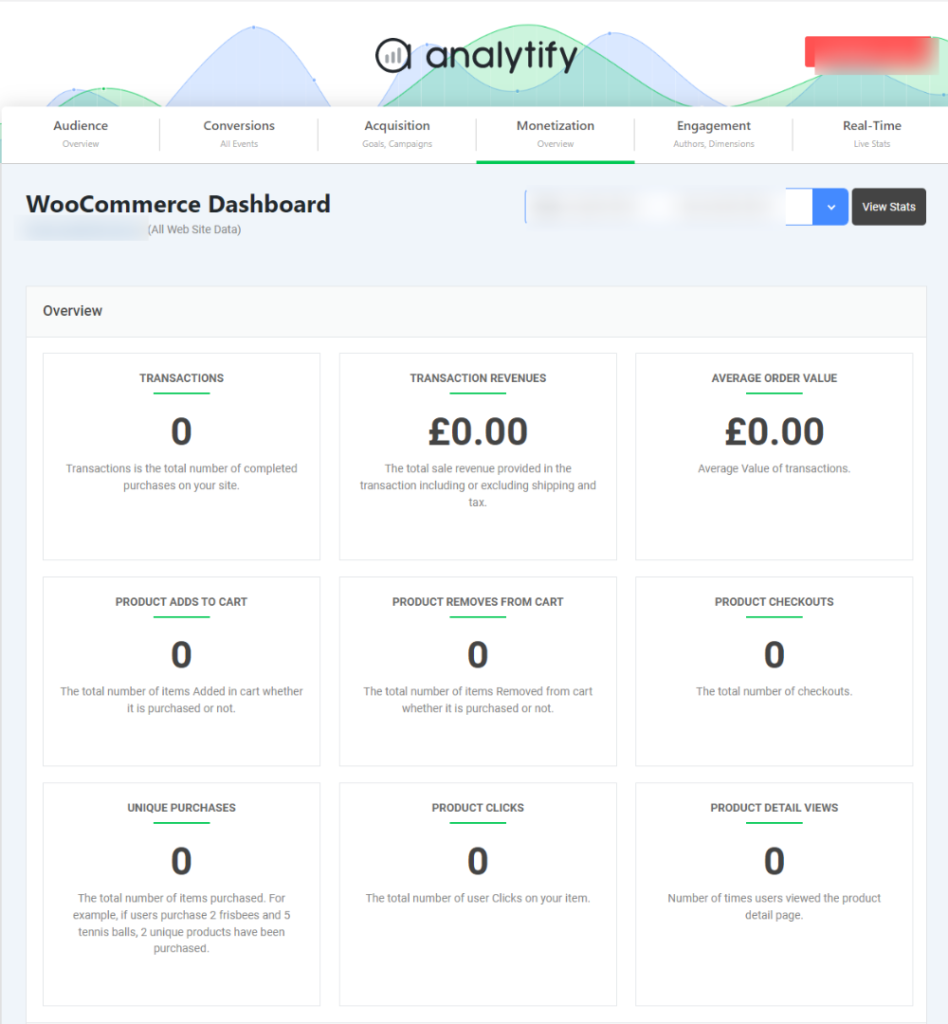
In addition to these basic metrics, Analytify shows product-level analytics that goes into the details of the list of the top-performing products and categories. This data is invaluable in predicting product sales trends and optimizing inventory management.
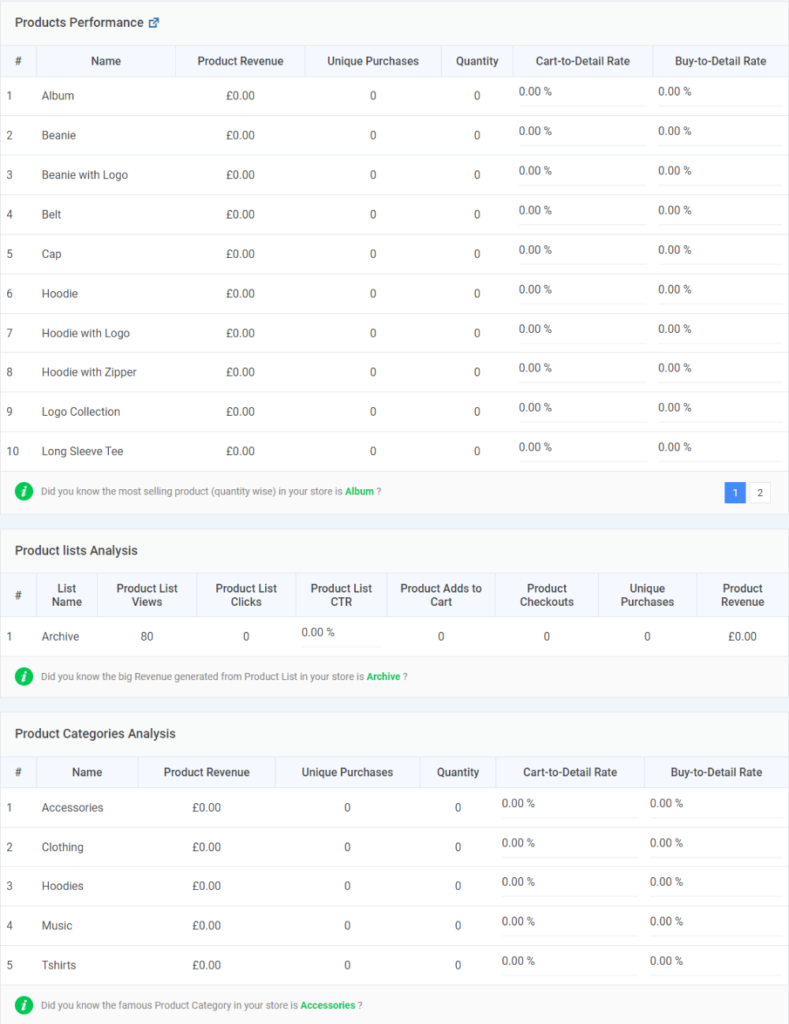
As you can see, Analytify connects to Google Analytics and brings all important data to your website’s dashboard. In addition, it supports WooCommerce and Easy Digital Downloads, two platforms that power the bulk of WordPress eCommerce stores. To see more features, visit the Analytify Features page.
How to View Add to Cart Reports in GA4 (Funnel Exploration)
Once Add to Cart events are flowing in through GTM or Analytify, build a funnel exploration in GA4 to see where visitors drop off between adding a product and checking out.
| Location | Best For | Setup Required |
| GA4 Funnel Exploration | Seeing drop-off between cart and checkout | GTM or Analytify already sending the event |
| GA4 Standard Reports (Engagement, Events) | Quick total event counts | Same as above |
| Analytify Dashboard (Monetization tab) | A WordPress-native view, no GA4 login needed | Analytify plus WooCommerce or Easy Digital Downloads |
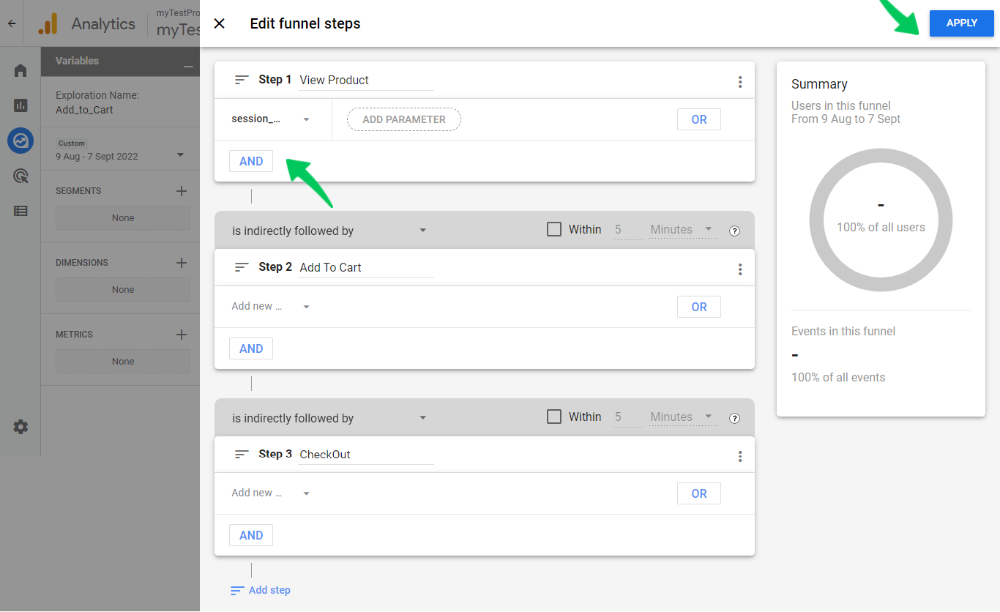
You need to create a custom funnel exploration that tracks all the steps in the sales funnel and presents data for each event (including Add to Cart).
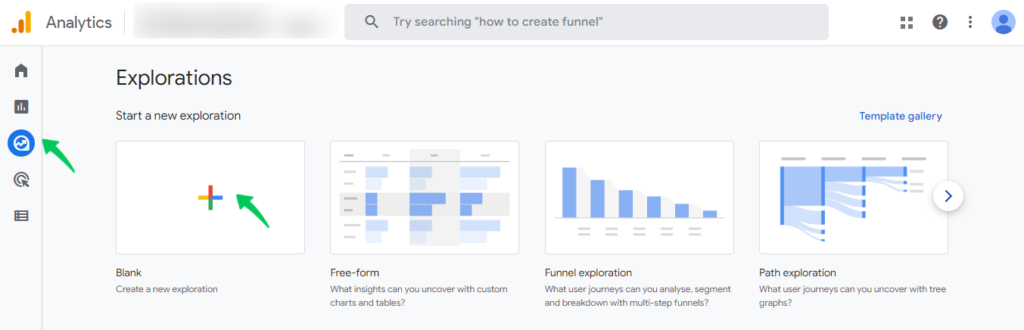
To track the event, go to the Explore tab and click Blank.
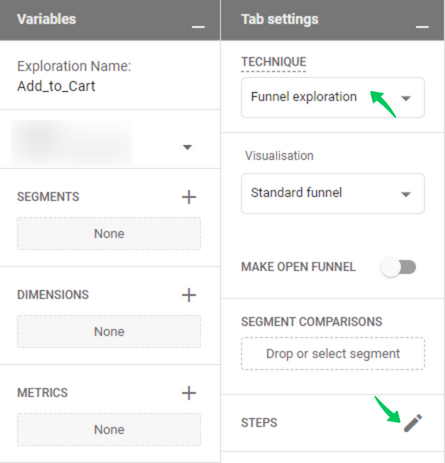
In the next form, give a name to the exploration and select Funnel Exploration from the technique drop-down.
Next, click Steps to add steps to the funnel.
This will take you to a new screen where you can add steps. Note that for each step, you need to add an event you want to track at that stage.
Once you have added all the steps, simply click Apply. Google Analytics 4 will show the data at each step.
Frequently Asked Questions
Why should you track Add to Cart events?
Add to Cart events are important because they help you track the number of visitors who entered the sales funnel.
Can I view Add to Cart events outside of Google Analytics?
Yes. Analytify is a popular WordPress Google Analytics dashboard plugin that displays all important metrics in your dashboard. You can see products added to cart metrics in the Monetization tab of the Analytify dashboard.
Does GA4 track Add to Cart automatically?
No. GA4 does not track Add to Cart by default. It needs a Google Tag Manager trigger on the add_to_cart event, or a plugin like Analytify that sends the event automatically.
What is the correct GA4 event name for Add to Cart?
The recommended GA4 event name is add_to_cart. Using this exact name lets the event appear in GA4’s standard ecommerce reports without extra configuration.
Can I track Add to Cart without Google Tag Manager?
Yes. Analytify tracks Add to Cart automatically for WooCommerce and Easy Digital Downloads stores once the ecommerce add-on is active, with no GTM setup needed.
Why isn’t my Add to Cart event showing in GA4?
Check that the GTM tag fired in Preview mode and that the container is published, not just saved. If you’re using Analytify, confirm the WooCommerce or Easy Digital Downloads add-on is active and connected to the same GA4 property.
Conclusion: Track Add to Cart Events
We hope you now have a clear idea of how to track Add to Cart events in Google Analytics. This is an important eCommerce performance metric that shows how many visitors entered the sales funnel. We also show how Analytify simplifies the process of analyzing the Add to Cart events.
Let us know how you track this event and use the statistics in your analysis.
Related GA4 Tracking Guides
- How to Track Website Traffic with Google Analytics 4
- How to Track File Downloads in Google Analytics 4
- How to Track Form Submissions in GA4
- How to Track Leads in Google Analytics 4
That’s all! You can also check out All About Google Analytics Events vs Goals (Simple Guide)andHow to Use Google Analytics to Increase Website Traffic.
Not using Analytify yet? What are you waiting for?




 Halloween Sale: Know which campaigns drive sales this season.