
How to Master GA4 Content Grouping for Deeper Insights and Smarter Reporting?

GA4 content grouping sorts your pages and screens into custom buckets, so you can see metrics for related groups of content instead of one page at a time.
For a complete walkthrough, see our guide: How to Set Up Google Analytics 4 and Connect it to Your WordPress Site?.
GA4 Content Groups empower you to categorize your website content (pages, blog posts, etc.) into meaningful groups based on specific criteria. It allows you to gain deeper insights into user behavior across different content types, ultimately enabling you to optimize your content strategy, improve user engagement, and drive business growth.
In this article, we’ll define GA4 Content Grouping and its various benefits and also provide a step-by-step guide on creating and using content groups in Google Analytics.
Google Analytics Content Grouping (TOC):
What are GA4 Content Groups?
Google Analytics Help says content groups let you categorize pages and screens into custom buckets, so you can see metrics for related groups of information. This lets you analyze user engagement with different content types in an organized way.
It is very important to gain a holistic understanding of user behavior. While individual page reports provide valuable insights, they can sometimes paint an incomplete picture when dealing with complex websites with multiple content. That’s where Content Group GA4 comes into play.
Think of your website as a library. Imagine navigating shelves overflowing with books scattered around. Finding specific information would be a time-consuming task. However, with the magic of organization, such as categorizing books by genre, author, or topic, you enhance accessibility and streamline information retrieval. This approach is especially valuable for websites offering a research paper service, where users seek quick and efficient access to academic resources.
Here’s a brief explanation of what Content grouping GA4 are and why they matter:
- Definition: A feature within Google Analytics 4 (GA4) that allows you to group website content (pages, screens) into custom categories.
- Purpose: To facilitate a deeper analysis of user behavior and engagement across different content types.
- Benefits:
- Enhanced understanding: Gain a clear picture of how users interact with different content categories.
- Improved reporting: Analyze key metrics (engagement, conversion rates, etc.) for each content group, revealing insights missed in basic reports.
- Informed content decisions: Identify top-performing content categories and tailor your content strategy accordingly.
- Streamlined analysis: Focus on specific content groups instead of individual pages, saving time and effort.
We’ll expand on the mentioned benefits in the next section.
Why Use Content Groups in Google Analytics 4?
Content groups show engagement time, bounce rate, and conversions for whole categories of pages instead of one page at a time. The four key advantages follow.
1. Enhanced User Behavior Understanding:
Imagine trying to understand customer preferences in a store overflowing with unorganized products. It’s going to create great confusion.
GA4 Content Groups act as the shelving system in your website’s analytics warehouse. By grouping content based on themes, categories, or product types, you better understand how users interact with different sections of your website.
For instance, let’s say you run an e-commerce website. You can create content groups for “Men’s Clothing,” “Women’s Clothing,” and “Accessories.” Analyzing these groups allows you to see which category attracts the most visitors, which products within a group have higher engagement rates, and how users navigate between different content types. This granular understanding empowers you to tailor your content strategy and user experience for each segment.
2. Improved Reporting and Data Analysis:
Say goodbye to drowning in a sea of individual-page reports! Content grouping in Google Analytics enable you to analyze key metrics (engagement time, bounce rate, conversions) at the group level. This streamlined approach provides a more concise view of content performance than individual-page reports.
Analyzing engagement metrics for all your blog posts individually would be a time-consuming and overwhelming task. With content groups, you can categorize blog posts by topic (e.g., “Marketing Tips,” “Industry Trends”) and analyze overall user engagement for each topic. It allows you to identify high-performing content themes and double down on creating content that resonates with your audience.
3. Data-Driven Content Strategy Decisions:
Armed with insights from GA4 Content Groups, you can make informed decisions about your content strategy. By identifying top-performing content categories and topics, you can:
- Direct your content creation efforts: Allocate resources towards creating more content within high-performing categories.
- Optimize existing content: Refine existing content within underperforming groups to improve engagement.
- Align content with user needs: Tailor your content strategy to cater to your audience’s specific interests and preferences through their engagement with different content groups.
4. Streamlined Analysis and Efficiency:
Analyzing individual page reports for a large website can be difficult. GA4 Content Groups offer a time-saving solution. Focusing on content groups allows you to analyze user behavior and website performance more efficiently. It also allows you to dedicate more time to strategic decision-making based on your data insights.
Limitations of GA4 Content Grouping
The main limitations of GA4 content grouping are the single built-in content group dimension, the dependence on how you assign groups, and the lack of retroactive changes.
- Limited Number of Groups: GA4 has one built-in content group dimension, populated by the content_group parameter. Google Analytics Help says additional content groups need custom parameters (for example content_group2 and content_group3) registered as custom dimensions. One group can feel restrictive for websites with many content categories.
Solution: To overcome this limitation, consider using custom dimensions in conjunction with content groups. Custom dimensions allow you to define additional content categories beyond the single group functionality. While reports won’t natively display data grouped by these custom dimensions, you can use them for advanced segmentation and analysis.
- Page Path Reliance: The GTM RegEx Table method assigns content groups from page paths, so it works best when your URL structure reflects your content categories. It can be inflexible for websites with dynamic URLs or non-hierarchical structures.
Solution: If your website utilizes dynamic URLs, explore alternative methods for defining content groups. You can use the data layer or user-defined variables within Google Tag Manager to assign content groups based on more dynamic criteria beyond just the page path.
- No Retroactive Application: Changes made to content groups won’t be reflected in historical data. It limits the ability to analyze how user behavior has changed in response to content group adjustments.
Solution: While historical data won’t reflect changes, you can track the impact of content group modifications moving forward. Set up your content groups and monitor user behavior over time to gauge the effectiveness of your categorization strategy.
By understanding these limitations and implementing the suggested workarounds, you can ensure that GA4 Content Grouping remains a valuable tool for analyzing your website’s content performance.
Also Read: Best Content Audit Tools to Improve Ranking
How to Create GA4 Content Groups: A Step-by-Step Guide
To create content groups in GA4, define your groups, build a RegEx Table variable in Google Tag Manager, and add that variable to your Google tag as the content_group parameter.
Here’s a step-by-step guide on how to create content groups in GA4:
Important Note: This guide uses Google Tag Manager (GTM). Google Analytics Help also lets you set a content group with the Google tag directly, by adding the content_group parameter to the page. To follow the steps below, you need to install GTM.
Step 1: Define Your Content Groups
The first step involves determining how you want to categorize your website content. Consider your website structure, content types, and business goals. Here are some examples of how you might define your content groups:
- Product Categories (eCommerce): Clothing, Electronics, Home Goods
- Blog Post Topics: Marketing Tips, Industry Trends, Product Reviews
- Content Type: Blog Posts, Landing Pages, Product Pages
Step 2: Set Up a User-Defined Variable in GTM
Head over to your Google Tag Manager account. Within the Variables section, create a new User-Defined Variable.
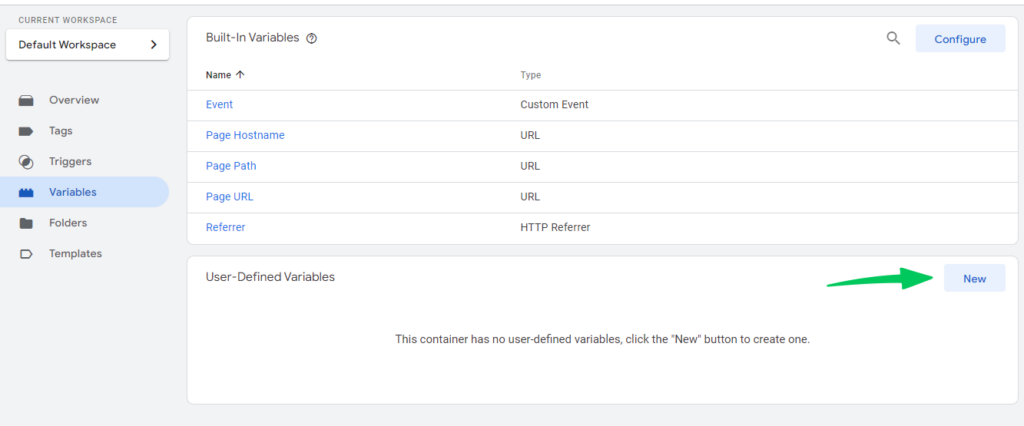
Here, you’ll define the logic for assigning content groups based on your website’s URL structure.
You can take several approaches, depending on your website’s complexity.
Here is the common method:
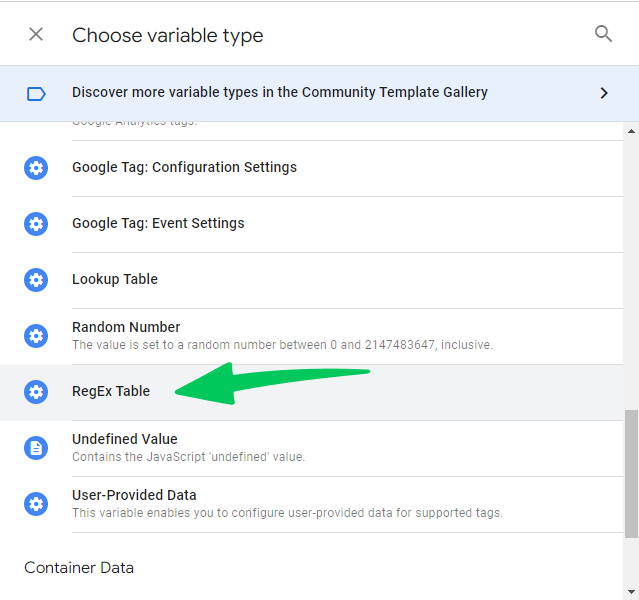
- Choose Variable Configuration and select Regex Table.
- Regular Expressions (Regex) allow you to define rules for assigning content groups based on patterns within URLs.
Step 3: Input Variable
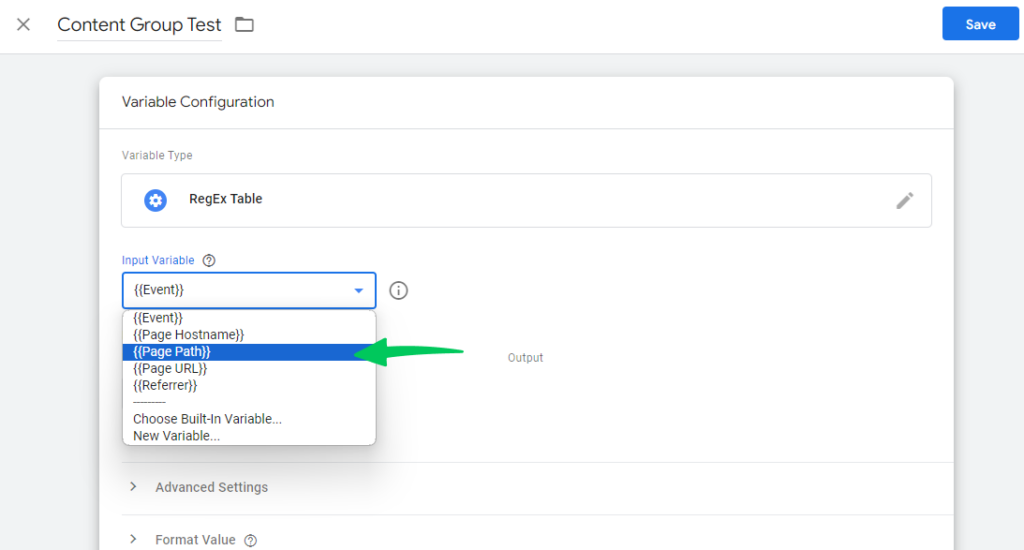
Select {{Page Path}}. It captures the full URL path of the user’s current webpage.
Step 4: Create Rows
Create rows in the Regex Table to define your content groups.
Here’s how to define those patterns:
- Identify your page path structure: Analyze your website’s URL structure and how different content types are categorized within the URL.
- Pattern Matching with Regex: In the “Pattern” column of the Regex Table, you’ll define a Regex expression that captures the desired portion of the URL path for each content group.
Here are some common Regex examples for matching page paths:
Let’s say you have a website with the following URL structure:
- /blog/marketing/social-media-tips (Blog post on social media)
- /products/electronics/phones/pixel-7 (Product page for Pixel 7 phone)
- /about-us (About Us page)
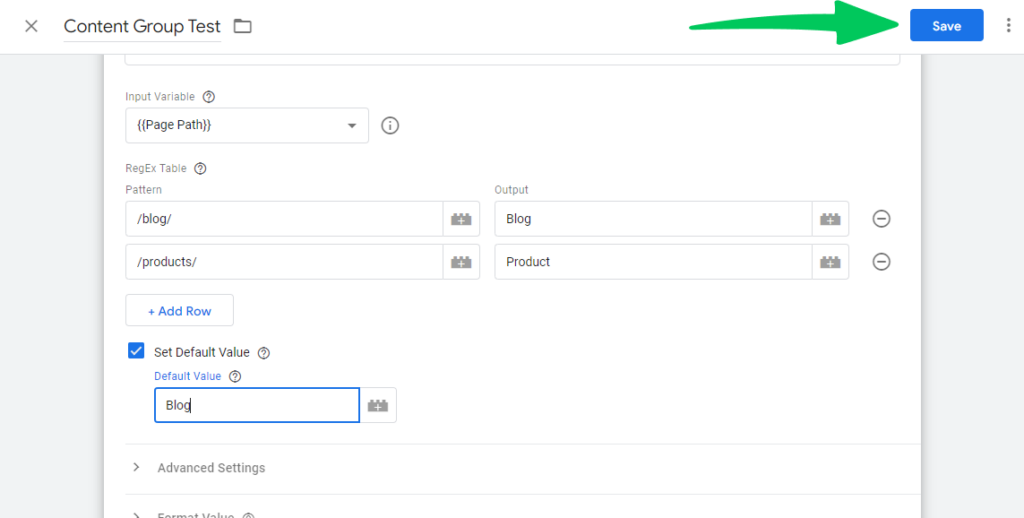
You can create a User-Defined Variable with the following Regex Table entries:
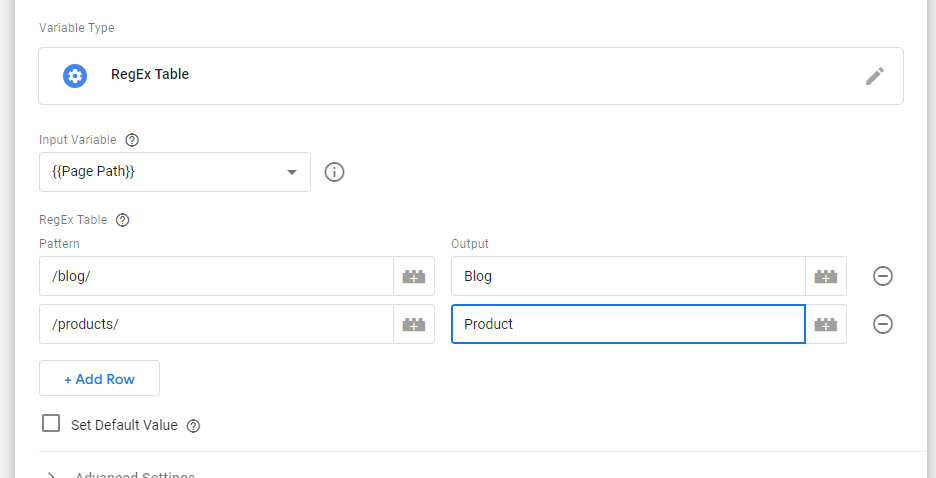
Remember, Regex can get complex for intricate URL structures. It’s best to start with simple patterns and test them thoroughly before adding more complex ones.
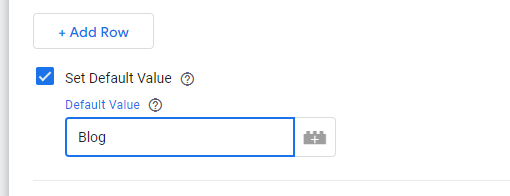
In the Output column, enter the matching content group name (for example, “Blog”). Under Set Default Values, enter a fallback such as “Other group” for pages that match no pattern.
Step 5: Save your Variable
Name the variable “Content Group” and save it. The next step refers to it as {{Content Group}}.
Step 6: Update Your GA4 Tag Configuration
Open the Tags section in GTM and find your Google tag. Older containers call it the GA4 Configuration tag.

Within the tag configuration settings, you’ll find an option to define Custom Parameters within the tag configuration settings.
Navigate to Event Settings Variable:
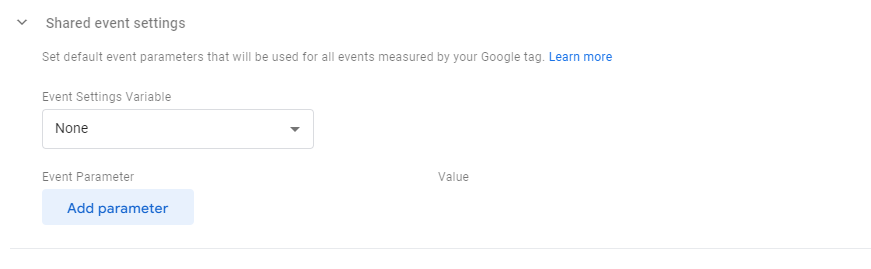
- A new row will appear to define the parameter.
- In the first column, enter content_group (without quotation marks).
- In the value column, enter {{Content Group}}. This references the User-Defined Variable you created.
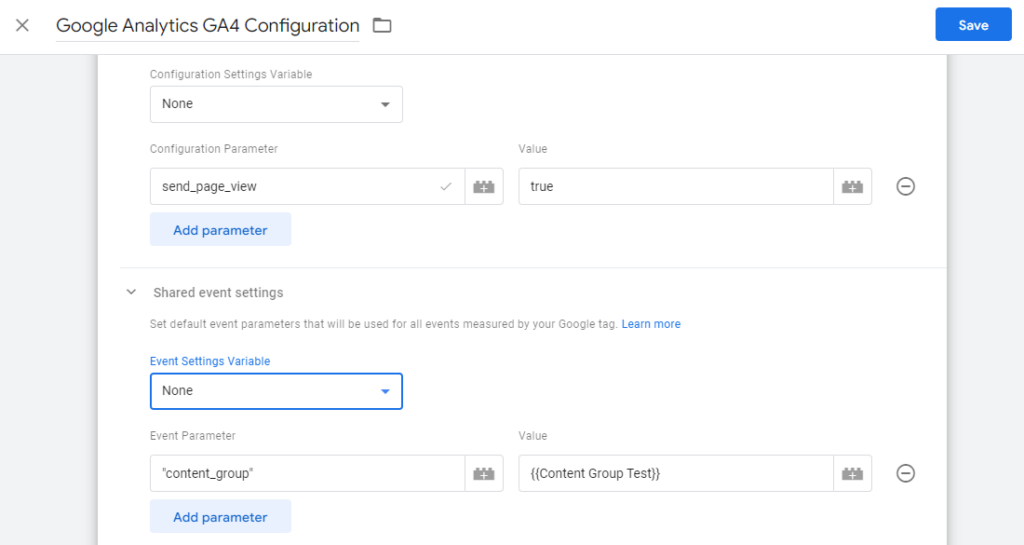
Then Save it.
Step 7: Submit the Tag
After updating the tag, save it and publish the container.
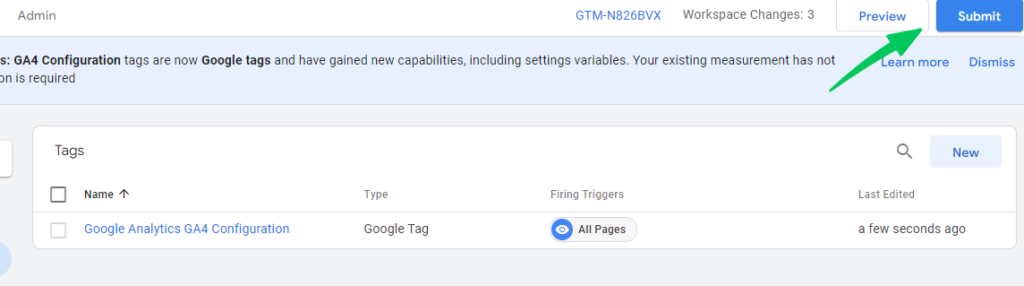
Then, you’ll be able to see the updated version as shown below:
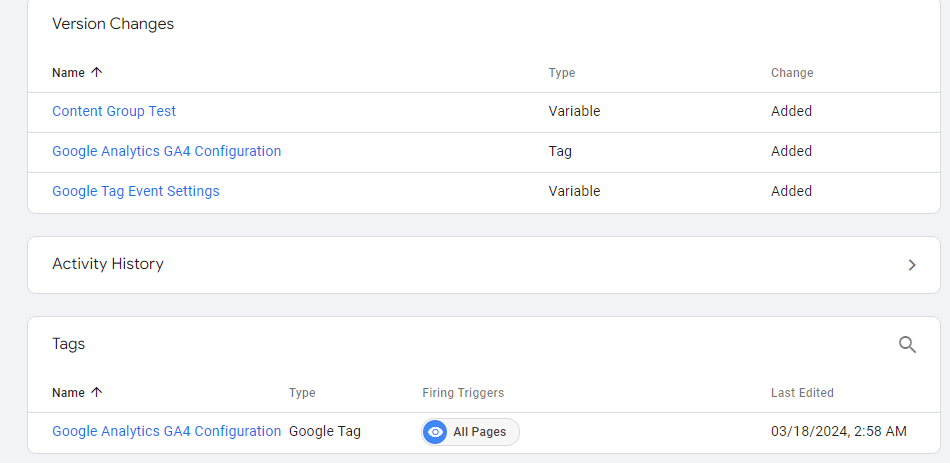
Step 8: Verify Data in GA4
Allow some time for data to be collected within GA4. Navigate to the relevant reports within GA4 that support content group analysis.
Want to unlock the full potential of Google Tag Manager? Read our comprehensive guide on Google Tag Manager best practices, including valuable tips for content group analysis within GA4.
How to Access Content Grouping in GA4?
To access content grouping in GA4, log in to your GA4 account and go to GA4 Reports >> Engagement >> Pages and screens. Then, you can select Content Group from the drop-down menu, as shown in the screenshot below:
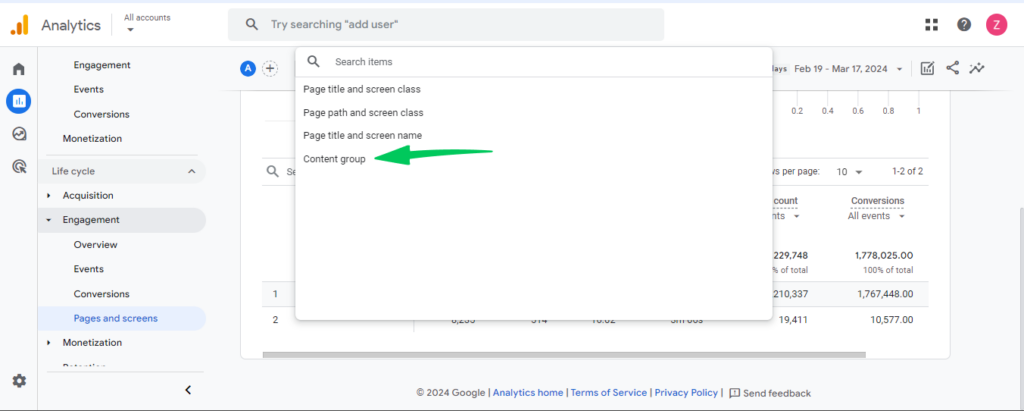
You should see your website content categorized based on the groups you defined.
Check Content Groups in GA4 Exploration
Once you’ve set up content groups using GTM (as explained in previous steps), you can also use them in GA4 Explorations.
Here’s how to use the content group dimension in GA4 Explorations:
- Open GA4 Explorations: Navigate to the Explorations section within your GA4 property.
- Start a new exploration or edit an existing one.
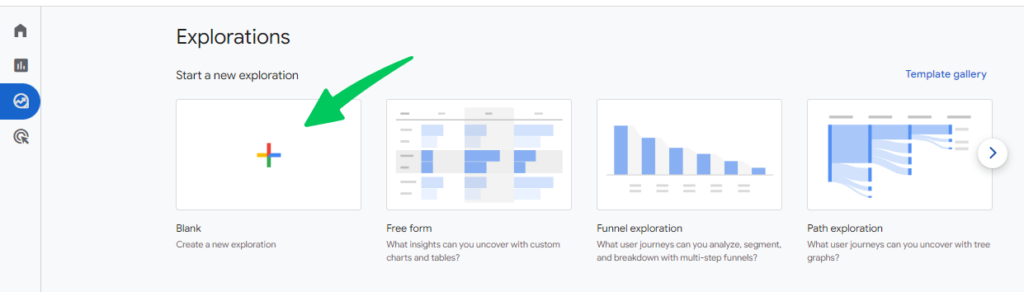
- Add the Content Group Dimension: Locate the Content group dimension in the left-hand panel under “Dimensions.” GA4 names this dimension Content group because it is populated by the content_group parameter.
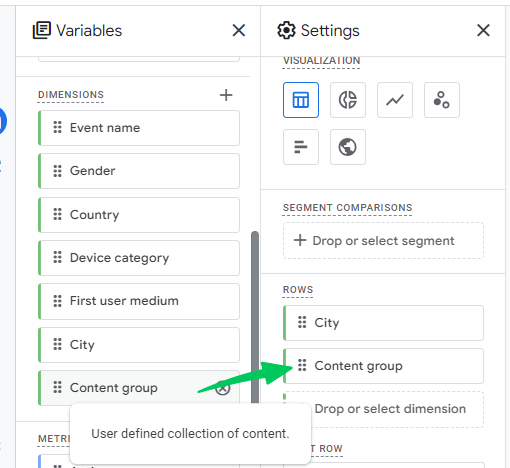
- Drag and Drop to Tab Settings: Click and hold the content group dimension, then drag it to the rows section of your Exploration tab settings. It will categorize your data based on the content groups.
For example, if you drag the “Content Group” dimension to the rows, your data will be broken down by the different content groups you defined (e.g., Blog, Product A, etc.). This allows you to analyze metrics like page views, user engagement, or conversions for each content group.
Use Powerful Content Insights with Analytify for WordPress
Content grouping in GA4 offers valuable insights into user behavior across your content categories.
However, using GA4 requires some technical expertise in Google Tag Manager (GTM). Analytify offers a simple and user-friendly alternative for WordPress users seeking a more straightforward solution.
We Make Google Analytics Look Easy!
You know all about Google Analytics and love the data it provides, but wouldn’t it be nice if there is a tool to manage all of that complex information within your WordPress dashboard?
Easy integration with GA4
Analytify integrates with GA4, allowing you to get the power of both platforms. While Analytify provides user-friendly reporting and simplifies content grouping, GA4 offers advanced analysis capabilities.
Effortless Content Grouping for WordPress
Analytify is a powerful WordPress plugin that empowers you to gain deep insights into your website’s performance without the complexities of GTM.
Analyze your content performance with crystal clarity. Analytify presents data in clear, actionable reports highlighting which content groups resonate most with your audience.
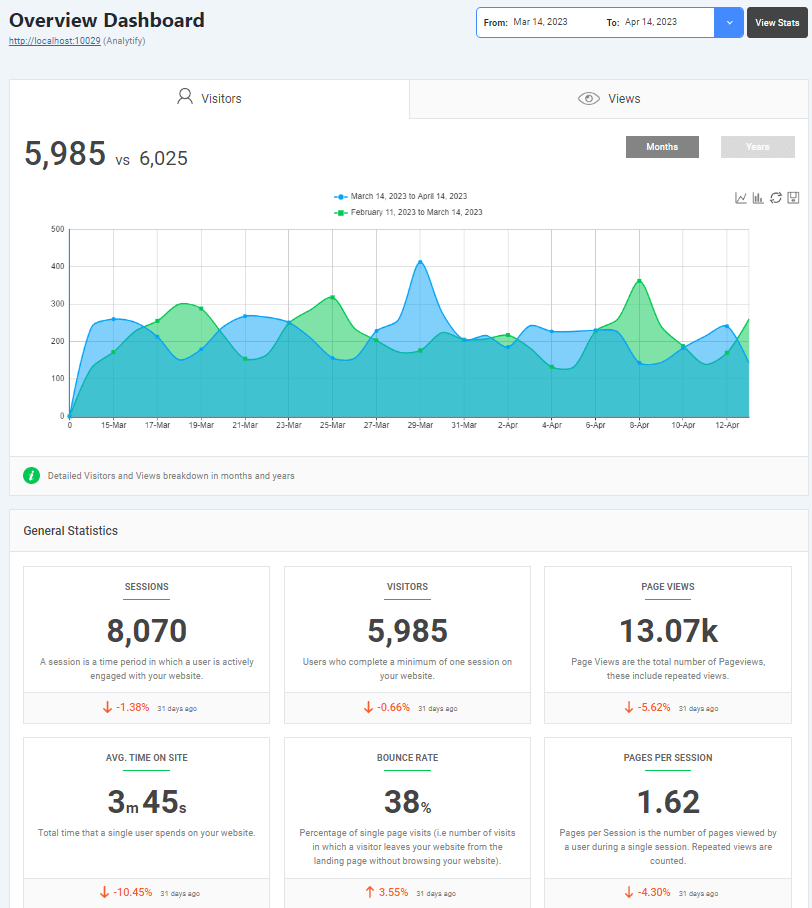
Analytify equips you with valuable insights like time spent on content, user engagement, and conversion rates for each group. It allows you to identify top-performing content, optimize underperforming categories, and tailor your content strategy for maximum impact.
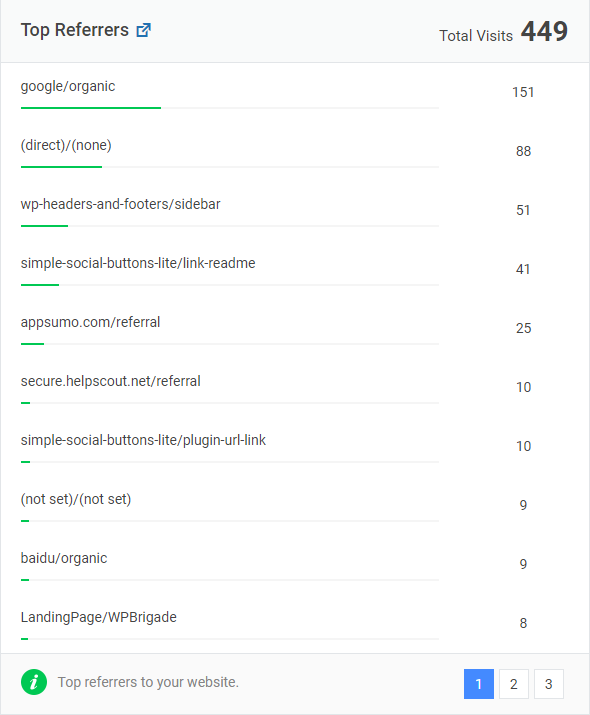
Analytify categorizes the content analytics into clear categories so that you can understand it well.
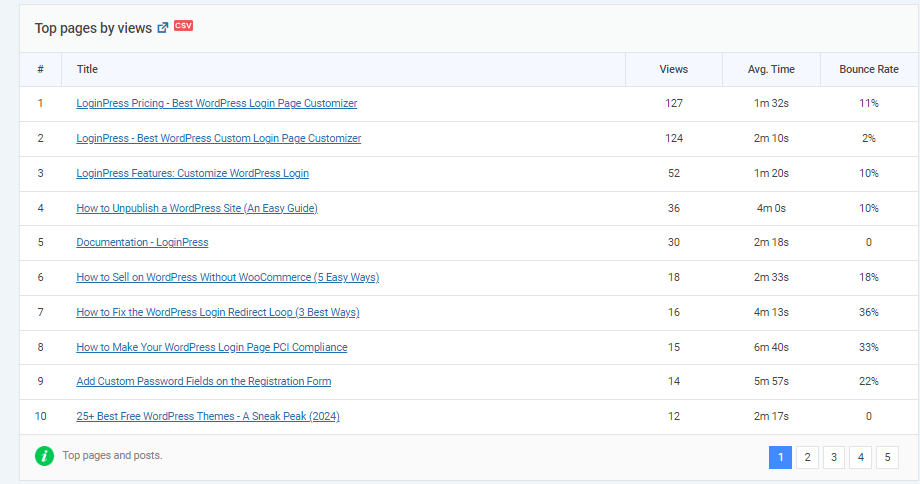
Analytify also shows top pages analytics in a separate section, so that you can check the analytics of your choices.
GA4 Content Group FAQs
1. How many content groups can I create in GA4?
Currently, GA4 only allows you to create one content group. However, you can use custom dimensions with content groups for more detailed categorization.
2. How do I define content groups for my website?
Defining content groups can take several approaches. You can categorize content based on product categories (e-commerce), blog post topics, content type (landing pages, blog posts), or any other criteria that align with your website structure and business goals.
3. I’m not comfortable with GTM. Are there alternative methods for creating content groups?
While GTM is the primary method, Analytify, a WordPress analytics plugin, offers a more user-friendly interface for managing content groups within GA4. However, it still relies on GTM for the underlying technical implementation.
4. Can I use historical data with content groups?
Unfortunately, changes to content groups won’t be reflected in historical data. However, you can track the impact of content group modifications moving forward to gauge their effectiveness.
5. How can I use content groups to improve my website’s performance?
You can identify top-performing categories by analyzing user behavior within different content groups and tailoring your content strategy accordingly. This allows you to create content that resonates with your audience and ultimately drives engagement and conversion.
Conclusion
In this comprehensive guide, we’ve explored the world of GA4 Content Groups. We’ve established their purpose, unpacked their benefits, and equipped you with the knowledge to create and utilize them within your GA4 implementation.
GA4 Content Groups are a powerful tool for unlocking deeper insights into user behavior across your website’s diverse content landscape. By using content groups effectively, you can gain a clearer understanding of how users interact with different content categories on your website, make data-driven decisions about your content strategy, optimize your website’s performance by focusing on high-performing content categories, and address any shortcomings within underperforming groups.
Don’t let your website content remain disorganized. Use GA4 Content Groups to categorize your content strategically and get valuable insights that will empower you to refine your content strategy and drive website success.
Now it’s your turn! Have you experimented with GA4 Content Groups? What challenges have you faced, and what insights have you gleaned from them? Share your thoughts and experiences in the comments below.