GTAG vs Google Tag Manager (Detailed Guide)

GTag and Google Tag Manager are both made by Google, but they solve different problems: GTag (now officially called the Google tag) is a script you place directly on your site to send data to GA4, Google Ads, and other Google tools; GTM is a management system that lets you add and control multiple tags, including non-Google ones, from a dashboard without touching site code.
This guide breaks down what each one does, how they differ in practice, and which one fits your site, plus how Analytify removes the setup work entirely if you’d rather skip both.
GTag vs Google Tag Manager (TOC):
What is GTag?
GTag, short for Global Site Tag, is a tracking script developed by Google that helps websites collect and send data to Google Analytics, Google Ads, and other Google tools. Instead of adding separate tracking codes for each tool, GTag simplifies everything by acting as a single tag that manages multiple data streams.
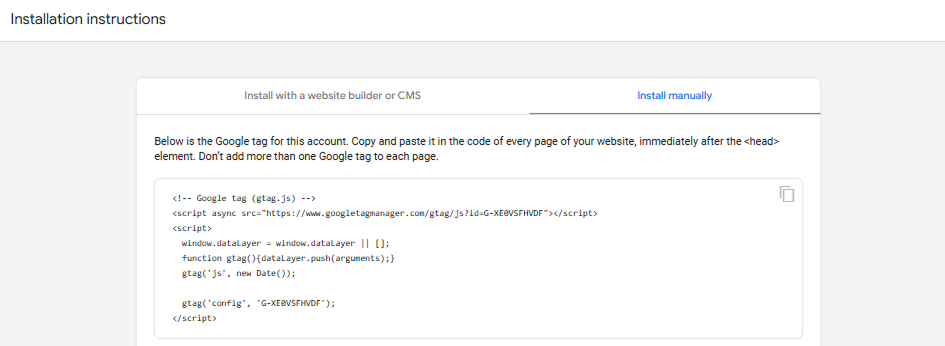
The screenshot above shows the installation instructions for gtag.js when setting it up manually. You must copy and paste this snippet into the <head> section of each webpage. The script loads Google Tag Manager, sets up a dataLayer, and initializes your Google Analytics measurement ID.
When you install GTag on your website, it collects and sends important data like page views, conversions, and user interactions. This makes tracking website performance easier, running ad campaigns, and analyzing user behavior without needing multiple tracking codes.
One of the best things about GTag is how flexible it is. You can set it up to track the exact actions you care about, like button clicks, page views, or custom events. It also works smoothly with Google Tag Manager, giving you even more control if needed. It ensures you’re getting the right data without making things complicated.
What is GTM (Google Tag Manager)?
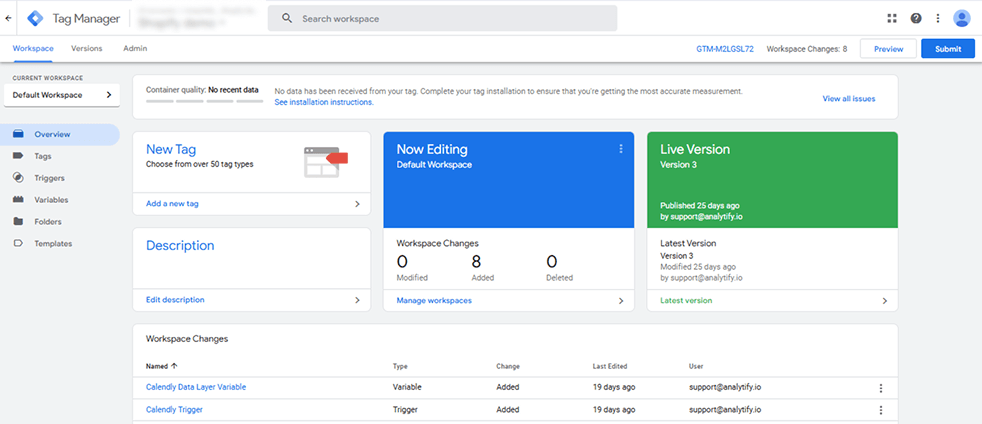
Google Tag Manager (GTM) is a free tool by Google that simplifies the process of managing tracking codes (tags) on your website. Instead of manually adding different scripts for analytics, ads, or marketing tools, GTM lets you handle everything from a single, user-friendly dashboard without needing to edit website code.
With GTM, you can set up tags (like Google Analytics, Facebook Pixel, or conversion tracking codes), define triggers to fire them at the right time, and use variables to capture dynamic data. It also includes Preview Mode, allowing you to test tags before they go live.
GTM speeds up your site by loading all tags efficiently and reduces the risk of errors since everything is controlled in one place. Whether you’re tracking clicks, form submissions, or user behavior, GTM makes it easier to manage and optimize your tracking setup without constantly relying on developers.
GTag vs Google Tag Manager: Key Differences
GTag and GTM both add tracking codes to your site, but they work in very different ways. GTag is a direct tracking script you place on your site; GTM is a tag management system that sits between your site and every tag you run.
Below is a detailed comparison to help you understand when to use each:
| Feature | GTag (Global Site Tag) | Google Tag Manager (GTM) |
| Definition | A JavaScript framework for directly implementing Google tracking tags. | A tag management system lets you control multiple tags from a single interface. |
| Ease of Use | Requires manual coding and implementation on each page. | No coding needed after the initial setup; tags are managed in a central dashboard. |
| Flexibility | Limited to Google tools like GA4, Google Ads, and conversion tracking. | Supports various third-party tags, including Facebook Pixel, LinkedIn Insights, and custom scripts. |
| Tag Management | Each tag must be added and updated manually in the website code. | Tags are managed through GTM’s interface without editing site code. |
| Performance Impact | It can slow down page load if too many scripts are added. | Improves site speed by loading tags asynchronously. |
| Testing & Debugging | Requires manual testing for each update. | Offers built-in Preview Mode to test tags before publishing. |
| User Access Control | No user management; anyone editing the website code can modify GTag. | Allows permission settings, ensuring only authorized users can change tags. |
If you’re only using Google Analytics or Google Ads, GTag is a quick, simple solution. If you need to manage multiple tracking codes, adjust tags without touching site code, and keep tag deployment organized, Google Tag Manager is the better choice.
GTag vs GTM: How They Work
Global Site Tag (GTag) and Google Tag Manager (GTM) are both tag management tools offered by Google, but they work in different ways and serve different purposes.
GTag is a direct integration method where tracking code is added manually to your site’s <head> section. You manage tags like GA4, Google Ads, and more by editing the code directly. It’s simple for small websites with minimal tracking needs, but it lacks flexibility when scaling or managing multiple tags.
On the other hand, Google Tag Manager (GTM) is a tag management system that lets you add, update, and manage all tracking tags through a web interface without changing the website code.
GTM allows advanced configurations, such as triggers, variables, custom JavaScript, and more, making it ideal for marketers and analysts who want control without relying on developers.
Google Tag Manager vs GTag: When to Use Each
Use GTag.js when you only need to implement a few Google tools, like GA4 or Google Ads, and prefer adding the tracking code manually. It’s a good choice for small websites and landing pages, or when you want to keep things simple and lightweight with fewer updates.
Use Google Tag Manager (GTM) when you need flexibility, multiple tracking tags, or want to manage everything from one interface without touching the website code every time. GTM is ideal for growing websites, marketing teams, A/B testing, custom event tracking, and advanced setups like firing tags based on user behavior or custom triggers.
Choose GTag for simplicity. Choose GTM once you’re working with multiple tools and events and need more control over how they fire.
GTag vs GTM: Pros and Cons
GTag.js is simple to implement and works well for basic tracking needs. Its biggest advantage is speed. You directly add the code to your site without a third-party interface.
However, it becomes harder to manage as your tracking needs grow, especially if you want to add multiple tags, modify event tracking, or coordinate between teams. Any updates require changes to the site’s code, which often means involving developers.
On the other hand, Google Tag Manager (GTM) offers a centralized platform for managing all your tags without repeatedly modifying site code. It supports triggers, variables, and built-in templates for various tools, making it ideal for complex or frequently changing setups.
GTM takes a bit more time to learn than GTag, and if it’s not set up correctly, it can affect the accuracy of your data. For most businesses, the built-in version control and testing tools are worth that extra setup time.
GTag vs GTM: Which One Should You Use?
Go with GTag if you’re running a simple site with basic Google Analytics or Ads tracking and don’t expect frequent changes. Go with GTM once you need to track user interactions, manage multiple marketing platforms, or make frequent updates without developer help.
Analytify: Best Alternative to Manual GTag vs GTM Setup
Join 50,000+ beginners & professionals who use Analytify to simplify their Google Analytics!
Analytify skips the manual coding and custom configuration that GTag and GTM both require, and gives you the same tracking data inside your WordPress dashboard.
Analytify is a Google Analytics plugin for WordPress that turns a multi-step tracking setup into a one-time connection. It pulls your GA4 data and presents it in dashboards inside your WordPress admin panel, and its add-ons handle the tracking that would otherwise need a GTM tag or a line of gtag.js code.
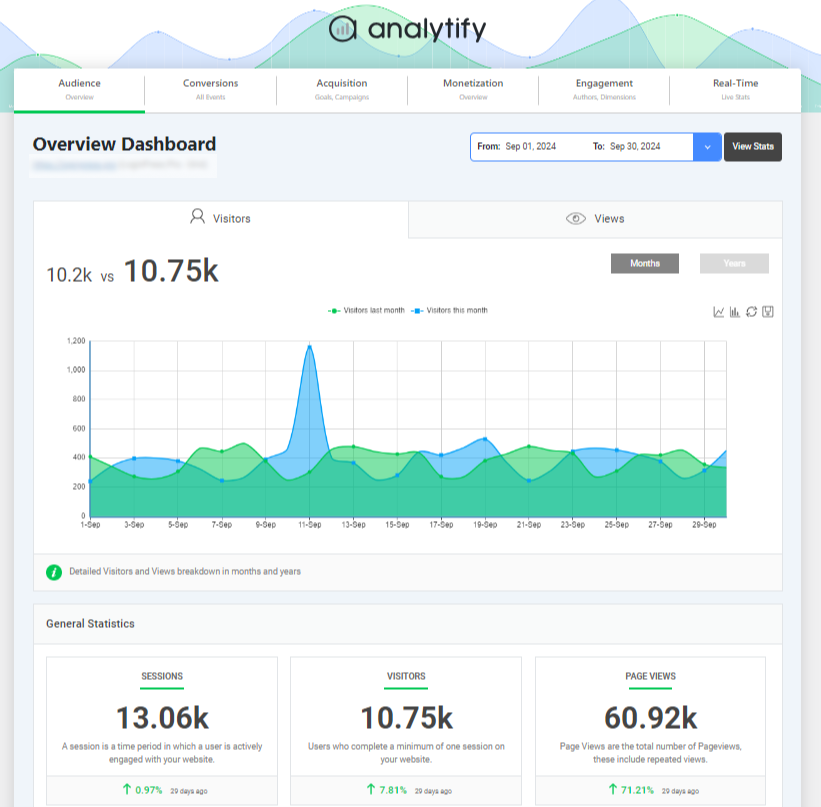
Here’s what those add-ons cover:
| Add-on | What It Replaces |
|---|---|
| Form Tracking | A GTM tag configured to detect form events and send them to GA4. Analytify detects form submissions automatically, no GTM setup needed. |
| Campaign Tracking | Manual UTM tag configurations in GTag or GTM. Analytify tracks UTM-based campaigns directly in your dashboard. |
| Event Tracking | A GTM or gtag.js setup for button clicks, outbound links, and file downloads. Analytify tracks these from inside WordPress with a few clicks. |
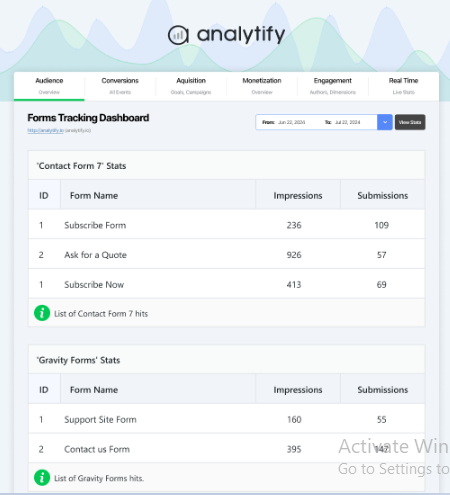
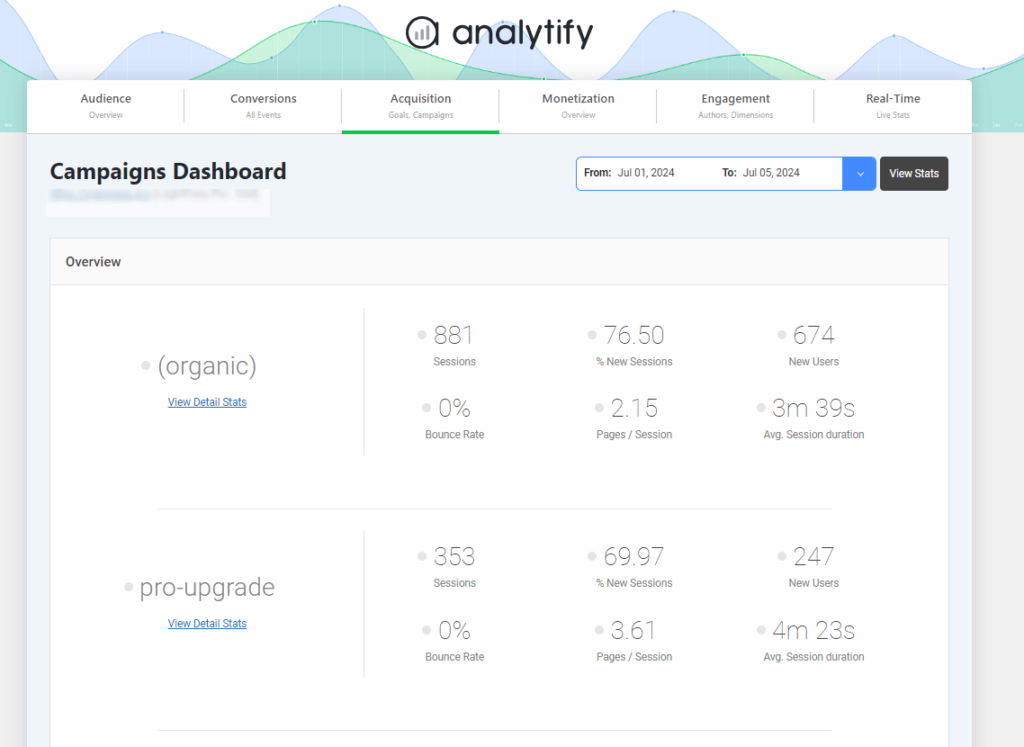
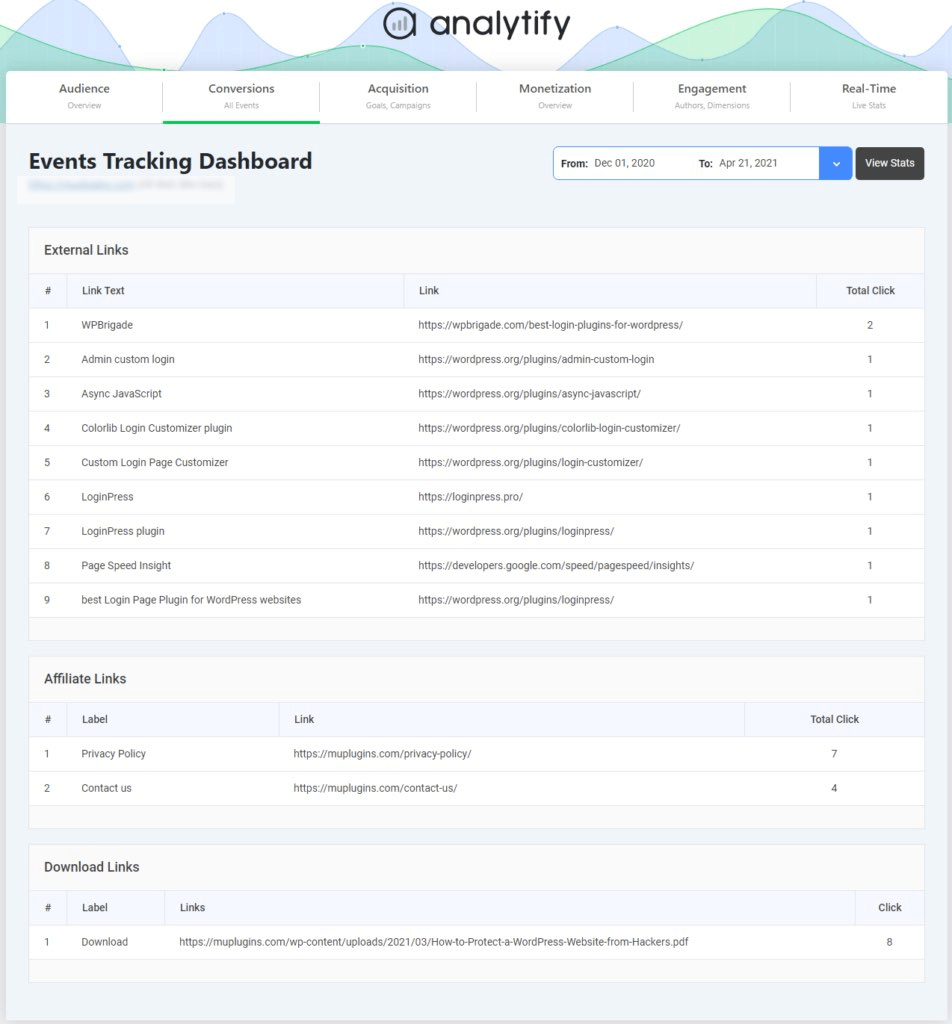
Analytify handles campaign tracking, event tracking, form tracking, and eCommerce insights inside your WordPress dashboard, with no coding and no separate GTag or GTM setup.
Frequently Asked Questions about GTag vs Google Tag Manager
Is GTag the same as Google Tag Manager?
No. GTag (now officially called the Google tag) is a direct-tracking code snippet, while GTM is a tag management platform that controls multiple tags from one dashboard.
What is the difference between Google Tag and GTM?
Google Tag (formerly GTag.js) is a script you place directly on your site. GTM lets you manage tags through a dashboard without editing site code.
What is the difference between Global Site Tag and Google Tag?
They’re the same tool. Google officially renamed Global Site Tag (gtag.js) to “Google tag” in 2023; the underlying script and setup process didn’t change.
Is Google Tag Manager free?
Yes, Google Tag Manager is free to use. There’s no paid tier for standard GTM; Google Analytics 360 customers get an enterprise version with extra support and workspace limits.
Why isn’t my GA4 data showing up correctly in Analytify?
This is almost always a connection issue rather than a tracking issue: confirm Analytify is linked to the right GA4 property in its settings, that you’re logged into the Google account with access to that property, and that no ad blocker or consent tool is blocking the tracking request. New GA4 properties can also take 24 to 48 hours to start populating data.
GTag vs Google Tag Manager: The Verdict
GTag and Google Tag Manager (GTM) both send data to Google’s tools, but they solve different problems. GTag is a direct tracking script you place on your site; GTM is a management layer that lets you add, edit, and remove tags without touching site code.
Which one to use comes down to your site’s complexity, how often your tags change, and whether you’d rather keep things simple or have more control.
Analytify removes the setup work from either option, with pre-built add-ons that need no coding. Whether you stick with GTag, GTM, or switch to Analytify, the right call depends on your comfort level and what you’re tracking.
For further guidance, you can check these articles: