How To Track WooCommerce Sales Using Google Analytics [Analytify]

To track WooCommerce sales using Google Analytics, enable eCommerce tracking. Google Analytics then records purchases, revenue, and product data from your store.
Turn on eCommerce tracking before any promotion runs, so you have baseline sales data to compare against.
Most eCommerce store owners spend a lot of money on establishing their stores and marketing their products. By doing this, they might get new customers and sales, but the ROI they get is not too impressive. But the smart players play smartly. They keep an eye on their analytics and run their campaign according to that Analytics.
Not every store owner is tech-savvy, and the Google Analytics reporting about WooCommerce stores is too complex. At this point, the Analytify dedicated addon about Woocommerce comes into play. It helps you to understand your Analytics in a simpler and better way. You can have ideas about the behavior of your customer.
In this article, we will discuss How To Track WooCommerce Sales Using Google Analytics.
Table of Contents
Why Is It Necessary to Enable Google Analytics eCommerce Tracking WooCommerce?
You may wonder why to add anything extra when WooCommerce has its own Analytics feature. The answer is simple. The WooCommerce built-in Analytics feature only gives you the total number of sales. It also reports orders that were processed or canceled. Can you get an idea about the customer’s behavior by looking into WooCommerce reporting? Obviously not.
With advanced analytics features, you will be able to analyze the following things.
- Shopping Behavior
- Checkout Behavior
- Product Performance
- Sales Performance
1. Track Shopping Behavior
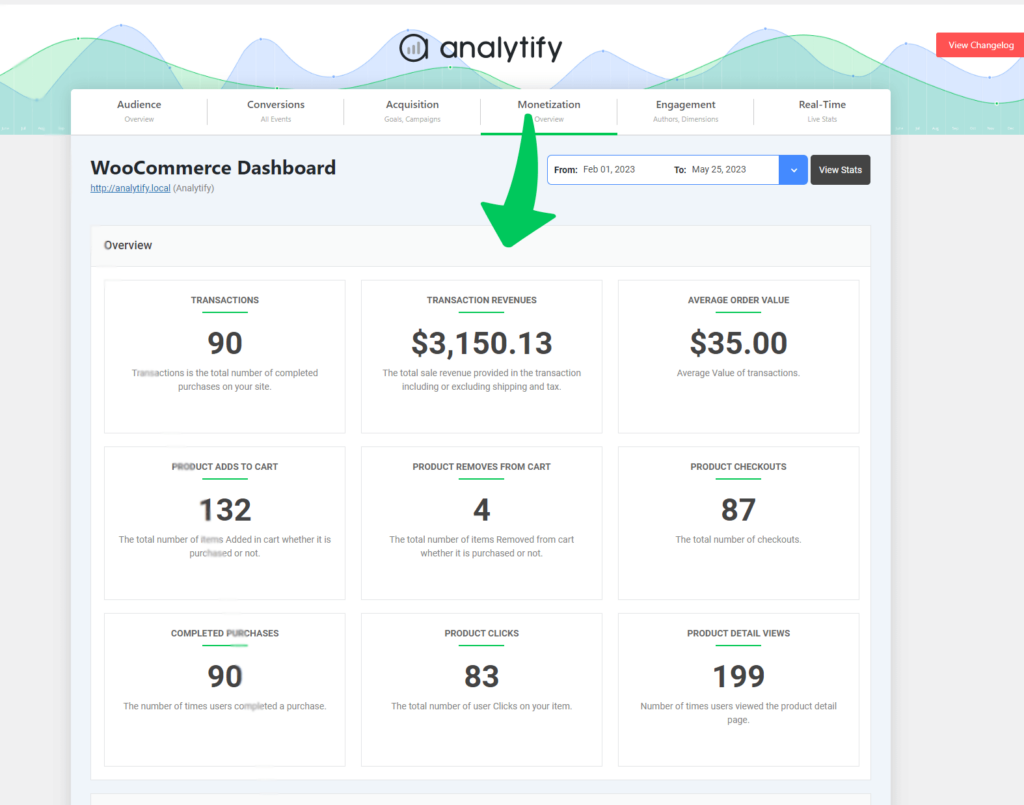
Analytify lets you track shopping behavior on your website. That matters right after you start your WooCommerce store. This gives you the details. You see how many people visited your product, how many added it to their cart, and how many purchased it.
Once you have the data, use it to optimize the products in your store and grow sales.
2. Analyze Checkout Behavior
If you have noticed on the WooCommerce checkout process, there are a few steps,
- The first step is to add the product to the cart and click proceed to checkout.
- Second, it comes to the billing address section,
- Finally, it comes to proceeding to payment.
Google Analytics tracks everything. It tells you how many users added products to their carts. It shows how many customers added the billing address. It also shows how many completed the payment process.
Analyze Product Performance
Product performance is another useful feature of Google Analytics. Inside the product performance report, you track products by total revenue, total number of refunds, and buy-to-detail rate. Furthermore, you can check the performance of a specific product category and a specific product brand.
Analyze Sales Performance
Inside the Sales performance, you can track all the transactions made by your customers in your store. Furthermore, you can check other details about tax, shipping refund, and coupons. It can help you to make your balance sheet.
Setting Up WooCommerce Tracing Inside WordPress Dashboard
The easiest way to track WooCommerce sales in Google Analytics is Analytify. Manual setup is complex for most store owners. With Analytify, you can track sales using the Enhanced ECommerce Tracking for WooCommerce addon.
This addon will give you all the reporting and tracking from Google Analytics right inside your WordPress Dashboard.
To make this work, first install the Analytify core plugin. Then install Analytify PRO.
For this setup, read our guide on Installing The WooCommerce Tracking Add-ons.
We assume you already installed Analytify Pro and the Enhance Ecommerce for WooCommerce Tracking addon. We also assume they work with Analytics.
After the activation of WooCommerce Addon, eCommerce tracking will automatically start without any complicated configuration. You will start seeing your sales analytics on WooCoomerce Dashboard in your WordPress site.
How to Track eCommerce Sales in GA4
With Analytify’s Enhanced Ecommerce Addon for Woocommerce, you can track your Ecommerce sales in Google Analytics 4 with ease. You can track the relevant data in Realtime Report. You can track Ecommerce Purchases under the Monetization heading.
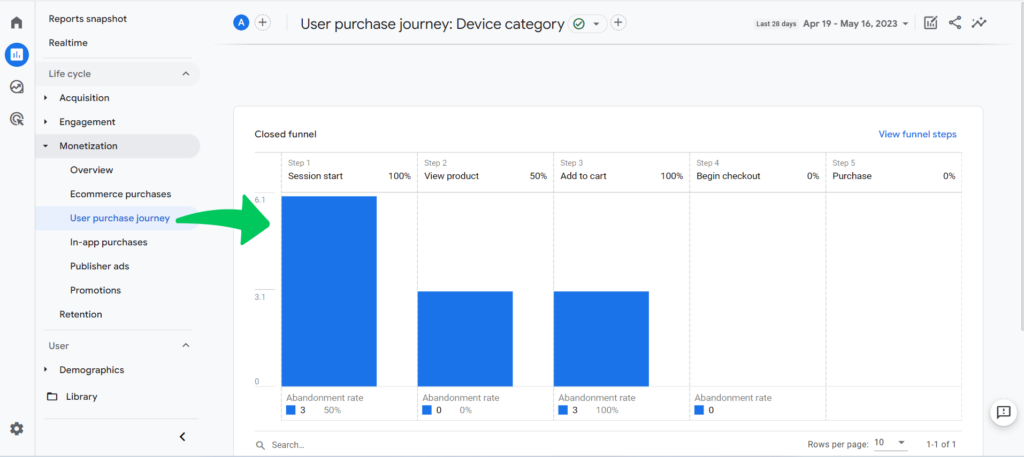
You also get a funnel exploration of the purchase journey right in your GA4 account. Find it under the Monetization section. GA4 generates this funnel automatically. It happens when you use Analytify’s Enhance Ecommerece add-on to track e-commerce events from your website. Also, read our guide, How To Enable Google Analytics Ecommerce Tracking.
To see your Ecommerce sales data in Google Analytics 4, follow the steps below.
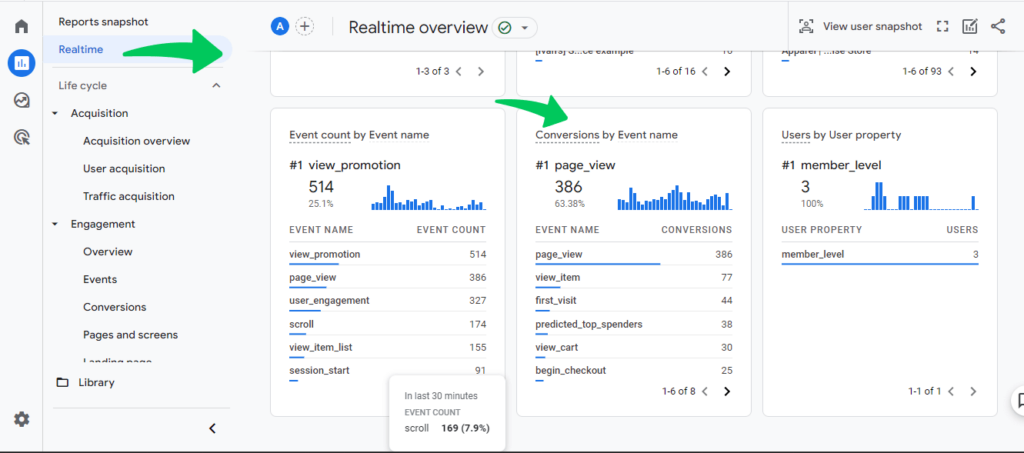
Step 1. Check the Realtime Report
This step will also verify if your Ecommerce setup is right. You can see events relevant to your Ecommerce sales here.
- Navigate to Reports>>Realtime in the menu on the left.
- Scroll down to Events.
- If Ecommerce events (view_item, add_to_cart) are happening on your site in real-time, they will be shown here. It means your Ecommerce setup is right.
Step 2: Check Ecommerce Purchases Reports
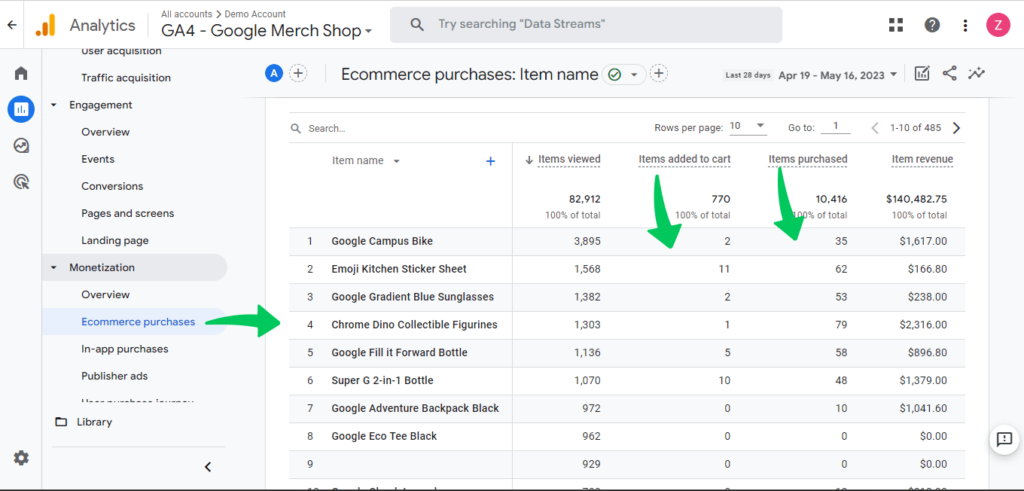
Once you’ve set up Ecommerce and approved it, you can look at Ecommerce reports.
To track Ecommerce purchases, navigate to Monitization>>Ecommerce purchases.
You can see Items viewed, Items purchased, Items revenue, and many more metrics.
Step 3: Analyze the User Purchase Journey
Navigate to Reports>>Monetization>>User purchase journey. You will see an automatically generated funnel of all the steps of the purchase journey. It runs from session start to purchase, as shown in the below screenshot.
Step 4: Make An Ecommerce Custom Report In GA4
You can also make your custom e-commerce report in Google Analytics 4.
To make a personalized report about Ecommerce sales:
- Navigate to Explore>>Funnel Exploration. Funnel exploration is helpful for seeing customized shopping funnel reports.
- You can change your report by dragging and dropping dimensions like the Event name and measures like Event count.
How to Track Ecommerce Sales in Universal Analytics
To make eCommerce tracking work, first of all, you need to enable eCommerce tracking inside your Google Analytics account. You can enable E-commerce tracking in UA by going to Website Property>>Admin>>Ecommerce Setting.
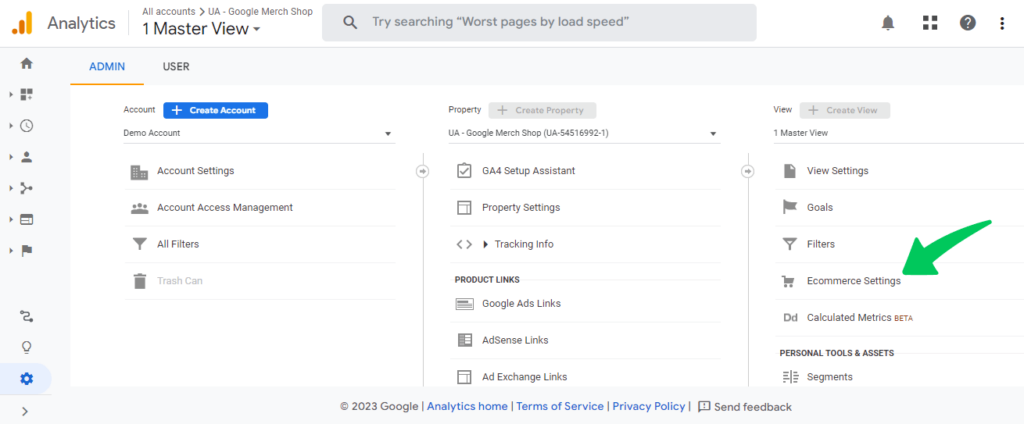
Inside your Ecommerce Settings, you need to enable Ecommerce and Ecommerce reporting. After enabling the eCommerce reporting, you will have the option to add the funnel for the checkout process. Here you can add your funnel. In my case, I’ve added the Checkout Page, Billing Info, and Proceed to Payment.
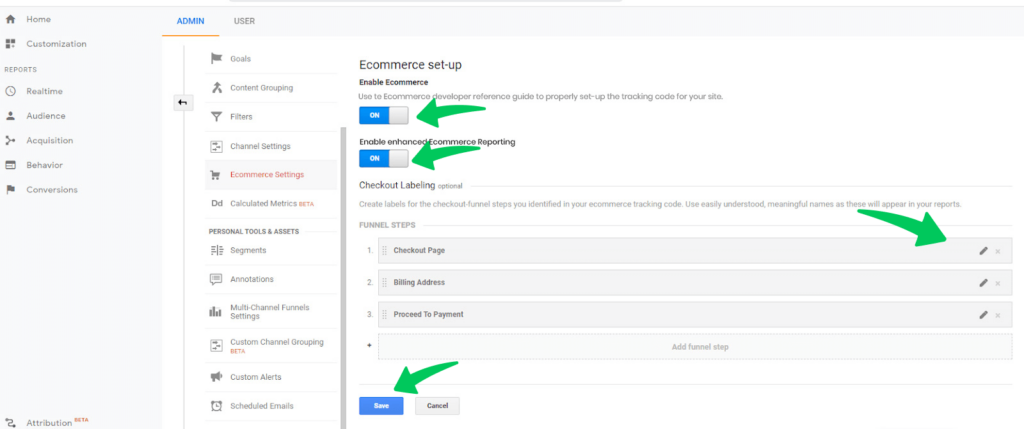
You are all set to track your WooCommerce store reporting inside Google Analytics or inside your WordPress Dashboard.
How to View WooCommerce Sales in Your WordPress Dashboard
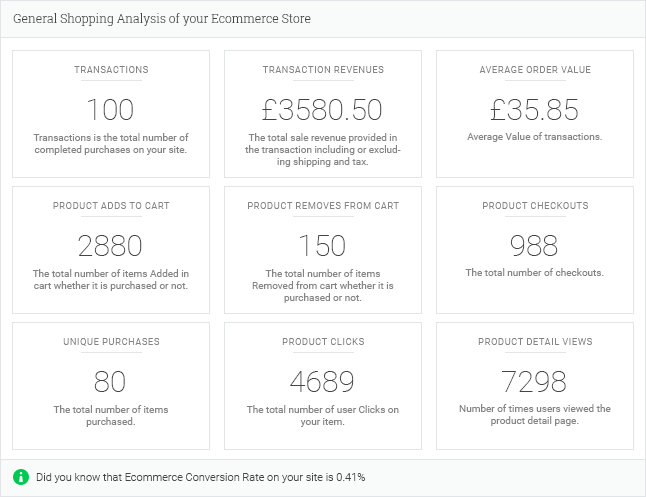
In order to view the Reporting inside your WordPress dashboard, you need to go to Analytify>>WooCommerce. It will open a detailed dashboard about Woocommerce reporting. You can see everything inside your WordPress dashboard in a nice, simple, and detailed way. These analytics can be read by a person who has never used Analytics.
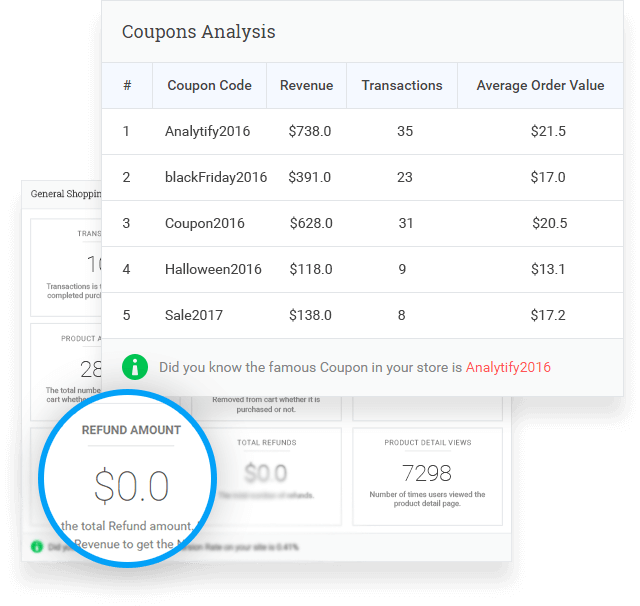
Coupon And Refund Tracking
You can see which coupon code sells best. You can then increase the quantity of that coupon code based on the stats. You can also see the refund reports. They help you take action to reduce refunds in the future.
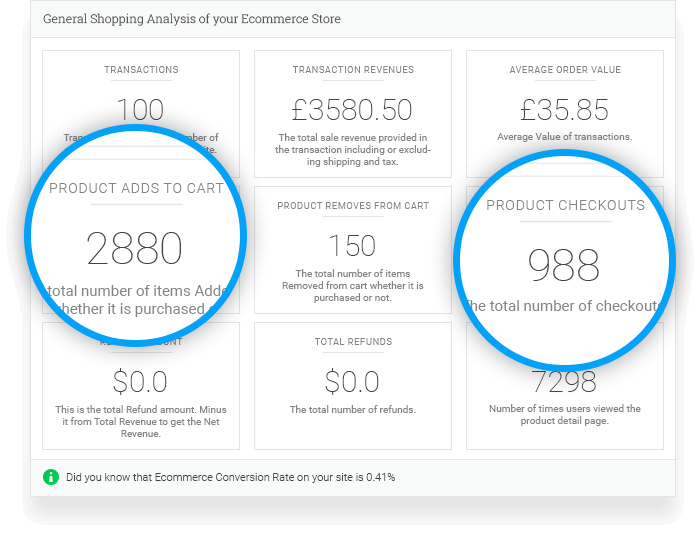
Checkout and Purchase Performance
You can track how many people added products to their cart. You can also track how many completed the transaction. Look for a big difference between the number of products added and the number purchased. Then you need to take some serious action to make your checkout process easy. Furthermore, you can offer some coupon codes to your customers to encourage them to complete their transactions.
Product Performance
You can track your top-performing product by different parameters. They include total revenue generated, total number of purchases, and fewer refunds. Once you know the top-performing product, you can work on it further. Take it to the next level.
Final Words
Using Analytify to track WooCommerce sales using Google Analytics is a complete way to learn about your customers’ habits. It also improves the performance of your online store. You will learn important things about your sales data. You will see how customers make purchases. You will also see how engaged people are with your website overall. This knowledge helps you improve your marketing strategies and give your customers a better experience. It also helps you increase your eCommerce sales.
Remember that digital success in eCommerce isn’t just about getting traffic. It’s also about figuring out what that traffic is all about. When Google Analytics, Analytify, and WooCommerce work together, you get the precise data analysis tools you need to succeed.
Frequently Added Questions
Can I Track Sales in Google Analytics?
Yes, you can use Google Analytics to track sales. By turning on Ecommerce tracking in Google Analytics, you can keep track of sales, see how people shop and buy, figure out how your checkout process works, and more.
You’ll need to set up Ecommerce tracking for your specific platform (like WooCommerce, Shopify, etc.). You can use the Analytify Pro plugin and its Enhanced ECommerce Tracking for WooCommerce addon. This addon will help you to automatically track all your sales, so you won’t need to add tracking codes yourself. Once that’s done, you’ll be able to see important sales data in your Google Analytics dashboard.
Do I need any technical knowledge to set up WooCommerce tracking using Analytify?
No, you don’t require any technical abilities or coding knowledge. Analytify Pro and its Enhanced ECommerce Tracking for WooCommerce addon are user-friendly and walk you through the setup procedure step by step.
How long will it take for WooCommerce sales data to be shown in Google Analytics?
After you’ve done the setup, it can take up to 24-48 hours for sales data to surface in Google Analytics.
Is the Analytify plugin available for free?
Analytify has a free version; however, to use the WooCommerce tracking feature, you must upgrade to the premium version.
We hope this article has helped you how to track WooCommerce Sales using Google Analytics.
You may also like to read Everything You Need to Know About Monetization Reports GA4.