How to Find Your Top Converting Pages in GA4 on WordPress

You can find your top-converting pages in GA4 by opening the Pages and screens or Landing page reports and sorting the Key events or Session key event rate columns. Analytify also displays this data directly inside WordPress without requiring a GA4 login
In this article, I will show you the two GA4 reports that display conversions by page. I will also demonstrate how to sort and interpret the key event rate column.
Analytify displays this data directly inside your WordPress dashboard using a 1-click authentication wizard that takes under five minutes. If you have not connected your site yet, follow our guide on How to Set Up Google Analytics 4 and Connect it to Your WordPress Site?
Let us explore why locating this information inside the standard Google dashboard feels so complicated.
Top Converting Pages in GA4 (TOC):
What Does ‘Top-Converting Page’ Actually Mean in GA4?
The top converting pages in GA4 are those that generate the most key events per visit, relative to their traffic. Google Analytics 4 recently changed its standard terminology for the top converting pages in GA4.
The platform now uses the term key event instead of a conversion. Because of this change, finding a GA4 conversion report for pages requires looking for new metrics. You must understand the session key event rate.
You calculate this rate by dividing the total number of key events by the total number of website sessions. This metric is session-scoped, while a traditional conversion rate often requires custom calculations.
A high-traffic page with low conversions can lose money. Conversely, a low-traffic page with a high key event rate acts as a true growth engine.
You can learn more about these metric updates directly from the official Google Analytics Help documentation.
Core Tracking Requirements for Top Converting Pages in GA4
Before analyzing your performance, ensure you meet these standard requirements for tracking the top converting pages in GA4:
- An active WordPress website with administrator access.
- A connected Google Analytics 4 property that tracks daily live traffic.
- At least one active event is marked as a key event in your Google settings.

Let us look at the specific reports in your Google dashboard that display these metrics.
Which GA4 Reports Show Conversions by Page?
GA4 shows conversions by page in two standard reports: Pages and screens (all pages) and Landing page (entry pages only).
Both areas function as a standard GA4 conversion report for pages. Let us break down how to access each step of the setup.
Which GA4 Reports Show Conversions by Page? (All Page Visits)
The Pages and screens report displays every single page on your site. By default, it ranks them by views (the total number of times a specific webpage is loaded).
Follow these steps to find your top performers:
- Go to Reports in the left sidebar of your GA4 dashboard.
- Click Engagement, then select Pages and screens from the dropdown menu.
- Scroll down to the data table and find the Key Events column.
- Click the column header to sort your pages from highest to lowest.

Note: This report only shows total conversion volume. It does not show the conversion percentage rate by default. You must click the pencil icon to manually add the session key event rate metric.
Landing Page Report (Session Entry Points Only)
The Landing page report shows the best landing pages in GA4 based on session entry points.
This report shows which landing pages start sessions that later convert. Follow these instructions:
- Navigate to Reports, open Engagement, and select Landing page.
- Find the Key events column in the main data table.
- Click the header to sort by total conversion volume.

Both report options have their own strengths. Use Pages and screens to see which content led to a specific action. Use the landing page report to identify which entry points drive buyer traffic.
| Report | Shows | Best for |
| Pages and screens | All page visits in a session + key events per page | Finding which content generates conversions |
| Landing page | First page of session only + key events for that entry | Finding which entry points start converting sessions |
| Analytify Pages Report | Both combined, inside WordPress, no GA4 login required | WordPress-native view for non-technical users |
How Do You See GA4 Conversions by Page Inside WordPress?
Analytify shows GA4 conversion data by page directly inside your WordPress dashboard.
Analytify is a WordPress plugin that connects directly to Google Analytics 4 and displays data in the WordPress admin dashboard, including top-converting pages in GA4.
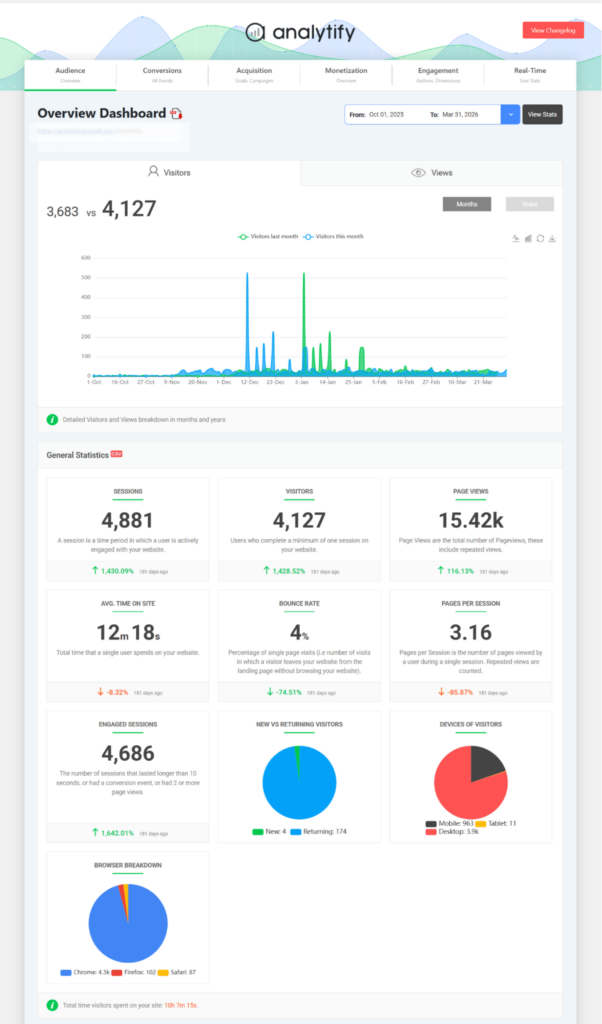
It also displays per-page stats below each post in the editor, so you can read GA4 data without switching tools.
Additionally, these per-page stats are displayed directly below each post in the WordPress block editor. You can check a post’s performance while editing it in WordPress.

The native Pages Report presents average engagement time, standard views, and bounce rate metrics for every URL.

You can easily sort your entire content library by key events in a single click to find top converting pages in Google Analytics 4.
If your website tracks custom actions, Analytify handles that data cleanly. Analytify’s Events Tracking Add-on shows custom conversion events, such as form submissions or button clicks, directly in WordPress.
Steps to Find Your Conversion Data
Follow these quick setup steps to view your GA4 conversions by page wordpress metrics:
- From your WordPress dashboard, navigate to Analytify, then click Dashboard.

- Scroll the Overview Dashboard to find the Top Pages Report tab to load your content URLs.
- Click the conversion or key events column header to sort your data from highest to lowest.

- Open any individual post inside the editor to view that specific page’s GA4 stats directly below the content box.
Analytify Pro starts at $99/year and brings all of this into WordPress without a single tab switch. See Analytify plans.
Let us now look at the step-by-step process to reveal missing performance columns in the native Google setup.
How Do You Use GA4 to Improve Conversion Rate on Key Pages?
To improve conversion rate on a key page, start by comparing it against similar pages: same traffic tier, different conversion rate.
The gap tells you what to test. You can easily improve conversion rate statistics by following three structured, strategic actions for top converting pages in GA4.
Step 1: Find Your Highest-Rate Page and Replicate What It Does
Sort your standard report by the session key event rate metric. Look for high percentages rather than raw volume. Isolate specific pages that attract meaningful traffic with at least 200 sessions.
For example, a target comparison page might draw 400 sessions with an 8% conversion rate. Meanwhile, the main overview page draws 4,000 sessions but only converts at 1%.
The first page brings in far more value per visit. Review its design layout carefully. Is the form visible immediately? Copy that exact style to boost performance.
Step 2: Identify High-Traffic, Low-Rate Pages for CRO
Pages with high visit counts but minimal conversions are major leaks. Isolate any URL showing traffic above your site’s average alongside a low-key event rate.
In Analytify, simply sort your central Pages Report by total views to spot these gaps instantly. These specific locations need conversion rate optimization.
Check the overall scroll depth. Is your button hidden? Make sure your content perfectly matches user expectations. There is one more signal you need before making any CRO decision.
Step 3: Check the Conversion Paths Report for Multi-Touch Context
Some valuable content pieces rarely convert directly. However, they might appear constantly right before a user buys.
Open your native GA4 dashboard and navigate to Advertising, then click Conversion paths.

This report maps the exact sequence of touchpoints leading up to a user completing an action.
A great blog post might act as a top assist channel. Do not delete low-converting pages until you review this assist data.
Note that this specific attribution tool remains strictly GA4-native.
How Do You Add the Session Key Event Rate Column in GA4?
GA4 does not display the session key event rate by default. You add it manually using the table edit icon in any report. This lets you compare pages by conversion rate instead of raw conversion totals.
| Customization Steps | Analytify Plugin | Native GA4 Dashboard | Easier For Non-Analysts? |
| View Conversion Rates | Automatic | Manual Setup Required | Analytify |
| Customize Metric Columns | No Steps Needed | 6 Technical Steps | Analytify |
Follow these quick steps to modify your default metrics panel layout:
- Open Reports, click Engagement, then choose Pages and screens in GA4.
- Click the pencil icon in the top right corner.
- In the Metrics panel, click Add metric.
- Search for the Session key event rate and select it.
- Click Apply to save your new table layout.
- Click the new column header to sort your pages.
Frequently Asked Questions
1. Which GA4 reports show conversions by page?
GA4 shows conversions by page in two standard reports: Pages and screens (Reports > Engagement > Pages and screens) and Landing page (Reports > Engagement > Landing page). Both reports include a ‘Key events’ column, which is GA4’s current term for conversions. To see the conversion rate rather than volume, you need to manually add the ‘Session key event rate’ metric to the report table using the edit icon.
2. Why can’t I see a ‘Conversions’ column in GA4?
GA4 renamed its conversion metrics in 2023 and 2024. What was previously called ‘Conversions’ is now called ‘Key events’. What was called ‘Conversion rate’ is now called ‘Key event rate’. If you are looking for a conversions column and cannot find it, look for ‘Key events’ instead. The data is the same; only the label changed.
3. How do I use GA4 to improve conversion rate on key pages?
To improve conversion rate on a key page, first sort your Pages and screens report by Session key event rate to find your highest-converting pages. Study what those pages do differently (CTA placement, content length, intent match). Then compare against your high-traffic, low-rate pages and apply the same patterns. The Advertising > Conversion paths report shows which pages consistently appear before a conversion, even if they do not convert directly.
4. How can Analytify surface top-converting pages inside WordPress?
Analytify displays GA4 conversion data by page inside your WordPress dashboard without requiring a GA4 login. The Analytify Pages Report can be sorted by key events or key event rate with a single click. Analytify also shows per-page stats below each post in the WordPress editor, so you can check a post’s conversion performance while editing it. The Events Tracking Addon (Pro plan) adds custom conversion event data to the same dashboard.
5. What is a good conversion rate for a WordPress page in GA4?
There is no universal benchmark because conversion rate depends entirely on what you are tracking as a key event. A newsletter signup rate of 2–5% is typical for content-based sites. An eCommerce purchase rate of 1–3% is common for product pages. Instead of chasing benchmarks, compare your own pages against each other. A page that converts at 4x the site average is a high performer, regardless of the absolute number.
Conclusion: Top Converting Pages in GA4
The pages that get the most visits on your site are usually not the same as the ones that convert best. If you use GA4 to spot the difference and make changes, you can boost your conversions.
Final Next Steps for Top Converting Pages in GA4
Here are the last steps to optimize your site:
- Open GA4 and go to Reports. Click on Engagement, then choose Pages and screens. Add the Session key event rate metric and sort the list by it.
- Identify your single highest-rate page with at least 200 sessions. Note what it does differently.
- Use the same design approach from your best-performing page on your most visited page that has a low conversion rate. Watch how its performance changes over the next 30 days.
Want to view the top converting pages in GA4 without logging into GA4? Try installing Analytify to see your top-converting pages right from WordPress. Check out the Analytify plans for more details.
That is all for this post. For more related posts, check:
- How Landing Pages Affect Ad Conversion Rate (Explained 2026)
- How to Create a Data-Driven Marketing Strategy with Analytify?
- Using the GA4 Ecommerce Checkout Funnel in WordPress
Which webpage on your site has the biggest gap between high traffic and low conversions, and what is the first change you plan to test on it? Let us know in the comments below!