
How to Set Up Cookieless Tracking in Google Analytics (2026 Guide)

To set up cookieless tracking in GA4, create a GA4 property and enable Google Consent Mode. Then let GA4’s built-in modeling fill data gaps when cookies are blocked or declined. GA4 already uses first-party cookies and event-based tracking by default. There’s no separate cookieless mode to switch on, only settings to configure correctly.
Cookies are small pieces of information a website stores on a visitor’s device. They remember details like cart contents or pages visited. Privacy laws like GDPR and CCPA are tightening. More websites are moving away from third-party cookies toward privacy-friendly, cookieless analytics. Google Analytics 4 is built for that shift.
This guide covers why GA4 cookieless tracking matters and what it actually does. It also covers how to set it up step by step. And it covers which alternative tracking methods to pair with it.
Google Analytics 4 Cookieless (TOC)
Why GA4 Cookieless Tracking is Important in 2026
GA4 cookieless tracking matters in 2026 because privacy laws now require clear consent before collecting data. GA4 is built to keep tracking accurate even when visitors decline that consent. It also signals to visitors that their privacy is respected. That builds trust that goes beyond simple legal compliance.
People are becoming more aware of how websites track them. Many are taking steps to protect their personal information. This shift is leading to significant changes in how websites collect and use data.
Laws like the General Data Protection Regulation (GDPR) in Europe are getting stricter. So is the California Consumer Privacy Act (CCPA) in the United States. These laws require websites to get clear permission from users before collecting data.
For example, France’s data protection authority fined Shein €150 million ($175.61 million) in September 2025. The online fast-fashion retailer was penalized for improper use of cookies. Shein has said it will appeal.
Since 2018, cumulative GDPR fines have passed €7.1 billion ($8.4 billion) as of early 2026. More than 60% of that total was issued since January 2023.
To comply with these laws and meet user expectations, more websites are moving toward cookieless analytics. Google Analytics 4 is built for that shift. It works without relying on cookies. That means you can follow privacy laws while still understanding how visitors use your site.
GA4 cookieless tracking lets websites respect user privacy and still gather useful information. That builds trust with visitors who want their data handled responsibly.
Adopting cookieless analytics is a compliance requirement now. It also helps maintain visitor trust as more websites make the same shift.
What is Cookieless Tracking in Google Analytics 4 (GA4)?
Cookieless tracking in GA4 means the platform can still measure visitor behavior. That holds even when third-party cookies are blocked, declined, or unavailable. Traditionally, cookies tracked page views, clicks, and cart additions. GA4 replaces that dependency with three mechanisms: first-party cookies, event-based tracking, and machine-learning modeling.
First-party cookies are set directly by the website a visitor is on. They only track activity on that one site. Third-party cookies follow visitors across multiple sites instead. They’re the ones privacy regulations and browsers are phasing out. GA4’s default setup relies on the first-party kind.
When cookies are blocked or declined, GA4 fills the gaps with modeled data. These are statistical estimates based on patterns from users who did consent. GA4 applies them automatically, so reporting stays usable without manual configuration.
How to Set Up Cookieless Tracking in Google Analytics 4 (Step-by-Step Guide)
Setting up cookieless tracking in Google Analytics 4 means adjusting how you collect data while reducing the reliance on cookies. Here’s the simplified process to set up cookieless tracking with GA4:
1. Create a GA4 Property
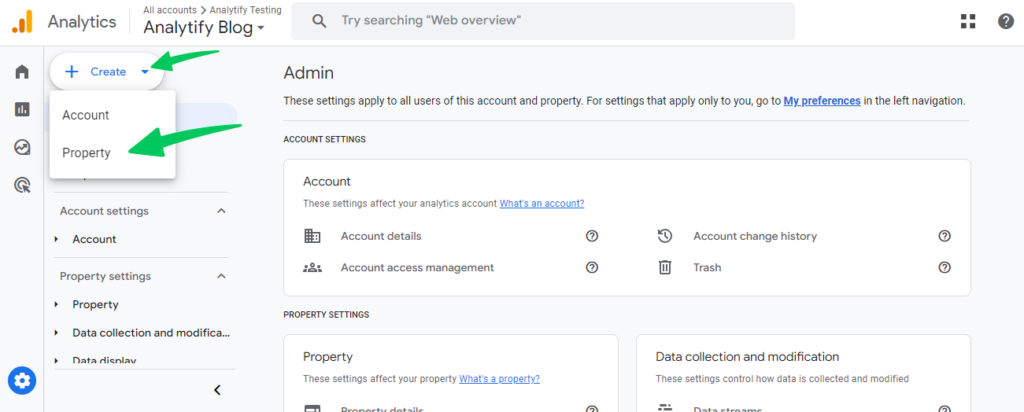
Start by creating a GA4 property if you have not already. Go to your Google Analytics account, click Admin, and in the Property column, select Create Property. Follow the on-screen steps to set up your property.
2. Set Up Data Streams

Once your GA4 property is created, configure data streams to collect data from your site or app. Go to Admin >> Data Streams >> Add Stream. Choose Web for your website. You can also create a stream for an iOS or Android app. Enter your website URL and set up the Measurement ID for tracking.
GA4 typically requires Google Tag Manager (GTM) for implementation. If you are using WordPress, the Analytify plugin sets up GA4 tracking without needing GTM. See How to Set Up Google Analytics 4 for the full walkthrough.
3. Enable First-Party Cookies and Consent Mode
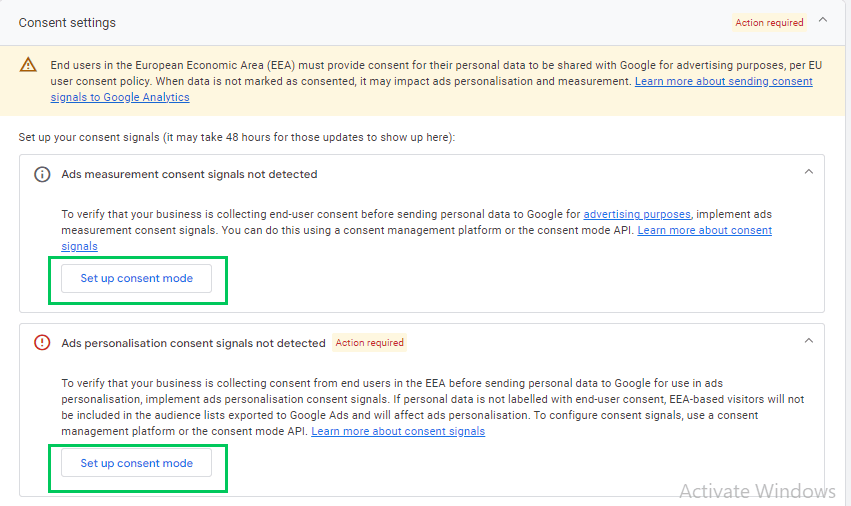
GA4 uses first-party cookies, placed directly by the website a visitor is on. They collect basic data like session and interaction data. These are privacy-compliant and enabled automatically, so no manual setup is needed. Some visitors will still block cookies or decline consent. Enable Google Consent Mode so GA4 keeps functioning. It adjusts how it uses cookies based on the consent each visitor gives.
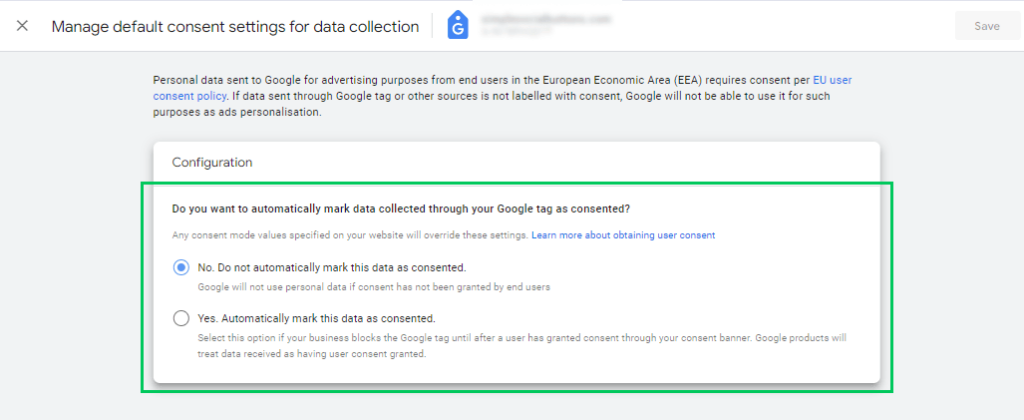
For the full setup, read the Google EEA Compliance and Consent Signals Guide.
4. Rely on Event-Based Tracking
GA4 is built around event-based tracking rather than the pageview model Universal Analytics used. Every page view, click, and form submission is logged as an event. GA4 doesn’t need a persistent cookie tied to one visitor across sessions to measure what they did. That makes event-based tracking work well in a cookieless environment by design, not as a workaround.
5. Let Machine Learning Model the Gaps
GA4 uses machine learning to estimate activity it cannot directly observe. This happens when cookies were blocked or consent was declined. The models are trained on patterns from consented users. GA4 applies them automatically, so reporting stays usable without manual configuration.
6. Set a Data Retention Period
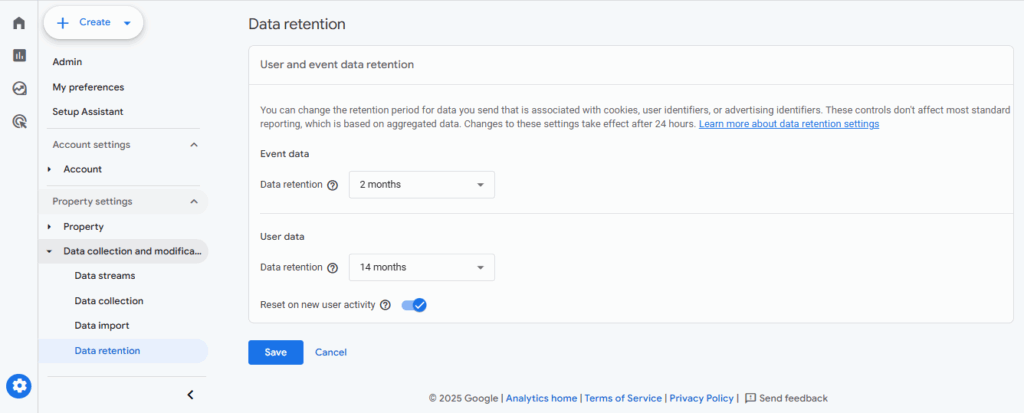
GA4 still stores some user and event data even without cookies. Set a retention period that matches your privacy requirements. Go to Admin >> Data Settings >> Data Retention. Choose 2 months or 14 months. The table below breaks down the trade-off.
| Retention Period | Privacy Impact | Best For |
|---|---|---|
| 2 months | Deletes data faster, better for privacy | Privacy-first sites with minimal need for historical analysis |
| 14 months | Retains data longer, higher privacy exposure | Sites that need to analyze longer-term trends |
By following these steps, you’ll set up cookieless tracking in GA4 that respects user privacy. You’ll still get valuable insights into your website’s performance.
Alternative Tracking Methods for Cookieless Analytics
As privacy laws evolve, businesses need ways to measure user behavior without relying heavily on cookies. Below are the two most common cookieless tracking methods, and when each one fits.
| Method | How It Works | Best For |
|---|---|---|
| Server-side tracking | Processes data on your own server before sending it to GA4 | Bypassing browser and ad-blocker restrictions, higher data accuracy |
| Consent Mode | Adjusts how Google tags behave based on the consent a visitor gives | Sites that need GDPR- or CCPA-compliant consent handling |
1. Server-Side Tracking
Server-side tracking processes data on your server instead of the user’s device. It sends data directly from your server to Google Analytics. This reduces reliance on client-side cookies. That makes it much harder for users to block tracking tools.
Server-side tracking is more privacy-compliant. It can bypass some of the restrictions that browsers and ad blockers place on cookies.
Setting up server-side tagging can be a bit more complex. But it provides enhanced data accuracy and greater control over data flow.
2. Consent Mode in Google Analytics
Google Consent Mode adjusts how Google tags behave based on the consent a visitor gives. You keep gathering useful analytics data even when a visitor declines cookies. It matters most for sites tracking users in regions requiring cookie consent, like the EU.
For example, say a visitor doesn’t consent to cookies. Consent Mode adjusts how Google Analytics collects data. You still get limited, privacy-safe tracking instead of no data at all.
Consent Mode is especially useful for websites that need to comply with laws like GDPR. It lets businesses keep collecting insights without forcing users to accept cookies.
How Cookieless Tracking Affects Data Accuracy and Reporting
Cookieless tracking reduces the precision of some GA4 data, mainly cross-device matching. But it doesn’t stop you from getting usable reports. GA4 offsets the gap with modeled data, event-based tracking, and shorter retention windows.
- Modeled data fills the gaps: GA4 estimates blocked-cookie behavior from patterns in consented user data.
- Every interaction counts as an event: clicks, form submissions, and video plays are all logged, not just page loads.
- Tracking on multiple devices: cross-device matching weakens, since sessions without a linking cookie count as separate visitors.
- Better privacy and less data stored: GA4 collects less identifiable information, which lowers your GDPR and CCPA exposure.
1. Modeled Data Fills the Gaps
GA4 estimates the behavior of visitors who blocked or declined cookies. It applies patterns learned from visitors who did consent. The modeled numbers are statistical estimates, not exact counts. Treat them as directionally accurate, not a precise headcount.
2. Every Interaction Counts as an Event
GA4 logs clicks, form submissions, and video plays as events, not only page loads. That lets it measure engagement without needing a cookie. It doesn’t need to link every action back to one visitor across a session.
3. Tracking on Multiple Devices
Cross-device matching is the one area cookieless tracking measurably weakens. Without a linking cookie, GA4 counts phone and desktop sessions as two visitors, not one. Each session is still tracked accurately. Only the cross-device identity link is lost.
4. Better Privacy and Less Data Stored
Storing less personal data is a direct benefit, not a side effect. GA4 collects less identifiable information by default, which lowers your compliance exposure under GDPR and CCPA.
GA4 also enforces the data retention window you set in Admin >> Data Settings. Old user and event data won’t accumulate indefinitely.
| Area | What Changes Without Cookies |
|---|---|
| Modeled data | GA4 estimates gaps using machine learning when cookies are blocked |
| Event tracking | Tracks actions like clicks and form submissions, not just pageviews |
| Cross-device tracking | Harder to link visits across devices without cookies |
| Data storage | Less personal data stored, in line with your retention settings |
How Analytify Simplifies GA4 Tracking for WordPress Users
Join 50,000+ beginners & professionals who use Analytify to simplify their Google Analytics!
If you have a WordPress website, Analytify can make setting up GA4 tracking super easy. You don’t need to be a tech expert to get it working. Here’s how Analytify helps you track all your data within your WordPress dashboard.
- Easy integration with GA4: connects your site in a few clicks, no manual setup needed.
- No need for extra code: skips manual tracking code entirely.
- Privacy-friendly tracking: uses GA4’s first-party cookies and event-based tracking automatically.
- Quick access to reports: see real-time visits, pages, and time on site inside WordPress.
- Helps you track important events: logs clicks, form submissions, and purchases automatically.
1. Easy Integration with GA4
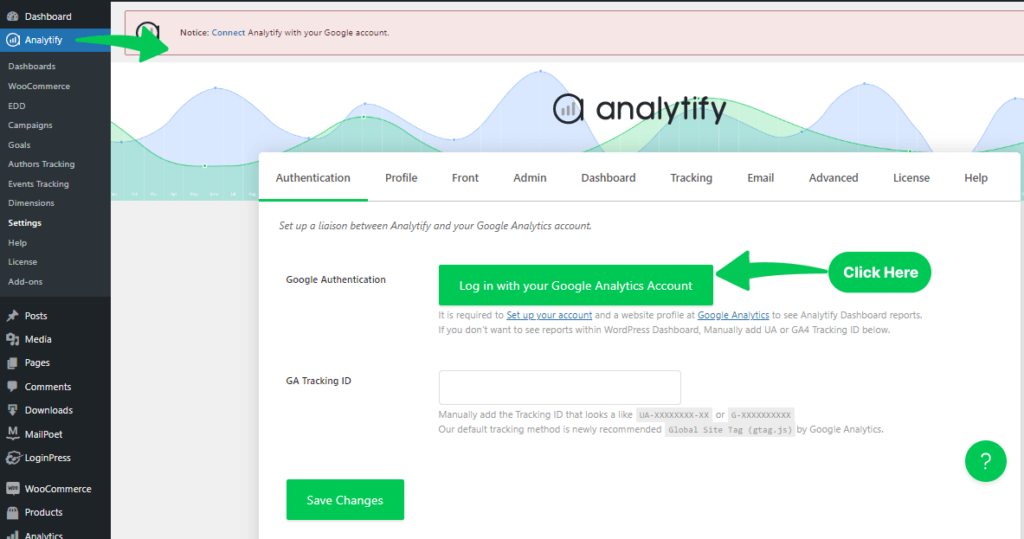
Analytify connects to GA4 in just a few clicks. Install the Analytify plugin on your WordPress site. It will automatically connect your site to Google Analytics 4.
2. No Need for Extra Code
GA4 setup normally means adding tracking code to your site yourself. Analytify skips that: install the plugin and it connects your site to GA4 without any code.
3. Privacy-Friendly Tracking
Since Analytify works with GA4, it follows the privacy rules automatically. GA4 uses first-party cookies and event-based tracking to gather information without invading anyone’s privacy. You don’t have to worry about breaking any rules. Analytify helps you stay compliant with laws like GDPR.
4. Quick Access to Reports
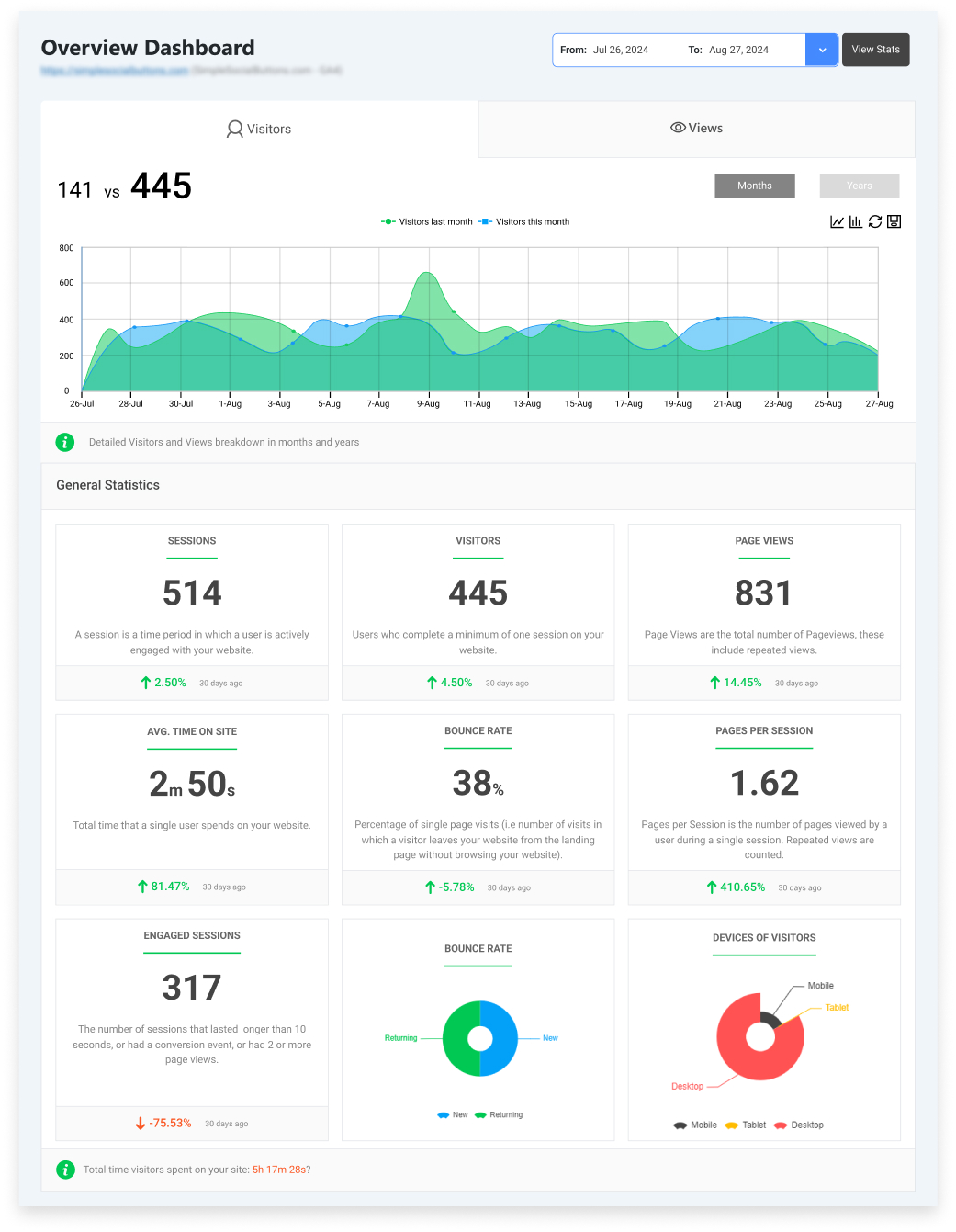
Once Analytify is set up, you can see your website’s data right from your WordPress dashboard. You’ll get reports on how many people visited your site and what pages they looked at. You’ll also see how long they stayed, all in real-time. You don’t need to keep switching between different tools.
5. Helps You Track Important Events
With GA4’s event-based tracking, Analytify tracks clicks, form submissions, and purchases automatically. You can see how people use your site even when cookies are blocked.
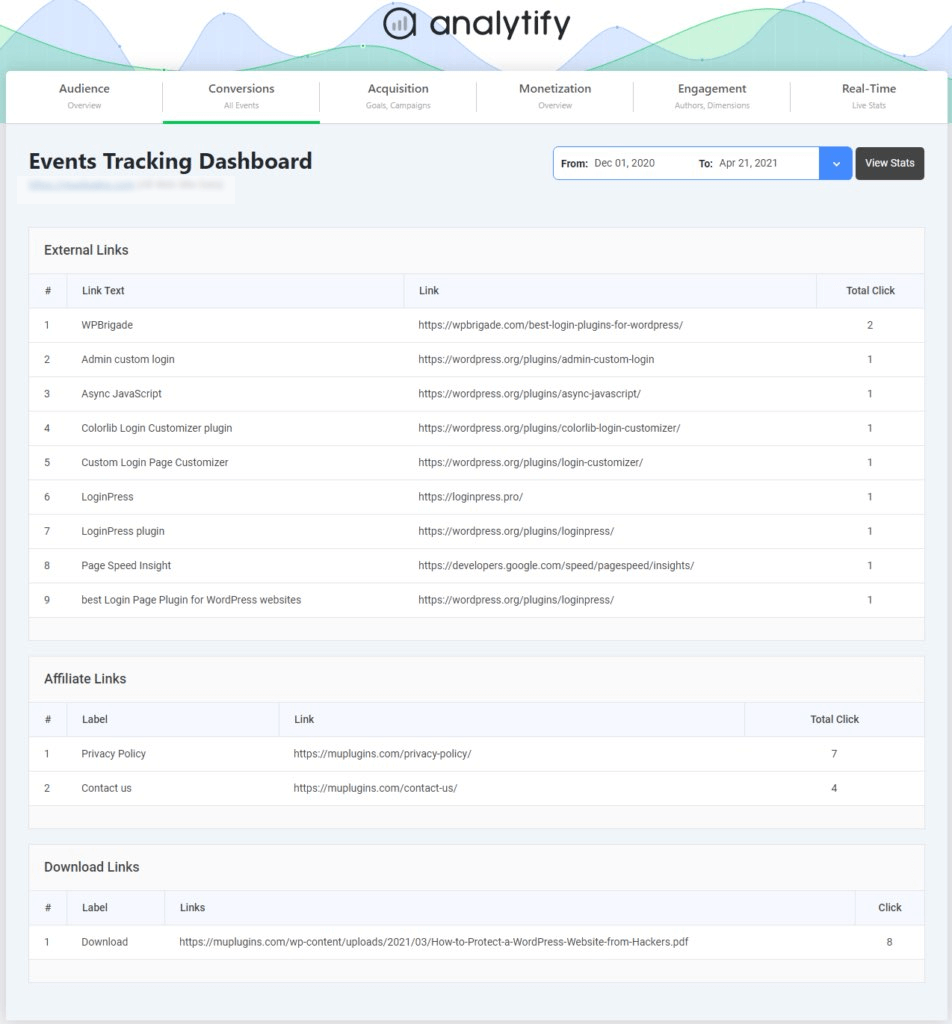
See your GA4 event data inside WordPress: install Analytify to track cookieless-ready conversions without writing code.
Frequently Asked Questions
1. Does GA4 track without cookies? If so, how?
Yes. GA4 can track user activity without relying on cookies. It uses first-party cookies, which are more privacy-friendly. GA4 also uses event-based tracking and machine learning to fill gaps when cookies are blocked.
2. How does cookieless tracking affect eCommerce businesses using GA4?
Cookieless tracking still lets eCommerce businesses track important actions like purchases, product views, and cart additions. GA4’s event-based tracking monitors user behavior even when cookies are disabled. Cross-device tracking may be slightly less accurate.
3. What is the difference between first-party and third-party cookies?
First-party cookies are placed by the website you’re visiting and only track activity on that site. Third-party cookies track you across multiple sites and are commonly used by advertisers to build profiles. GA4 relies on first-party cookies to protect privacy.
4. Can I still use GA4 for remarketing if I’m using cookieless tracking?
Yes, GA4 can still support remarketing even in a cookieless environment. However, remarketing may be less accurate if cookies are blocked. Consent Mode and event-based tracking help to continue remarketing efforts while respecting user privacy.
5. How does GA4 handle privacy compliance in 2026?
GA4 is designed to comply with privacy laws like GDPR and CCPA. It uses first-party cookies, event-based tracking, and machine learning to gather data without violating user privacy. You can also configure data retention settings to limit how long data is stored.
Set Up Cookieless Tracking in GA4 Today
See your GA4 data inside WordPress. Install Analytify to set up cookieless-ready tracking without touching GTM or code.
Further Readings:
How are you planning to adjust your website’s tracking for GA4 privacy-friendly tracking in the future?

 Halloween Sale: Know which campaigns drive sales this season.