
How to Add a Property to Google Analytics (GA4)
In this knowledge-based article, we’ll show you how to add a property to Google Analytics.
We’ll keep it simple and easy to follow.
Let’s get started!
Add Google Analytics Property (TOC):
Step-by-Step Guide to Create a GA4 Property
Let’s follow a simple step-by-step guide to add a property to Google Analytics.
Step 1: Log in to Google Analytics
- Go to Google Analytics.
- Sign in using your Google account.
Step 2: Go to Admin Settings in GA4
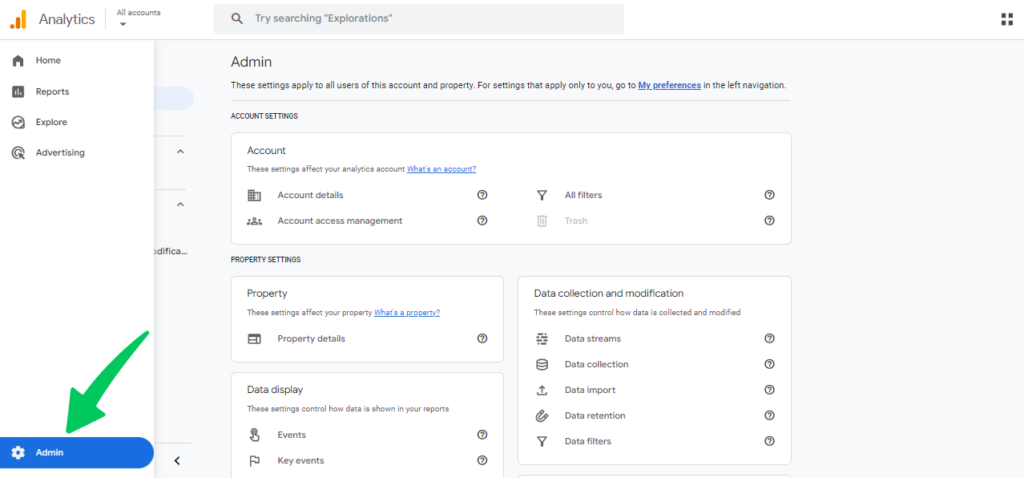
- After logging in, look at the bottom-left corner of your screen.
- Click on the gear icon labeled Admin.
Step 3: Create a New Property
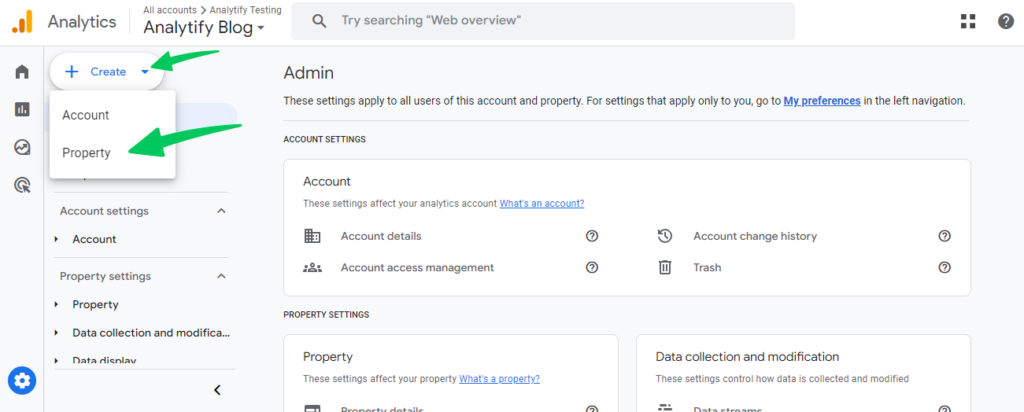
Next, click on Create >> Property to create a new property.
Step 4: Enter Property Information in GA4
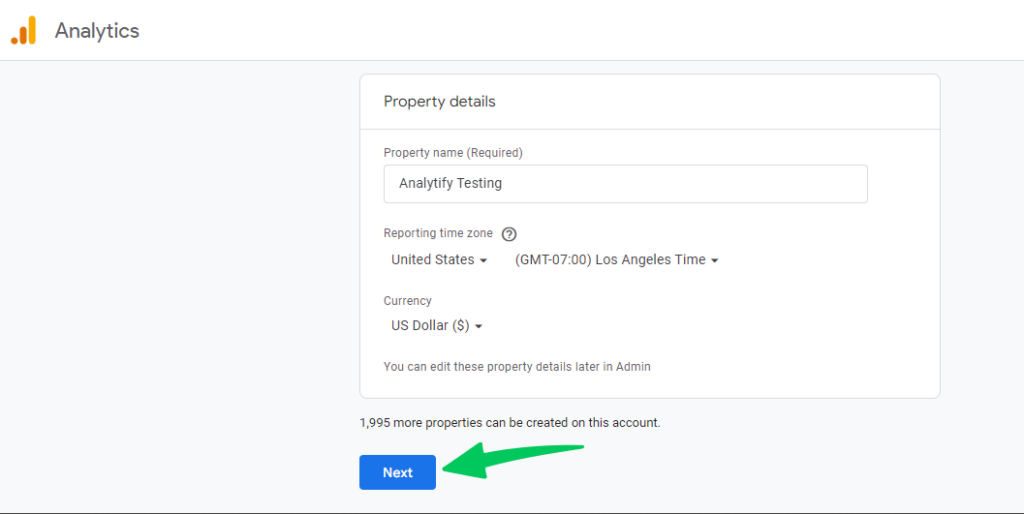
- Fill in the property name (this is your website or app name).
- Choose your time zone and currency for reports.
- Click Next.
Step 5: Add Business Info
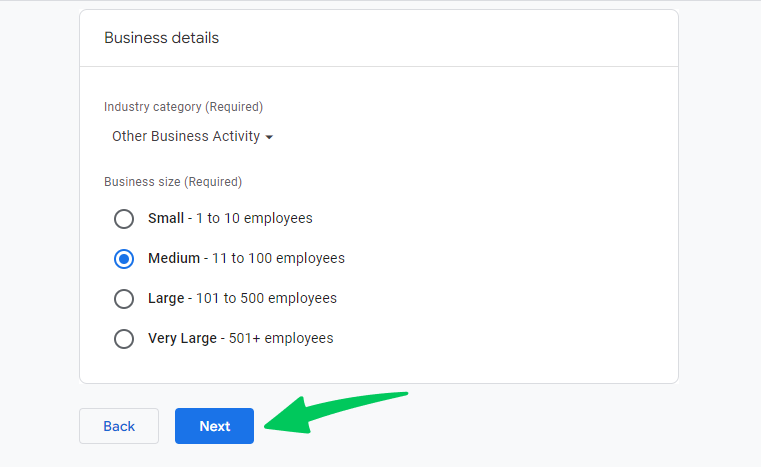
- Next, you will be asked for basic business details, i.e., Industry category and Business size.
- Fill in the required information and click Create.
Step 6: Decide Business Objectives
- Next, you will be asked to select business objectives.
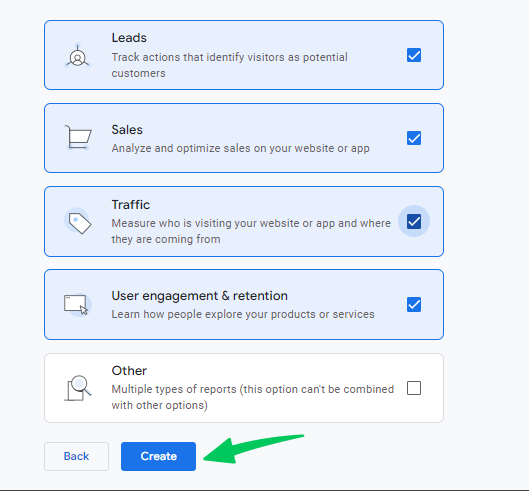
After selecting your business objectives, click on Create.
After creating the Google Analytics property, you’ll be navigated to the new tab to create Data Stream.
You’ll also see a note: “Property (name) created” at the bottom of the page, as shown in below screenshot:
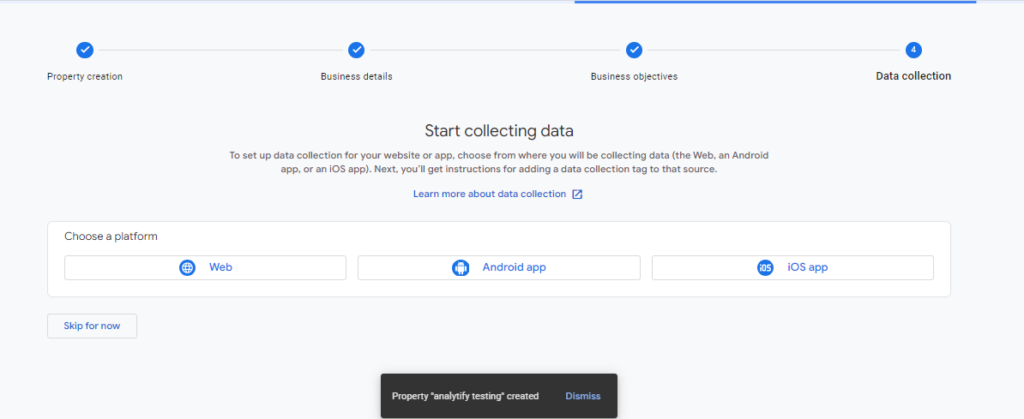
Next, you will need to set up a data stream to track your website. Setting up data stream is necessary to add site to Google Analytics.
While setting up the Data stream, instead of manually adding the tracking code, use Analytify, the WordPress plugin. It automatically connects your WordPress site to Google Analytics, making the process easier.
Join 50,000+ beginners & professionals who use Analytify to simplify their Google Analytics!
That’s it! Now you know how to add a GA4 property in Google Analytics.
If you have any further queries, please contact our support team.