
How to Track User Engagement by Device in GA4 (2026)

Ever noticed that your website traffic looks strong? But mobile users don’t engage or convert the same way desktop users do?
That’s where learning how to track user engagement by device in GA4 becomes essential. Users behave very differently across mobile, desktop, and tablet devices, yet many teams still analyze engagement as a single metric.
This often creates blind spots, such as high overall traffic but poor mobile engagement, or most conversions happening on desktop while mobile users drop off.
GA4 solves this by providing device-level engagement data that shows how people truly interact on each device.
In this guide, you’ll learn what user engagement really means in GA4, which device-level metrics matter most, and how to view and compare device data step by step. We’ll also show how WordPress users can simplify device tracking using Analytify.
Let’s get started!
Table of Contents:
What “User Engagement” Means in GA4 (and Why Device Context Changes It)
In GA4, user engagement shows how actively people interact with your website or app, not just whether they visited a page.
Unlike pageviews, engagement focuses on meaningful actions such as time spent, scrolling, clicks, and event completion.
A session with multiple quick page visits may generate high pageviews but still reflect low engagement. In contrast, a user who spends time on a single page, scrolls, interacts with elements, or triggers events is considered highly engaged.
GA4 captures this behavior mainly through engaged sessions and engagement time, providing a more accurate picture of real user activity.
When you track user engagement by device in GA4, it becomes clear that mobile, desktop, and tablet users behave very differently.
- Mobile users typically scroll faster, rely on touch-based interactions, and complete tasks more efficiently. This often leads to shorter sessions, which doesn’t necessarily mean low engagement. It may simply indicate quick, goal-focused browsing.
- Desktop users, in contrast, tend to spend more time on pages, explore content in greater depth, and interact more with detailed elements like forms and navigation menus.
Understanding these device-specific behaviors allows you to evaluate engagement more accurately.
Key GA4 Engagement Metrics to Analyze by Device
Here are the key GA4 device engagement metrics you should focus on to get clear and useful insights:
1. Engaged Sessions by Device
An engaged session in GA4 is any session that meets at least one of these criteria:
- Lasts 10 seconds or longer
- Includes one or more conversion events
- Has two or more pageviews or screenviews
This metric is more meaningful than just counting total sessions because it filters out users who leave immediately without interacting.
Example: Imagine your website gets 500 mobile sessions in a day. Only 200 of those meet the engaged session criteria, while 250 out of 300 desktop sessions are engaged.
Here, mobile traffic is higher, but desktop users are more actively interacting. This suggests the desktop may be performing better in terms of meaningful engagement.
2. Engagement Rate and Average Engagement Time
Engagement rate shows the percentage of sessions that are considered “engaged.” The engagement rate is then calculated as:
Engaged Sessions ÷ Total Sessions × 100
This metric shows the percentage of your traffic that is actually engaging meaningfully with your site or app.
Average engagement time measures how long users actively interact with your website or app during a session. ignoring idle time.
Device Engagement Trends:
- Desktop sessions often show higher average engagement time because users browse more thoroughly.
- Mobile sessions may have higher engagement rates but shorter time per session due to quick scanning or multitasking.
3. Event-Based Interactions (Clicks, Scrolls, CTAs)
Events matter more than time because they show real user actions. GA4 automatically tracks events like clicks, scrolls, form submissions, and CTA interactions, or you can set them up manually.
Common device-level engagement events include scroll depth on mobile, button taps, menu interactions, and CTA clicks on desktop.
Focusing on these events gives a clearer view of how users engage on each device, helping you make better decisions.
How to View Device Engagement Data in GA4 (Step-by-Step)
GA4 lets you view device engagement data in standard reports. Below are two simple ways to see the device category (mobile, desktop, tablet) directly inside GA4 reports:
Method 1: Device Category in Standard GA4 Reports
Here are a few ways to view device category in standard GA4 reports:
Option 1: View Device Category in Tech Reports (Direct Method)
This is the most direct way to track user engagement by device in GA4.
Steps:
- Open GA4 and go to Reports.
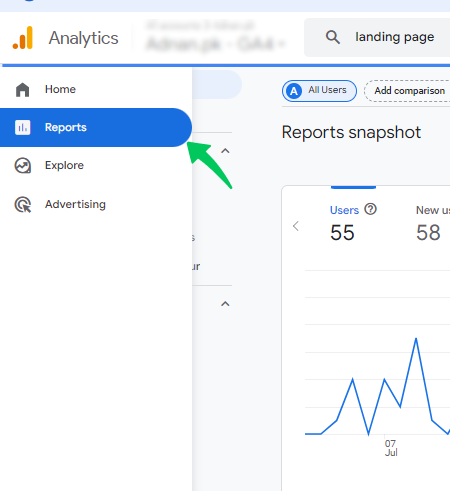
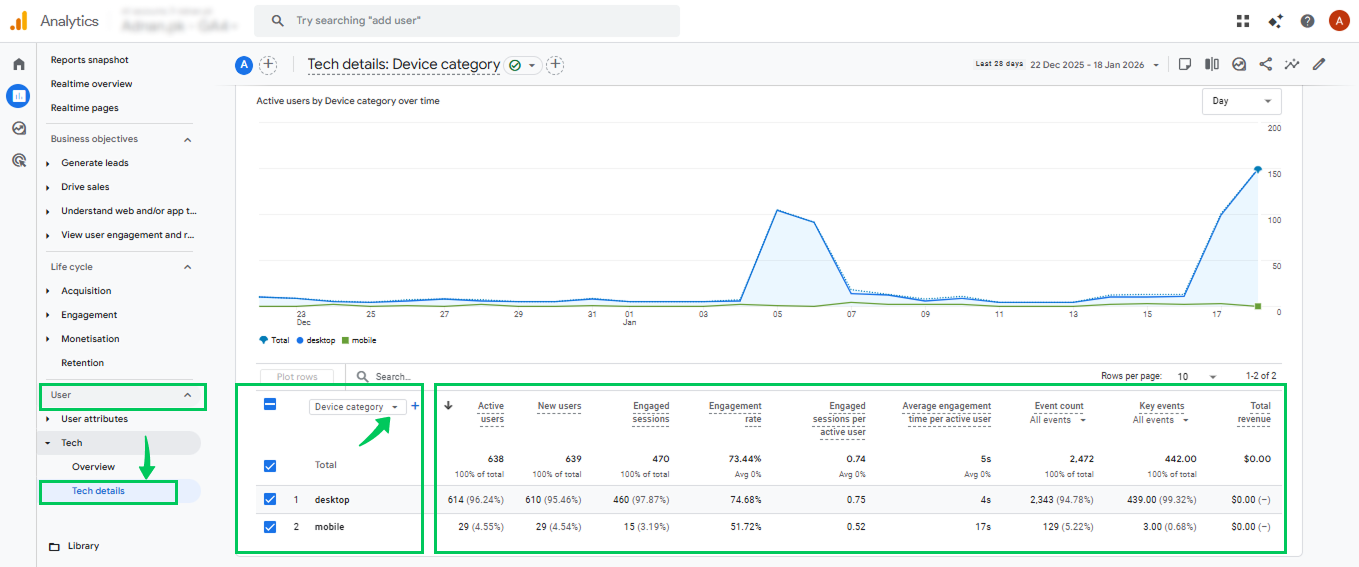
- Click User >> Tech >>Tech details.
- The default primary dimension is “Browser”.
- To change this, click the dimension dropdown arrow.
- Then, select the Device category.
- GA4 will now show data for mobile, desktop, and tablet.
- Review key GA4 device engagement metrics such as:
- Engaged sessions
- Engagement rate
- Average engagement time
- Event count
- You can also switch to the Tech overview report to view visual graphs that clearly show mobile vs desktop analytics at a glance. This makes it easier to identify differences in engagement across devices.
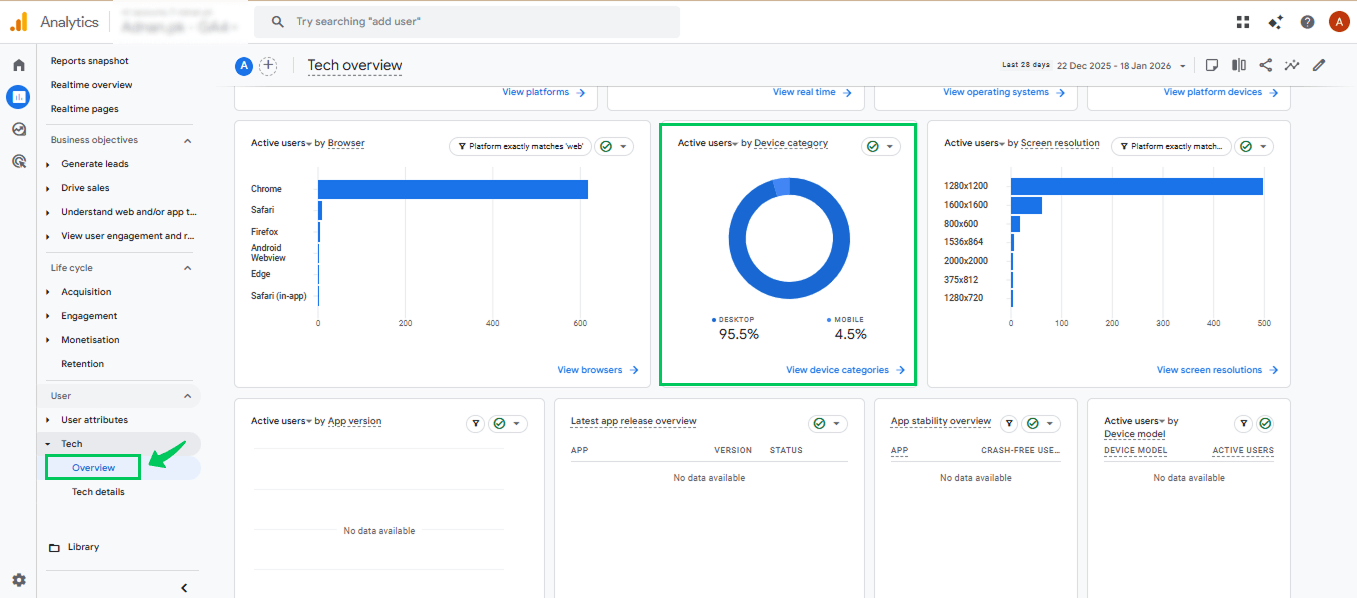
This view is ideal for quickly comparing mobile vs desktop analytics in GA4 and spotting high-level engagement trends.
Option 2: Add Device Category as a Secondary Dimension in Engagement Reports
The GA4 device category is not limited to Tech reports only. You can also use it across other reports, such as Engagement, Acquisition, Landing pages, and Events, to better understand user behavior by device GA4.
To show how this works, here’s a simple demo using the Pages and screens report under the Engagement section:
Steps:
- Go to Reports >> Engagement >> Pages and screens
(You can apply the same method in Landing page, Events, or Acquisition reports.) - Click the secondary dimension dropdown arrow in the table.
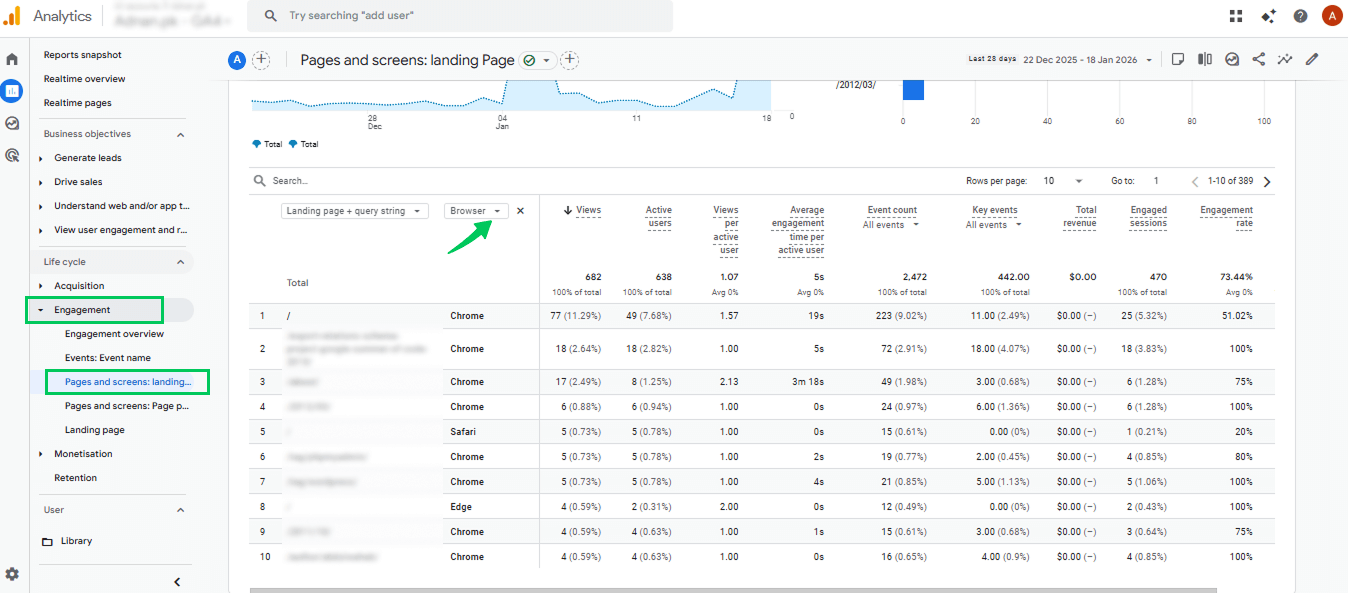
- Add Device category as a secondary dimension.
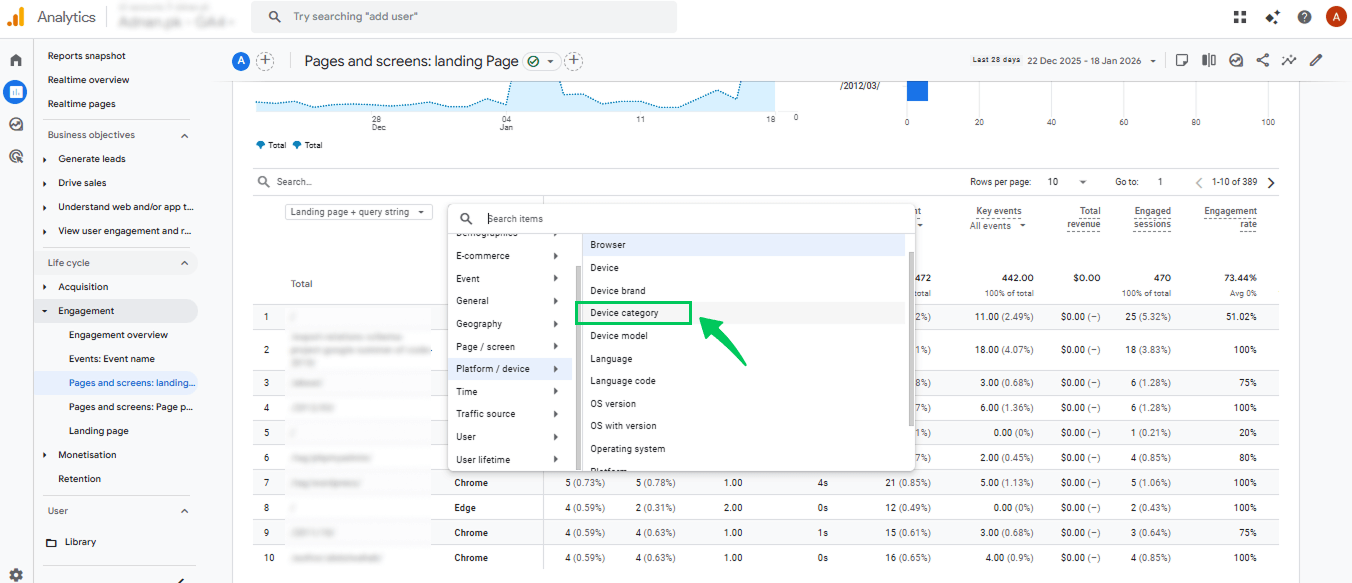
- GA4 will now display engagement data broken down by mobile, desktop, and tablet.
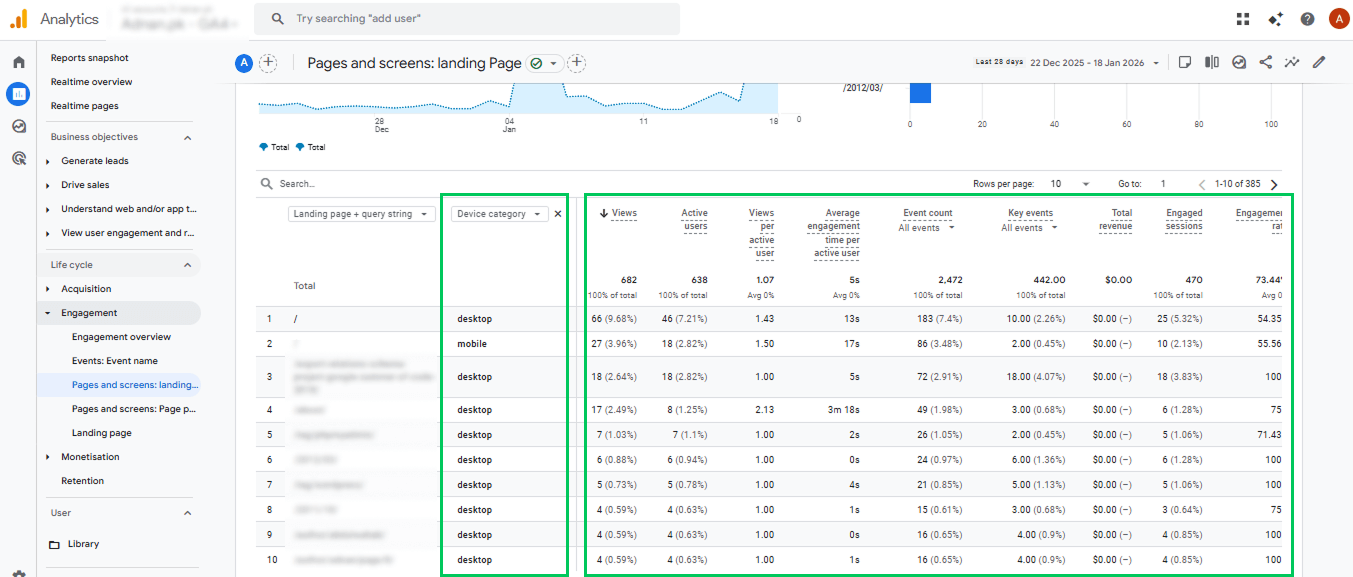
With this setup, you can easily review key GA4 device engagement metrics for each page and device type.
Method 2: Device Comparisons Using GA4 Explorations
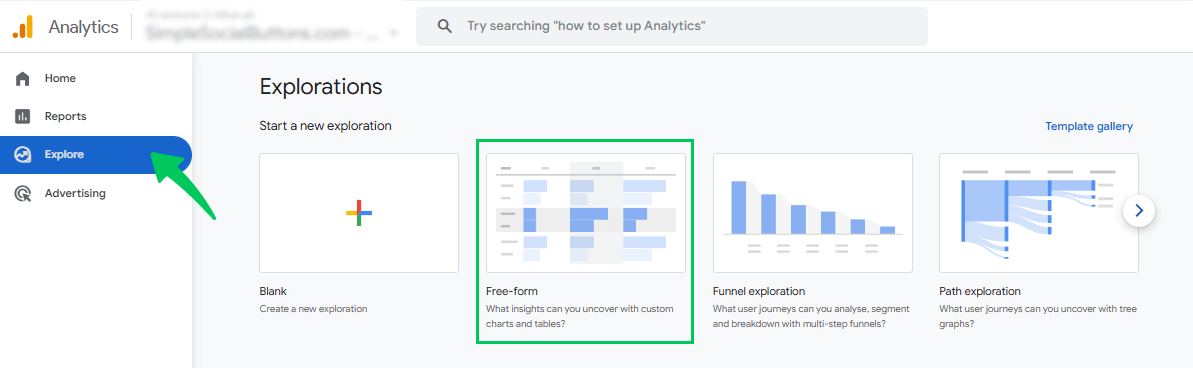
Here are the following steps you can follow to create device comparisons using GA4 explorations:
- Go to Explore >> Free form.
- Add the Device category as a Dimension.
- Add engagement Metrics such as:
- Engaged sessions
- Engagement rate
- Average engagement time
- Event count
- Engaged sessions
- Drag the Device category into the Rows section.
- Drag your selected metrics into the Values section.
GA4 will now display a clear table comparing mobile, desktop, and tablet engagement.
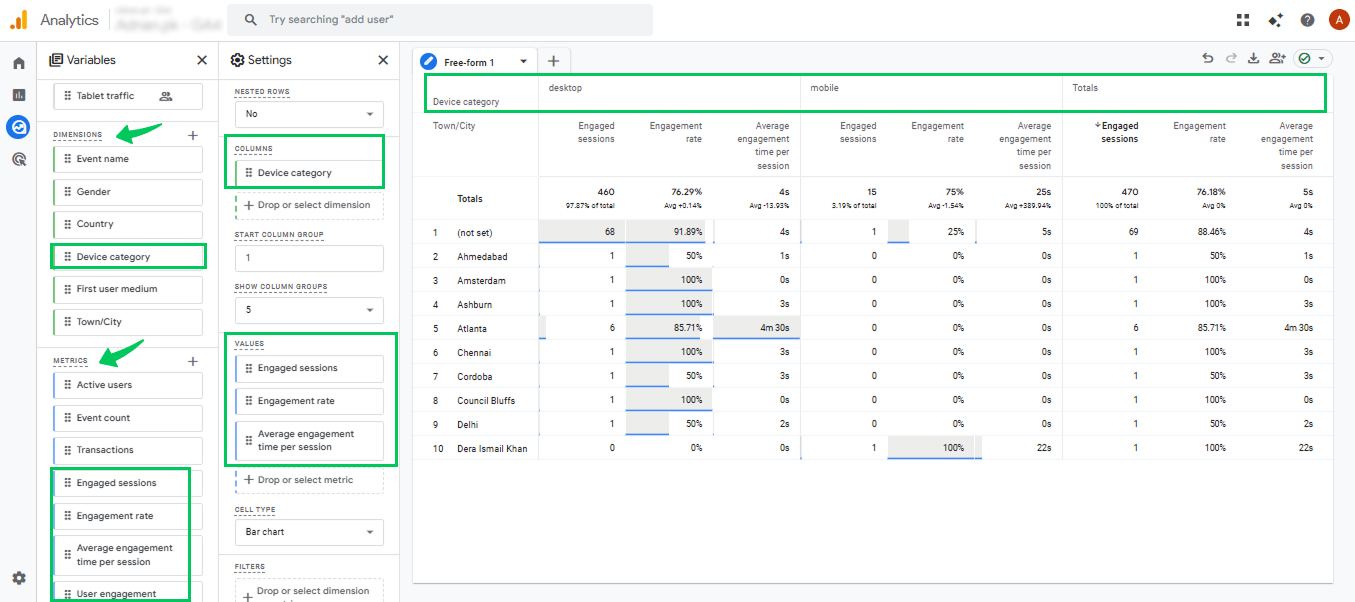
GA4 Explorations can be complex and time-consuming due to manual setup, so many users prefer simpler reporting for everyday GA4 device engagement analysis.
Mobile vs Desktop Analytics: How to Compare Devices Correctly
Comparing mobile vs desktop analytics in GA4 isn’t just about checking numbers. You need a simple, step-by-step approach to interpret device data accurately:
Step 1: Start with one engagement metric
Pick a single metric to focus on first, like engagement rate or time. Trying to compare everything at once can be confusing and misleading.
Step 2: Compare trends, not raw numbers
Don’t get distracted by which device has bigger numbers. Mobile often has more sessions, but desktop may have longer engagement. Look at how metrics change over time to identify real patterns.
Step 3: Align device data with page intent
Understand the purpose of each page. For example, users may scroll quickly on blog posts (mobile), but take longer to fill a lead form (desktop). Metrics should be interpreted in context.
Step 4: Segment by key pages
Break down your analysis by landing pages, product pages, or blog content. This helps you see where mobile or desktop users perform differently and reveals opportunities for optimization.
Step 5: Identify actionable gaps, not “winning devices”
The goal isn’t to declare a winner. Instead, identify areas where a single device underperforms. For instance, if mobile users drop off on a checkout page, that’s an actionable insight.
Example Scenarios:
- Ecommerce: Mobile traffic is high, but desktop has higher conversions. Focus on improving the mobile checkout flow.
- Lead Generation: Desktop users complete forms faster, while mobile users bounce early. Test mobile-friendly forms and buttons.
- Content Sites: Mobile readers scroll quickly through articles. Consider breaking content into smaller sections or adding sticky navigation for better engagement.
How to Track User Engagement by Device in WordPress (Using Analytify)
Join 50,000+ beginners & professionals who use Analytify to simplify their Google Analytics!
Tracking user engagement by device in GA4 is powerful, but for many WordPress users, it can also be confusing. The essential device insights are often hidden behind multiple reports.
Analytify simplifies this by bringing GA4 data directly into your WordPress dashboard in a clear, easy-to-understand format.
With just a few clicks, you can see how mobile, desktop, and tablet users interact with your site without building custom reports or using Explorations.
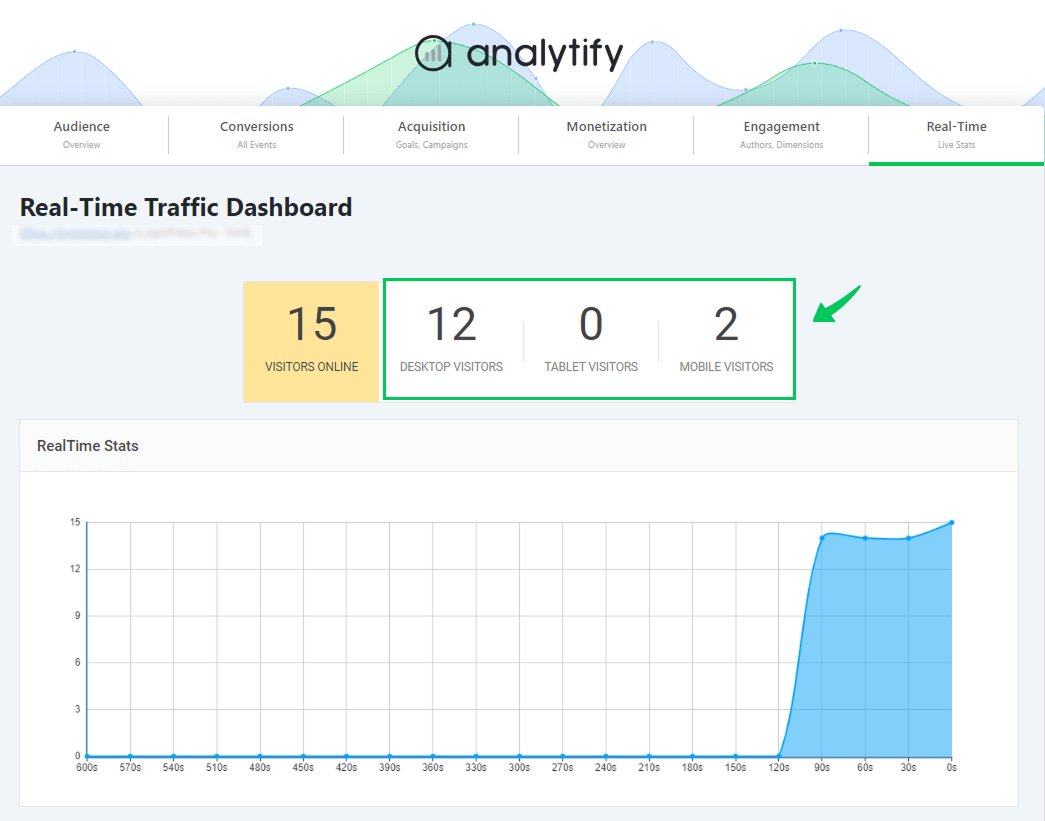
The Realtime Dashboard shows how many users are currently online and which devices they’re using (mobile, desktop, or tablet).
This allows you to instantly confirm whether low mobile engagement is a temporary traffic spike or a real UX issue, without building GA4 comparisons.
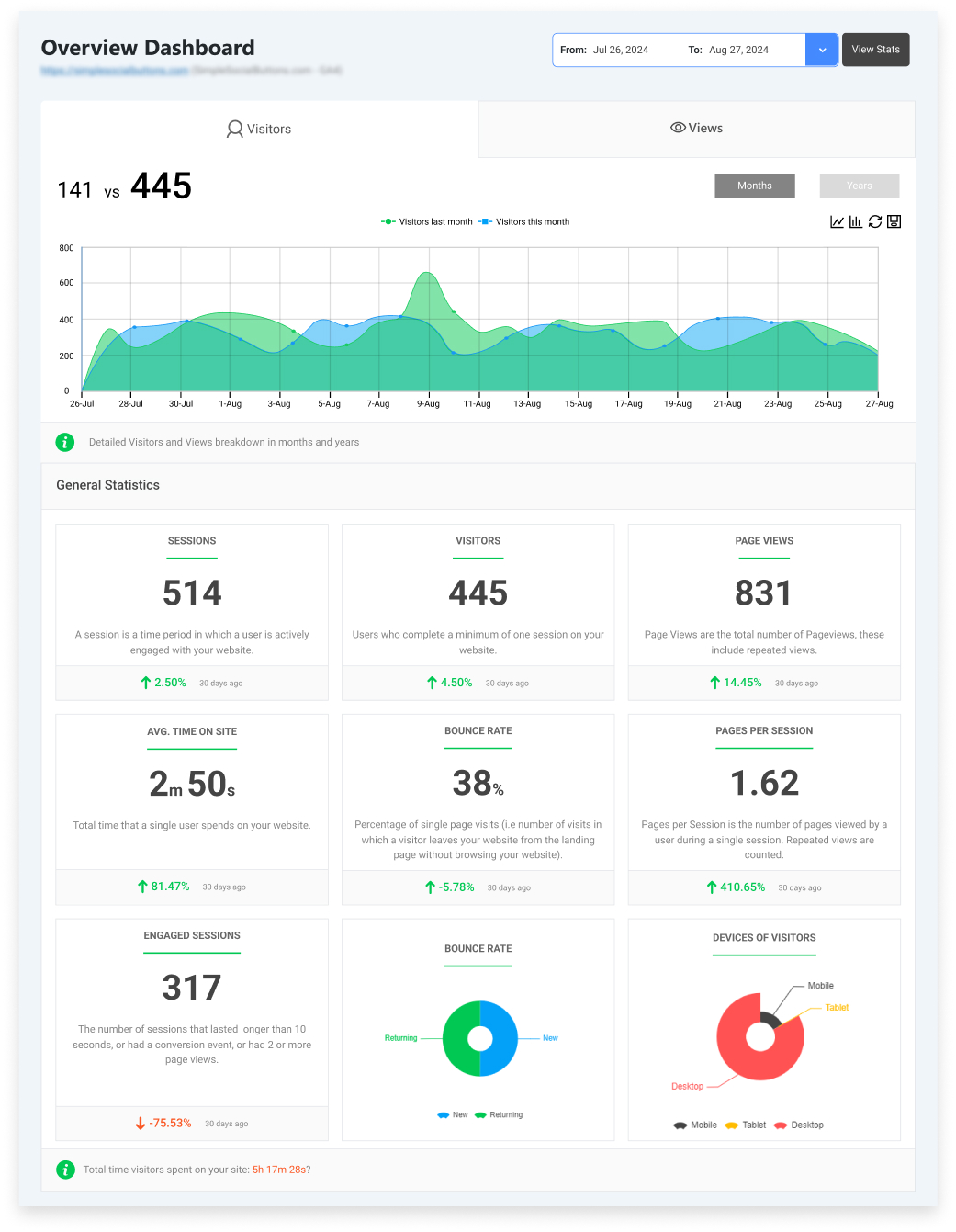
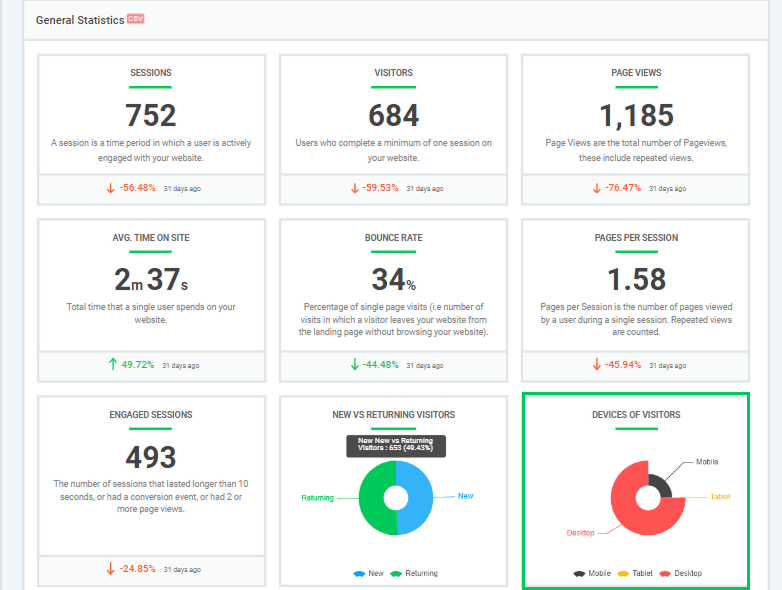
Analytify also provides mobile vs desktop analytics at a glance, making behavior differences easy to spot and saving your time and effort.
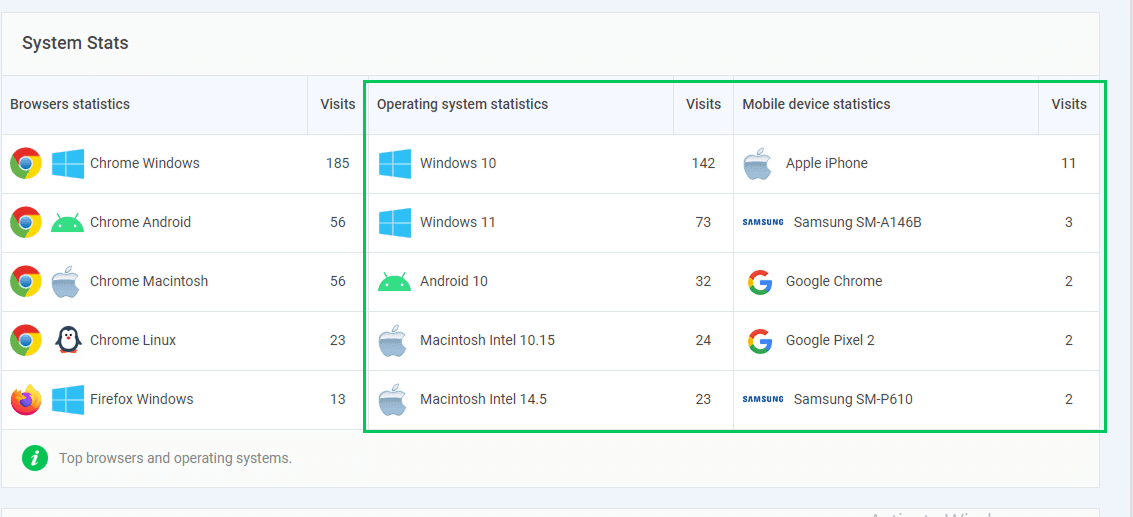
The System Statistics report breaks down visits by browser, operating system, and specific devices (like iPhone models, Android devices, or desktop systems). It gives you insights to optimize UX and performance for your most-used devices.
Because everything is visual and organized, you don’t need technical knowledge or GA4 expertise. There’s no need to set up complex filters, comparisons, or custom configurations.
You can focus on outcomes: save time, make better decisions, and avoid the complexity of GA4 reports.
These device-focused insights are perfect for UX audits, CRO improvements, and performance optimization, like fixing slow-loading mobile pages or tailoring CTAs by device.
In short, Analytify turns GA4’s complex device data into practical, actionable insights you can use directly inside WordPress.
Common Device-Based Engagement Problems (and What the Data Is Really Telling You)
When analyzing engagement by device in GA4, some trends may seem concerning at first, but most reflect normal differences in user behavior. Here are some common issues and what they usually mean:
- High mobile traffic, low engagement
- What usually causes it: Mobile users often browse quickly, scroll faster, or look for quick answers. Shorter sessions make GA4 device engagement metrics, such as average time and events per session, appear lower.
- Which metric confirms it? Compare engaged sessions and events per session. High event activity with low session time usually isn’t a problem.
- What usually causes it: Mobile users often browse quickly, scroll faster, or look for quick answers. Shorter sessions make GA4 device engagement metrics, such as average time and events per session, appear lower.
- Desktop-heavy conversions
- What usually causes it: Some tasks, like form submissions or purchases, are easier on desktops than on mobile devices. Users may browse on mobile but convert on desktop.
- Which metric confirms it: Look at conversions by device, desktop may show higher completion rates even if mobile traffic is bigger.
- What usually causes it: Some tasks, like form submissions or purchases, are easier on desktops than on mobile devices. Users may browse on mobile but convert on desktop.
- Tablet data distortion
- What usually causes it: Tablet traffic is often small, inconsistent, or misclassified by GA4. Minor changes can look like big swings, so even a few extra visits or users leaving can make engagement numbers look like they jumped or dropped a lot.
- Which metric confirms it: Check sessions and engagement rate, big swings in tablet data often just reflect the small number of users, not a real problem.
- What usually causes it: Tablet traffic is often small, inconsistent, or misclassified by GA4. Minor changes can look like big swings, so even a few extra visits or users leaving can make engagement numbers look like they jumped or dropped a lot.
- Sudden device-specific drops
- What usually causes it: Tracking code issues, site updates, or browser changes can affect one device type.
- Which metric confirms it: Look at engaged sessions and events over time, drops that don’t match overall traffic indicate technical issues rather than behavior changes.
- What usually causes it: Tracking code issues, site updates, or browser changes can affect one device type.
Using Device Engagement Data to Improve UX and Conversions
You can use GA4 device engagement data to make decisions that improve user experience and boost conversions. Here’s how:
- Prioritize mobile UX fixes: Identify pages with low mobile engagement and address issues such as slow load times, small text, or complex navigation.
- Adjust CTAs by device: Test CTA size, placement, and messaging separately for mobile, desktop, and tablet users to increase clicks and conversions.
- Align content layout with device behavior: Place key content where users naturally focus, mobile users scroll faster, while desktop users explore more deeply.
- Optimize forms for each device: Simplify mobile forms by reducing fields and offering easier input options to reduce drop-offs.
- Improve page speed per device: Mobile users are sensitive to slow load times, so optimize images and scripts for faster performance.
- Test interactive elements: Ensure sliders, menus, and videos work smoothly across all devices.
- Measure impact after changes: Use GA4 engagement and conversion metrics to confirm what improvements actually work.
Frequently Asked Questions
1. What does the GA4 device category mean?
The GA4 device category is a dimension that splits your analytics into mobile, desktop, and tablet so you can see how each device type is performing.
2. How do I track user engagement by device in GA4?
You can view device engagement in standard reports (Tech details) and add device category as a dimension in engagement or acquisition reports for cross‑device comparisons.
3. What are common GA4 device engagement metrics I should look at?
Key metrics include engaged sessions, engagement rate, sessions per user, total users, and conversions by device. These help you understand how users interact across mobile, desktop, and tablet devices.
4. Why does mobile engagement sometimes look lower than desktop engagement?
Mobile behavior can be quicker or more focused on specific tasks, so metrics like engagement time may appear lower even if users are interacting meaningfully. Comparing trends and events provides better insight than raw numbers alone.
5. Can GA4 tell if the same user visits on mobile and desktop?
GA4 can track some cross‑device behavior if you use Google Signals or a consistent user ID, but it doesn’t automatically link all visits across devices without additional setup.
Final Thoughts: Track User Engagement by Devices
First, we explained what user engagement means in GA4 and how mobile, desktop, and tablet users differ. Then, we covered key GA4 device engagement metrics like engaged sessions, engagement rate, average engagement time, and events.
Next, we showed how to view device engagement data using standard reports, secondary dimensions, and GA4 Explorations. We discussed mobile vs desktop analytics with a clear framework for comparing trends, not just numbers.
For WordPress users, we highlighted Analytify for easy device-based tracking. We also reviewed common device-specific issues and how to identify real problems versus normal behavior.
Finally, we shared a practical playbook to improve UX and conversions through optimized layouts, CTAs, and mobile-friendly adjustments.
For further guidance, you can read:
- User Journeys in GA4: How to Track Every Step on Your WordPress Site
- Real-Time Analytics for WordPress: Why Instant Insights Matter in 2026
Which device insights surprised you the most in your GA4 reports? Share your experiences or tips in the comments below. We’d love to hear how you track user engagement by device.